Pages
This section lists the individual pages with their fields and menus.
This documentation is structured according to the "Single Source of Truth" principle. This means that there is only one place where each definition appears. For this reason, you will generally not find any explanations of the individual fields in these sections, but only references to the index or to other sections. The exception to this are fields that fulfill a unique or special function at the specific location.
Business Central Homepage
We have prepared a special start page for the WMS with special information tiles and actions that make working with the SIEVERS WMS much easier. You will be shown these actions and info tiles if you have assigned the role SNC SIEVERS WMS.
Menu
The menu is structured as follows by default:
- Source Documents
- Purchase orders
- Sales Orders
- Transfers & Return Orders
- Transfer Orders
- Sales Return Orders
- Purchase Return Order
- Item Journals
- Production & Assembly Orders
- Production Orders
- Assembly Orders
- Outside Storage
- Stock Documents
- SNCL Warehouse Receipts
- Inbound Stock Posts
- Warehouse Shipment Planning
- Outbound Stock Posts
- Outbound Stock Post Lines
- Move Jobs
- Move Job Lines
- Picking Documents
- Picking Series
- Series Distribution
- Packaging List
- Shipment Process Overview
- Stocktakings
- Empties
- Empties Journal Lines
- Empties Journals
- Empties Journals Report
- Warehouse
- Items
- [Inventory](#snc-Load Carrier-inventory)
- SNCL Load Carriers
- Blanco Barcode
- Storage Place List
- Picking and Production Storage Place
- Stockkeeping units
- Mobile
- SNC Mobile Login
- SNC Mobile user
- SNC Mobile Mobile Forms
- SNC Help for Mobile Masks
- SNC Mobile Setup Wizard
- History
- SNCL Stock Entries
- Item Ledger Entries
- Posted Stock Documents
- Posted Inbound Stock Posts
- Posted Warehouse Receipts
- [Posted Outbound Stock Posts](#sncl-post-Outbound Stock Post)
- Posted Warehouse Shipments
- Posted Move Jobs
- Posted Picking Documents
- Posted Packaging Process Overview
- Posted Shipment Process Overview
- Posted Stocktaking
- Posted Load Carrier
- Posted Origin Documents
- Posted Purchase Receipt
- Posted Sales Shipments
- Posted Transfer Shipments
- Posted Transfer Receipts
- Posted Return Shipments
- Posted Assembly Orders
- Finished Production Orders
- Posted Outside Storage Documents
- Posted Inbound Stock Post Orders
- Posted Outbound Stock Post Orders
- Posted Service Orders
- Posted Invoices
- Setup
- General
- SIEVERS WMS Setup
- No. Series
- SNCL Stock No. Series
- Base Unit Of Measure List
- Unit Conversion List
- Topology and Inventory Measures
- Order Type, Shipping Agent & Priorities
- Order Type
- Order Type Category
- Shipping Agents
- Weekday Priorities
- Strategies
- SIEVERS WMS Teams
- Floor Conveyor Vehicles
- Warehouse Shipment Automation
- Printing
- SNCL Printer Station LIst
- SNCL Report Selection
- SNCL Report Assignment
- Paper Tray List
- Virtual Printer Card
- General
- All reports
Actions
- Whse. Ship. Automation
- Outbound Stock Post Automation
- Blanco Barcode
- Check Replenishment
- Production Storage Place Replenishment
- Release Items For Picking
- Cancel Released Items
- Stocktaking Report
Tiles
The following tiles are shown by default:
- Incoming
- Orders (Released): Purchase orders with the state Released
- Receipts Notified: Warehouse receipts with the state 0-Notified
- Receipts Processing: Warehouse receipts with the states 1-Recorded or 2-Released
- Receipts Clearing: Warehouse receipts with the states 3-Clearing EK or 4-Clearing QS
- Warehouse Receipt Lines: All Warehouse Receipt Lines
- Storage Load Carriers Receipt: All storage Load Carriers with the state 1-Rceipt Processing
- Inbound Stock Posts: All Inbound Stock Posts
- Inbound Stock Post Move Job - Lines: Shows all move jobs with the type Inbound Stock Post
- Shipment
- Orders (Released): Sales orders with the state Released
- Warehouse Shipments & Partial: Warehouse Shipment Planning filtered on the Partial Shipment indicator
- Warehouse Shipments: Opens Warehouse Shipment Planning
- Warehouse Shipments Curr. Week: Warehouse Shipment Planning filtered to First loading date in the current week
- Warehouse Shipments Today: Warehouse Shipment Planning filtered to First loading date today
- Outbound Stock Post open: SNCL Outbound Stock Posts with states Processing or Preparing
- Outbound Stock Post Lines: All Outbound Stock Post Lines
- Lines without Picking Teams: All Outbound Stock Post lines that are not assigned to a picking team or have the state 0-Created
- Picking Documents: Picking documents with the states 1-Printed, 2-Released or 3-In progress
- Picking Positions: All picking items
- Picking Full Load Carriers: Picking documents with the states 1-Printed, 2-Released or 3-In progress, at least one full pallet and no partial pallet
- Picking Opening Carriers: Picking documents with the states 1-Printed, 2-Released or 3-In progress, at least one partial pallet and no full pallet
- Packagings: Packaging process overview
- Load Carrier in Packaging Process: SNCL Load Carrier filtered for load carrier type PTU and the state 6-Packed Processing”
- Shipment Processes
- Shipment Processes Today: Shipment process with filter on “loading day” today
- Shipment Processes Curr. Week: Loading process overview with filter on Loading day current week
- SSCC CBM Packed: Shows the volume of the SNCL Load Carrier with filter on load carrier type SSCC and state 7-Packed.
- SSCC T Packed: Shows the weight of the SNCL Load Carriers with filter on load carrier type SSCC and state 7-packed.
- Warehouse
- Blocked Inventories: Inventory list with filter on the Blocked indicator
- Inventory passed Sell-by Date: Inventory list with filter on sell-by date today or before today
- Blocked Storage Places: Inventory list with filter on indicator Blocked
- Free Storage Places: Inventory list with filter on Occupied = Free
- Occupied/Full Storage Places: Inventory list with filter on occupancy = Full or Occupied
- Storage Movements
- Move Jobs: All Move Jobs of the types Storage place transfer, Storage Inbound Stock Post, Return orders, Preparation for loading and Production supply. Not included are Manual Transfer and Retrieval.
- Replenishments: Move Jobs of the type replenishment
- Manual transfers: Move Jobs of type Manual Transfer
- Stocktaking
- Stocktaking
- Third Counting Lists: Shows cycle counting lists No. 3 and their associated stocktakings
- Transfers
Customer Card
On the customer card you will find the additional section SIEVERS WMS. This contains the following setup fields:
- Shipping Advice Rules
- Packing according to shipping address
- Variable for aut. creation of stock doc.: Helpful for automatic Outbound Stock Post document creation. With this variable, you can specify which lines of the Outbound Stock Post automation should be relevant for this customer.
- Whse. Ship. Docum. with GTIN: Activating this setting causes the GTIN to be printed on the shipment list, package content list and packing list export. The setting here overrides the setting of the same name in the SIEVERS WMS setup.
- Outside Storage
- Calculation period
- Calculation start date
- Calculation end date
- Storage charges code
- Storage Code
- {{Outbound Stock Post Code}}
- Stocktaking charges code
- Transfer Charges Code
- Enter Inbound Stock Post/Outbound Stock Post/Stocktaking/Transfer/Assembly Charges automatically
- Stock Time without Invoice
- Recurr. Resources
- Goods Insurance
- Goods Insurance code
- Insurance rate %
- Insurance tax %
- Number of assortments
- {{Over-receipt code}}
SNC Mobile Users
On this page you can define users who use the MDE device.
You can set the following here:
- User ID: The user must log in to Mobile with this ID
- Username: Fixes the user name
- Password: Fixes the user's password
- Location Code: Specifies the Location Code where the user can log in with this login data
- Change Location Allowed: Specifies whether the user can also log in to other locations with their login data
- Logistics team: Specifies the logistics team for the user
- Restrict to Logistics Team: Determines whether the user is allowed to change teams
- Forklift: Assigns a forklift to the user
- Restrict to Forklift: Determines whether the user can change the forklift
- Printer Station: Assigns the user a specific printer station
- Current Form: Shows the mask on which the user is currently located
- Current Step: Shows the step that the user is currently performing
- Language Code: Assigns a default language code to the user
- BC user: Assigns a BC user to the user. Optional
- History active: Specifies whether the user's activities are saved in the SNC Mobile history
- Logged in: Specifies whether the user is currently logged in
- Hostname
Hinweis
Please note that no * may be utilized in the user names and passwords. This is for technical reasons.
SNC Print station list
This page lists the printer stations and their descriptions. You can also create new printer stations.
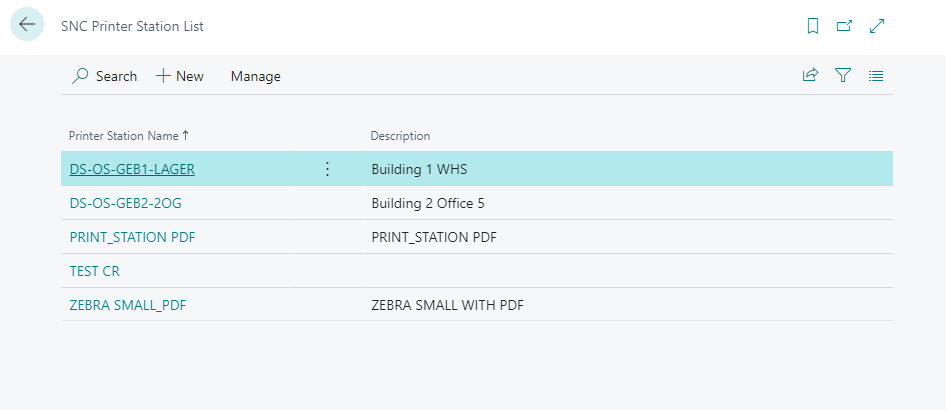
Clicking on a printer station name takes you to the Printer station card.
Printer Station
Use this page to define printer stations and assign printers and the appropriate format to them. You can also print a printer station label via Report.
You assign a printer station
- a printer station name and
- a description.
Further, define
- Number of print attempts: the number of retries the system should make after an unsuccessful print attempt
- Delay between print attempts: Defines the delay in seconds
The printer station is then assigned. To do this, assign existing printers to the formats
- DIN A4 printer,
- Big label,
- Small label
No. Series
On this page you can view, create and manage the created number series. The following fields are available in this table:
- Code
- Starting Date
- Starting No.
- Ending No.
- Last Date Used
- Last No. Used
- Warning No.
- Increment-by No.
- Description
- Default Nos.
- Manual Nos.
- Date Order
- Allow Gaps in Nos.: This flag causes gaps in the number series to be allowed. It is automatically activated when creating a new number series. Important: This flag must be activated for all number series stored in the SIEVERS WMS setup. The system prevents deactivation of the flag for already stored number series and displays an error message. This requirement is mandatory for performance reasons.
SNCL Time Protocol List
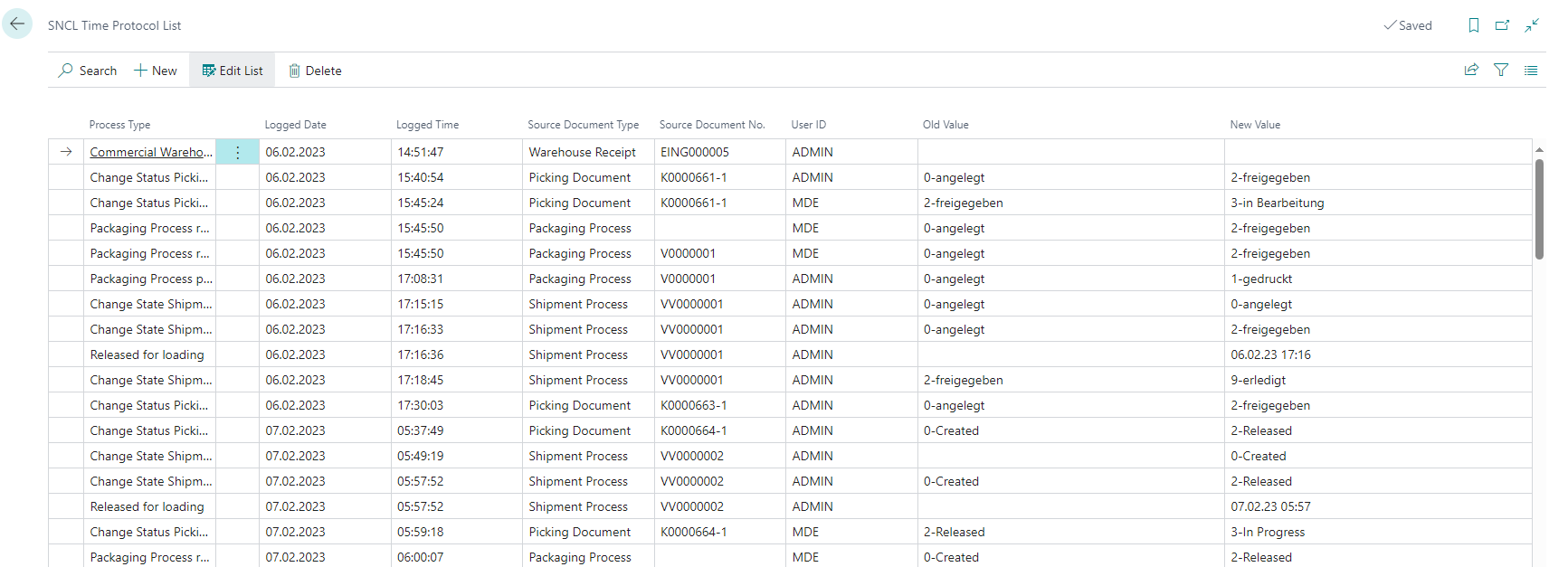
This is the central document log table of SIEVERS WMS. The processes in the system are recorded in this table. You can use this protocol to filter for specific documents and track processing times, for example. This can be useful, for example, to record the necessity or success of process optimizations.
You can find the following information in the table:
- Process type: This action was carried out
- Logged Date: The time of the action
- Logged Time
- Source document type: The document type of the document in which the action was carried out
- Source document no. The document no. of the document in which the action was carried out
- User ID: The user ID of the user who carried out the action
- Old value: The old value before the action
- New value: The new value after the action
SNC Order Types
The basic structure of an Order Type is created here. The properties of an Order Type are defined in more detail in SNC Order Type Category.
- Code
- Description
- Series Creation: Specifies that orders with this order type must always be picked in series
- MOP batch creation: Defines that orders with this order type are generally picked via MOP batch. This means that multiple orders are picked simultaneously but still according to the order into a multi-order rack or similar. See Create MOP Batch.
It is not possible to activate series creation and MOP batch creation simultaneously, as these are fundamentally different picking methods.
SNC Order Type Categories
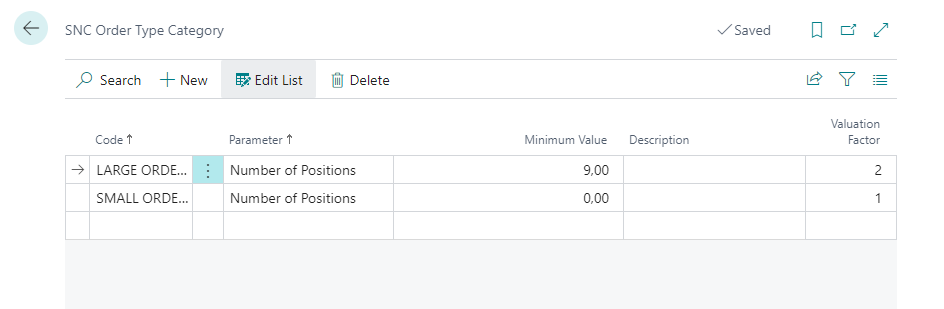
Order Types are defined in more detail on this page. They are used to allow SIEVERS WMS teams to only progress orders of certain sizes.
- Code
- Parameter: Specifies which threshold value is to be used:
- Number of Positions
- Value
- Volume
- Weight
- Complete units
- Total quantity of positions
- Minimum value: Defines the minimum height of the threshold value
- Parameter Unit: Displays the unit matching the parameter from the base unit of measure list
- Description
- Valuation factor: Valuation of the order type
Hinweis
The order types are evaluated in two steps:
- Determination of the order type per parameter. Valuation by position in the list
- Valuation of the item by multiplication with the valuation factor
Item Category Card
The item category card is part of the Business Central standard, but many SIEVERS WMS fields have been added.
SIEVERS WMS
- Inbound Stock Post strategy
- Inventory selection strategy
- Replenishment strategy
- Inventory Swap in a Load Carrier: Enables the swap of inventory within a load carrier. Please read the description in the SIEVERS WMS setup
- Merge Inventories with same Characteristics: If this setting is enabled, the system checks during inbound stock posting to an existing load carrier whether an inventory with the same item (No., Variant, Lot, Sell-by Date) already exists. If so, the quantity is added to the existing inventory. This setting overrides the SWMS setup but is overridden by the item card.
SNC Stocktaking
- {{Quantity Difference}}
- {{Value Difference LCY}}
SNC Assembly & Manufacturing Supply
- Location Code Production
- Supply Class Production
- Providing production
- Provisioning Strategy Code Components
- Replenishment Strategy Code Components: indicates the replenishment strategy to be used for production replenishments.
- Inv. Selection Strategy Code Components: indicates the inventory selection strategy to be used for production
- Output Finished Product
- Inbound Stock Post Strategy Code Finished Products
- {{Storage Place Code Finished Products}}
Item References
This page can be called up for each item via Associated. The references (customer, vendor and barcodes) for this item are stored here. You can also specify which GTIN references are relevant.
- Reference type
- Customer
- Vendor
- Barcode: References with the barcode type are automatically synchronized with the GTIN in the item card.
- Reference type no.
- Reference number: Specifies the linked item number. If you enter a reference between your item number and that of your vendor or customer, this number replaces the standard item number when you enter the reference number on a sales or purchase document.
- Variant code
- Unit of measure: Base unit of the item or resource
- Description: Describes the reference
- GTIN relevant: Indicates whether this reference is GTIN relevant. You can mark item references as GTIN relevant if it is either a barcode whose unit of measure corresponds to the base unit of the item or for which there is an entry in the packaging hierarchy whose utilization is sub-packaging unit.
Hinweis
Please note that each barcode can generally only be entered once. However, there is an exception to this rule: A barcode can be entered for several items if they are external warehouse items and the Inbound Stock Post customer is different.
Outside Storage Resource
This page serves as the central input screen for entering resources in outside storage. Here you can automatically enter Inbound Stock Post and Outbound Stock Post charges and make manual entries. If this page is opened independently of an order, all resources currently loaded in orders are shown here, but cannot be edited.
In the context of Outside Storage, this page is used in particular to record non-recurring expenses. These can be, for example, the delivery of items that have not been sufficiently secured or labeled, resulting in unplanned additional expenses. This can be settled by entering an outside storage resources.
The resources are calculated using outside stock unit billing.
Menu
- Show document: Opens the document associated with the current line
- Enter Inbound Stock Post/Outbound Stock Post charge: Automatically enters the Inbound Stock Post or Outbound Stock Post charge in this table and in the document. This Inbound Stock Post and Outbound Stock Post charge is based on the Outbound Stock Post Code and Outbound Stock Post Code assigned to the items.
- Synchronize order: Synchronizes subsequent manual changes in the table with the corresponding document. A synchronized line is marked in the Line synchronized column.
- Related
- Functions
- Explode Bill of Resource: Used to display the resources parts list in detail
- Implode Bill of Resource: Reduces the level of detail in the resource parts list
- Functions
Lines
- Line synchronized: Activated if the line is synchronized with the document
- Sales document type
- Sales document No.
- Resource Line No.
- Resource No.
- Sales line No.
- Source No.
- Origin line
- Source type
- Source subtype
- Description
- Unit of measure code
- Quantity
- Qty. per unit of measure
- Unit price
- Total price
- BOR Resource No.
- BOR Resource Line No.
- Sales to customer No.
- Assigned Sales Order
- Assigned Sales Order Line
- Stock document Type
- Stock Document No.
Bill of Resources Component
The resources required for the resources are defined via the bill of resources. For example, the resource employee and the resource bottling machine are required for the resource bottling. The sales prices of the resources from the bill of resources provide the unit price of the higher-level resource.
- Parent Resource No.: The resource that is paid into
- Line No.
- No.: The resource that is paid into
- Bill of Resource
- Description
- Unit cof Measure Code
- Unit Price
- Quantity per
- Component Unit Price
- BOR Description
Stockkeeping Unit Card
The stockkeeping unit card shows the stockkeeping data for a specific item selected. In addition, many important SIEVERS WMS setups can be made here. This page is part of the Business Central standard and has been supplemented with SIEVERS WMS fields:
SIEVERS WMS
- Warehouse code
- {{Storage Shelf Code}}
- Number of picking places
- Picking place
- {{Zone code}}
- Reservation method
- Category code
- Empties no.
- Inbound Stock Post strategy
- Inventory selection strategy
- Inventory Swap in a Load Carrier: Enables the swap of inventory within a load carrier. Please read the description in the SIEVERS WMS setup
- Replenishment
- Picking storage area
- Warehouse Picking
- Replenishment strategy
- Minimum inventory pick place
- Maximum inventory pick place
- Minimum replenishment quantity pick place
- Number of inventories in stock for replenishment
- Stocktaking
- {{Quantity Difference}}
- {{Value Difference LCY}}
Packaging hierarchy
As with the item card, a packaging hierarchy can be stored here. This specifies how the item is to be packaged in which combinations.
SNC Assembly & Manufacturing supply
- Location Code Production
- Supply Class Production
- Providing production
- Number of Production Places Production
- Production Place
- Provisioning Strategy Code Components
- Replenishment Strategy Code Components: indicates the replenishment strategy to be used for production replenishments.
- Inv. Selection Strategy Code Components: indicates the inventory selection strategy to be used for production
- Output Finished Product
- Inbound Stock Post Strategy Code Finished Products
- {{Storage Place Code Finished Products}}
- Production Quantity Specifications
- Minimum Inventory Production Place
- Maximum Inventory Production Place
- {{Step Size Production}}
- {{Minimum Replenishment Quantity Production}}
- Transactions Production: Provides current statistics for the item in production
- Number of Inventories in Production
- Number of Pieces in Production
- Quantity in Inbound Stock Post Production
- Quantity in Reservation Procution
SNCL Load Carrier
All Load Carriers are listed on this page. Here you have the option of accessing Load Carrier cards, creating new Load Carriers or editing some Load Carrier properties right at list level.
Menu
New
- Create Load Carrier
Start
- New move job for selection: Creates a new move order for the selected Load Carriers
- Add selection to move job: Opens a window with which the selection can be added to a specific move order
Reports
- SU Label
- PTU label
- SSCC label: This action will print the corresponding label depending on the Load Carrier type (SSCC or GS1-SSCC). If a shipping label service provider is connected, the shipping label will be printed.
List
You can edit the following fields at list level:
- Load carrier type: See Load carrier type in the index
- Inventory measure code: See [I]nventory measure code in the index
- Depth, width, height: The dimensions of the Load Carrier
- Volume: The volume of the Load Carrier
- Weight: The weight of the Load Carrier
Hinweis
The units of measure and weight are defined via the Unit conversion list and basic unit list.
The following information is also displayed on this list:
- Code
- Regular barcode
- State: See State of the load carrier
- Description
- Depth/Width/Height
- {{Gross weight Load Carrier}}
- {{Net weight Load Carrier}}
- Warehouse Shipment No.
- Picking Series
- Shipment Process number: See Index
- Warehouse code: See Index
- {{Storage Place Code}}
- Storage shelf code
- Number of Pieces Load Carrier
- Number of inventories Load Carrier
- Number of different items
- BUM (Base Unit of Measure)
- BUM (Base Unit of Measure)
- {{Newly deposited}}
- New warehouse code
- New storage place code
- New storage shelf code
- {{Comment text for label}}
- GS1-SSCC Reference
SNCL Load Carrier Card
This page shows the properties of a single selected Load Carrier. In the [SNCL Load Carrier Inventory Items](#snc-Load Carrier-inventory) section, you can also view the inventory items associated with the Load Carrier.
Menu
Reports
- SU label
- PTU label
- SSCC label: This action will print the corresponding label depending on the Load Carrier type (SSCC or GS1-SSCC). If a shipping label service provider is connected, the shipping label will be printed.
Actions
- Create Load Carrier:
- Dislocate Load Carrier: Creates a Outbound Stock Post for this Load Carrier. Any picking serial number is also removed in the process.
- Post Shipment:
- Create shipping order line: Transfers the Load Carrier data to a new shipping order line. The prerequisite for this is that a shipping order already exists and the Load Carrier has the state 7-packed.
- Reuse Load Carrier: This action will reset the Load Carriers following values:
- Load carrier type (will be SU afterwards)
- Warehouse shipment number
- Comment text for label
- Packaging number
- SSCC (packaging)
- Packaging process number
- Loading process no.
- Picking document
- No. Label
- Storage place
- Status is set to 2-Recorded
- Description is set to Reused Usage of the action will be entered in the time protocol. This function can only be executed if the linked warehouse shipment has already been posted.
General
- Code: Unique identification code of this load carrier. This number can be used to assign specific load carriers to shipments. For example, it can always be traced which load carriers are on which trucks. Synonym: Load carrier number
- Regular Barcode: Shows the barcode including check digit
- Load Carrier Type: You can no longer change the load carrier type once the state of the Load Carrier is 9-finished
- Load Carrier State: The current state of this load carrier. See Status of the load carrier
- Load Carrier Origin: Specifies in which subprocess of the SIEVERS WMS this load carrier was created.
- Description
- {{Inventory Measure Code}}
- Depth, width, height
- Volume
- Number of Inventories Load Carrier: Indicates the number of inventory items per Load Carrier. For serial number managed item stocks, 1pc = 1 serial number = 1 inventory.
- Number of Pieces Load Carrier: Indicates the number of pieces in inventory
- BUM (Base Unit of Measure)
- {{Gross Weight Load Carrier}}
- {{Net Weight Load Carrier}}
- Warehouse Receipt No.
- Warehouse Shipment No.: This field is filled when a PTU or SSCC is created in picking, packing or warehouse receipt. This gives the Load Carrier a reference to an order. This means that it must also have a reference to a warehouse shipment. The corresponding warehouse shipment number is displayed in this field. This shows which Load Carriers belong to a warehouse shipment and must be loaded. If this number is not filled, but inventory items are still assigned, the Load Carrier has already been assigned to an order in the warehouse receipt.
- Picking Series: Shows the picking series number, if one is assigned.
- MOP Batch No.: Is filled as soon as a PTU is created with Create container or with blanco barcode within a picking document with the type MOP Batch - Picking.
- Comment text label: See Hlabel instruction text in the index
- Consolidation No.
- Packaging No. for SSCC
- SSCC (Packaging): Displays the associated SSCC for packaging
- Packaging No.
- Shipment Process No.
- Blocking Code: If something is entered here, the Reusable indicator is automatically deactivated. If you delete the blocking code, Reusable is updated based on the inventory measure code. Changes to the block code immediately affect all associated move job lines.
- Blocked
- Consolidation number: If the container is part of a MOP batch, this field is only filled once a picking document line is assigned to the container
- Packaging No. for SSCC
- Carrier label printed: This field can be used to determine whether the load carrier label has already been printed. This prevents the same label from being attached to two different load carriers.
- Quantity Label printed: Shows the number of printed load carrier labels or shipping labels
- Shipping Order No.
- {{Reusable}}
- Chg. Load Carrier Type allowed: May only be set if Reusable is activated. Allows the Load Carrier type to be changed.
Hinweis
The units of measure and weight are defined via the Unit conversion list and basic unit list.
Stock
Specifies the current and future location and the storage strategy of the Load Carrier.
- Location Code
- Warehouse Code
- {{Storage Shelf Code}}
- Space Code
- Storage Place Type
- Route Optimization
- Inbound Stock Post Strategy Code: Specifies a Inbound Stock Post strategy for this Load Carrier. This field is automatically filled from the lines of the load carriers of the associated warehouse shipment. You can change the Inbound Stock Post strategy for this individual Load Carrier here if you want.
- New location Code
- New Warehouse Code
- New Storage Shelf Code
- New Storage Place Code
- New Space Code
- New Storage Place Type
- New Route Optimization
SNC Load Carrier Inventory
This subpage shows the inventory items for this Load Carrier. In addition, existing sales orders, Assembly Header orders, production orders and transfer orders for the respective line can be displayed using the functions.
Menu
About Functions:
- Show Sales Headers
- Show Assembly Headers
- Show Production Orders
- Show Transfer Orders
You can use these functions to display the corresponding orders for the selected line.
Table
- No.
- Item no.
- Item description
- Number of Pieces
- {{Storage Place Code}}
- Location code
- Assigned Source No.: This number refers to the assigned order if no associated warehouse shipment exists. This can happen if the load carrier is already assigned to an order in warehouse receipt.
- Special order sales number: This number points to the assigned special order if no associated warehouse shipment exists. This can happen if the load carrier has already been assigned to a special order in the warehouse receipt.
- Source No.: This number belongs to the assigned order if the Load Carrier belongs to a warehouse shipment.
- Reserve. Number of Units
You can add these fields via personalize:
- Lot no.
- Sell-by date
- Serial no.
- Variant
Transport Load Carriers
All transport Load Carriers are listed on this page. Here you have the option of accessing transport Load Carrier cards and creating new transport Load Carriers. You can also select one or more Load Carriers and assign them to a Move Order.
You can edit the following fields at list level:
- Depth, width, height: The dimensions of the Load Carrier
- Weight: The weight of the Load Carrier <!-With or without load?-->
The following information is also displayed in this list:
- Code
- Regular barcode: Shows the barcode including check digit
- Load carrier type: See Load carrier type in the keyword index
- Status: See State of the load carrier
- {{Inventory Measure Code}}
- Description
- Depth
- Width
- Height
- Gross weight Transport Load Carrier
- Net weight Transport Load Carrier
- Weight
- Shipment Process Number: See Index
- Warehouse code: See Index
- {{Storage Place Code}}
- {{Storage Shelf Code}}
- Number of pieces Transport Load Carrier: Indicates the number of pieces in inventory
- Number of Inventories Transport Load Carrier: Indicates the number of inventories in stock per Load Carrier. The following applies to serial number-managed item stocks: 1 item = 1 serial number = 1 inventory
- {{Newly deposited}}
- New warehouse code
- New storage place code
- New storage shelf code
- Comment text label
Transport Load Carrier Card
Menu
Reports
- SPU label: With this report you can print a SPU label for the selected Load Carrier.
General
- Code: Unique identification code of this load carrier. This number can be used to assign specific load carriers to shipments. For example, it can always be traced which load carriers are on which trucks. Synonym: Load carrier number
- Status: The current state of this load carrier. See Status of the load carrier.
- Description: Stock measure code
- {{Inventory Measure Code}}
- Depth, width, height
Create Load Carrier
You can use this action to create one or more new Load Carriers/load carriers. You can specify the following options:
- Use No. Series: Specifies that the Load Carrier number series is to be used
- Quantity: Specify the Load Carrier quantity to be created
- From Load Carrier code
- To Load Carrier code
- {{Inventory Measure Code}}
- Load carrier type
- SU
- PTU
- STU
- Height
- Width
- Depth
- Volume
- Weight
- {{Reusable}}
- Chg. Load Carrier Type allowed: If this flag is set, it is automatically transferred to the load carrier when a new reusable load carrier is created. This allows the load carrier to be automatically reset to the load carrier type SU after the warehouse shipment posting and used for new warehouse processes.
- Location code
- Storage place
- Create Regular Barcode: Regular barcodes are generated directly for the Load Carriers during Load Carrier creation
The load carriers created with this report automatically receive the origin Load Carrier Creation.
SNCL Warehouse Receipts
On this page you will find a list of all unposted warehouse receipts.
- No.
- Vendor no.
- Vendor name
- Shipping Agent Code: See keyword index
- Shipping Agent Name
- {{Expected arrival}}
- Vendor Shipment no.: See See index
- Warehouse
- Receipt Info
- {{Posting Date}}
- {{Unloading Place}}
- {{Unloading Location}}
- No. of Load Carriers: See Index
- No. of source documents: See Index
- No. of source lines
- Sum of Qty. to Receive: See Index
- {{Barcode}}
- Arrival time
- Departure time
- Warehouse receipt state: See state
- Start commercial Warehouse Receipt: See Warehouse receipt
- End of commercial Warehouse Receipt: See Warehouse receipt
- Start clearing Purch.: See Warehouse receipt
- End clearing Purch. See Warehouse receipt
- Start clearing QA: See Warehouse receipt
- End clearing QA: See Warehouse receipt
SNCL Warehouse Receipt
Information on the warehouse receipt process can be found in the process section.
This is the main document of the Warehouse Receipt.
Menu
Home
- Open Stock Document
- Delete Stock Document
- Autofill Qty. to Receive: The Qty. to Receive in the receipt lines is automatically set equal to the Quantity remaining.
- Use filter to get source documents: See Index
- Get Source Documents
Print/Send
- [Move Order List](#move-order-list-Inbound Stock Post)
Post
- Post Receipt
Navigate
- Posted Whse. Receipts
Actions
- Delete Qty. to Receive
General
- No.
- Shipping Agent Code: See keyword index | Changing this shipping agent will also change the shipping agent in the source document
- Vendor Shipment no.: See See index
- Customer No.
- {{Barcode}} In the Warehouse Receipt Process, this barcode is utilized to create a Warehouse Receipt Process, e.g. on the forklift or on a mobile device. As soon as a barcode is scanned, the measurement of the unloading time begins. If you remove the barcode and scan a new Blanco Barcode, the time fields are set to the current time.
- SNCL Whse. Receipt State: See State of the Warehouse Receipt
- Posting Date: Specifies the posting date of the warehouse receipt. If the warehouse receipt has the state 5-posted, it is the date on which the quantities were posted in the warehouse receipt and reported as available for the subsequent area in the warehouse.
- {{Expected Arrival}}
- Warehouse Receipt Info
- {{Unloading Place}}
- {{Unloading Location}}
- No. of Load Carrier: See Index
- Start commercial Warehouse Receipt: See Warehouse receipt
- End of commercial Warehouse Receipt: See Warehouse receipt
- Start clearing Purch.: See Warehouse receipt
- End clearing Purch. See Warehouse receipt
- Start clearing QA: See Warehouse receipt
- End clearing QA: See Warehouse receipt
- Arrival time
- Departure time
Hinweis
In some cases, the Posting date field is automatically aligned with the Expected arrival field.
- Expected arrival is after the posting date.
- Expected arrival is before the posting date, but Expected arrival is today or in the future.
Receipt Entry
Receipt entry makes it possible to enter a batch of shipment notes into the warehouse receipt. The order of entry is retained so that the batch does not have to be sorted.
Menu
- Manage
- Delete line
- Line
- Source document line
- Item tracking lines
- Print item label: Starts the print run with selected item for neutral item labels
- Item availability by
- Event
- Period
- Variant
- Location
- Outside storage resources
Table
- Source document: Specifies the type of document to which this line refers. Source documents that are already being processed in the warehouse cannot be selected. Source documents can be in warehouse receipt:
- Purchase orders 38/39
- Sales return orders 36/37
- Transfers 5740,5741: These are transferred to a WHS Receipt via the expected stock movements.
- Production orders 5405/5406
- Assembly orders 900/901: are posted to the stock via an SNCL Inbound Stock Post - i.e. without WHS Receipt.
- Source no.
- Source Line No.
- Item no.
- Description
- Quantity: Indicates the total quantity that should be present in the warehouse receipt according to the source document.
- {{Qty. to Receive}}: Qty. to Receive is equal to the sum of the quantities in the load carriers. If this is not the case, this line is marked red.
- Quantity load carrier: The number of load carriers to which the quantity of this line is to be divided is entered here. This value can be read from the delivery documents and entered. Load carrier lines are suggested on the basis of this entry and the item master data in the packaging hierarchy.
- Quantity checked: Transfer - checkbox. Ensures that the load carrier lines for the line are created based on the quantity of the current shipment, the number of load carriers and the item master data from the packaging hierarchy. If the load carrier lines are generally to be recreated, change the data in the fields and activate this checkbox again. This will recreate the load carrier lines. Please note that Quantity checked also checks for matches with the item tracking lines, if item tracking requirements exist.
- Keep Load Carrier Numbers by Transfer: This checkbox is relevant for the warehouse receipt in a transfer. If it is activated, the original Load Carrier number from the other location is adopted and no new Load Carrier is created. In addition, the Load Carrier properties (inventory measure, dimensions, weight) are also transferred.
- Quantity received: Indicates the quantity that has been booked as delivered for this line.
- {{Quantity remaining}}
- Due date: Indicates the expected delivery date of the items in the line. This is usually the delivery date agreed with the vendor.
- Unit of measure code
- New Lot Number: You are only able to edit this field if the item has Lot No. necessary activated in the SNC Classifications and Units section.
- Sell-by Date: This field can only be edited if the item requires a sell-by date. It is automatically populated if a sell-by date is required and an expiry date is entered on the item tracking line or an expiry date formula is entered on the item.
- Number of Tracking Lines
- Proposal SPU Inventory Unit of Measure: Proposes the SPU entered on the Items page. Only SPUs that are declared as sub-packaging units in the Packaging hierarchy of the item can be entered here.
- Number of inventories per Load Carrier: This field is used to allow the warehouse receipt employee to influence the inventory items per load carrier.
- Quantity per unit of measure
- Special order sales no.
- Target Warehouse Code
- Storage Area Code
- Picking Storage Area Code
- Picking place
- Inbound Stock Post strategy Code
- Weight Item
- {{Size range}}
- Stock quantity reserved
- Storage quantity packed
- Over-Receipt quantity
- {{Over-Receipt code}}
You can also make these fields visible:
- Variant Code
- Use on Load Carrier
Item Availability by Location
This overview shows the current availability of the item sorted by Location Code. It shows not only the inventory and planned entries, but also the state of items currently in the logistics process. You can have these options:
- Show by
- Day
- Week
- Month
- Year
- Quarter
- Accounting period
- Show as
- Net Change
- Balance at Date
You can view the following standard information here:
- Location Code
- Name of the Location Code
- Gross Requirement
- Planned Receipt
- Inventory
- Projected Available Balance
- Planned Order Releases
We have also added the following SIEVERS WMS-specific fields:
- Quantity Outbound: Quantities that are in a Outbound Stock Post but for which a warehouse shipment has not yet been posted
- Reserved: Reserved for picking in the context of open Outbound Stock Posts
- Released Picking: In the context of open Outbound Stock Posts in released or in progress pickings
- Printed Picking: Quantities that have been printed on picking documents and are in open Outbound Stock Posts
- Picked & Packed: Completed picking as part of open Outbound Stock Posts. Item quantities may already be in packaging or loading.
- Blocked Inventory: Inventory blocked for Outbound Stock Posts or provided with a blocking code.
Allocated Load Carriers
This table contains the load carriers/Load Carriers related to this warehouse receipt.
Menu
- Manage
- Delete line
- Print Load Carrier Label
- Line
- Order assignment: This function assigns the load carrier to an order. Please note that PTUs can then no longer be manually changed to the type SSCC.
- Detailed assignment of load carriers: In this window, the relationships between items and load carriers can be maintained and changed.
- Detailed assignment of load carriers PTU/SSCC
Print Load Carrier Label
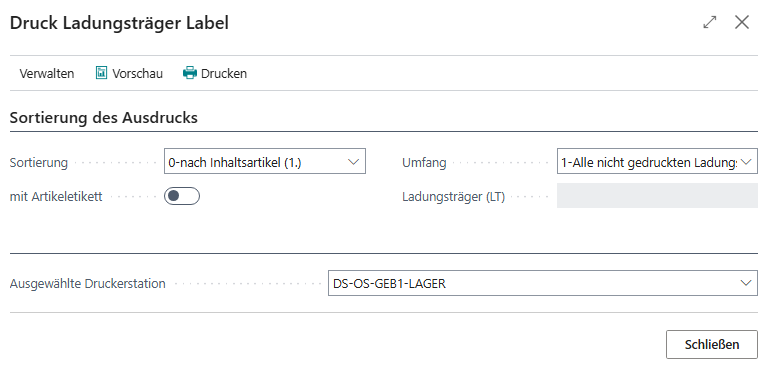
All labels belonging to the warehouse receipt process can be printed via this menu. In the upper area, you can specify the sorting of the printout. The following options are available here:
- 0-Content items: First ascending by item, then ascending by load carrier no.
- 1-Load carrier barcode: First ascending by load carrier no., then ascending by item
- 2-Purchase order + item: First ascending by document no., then ascending by item
- 3-Order + item: First ascending by order, then ascending by item
Use Selection to specify the load carriers for which the labels are to be printed:
- 1-All non-printed load carrier label(s): If there are no non-printed labels, none will be printed.
- 2-All load carrier label(s)
- 3-Selected load carrier label(s)
If you select the latter, you have to enter a load carrier number in the Load Carrier field.
Use the With item label option field to determine whether neutral item labels should also be printed in addition to the load carrier labels, which are used to identify the items on the load carrier.
Once you have selected the Printer station, you can either generate a preview or start printing directly via the menu.
Order assignment
With order assignment, entire pallets of items can be assigned to orders directly in warehouse receipt. This allows the pallets to bypass Inbound Stock Post, picking and packing and be sent immediately to dispatch. The following documents can be selected:
- Sales order
- Sales return orders
- Stock transfer order
- Production orders
- Assembly Header
In the order assignment, those orders are displayed whose item quantity is greater than or equal to the load carrier quantity. Order assignment is not possible for PTU or SSCC.
- Order assignment type
- Order assignment code: Load carrier number
- Source document
- Source no.
- Source Line No.
- Source Quantity
- Quantity already assigned: The quantity that has already been allocated
- Quantity remaining source document
- Item
- Item description
- {{Variant Code}}
- Assign: This checkbox can be used to assign the quantity to assign to the order
- Quantity to assign: Quantity of the load carrier that is available for assignment
- Quantity to assign: Quantity that has already been assigned
- Base Unit of measure
- Shipment Date
Detailed assignment of load carriers
In this detailed assignment, all load carriers assigned to this warehouse receipt and the items stored on them are displayed.
Hinweis
Please note that PTUs and SSCCs are only displayed in the corresponding detailed assignment.
- NEW LC
- New item no.
- Item description
- Number of pieces
- Load carrier assigned: This column contains the respective number of the Load Carrier, which can also be seen at the bottom of the load carrier lines
- Assign load carrier: Enter the number of the Load Carrier to which you want to assign this item here
- New variant code
- New lot no.
- New serial no.
- New sell-by date
Detailed assignment of load carriers PTU/SSCC
In this detailed assignment, all load carriers assigned to this warehouse receipt with the load carrier types PTU and SSCC and the items stored on them are displayed.
This detailed assignment does not differ in structure from the Detailed assignment load carrier. The only difference is that only PTUs and SSCCs are displayed here. This facilitates the separate assignment of order-related lines.
This detailed assignment only applies to the load carrier types PTU and SSCC.
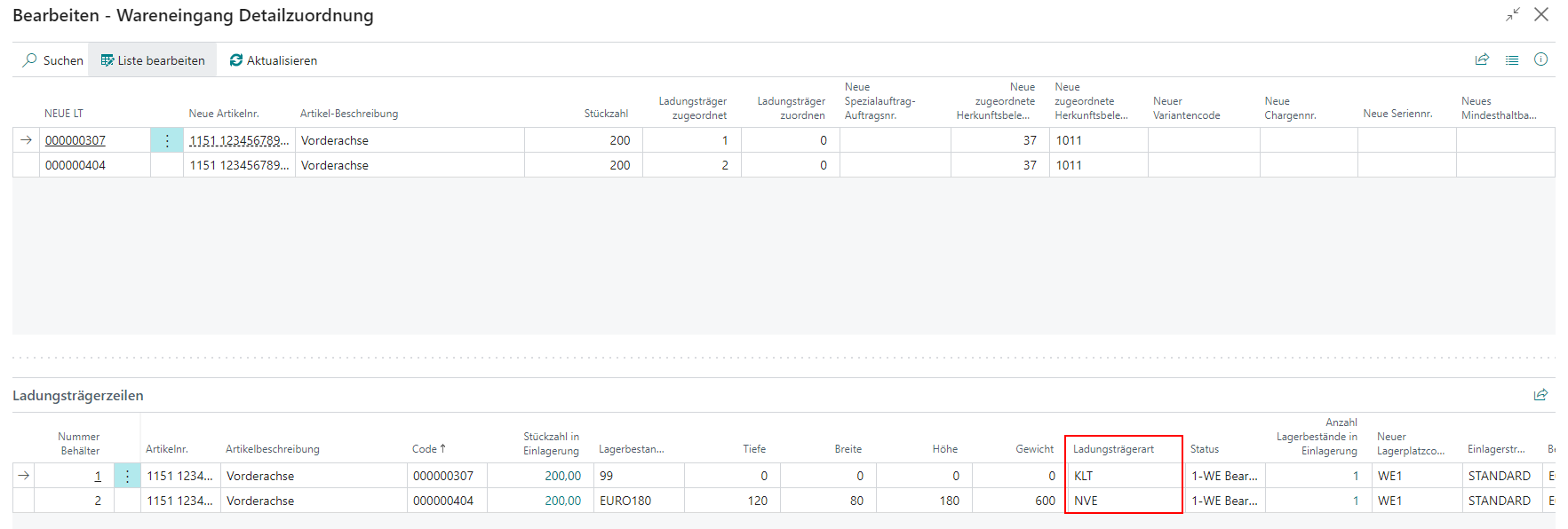
- NEW LC
- New item no.
- Item description
- Number of pieces
- Load carrier assigned: This column contains the respective number of the Load Carrier, which can also be seen at the bottom of the load carrier lines
- Assign load carrier: Enter the number of the Load Carrier to which you want to assign this item here
- New variant code
- New lot no.
- New serial no.
Table
The assignments in the load carrier lines are based on the setups in the packaging hierarchy.
- Item no.: Shows the first item of the load carrier
- Item description
- Item code
- Number of pieces in Inbound Stock Post: Total number of items in the load carrier
- BUM (Base Unit of Measure)
- BUM (Base Unit of Measure)
- {{Inventory Measure Code}}
- Dimensions
- Weight
- Load carrier type
- State: See Status of load carrier
- Number of inventories Inbound Stock Post: How many inventory items have been assigned to the load carrier?
- Standard: 1 item no. corresponds to 1 inventory item equal to 1 load carrier.
- 2 item no. corresponds to 2 inventory items equal to 1 load carrier.
- For serial number-managed items, 1 serial number corresponds to 1 item, which in turn corresponds to 1 inventory item. 10 pcs. items on one load carrier = 10 inventory items.
- Sell-by Date: Changing this sell-by date automatically changes the sell-by date of the associated inventories.
- New storage place code: Is generated based on the Inbound Stock Post strategy. For 2-step Inbound Stock Posts, this is the goods receiving bin at which the item was unloaded. For single-level Inbound Stock Post, the destination storage places are already entered here. You can edit this field.
- {{Inbound Stock Post strategy}}
- Document no.
- Special order
- Assigned order
- New Lot No.: If a lot no. has been entered in the receipt lines, it is transferred to the load carrier lines when they are created. If the lot no. in the receipt lines is now changed, the number in the load carrier lines remains the same. If you want the new lot no. to be transferred to the load carrier lines, these must be deleted and recreated.
- Comment text Label
- Proposal SPU Inventory Unit of Measure: The content of this field is transferred from the receipt lines. Only SPUs that are declared as sub-packaging units in the Packaging hierarchy of the item can be entered here.
- Checked in Warehouse Receipt
- Checked By
Hinweis
The Determination Load Carrier Weight setting in the SIEVERS WMS setup is responsible for calculating the dimensions and weight.
Allocated Inventories
This table is shown if you have set the option Whse. Receipt Subpage Lines to Inventory lines or Load Carrier Lines and Inventory Lines in the WMS setup. The table shows the item assignments according to inventory. This has the advantage that the contents of individual load carriers are also shown in detail, even if there are multiple different inventories in the same load carrier.
Menu
- Manage
- Delete line
- Print Load Carrier Label
- Line
- Order assignment: This function assigns the load carrier to an order. Please note that PTUs can then no longer be manually changed to the type SSCC.
- Detailed assignment of load carriers PTU/SSCC
Table
- New Inventory No.
- Item no.
- Item description
- Item code
- Number of pieces
- BUM (Base Unit of Measure)
- {{Inventory Measure Code}}
- Dimensions
- Weight
- Load carrier type
- State: See Status of load carrier
- Sell-by Date
- New storage place code: Is generated based on the Inbound Stock Post strategy. For 2-step Inbound Stock Posts, this is the goods receiving bin at which the item was unloaded. For single-level Inbound Stock Post, the destination storage places are already entered here. You can edit this field.
- {{Inbound Stock Post strategy}}
- Document no.
- Special order
- Assigned order
- New Lot No.: If a lot no. has been entered in the receipt lines, it is transferred to the inventory lines when they are created. If the lot no. in the receipt lines is now changed, the number in the inventory lines remains the same. If you want the new lot no. to be transferred to the inventory lines, these must be deleted and recreated.
- Comment text Label
- Proposal SPU Inventory Unit of Measure: The content of this field is transferred from the receipt lines. Only SPUs that are declared as sub-packaging units in the Packaging hierarchy of the item can be entered here.
- Checked in Warehouse Receipt
- Checked By
SNCL Posted Warehouse Receipts
- No.
- Vendor name
- Shipping Agent Name
- Vendor Shipment No.
- Posting date
- {{Unloading Location}}
SNCL Posted Warehouse Receipt
Menu
- Related
- Receipt
- List
- Comments
- Put-away Lines
- Registered Put-away Lines
- Receipt
- Reports
- [Move Order List](#move-order-list-Inbound Stock Post)
Receipt Entries
Equivalent to receipt entry in the warehouse receipt.
Allocated Load Carriers
Equivalent to allocated load carriers in the warehouse receipt.
SIEVERS WMS
- Stock Document Status
Warehouse Shipment Planning
On this page you will find an overview of the currently planned warehouse shipments and their state in the individual stations. The source documents can also be displayed for each warehouse shipment. The orders are sorted as follows:
- By column Status Stock
- By unloading place
- By priority
- By order
Menu
- Post Shipment
- Daily closing
- Set/show filters: With these filters, the employee can set personal filters for Warehouse Shipment Planning. See Set/show filter.
- Actions
- New document
- New warehouse shipment
- Create stock document: Creates a new SNCL Outbound Stock Post and new shipping order per unloading place in warehouse shipment. After creation, the pick overview opens automatically, where the pick documents can be released.
- Create packaging process: Creates a packaging process for this warehouse shipment.
- Create shipment process: Creates a new shipment process. Only possible if the shipping agent is set and the No shipping orders option is not activated for it. You can also create a shipment process without a stock document in order to plan loading effort
- Open stock document: Opens the associated SNCL Outbound Stock Post.
- Delete stock document: Deletes the associated SNCL Outbound Stock Post document. This resets the picking status
- Use filter to get source documents: See Index
- Get source documents
- Release Items for Picking: With this action, you can release items for picking. Filter by
- Item no.
- Variant
- Cancel Released Items: This action allows you to cancel picking lines with the status 0-created or 2-released. Filter by
- Lot no.
- Variant
- Sell-by date and
- Serial number, which picking lines you want to cancel. This action not only cancels the picking lines, but also the removes the lines from the Outbound Stock Post lines. Items that are on printed picking documents or are part of a packaging process cannot be canceled using this function.
- Check replenishment
- Post & Print Shipment: Posts and prints delivery note.
- Print
- Print Packaging Process
- Print Shipment List
- Print Packlist Exportdata (only possible if at least one SSCC is available in the selected warehouse shipment)
- Print International Bill of Lading
- Delete selection: Deletes all currently selected warehouse shipments
- Update availabilities: Recalculates all availabilities and updates the list
- Update State: Updates the status of the selected warehouse shipments
- Release: You can also select several warehouse shipments and release them at the same time.
- Reopen
- Create picking series: Creates a picking series
- Other
- Post Packaging Process
- Post Shipment
- New document
- Related
- Show Warehouse Shipment
- Show Warehouse Shipment Content: Shows the source documents and items of this warehouse shipment
- Show SSCCs
- Posted Warehouse Shipments
- Show Picking Document
- Show Picking Series Monitor
- Show Packaging Process
- Show Shipment Process
Factbox
On the right-hand side you will find the warehouse shipment fact box. This contains a lot of information about the currently selected warehouse shipment.
Dimensions
- Qty. open to deliver
- {{Calculated Weight}}
- Calculated Volume
Picking
- Picks open
- Picks total
- Full Load Carriers total
- Partials total
- Number of open picklists
- Number of finished picklists
Packaging
- Number of open pack processes
- Number of finished pack processes
- Number of Consolidation Storage Places
Loading process
- Number of planned shipments
- Number of finished shipments: : This includes completed and posted loadings
- SSCC Weight packed
- SSCC Weight total
- SSCC packed
- SSCC total
Shipping orders
- Number of shipping orders
Source documents
- Source document
- Source no.
Dimensions
- Quantities open to deliver
- {{Calculated Weight}}
Picking
- Picks open
- Picks total
- Full Load Carriers Total
- Partials Total
Loading process
- SSCC Weight packed
- SSCC Weight total
- SSCC packed
- SSCC total
Warehouse Shipment Planning Overview
In this area you will find an overview of all warehouse shipments that are in progress. To display specific warehouse shipments, use the Set/show filter action in the menu.
- No.
- Keyword: This field is automatically pre-assigned with Customer name | Delivery country, but can be edited manually - provided the user has the appropriate rights to do so
- Shipping Agent Code: This Shipping Agent Code can also be changed during warehouse shipment
- State
- Loading week
- Loading day
- {{Priority}}
- {{Partial}}
- Stock/availability/picking/packaging/loading: Indicates the state of the corresponding partial steps of the warehouse shipment. See Warehouse Shipment Planning state. For a more detailed insight into the individual sub-areas, use the pages of the Related menu. For example, you can check the availability of the individual items in the warehouse shipment via Warehouse shipment content.
- First Loading Date
- First loading date: Specifies the expected first loading date.
- Stock document no.
- Stock document status
Can also be displayed:
- Number of shipping orders: Specifies the number of released shipping orders assigned to this warehouse shipment
- Storage location code
- Series Distribution: Shows the current status of the series distribution, if there is one for this warehouse shipment
- Delivery transport type code
- Terms of delivery code
- Picking date: Defines the date on which picking of the warehouse shipment may begin. This date results from first loading date minus outgoing warehouse lead time. The latter is setup in the storage location.
- Created on
- Variable for aut. creation of stock doc: Here you can enter a flexible value or a description, which is used as a filter in the Outbound Stock Post automation. Only warehouse shipments that have entered a value corresponding to the Outbound Stock Post automation are taken into account in the automation. In short: With this field you can manually decide which warehouse shipments should be processed automatically.
Set/show filters
Use the filters in Warehouse Shipment Planning to control which warehouse shipments should be shown in the overview. For example, employees can show all warehouse shipments made this week with the shipping agent DHL. This filter is saved individually for each user.
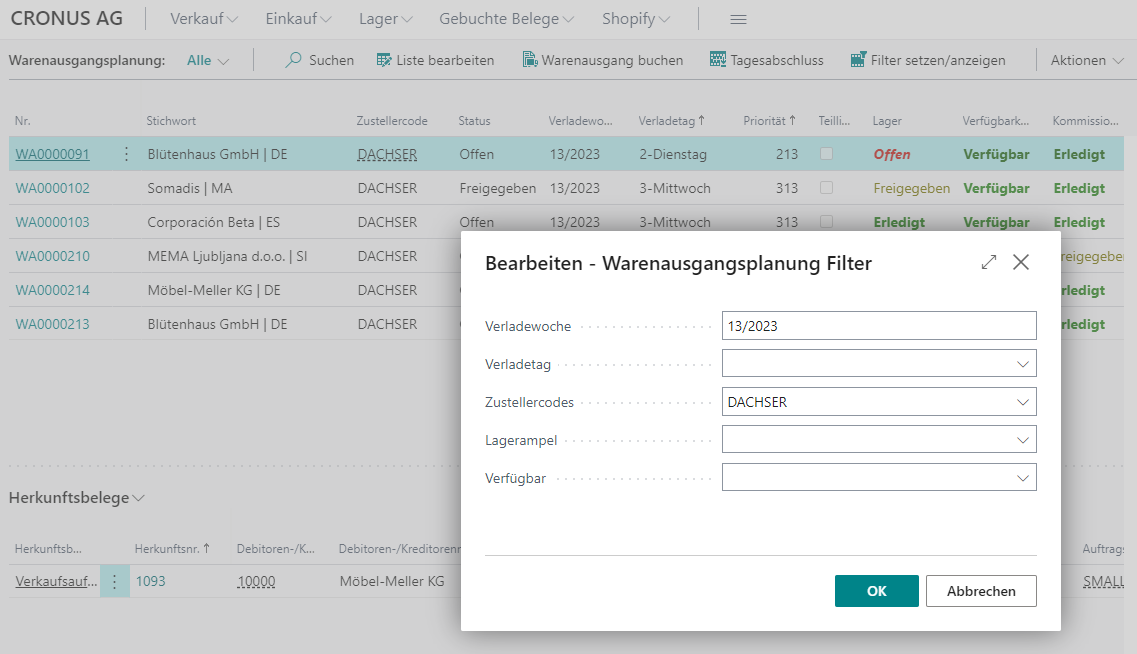
The following filter options are available:
- Loading week
- Loading day
- Shipping Agent Code
- Stock Light
- Available
Source Documents
If you have selected a warehouse shipment in the Warehouse Shipment Planning Overview, the assigned source documents are displayed in this area.
Functions
- Print picking documents for selection: Opens the Print/release picking document window, in which the picking documents can be prepared and printed.
- Show picking documents for selection: Shows the picking documents belonging to this order. If none exists, the picking documents associated with the warehouse shipment are shown.
- Show PTU: Shows an overview of the PTUs already generated for this source document
- Show SSCC: Shows an overview of the SSCCs already created for this source document
- Show packaging processes
- Outside storage resources
Table
- Source document: Indicates the type of document
- Source no.
- Customer/vendor no.
- Customer/vendor name
- Ship-to name
- Ship-to address
- Ship-to zip code
- Ship-to location
- Country/region code
- Shipping Agent Code: If you change this shipping agent, the shipping agent in the source document will also be changed
- Shipping Agent Code: If you change this shipping agent, the shipping agent in the source document will also be changed
- Order types: This field is automatically filled if the order type table on the SIEVERS WMS team card is filled. The order types are first checked and assigned when the order is created and then again when the warehouse shipments are created.
- Packaging team: Editable field for assigning a packaging team. If a packing team is directly assigned to the picking team, this is automatically entered here. Otherwise, the entry must be made manually. This field must be filled in before picking is released.
- {{Priority}}
- Partial delivery
- Stock status, availability, picking status, distribution status, packaging status, loading status: Shows the current state of the source document in the respective areas. See Warehouse Shipment Planning status.
- {{Shipping Advice Rules}}
- {{Shipping Advice}}
- {{Unloading place}}, editable
- {{By Order}}
- By Shipping Address: See Index
- {{Employee Marking}}
Print Picking Document
On this page, you can print and release picking documents for the selected source documents. You can also execute a process that finds the correct team for all picking documents without a team. To do this, execute Find Picking Teams.
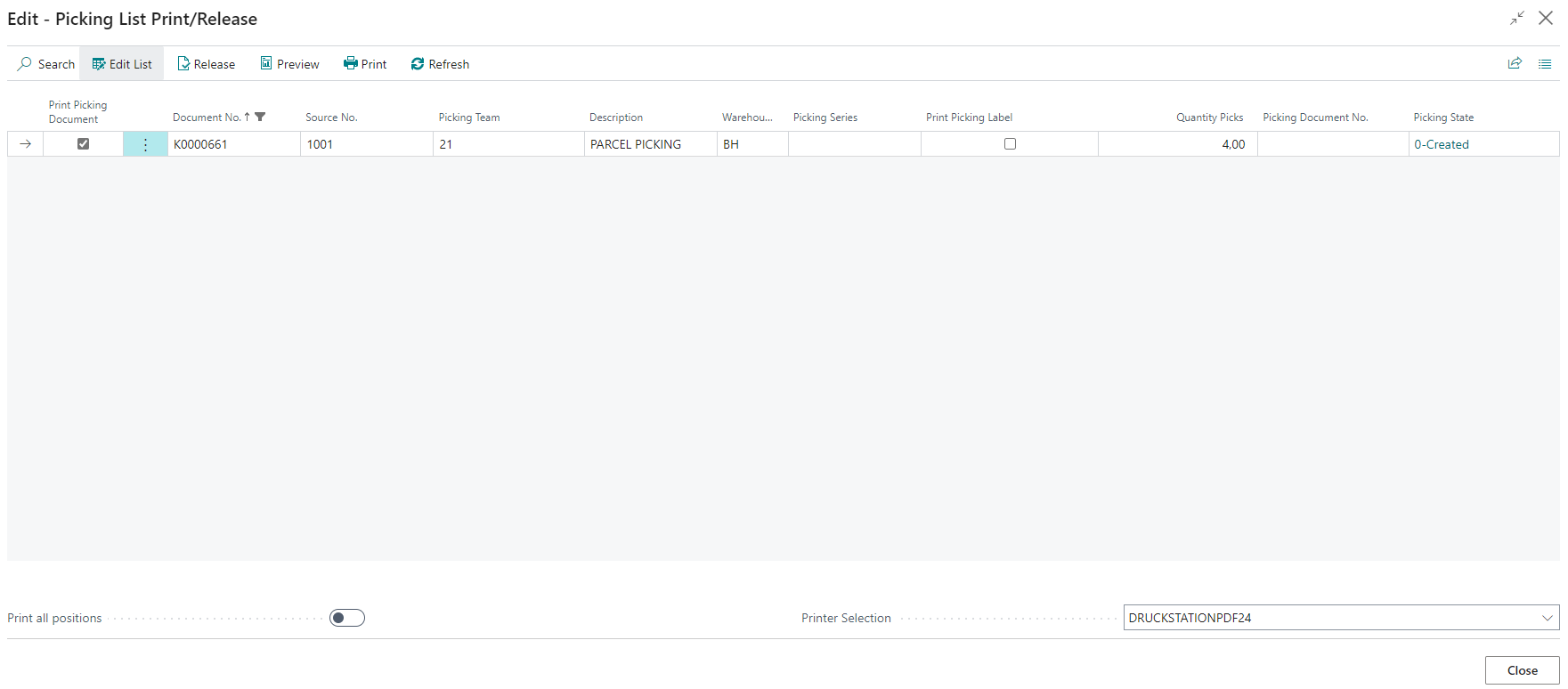
Print Picking Document: Selects whether this document should be printed
Document No.
Source No.
Picking Team (Selection depending on Location Code): You can also change this picking team. The new picking team is then assigned to all Outbound Stock Post lines that belong to the current document.
Description
Warehouses
Priorities
Shipping Agent Codes
Order Type Codes
MOP Batch No.
Picking Series
Print Picking Label: Selects whether picking labels should also be printed when printing the picking documents. As a rule, these are not required if the vendors/producers have already labeled the items with the GTIN.
{{Quantity picks}}
Picking document no.
Picking state
Print all positions: After activating this option, all positions are printed - regardless of whether they are already in packaging or not.
Printer selection: Selects the printer to be used to print the documents and labels.
Hinweis
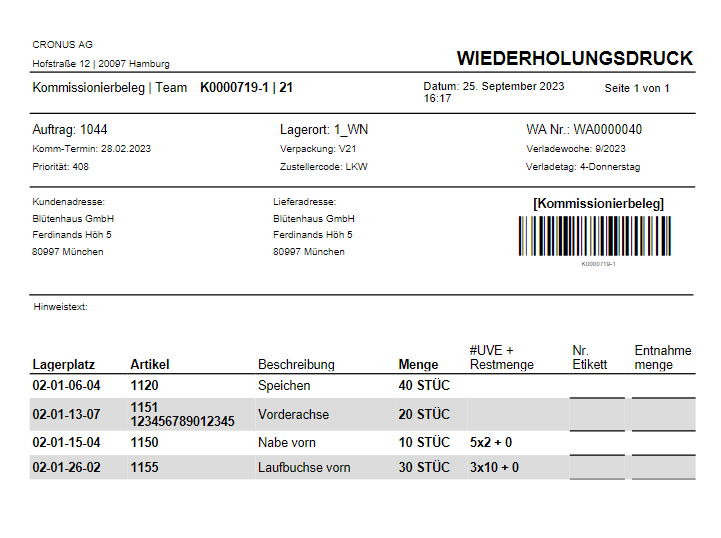
If another print is carried out after the first print, the document is titled Reprint. This is to prevent a second picking being carried out unintentionally.
Hinweis
If it is a picking series, all items with the same item no., the same Load Carrier code and the same storage place are grouped together.
View - Picking documents
This page shows the picking documents for the selected source document.
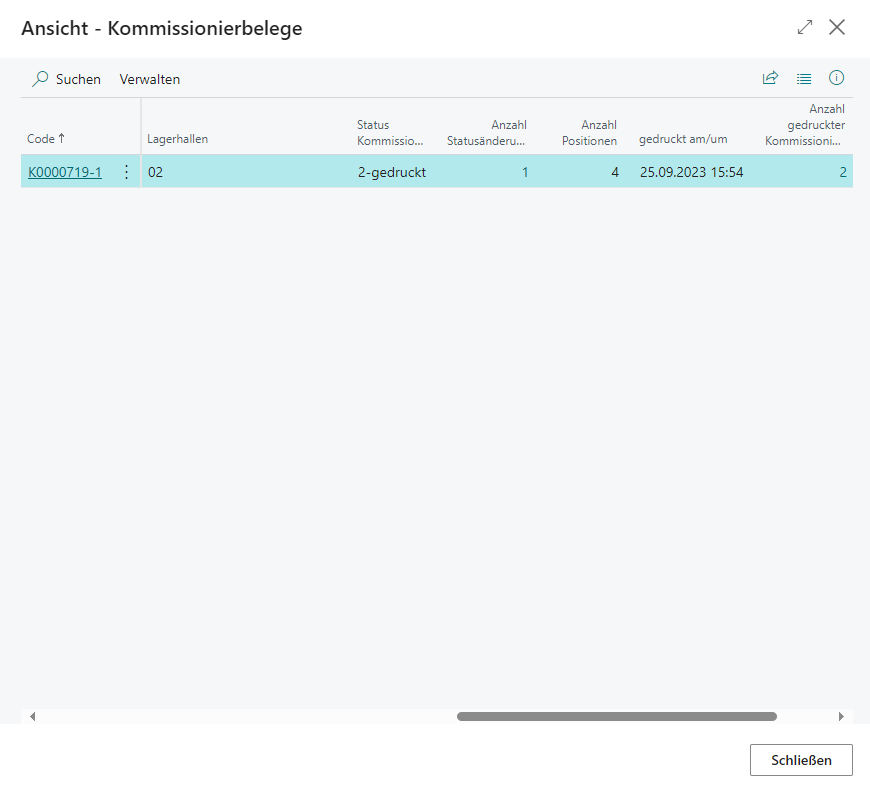
- Code
- Location code
- Source type
- Source no.
- Warehouse shipment no.
- Picking team
- Picking team Description
- Packaging team
- Packing team Description
- Warehouses
- Picking state
- Number of status changes: Specifies the number of status changes. One click leads to the corresponding entries in the SNCL Time protocol list
- Number of positions: Specifies the number of picking positions/picks
- Printed at Datetime
- Number of printed picking documents: Specifies the number of printed documents. A click leads to the corresponding entries in the SNCL Time protocol list
- Printed by User
- {{Priority}}
Warehouse Shipment Content
Shows the source documents and associated items of the selected warehouse shipment.
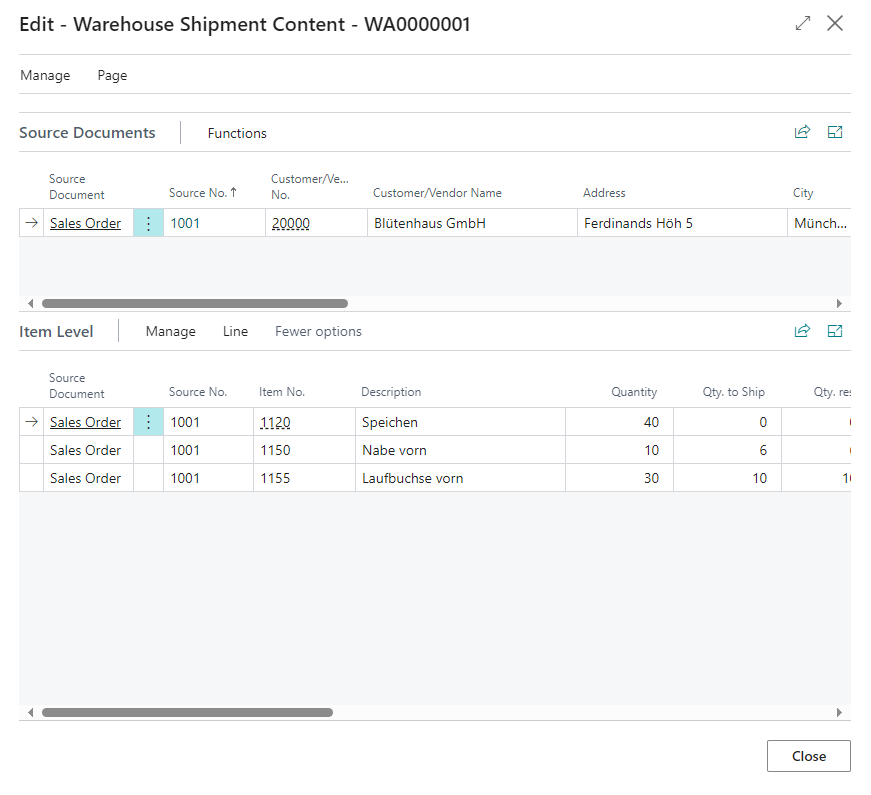
Source documents
This table does not differ from the table in [Warehouse Shipment Planning](#origin documents)
Item Level
Line
- Source document line: Shows the source documents with this item
- Inventories: Shows the inventory items filtered to this item
- Item tracking lines: Shows the item tracking lines related to this item
- Outside storage resources: Shows the assigned resources
Table
Shows the items assigned to the warehouse shipment of the source document selected above.
- Source document
- Source no.
- Item no.
- Description
- Quantity
- Quantity to ship
- {{Quantity reserved}}
- {{Quantity in picking}}
- {{Quantity picked}}
- Quantity in distribution
- {{Quantity in packing}}
- {{Quantity packed}}
- {{Quantity in loading}}
- {{Quantity loaded}}
- Quantity shipped
- Quantity outstanding
- {{Due date}}
- Unit of measure code
- Quantity per unit of measure
- {{Employee Marking}}
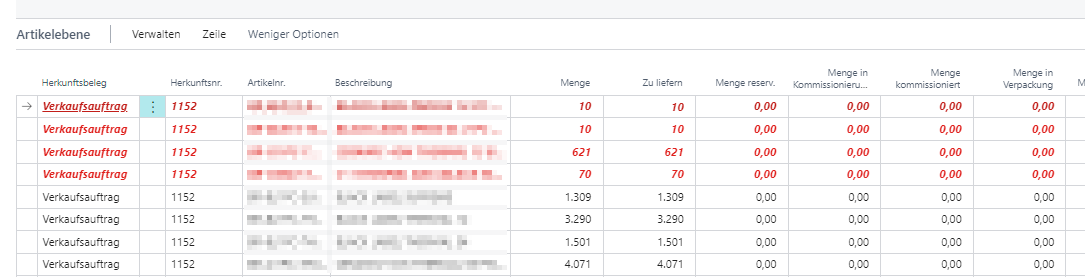
If there is a lack of availability, the lines are colored:
- Red: This item quantity is not available
- Blue: This item quantity is partially available
Warehouse Shipments
Lists all warehouse shipments.
- No.
- Location code
- {{Assigned user ID}}
- Sorting method
- Status: Open for progress (Open) or completed and write-protected (Status)
Warehouse Shipment
How to carry out a warehouse shipment is described in the process area.
Menu
- Start
- Create stock document
- Open stock document
- Delete stock document: Please note that this does not delete any reservations. These must be deleted using the “Cancel Reservation” function.
- Create pick
- Post shipment
- Release
- Autofill Qty. to Ship: Automatically calculates the outstanding quantities and enters them in the to be delivered field
- Create shipping orders
- Delete shipping orders
- Outside storage resources
- Prepare
- Get source documents
- Use filters to get source documents: See Index
- Shipment
- Comments
- Posted warehouse shipments
- Pick lines
- Registered picking lines
- Related
- Shipment
- Shipping orders
- Other
- Shipment
General
- No.
- Location code
- {{Zone code}}
- {{Storage Place Code}}
- Document status
- Status
- {{Posting Date}}
- Assigned user ID
- Assignment date
- Assignment time
- Sorting method
- Keyword
- Number of shipping orders
Lines
- Source document
- Source no.
- Item no.
- Item no. Description
- Quantity
- Quantity to ship
- Quantity shipped
- Quantity outstanding
- {{Due date}}
- Unit of measure code
- Quantity per unit of measure
- Stock document type
- Stock document no.
- {{Inventory Selection Strategy}}
- Stock quantity reserved.
- Stock quantity packed
- Stock quantity in picking
- Stock quantity picked
- Stock quantity in packing
- Stock quantity packed by packing
- Stock quantity in loading
- Stock quantity loaded
Additionally you can choose to display these fields:
- Assemble to Order
- Description 2
- Destination No.
- Destination Type
- Inventory Selection: Choice of automatic and manual. In the latter case, an additional window opens when creating the stock document: Manual Inventory Selection. Manual lines are skipped during the warehouse shipment automation process.
- Location Code
- Pick Qty.
- Pick Qty. (Base)
- Qty. (Base)
- Qty. on Cross-Dock bin
- Qty. on Cross-Dock Bin (Base all UOM)
- Qty. on Cross-Dock Bin (Base)
- Qty. Outstanding
- Qty. Picked
- Qty. Picked (Base)
- Qty. Shipped (Base)
- Qty. to Ship (Base)
- Shelf No.
- Shipping Order No.
- Source Line No.
- {{Variant Code}}
- {{Zone Code}}
Shipping
- External document number
- Shipment date
- Shipping Agent Code
- Shipping Agent Service Code
- Loading day
- Loading week
- {{Priority}}
- Shipment Method Code
SIEVERS WMS
- Stock document type
- Stock document no.
- Stock document status
Whse. Ship. Auto. Protocol
This table is the log of the warehouse shipment automation. Here you can see how source documents were processed in the warehouse shipment automation. The following information is listed here:
- Entry no.
- Location code
- Source Document
- Source No.
- Source Subtype
- Source Type
- Type
- Whse. Ship. Header No.
- Loading Week
- Loading Date
- First Loading Date
- Whse. Ship. Autom. EntryNo.
- Destination Type
- Destination No.
- Error exist
- Error Message
Get source documents
You can use this table to select a source document to be inserted into the current document. This function is the Business Central standard, but with SIEVERS WMS the following additional fields are displayed:
- Ship-to address
- Ship-to address 2
- Ship-to location
- Ship-to ZIP code
- Sell-to name
- Shipment Date
Purchase Orders List
Menu
The menu is largely the same as the Business Central standard. The new features are
- Home
- Create warehouse receipt
- Insert in Warehouse receipt: Inserts the purchase order into an existing warehouse receipt
- Show Earehouse Receipt
Table
- No.
- Buy-from Vendor No.
- Buy-from Vendor Name
- Vendor Authorization No.
- Location Code
- Assigned User ID
- Document Date
- Status
- Amount
- Amount Including VAT
- Warehouse Receipt No.: Displays the assigned Warehouse Receipt
- Warehouse Receipt State
- Exoected Warehouse Receipt Arrival
- Stock Document Type
- Stock Document No.
Manual Inventory selection
Here you can manually select inventory for the stock document. To do this, select one or more inventory lines and click Select in the menu. You can also select blocked inventory.
General
- Document no.
- Original line no.
- Item no.
- {{Variant Code}}
- Lot no.
- Serial No.
- Storno Stock Document
- Location code
- No. of Pieces
- Remaining number of pieces
Inventory
- No.
- Load Carrier code
- Item no.
- Lot no.
- Serial No.
- External Inventory No.
- Location code
- {{Storage Place Code}}
- Comment
- No of Pieces
- Reserv. Number of Units
- Depos. Number of Units
- Blocked
- {{Opening inventory}}
- Number of pieces per inventory
Purchase Order
The purchase order is part of the Business Central standard, but many SIEVERS WMS functions have been added.
Menu
- Home
- Create Stock Document
- Open Stock Document
- Delete Stock Document
- Register Empties
- Post
- Release
- Create Warehouse Receipt: Creates a warehouse receipt from the purchase order
- Create Inventory Put-away/Pick
- Send Intercompany Purchase Order
- Archive Document
- Fill in empties
- Prepare
- Copy Document
- Get Recurring Purchase Lines
- Incoming Document
- Calculate Invoice Discount
- Move Negative Lines
- Print/Send
- Print/Send
- Send
- Attach as PDF
- Request Approval
- Send Approval Request
- Cancel Approval Request
- Order
- Dimensions
- Statistics
- Comments
- Attachments
- Approvals
- Invoices
- Vendor
- Receipts
- Prepayment Invoices
- Prepayment Credit Memos
- Actions
- Function
- Create Tracking information
- Drop Shipment
- Special Order
- Delivery Reminder Ledger Entries
- Function
- Related
- Invt. Put-away/Pick Lines
- Warehouse Receipt Lines
- Drop Shipment
- Special Order
General
- Vendor no.
- Vendor name
- Buy-from
- Address
- Address 2
- City
- Post Code
- Country/Region
- Contact no.
- Telephone no.
- Phone no.
- Contact
- Document date
- {{Posting Date}}
- VAT date
- Due date
- Vendor Invoice No.
- Purchaser code
- No. of archived versions
- Order date
- Quote No.
- Vendor Order No.
- Vendor Shipment No.
- Alternate Vendor Address Code
- Responsibility Center
- Assigned user ID
- Status
- Subtotal excl. VAT
- Inv. Discount Amount
- Invoice Discount %
- Total Excl. VAT
- Total VAT
- Total Incl. VAT
Lines
- Type
- No.
- Item reference no.
- Description
- Location code
- Bin code
- Quantity
- Reserved quantity
- Unit of Measure code
- Lot No.
- Sell-by Date
- Direct Unit Cost Excl. VAT
- Line Amount Excl VAT
- Number of open Warehouse Receipts
- Number of posted Warehouse Receipts
- Quy. To Receive
- Quantity Received
- Qty. to Invoice
- Quantity Invoiced
- Qty. to Assign
- Item Charge Qty. to Handle
- Qty. Assigned
- Promised Receipt Date
- Planned Receipt Date
- Expected Receipt Date: This date is linked to the due date in the warehouse receipt
- Department Code
- Project Code
- Customergroup Code
- Area Code
- Businessgroup Code
- Salescampaign code
- Stock Document Type
- Stock Document No.
- Stock Quantity Reserved Inbound Stock Post
- Stock Quantity Packed Inbound Stock Post
- Over-Receipt Quantity
- {{Over-Receipt Code}}
Empties Lines
Here you can enter empties lines. The lines here are copied into the empties entries with the vendor and shipping agent.
- No.
- {{Variant Code}}
- Description
- Quantity
- Location code
- Unit code
- Registered
Shipping and Payment
- Ship-to
- Name
- Address
- Address 2
- City
- Post Code
- Country/Region
- Contact
- Pay-to
- Remit-to Code
- Shipping Agent Code
SIEVERS WMS
- Stock Document Type
- Stock Document No.
- Stock Document Status
SNCL Outbound Stock Posts
Displays a list of SNCL Outbound Stock Posts. You can change the state of multiple dislcoations at once using Change State. If changing the state of a Outbound Stock Post is not possible for some reason, the process will not be canceled.
- No.
- State
- Source No.
- Source Description
- Shipment Date
- Original Document No.
SNCL Outbound Stock Post
The SNCL Outbound Stock Post is used to remove items from the warehouse. It is therefore part of the following processes:
SSCC, PTU and packaging processes can be monitored and controlled with the Outbound Stock Post. An SNCL Outbound Stock Post has a 1:1 relationship with an SNCL warehouse shipment.
Hinweis
If a Outbound Stock Post document that is linked to a shipping order is deleted, this shipping order is also deleted automatically.
Menu
- Home
- Buffer Allocate Storage Place
- Change Status
- Update movement strategy
- Post
- Post and Print
- Reports
General
- No.
- Original document type
- Original document no.
- Source type
- Source no.
- Description
- Description 2
- Document date
- {{Posting Date}}
- Shipment Date
- State
- Blocked incomplete shipment
- Type of Creation
- Disloc. Autom. Entry No.
Lines
Hinweis
The quantity fields in the lines of the outbound stock posts are subject to strict validation:
- Quantity limitation: The quantity must not exceed the Qty. to Ship in the associated warehouse shipment line.
- Quantity reduction: A reduction is only possible as long as no downstream process steps (e.g., picking) have been started.
- Line deletion: Lines cannot be deleted if the associated picking has already been marked for processing.
Menu
- Delete Line
- Shipping Orders
- Inventory Swap: Enables the short-term exchange of inventory. See Inventory Swap
- Create Picking Documents: Creates a picking document for all outbound stock posting lines that do not yet have an associated picking document. Useful after cancellation of picking documents.
- Load carrier number
- Load carrier inventory measure: See Index
- Load carrier type: See Index
- Load carrier state: See Index
- Load Carrier Origin: Specifies in which subprocess of the SIEVERS WMS this load carrier was created.
- Inventory no.
- {{Storage Place Code}}
- Item no.
- Item description
- Number of pieces
- BUM (Base Unit of Measure)
- BUM (Base Unit of Measure)
- Number of pieces packed
- Packed: This indicator is set automatically after picking
- Number of pieces packed:
- Loader: You can use this indicator to mark whether the selected load carrier has already been loaded. This will be set automatically after loading
- Picking team
- Picking document no.
- Consolidation number
- Picking series
- MOP batch no.
- Picking state: See Index
- Number of printed picking documents: Picking documents should normally only be printed once so that double picking is not carried out by mistake. This field shows how often the document has been printed.
- Packaging number
- Shipment Process Document No.
- Movement strategy code: See [Movement strategy](#movement strategy)
- Movement strategy index: This index is generated from the movement strategy and is used to correctly sort the Outbound Stock Posts on the PDC.
- Post line:
- Testing zero inventory:
- Zero inventory tested:
- Comment
- Processed by
- Proposal SPU Inv. Unit of Measure: Used to determine whether and with which SPU the Outbound Stock Post line can be picked. The SPU with the lowest level number in the packaging hierarchy is specified first. This field is not editable and is for information purposes only. The SPU is taken from the inventory. If this field is empty, the SPU with the lowest level in the packaging hierarchy is specified first.
- Proposal SPU Number of Pieces: Shows the number of units of measure required by Proposal SPU Inv Unit of Measure for this Outbound Stock Post line. This field is not editable and is for information purposes only
Can also be displayed:
- Document no.
- Line no.
- Description
- {{Variant Code}}
- Lot no.
- Serial no.
- External inventory no.
- Inventory measure code
- Empties no.
- Production date
- Sell-by date
- Blocking date
- Stock number
- Post line: Marks this line as to be posted. This allows partial stock removals to be posted
- Gross weight
- Net weight
- {{Inventory Selection Strategy}}
- Inventory selection strategy Line no.
- Storage location code
- Entry no.
- Retrieved
- Storage place type
- {{Storage Area}}
- Origin line no.
- Source no.
- Source Line No.
- Assoc. Move order exists
- Finished
- Date of Handling
- Handling Start Time
- Handling End Time
- Sub-packaging unit (SPU)
- Picking no.
- Picking pallet code
- Interchange Place
- Storno Stock document
- Serial Distribution No.
- Serial Distribution Status
SNCL Post. Outbound Stock Post
SNCL Outbound Stock Posts are transferred to the posted Outbound Stock Posts after posting. The contents are largely the same as in the SNCL Outbound Stock Post. In addition, all documents assigned to the Outbound Stock Post are shown under Navigate.
Documents associated with the Outbound Stock Post. These can be accessed by clicking on the [Number of entries](doc_images_en/Ausgehende Lagerbuchung_posten_suchen.png)
SNCL Stock Outbound Stock Post Lines
This list shows all Outbound Stock Post lines of the warehouse, regardless of Outbound Stock Post documents or other affiliations. You can view the following information here:
- Document No.
- Line No.
- Warehouse Shipment No.
- Source Document No.
- Inventory No.
- Load Carrier
- Item No.
- Item Description
- Variant Code
- Lot No.
- Serial No.
- Sell-by Date
- Location Code
- Storage place Code
- No. of Inventories
- No. of Pieces
- Picking Document nCo.
- Picking State
- Picking Team
- Packaging No.
- Packaging Team
- Consolidation No.
- Shipment Process Document No.
- Shipment Process Team
- Original-Line No.
Inventory Swap
This page can be accessed via the button of the same name, for example in the menu of the Outbound Stock Post lines. This allows you to exchange a selected inventory. It is possible to assign a new inventory or a new Load Carrier.
The following restrictions apply to the exchange of stock:
- Same item and variant
- Same location and storage place
- Not blocked and visible for sale
- No order assignment, no special order
- Not in replenishment or stocktaking
- If a serial no. or lot no. is specified in the source document, it must match for the new inventory
Hinweis
If the picking team is empty after the stock rotation, there may be a misconfiguration. After the inventory swap, a new picking team is automatically assigned. If the configuration is correct, either the same team or a different team is assigned. Correct this misconfiguration or activate No Update picking information.
Menu
- Available inventory: Shows the inventory or Load Carriers available for swapping, depending on whether Load Carrier swapping is activated. You can also select an inventory/Load Carrier for swapping here
- Swap (only free quantities): Swap only the free quantities with the new inventory that you have entered in New inventory no.
- Swap: Swap the inventory with the new inventory that you entered in New inventory no.. This function also takes into account and swaps inventories in other Outbound Stock Posts. If necessary, these are split according to the requirement
Settings
- Only actual line: Only the current line is considered for the swapping. If this function is deactivated, the system considers all lines for the inventory in the current Outbound Stock Post per picking document.
- Show changes: If this function is activated, all changed lines are listed after the exchange
- Throw error: Displays an error message if there is no free quantity
- Load Carrier swap: If this function is activated, the Load Carrier is swapped, not the inventory
- No Update picking information: When this option is activated, neither the picking team nor the picking document itself is changed when the inventory is swapped. This means, for example, that the system does not search for a new picking team after the inventory swap, but basically retains the existing one.
Lines
- Load Carrier code
- Load carrier type
- Load carrier state
- Inventory no.
- Item no.
- Item description
- Quantity current line: The quantity of the current line
- Quantity to swap: The quantity that is taken into account for the exchange. If the Only actual line function is activated, this quantity is always the same as the Quantity in current line. Otherwise, the complete inventory is determined for each Outbound Stock Post and picking document
- Location code
- {{Variant Code}}
- Lot no.
- Serial number
- Sell-by date
- {{Storage Place Code}}
- New inventory no.: Enter a new inventory no. here
- New Load Carrier code: Enter a new Load Carrier code here if you have activated Load Carrier swap
- Inventory free quantity: Shows the free quantity of the inventory or Load Carrier
- Quantity possible to swap: Free inventory + inventory in Outbound Stock Posts that can be exchanged = in Outbound Stock Posts, but not in active picking, not in progress on the MDE and not reported back
SNCL Create Inbound Stock Post
This form is displayed if the Display Inbound Stock Post form option is set in the Inbound Stock Post strategy and a Inbound Stock Post document is to be created. Here you can manually adjust the details of the Inbound Stock Post:
- Source
- Source no.
- Line no.
- Quantity
- Item
- Item no.
- Inbound Stock Post Customer-Item No.
- Description
- Description 2
- Inventory
- Load Carrier Type
- {{Inventory Measure Code}}
- {{Inventory Unit of Measure}}
- Load Carrier Code
- Number of pieces per inventory item
- Number of pieces per inventory
- Number of Inventories
- Number of inventories per Load Carrier
- {{Number of Load Carriers}}
- Put on the last Load Carrier: The last Load Carrier used is used for this Inbound Stock Post
- Empties no.
- Production date
- Sell-by date
- Lot no.
- Blocking date
- Serial number
- Gross weight
- Gross weight base unit
- Net weight
- Net weight base unit
SNCL Inbound Stock Posts
Displays a list of SNCL Inbound Stock Posts. You can change the state of multiple Inbound Stock Posts at once using Change State. If changing the state of a Inbound Stock Post is not possible for some reason, the process will not be canceled.
- No.
- State
- Source No.
- Source Description
- Shipment Date
- Original Document No.
- BUM
SNCL Inbound Stock Post
The Inbound Stock Post is used to Inbound Stock Post items into the warehouse. It is therefore part of the following processes:
Menu
- Home
- Change Status
- Post
- Post and print
- Storage Place: Autom. allocation
- Storage Place Allocation By Block
- Remove Storage Places
- All in Depot
- Reports
- [Move order list](#move-order-list-Inbound Stock Post)
- Inventory labels
- Print load carrier label
- Related
- Go to Source
General
- No.
- Original document type
- Original document no.: Links to the warehouse receipt, if there is one, otherwise to the source document
- Source type
- Source no.
- Description
- Description 2
- Document date
- {{Posting Date}}
- Shipment Date
- State
Lines
Menu
- Delete Line
- Individual Quality Control
- Order Assignment
- Detailed Assignment Load Carrier
- Detailed Assignment Load Carrier PTU/SSCC
Table
- {{Inbound Stock Post strategy}}
- New inventory number
- New Load Carrier Number: You can enter an existing or new load carrier here. The latter will then be created automatically.
- New Load Carrier Type
- New Load Carrier State
- {{Inventory Measure Code}} If the packaging hierarchy of the item is not filled, the default inventory measure from the SIEVERS WMS setup is used here.
- New Depth
- New Width
- New Height
- New Load Carrier Weight: Calculated according to the Determination Load Carrier Weight specified in the SIEVERS WMS setup.
- Item No.
- Item Description
- New Serial no.
- Number of Pieces
- BUM (Base Unit of Measure)
- BUM (Base Unit of Measure)
- SSCC of Full Pallet
- {{Storage Place Code}} If this storage place is changed, the storage place in the corresponding warehouse receipt line also changes.
- Processed by
SNCL Inbound Stock Post Orders
This list shows an overview of all Inbound Stock Post orders. In addition, you can create or access associated Inbound Stock Posts or warehouse receipts from here.
Menu
- Home
- Create stock document
- Open stock document
- Delete stock document: Please note that this does not delete any reservations. These must be deleted using the “Cancel Reservation” function.
- Insert in warehouse receipt: Allows several orders to be added to an existing warehouse receipt at the same time
- Create warehouse receipt: If a warehouse receipt is created from several Inbound Stock Post orders, the shipping agent of the first order is entered in the warehouse receipt.
- Show warehouse receipt
- Enter Inbound Stock Post/Outbound Stock Post charges
- Posting
- Release
- Reopen
Table
- No.
- Sell-to customer no.
- Sell-to customer name
- External Document number
- {{Posting Date}}
- Location code
- Status
- {{Completely Shipped}}
- {{Completely Invoiced}}
- Shipping Agent Service Code
- Assigned user ID
- Stock Document Type
- Number of Inbound Stock Post lines
- Quantity of Inbound Stock Post lines
- Created at
- Warehouse Receipt no.
- Warehouse Receipt state
- Expected Warehouse Receipt Arrival
- Stock Document No.
- Stock Document Status
- City
- Country/region code
- Shipping Agent Code
- Shipment Method Code
- Shipment date
The table can also be extended with all header data of the Inbound Stock Post order.
SNCL Inbound Stock Post Order
The Inbound Stock Post order is used to enter a Inbound Stock Post order in the context of outside storage. After entry, you can also create and/or open a Inbound Stock Post and a warehouse receipt from the order.
Menu
- Release
- Create stock document
- Open stock document
- Delete stock document: Please note that this does not delete any reservations. These must be deleted using the “Cancel Reservation” function.
- Enter empties
- Register empties
- Post: You can only send the order, as the invoicing of outside stock units is carried out via outside stock unit billing
- Reset state
- Create warehouse receipt
- Enter Outbound Stock Post charge
- Copy document
- Related
- Order
- Dimensions
- Comments
- Documents
- Shipments
- Order
General
- No.
- Sell-to customer no.
- Sell-to contact no.
- Sell-to name
- Sell-to address
- Sell-to address 2
- Sell-to to zip code
- Sell-to to City
- Sell-to country/region code
- Sell-to Contact
- {{Posting Date}}
- Order date
- Document date
- External document number
- Salesperson code
- Campaign no.
- Responsibility center
- Assigned user ID
- Job queue - Status
- Status
- Enter Inbound Stock Post charges automatically
Lines
- Type
- No.
- Customer item no.
- Inventory selection
- Outbound Stock Post charge entered
- Description
- Location code
- Quantity: The quantity of resources cannot be negative in outside storage orders
- Unit code
- Number of pieces per inventory
- Lot no.
- Sell-by Date
- Serial no.
- Sales price excl. VAT
- Line amount excl. VAT
- Line discount %
- Number of open Warehouse Receipts
- Number of posted Warehouse Receipts
- Qty. To ship
- Shipment date
- Quantity shipped
- Stock Document Type
- Stock Document No.
- Stock quantity reserved. Inbound Stock Post
- Stock quantity packed Inbound Stock Post
Empties lines
- No.
- {{Variant Code}}
- Description
- Quantity
- Location code
- Unit of Measure code
- Registered
Invoicing
- Bill to code
- Bill-to name
- Bill-to address
- Bill-to address 2
- Bill-to zip code
- Bill-to city
- Bill-to country/region code
- Bill-to contact
- Department Code
- Project code
Shipment
- Ship-to code
- Ship-to name
- Ship-to address
- Ship-to address 2
- Ship-to zip code
- Ship-to city
- Ship-to country/region code
- Ship to contact
- Location code
- Shipment Method Code
- Shipping Agent Code
- Shipping Agent Service Code
- Package tracking no.
- Shipment date
- {{Shipping Advice}}
Foreign trade
- Currency code
- Exit Point
- Area
SIEVERS WMS
- Stock Document Type
- Stock Document Status
- Stock Document No.
SNCL Outbound Stock Post Order List
This list shows an overview of all Outbound Stock Post orders. In addition, you can create or access associated Outbound Stock Posts or warehouse shipments from here.
Menu
- New
- Delete
- Home
- Create stock document
- Open stock document
- Delete stock document: Please note that this does not delete any reservations. These must be deleted using the “Cancel Reservation” function.
- Insert into warehouse shipment: Adds the selected Outbound Stock Post orders to an existing warehouse shipment
- Insert into new warehouse shipment: Adds the selected Outbound Stock Post orders to a new warehouse shipment
- Show warehouse shipment
- Posting
- Release
- Reopen
- Related
- Order
- Dimensions
- Comments
- Documents
- Shipments
- Order
Table
- No.
- Sell-to customer no.
- Sell-to customer name
- External document number
- Your Reference
- {{Posting Date}}
- Location code
- Status
- {{Completely Shipped}}
- {{Completely Invoiced}}
- Warehouse Shipment No.
- Warehouse shipment Shipping Agent Code
- Warehouse shipment loading week
- Warehouse shipment loading day
- Status Stock
- Stock Document Type
- Number of Outbound Stock Post Lines
- Quantity of Outbound Stock Post Lines
- Created at
- Stock Document No.
- Stock Document Status
- Ship-to address
- Shipping Agent Code
- Shipment Method Code
- Shipment Date
- Warehouse Shipment Date
The table can also be extended with all header data of the Outbound Stock Post order.
SNCL Outbound Stock Post Order
The Outbound Stock Post order is used to enter a Outbound Stock Post order in the context of outside storage. After entering the order, you can also create and/or open a Outbound Stock Post and a warehouse shipment from the order.
Menu
- Home
- Enter empties
- Register empties
- Post: You can only send the order, as the invoicing of outside stock units is carried out via outside stock unit billing
- Create stock document
- Open stock document
- Delete stock document: Please note that this does not delete any reservations. These must be deleted using the “Cancel Reservation” function.
- Insert into new warehouse shipment: Please note that the shipping advice setup for the respective document is always taken into account when creating a warehouse shipment. For example, if the shipping advice Complete is entered, but an item from the document lines is not fully available, the warehouse shipment cannot be created. In such a case, either the shipping advice must be changed or the warehouse shipment document must be created manually.
- Enter Outbound Stock Post charge
- Copy document
- Open warehouse shipment
- Release
- Release
- Reset state
- Related
- Order
- Dimensions
- Comments
- Documents
- Shipments
- Order
General
- No.
- Sell-to customer no.
- Sell-to contact no.
- Sell-to name
- Sell-to address
- Sell-to address 2
- Sell-to to zip code
- Sell-to to City
- Sell-to country/region code
- Sell-to Contact
- {{Posting Date}}
- Order date
- Document date
- {{Due date}}
- Requested Shipment Date
- Promised Shipment Date
- External document number: The content of this field is mirrored in Your reference. The reason for this is that the external document number is often filled automatically via EDI, but Your reference is used for printing on the SSCC label. Mirroring thus avoids extra work.
- Your reference: This field is used for the receiver's reference number and other relevant information
- Salesperson code
- Campaign no.
- Responsibility Center
- Assigned user ID
- Job queue - Status
- State
- Enter Outbound Stock Post charges automatically
Lines
- Type
- No.
- Customer item no.
- Description
- Location code
- Quantity: The quantity of resources cannot be negative in outside storage orders
- Unit of Measure code
- Lot no.
- Serial no.
- Qty. to Ship
- Quantity shipped
- Outbound Stock Post charges recorded
- Unit Price Excl. VAT
- Line amount Excl. VAT
- Line discount %
- {{Planned Shipment Date}}
- Planned delivery date
- Shipment date
- {{Inventory Selection Strategy}}
- Stock Document Type
- Stock Document No.
- Stock quantity reserved. Outbound Stock Post
- Stock quantity packed Outbound Stock Post
- Stock selection
- Created at
- Created by
Empties lines
- No.
- {{Variant Code}}
- Description code
- Quantity
- Location code
- Unit of Measure code
- Registered
Invoicing
- Bill-to code
- Bill-to name
- Bill-to address
- Bill-to address 2
- Bill-to zip code
- Bill-to city
- Bill-to country/region code
- Bill-to contact
- Department Code
- Project Code
Shipping
- Ship-to code
- Ship-to name
- Ship-to address
- Ship-to address 2
- Ship-to zip code
- Ship-to city
- Ship-to country/region code
- Ship to contact
- Location code
- Shipment Method Code
- Shipping Agent Code
- Shipping Agent Service Code
- Package tracking no.
- Shipment date
- {{Shipping Advice}}
- Outbound Warehouse Handling Time
- Shipping time
Foreign trade
- Transaction Specification
- Transaction Type
- Transport Mode
- Currency code
- Exit Point
- Area
SIEVERS WMS
- Stock Document Type
- Stock Document No.
- Stock Document Status
- Order Type
- Packaging team
- Unloading Point
- Partial
- Availability
- Status Stock
- Status Picking
- Status Packaging
- Status Loading
SNCL Post. Outbound Stock Post Order List
Here you will find a list of the posted Outbound Stock Post orders.
- No.
- Sell-to Customer No.
- Sell-to Customer Name
- Currency code
- Location code
- No. Printed
SNCL Post. Outbound Stock Post Order
Menu
- Home
- Navigate
- Reports
- Print: Prints the sales shipment note
- Certificate of Supply Details
- Print Certificate of Supply
- Actions
- Functions
- Correction
- Complete document
- Turn Back
- Create Stock Document
- Delete Stock document
- Post Undo
- Correction
- Other
- Navigate
- Functions
- Related
- Post. Outbound Stock Post Order
- Dimensions
- Comments
- Post. Outbound Stock Post Order
General
- No.
- Sell-to customer no.
- Sell-to contact no.
- Sell-to name
- Sell-to address
- Sell-to address 2
- Sell-to to zip code
- Sell-to to City
- Sell-to country/region code
- Sell-to Contact
- {{Posting Date}}
- No. Printed
- Document Date
- Order Number
- External Document Number
- Salesperson Code
- Responsibility Center
Lines
Menu
- Functions
- Undo Line
- Line
- Dimensions
- Comments
Table
- Type
- No.
- Description
- Location code
- Quantity
- Unit of Measure Code
- Shipment Date
- Qty. to Correction
- Qty. Correction
Posted Empties Lines
- No.
- {{Variant Code}}
- Description
- Quantity
- Location Code
- Unit of Measure Code
Invoicing
- Bill-to code
- Bill-to name
- Bill-to address
- Bill-to address 2
- Bill-to zip code
- Bill-to city
- Bill-to country/region code
- Bill-to contact
- Department Code
- Project Code
Shipment
- Ship-to code
- Ship-to name
- Ship-to address
- Ship-to address 2
- Ship-to zip code
- Ship-to city
- Ship-to country/region code
- Ship to contact
- Location code
- Shipment Method Code
- Shipping Agent Code
- Shipping Agent Service Code
- Package tracking no.
- Shipment Date
SIEVERS WMS
- Stock Document Type
- Stock Document No.
Disloc. Automation Protocol
This is the protocol of the Outbound Stock Post automation. Automatically created Outbound Stock Posts and their process steps are documented here. You can view the following information:
- Entry No.
- Location Code
- Source Document
- Source No.
- Disl. Autom. Entry No.
- Partial
- Outbound Stock Post Updated: Indicates whether the Outbound Stock Post was changed by the automatic process
- Error Occurred: Indicates whether an error occurred during the process
- Error Message
- Shipping Agent Code
- Variable for Auto. Creation Filter
- Shipping Date
- Outbound Stock Post No.
SNCL Move Jobs
This list contains all move orders.
Menu
- New
- Delete
- Home
- Change Status
- Delete Move Jobs
- Reports
- Actions
Table
- No.
- State
- Preparation
- Progress
- Finish Message
- Source No.
- Description of Origin 1
- Shipment Date
- Original Document No.
- Number of Move Order Lines
- {{Priority}}
- Move Order Type
- {{Employee Marking}}
SNCL Move Job
These move jobs are used to move load carriers within the warehouse. They are created automatically as part of the logistics processes in the warehouse, but can also be created manually here.
Hinweis
Please note that no available inventory can be posted without an order reservation in PTU or SSCC.
Menu
- Home
- Copy Posted Stock Document
- Change Status
- Post
- Assign Storage Place Automatically
- Storage Place Allocation by Block
- Determination of Packaging
- Consolidation Storage Place for PTU: Determines the destination storage place for the first PTU of an order based on the packaging team's consolidation storage place. Beginning with the the second PTU of an order, the Consolidation Storage Place that was last utilized is automatically assigned.
- Remove Storage Places
General
- No.
- Original-Document Type
- Original-Document No.
- Source Type
- Source No.
- Description
- Description 2
- Document date
- {{Posting Date}}
- Shipment Date
- State
- {{Priority}}
- High
- Normal
- Low
- Move Order Type
- Storage Place Transfer
- Inbound Stock Post
- Replenishment
- Return Order
- Loading Preparation
- Manual Transfer
- Production supply: Move orders with this type can only be assigned to teams with the type Production supply.
- {{Employee Marking}}
- Comment Text: Will be printed on top of the move job list.
Lines
- Load Carrier
- Sub-packaging unit (SPU)
- Inventory No.
- Inbound Stock Post Strategy Code
- Internal Transport Team
- Internal Transport Follow-Team
- {{Storage Place Code}}
- NEW LC: Please note that you cannot change the target Load Carrier for a Load Carrier move job.
- NEW SPU
- Item description
- {{Newly Deposited}}
- New Storage Place Code
- Item No.
- Serial No.
- Number of Pieces
- BUM
- Subpackaging Unit (SPU)
- Inventory Measure Code
- {{Priority}}
- Space Code
- New Space Code
- Processed by
- Reservation Entry No.
- Reservation Entry No. New
- Comment Text: Will be printed at the position of the move job list.
Statistics
- Number of Inventories
- Number of Inventories Packed
- No. of Pieces
- Number of Units Packed
- Gross Weight
- Gross Weight Packed
- Net Weight
- Net Weight Packed
SNCL Stock Move Order Lines
On this page, you can view all the lines of all move orders at once and create new move order lines.
- Document No.
- Line No.
- Load carrier
- New LC
- Inventory No.
- New Inventory No.
- Comment
- New Description
- Quality Status
- New Quality Status
- Item No.
- New Item No.
- {{Variant Code}}
- New Variant Code
- Lot No.
- New Lot No.
- Serial No.
- New Serial No.
- External Inventory No.
- New External Inventory No.
- Production date
- Sell-by date
- Storage Location Code
- New Storage Location Code
- {{Storage Place Code}}
- New Storage Place Code
- Number of Inventories
- No. of Pieces
- Gross Weight
- Net Weight
- Original-Line No.
- Processed By
- {{Priority}}
- Move Job Type
- Internal Transport Follow-Team
Picking Documents
This page lists all picking documents.
Menu
- Actions
- Release Created Picking Documents: Releases all selected picking documents
- Reset Released Picking Documents: Resets the state of the selected picking documents to open. This is not possible if the picking document already has an employee marking.
- Cancel Released Items: This action allows you to cancel picking lines with the status 0-created or 2-released. Filter by
- lot no.
- variant
- sell-by date and
- serial number, which picking lines you want to cancel. This action not only cancels the picking lines, but also the removes the lines from the Outbound Stock Post lines. Items that are on printed picking documents or are part of a packaging process cannot be canceled using this function.
- Release Items for Picking: With this action, you can release items for picking. Filter by
- Item no.
- Variant
List
- Code
- Location code
- Source type
- Source no.
- Type
- Various picking documents: See Various order handling
- Warehouse Shipment No.
- {{Employee marking}}
- Picking series
- Picking Team
- Picking Team description
- Packaging Team
- Packaging Team description
- Status picking
- Number of State Changes
- Number of Positions
- Number of Full Load Carrier Picks
- Number of Partial Picks
- Printed at Datetime
- No. printed Picking Document
- Printed by User
- {{Priority}}
Picking Document
The picking document summarizes the items, item quantities, load carriers, storage places and other information of a picking process in the warehouse shipment. Picking documents for which all items have been completed can be reported back and are converted to posted picking documents.
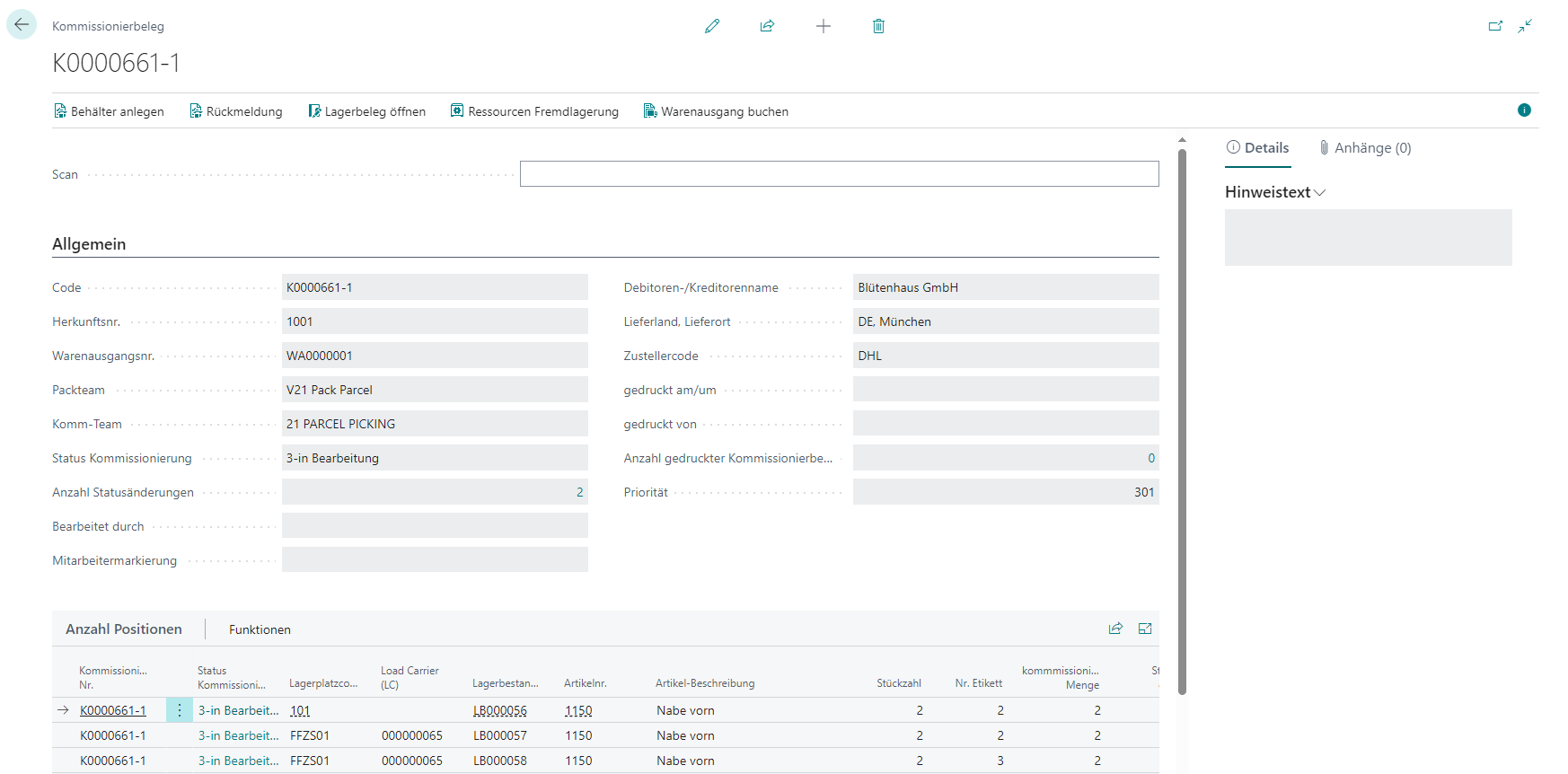
Menu
- Create Load Carriers
- Response picking list: Confirms the picking including the noted quantities. The Response is the procedural end of picking for the items it contains. Who performed the Response is logged in the Time protocol list. See also Response picking document in the keyword directory. Please note that the picking positions can no longer be deleted once the Response has been made.
- Open stock document
- Outside storage resources
- Release Created Picking Document: Releases this picking document
- Reset Released Picking Document: Resets status of this released picking document
- Post shipment
General
- Code
- Consolidation No.: Groups multiple orders that are to be packed together under one number. See various order handling. If it is a picking series or a multi order picking batch, this field generally remains empty, as multiple consolidation numbers can be assigned to one document.
- {{Source No.}}. If it is a picking series or a multi order picking batch, this field generally remains empty, as multiple source numbers can be assigned to one document.
- Warehouse Shipment No.: If it is a picking series or a multi order picking batch, this field generally remains empty, as multiple warehouse shipment numbers can be assigned to one document.
- Picking Series
- Packing team
- Picking team
- Picking state: See Picking state in the keyword directory
- Number of status changes: Clicking on the number opens the Time log
- Processed by
- {{Employee marking}}
- Type
- Regular: Standard pick document for individual orders
- Series: Picking document for series picking
- MOP batch picking: Pick document for MOP batches
- Various picking document: Indicates whether the picking document is part of a various order handling. This means that several orders with this picking document are being progressed at the same time
- Customer/vendor name
- Ship-to Country, Ship-to City
- Shipping Agent Code: From Warehouse Shipment
- Printed at Datetime
- Printed by User
- Number of printed picking documents
- {{Priority}}: Changes depending on the priority in the warehouse shipment line
- Number of Full Load Carrier Picks
- Number of Partial Picks
Details
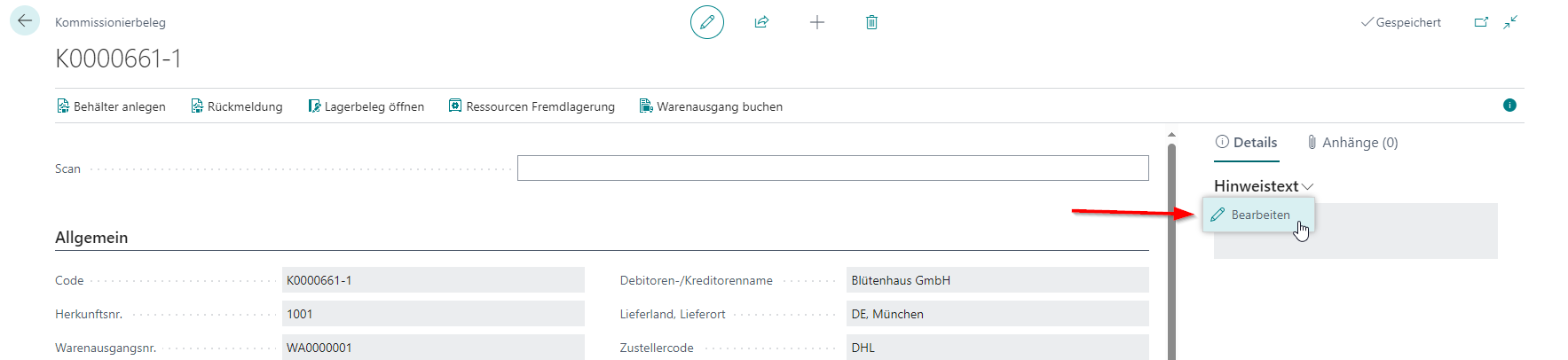
On the right-hand side of the picking document in the Details area, you will find the Comment text and the taken pictures. In the Comment text you can enter information that can be accessed in the MDE on the pages of the A4 picking program using the i button. In addition, the comment text is printed on the printed pick report.
If you someone took a photo on the MDE in A4.2 oder A4.3 during picking you can see these photos in the pictures section.
Picking Positions
Menu
- Convert SU to PTU: Converts a single selected SU to a PTU. The prerequisite for this is that the SU quantity is equal to the picking quantity.
- Convert all SUs to PTUs: Executes the above function for all SUs in the rows. If only a single SU is present, use the Convert SU to PTU function instead.
- Outside Storage Resource
- Swap Inventory
- Cancel marked picking lines
Lines
- Picking Document No.
- Picking State
- Storage Place
- Code
- Load Carrier
- Inventory No.
- Item No.
- Item Description
- No. of Pieces
- BUM (Base Unit of Measure)
- Picking Load Carrier Number
- Number of Pieces picked
- Number of Unity packed
- Processed by
You can also add the following columns via Personalize to the table:
- Serial No.
- Warehouse Shipment No.
- Source No.
- SSCC of Full Pallet
Load Carriers Picking
All load carriers associated with this picking document are shown in this table. You can also print the load carrier labels from here.
Menu
- Manage
- Delete line
- Functions
- Delete picking information
- Post Load Carrier to storage place: Posts the selected Load Carrier to a storage place to be selected
- Print load carrier label: Opens Print load carrier label
- Create shipping order line: Transfers the Load Carrier data to a new shipping order line. The prerequisite for this is that a shipping order already exists and the Load Carrier has the state 7-packed.
- Post shipment: You can post the warehouse shipment here. This is useful at this point if you want to partially post the warehouse shipment. All possible shipments are created and the remaining processes retain their state
Lines
- Picking Load Carrier Number
- Code
- {{Inventory Measure Code}}
- Description
- Depth, Width, Height
- Weight
- Load Carrier Type
- State
- {{Storage Place Code}}
- {{Barcode}}
You can also add the column Warehouse Shipment No. via Personalize to this table.
Cancel Marked Picking Lines
This function allows you to cancel the selected picking lines and transfer the inventory to new Load Carriers and/or new storage places via a move order. Please note that cancellation is not possible for lines that are in a packaging process.
Cancelled lines are given the state 8-Cancelled and the quantities are set to zero.

Enter the quantity to be canceled per line in the Cancel quantity field. Then create a new target Load Carrier and/or generate a move order for the canceled quantities. The new Load Carrier is entered in the Target SU field and the new storage place from the move order is entered in the Target storage place field.
- Item No.
- Item Description
- Variant Code
- Number of Pieces picked
- Cancel Quantity
- Base Unit of Measure
- Load Carrier (LC)
- Storage Place Code PTU
- Target SU
- Target Storage Place Code
The original location of the inventory is preassigned in the Target SU and Target storage place code fields to simplify returns.
Posted Picking Document
Completed picking documents are converted into a posted picking document after a warehouse shipment has been posted. This contains the same information as the picking document, but can no longer be processed.
SNCL Picking Series Monitor
The series monitor provides an overview and management of the picking series.
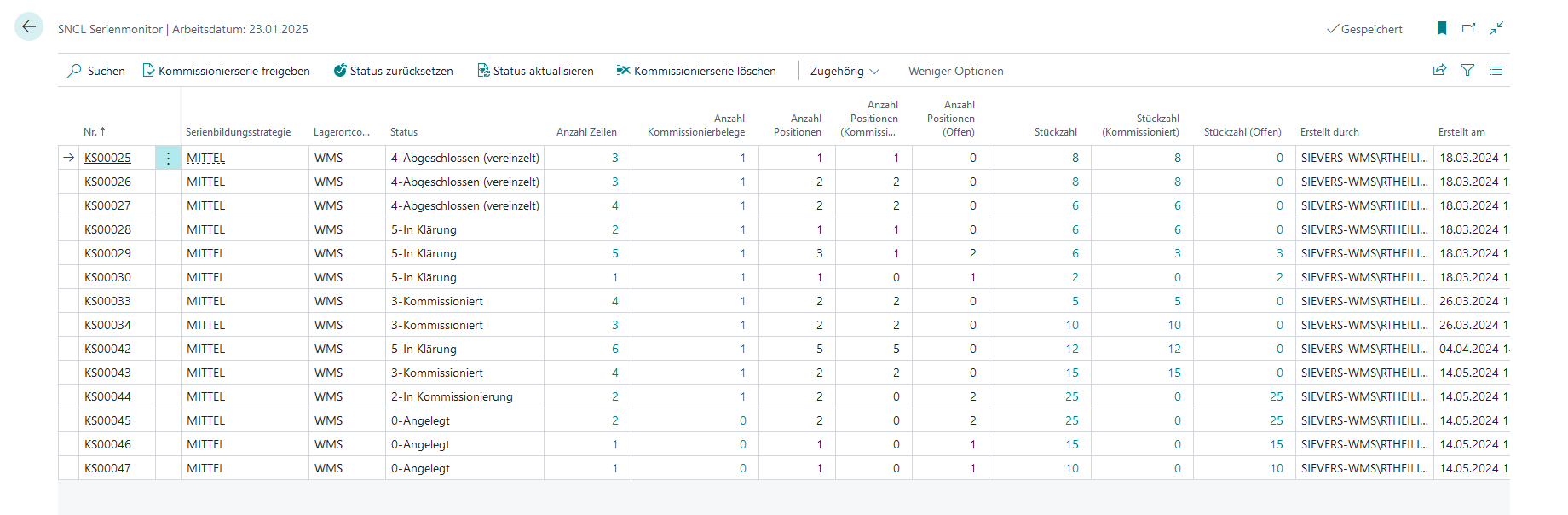
Menu
- Search
- Create Picking Series
- Release Picking Series: If automatic release is not activated in the series creation strategy line, the release must be carried out via this action
- Reopen Picking Series
- Actions
- Update Status
- Delete Picking Series
- Archive Picking Series
- Release Series Distribution: Only possible if there is at least one STU with the state Recorded in the picking series.
- Related
- Show Stock Documents
- Show STUs
- Show Picking Document
Table
- No.
- Series Creation Strategy
- Location code
- Status
- Number of Lines
- Number of Picking Documents
- Number of Positions
- Number of Positions (picked)
- Number of Positions (outstanding)
- Number of Pieces
- Number of Pieces (picked)
- Number of Pieces (outstanding)
- Number of Piececs to distribute
- Number of Pieces distributed
- Serieso Distribution No.
- Series Distribution Status
- Notice: This notice will be shown on the mobile device on page 4.1
- Created by
- Created on
Series Distribution
This page is used for the distribution of series-picked inventory items to the original orders. This section only describes the structure of the page and the fields. For a process description, please read perform a series distribution.
Series Distribution refers to the list of series distributions and the individual series distribution.
List
In the list you have an overview of the following information:
- No.
- Picking Series No.
- Status
Select your series distribution here.
Card
The page then opens where you perform the series distribution.
In the upper area:
- Input
- STU
- Item
- Variant Code
- Target and Quantity Confirmation
- Scan PTU / SSCC
- Quantity
Alternatively, you can also use the menu actions Create Carrier or Select Item.
Table
In the middle area you will find a table showing the currently filtered items:
- Item No
- Item Description
- Number of Pieces to Distribute
- Number of Pieces Distributed
- Variant Code
- Lot No.
- Sell-by Date
- Serial No.
- #\ Warehouse Shipments
- #\ Source Documents
- #\ Inventory Items
- GTIN (Base Unit of Measure)
Order Quantities
This table shows the orders and quantities associated with the currently selected item. The table is sorted by source no. colors and quantities.
- Source No.: The colors of the source numbers mean the following: Green: With the currently selected line, the order is complete and can be made ready for shipment and shipped | Yellow: The source document receives several more lines with the same distribution process | Red: For the order, there are lines in other pick lists or open lines in the warehouse shipment. The order must be consolidated after the line in the packaging or later.
- Item No
- Item Description
- Number of Pieces to Distribute
- Number of Pieces Distributed
- Target Carrier
- Storage Place Carrier
- Lot No.
- Sell-by Date
- Serial No.
- Shipping Agent Code
- Warehouse Shipment No.
- Country/Region Code
Target Suggestions
This table shows the carrier, into which distribution is made, and its storage place. As soon as you enter the dimensions and weight here, the carrier is converted from PTU to SSCC.
- Code
- Inventory Measure Code
- Carrier Type
- Depth
- Width
- Height
- Weight
- Storage Place
- Status
Hinweis
The weight of the load carrier is automatically calculated according to the method specified in the setup field Determination Load Carrier Weight. You can find this setting in the SIEVERS WMS Setup in the Load Carrier section. Depending on the selected method, the weight is either automatically determined or must be entered manually by weighing.
FactBox
In the Factbox on the right side, you can track the current progress of the serial distribution. In the Progress section, there are progress bars that constantly display how far the current serial distribution has progressed. Below that is the status of the serial distribution. In addition, a large window Line Details is displayed here, showing which quantity of the current item should be packed.
Release Items for Picking
This list shows all released source document lines for a specific item that are in warehouse shipments. Here you can mark lines and release them for picking.
- Enter an item in Item No. and, if required, a variant in Variant Code.
- All matching lines are now shown. Select the lines you want to release and click on Select for Picking. Picking documents are now automatically generated for the respective source documents. If a team can be assigned, the document is released immediately.
The list is sorted as follows:
- First loading date
- Priority
Cancel Released Items
This list shows all picking lines with status 0-created or 2-released for a specific item. Here you can mark lines and cancel them from the picking.
- Filter by the following options:
- Item no.
- Variant
- Lot no.
- Serial no.
- Sell-by date
- All matching lines are now shown. Mark the lines you want to cancel and click on Cancel selection.
The list is sorted as follows:
- First loading date
- Priority
SNCL Archive Picking Series
You can use this function to archive picking series that have the state 4-Finished.
For example, use these fields to filter for the desired picking series:
- No.
- Series creation strategy
- Location code
MOP Monitor
The MOP Monitor is the central overview for managing and controlling multi-order batches. Analogous to the series monitor, it offers a structured view of all MOP batches with status, progress and targeted actions for controlling the picking process.
Via the MOP Monitor you can:
- Release or reset MOP batches
- Monitor the progress of picking
- Display associated documents and carriers
- Archive completed batches
- Create new batches
The list view shows the following information per MOP batch:
- No.: Unique MOP batch number (from the number series of the SIEVERS WMS setup)
- MOP batch creation strategy: Code of the used MOP batch creation strategy
- Location code: Location for which the batch was created
- Status: Current status of the MOP batch. See Status of MOP batches
- Number of lines: Number of outbound stock transaction lines in the batch. Click on the number opens the filtered outbound stock transaction lines
- Number of pick documents: Number of created pick documents. Click on the number opens the filtered pick documents
- Number of pieces: Total number of pieces of all items in the batch. Click on the number opens the filtered outbound stock transaction lines
- Number of pieces (picked): Already picked number of pieces. Click on the number opens the filtered, picked outbound stock transaction lines
- Number of pieces (open): Number of pieces still to be picked. Click on the number opens the filtered, open outbound stock transaction lines
- Note: The note is displayed in A.4MOP
- Created by: User who created the batch
- Created on: Date and time of batch creation
Menu
The MOP Monitor offers the following actions:
Create MOP batch: Starts the manual creation of MOP batches based on the stored MOP batch creation strategies. See Execute MOP batch
Release MOP batch: Releases the selected batch and creates pick documents. The status changes from 0-Created to 1-Released
Actions:
- Reset status: Resets a released MOP batch back to status 0-Created. Can only be executed for batches in status 1-Released. For batches in status 0-Created or 4-Completed an error message appears
- Update status: Updates the display and recalculates all flowfields. Useful when the status has changed through external processes
- Delete MOP batch: Deletes the selected batch. Can only be executed if nothing has been picked yet. If picking has already taken place, the error message appears: "First cancel picking 'pick document no.'"
- Archive MOP batch: Archives the selected batch. Can only be executed for batches in status 4-Completed. For not completed batches the error message appears: "The MOP batch has not been picked to completion yet"
Related:
- Show dislocations: Shows all outbound stock transaction lines for the selected MOP batch (filtered by MOP batch no.)
- Show PTUs: Shows all PTUs (picking transport units) for the selected MOP batch
- Show SSCCs: Shows all SSCCs (serial shipping container codes) for the selected MOP batch
- Show pick documents: Shows all pick documents for the selected MOP batch (filtered by MOP batch no.)
- Show warehouse shipments: Shows all warehouse shipments in the warehouse shipment planning for the selected MOP batch (filtered by MOP batch no.)
Working with the MOP Monitor
Release batch:
- Open the SNCL MOP Monitor
- Select a batch with status 0-Created
- Click on Release MOP batch
- The status changes to 1-Released and pick documents are created
- The batch can now be picked
Hinweis
A separate picking document is created per MOP team. Each document contains exclusively lines from one MOP batch.
Monitor progress:
- Open the SNCL MOP Monitor
- Check the columns Number of pieces (picked) and Number of pieces (open)
- Click on the numbers to see details of the picked or open positions
- The Status shows the current processing state
Reset batch:
- Open the SNCL MOP Monitor
- Select a batch with status 1-Released
- Click on Reset status
- The status changes back to 0-Created
- You can now edit or delete the batch
Archive batch:
- Open the SNCL MOP Monitor
- Select a batch with status 4-Completed
- Click on Archive MOP batch
- The batch is archived and removed from the active view
Assembly Order
In SIEVERS WMS, you have the option of automatically creating stock documents for Assembly Orders. The advantage of posting Assembly Orders with the WMS is that two stock documents are created and posted with one order: A Outbound Stock Post document for the components and a Inbound Stock Post document for the finished item. The assembly process is described in the Processes area.
Menu
- Home
- Open Stock Document Comp: Opens the component stock document
- Open Stock Document: Opens the Inbound Stock Post document of the fully assembled item
- Outside Storage Ressource: Using this will result in the Service Order Whse. No. being filled automatically
- Post
- Release
- Show availability
- Create Stock Document Comp.
- Delete Stock Document Comp.
- Create Stock Document
- Delete Stock Document: Please note that this does not delete any reservations. These must be deleted using the “Cancel Reservation” function.
- Prepare
- Update Unit Cost
- Update lines
- Copy document
- Refresh availability
- Reserve
- Print
- Order
- Warehouse
- Create Warehouse Pick
- Create Inventory Movement
- Order
- Dimensions
- Statistics
- Comments
- Item tracking lines
- Assembly BOM
- Order Tracking
- Item availability by
- BOM level
- Event
- Location
- Variant
- Period
- Lot
General
- No
- Item no.
- Description
- Quantity
- Quantity To Assemble
- Unit of Measure code
- {{Posting Date}}
- {{Due date}}
- Start date
- End date
- Remaining Quantity
- Assembled Quantity
- Assemble to Order
- Status
Lines
- Avail. warning
- Type
- No.
- Description
- {{Variant Code}}
- Location code
- Unit of Measure code
- Quantity per
- Quantity
- Quantity to Consume
- Consumed Quantity
- Ramining Quantity
- Unit Cost
- Cost Amount
- Reserved quantity
- Quantity per unit of measure
- Resource Usage Type
- Appl.-to Item Entry
- Appl.-from Item Entry
- Stock Document Type
- Stock Document No.
- Stock Document State
- Inventory selection strategy Code
- Stock quantity reserved
- Stock quantity packed
- Customergroups Code
- Area Code
- Businessgroup Code
- Salescampaign code
You can also display the following lines:
- Description 2
- Lead Time Offset
- Department Code
- Project Code
- Bin Code
- {{Due Date}}
- Reserve
- Inventory Posting Group
- Pick Qty.
- Qty. Picked
- Inventory Selection
- Reservation Status
Hinweis
You cannot enter resources in the lines. Please enter the resources via the menu item Resources outside storage.
Posting
- {{Variant Code}}
- Location code
- Bin code
- Unit Cost
- Cost Amount
- Department code
- Project Code
SIEVERS WMS
- Stock Document Type
- Stock Document No.
- Stock qty. reserved
- Stock Quantity packed
- Stock Document State
- Inbound Stock Post Customer No.: This field is filled automatically if an outside stock item is entered in the lines. If there is a Inbound Stock Post customer here, only items that are assigned to this customer can be entered.
- Service Order Whse. No.
- Enter Assembly Charges automatically
- Stock Document Type Component
- Stock Document No. Component
- Stock Document State Components
Released Production Order
Released production orders are the document for production orders to be carried out. You can control production from here. This page is from the Business Central standard, but some fields have been added with the SIEVERS WMS.
Menu
- Actions
- Check Production Supply: Opens a window in which you can manually create replenishment for production orders. The current production order is preset as the filter. See Check Production Supply.
- Log Replenishment creation: Shows the log with the created replenishment move jobs with a lot of information. In addition, the created move order can be opened.
- Open Production Supply Move Job: Opens the related production supply move job, if one exists.
- Order
- Finish Products: Combines the actions Post Output and Post Consumption. If you use this function, posted consumption will always match the completed quantity. Input the quantity to post. You can also find this action on the list of the released production orders. You can also use this action to complete scrap quantities. These are finished but unusable products. The material consumption is deducted as normal, but the products are not posted to stock. If the Scrap Code Necessary field is activated in the SIEVERS WMS Setup, a scrap code must be specified for scrap quantities. You cannot post scrap and finished products at the same time. If the SIEVERS WMS Setup setting Auto Print LC on Output is enabled, the load carrier label is printed without further notification.
- Output
- Create Output Journal: Create a new output journal with the production order number and insert the finished products from the order into the journal sheet.
- Delete Output Journal
- Open Output Journal
- Post Output: Automatically posts the in the form entered quantity via output journal. The process creates an output journal, creates a Inbound Stock Post order, determines a storage place and posts the Inbound Stock Post document to the output journal. This action is also located in the lines menu so you can also post selected lines. You can also use this action to complete scrap quantities. These are finished but unusable products. You cannot post scrap and finished products at the same time. If the Scrap Code Necessary field is activated in the SIEVERS WMS Setup, a scrap code must be specified for scrap quantities. The scrap is not posted with a stock effect. If the SIEVERS WMS Setup setting Auto Print LC on Output is enabled, the load carrier label is printed without further notification.
- Consumption
- Create Consumption Journal
- Delete Consumption Journal
- Open Consumption Journal
- Post Consumption
General
- {{Replenishment Status}}
Lines
- {{Replenishment Status}}
- Storage Place Finished Products
- Inbound Stock Post Strategy Code Finished Products
SIEVERS WMS
- Location Code Production
- Output Journal Exists
- Consumption Journal Exists
- Provisioning of Components
- Storage Place Code Components
- Replenishment Strategy Code Components
- Inv. Sel. Strategy Code Components
- Provisioning Strategy Code Components
- Output of finished products
- Inbound Stock Post Strategy Code Finished Products
- {{Storage Place Code Finished Products}}
Hinweis
Changes to the Provision of Components fields can be transferred to the component lines after a query. The information in the above fields is transferred from the SIEVERS WMS setup when the production order is created. If the production order is updated, the information is transferred according by the following hierarchy:
- Work center/work center group (only if a routing link code is stored in the prod. order component line)
- Stockkeeping unit
- Item
- Item category
- Production order header
If no information is found in the first level, the next level is taken.
Prod. Order Components
In the lines of the released production order, you can also access the components of the respective production order line. Doing so opens this page. This is a table from the Business Central standard, but it has been extended by additional fields from the SIEVERS WMS.
The following fields have been added:
Menu:
Table:
- Number of Pieces in Prod. Area: Specifies the number of pieces of all inventories of the item that are in the production area. Reservations are not taken into account.
- Overall Remaining Quantity: Specifies the total quantity remaining of all released production order component lines that refer to the same combination of item number and variant.
- Overall Remaining Quantity (SP): Specifies the total remaining quantity of all released production order component lines that refer to the same combination of item number, variant, and storage place components.
- Inventory selection
- Quantity consumption journal
- Quantity replenishment
- {{Replenishment Status}}
- Replenishment Move Job Status: Indicates the state of the directly linked replenishment move job. Empty if no move job is linked.
- Finished Replenishment Quantity: Indicates the quantity already processed in the linked production supply move order.
- Storage Place Code Components
- Replenishment Strategy Code Components
- Inv. Sel. Strategy Code Components
- Provisioning Strategy Code Components
- Supply class production
- Routing link code
Hinweis
If a consumption journal already exists for a production order, the fields Location code and Inventory Selection Strategy Components in the corresponding component lines can no longer be changed.
:: Note Changing a machine center in a production order work plan causes some fields of the component lines with the same routing link code to be recalculated. The following fields are affected:
- Storage Place Code Components
- Replenishment Strategy Code Components
- Inv. Sel. Strategy Code Components
- Provisioning Strategy Code Components
- Supply class production
:::
Check Production Supply
With this action, you can generate replenishment for production orders. You can adjust the following parameters:
- Quantity Determination Basis Manuf.: Defines the basis for determining the quantities for production. For more information, please read the description for the field of the same name in the SIEVERS WMS setup in the Production section.
- Calculation Formula for Lead Time: indicates which production orders should be included in the calculation. Here you can enter usual time specifications for Business Central, such as ‘2D’ (2 days). Based on this, the due date is calculated
- Due date: The maximum due date of the included production orders
- Replenishment Move Order Production per Target: Each component for production has a target to which it must be delivered. This target can come from the production order, the item or the workstation, for example. This parameter ensures that only components that have to be brought to the same place are determined with this replenishment move order.
- Details: If this option is activated, the log replenishment creation is opened with a filter for the created move order after the move order has been created, so that you can track the created movements.
- WMS Teams: Activates the team-based grouping of move jobs. When activated, all other grouping options are deactivated. The move job creation follows this logic:
- Primary grouping: Internal Transport Team from SNCL Move Job
- Secondary grouping: Internal Transport Follow-up Team from SNCL Move Job
- Per move job, only lines with an identical team combination are consolidated
If not enough inventory can be found for the replenishment, no replenishment and thus no stock document is created.
To create replenishment, it is important that the following fields are filled in the component lines of the Released production order:
- Location Code
- Storage Place Code Components
- Replenishment Strategy Code Components
- Provisioning Strategy Code Components
Hinweis
Please note that no production locations are taken into account for this replenishment.
Log Production Supply
Shows the protocol of the task Production Storage Place Replenishment. For the respective lines, you can also open the move job.
- Position No.
- Item No.
- Variant Code
- Location Code
- Warehouse Code
- Storage Area
- Storage Place Code
- Production Order No.
- Production Order Line No.
- Status
- Component Line No.
- Source Table
- Source Table Name
- Needed Quantity (Base)
- Source Quantity (Base)
- Qty. in Prod. Storage Area
- Replenishment Quantity
- Considered Replenishment Quantity
- Completed Replenishment Quantity
- Free Quantity
- Calculated Replenishment Quantity
- Minimum Inventory
- Maximum Inventory
- Minimum Replenishment Quantity
- Step Size
- Quantity to Replenish (Base)
- Inventory Target Storage Place
- Reserved Inventory Target Storage Place
- Inventory Addition to Target Storage Place
- Total Inventory in Stock
- Reserved Inventory
- Blocked Inventory
- Storage Place Search Filter
- Provisioning Strategy Code Production
- Replenishment Strategy Code Production
- Move Job
- Quantity Determination Basis Manuf.
- Replenishment Move Job Manuf. per Target
- Type of Production Supply
- Replenishment Creation No.
- Created at Date
- Created at Time
Log Replenishment Creation
Displays the log for the replenishment created for the current released production order. You can also open the move order for the respective lines.
- Item No.
- {{Variant Code}}
- Storage Location Code
- Warehouse Code
- {{Storage Area}}
- {{Storage Place Code}}
- Prod. Order No.
- Prod. Order Line No.
- Status
- Component Line No.
- Source Table
- Source Table Name
- Entry No.
- Assigned Entry No.
- Needed Quantity (Base)
- Source Quantity (Base)
- Source Storage Place
- Minimum Inventory
- Maximum Inventory
- Minimum Replenishment Quantity
- Step Size
- Quantity to Replenish (Base)
- Provisioning Strategy Code Production
- Replenishment Strategy Code Production
- Move Job
- Quantity Determination Basis Manuf.
- Replenishment Move Job Manuf. per Target
- Type of Production Supply: Shows whether the replenishment has a warehouse reference or is assigned to a specific production order.
- Replenishment Creation No.
Post Consumption
This action allows you to post consumption directly when production is completed. Enter either the quantity to be delivered or the consumption quantity. When you enter the quantity to be delivered, the consumption quantity is calculated automatically as follows: Consumption Quantity = Output Quantity * Component Quantity. When you enter the consumption quantity, this quantity is posted as long as it does not exceed the quantity remaining in the lines.
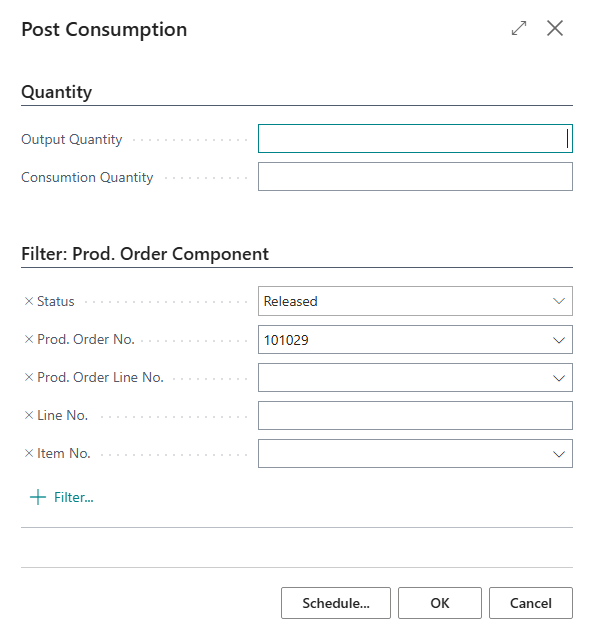
The following steps are performed during this action:
- Creation of a consumption journal
- Creation of a stock document for the consumption journal
- Release and posting of the Outbound Stock Post document to the consumption journal
Production Journal
The production journal is used for posting production lines and creating stock documents in released production orders. The page belongs to the Business Central standard, but the following fields have been added by the SIEVERS WMS:
- Stock Document Type
- Stock Document No.
- {{Inventory Selection Strategy}}
- Stock Quantity Reserv. Inbound Stock Post
- Stock Quantity Packed Inbound Stock Post
- Stock Quantity Reserv. Outbound Stock Post
- Stock Quantity Packed Outbound Stock Post
- Stock Quantity Reserv. Transfer
- Stock Quantity Packed Transfer
- Stock Quantity Reserv. Stocktaking
- Stock Quantity Packed Stocktaking
- New Load Carrier
- New Inventory measure code
- {{Storage Place Code}}
Contents from these fields are taken into account when stock documents are created.
Work Center Card
The work center card is used to manage a work center, which in turn manages several machine centers. This page is part of the Business Central standard. However, the SIEVERS WMS has added the section of the same name in the lower area.
- Location Code Production
- Provision of components
- Storage Place Code Components
- Replenishment Strategy Code Components
- Inv. Sel. Strategy Code Components
- Provisioning Strategy Code Components
- Output of finished products
- {{Storage Place Code Finished Products}}: Filtered by Location Code Production
- Inbound Stock Post Strategy Code Finished Products: Only necessary if no Storage Place Code Finished Products is specified
The information entered here is inherited by the associated machine centres.
In the Scheduling area, the Default Routing Link Code field has also been added. This allows the default setting of the routing link code in the work plan.
Machine Center Card
The machine center card is used to manage a machine center. A machine center can be part of a work center. This page is part of the Business Central standard. However, the SIEVERS WMS has added the section of the same name in the lower area.
- Location Code Production
- Provision of components
- Storage Place Code Components: If a storage place is defined as Storage place components for a workstation, it is always used as a storage place for replenishment orders in production supply. This also applies if the place would actually be full according to the system or if it is a storage place of the block category. There is one exception: If the storage place is locked, an error message is still displayed.
- Replenishment Strategy Code Components
- Inv. Sel. Strategy Code Components
- Provisioning Strategy Code Components
- Output of finished products
- {{Storage Place Code Finished Products}}: Filtered by Location Code Production
- Inbound Stock Post Strategy Code Finished Products: Only necessary if no Storage Place Code Finished Products is specified
The Default Routing Link Code field has also been added to the Work plan setup area. This allows the default setting of the routing link code in the work plan. The fields in component lines with the same routing link code are automatically adjusted when changes are made to the machine center card.
The contents of these fields are taken from the parent work center. If you change the work center, you can decide whether you want to adopt the values of the new work center or keep the previous ones.
SNCL Inventory Measures
On this page you can create and progress inventory measures. Inventory measures are packaging or load carriers such as pallets, mesh boxes or cartons. You can store the following information here for each inventory measure:
- Code
- Code Description
- External description: Serves as an area for rough generic terms about what the Load Carrier is
- Depth, width and height
- Volume: Is calculated according to the unit conversion list
- Weight: Tare weight of the inventory measure. Necessary to determine correct package weights
- Use as shipping unit: Specifies whether this inventory measure should be usable for shipping via SNC Shipping. If this flag is deactivated, Load Carriers with this inventory measure cannot be converted to an SSCC.
- Reusable Load Carrier : Specifies whether Load Carriers with this inventory measure can be used multiple times
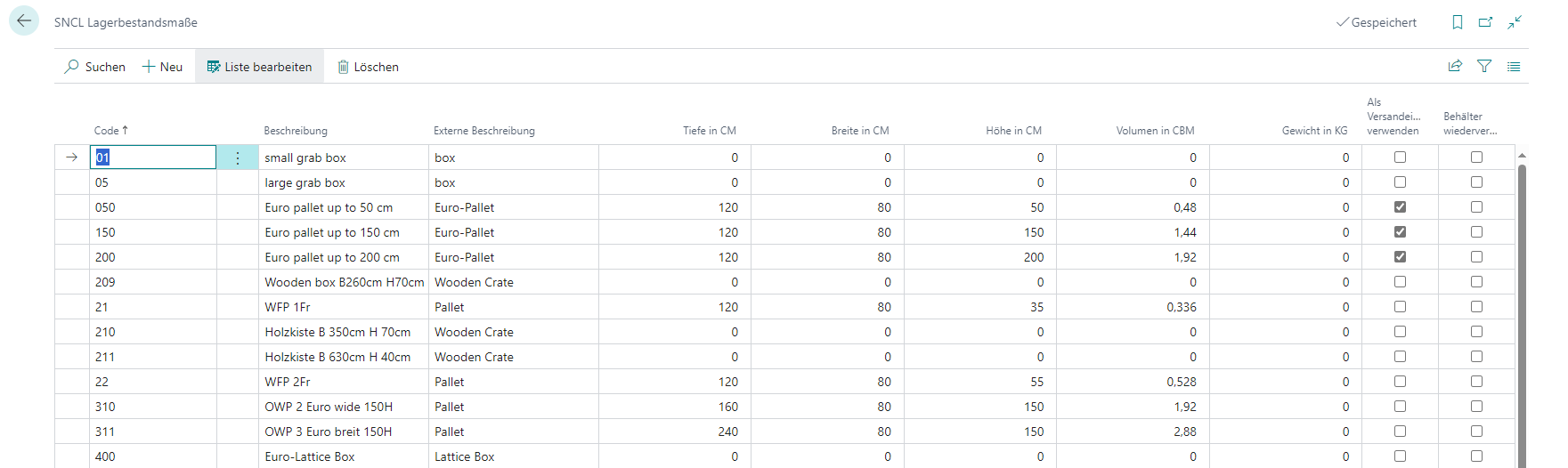
SNCL Storage Place List
This table shows all storage places entered in the system and their most important properties.
Hinweis
Create new storage places via the warehouse card.
Menu
- Process Storage Places: This function allows you to customize any number of storage places at the same time. Use this function after you have selected one or more places. A window will then open in which you can change the attributes. Make sure that you always activate the corresponding [...] change field when changing an attribute. You have the following change options:
- Storage area
- Zone
- Storage place type
- A/B/C code
- Change Display Description MDE: If activated, the set option for Display Description MDE is applied to the storage places.
- Display Description MDE: Specifies if the Storage Place description should be used to display a Storage Place on MDEs. Howver, if this is activated, the functionalities to format the Storage Place display can not be used.
- Category
- Height/width/depth
- Blocking code
- Visibility for sales or production
- Delete places
- Start Manual storage place update: Updates the occupancy information of the selected storage places. The update includes not only the occupancy but also the values for weight, volume and no. of places from the assigned category.
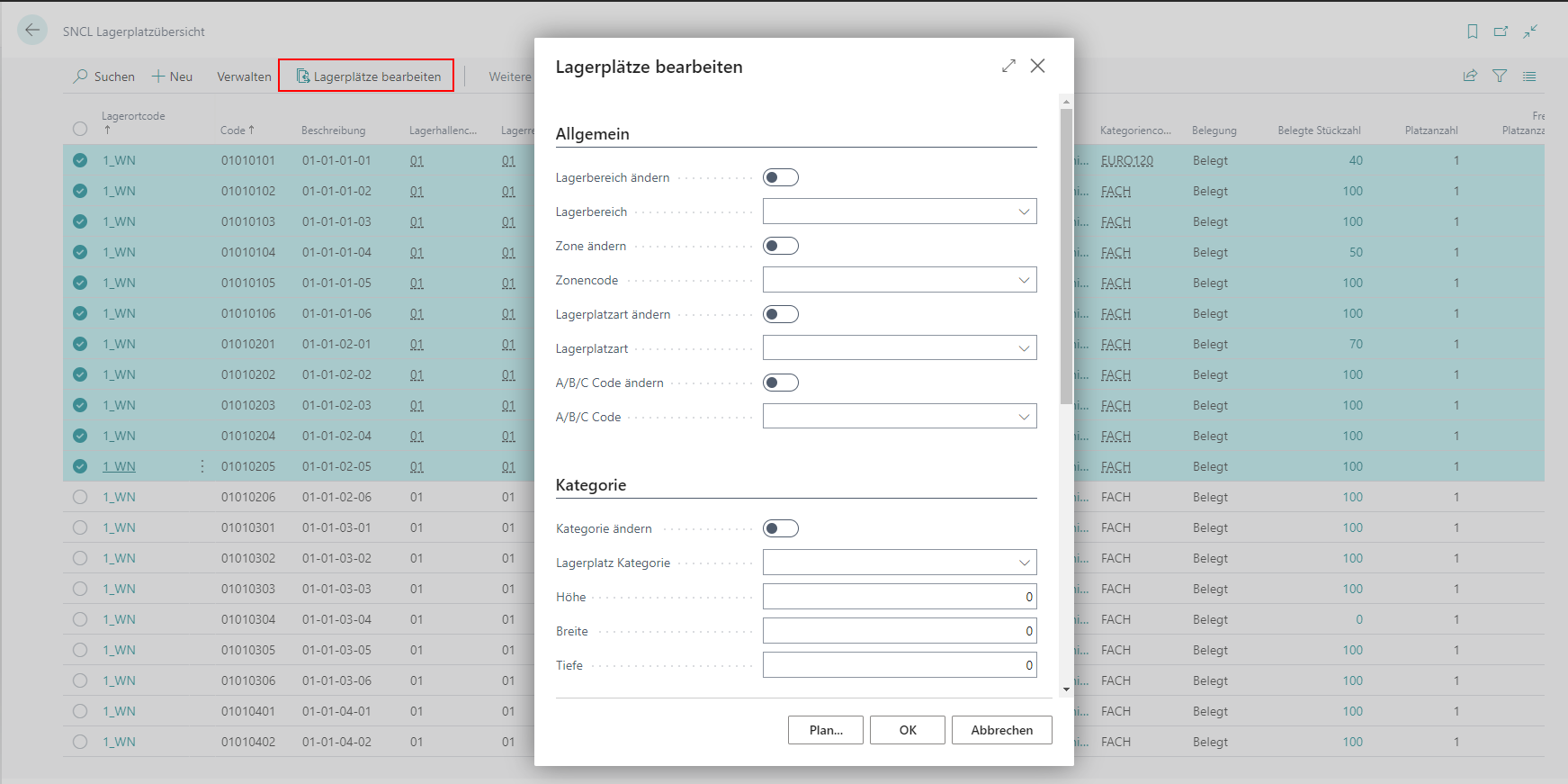
- Related
- Inventory
- Stock Entries
- Block Entry
- Storage Shelf by Category
- Picking Items
Table
- Location code
- Code
- Description
- Warehouse code
- {{Storage Shelf Code}}
- Row code
- {{Level code}}
- {{Storage field code}}
- Side
- Storage type
- Function
- Storage Place Type
- Category code
- Occupancy
- Number of Inventories
- Number of different items
- Number of Inventories in SUs
- Number of Inventories in PTUs/SSCCs
- Occupied Number of pieces
- Number of places
- Available number of spaces
- Reserv. Number of Units
- Reserv. No. of Storage Places
- Available Field No. of Spaces
- Stocktaking No.
- Last Stocktaking Date
SNCL Storage Place Card
The Storage Place card shows the properties of the place selected in the storage place overview. You can also print storage place labels here. The dimensions of the storage place are taken from the assigned category and are automatically updated when the category changes.
Menu
- Print small storage place label
- Print large storage place label
- Manual update: Performs a storage place update for this storage place. This updates the occupancy information as well as weight, volume and no. of storage places from the assigned category.
- Related:
- Inventory
- Stock entries
- Blocked items
- Pick items
- Storage places by
- warehouse
- Storage Shelf
General
- Location code
- Code
- Description
- Route optimization
- Transfer Location Code: Can only be filled in if the fields Automatic Item Transfer Jnl. Batch Nam and Automatic Item Transfer Jnl. Template Name in the SIEVERS WMS setup are filled in. If a location is entered here, stock will be automatically transferred to the configured transfer location/storage place when depositing to this storage place. This applies to both move jobs and inbound stock posts.
- Transfer storage place code
- Blocking code
- Blocked
- Blocked by storage place code
- Visible to sales
- Visible for manufacturing
- Warehouse code
- {{Storage Shelf Code}}
- Row code
- {{Level code}}
- Box code
- {{Storage Area}}
- {{Storage field code}}
- Check digit
- Last stocktaking date
Dimensions
- Category code
- {{Zone code}}
- Height, width, depth
- volume
- weight
- Storage place type
- Side
- {{ABC code}}
Document
- Document
- Space code
- Available space code
- No. of storage places
- Blocked no. of storage places
- Multiple occupancy space code
- Multiple occupancy
- Occupied number of pieces
- Available Number of Spaces
- Available depth
- Available volume
- Available weight
- No. of storage places documented
- Occupied depth
- Occupied volume
- Occupied weight
Reservation
- Reserv. No. of storage places
- Reserv. weight
- Reserv. Depth
- Reserv. Volume
- Reservation max. 1 warehouse shipment
- Reservation max. 1 order
Picking
- Number of picking items
- Number of pieces in putaway documents
- Number of pieces in Outbound Stock Post documents
- Number of pieces documented
- Reserved by consolidation
Display format
- Warehouse background color
- Storage Shelf Background Color
- Level background color
- Row background color
- Box background color
- Warehouse font color
- Storage Shelf Font Color
- Layer Font color
- Row Font color
- Box font color
- Warehouse font size
- Storage Shelf Font size
- Level Font size
- Row Font size
- Box Font size
- Show storage place Format
Picking and Production Storage Place
- Location Code
- Storage Place
- Space code
- Item no.
- {{Variant Code}}
- Minimum/Maximum inventory: Defines the minimum and maximum inventory of this item in the place. Relevant for replenishment
- Minimum replenishment: Defines the minimum replenishment required for a replenishment move order
SNCL Picking Items
Shows an overview of the picking items and their storage locations. You can also print the picking location label from here via Reports.
- Location
- Storage place
- Space code
- Item no.
- Variant Code
- Minimum Inventory
- Maximum Inventory
- Minimum Replenishment Quantity
SNCL Floor Conveyor Vehicles
You can use this table to manage your floor conveyor vehicles (FCV). It has the following columns:
- Code
- Description
- Storage Location: Location Code where the FCV is moving.
- Storage place location: Here a storage place is stored that enables the locating of load carriers when they are moved. If a load carrier is located on this storage place, it is positioned on the floor conveyor vehicle. A storage place is mandatory in order to select the FCV on the MDE on page A8.
- Level filter: Use this filter to define which levels can be reached by the FCVs
- Maximum weight: Specifies the maximum weight that the FCV can carry
- Warehouse filter: The FCV should move in these warehouses
- MOP vehicle: Activate this option if this material handling equipment is used for multi-order picking. When activated, at least one entry must be created in the sub-table MOP box
- Number of MOP boxes: Displays the number of entered MOP boxes. Click on the number to edit the MOP boxes
- MOP info storage place: Here the storage place of a MOP material handling equipment can be saved when it is completely parked in A4.MOP.
MOP Boxes
For material handling equipment marked as MOP vehicle, you can define multiple storage places as boxes in the sub-table MOP boxes. Each box receives a box code for visual identification during picking.
The box code is attached to the container or on flexible box cards in a highly visible manner. This makes it easier for the picker to assign items to the correct order containers.
- Storage place code: Associated storage place for the respective box. A storage place code must not be repeated in different MOP boxes. The uniqueness is checked by the system
- Box Code: Short identification of the container or the box card (e.g. 01, 02, 03, A1, B2). The box number is displayed on the mobile data terminal during picking and serves for visual assignment
Hinweis
Select the last two topology elements of the storage place code according to the box number. This significantly facilitates data maintenance. Example: Storage place "MOP-VEHICLE-01" → box number "01". Each storage place can only be assigned to one box. A storage place must not be repeated in different material handling equipment. The box number (e.g. 01, 02, 03) only achieves uniqueness with the storage place and can be repeated in different MOP carts. A box number is unique per material handling equipment. No box may be assigned multiple times on a rack.
SNC Shipping Units
This table shows the SNC Shipping shipping units. It has the following columns:
- Code
- Description
- Tare weight
- Length
- Width
- Height
SNCL Inventory List
This table shows the current inventory items. Clicking on the number takes you to the relevant inventory card.
The following information can be found in the table:
- No.
- {{Inventory Unit of Measure}}
- Load Carrier code
- Load Carrier Load Carrier Type
- Load Carrier Inventory Measure Code
- Load Carrier Description
- Load Carrier State
- {{Storage Place Code}}
- Number of Pieces
- Unit of Measure
- Unit of Measure
- Item No.
- Item Description
- Reserv. Number of Units
- Depos. Number of Units
- Source No.
- Special Order Sales No.
- Assignment Source No.
- Stocktaking No.
- Blocking Code
- Blocked
- Visible to Sale
- Visible to Manufacturing
- Quality Status
- Storage Place Type
- Lot No.
- Serial No.
- Inbound Stock Post Date
- {{Opening Inventory}}
- Gross Weight
- Net Weight
Menu
- New Move Job for Selection: Creates a new move order for the selected inventory items. You can choose between a Load Carrier move job and an inventory move job
- Add selection to Move Job: Opens a window that can be used to add the selection to a specific move order
- Actions
- Functions
- Change Quality Status: Changes the quality status of the inventory item
- Stocktaking for Selection
- Merge inventories: Combine identical non-blocked inventories. This is possible if the following characteristics are the same:
- Item no.
- Variant
- Lot no.
- Sell-by date
- Serial no.
- Inbound Stock Post customer (for outside storage)
- Block/Unblock Inventories: Allows you to block or unblock any number of selected inventories with the desired block code. To block, select a block code and remove it to unblock. Only inventories with the same block code can be unblocked at the same time. The block code is automatically updated in all associated move job lines.
- Functions
- Related
- Stock Entries
- Block Entry
- Reports
- Inventory Receipt: Prints the Inventory Receipt for the selection
SNCL Inventory Card
This page shows an overview of an individual inventory and its properties.
Menu
- Actions
- Functions
- Change Quality Status
- Change Sell-by Date
- Update
- Functions
- Related
- Stock Entries
- Block Entry
General
- No.
- Item No.
- Item Description
- Comment
- {{Variant Code}}
- Lot No.
- Sell-By Date
- Serial No.
- Number of Pieces
- BUM
- Location Code
- {{Storage Place Code}}
- Inbound Stock Post Date
- Outbound Stock Post Date
- Blocking Date
- Blocking Code
- Blocked
- Visible to Sale
- Quality Status
- External Inventory No.
- {{Reserved by Document No.}}
- Reservation Entry No.
Inventory
- Number of Inventories
- Number of Pieces
- {{Inventory Unit of Measure}}
- Number of Pieces per Inventory
- Subpackaging Unit (SPU)
- No. of Pieces per SPU
- Net Weight
- Gross Weight
- {{Opening Inventory}}
- Completely Reserved by Outbound Stock Post
- Reserv. Number of Pallets
- Reserv. Number of Units
- Reserv. Gross Weight
- Reserv. Net Weight
- Depos. Number of Inventories
- Depos. Number of Units
- Depos. Gross Weight
- Depos. Net Weight
Stock
- Location Code
- {{Storage Place Code}}
- Warehouse Code
- {{Storage Shelf Code}}
- Space Code
- Load Carrier Code
- Transport Load Carrier Code
- {{Inventory Measure Code}}
- Depth
- Width
- Height
- Volume
- Weight
- {{Size Range}}
Outside Stock
- Outside Storage
- Inbound Stock Post Customer No.
- Storage Charges Customer No.
- Storage Charges Code
Manufacturing
- Visible to Manufacturing
- Production Date
SNCL Stocktakings
Lists the currently open stocktakings.
- No.
- Keyword
- State
- Document Date
- {{Posting Date}}
- Stocktaking Type
- Assigned to User
- Source No.
- Description of origin
- Original-Document No.
- Original-Document Type
- Number of Inventories
- Number of counted Inventories
- Number of open Inventories
- Number of Inventories with threshold
- Quantity deviation relative
- Quantities found absolute
- Quantities lost absolute
SNCL Stocktaking
A stocktaking can be managed on this page. As a rule, a stocktaking can and may be created by a warehouse employee using the MDE device. The process of MDE stocktaking is described in the section Permanent stocktaking with MDE.
Deleting a stocktaking is only possible if there are no assigned cycle counting lists.
Menu
Home
- Change status: Changes the state of the stocktaking to the next higher state. Preparation -> In progress -> Finish message
- Create cycle counting list: Creates a cycle counting list and then opens it
- Create Empty cycle counting list
- Open cycle counting list
- Takeover cycle counting list: Transfers the cycle counting list to the physical inventory document
- Enter inventory items by storage place: Enters inventory according to the desired storage place filter
- Enter empty storage places: Allows you to count empty storage places
- Enter inventory items by item: Enters inventory according to the desired item filter
Reports
- Warehouse receipt: Creates a printable warehouse receipt
- Inventory receipt: Creates a printable inventory receipt
Actions
- Functions
- Open Phys. Inventory Journal
- Delete Phys. Inventory Journal: Please do not delete the phys. inventory journal unless this is not avoidable.
- Outside storage resources
- Post: When posting a stocktaking, the linked service order is also automatically posted – provided it contains lines.
- Functions
General
- No.
- Keyword: Freely definable field to describe the stocktaking
- Original-Document Type
- Original-Document No.
- Journal Batch Name
- Source type
- Source no.: If the source type is set to Customer, you can only change the source no. before entering the first inventory line.
- Description
- Description 2
- Document date
- {{Posting Date}}
- State
- Assigned to user
- Stocktaking type
- Manual stocktaking
- Annual Stocktaking
- Initial stocktaking: This stocktaking is carried out at the start of SIEVERS WMS in a warehouse in order to get the stocks into the warehouse management system. You can only check this box as long as there are no stocktaking lines or cycle counting lists in this stocktaking
- Permanent stocktaking MDE: This stocktaking type is set automatically when a stocktaking is created via MDE
- Zero stocktaking MDE
Lines
- {{Storage Place Code}}
- Load Carrier
- Inventory no.
- Item no.
- Item description
- Target quantity
- BUM (base unit)
- Item Unit Cost
- LCY Code
- 1st count
- 2nd count
- 3rd count
- Diff. last count
- Diff. last count in LCY
- Diff. last count %
- {{Threshold Quantity difference}}
- Threshold value Difference LCY
- Counted: Marks this inventory line as counted. If all stocktaking lines have been marked as counted, the stocktaking is automatically completed and the stocktaking lines are posted.
- Lot no.
- Sell-by date
- Serial no.
- Stocktaking Charges Recorded
Hinweis
Only the value in the current count column may be edited. Older counts cannot be changed.
Statistics
- Number of Inventories
- Number of Inventories packed
- Number of pieces
- Number of pieces packed
- Gross weight
- Gross weight packed
- Net weight
- Net weight packed
Create Stocktaking by Storage Place
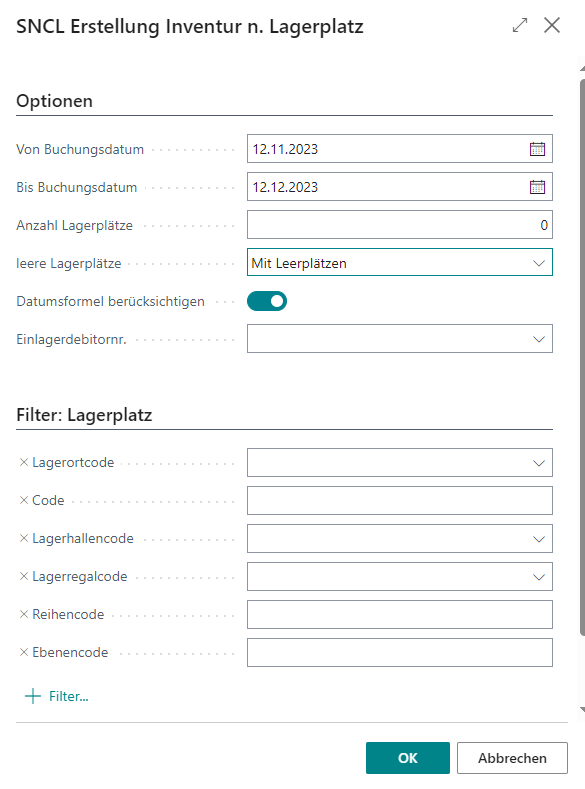
You can use this action to fill the inventory lines filtered by storage place. The following options are available here:
- From posting date
- To posting date
- Number of storage places
- Empty storage places
- With Empty Storage Places
- Without Empty Storage Places
- Empty Storage Places only
- Use Date Formula: Specifies that the date formula from the SIEVERS WMS setup should be used. Is set to true by default.
- Inbound Stock Post Customer No.: Relevant if external warehouse items from a specific customer are to be counted. If a customer is entered here, only outside storage inventory that is assigned to this customer can be entered.
- Filter
- Location code: The proposal in this field is based on the Location Code assigned to the user on the Warehouse Employees page
- Code
- Warehouse code
- Storage shelf code
- Row code
- Level code
Cycle Counting
This page is the overview over a single cycle count. Here you can carry out the stocktaking count or print a list to do it manually. You can also view the counts which are carried out on the MDE.
It is not possible to create more than three cycle counting lists. If three counts have already been carried out, decide on a count value and complete the stocktaking process.
The 1st and 2nd cycle counting lists are released immediately after creation so that they are available on the mobile device (MDE). You can find further information on that in section State of the Cycle Counting.
If there is already an open 2nd or 3rd count, the inventory management can still decide to use the last count value. For this, the inventory management activates the Counted checkbox in the SNCL stocktaking. The open cycle counting list is given the new status "8-Deleted/Discarded" so that it is clear that this cycle counting list has not been processed, but the last count value has been transferred to the stocktaking journal batch.
Only cycle counting lists with the state Open can be deleted.
Hinweis
Please note that a storage place, a Load Carrier or an item may only be included in one open or in progress cycle counting list at the same time.
Menu
- Home
- New Inventory: Opens SNCL New Inventory Stocktaking
- Reports
- Print cycle counting list
General
- Stock Inventory no.
- Cycle counting list no.
- State
- 0-Open
- 1-Printed
- 2-Released
- 3-In progress
- 4-Counted
- 8-Deleted/Discarded
- 9-Finished
- Mobile user
Lines
- Stock Inventory no.
- Cycle counting list no.
- Location Code
- Storage place
- Load Carrier
- Inventory no.
- Inventory Measure Code
- Item no.
- Item Description
- Lot no.
- Serial no.
- Sell-by date
- Target quantity
- Number of pieces packed
- BUM (base unit)
- Counted: You can mark the line as counted by clicking on this field. If all lines have been marked, the cycle counting list is automatically set to the state 4-Counted. Counted inventory lines are no longer shown on the MDE.
SNCL Post. Stocktaking
Completed stocktakings are converted to posted stocktakings. These contain largely the same fields as the original SNCL Stocktaking. You can also access the corresponding posted cycle counting lists via the menu.
In contrast to the stocktaking, the lines of the posted stocktaking contain the Last count field. This shows the last count list number so that you can see at a glance whether a second or third count has taken place. In addition, there are also the fields Service Order No. and Posted Service Order No..
SNCL New Inventory Stocktaking
You can use this processing form to enter new inventories during a stocktaking. If an inventory no. is entered that already exists but is posted at a different storage place, the system automatically creates a transfer to the new storage place. This way, the correction is recorded in the system and traceable.
Menu
- Manage
- New
- Create Load Carriers: This action allows you to create a Load Carrier without having to scan a Blanco Barcode
- Create Load Carriers for actual line: This action creates a bin for the current row only
- Take Over Inventory: Takes over the new inventory entered
- SU Label: Prints SU Label for new inventory
General
- Stock Inventory No.
- Cycle Counting No
- State
- Mobile user
Barcode: You can scan a barcode here. This can be
- a Blanco Barcode
- a GS1 Barcode
- a posted load carrier
New Inventory
The new inventory is listed here.
- Stocktaking no.
- Cycle counting no.
- Line no.
- Location Code
- {{Storage Place Code}}
- New LC
- GS1-SSCC
- New inventory no.
- Item no.
- GTIN: Shows the GTIN for the base unit
- Item description
- Item description 2
- New Variant Code
- New Lot No.
- New Serial No.
- New Sell-By Date
- Number of pieces
- Number of Units packed
- Unit of Measure code
Shipping Agent
This page is originally Business Central Standard, but has been supplemented with some fields using SIEVERS WMS.
Menu
- Shipping agents
Table
- Code
- Name
- Package tracking URL
- Tracking company
- Loading required: If this indicator is not set, the warehouse shipment is posted directly after the creation of an SSCC. The SSCC can be created either during picking or packing.
- Loading Storage Place
- Loader
- {{Priority}}
- Packaging team
- No shipping orders: Specifies whether shipping orders are sent
- Direct release of shipping order: Specifies that shipping orders are automatically released immediately after the first shipping order line is created. This option is useful if the shipping agent picks up parcels every day and the freight volume does not matter. If the shipping service agent arrives irregularly and the trips have to be planned, this option should not be activated.
- Shipping profile: Specifies the mapping of the shipping profile with the ECOMSUITE label printer extension. The profile specified in the Shipping Agent Services has priority over this shipping profile
Shipping Agent Services
Details for this shipping agent can be specified line by line on this page. For example, a calendar can be set and linked to a transport time and an ECOMSUITE shipping profile.
- Code
- Description
- Shipping time: Specifies the time between the delivery of goods from the warehouse to delivery.
- Base calendar code: Specifies a customizable delivery scheduling calendar that includes the shipping agent's working days and holidays
- Customized calendar: Specifies whether you have set up a customized calendar for the shipping agent
- Shipping profile: Specifies the mapping of the shipping profile with the ECOMSUITE label printer extension. This shipping profile takes priority over the profile entered in shipping agent
SIEVERS WMS Teams
The Team page contains an overview of all created logistics teams and their assigned storage areas.
- Location code
- Code
- Description
- Type: See SIEVERS WMS team card
- Inactive: See SIEVERS WMS team card
- Include/exclude lists: Shows the filters of the storage areas
- Quantity type: See Picking and packing
- {{Size range}}
- Series Picking: Indicates that this team can be used for series picking.
- Sorting key: Defines a key with which the logistics teams in this list are sorted. In addition, this key also sorts the list of the MDE program A8 forklift selection
- Packing team: See Picking and packing
- Consolidation areas: See Index of keywords
- {{Item series}}
- Order types, shipping agents: Shows the types defined in Order types
SNC Storage Areas
- Record type: Type of area
- Type: Inclusion or exclusion of the area
- Storage Area Code/Warehouse code/Storage Shelf Code/Level Code/Row code
- Sort key
SIEVERS WMS Team Card
On this page you can manage a single logistics team.
Menu
- Actions
- Picking
- Automatic Release: Automatically releases all picking documents within the defined release lead time for this team.
- Picking Release Automation Protocol: Shows the log of the automatically released picking documents for this team. Entries in this log are automatically deleted after a certain period of time. You can specify this in WMS Setup under Warehouse Shipment.
- Show Picking Documents: Shows all picking documents currently assigned to this team with the state 2-Released and 3-In Progress
- Picking
General
- Location code
- Code: Every code can be assigned only once. On the MDE, the team code is reduced to 5 characters.
- Description: Type
- Type: Determines the role the team plays in the warehouse
- Inbound Stock Post
- Internal transport
- Picking
- Packing
- Loading
- Stocktaking
- Production supply
- Production supply picking
- Max. # Documents: Restricts the visible/selectable worklist in picking or packing process.
- Inactive: All assignments are deleted, the team is not assigned any new orders. The team is also deleted from the Mobile users assignments
- Default printer station: Determines the printer station to be used by the team
- {{Plausibility check}}
- Internal transport team: The assigned SIEVERS WMS team. The team is determined by location, type Internal Transports, type Production Supply Transports and assigned storage area
- Quantity Suggestions Mobile: You can use this field to decide whether the quantity no longer needs to be counted from a certain quantity, e.g. in picking, but whether the expected quantity is automatically entered in the field. Impacts only mobile functions.
- 1-No suggestions: Quantities are never suggested in the corresponding mobile functions
- 2-With suggestions: Quantities are always suggested in the corresponding mobile functions. The quantity field in A4.3 is pre-assigned with the expected quantity.
- 3-Higher than threshhold with suggestions: Quantities are only suggested in the corresponding mobile functions if quantity is greater than threshhold. Remarks: Suggestion field should be maintained uniformly across all mobile functions. Threshhold should be 9.
- Threshhold Mobile Suggestions: Specifies the threshhold above which quantities should be suggested in the corresponding mobile functions. This field is only editable if Quantity Suggestions Mobile is set to 3.
- Show Move Job Lines: Restricts the visible/selectable worklist in A2 - Internal Transports, analog to Max #. Documents. If you select Custom, please define a number in the Number of Move Job Lines field.
- All
- None
- Custom
- Number of Move Job Lines: Specifies the number of rows visible for worklist in A2 - Internal Transports. To be used when selecting Custom in the Show Move Job Lines field.
- Move Job Type Filter: Here you can set a filter for the move job types to control which move job lines are assigned to this team. Move job lines are only automatically assigned to this team if their move job type is included by the filter. This applies to all processes with automatic team finding based on move job lines, including subsequent move jobs and automatic replenishment. In addition, only move job lines with the filtered move job types are displayed in the corresponding MDE views (e.g. A2 Internal Transports). Manual team assignments remain unaffected by this filter.
Storage Area
In this section, work areas can be defined via inclusion and exclusion lists. This means that the logistics team only receives orders in areas that are inside or outside the defined areas.
Select from the following areas:
- Areas
- Warehouses
- Shelves
- Rows
- Levels
Once you have selected one of the areas, a table opens in which you can define inclusion and exclusion areas.
Hinweis
During automatic team assignment for move jobs, all filters configured here (areas, warehouses, storage shelfs, rows, levels) are considered in combination. A move job is only assigned to a team if all set filter criteria are met. Configure the filters according to your desired team responsibilities.
Storage Area List
This list shows the filters configured in Storage area.
- Record type
- Type: Inclusion or exclusion
- {{Storage Area}}
- Warehouse code
- Storage Shelf
- {{Level code}}
- Row code
- Sort key
Picking and packing
- Quantity type: Specifies which quantity types the logistics team should focus on
- Full pallets and Opening Inventory
- Full pallets only
- Opening Inventory Only
- Full inner Packaging
- Full inner Packaging and opening Inventory
- Size range filter: This filter refers to the size range of the items. You use it to specify which item size range this team should progress. This may be necessary, for example, if only a narrow forklift truck can be used in a small warehouse. The size range of an item is specified in the item card.
- Movement strategy code: Specifies the movement strategy according to which the sorting sequence for picking and stocktaking is generated. You can find more information on this topic in the movement strategy section.
- Packing team: Defines the packing team associated with this team. This field can be used to create 1:1 relationships between the picking team and the packing team. This saves the employee having to enter a packing team before the picking release
- Series picking: Activating this option means that this team can be used for series picking. If MOP batch picking is activated, series picking cannot be active at the same time.
- MOP batch picking: Activate this indicator if the team should process MOP batches. Only teams with activated indicator can be assigned MOP batches. If series picking is activated, MOP batch picking cannot be active at the same time.
- Warehouse/storage place/storage area consolidation: See Index If no specific storage place is entered here, but only a warehouse or an area, the system automatically searches for the place with the most free places.
- Packstation for item series: At these Packstations, the items picked in series are distributed to the individual sales orders. This field indicates whether it is a packing team that packs picked item series on an order-related basis. This option can only be activated if it is a packing team
- Enable Release Lead Time: Activates the release lead time and thus also the automation of picking release. Enter the desired number of days in the Release Lead Time field
- Release Lead Time: Enter the number of days before the shipment date that picking documents should be released. For more information, see warehouse shipment dates.
- Create PTU/SSCC via hotkey A4, A5: Activation enables the menu function New PTU to be used in the mobile pages A4. This allows a new PTU to be created spontaneously without a blank barcode. A PTU label is automatically printed.
Order Types
You can use the order types to specify that teams are only assigned orders of certain sizes. For example, you can specify that an order picking team only receives small orders.
The order types are defined on the SNC order type category page.
- Order type
- Shipping Agent Code:** Enables further order specialization via the shipping type
- Consolidation warehouse/place/area: See Index
- Enable Release Lead Time: Activates the release lead time and thus also the automation of picking release. Enter the desired number of days in the Release Lead Time field
- Release Lead Time: Enter the number of days before the shipment date that picking documents should be released. For more information, see warehouse shipment dates.
Use Filters to Get Source Documents
This function can be used to create new warehouse shipment or receipts. To do this, the filter is filled so that only the desired orders apply to it. In this way, all source documents relevant to the warehouse shipment can be assigned quickly and easily. This filter also works for Inbound Stock Post and Outbound Stock Post documents for outside storage.
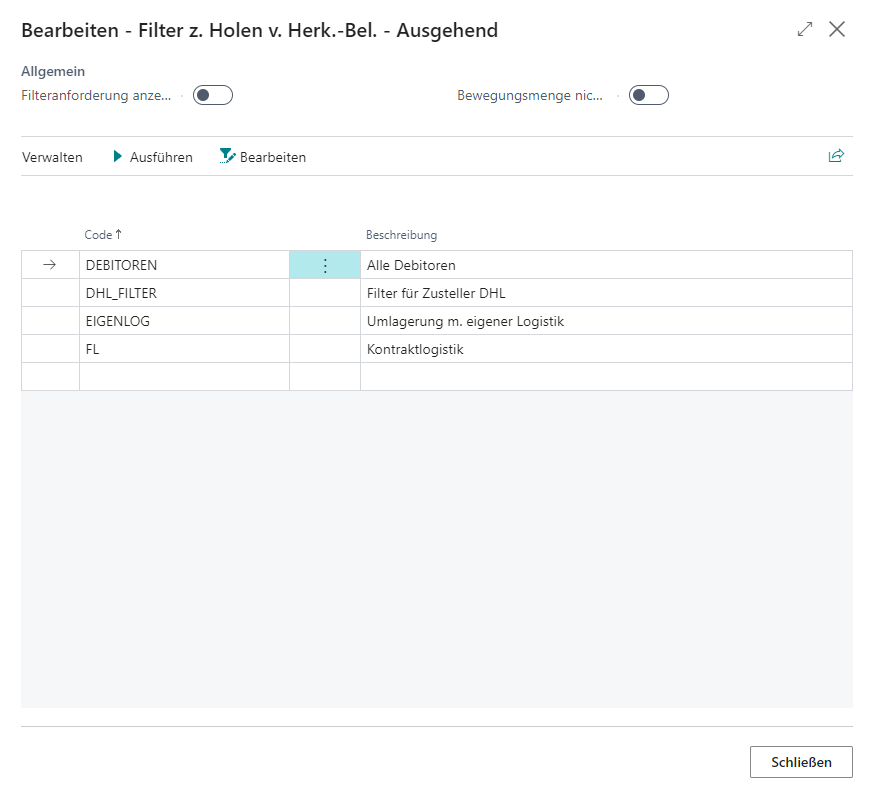
Show filter request: Specifies whether the "Filter to access origin documents" window is shown when you select Use filter to access origin documents in a warehouse shipment or warehouse receipt.
Do not fill Qty. to handle: Specifies that warehouse quantities are assigned when you receive outgoing origin document lines for warehouse shipment.
Code:** Code of the filter. You can define new filters via Edit
Description:** Description of the filter
You have the following filter options:
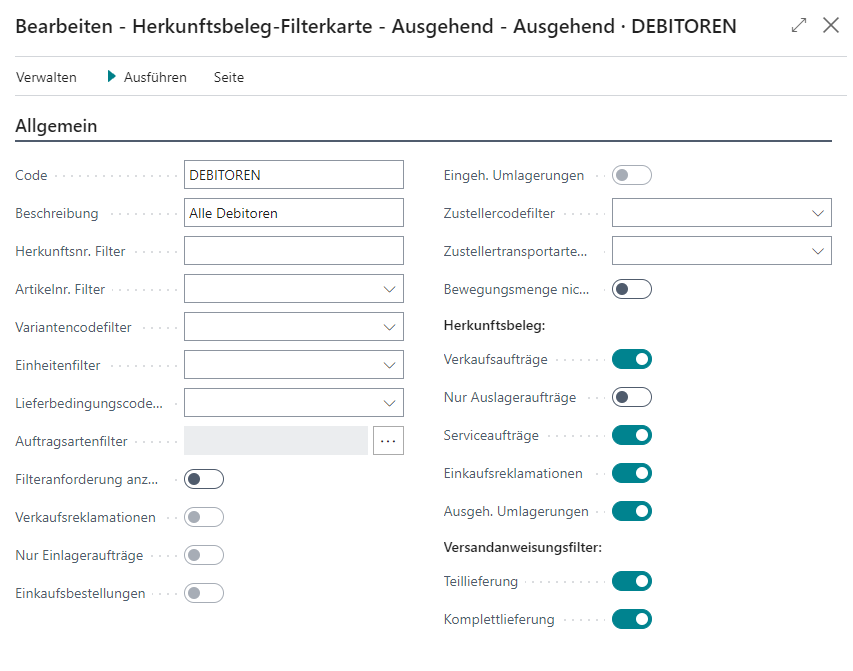
Source no.
Item no
{{Variant Code}}
Units of measure
Shipment Methods
Order types
Show filter request
Include sales return orders
Inbound Stock Post orders only
Include purchase orders
Include stock in Include transfers
Shipping Agent Code
Shipping Agent Services
Do not fill Qty. to handle
Source documents:
- Sales orders
- Outbound Stock Post orders only
- Service orders
- Purchase Return Orders
- Outbound Transfers
Shipping advice filter
- Partial delivery
- Complete delivery
Sale to
- Sales to customer no. Filter
Purchase
- Buy-from Vendor No. Filter
Transfer
- In Transit Code
- Transfer from
- Transfer to
Service
- Customer no.
Shipment Process Overview
Shows an overview of all shipment processes.
- No.
- Warehouse shipment
- Warehouse shipment keyword
- Loading week
- Loading day
- Shipping Agent Code
- loader
- Loading storage location
- State: See State of the loading list
- Number of SSCCs loaded
- Weight SSCC loaded
- Volume SSCC loaded
- Number of planned loaders
- Number of open LUs
- Weight SSCC open
- Volume SSCC open
- License plate front/back
- Load Carrier no.
- Vehicle text
- Free for preparation
- {{Arrived on yard}}
- Free for loading
- Planned on
- Planned at
- Arrival
- Start of loading
- End of loading
- {{Delivery address}}
Shipment Process
This page provides an overview of the operation selected on the Shipment Process Overview.
Hinweis
A shipment process can only be deleted if no SSCCs have yet been assigned to it.
Menu
- Actions
- Release
- Reopen
- Print Loading List
- Print Shipment List
- Print International Bill of Lading
- Post Shipment
General
- No.
- Warehouse Shipment No.
- Warehouse shipment keyword
- Location code
- Ship-to Name
- Ship-to Post Code
- Ship-to City
- Ship-tp Country/Region
- Shipping Agent Code: This Shipping Agent Code is used to assign the loading team
- Shipping Agent Service Code
- State
- Loading week
- Loading day
- License plate front/back
- Load Carrier no.
- Vehicle text
- Number of loaded SSCCs
- Loaded SSCC Weigh
- Loaded SSCC Volume
- Number of open SSCCs
- Weight SSCC open
- Volume SSCC open
- Number of planned shipments
- {{Max./Standard Value Weight}} If you fill in this field, the loader can see on the MDE in program A6.2 whether the weight has been exceeded.
- {{Max./Standard Value Volume}}: If you fill in this field, the loader can see on the MDE in program A6.2 whether the volume has been exceeded.
- Logistics team: Is automatically set on the basis of the shipping agent of the warehouse shipment when the shipment process is created
- Loader
- Loading storage location
- Released for preparation: Makes the loading available for selection on the MDE. Activating this option sets the state of the loading process to 2- Released for preparation
- {{Arrived on yard}}
- Released for loading: Sets loading start date and time. If arrival date and time are not yet set, they will also be filled. Activating this option sets the state of the loading process to 3- Released.
- Loading checked: Use this to mark the loading as checked. This automatically sets the end of loading if it has not yet been set via the mobile device. The shipment process and the SSCCs it contains are set to 9-finished. You can choose if you also want to post the assigned warehouse shipment. You can only check this box if lines have been assigned.
- Scheduled at
- Scheduled by
- Arrival
- Loading start
- Loading End
- Loading instructions: The dispatcher can give the loader special instructions here. The text is shown both on the MDE and on the printed loading list
Shipment Process Lines
Menu
- Manage
- Assign
- Remove
- Remove filter: Removes the filter on SSCCs with the state 7-packed. After this action, all lines belonging to the warehouse shipment are shown.
- Post Shipment
Lines
This table contains all SSCCs of the warehouse shipment that have the state 7-Packaging.
- Selection for loading
- SSCC
- Priority: Allows you to select a specific priority for this SSCC. An SSCC with a higher priority should be handled by the loader before other priorities. The priority is printed on the printed loading list next to the SSCC number as a number.
- Inventory measure
- Description
- Dimensions
- Weight
- {{Storage Place Code}}
- Loading process no.
- Volume
- State
- {{Comment text for label}}
- {{Unloading Point}}
Posted Shipment Process
Shipment processes are transferred to the posted shipment processes after posting. The contents are largely the same as in the shipment process.
Menu
- Actions
- Print Shipment List
- Print International Bill of Lading
SNCL Stock Entries
This page provides an insight into the current state of the stock entries. The following information can be viewed:
- Entry No.
- {{Posting Date}}
- Start of stock calculation
- Inventory no.
- Transport Load Carrier code
- Load Carrier code
- Stock Document Type
- Stock Document No.
- Item no.
- Item Description
- Serial no.
- Number of Inventories
- Number of pieces
- Sell-by date
- {{Storage Place Code}}
- Original Post. document no.
- Original Item Ledger-Entry
- Open: Shows whether the item still has an open stock quantity
- Created by
- Processed by: Displays the user ID of the user who posted the warehouse receipt for this stock entry on the mobile device
- Keyword
Item Ledger Entries
This page provides an insight into the current state of the item ledger entries. The following information can be viewed:
- {{Posting Date}}
- Entry type
- Document type
- Document no.
- Item no.
- Description
- Keyword
- Department Code
- Project code
- Location code
- Quantity
- Stock Entries Number of Pieces
- Invoiced quantity
- Remaining Quantity
- Sales amount (Actual)
- Cost amount (Actual)
- Cost price (Non-Invtbl.)
- Open
- Order Type
- Entry No.
- Customergroup Code
- Area Code
- Businessgroup Code
- Salescampaign Code
SIEVERS Shipping Order
The shipping order serves as a document for the actual shipment of a warehouse shipment. Here you can see all of the information about the shipment including a PDF view of the actual Shipping Label.
Menu
- Home
- Release/Finish
- Release
- Reopen
- Finish Order
- Cancel Shipping Order
- Shipping Label
- Shipping Order Log
- Actions
- Print Content Label
General
- No.
- Ship-to type
- Ship-to no.
- Shipping Agent Code
- Shipping Agent Service Code
- Shipment Method Code
- Order gross weight
- Goods value
- State
Shipping label
If you have selected the ShipXpert service provider for label printing in the Shipping setup, this area will also be shown.
- Reference No. 1
- Reference No. 2
Service desired day shipment of the shipping agents:
- Pick-up (Loading date): The date on which the shipment is picked up or loaded by the shipping agent.
- Delivery (Delivery date): The planned date on which the delivery should arrive at the recipient. Is automatically calculated from the field Pick-up (loading date) plus the transport time from the shipping agent transport type.
Delivery instructions for shipping agents:
- General Remark
- Pick-up Notice
- Delivery Notice
- Goods Acceptance Times
- Time Slot Portal
Ship-to
- Ship-to code
- Ship-to name
- Ship to name 2
- Ship to contact
- Ship-to address
- Ship to address 2
- Ship-to ZIP code
- Ship-to location
- Ship-to federal region
- Ship-to country/region code
- Ship-to e-mail address
- Ship-to telephone no.
Hinweis
This address data is automatically filled with the delivery address from the source document.
For technical reasons, the fields Address 2 and Name 2 are currently automatically documented with a “-” if you use ECOVIUM as your shipping service provider.
Pickup from
- Pickup-from
- code
- Name
- Name 2
- Contact Name
- Address 2
- Address 2
- Postal code
- City
- Federal region
- Country/region code
- E-mail address
- Telephone no.
- Pickup Date
- Pickup Week
Hinweis
For technical reasons, the fields Address 2 and Name 2 are currently automatically documented with a “-” if you use ECOVIUM as your shipping service provider.
Lines
Line
- Functions
- Print package content list
- Print Shipping Label: Creates a label for the shipping unit. For this, SNC Shipping must be setup. Ein ShipXpert Etikett kann nur gedruckt werden, wenn das Zustelldatum mindestens einen Tag nach dem Verladedatum ist.
- Cancel Shipping Label: Cancels the generated shipping label. Only possible if ShipXpert is selected as the service provider.
- Functions
Shipping unit
SNCL Load Carrier code
Tracking no.
Label Data URL
Gross weight
Tare weight
Net weight
Length
Width
Height
Label printed
Content
Manage
- Move content
- Show document
Item no.
Item description
Quantity
Unit of Measure code
Gross weight
Pickup code
Goods value: For outside storage orders, the goods value is always 0.
Currency code
Purchase Return Orders
This is the Business Central standard page for purchase return orders. It is also used for the WMS, so some fields and actions have been added. These are listed here.
- Warehouse Shipment No.
- Warehouse Shipment Shipping Agent Code
- Warehouse Shipment Loading Week
- Warehouse Shipment Loading Day
- Status Stock
- # Warehouse Shipments
- # Posted Warehouse Shipments
Purchase Return Order
This is the standard Business Central page for purchase return orders. It is also used for the WMS, so some fields and actions have been added. These are listed here.
- Stock Document Type
- Stock Document No.
- Number of Outbound Stock Posts
- Stock Document Status
- Shipping Agent Code
- Shipping Agent Service Code
- Availability
- Status Stock
- # Warehouse Shipments
- # Posted Warehouse Shipments
Transfer Orders
This is the standard Business Central page for transfer orders. It is also used for the WMS, so some fields and actions have been added. These are listed here.
- Warehouse Shipment No.
- Warehouse Shipment Shipping Agent Code
- Warehouse Shipment Loading Week
- Warehouse Shipment Loading Day
- Status Stock
- # Warehouse Shipments
- # Posted Warehouse Shipments
Transfer Order
This is the Business Central standard page for the Transfer order. This is also used for the WMS, so some fields and actions have been added.
Menu
- Home
- Create Stock Document
- Open Stock Document
- Delete Stock Document
- Outside Storage Ressource
- Post
- Create Warehouse Shipment: Please note that the shipping advice setup for the respective document is always taken into account when creating a warehouse shipment. For example, if the shipping advice Complete is entered, but an item from the document lines is not fully available, the warehouse shipment cannot be created. In such a case, either the shipping advice must be changed or the warehouse shipment document must be created manually.
- Release
- Create Warehouse Receipt
- Create Inventory Put-away/Pick
Lines
- Item No.
- Inventory Selection
- Inbound Stock Post Charges Recorded
- Outbound Stock Post Charges Recorded
- Description
- Quantity
- Reserved Quantity Inbound
- Reserved Quantity Shipped
- Reserved Quantity Outbound
- Unit of Measure Code
- Quantity to Ship
- Quantity Received
- Shipment Date
- Receipt Date: This Date is linked to the Due Date in the Warehouse Receipt
- Number of open Warehouse Receipts
- Number of posted Warehouse Receipts
Shipment
- Shipment Date
- Outbound Warehouse Handling Time
- Shipment Method Code
- Shipping Agent Code
- Shipping Agent Service Code
- Shipping Time
- {{Shipping Advice}}
- Receipt Date
- Transfer-from Name
- Transfer-to Name
- Warehouse
- Inbound Warehouse Handling Time
Foreign Trade
- Transaction Type
- Transaction Specification
- Transport Method
- Area
- Entry/Exit Point
- Partner VAT ID
SIEVERS WMS
- Stock Document Type
- Stock Document No.
- Stock Document Status
- Order type
- Order priority
- Packaging team
- {{Unloading place}}
- Partial delivery
- Availability
- Status Stock
- Status picking
- State packing
- Status loading
- Outside Storage Customer: If an Outside Storage customer is entered here, only Outside Storage items from this customer can be added to the order lines
- Service Order Whse. No: If there is an associated warehouse number from a service order, this is entered here
- Enter Transfer Charges automatically: Specifies whether stock transfer money is to be calculated and entered
Hinweis
For the fields from Availability see State of Warehouse Shipment Planning.
Posted Transfer Receipts
This is a page from the Business Central Standard. The following additional fields have been added with SIEVERS WMS:
- Transfer Order No.
- Service Order Warehouse No.
Posted Transfer Shipments
This is a page from the Business Central Standard. The following additional fields have been added with SIEVERS WMS:
- Transfer Order No.
- Service Order Warehouse No.
Sales Orders
In this list you can see an overview of all sales orders.
Menu
- New
- Manage
- Edit
- View
- Delete
- Home
- Create stock document: Creates a Outbound Stock Post
- Delete stock document: Deletes the Outbound Stock Post
- Create warehouse shipment: Creates a warehouse shipment
- Create stock documents: Creates a warehouse putaway or warehouse pick to move items on the sales order according to the basic warehouse configuration. Does not require warehouse receipt or warehouse shipping documents
- Release
- Release
- Reopen
- Post
- Post
- Post and send
- Batch posting
- Posting preview
- Print/send
- Print confirmation: Prints a sales order confirmation
- Picking instruction
- Send confirmation by e-mail
- Work order
- Attach as PDF
- Order form
- Order dimensions
- Statistics
- Comments
- Approvals
- Shipments
- Invoices
- Actions
- Function
- Planning
- Order Promising
- Send IC sales order confirmations
- Delete invoiced sales orders
- Request approval
- Send approval request
- Cancel approval request
- Posting
- Test report
- Other: See Post
- Function
- Related
- Documents
- Prepayment invoices
- Prepayment credits
- Other documents
- Shipments
- invoices
- Warehouse
- Warehouse Shipment Lines
- Inventory Put-Away/Pick Lines
- Documents
- Reports
- Sales-reserve-availability
Table
- No.
- Sell to customer no.
- Sell-To Customer Name
- External document number
- Location code
- Assigned user ID
- Document date
- Status
- Completely shipped (outbound)
- Amount - Shipped, not invoiced (LCY)
- Amount - Shipped, not invoiced (LCY) incl. VAT
- Amount
- Amount incl. VAT
- Warehouse Shipment No.: Shows the corresponding warehouse shipment. This can also be accessed via the no.
- Warehouse shipment Shipping Agent Code
- Warehouse shipment loading week
- Warehouse shipment loading day
- Status stock: Indicates the warehouse state of the warehouse shipment. See Warehouse Shipment Planning State
- # Warehouse Shipments: Shows the number of warehouse shipments assigned to this sales order. A list can be accessed with a click.
- # Posted Warehouse Shipments: Shows the number of posted warehouse shipments assigned to this sales order. A list can be accessed with a click.
Sales Order
This is the standard Business Central page for the sales order. It has been seamlessly integrated into the SIEVERS WMS. What is new is that the Create warehouse shipment action now generates a SNCL warehouse shipment. Please note that the shipping advice setup for the respective sales order is always taken into account when creating a warehouse shipment. For example, if the shipping advice Complete is entered, but an item from the sales order lines is not fully available, the warehouse shipment cannot be created. In such a case, either the shipping advice must be changed or the warehouse shipment document must be created manually.
In addition, there is now the section SIEVERS WMS:
- Stock Document Type
- Stock Document No.
- No. of Outbound Stock Posts
- Collection No.
- Stock Document Status
- Availability
- Status Stock
- # Warehouse Shipments: Shows the number of warehouse shipments assigned to this sales order. A list can be accessed with a click.
- # Posted Warehouse Shipments: Shows the number of posted warehouse shipments assigned to this sales order. A list can be accessed with a click.
Furthermore you can add these fields to the page:
- Unloading Point
- Old Shipping Advice: Depending on the setup, the shipping advice can be changed manually. If it has been changed, the old shipping advice is shown here.
- Order Type
- Packaging Team
- Partial
- Status Picking
- Status Packaging
- Status Loading
Packaging List
In this list, you can view all packaging processes and associated details such as Warehouse Shipment No., customer and state. Theoretically, you can also create a new packaging process here manually, but it is recommended to create it during a Warehouse Shipment.
- No.: Click to open Packaging Card Information
- Packaging team
- Warehouse Shipment No.
- Customer no.
- Customer name
- Ship-to City
- Ship-to Country/Region Code
- Shipping Agent Code
- Loading week
- Loading day
- {{Priority}}
- State
Packaging Card Information
This page contains all the information of a packaging process.
Hinweis
Deleting a packaging process is only possible if no SSCC is included. If a packaging process is deleted, the states of the PTU are reset to 2-Recorded if all attributes have been maintained. In addition, the packaging number is removed from the Outbound Stock Post line.
Menu
- Actions
- Show PTU/SSCC information
- Release
- Reopen
- Print Packaging Process
- Post Shipment
General
- No.
- Warehouse Shipment No.
- Original document no.: The Outbound Stock Post No.
- Source no.: Source document of the warehouse shipment, e.g. a Sales Order, a Transfer Order or a Sales Return Order
- Original document no.: The Outbound Stock Post No.
- Source no.: Source document of the warehouse shipment, e.g. a Sales Order, a Transfer Order or a Sales Return Order
- Warehouse shipment keyword
- Packaging team
- State
- Customer no.
- Ship-to City
- Ship-to Country
- Shipping Agent Code
- Loading week
- Loading day
- Picking date
- {{Priority}}
- {{Employee marking}} (or User)
- Information text
- State availability
- Status picking
- Number of packaged items
- Number of unpackaged items
Can also be added: Shipping Agent Services
Time Protocol
- Created at DateTime
- Created by User
- Printed at DateTime
- Printed by User
- Released at DateTime
- Released by User
- Finished at DateTime
- Finished by User
SNC Packaging Card (1 PTU>SSCC)
This page shows the contents of the packaging processes: The assigned PTU and SSCC.
Menu
- Manage
- New
- Page
- Actions
- Show Packaging General
- Print Packaging Process
- Related
- Warehouse Shipment Planning
- Picking Document: Opens a list of the associated picking documents
- SSCC Inventory List: Opens an Inventory list filtered according to the SSCC associated with this process
- PTU Inventory List: Opens an Inventory list filtered according to the PTU associated with this process
PTU - Picks Load Carrier Subform
Menu
- Item assignment: Opens SNC Packaging Card (2 ART>SSCC)
- Remove PTU from Packaging Process: Removes the selected PTU from the packaging process. This is only possible with completely unpacked PTUs that have the state 6-Packed Processing.
Lines
Enter PTU: Enables the addition of further PTUs via scan
Code
Storage place
{{Inventory Measure Code}}
Description
Depth, width, height
Weight
Packaging No. for SSCC
SSCC (Packaging)
PTU State
{{Net Weight Load Carrier}}
{{Gross Weight Load Carrier}}
Volume
{{Comment text for label}}
Number of items: Shows the number of different items in this Load Carrier. Click to open SNC Packaging Card (2 ART>SSCC)
SNCL SSCC Assignment Subform
Menu
- SSCC content: Opens SSCC packaging processes (3 SSCC>PTU)
- Print SSCC label
- Create Shipping Order Line: Transfers the Load Carrier data to a new shipping order line. The prerequisite for this is that a shipping order already exists and the Load Carrier has the state 7-packed.
- Post Shipment
Lines
- Packaging No. for SSCC
- Code
- {{Inventory Measure Code}}
- Description
- Depth, width, height
- Weight
- {{Storage Place Code}} Suggestion comes from the assigned packaging team
- SSCC state
- {{Net Weight Load Carrier}}
- Volume
- {{Comment Text for Label}}
- SSCC printed: Indicates whether the SSCC label has already been printed
- Number of Items: : Shows the number of different items in this Load Carrier. Click to open SSCC packaging processes (3 SSCC>PTU)
SNC Packaging Card (2 ART>SSCC)
Shows the items in the PTU and the SSCC assignment. Also allows you to add individual items to the SSCC, change the assignments and split the assignment. The processes are described in the corresponding section.
For the process look up Item Assignment.
PTU content - Item assignment
Menu
- Outside Storage Resources
Scan Item: Scan a barcode or GTIN barcode here to assign a single item quantity to a SSCC
Lines
- PTU No.
- PTU GS1-SSCC(OUT)
- Item No.
- Description
- Quantity
- Picking Quantity
- Pack quantity
- Packaging No. for SSCC
- SSCC (Packaging)
- SSCC GS1-SSCC (OUT)
- Unit of Measure
- State
- Comment text
- Comment text SSCC
SSCC assignment
Menu
- SSCC content: Opens SSCC packaging processes (3 SSCC>PTU)
- Print SSCC label
- Create Shipping Order Line: Transfers the Load Carrier data to a new shipping order line. The prerequisite for this is that a shipping order already exists and the Load Carrier has the state 7-packed.
- Post Shipment
Lines
- Packaging No. for SSCC
- Code
- {{Inventory Measure Code}}
- Description
- Depth, Width, Height
- Weight
- {{Storage Place Code}}
- SSCC state
- {{Net Weight Load Carrier}}
- Volume
- {{Comment Text for Label}}
- SSCC printed: Indicates whether the SSCC label has already been printed
- Number of Items
SNC Packaging Card (3 SSCC> PTU)
On this page, the packer can check himself and make corrections.
SNCL SSCC Content Subform
- Packaging No. for SSCC
- Code
- {{Inventory Measure Code}}
- Description
- Depth, Width, Height
- Weight
- {{Storage Place Code}}
- SSCC state
- {{Net Weight Load Carrier}}
- Volume
- {{Comment Text for Label}}
- SSCC printed: Indicates whether the SSCC label has already been printed
- Number of Items
Content SSCC Item Assignment
- PTU No.
- PTU GS1-SSCC(OUT)
- Item No.
- Description
- Quantity
- Picking Quantity
- Pack quantity
- Packaging No. for SSCC
- SSCC (Packaging)
- SSCC GS1-SSCC (OUT)
- Unit of Measure
- State
- Comment text
- Comment text SSCC
Post. Packaging
This is the posted version of the packaging process. This page contains all relevant packaging information including the posted packaging lines that show the assigned PTUs and SSCCs.
General
- No.
- Warehouse Shipment No.
- Original document no.: The Outbound Stock Post No.
- Source no.: Source document of the warehouse shipment, e.g. a Sales Order, a Transfer Order or a Sales Return Order
- Warehouse shipment keyword
- Packaging team
- State
- Customer no.
- Ship-to City
- Ship-to Country
- Shipping Agent Code
- Loading week
- Loading day
- Picking date
- {{Priority}}
- User
- Information text
- State availability
- Status picking
- Number of packaged items
- Number of unpackaged items
Post Packaging Line
- PTU No.
- PTU GS1-SSCC (OUT)
- PTU State
- Item No.
- Description
- Inventory No.
- Quantity
- Picking Quantity
- Packaging No. for SSCC
- SSCC (Packaging)
- SSCC GS1-SSCC (OUT)
- Unit of Measure
- Comment Text
- Comment Text SSCC
Posted Sales Shipment
This is a page from the Business Central standard. The following fields were added with the SIEVERS WMS:
- Stock Document Type
- Stock Document No.
- Stock Document No. Correction
- Stock Document Status Correction
- Order Type
Sales Invoices
The sales invoices are a page from the Business Central standard. However, the action Invoice -> SNCL outside stock unit billing has been added with the SIEVERS WMS.
Sales Invoice
The sales invoices are a page from the Business Central standard. A few actions and fields have been added with SIEVERS WMS.
Actions:
- Home
- Create stock document
- Open stock document
- Delete stock document
Lines:
- Inventory selection
- Detail Lines
- Stock Document Type
- Stock Document No.
- {{Inventory Selection Strategy}}
- Stock Quantity Reserv. Disloc.
- Storage Quantity Packed Outbound Stock Post
Section SIEVERS WMS:
- Stock Document Type
- Stock Document No.
- Stock Document Status
SNCL Outside Stock Unit Billing
Stock billing for outside storage is carried out using outside stock unit billings. This includes the resources from
- storage and Outbound Stock Post orders,
- storage charges,
- fixed costs per inbound delivery / per outbound delivery and
- service costs per inbound delivery / per outbound delivery
are recorded.
In the Options area, you can filter for the following options:
- Posting date: A posting date can be specified here, which is entered in the collective invoice.
- Document date: A document date can be entered here, which is entered in the collective invoice.
- Storage charge calculation: If this option is active, the storage charge is also calculated.
- Calculation starting date: The starting date for the calculation period of the storage fee calculation is entered here.
- Calculation ending date: The end date for the calculation period of the storage fee calculation is specified here.
- Refrigerated goods insurance: If this option is active, the refrigerated goods insurance is listed and billed in the collective invoice.
- Calculation date: A calculation date, which is entered in the collective invoice, can be specified here.
- Enter recurring resources: If this option is active, recurring resources, if any, are entered in the collective invoice.
- Sum Entries: Causes invoice items to be summarized if the resource, description, price and dimension are the same.
Some of the fields have a default value when outside stock unit billing is accessed:
- Calculation of storage charges is active
- Calculation start and end date are set to the first and last day of the current month
- Enter recurring resources is active
Criteria for filtering the customers for whom a collective invoice is created are entered in the Customer area. Filter criteria for the storage and Outbound Stock Post orders to be invoiced are entered in the Sales delivery area.
Once the collective invoices have been created, they can be viewed via the sales invoices. Before posting, it is still possible to edit the invoice items or add more.
Item Journals
Items can be added and deducted via the item journal. This allows uncomplicated management of individual items. The journals are part of the Business Central standard, which is why this documentation will not go into this topic again. If you would like to find out how to use the item journal, you can read about it at Microsoft Learn.
The item journals work with regular items in SIEVERS WMS as well as with outside storage items.
The following fields were added to the table with the SIEVERS WMS:
- Inventory selection
- {{Inventory Selection Strategy}}
- Stock quantity reserved for Inbound Stock Post
- Stock quantity packed Inbound Stock Post
- Stock quantity reserved Outbound Stock Post
- Stock quantity packed Outbound Stock Post
- Stock quantity reserved transfer
- Stock quantity packed transfer
- Stock quantity reserved stocktaking
- Stock quantity packed stocktaking
- Customer group Code
- Area Code
You can also display the following SIEVERS WMS fields:
- New inventory measure code
- New load carrier
Consumption Journals
Output Journals
You can use the consumption journal and the output journal to post the consumption and actual report of production or manufacturing. Consumption quantities are posted as negative item entries, while completed quantities are posted as positive items.
The journals are part of the Business Central standard, which is why this documentation will not go into this topic again. If you would like to find out how to use the journals, you can read about it at Microsoft Learn.
The following fields were added to the table with the SIEVERS WMS:
- Inventory selection (Only Consumption Journal)
- Stock quantity reserved for Inbound Stock Post
- Stock quantity packed Inbound Stock Post
- Stock quantity reserved Outbound Stock Post
- Stock quantity packed Outbound Stock Post
- Stock quantity reserved transfer
- Stock quantity packed transfer
- Stock quantity reserved stocktaking
- Stock quantity packed stocktaking
- Customer group Code
- Area Code
You can also display the following SIEVERS WMS fields:
- New inventory measure code
- New load carrier
Hinweis
The Load Carrier weights are calculated based on the Determine Gross Weight field in the WMS Setup.
Hinweis
If you want to create a Outbound Stock Post using a consumption journal, you must ensure that the fields Location code and Inventory Selection Strategy Code Components are filled in the corresponding Component lines.
If a Outbound Stock Post already exists for a consumption journal, the fields Location code and Inventory Selection Strategy Components in the consumption journal can no longer be changed.
Hinweis
If you want to create a Inbound Stock Post using an output journal, you must ensure that the fields Location code, Storage Place Finished Part, Inbound Stock Post Strategy Finished Part are filled in the lines of the released production order.
Service Orders Warehouse
You can view all warehouse service orders in this list. Warehouse service orders are used to record and invoice outside storage services within the warehouse.
Menu
- Home
- Open stock document
- Release
- Release
- Reset state
- Related
- Order
- Dimensions
- Comments
- Documents
- Shipments
- Order
Table
- No.
- Sell-to customer no.
- Sell-to name
- External document number
- Your reference
- {{Posting Date}}
- Location code
- State
- {{Completely Shipped}}
- {{Completely Invoiced}}
- Stock Document Type
- Number of Outbound Stock Post Lines
- Quantity of Outbound Stock Post Lines
- Created at
- Stock Document No.
- Stock Document Status
- Ship-to address
- Shipping Agent Code
- Shipment Method Code
- Delivery date
- Shipment Date Shipment Date
- Assembly order no.
- Inventory no.
Service Order Warehouse
Menu
- Home
- Post: You can only ship the service order here, as outside stock expenses are to be posted via the outside stock unit billing.
- Open stock document
- Enter Outbound Stock Post charge
- Enter Stocktaking Charge: Enters the stocktaking charge for each item from the stock document and sets the Stocktaking Charges Recorded indicator in the stocktaking lines to Yes.
- Enter stock transfer money
- Copy document
- Release
- Release
- Reset state
- Related
- Order
- Dimensions
- Comments
- Documents
- Order
General
- No.
- Sell-to customer no.
- Sell-to name
- Sell-to contact no.
- Sell-to address
- Sell-to address 2
- Sell-to zip code
- Sell-to location
- Sell-to contact
- {{Posting Date}}
- Order date
- Document date
- External document number
- Your reference
- Campaign no.
- Responsibility Center
- Assigned user ID
- Job queue status
- Status
Lines
Menu
- Line
- Dimensions
- Comments
- Functions
- Explode resources parts list
- Implode resources parts list
Table
- Type
- No.
- Customer item no.
- Description
- Location code
- Quantity
- Unit code
- Lot no.
- Serial no.
- Ship-to
- Quantity shipped-to
- Outbound Stock Post charge recorded
- Line amount excl. VAT
- Line discount %
- {{Planned Shipment Date}}
- Planned delivery date
- Shipment date
- {{Inventory Selection Strategy}}
- Stock Document Type
- Stock Document No.
- Stock quantity reserved. Outbound Stock Post
- Stock quantity packed Outbound Stock Post
- Inventory selection
- Created on
- Created by
- Modified at
- Modified by
Invoicing
- Bill-to customer no.
- Bill-to contact no.
- Bill-to name
- Bill-to address
- Bill-to address 2
- Bill-to zip code
- Bill-to city
- Bill-to Contact
- Department Code
- Project Code
Shipment
- Ship-to customer no.
- Ship-to contact no.
- Ship-to name
- Ship-to address
- Ship-to address 2
- Ship-to zip code
- Ship-to city
- Ship to contact
Foreign trade
- Currency code
- Exit Point
- Area
SIEVERS WMS
- Stock Document Type
- Stock Document No.
- Stock Document Status
Posted Service Orders Warehouse
Contains the posted service orders warehouse. You can also view the corresponding order numbers or stocktaking numbers here.
- No.
- Sell-to customer no.
- Sell-to name
- Currency code
- Location code
- No. printed
- Order No.
- Posted Assembly order no.
- Posted Stocktaking No.
Posted Service Order Warehouse
General
- No
- Sell-to customer no.
- Sell-to name
- Sell-to contact no.
- Sell-to address
- Sell-to address 2
- Sell-to zip code
- Sell-to location
- Sell-to contact
- {{Posting Date}}
- Document date
- Order number
- External document number
- Salesperson code
- Responsibility Center Code
Lines
- Type
- No.
- Description
- Location code
- Quantity
- Unit of Measure code
- Shipment Date
- Qty. to Correction
- Qty. Correction
Invoicing
- Bill-to customer no.
- Bill-to contact no.
- Bill-to name
- Bill-to address
- Bill-to address 2
- Bill-to zip code
- Bill-to city
- Bill-to Contact
- Department Code
- Project Code
Shipment
- Ship-to customer no.
- Ship-to contact no.
- Ship-to name
- Ship-to address
- Ship-to address 2
- Ship-to zip code
- Ship-to city
- Ship to contact
- Location code
- Shipment Method Code
- Shipping Agent Code
- Shipping Agent Service Code
- Package tracking no.
- Shipment Date
SIEVERS WMS
- Stock Document Type
- Stock Document No.
SNCL assortments
This list contains assortments and their descriptions. You can use assortments to create assignments between item assortments and customers. In this way, an item stock can also be allocated to several customers. This assignment can be particularly useful in outside storage, as it avoids the effort of having to create and manage several items in Business Central for the same item from several customers.
You can store a code and a description here. The actual assignment is made in the customers and items via SNCL assortment assignment using the Number of assortments field.
SNCL assortment assignment
Use this page to assign items and customers to the assortment codes.
The following fields are available here:
- Type
- Item
- Customer
- Code
- {{Assortment Code}}
- Description
SNCL Generate SSCC
This page allows you to generate a GS1 SSCC label. To do so, enter an item no., a quantity and the other necessary data, specify the number of labels and click New to Print. This allows you to generate a generic SSCC label.
- Item no.
- GTIN
- Lot no.
- Serial number
- Quantity
- Sell-by date
- No. of Copies
Example label: