E-Rechnung Setup
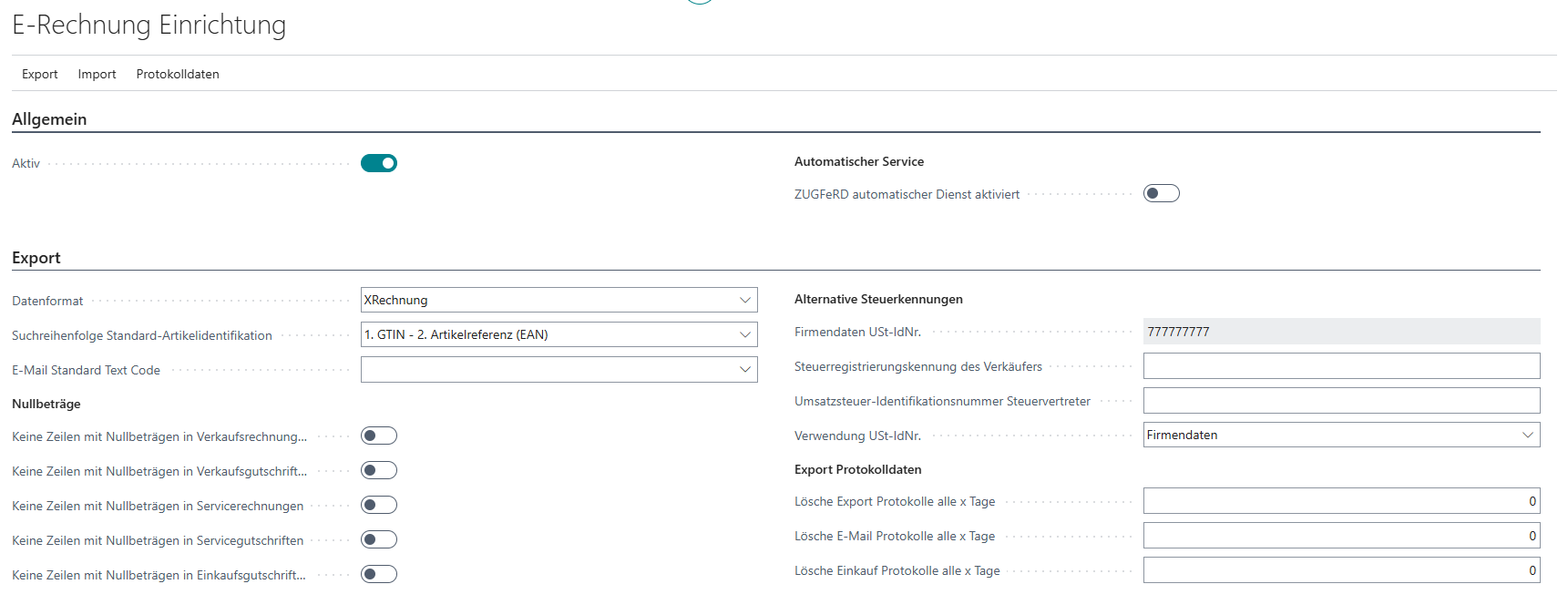
On the E-Rechnung setup page, you can set up the basic solution. Among other things, you can
- activate the app
- open the error report of the last post
- access all of the with E-Rechnung generated documents so far
- enter alternative tax identifiers or
- see Import Data Exchange Types.
Menu
- Export
- Setup E-Mail Body or enter a E-Mail Standard Text Code to edit the email used to send e-invoices. For more information, see Emails in SIEVERS E-Rechnung.
- E-Rechnung Export Documents: Via E-Rechnung documents, you can view all documents previously generated with SIEVERS E-Rechnung. Here, you can also resend emails if there were problems with the shipment or receipt.
- Company Information: Opens the company information
- Import
- E-Rechnung Import Documents: Via E-Rechnung Documents, you can view all documents previously generated with SIEVERS E-Rechnung. Here, you can also resend emails if there were problems with sending or receiving them.
- E-Rechnung Archived Import Documents: Displays the Import Archive
- Import Data Exchange Types: For more information, see Data exchange types
- Map Text to Account: See Text to Account Mappings
- Logs
- Export/E-Mail/Import logs: Opens the respective log where the generated documents can be tracked
- Cleanup logs: Deletes the logs depending on the deletion cycle set in the Delete logs every x days fields
General
- Active: Activates the solution
Export
Data Format: Determines the default data format for e-invoices. You can choose between XRechnung, ZUGFeRD, and Peppol. Depending on the customer or vendor, you can also assign individual formats in the E-Rechnung customers and E-Rechnung vendors lists
Standard Item Identification: This field allows you to decide which source takes priority for standard item identification, which the system writes to the e-invoice. The standard item identification comes either from the GTIN of the item or the item reference (EAN). The following options are available:
- GTIN - 2. Item reference (EAN)
- Item reference (EAN) - 2. GTIN. If nothing is found in the first option, the system writes the second field to the e-invoice.
E-Mail Standard Text Code: Allows you to specify a standard text for e-mails. For more information, see Setup e-mail body
Sender E-Mail Name: Defines the name that is shown to the recipient of E-Rechnung emails. This field is only visible until Business Central 19, since from Business Central 20 it no longer has any function. Then the sender from the Email Scenarios is used. See E-Mail Setup from BC 18
Sender E-Mail Address: Specifies the address from which the E-Rechnung emails are sent. This field is only visible until Business Central 19, since from Business Central 20 it no longer has any function. Then the sender from the Email Scenarios is used. See E-Mail Setup from BC 18
Zero Amounts: Here you can choose whether zero amounts should be exported, depending on the document.
Alternative Tax Identifier: If you want to provide alternative information for the sales tax ID, use the fields for alternative tax IDs in the setup. For more information, see the section Using alternative tax IDs.
Clear Export/E-Mail Log after x Days: Here you can specify after how many days the export logs and email logs should be automatically deleted.
Use Self Billing: This option activates the E-Rechnung functionalities for vendors. If this option is deactivated, the E-Rechnung settings are not visible on vendor cards and vendors cannot be activated for E-Rechnung. During installation or an update of the app, the system automatically checks whether vendors are already activated for E-Rechnung. If this is the case, the option is automatically activated and cannot be deactivated until all affected vendors have been manually deactivated. This allows you to control via permissions who can activate the self billing procedure and who can enable vendors for E-Rechnung. :::
Import
Transfer imported attachments to purchase document: Specifies whether the original import file (XML or PDF) and any contained attachments should be transferred when creating the purchase document. The following options are available:
- Nothing: No files are transferred (default behaviour).
- Document Attachment: The files are stored as an attachment in the purchase document – in the same way as manually added PDFs or other attachments.
- Incoming Document: The files are stored as an incoming document in the purchase document.
The value set here serves as the default. In the individual import document, it can still be adjusted before the purchase document is created. The additional supporting documents from the XML file are not affected by this setting. :::
Hinweis
This function is available for AL versions and NAV versions up to and including NAV 2017. In NAV 2016 and older, the required Microsoft tables are not available, so the feature cannot be used there.
- Use Import No. Series: If this option is enabled, import documents will use numbers from the number series defined in the next field instead of the document numbers from the imported XML file. Activate this option if several vendors use the same number series for their documents, as otherwise there may be overlaps in the import documents.
- Import No Series: This number series is used if the above option is activated
- Clear Import Log after x Days: Specifies after how many days the import log should be automatically emptied.