E-Mails in SIEVERS E-Rechnung
With SIEVERS E-Rechnung, you can customise the e-mails used to send E-Rechnung invoices. These customised e-mail texts can be set up individually for each customer or a general text can be set up for all customers who have not stored an individual text. There are several ways to set up e-mail content. These are (in descending order of priority):
- Use of an internal event (please contact your SIEVERS partner for more information)
- E-mail body from the E-Rechnung setup: See Setup E-Mail Body
- Standard text codes in the customer or E-Rechnung setup. This includes a check for start and end dates and language code. See Set up e-mail content using standard text codes
- Standard text: ‘Attached you will find the E-Rechnung for document type document no.’.
- Default text overwritten by event (please contact your SIEVERS partner for more information)
Please note that a new setup is available for Business Central from version 18, which allows you to customise emails before sending them. See email setup from Business Central 18.
Setup E-Mail Body
To set up an email text, open the E-Rechnung setup and start the process with Setup E-Mail Body.
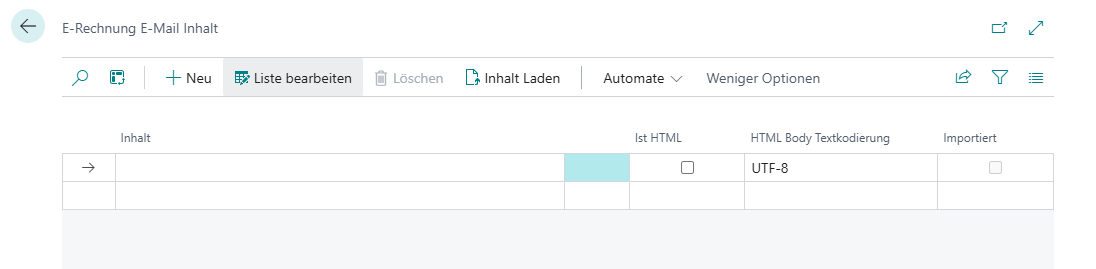
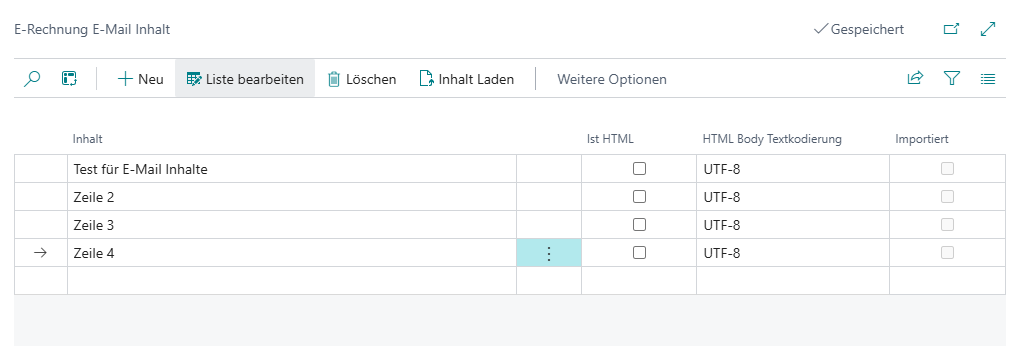
You can now enter the email text line by line. Tick Is HTML if you have used HTML code in the line. Alternatively, you can also import an HTML file for the content via Load HTML Body.
During import, you must decide which text encoding to use. Here you can choose between UTF-8 and Windows (CP1252). As a rule, you can select UTF-8. Windows (CP1252) is only necessary in special cases.
 :::
:::
Hinweis
Please note that errors may occur with line breaks when using Windows (CP1252). This is due to technical reasons. Test the email content after import.
Set Up E-mail Content Using Standard Text Codes
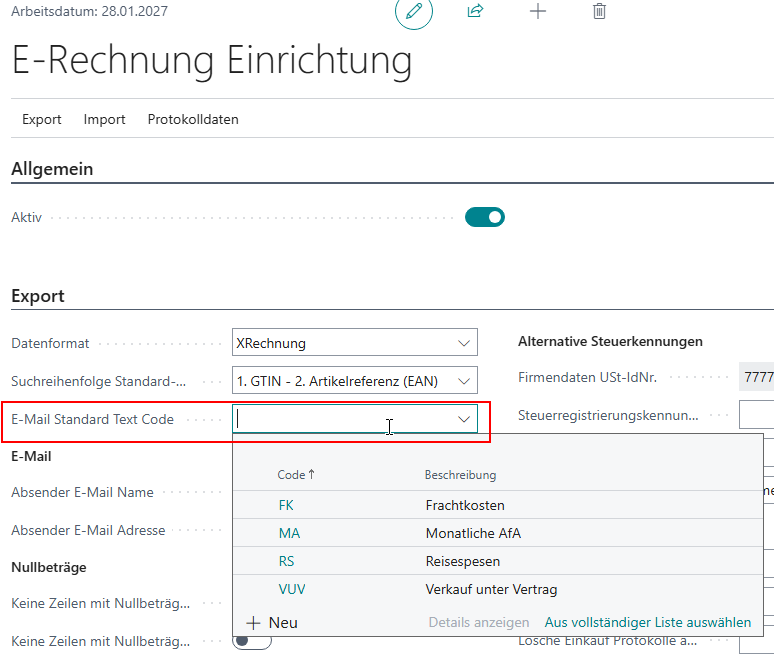
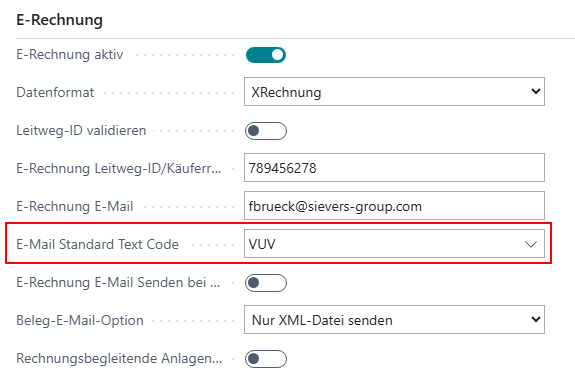
If you want to create individual e-mails for your customers, you can use the standard text codes from Business Central. Open the text code list in the E-Rechnung Setup or in the customer via the E-Mail Standard Text Codes field and create as many codes as you like. Use Extended Texts to create the actual texts.
Hinweis
Please note that you enter correct values in the language code and starting and ending date fields, as SIEVERS E-Rechnung checks these before creating the email.
You can now enter the standard text codes either directly in the corresponding field for the customer or in the E-Rechnung setup. Setup at the customer is preferred, provided that the language codes and starting and ending dates match. Otherwise, the text code entered will be adopted at the E-Rechnung setup.
E-Mail Setup From BC18
Business Central 18 introduced the enhanced email capabilities and we already integrated them into SIEVERS E-Rechnung. This gives you the opportunity to use an email editor when sending an individual email or multiple emails via batch processing.
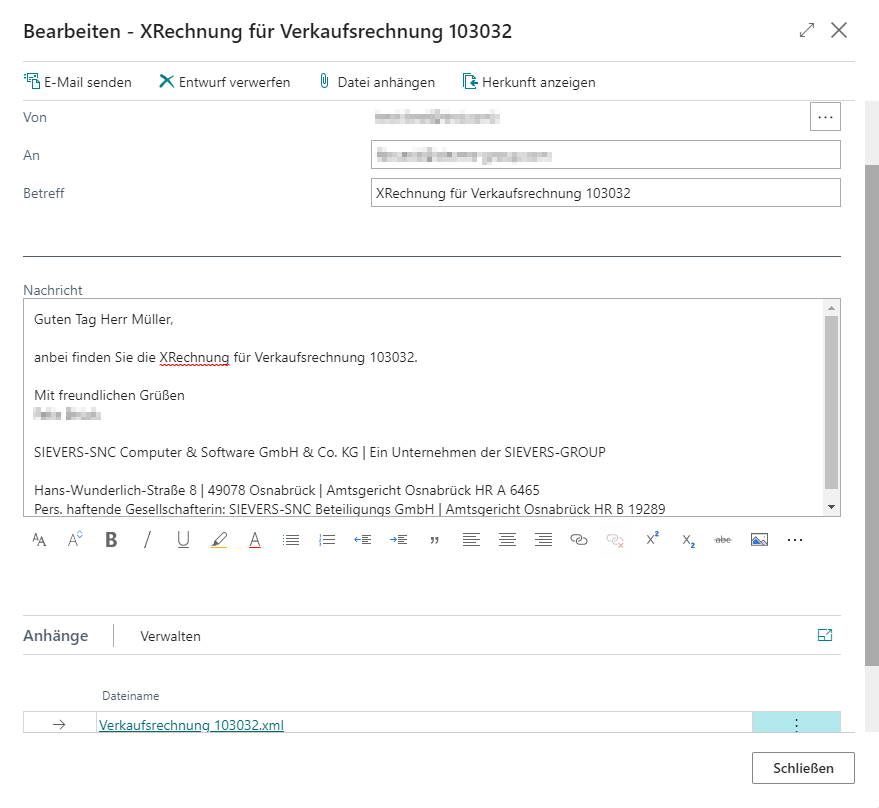
To be able to use the new capabilities you have to make the following settings:
- Setup the email functions in the SIEVERS E-Rechnung Setup Wizard
- Assign the email functions to E-Rechnung
- Activate the editor for E-Rechnung customers
The E-Rechnung Setup Wizard in BC18 got expanded with a new step.
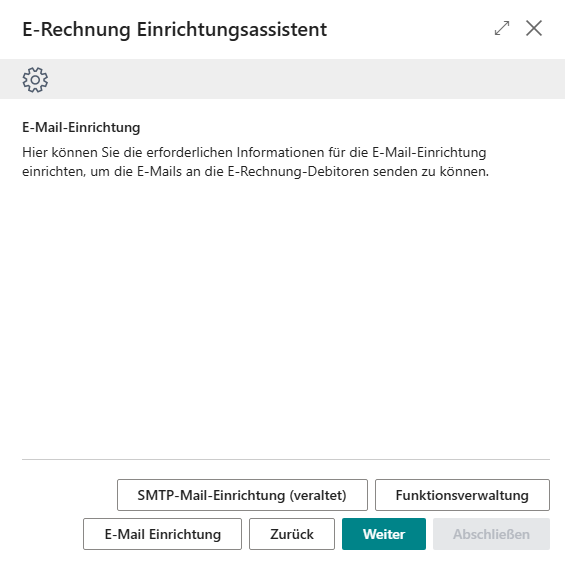
Firstly ensure that the enhanced email capabilities are activated in the Feature Management.

Afterwards return to the setup wizard and open the window E-Mail Setup. Add a new email account via new. Then you have to assign the created account to E-Rechnung. For this open the Email Scenarios via Navigate.
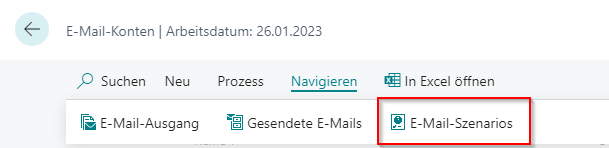
Choose the correct account and search at Assign scenarios for XRechnung.
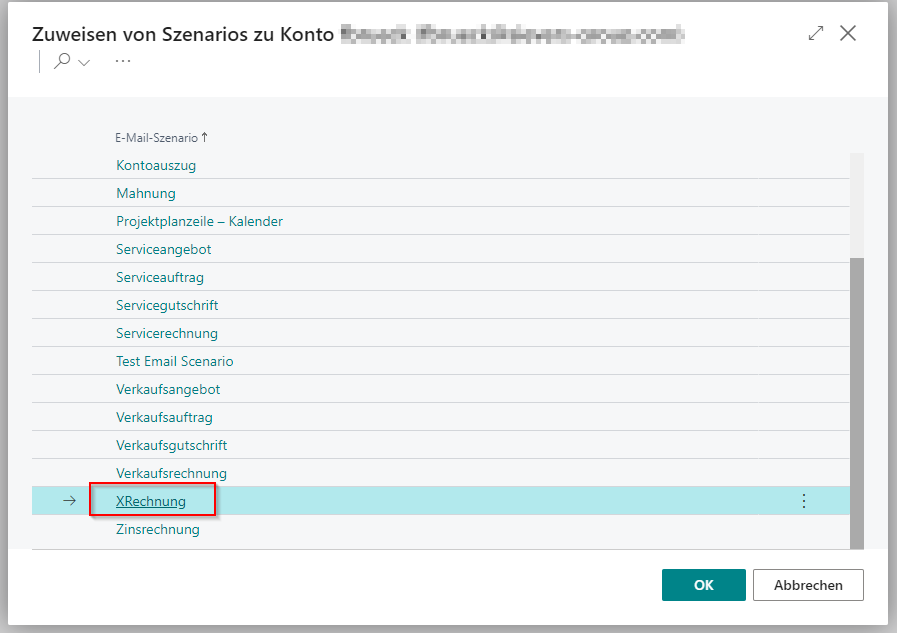
Afterwards the enhanced email capabilities setup is completed.
Now you have to select for which E-Rechnung customers the editor should be displayed. You can do this either directly in the customer card or at the customer list in the setup.
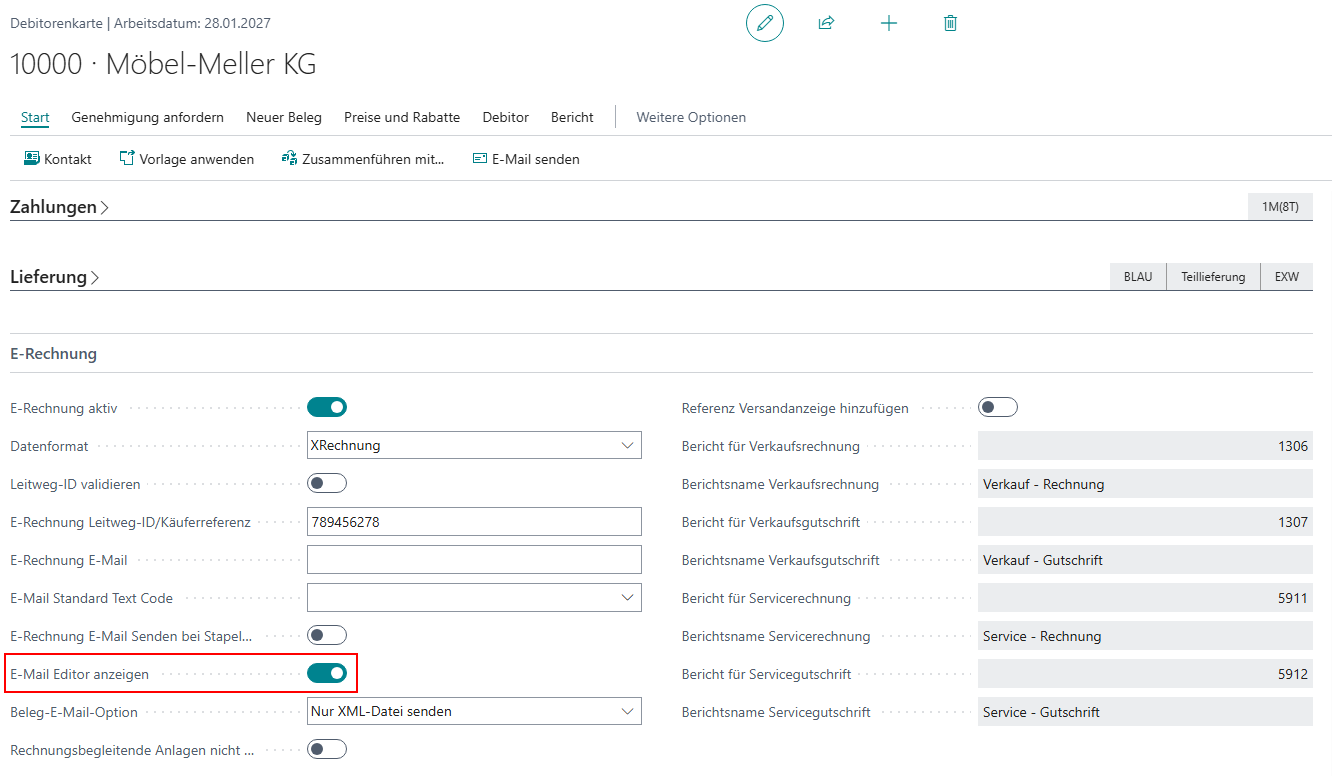
Hinweis
When batch processing multiple documents, the email editor will not be displayed, even if Show E-Mail Editor is activated for the customers. The editor only opens when sending individual e-invoices manually. If both Show E-Mail Editor and Send E-Rechnung E-Mail at Batch Post are activated, you will see a notification message that the editor will not be shown during batch processing.
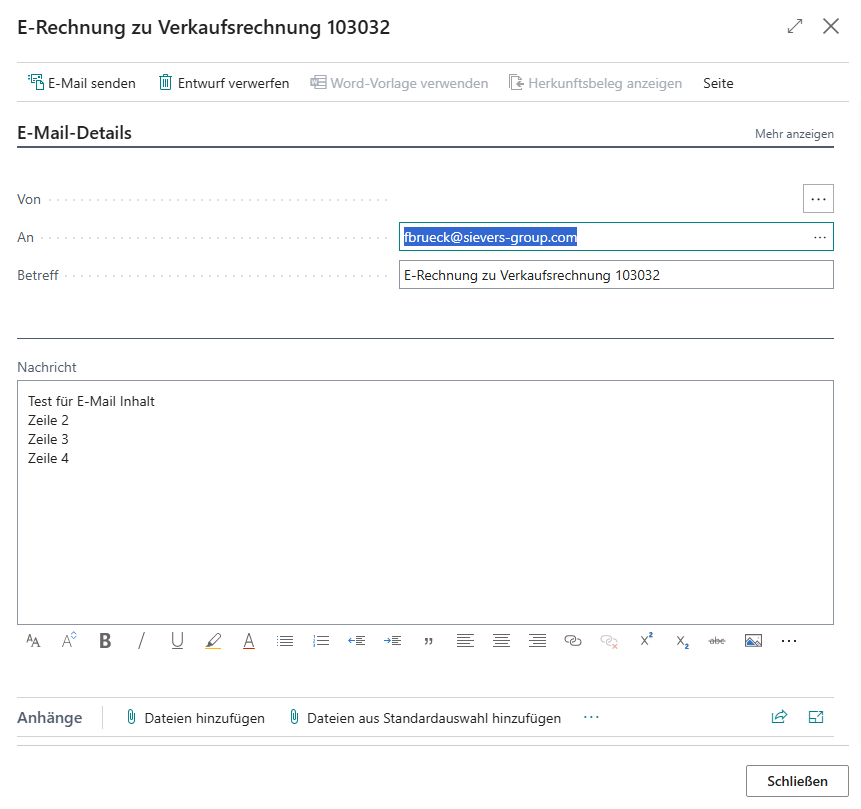
If you want to send an e-invoice to a customer for whom you have activated the editor, said editor will open after you have clicked on Send E-Rechnung. If you have set an Email content, this will also be loaded automatically into the text field.