Example Sales Process
This chapter provides a brief example of how the sales process in Business Central is enhanced by the Connector to SharePoint. This procedure can be transferred to purchasing and is therefore not shown.
Generating an Offer
First, create and print a new sales offer.
The PDF file of the report is exported if the corresponding Export Sales Offers switch has been activated in the Sales Document Types area in the Connector to SharePoint setup.

Here we are in a SaaS environment.
The setting Display of SharePoint Clients has been set to Fast Tab so that the website of the relevant SharePoint folder is embedded in the document.
The folder structure is created as follows on SharePoint:
The Documents folder created in the Connector to SharePoint see Setup Assistant Select SharePoint Folder is the parent folder.
- Below that are the folders Customers and Vendors when the [SharePoint folder language] (#sharepoint-folder-language) is set to German or Customers and Vendors when the language is set to English.
- Below the customers and vendors, you will find the folders for the various Business Central documents. For example, sales quotations and sales orders. These folders are also created in either German or English, depending on the language setting.
- Another level below contains the documents themselves. The document number of the respective document is used as the folder name. The files transferred from Business Central, e.g. by printing, via added attachments or incoming documents or even by drag and drop, are stored here.
Create order
Check whether the Copy Sales Quotation Documents to Sales Order switch is enabled in the Copy Sales Documents area in the setup.
Now create a sales order from the quote.
The PDF file of the quotation has been transferred to the sales order.
The PDF files of the order confirmation, picking instruction, work slip and pro forma invoice reports are exported if the corresponding switches have been activated in the Sales Document Types area during the Connector to SharePoint setup.
Print the order confirmation, picking instruction, work slip and pro forma invoice.

The files have been transferred to SharePoint.
Now check the setting Copy sales order documents to posted sales invoice in the section Copy sales documents when posting.
If the switch is set, the sales order files are transferred to the posted sales invoice. Then post the sales order.
Posted Sales Invoice
The posted sales invoice that is generated contains all the files from the sales order.
Print the sales invoice.

The PDF file of the sales invoice has been transferred to SharePoint.
Alternative display in a fact box in SaaS environments
The Display of the SharePoint client setting has been set to Fact Box so that the SharePoint folder website is embedded in the document in the fact box area.
Hinweis
Microsoft currently only allows the embedding of SharePoint websites in SaaS environments.
In on-premise environments, only the Pop Up and Files options can be selected.

Alternative display of pop-up in SaaS and on-premise environments
The Display of SharePoint client setting has been set to pop-up so that the website of the relevant SharePoint folder is displayed in a new browser window when the button is clicked.
Hinweis
Microsoft currently only allows the SharePoint website to be embedded in SaaS environments.
In on-premises environments, only the Pop Up and Files options can be selected.

Alternative display of files in SaaS and on-premise environments
The Display of SharePoint client setting has been set to Files so that the files of the SharePoint folder of the corresponding document are temporarily retrieved and displayed in a table.
Hinweis
Microsoft currently only allows the embedding of SharePoint websites in SaaS environments.
In on-premise environments, only the Pop Up and Files options can be selected.
Transferring attachments
In this example, the offer to sell was attached as a PDF. In general, any attachment that is attached to a document can be transferred to SharePoint. To do this, the corresponding switch in the Document attachments area must be activated. After manually updating the SharePoint files, the generated PDF file is shown in the table.

Drag and drop file transfer
In this view, files can be transferred to SharePoint by dragging and dropping them over a marked area. Drag any file as shown with the mouse over the area and release the mouse button.

The file is then transferred to SharePoint. Refresh the SharePoint files manually.

The file transferred by drag and drop is shown.
Transferring incoming documents
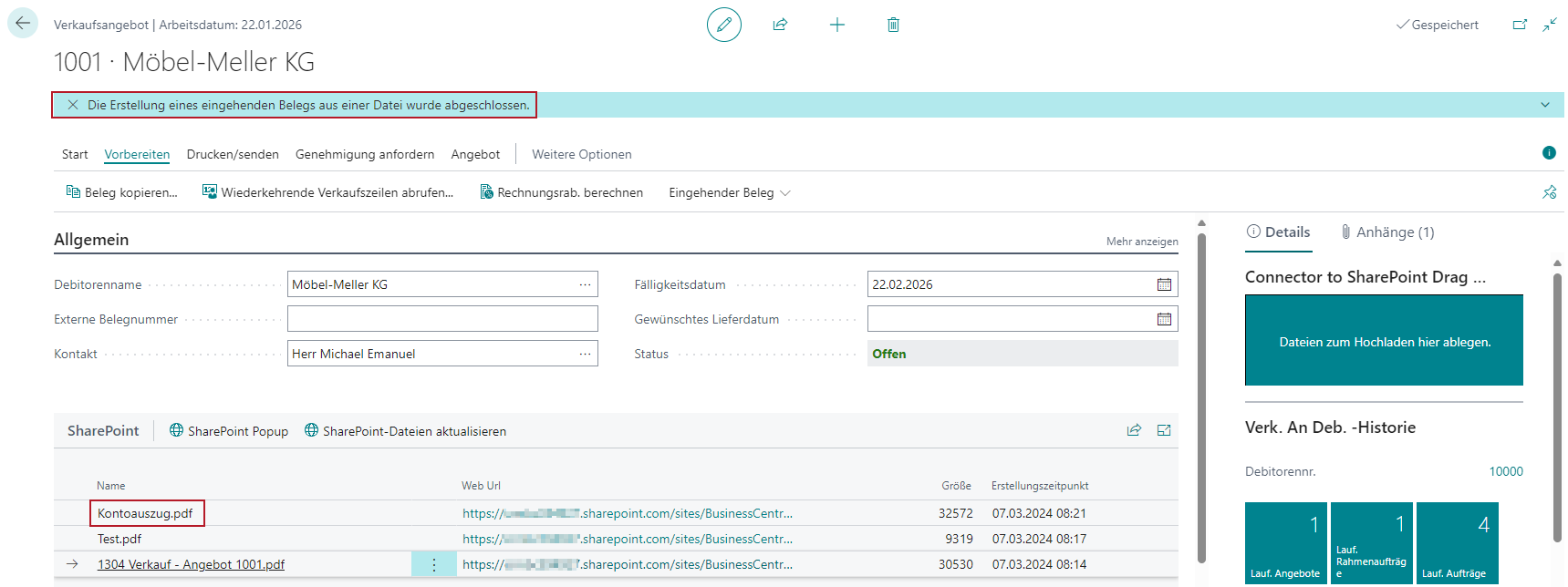
In this example, an incoming document from a file was added to the sales quotation and stored on SharePoint. In general, any incoming document that is attached to a document can be transferred to SharePoint. To do this, the corresponding switch in the Incoming Documents area must be activated.
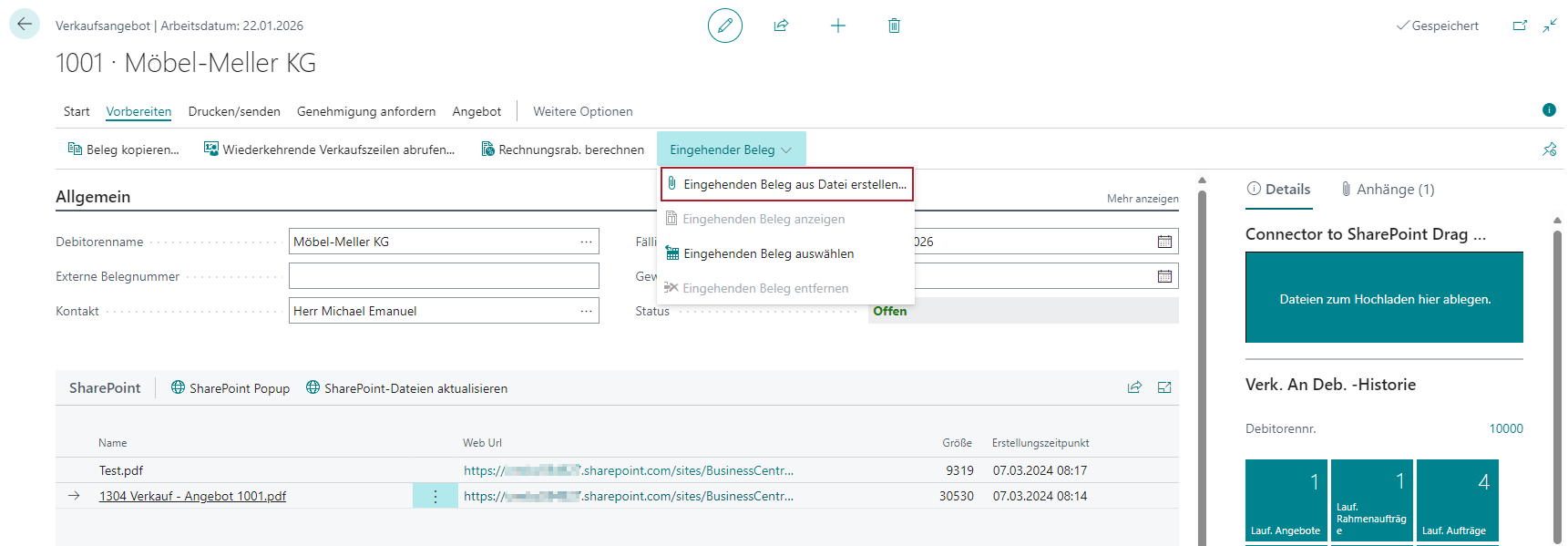
After manually updating the SharePoint files, the generated PDF file is shown in the table.