Setup with the setup wizard
In order to help with the initial setup of the ELO Connector, the app includes a setup wizard.
G/L Account and Inventory Discrepancies
In the first step of the setup, you can store a default G/L account for ELO and specify whether you want to allow ELO invoices with inventory discrepancies.
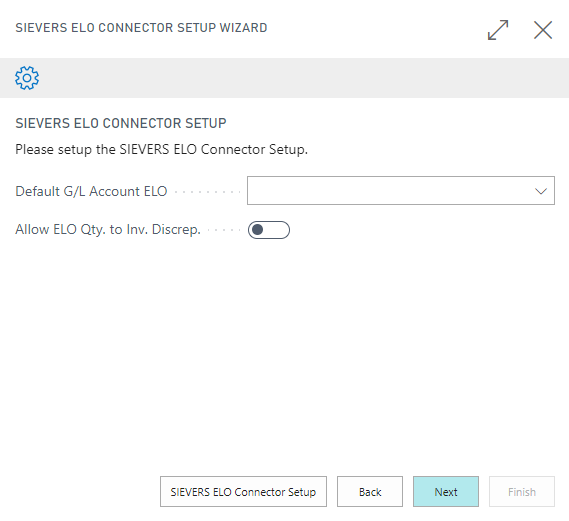
This step of the setup refers to the transfer of documents from ELO to BC.
- Default G/L Account ELO: With the default G/L account you define to which G/L account the transferred invoices should be assigned if none is specified.
- Allow ELO Qty. to Inv. Discrep. If there are any inventory discrepancies, you can ignore them by activating this option.
- Allow Processing without Lines: If activated, invoices and credit memos can be processed even if they do not have any lines.
In the lower area you can open the ELO Setup page. Here you will find not only the same options as in this step of the setup wizard, but also the Use individual reports button. If you want to use individual reports, please contact your ELO or BC partner or SIEVERS-GROUP.
Report Setup
In the next step, set up the reports to be archived. Open the table with Setup Reports.
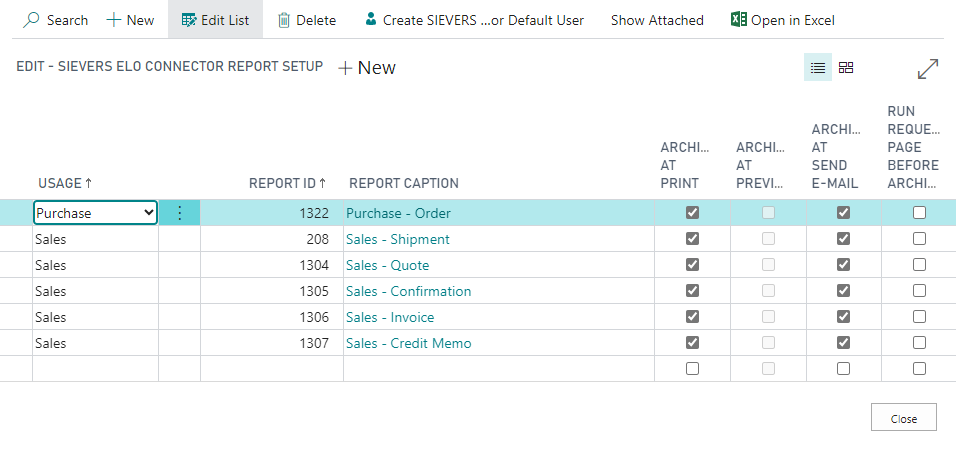
Depending on whether you have activated Use individual reports in the setup, the report setup will look different. If the option is deactivated, the table looks like this:
- Utilization: Enter whether it is a purchase report, a sales report or an individual report.
- Report ID
- Report name
The following reports are entered by default:
| Usage | Report ID |
|---|---|
| Purchase | 1322 |
| Sales | 208 |
| Sales | 1304 |
| Sales | 1305 |
| Sales | 1306 |
| Sales | 1307 |
If Use individual reports is active, the following fields are added:
- Individual Document Type
- Individual Source Table ID
- Individual Source Table Name
- Individual Field ID for Document No.
- Individual Field Name
Please contact your partner or the SIEVERS-GROUP if you want to setup individual reports.
Now you can specify when the respective report should be archived to ELO. The following options are available:
- Archive on print
- Archive at print preview
- Archive when sending by e-mail
- Run Request Page before Archive
You can find more information about this in the section Automatic Transfer.
- Run Request Page before Archive causes the request page of the report to be opened automatically before transmission. This means that option parameters of the reports can still be changed before archiving.
Integration Client
With SIEVERS ELO you can conveniently display files that have been stored in ELO via the Integration Client. You can find out more about this in the section Integration Client. In the SIEVERS ELO setup you will find the three fields required to set up the URL to the ELO Integration Client.
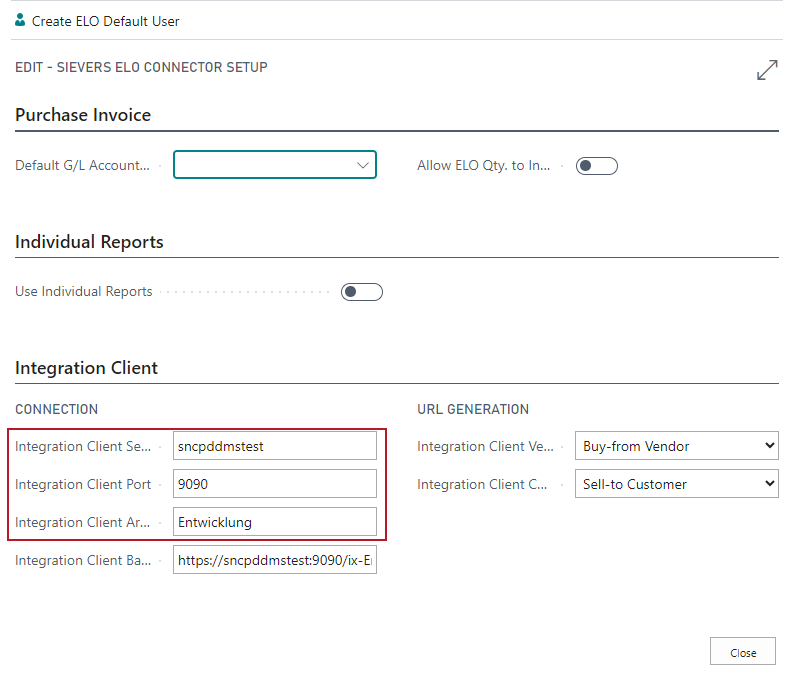
As soon as you have filled the three fields, the Integration Client Base URL is automatically generated and the Integration Client is displayed in the supported documents as well as in the customer and vendor cards.
Attachments
With SIEVERS ELO you can conveniently transfer files from document attachments and incoming documents to ELO via a job queue and archive them there.
Attachments can be transferred for the following document types:
- posted purchase invoice
- posted purchase credit memo
- posted sales invoice
- posted sales credit memo
For document attachments, you can specify whether the header and/or line attachments should be archived.
For incoming documents, you can specify whether only the main attachment or all attachments should be archived.
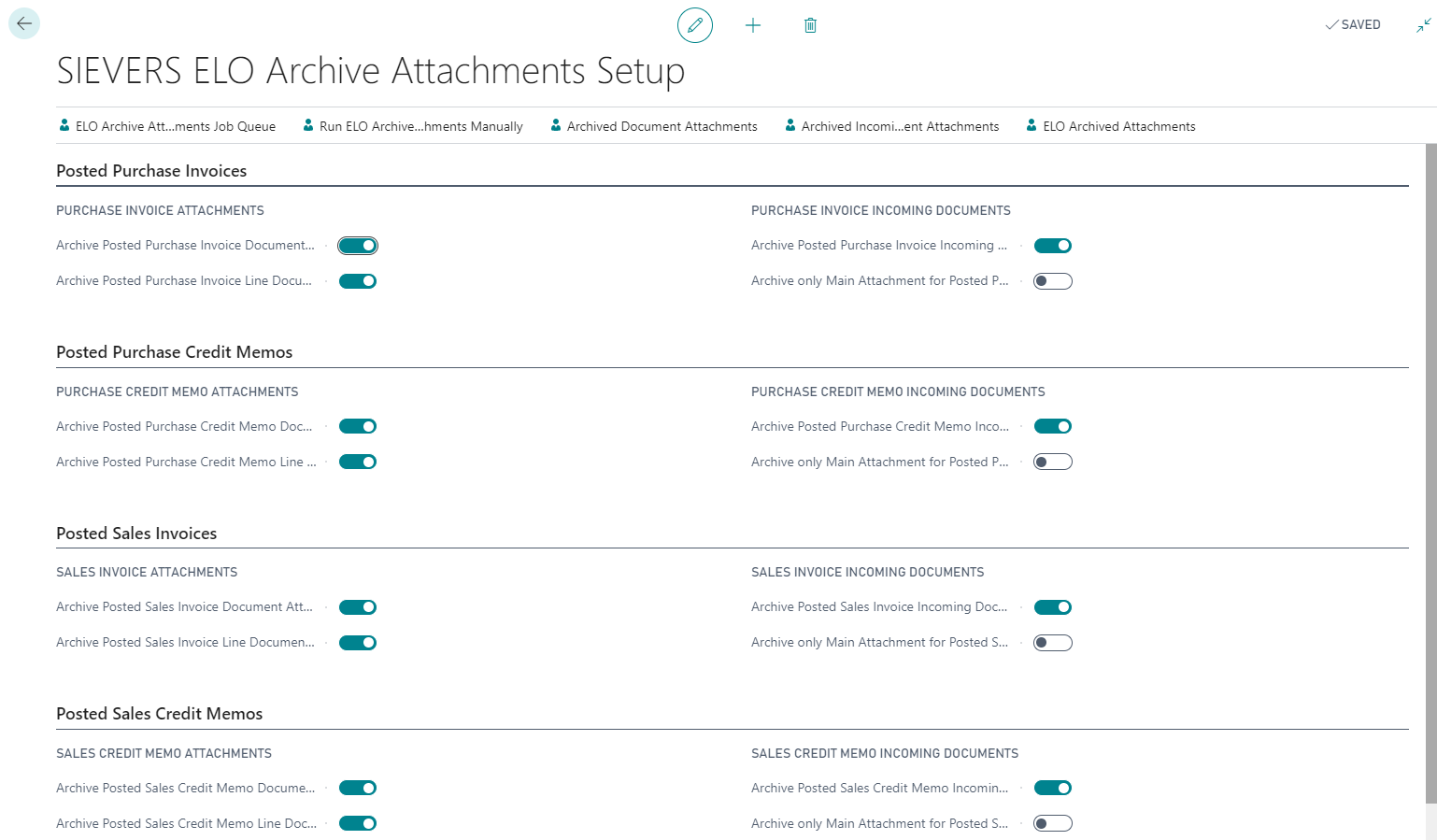
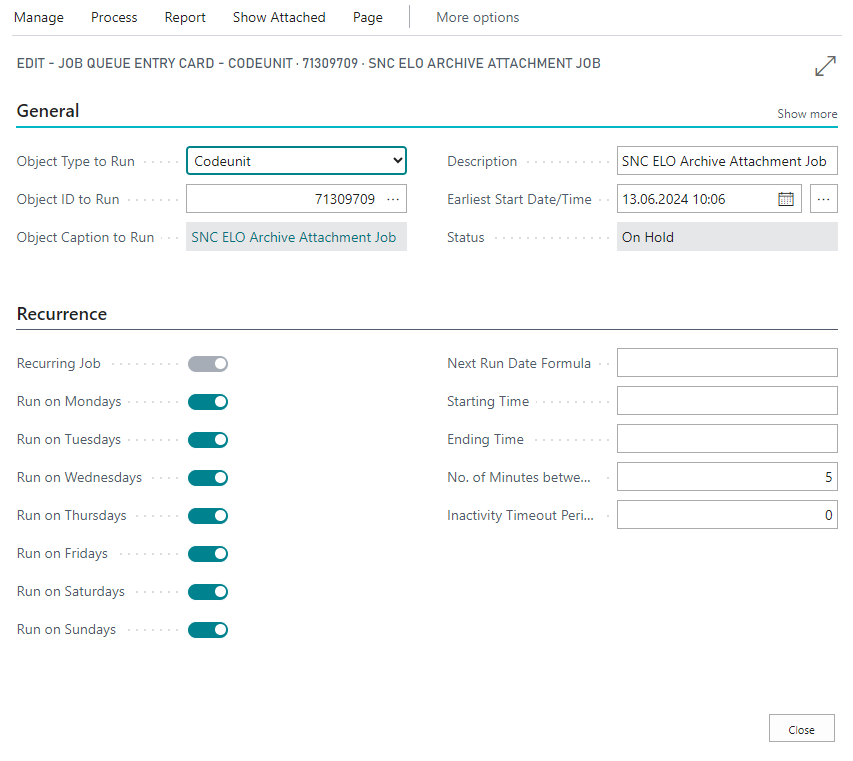
The queue map can be opened and set up using the ELO Archive Attachments Job Queue button.
This allows you to specify when the attachments should be archived.