Features
Important Topics
- Extension of WMS Feature Setup for series-oriented picking and multi-order-picking
- Central Control of Tracking Fields in WMS Feature Setup
- Optimization of move job grouping in production supply
- A4.MOP now automatically sets the focus on the LC field when a PTU is needed - Item 124337
- A4.3 Optimized quantity field sequence for SPU items
- A4.MOP Automatic focus on box field
- Correct load carrier types during output journal
- Improved Quantity Consistency in Outbound Stock Posting
- A4.2 and A4.3 Automatic Navigation in MOP Picking
Setup
::: Attention Please be sure to review the setup sections Extension of WMS Feature Setup for Series-Oriented Picking and Multi-Order-Picking and Central Control of Tracking Fields in WMS Feature Setup. The new settings are not activated by default when installing the update. Please check which settings you require! :::
Validation of number series in SIEVERS WMS setup - Item 123647
The SIEVERS WMS setup now consistently checks that all configured number series have the flag "Allow Gaps in Nos." activated.
Previously, it was possible to open an already configured number series afterwards and deactivate the performance-relevant flag "Allow Gaps in Nos." without the system objecting. This could lead to performance problems. With this change, the number series setup is now also validated for subsequent changes. If the flag "Allow Gaps in Nos." is deactivated in an already configured number series, an error message appears and the change is not allowed.
This consistent validation ensures that all number series used in SIEVERS WMS are configured in a performance-optimized manner. An event is still available for project-specific requirements.
Extension of WMS Feature Setup for series-oriented picking and multi-order-picking - Item 123825 and Item 123826
The WMS Feature Setup has been extended with complete control of visibility for series picking (SOP) and multi-order-picking (MOP). This enables central configuration depending on the WMS functions used.
Series picking (SOP):
The following elements are now controlled via the feature "Series picking" in the WMS Feature Setup:
- Archive series picking: Page for archive management of series pickings
- Series creation strategies: Page for configuring strategies for series creation
- Active for series creation (Order Types): Field in order types for controlling series creation
- Series picking (SIEVERS Team): Field in team configuration for activating series picking
- Picking series (Load Carrier): Field on the load carrier for assignment to a picking series
Multi-Order-Picking (MOP):
All MOP-relevant fields can now also be shown and hidden centrally via the feature "Multi Order Picking" in the WMS Feature Setup. This affects MOP-specific fields in various areas of the system that are positioned below or next to the SOP fields.
With these extensions, all fields, pages and reports for series picking and multi-order-picking are now fully integrated in the WMS Feature Setup. Warehouses that do not use these functions can deactivate the features and thereby receive a clearer user interface.
Central control of tracking fields in WMS Feature Setup - Item 123836, Item 123837, Item 123838, Item 123839
The WMS Feature Setup has been extended with complete control of the visibility of tracking fields. This enables a significantly clearer user interface for warehouses that do not use certain tracking methods. By activating/deactivating the following features, the corresponding fields are shown or hidden at over 20 central locations in the system:
- Item variant: Control of the display of item variants (e.g. sizes, colors)
- Sell-by date: Control of the display of sell-by date fields (relevant for food and perishable goods)
- Lot no.: Control of the display of lot numbers (relevant for lot-tracked items)
- Serial number: Control of the display of serial numbers (relevant for serial number-tracked items)
The tracking fields are displayed next to the item description where possible.
Affected areas:
- Warehouse shipment and picking: Warehouse shipment planning, dislocation lines, pick document lines
- Inventories and load carriers: Lists, cards, inventory entries, stocktaking
- Series distribution: Item and order quantity view
- Packaging: Packaging and unpacking by item
- Stocktaking: Stocktaking lines and cycle counting list lines
- Move jobs and storage: Move job lines, inbound and outbound stock post lines
- Warehouse receipt: Receipt lines, load carrier lines, inventory lines
- 3PL orders: Inbound and outbound stock postings
- Loading: SSCC content
Warehouses can now specifically select which tracking methods they use and only display the relevant fields. This leads to a significantly tidier and clearer user interface.
Mobile
A4 Weight and volume information in the picking mask – Item 99036
In the pick info (A4.Xi), the weight and volume information for regular pickings and assembly pickings is now calculated based on the item master data. For each picking line, the multiple and the sum are determined from the weight and volume values stored in the item card, instead of using values from the inventory.
This ensures that the displayed weight and volume information in the pick mask is system-wide consistent with other functions that also work with item master data.
Color codes for order overview in A4.MOP - Item 121449
In A4.MOP (Multi-Order-Picking), order numbers are now displayed color-coded to make the picking progress recognizable at a glance.
The color coding works as follows:
- Green: All lines of the order are finished picking. The order can be put down early or forwarded to packaging.
- Black: The order has not yet been started, no box number has been assigned yet.
- Normal display: The order is in processing, at least one line has been picked and a box number has been assigned.
This visual status display supports especially urgent requests from planners: The user can immediately recognize with F8 (Refresh) how far an order has progressed. Pickers can specifically identify finished orders and put them down early to optimize throughput time.
Packaging team code shortened - Item 122782
In A4.3 (Position Processing), the packaging team code is now displayed shortened to a maximum of 7 characters to ensure the visibility of the priority display. Previously, a too long packaging team code could overlay the priority display, so that pickers could no longer recognize the priority. Through the automatic shortening to 7 characters, the priority display remains always visible and readable even with longer team codes.
Improvement of menu entry in A4 picking for MOP - Item 124199
The menu entry "Unload TU" in A4 picking has been renamed to "Assign/Unload TU" to better reflect the extended functionality in the MOP picking process.
In the MOP process, this function serves not only for unloading transport units, but also for assigning created PTUs to MOP boxes. The new designation makes this dual functionality more clearly recognizable for users and improves comprehensibility in the picking process.
A4.3 Optimized quantity field sequence for SPU items - Item 124338
The focus control in A4.3 line processing has been optimized for SPU-tracked items to avoid unnecessary clicks.
Previously, the focus always jumped to the Quantity field after entering the #SPU, even when a remaining quantity was probable. This led to additional manual entries. The new logic intelligently adapts the field sequence to the demand quantity:
- Demand quantity > SPU quantity: Focus on #SPU, then automatically on Remaining
- Demand quantity = SPU quantity: Focus on #SPU, then on Quantity
- Demand quantity < SPU quantity: Focus directly on Quantity
This accelerates picking and reduces input errors.
A4.MOP Automatic focus on box field - Item 124346
The operation in the MOP picking process has been optimized to reduce manual clicks.
Previously, the picker had to manually click in the MOP Box field after quantity confirmation in A4.3 to scan and confirm the box. Now the focus is automatically set to the MOP Box field after opening A4 MOP LC Box Assignment. The user can directly scan the box without having to click beforehand.
A4.MOP Automatic order marking during PTU creation - Item 124348
The clarity in A4 MOP LC Box Assignment has been improved to facilitate orientation during PTU creation.
Previously, when creating a new PTU, it was not immediately apparent for which order the load carrier should be created. This could lead to uncertainties, especially with multiple orders in the assignment table. Now, when opening A4.MOP for PTU creation, the cursor is automatically set to the corresponding order in the assignment table. The picker immediately sees:
- For which order the PTU is needed
- How many lines the order contains (column 3)
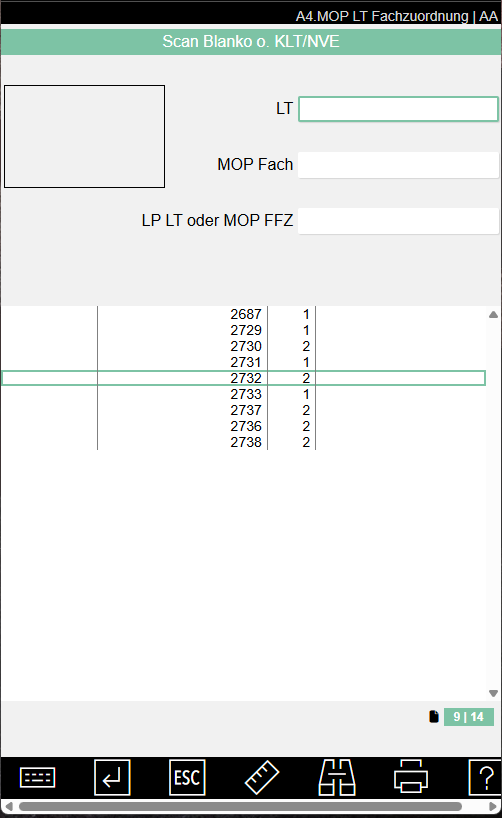
The line count additionally helps in selecting the appropriate load carrier size. This reduces errors in PTU assignment and accelerates the picking process.
A4.MOP Automatic state change when removing individual PTUs - Item 124706
The state control in the MOP picking process has been optimized to enable picking and packaging in parallel.
Previously, the PTU state changed from 5-Pick Processing to 6-packaging processing only when completing the entire MOP batch. This meant that packers had to wait until the complete picking was finished before they could start packaging.
Now the PTU state is automatically set from 5 to 6 as soon as an individual PTU is removed from the MOP rack and brought to packaging. It is no longer necessary to complete the entire batch.
A4.MOP Improved box number display for new lines - Item 124710
The box number display in A4 MOP LC Box Assignment has been optimized to avoid confusion when creating new PTUs.
Previously, when opening A4.MOP to create a new PTU (new line or new order), the box number of the previous line was displayed in the corner at the top left. This led to confusion, as pickers could think the new line belonged in the old box. Especially when switching between different orders, this was error-prone.
The box number display (top left) now remains empty when a new PTU is created for a new line or a new order. The box number is only displayed after:
- A new box has been scanned in the MOP Box field
- The quantity has been confirmed in A4.3
- The box has been confirmed by scanning the box storage place code
A2 Internal transports - Support for MOP forklifts - Item 124351
A2 Internal transports has been extended with support for MOP forklifts.
Previously, it was not possible to directly access MOP FCVs with A2 Internal transports. When scanning a MOP rack or load carriers on MOP boxes, an error message appeared. To put down PTU/SSCC from a MOP FCV, the FCV first had to be converted to a regular forklift, then all load carriers had to be scanned and transferred individually.
Now MOP forklifts can be used directly in A2 Internal transports:
- Scan a MOP FCV in A2
- The system shows all load carriers that are located on the various boxes of the rack
- You can select individual PTU/SSCC or put down all together
- Scan the target storage place for confirmation
This significantly accelerates putting down MOP load carriers and makes the cumbersome workaround via FCV conversion unnecessary.
Visual Indicator for Note Text in MDE Picking - Item 125045, Item 125062
In the MDE pages A4.1 Picking List Overview and A4.2 Position Overview, an i symbol is now displayed when a note text for the order is available.
The note text can be accessed via the F3 key and originates from the MOP Monitor or SOP Monitor. The symbol allows the picker to see at a glance whether additional information about the order is available, without having to open the detail view first.
A4.2 and A4.3 Creating a PTU with F5 in MOP Context - Item 124197
In MOP picking (Multi-Order-Picking), a new PTU can now also be created via the F5 key or the menu item New PTU. This function is available in A4.2 (Position Overview) and A4.3 (Position Processing). Previously, using F5 in the MOP context resulted in an error.
A4.2 and A4.3 Automatic Navigation in MOP Picking - Item 124349
MOP picking now automatically guides the user from position to position. After confirming the quantity in A4.3 and the box in A4 MOP, the system navigates directly to the next picking position.
Specifically, the following has changed:
- The system automatically opens A4.3 with the next position
- If a PTU needs to be created for a new order, A4 MOP opens with focus on the LC field
- A4.2 now only serves as the entry point for picking
- With ESC in A4.3, you can switch to the position overview at any time
Picking
Reusable Load Carriers in Picking - Item 125823, Item 126434
Reusable load carriers are now fully supported in the picking and shipping process:
- Automatic Conversion to PTU: In picking, only PTUs or SSCCs can be used as target load carriers. If a reusable carrier (SU) is scanned where the Chg. Load Carrier Type allowed flag is set, it is automatically converted to a PTU.
- Automatic Reset after Warehouse Shipment Posting: After the warehouse shipment posting, the load carrier data is automatically reset. If the Chg. Load Carrier Type allowed flag is set, the load carrier type is changed to SU, the status is reset and the order assignment is removed. The load carrier is then immediately available again for new warehouse processes.
Production
Correct carrier types during output journal - Item 124362
The behavior during deposit of finished products has been corrected and now follows the setup Create Warehouse and Stock Document on Output.
Previously, when "Finish products" in the production order, the manufactured inventory item was always deposited directly on a PTU/SSCC, regardless of whether the setup Create Warehouse and Stock Document on Output was activated in the SIEVERS WMS setup or not. This led to unwanted PTU/SSCC being created even with deactivated setup.
Now the load carrier type is correctly determined based on the setup:
- Setup activated: The manufactured inventory item is deposited on a PTU/SSCC, as a warehouse shipment and associated stock document are automatically generated. The inventory goes through the picking process.
- Setup deactivated: The manufactured inventory item is deposited on an SU (Storage Unit). No PTU/SSCC are created.
This enables a clean separation between production inventories (SU) and order-related inventories (PTU/SSCC) and prevents the unwanted creation of picking load carriers during pure production deposits.
Production Supply
Optimization of move job grouping in production supply - Item 120624
The report Production Storage Place Replenishment now offers flexible grouping options for replenishment move jobs to optimize routing in production supply.
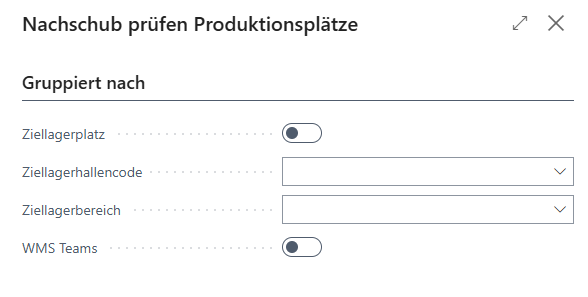
Previously, replenishment move jobs were generated per item, which led to different target places being mixed in one move job when there were multiple production storage places per item. With the new function, you can select one of three options in the Grouped by area:
- Target storage place: Generates separate move jobs per target storage place (production storage place). A move job only contains lines with identical target place, but can include multiple items. This prevents mixing different target places and optimizes routes.
- Target storage area: Generates a move job for the specified target storage areas (multiple areas can be separated by "|", e.g. "PROD-A|PROD-B"). All move job lines with matching target storage area are combined in one move job. Replenishments for other storage areas are not generated.
- Target warehouse: Generates a move job for the specified target warehouses (multiple warehouses can be separated by "|", e.g. "HALL1|HALL2"). All move job lines with matching target warehouse are combined in one move job. Replenishments for other warehouses are not generated.
The three options are mutually exclusive: only one can be active at a time. If no option is selected, the previous behavior remains (grouping per item). The settings are available both on the report request page and in filtered executions via the job queue.
Extensions in report "Production Storage Place Replenishment" - Item 121338
The report Production Storage Place Replenishment can now be opened directly via the WMS role center and can be found via Ctrl+Q.
In the Replenishment creation protocol, additional information is now displayed:
- Storage place filter: Shows which storage place filter was used during execution
- Date and time: Documents the exact time of the respective report execution
- Position No.: Shows the unique position number of the protocol entry
Deactivation of automatic SSCC label print in series distribution - Item 112442
In the SIEVERS WMS Setup, the new setup field Disable autom. SSCC label print in Series Distribution is now available.
When this option is enabled, SSCC labels in series distribution are no longer automatically printed as soon as a PTU/SSCC reaches status 7-Packed. Label printing must then be triggered manually via the action Print SSCC label.
The setup field is located in the warehouse shipment settings area.
Series Distribution
Deactivation of Automatic SSCC Label Printing in Series Distribution - Item 112442
A new setup field Disable autom SSCC Label Print in Serial Distribution is now available in the SIEVERS WMS Setup.
When this option is activated, SSCC labels in series distribution are no longer printed automatically as soon as a PTU/SSCC reaches status 7-Packed. The label printing must then be triggered manually via the action Print SSCC Label.
The setup field is located in the warehouse shipment settings area.
Focus in Series Distribution Optimized - Item 123628
The focus in the order quantity table of the series distribution has been improved. After quantity input, the focus now automatically jumps to the next open row, while already processed rows remain visible in the screen.
Previously, completed rows could disappear from the view after quantity input. This prevented users from subsequently adjusting the measures and weight of the PTU or creating an SSCC. With this optimization, all rows remain accessible until the series distribution is completed.
Outbound Stock Postings
Improved Quantity Consistency in Outbound Stock Posting - Item 123810, Item 123811, Item 123814
The quantity validation in outbound stock posting has been tightened to ensure process consistency in warehouse shipment and to avoid unintentional errors.
The following restrictions now apply:
- Quantity Limitation: The quantity in the outbound stock posting line can no longer be entered higher than the Qty. to Ship in the associated warehouse shipment line. If attempted, the message appears: "The quantity must not be greater than the quantity to ship in the warehouse shipment line."
- Quantity Reduction: A reduction of the quantity in the outbound stock posting is only possible as long as no downstream process steps have been started.
- Line Deletion: Outbound stock posting lines can no longer be deleted if the associated picking has already been marked for processing.
These changes ensure that the defined quantity flow process (to ship -> reserved -> in picking -> picked -> packed -> loaded -> shipped) is adhered to and no inconsistent data arises.
Internal Transport Follow-Team on Move Job Lines - Item 122504
A new field Internal Transport Follow-Team is now available on the SNCL Stock Move Job Lines.
The field is automatically determined when the move job type is "Storage Place Transfer". The determination is based on the destination storage place of the move job line. This function enables proactive team assignment for subsequent transports, so that after putting down a load carrier, the next responsible team is already determined.
Small changes
- After quantity confirmation in A4.3, the message Confirm MOP Box now appears to clearly communicate the next process step - Item 124724
Bugfixes
Error when canceling purchase return shipments fixed - Item 124143
We have fixed an error that led to problems when canceling purchase return shipments.
Error when opening keyboard in A4.MOP fixed - Item 124201
We have fixed an error that prevented the keyboard from opening in A4 MOP LC Box Assignment.
Information message when putting down individual load carriers in MOP process corrected - Item 124321
We have corrected an information message when putting down individual load carriers in the MOP process to avoid misunderstandings.
Display of detail information in A4.MOP corrected - Item 124704
We have fixed an error where the detail information at the bottom left in A4 MOP LC Box Assignment was not displayed correctly.
Posting of warehouse shipment without stock document for WMS-relevant location prevented - Item 125471
An error has been fixed that made it possible to post a warehouse shipment without associated stock document for a WMS-relevant location via the warehouse shipment card.
Error when deleting released MOP batches fixed - Item 125699
We have fixed an error that led to an error message or system freeze when deleting released MOP batches.
Inbound Stock Posting for Output Journal with Lot-Tracked Items - Item 123950
An error occurred during inbound stock posting for an output journal for items with lot tracking in production orders with order reference. This has been fixed.
Completed Replenishment Quantity in Prod. Order Component Lines - Item 124096
An error has been corrected where the completed replenishment quantity in the prod. order component lines was calculated incorrectly under certain circumstances.
Replenishment Status Update on Take Out - Item 124275
We have fixed an error where the replenishment status in the prod. order component lines was not updated during take out.
MOP: Consolidation Number on Second Box Scan - Item 124698
An error has been fixed where the consolidation number was removed again when scanning a second MOP box.
Production Supply Quantity via MDE on Posting - Item 125279
We have fixed an issue where the production supply quantity recorded via MDE was not considered during posting.
Move Job Lines for Production Supply with Grouping - Item 125452
An error has been corrected where move job lines were not created correctly for production supply with grouping activated.
Direct Shipment with Item Tracking - Item 125548
An error has been fixed where direct shipments in combination with item tracking sometimes resulted in an error.
Stocktaking: Quantity Difference when Using Units - Item 126338
We have fixed an error where the quantity difference in stocktaking was calculated incorrectly when using different units.
Reusable Carriers: Storage Place after Warehouse Shipment Posting - Item 126437
An error has been corrected where the storage place of a reusable carrier was not reset correctly after warehouse shipment posting.
MDE A4: Quantity Suggestion for Partial Quantity Picking - Item 126439
An error has been fixed where the quantity suggestion in MDE picking (A4) was not displayed correctly for partial quantities.