Features
Important Topics
- Quantity Packed and Packed No Longer Editable
- Production Order Component Lines: New Field "Replenishment Status"
- New Feature: Multi Order Picking
Setup
Packaging Hierarchy: Validation "Quantity per Unit" - Item 121102
To improve data quality and prevent system errors, a validation for the field Quantity per Unit has been introduced in the packaging hierarchy. Entries with Quantity per Unit = 0 are no longer permitted. When leaving a line with quantity 0, an error message appears, prompting the user to enter a valid value (greater than 0). Entries with quantity 0 previously led to sporadic errors in the system. The validation prevents these errors already during data entry and ensures that only meaningful packaging data is stored.
Mobile
A3.2 Filtering on Replenishment Move Jobs - Item 111750
The display of inventory items in A3.2 Item Transfer Take Out is now dependent on the move job type Replenishment and the setup field setting Inventory Item Exchange into a Load Carrier.
Previously, A3.2 always displayed all inventory items located at the storage place, which meant that the user sometimes had to scroll far down when searching for a specific inventory item. If the opened move job is a replenishment move job, the next query is made to the Inventory Item Exchange into a Load Carrier field from the SIEVERS WMS setup:
- Allowed: The list of inventory items is filtered to the corresponding item number
- Not allowed: The list of inventory items is filtered to the inventory item required by the move job
- Empty: Same as "Not allowed".
Optimize Document Entry - Item 122432
The entry of document numbers in the MDE screens has been optimized. In all screens with document entry and document overview list, documents can now also be found by partial entry of the document number.
The system distinguishes three cases:
- One matching document found: The screen opens the document directly, as if the complete document number had been entered
- Multiple matching documents found: The document overview is filtered to the found documents
- No matching document found: The document list is emptied and a red feedback with the message "Input not found" is displayed
The optimization has been implemented in the following screens:
- A1.1 Warehouse Receipt
- A3.1 Transfer
- A4.1 Warehouse Shipment
- A5.1 Stocktaking
- A6.1 Production
- B4.1 Picking
- B5.1 Replenishment
- C1.1 Return Order
In screens A1.1, A4.1, A5.1, B4.1, and C1.1, partial entry was already possible. Here the missing red feedback for documents not found was added.
Outbound Stock Posts
Quantity Packed and Packed No Longer Editable - Item 112838
To prevent inconsistent data constellations in the future, the fields Quantity Packed and Packed on the outbound inventory transaction lines are no longer editable.
If it is absolutely necessary to edit these fields manually, you can use the new setup field Manual Change Qty Packed and Flag Packed in the SIEVERS WMS setup to make the fields editable again. This setup field is hidden and set to false. A change is recorded in the change log.
Please use the designated methods for reversing outbound stock posts:
- Reversal of a loading that has not yet been shipped via the loading document
- Reversal of packaging via the packaging process
- Reversal of picking via the pick cancellation function
Production Supply
Production Order Component Lines: New Field "Replenishment Status" - Items 120834, 120835 and 120859
To improve transparency in production supply, a new field Replenishment Status has been introduced in the production order component lines. This shows at a glance the current replenishment progress for each component.
- Replenishment Status:
- Open (red): Replenishment missing, remaining quantity is greater than completed and considered quantities
- Created (yellow): Replenishment move job has been created but not yet started
- In Progress (yellow): Replenishment move job is currently being processed
- Available (green): Required quantity is covered by replenishment
Renaming:
The previous field Replenishment Status has been renamed to Replenishment Move Job Status. It continues to show the direct status of a linked replenishment move job and remains empty if no move job is linked.

Benefits:
- Faster overview of missing or available materials
- Color-coded display enables immediate recognition of need for action
- Clear separation between consolidated replenishment status and direct move job status
The status calculation automatically considers remaining quantities, completed and considered replenishment quantities, as well as all linked replenishment move jobs.
The field is also mirrored to the production order header and to the corresponding production order lines. The lowest status (Open < Created < In Progress < Available) is always displayed.
Update of Replenishment Status
For performance optimization, the Replenishment Status is not recalculated with every page call, but is automatically updated by a periodic job and at defined process steps. Additionally, users can trigger the update manually at any time.
Automatic Update: The status is automatically updated when:
- Periodic execution via the job queue (configurable)
- Performing the production supply check
- Replenishment check for production storage places
- Opening a production order
- Starting a replenishment move job
- Updating the completed replenishment quantity in production order component lines
Manual Update:
New action Update Replenishment Status available in:
- Released Production Orders (List): Multiple selection possible. Marked orders are processed collectively
- Released Production Order: Update for the currently opened order
Series Distribution
Properties of Target Proposal Load Carriers Editable - Item 122757
The properties (inventory measure, dimensions, weight) of the load carriers in the target proposal of the series distribution are now editable.
Display of Series Distribution Status on the Series Distribution Card - Item 122758
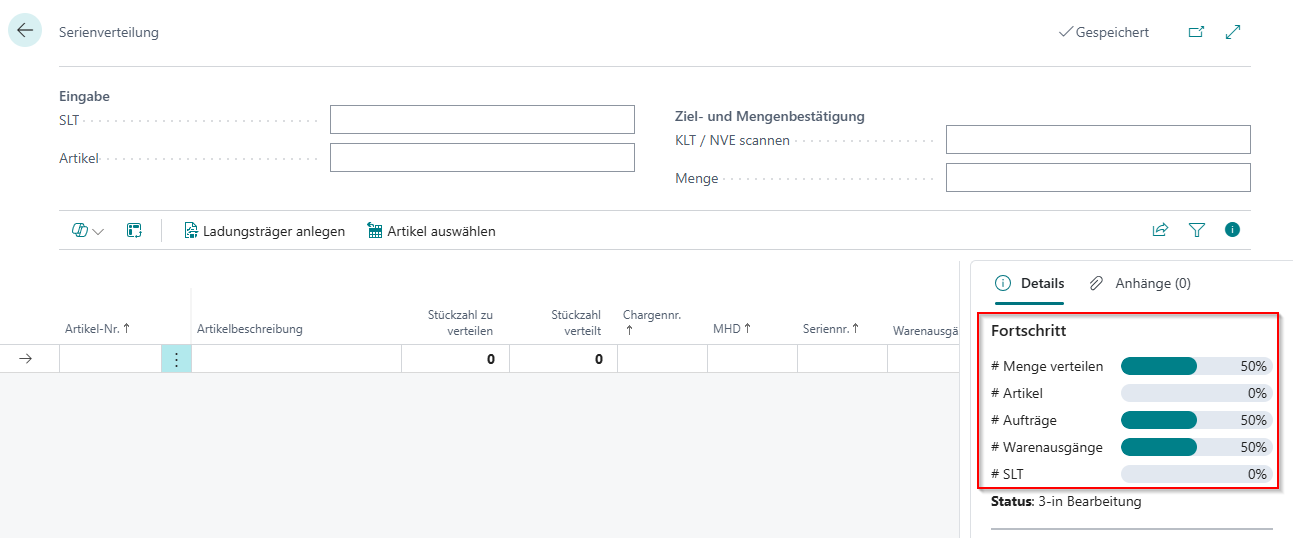
On the series distribution card, the status of the series distribution process is now displayed directly below the progress diagram. This enables a faster overview of the current processing status.
Inventory Measure Default for Series Distribution Moved in SIEVERS WMS Setup - Item 122762
The setup Default Inventory Measure Series Distribution has been moved from the "Numbering" tab to the "Warehouse Shipment" area. You can now find the setup directly below "Allow Manual Document Selection in Series Distribution".
Progress Display in Series Distribution - Item 122765
The series distribution card now shows progress bars in the factbox that visualize the current processing status of the series distribution. The progress display is loaded when opening the series distribution document and updates automatically as soon as a series load carrier is scanned or entered.
Packing Rules and Consolidation Number
In SIEVERS WMS, order consolidations and picking methods have been successively added and extended in recent releases. Over time, important new organizational units have been introduced, such as the consolidation number, the MOP batch no., and the picking series no. Handling these numbers is complex and the assignments must always be correct. We have dedicated ourselves to this topic in this release and straightened out some (albeit small) discrepancies.
Packing Rules in Series Distribution - Item 122821
The series distribution now considers the packing rules and automatically prevents uncontrolled packing together of orders:
- Source document lines from different warehouse shipments cannot be packed into the same load carrier (PTU or SSCC)
- If the "order-wise" indicator is active on the warehouse shipment, different orders cannot be packed into the same load carrier
In case of a violation of these rules, you will receive a corresponding message. This ensures clean order separation and prevents errors during packing.
Note: The "order-wise" indicator now also affects the series distribution, instead of only conventional picking methods as before.
Consolidation Number for Series-Oriented Picking According to Packing Rules - Item 123565
For series-oriented picking (SOP), the consolidation number is now correctly incremented according to the packing rules.
Previously, only a single consolidation number was assigned per batch for SOP, which could lead to errors in packaging. Now orders that must not be packed together due to packing rules receive different consolidation numbers.
This ensures:
- Correct order separation in series distribution and packaging
- Consistent behavior across all picking methods (analogous to MOP)
- Prevention of packaging errors due to impermissible packing together
Note: The consolidation number for SOP continues to be formed across warehouse shipments (in contrast to MOP), but now considers the packing rules within the batch.
Numbers in Picking Document Header - Items 123566 and 123568
From the previous item Consolidation Number for SOP According to Packing Rules it follows that a picking document of type picking series has different consolidation numbers assigned. For this reason, the number now remains empty for a picking series document.
For the same reason, the fields Warehouse Shipment No. and Source No. now remain empty.
New Fields for Pickings - Items 123600, 123574 and 123575
We have taken a closer look at the various picking processes and found that information is missing in some places in the system to carry out the processes efficiently. We have added these missing fields and table columns:
- MOP Batch No. in SNCL Load Carrier
- Optionally displayable via Personalize:
- Warehouse Shipment Number in picking positions and load carrier lines picking in the picking document
- Source No. in picking positions
Multi Order Picking (MOP)
With this release, the Multi Order Picking (MOP) functionality is introduced in SIEVERS WMS. MOP is a picking method that combines multiple orders into one picking run while maintaining the order reference.
In recent releases, we have already prepared MOP, with releases 54 and 55 the functionality actually becomes fully usable.
When is MOP suitable?
Multi Order Picking is optimal for warehouses with many small orders (up to 10 positions per order) and is recommended up to an order quantity of 80 per day. The method saves time and travel, as the picker processes multiple orders simultaneously.
How does MOP work?
Orders are automatically combined into MOP batches and assigned to a picking team. The picker uses a MOP cart with multiple boxes, with each box assigned to an order. The picked items are placed order-pure into the corresponding boxes, so that no mixing takes place.
Central Components:
- MOP Batch Formation Strategy: Regulates the automatic consolidation of orders according to defined criteria (e.g., shipping address, delivery date, quantity limits)
- MOP Cart: Floor conveyor vehicle with configured boxes that are uniquely identified via storage place codes
- MOP Monitor: Central overview for managing and controlling all MOP batches with status tracking
Picking is done via the mobile device (MDE) in the familiar A4 interface with special MOP support.
The following are the items we worked on for this topic in this release.
Display of MOP Batch Picking Documents in A4 - Item 121436
Picking documents with the type "MOP Batch - Picking" are now displayed in A4 and can be processed. When opening A4 Picking, the system checks whether a MOP floor conveyor vehicle was selected.
Display of MOP/SOP Batches with Notes in A4.1 - Item 121438
The batch overview A4.1 now shows specific note texts for MOP and SOP batches that can be entered by the warehouse planner in the respective monitor.
- MOP Batches: Note text from the MOP Monitor (max. 36 characters)
- SOP Batches: Note text from the SOP Monitor (max. 36 characters)
The note text is displayed instead of the customer and delivery country data that appear for regular picking documents. Font, form, and size correspond to the standard display in A4.1.
Create PTU with box Assignment in A4.MOP - Item 121445
The new page A4.MOP serves as an overview and validation screen for the assignment of PTU/SSCC to boxes on the MOP cart.

- Enter load carrier, e.g., via blanco barcode
- Enter MOP box
- Enter storage place for load carrier or MOP cart
- Display current MOP box
- Assignment table. Column 1: box (empty here) | Column 2: Order number | Column 3: Number of positions | The load carriers always have a prefix. P = PTU; S = SSCC | The color of the load carrier shows the processing status: Black: PTU - no further attributes required, normal packaging follows; Green: SSCC with complete attributes, ready for shipment (inventory measure, dimensions and weight are maintained); Red: SSCC with missing attributes - inventory measure, dimensions (length/width/height) or weight are missing
- Work Indicator. Left number: Number of unfinished orders | Right number: Number of open picking positions | Colors: Green: There is something to do. Gray: There is nothing to do.
When does A4.MOP open?
- When selecting the first position in A4.2MOP, if no PTU has been created yet
- After scanning a blanco barcode in A4.2MOP or A4.3MOP
- Manually at any time with F8 (Ctrl+E)
For more information, please read the help or the corresponding section in the documentation.
Event-based Note Field in A4.MOP - Item 122343
On the MDE page A4.MOP, an event-based label is now available through which project-specific note texts can be displayed.
The label is positioned between the header area and the order list and can be filled with customer-specific content via an event. A typical use case is the display of container suggestions that tell the picker which and how many containers should be prepared for the MOP run.
This function is not included in the standard solution and is only visible with project-specific implementation.
Extended Functions in the MOP Assignment Table - Item 121452
In the assignment table of A4.MOP, quick functions are now available to directly edit load carriers, print labels, or obtain information.
Select an entry in the assignment table and use the following functions:
- F1 (Ctrl+B) - Weights and Measures: Opens the form for maintaining dimensions and weight of the load carrier. After entering the data, the load carrier can be directly converted to SSCC.
- F9 (Ctrl+A) - Print Label: Prints the corresponding label for the selected load carrier (SSCC marking or PTU label).
- Arrow key right - Load Carrier Information: Opens the load carrier information (A7) with details about the selected load carrier and its contents.
All functions are also available via the menu and the function bar.
Footer with Work Indicator and Load Carrier Data in A4.MOP - Item 121451
The screen A4.MOP now shows important information about work progress and the selected load carrier in the footer.

The work indicator shows the remaining scope of the MOP batch:
- Left number: Number of not yet finished orders
- Right number: Number of open picking positions
When a load carrier is selected in the assignment table, its physical properties are displayed:
- Inventory Measure (IM): Up to 13 characters (e.g., "Carton 600x400")
- Dimensions: Length x Width x Height in the stored unit (e.g., "60x40x30 cm")
- Weight: With weight unit (e.g., "15.5 kg")
Marking and Color Coding of Load Carriers in A4.MOP - Item 121450
Load carriers in the assignment table of A4.MOP are now marked with a prefix and color-coded to recognize the status at a glance.
Each load carrier receives an abbreviation that indicates the type:
- P: Picking load carrier (PTU) - still needs to be packed
- S: Shipping unit (SSCC) - can be shipped directly
The color of the load carrier shows the processing status:
- Black: PTU - no further attributes required, normal packaging follows
- Green: SSCC with complete attributes - ready for shipment (inventory measure, dimensions and weight are maintained)
- Red: SSCC with missing attributes - inventory measure, dimensions (length/width/height) or weight are missing
box Assignment with Validation in A4.MOP - Item 121447
After quantity confirmation in A4.3, the MOP box must now be confirmed to prevent order mixing.
The system shows the message "Confirm MOP box or new PTU" and the box number is displayed large. Depending on the scan, a different action occurs:
- Scan displayed box: System checks consolidation number → If match, continues, if deviation the error message "Wrong box. Scan displayed box" appears
- Scan empty box: System switches to field LC with message "Scan blanco or PTU/SSCC" → New PTU can be created
- Scan PTU/SSCC directly: box is automatically assigned (if PTU is already located in a box)
The consolidation number check ensures that only orders with the same consolidation number may be picked together into a load carrier.
Validation Against MOP box Changed to Storage Place Code - Item 124196
The validation when scanning a MOP box is now done via the storage place code instead of the box code.
Previously, when scanning a box, the box code was used for validation. Since this is not unique, the validation has been changed to the storage place code of the MOP box. When scanning a box, the storage place code must now be used to ensure unique assignment.
Function-appropriate Floor Conveyor Vehicle Selection in SIEVERS WMS Mobile - Item 122083
The selection of floor conveyor vehicles (FCV) on the MDE is now automatically filtered by team type and function to avoid operating errors.
Previously, it was possible to select MOP floor conveyor vehicles (MOP carts) in functions for which they are not suitable. This led to problems because MOP FCV do not have a regular storage place and therefore cannot be used for all warehouse processes.
Check Against MOP boxes Instead of Storage Place for MOP Carts - Item 121435
The storage place check when calling SIEVERS WMS Mobile functions has been adjusted for MOP teams.
When selecting a function in SIEVERS WMS Mobile, it was previously checked whether the FCV has a storage place stored. If the field was empty, an error message appeared. The check now depends on the selected team and FCV type:
- MOP team with MOP FCV: Check for existing MOP boxes. Error message only if no MOP box is stored
- MOP team with regular FCV: Check for storage place. Error message if no storage place is stored
Completion of MOP Batches with Placement Check - Item 121455
After completing a MOP batch, the system now automatically checks whether all load carriers or the MOP cart have been placed before the next batch can be started.
If all positions of a MOP batch are picked, the system automatically returns to the batch overview (A4.1). However, if not all PTUs/SSCCs or the MOP cart have been placed yet, a security query appears when trying to leave picking.
Flexible Placement Rules for MOP Picking - Item 121453
In A4.MOP, two options are now available for placing picked goods: individual load carriers or the entire MOP cart.
- Place individual load carriers: Scan the desired load carrier in the LC field and then scan the target storage place in the Storage Place LC or MOP FCV field. The load carrier is posted to the storage place and is available for further processing (e.g., packaging).
- Place entire MOP cart: Leave the LC field empty or clear it. The system shows the message "Scan storage place to place MOP FCV" and sets the focus on the Storage Place LC or MOP FCV field. Scan the storage place where the cart should be placed. The system saves the storage place in the MOP Info Storage Place field on the floor conveyor vehicle and leaves all PTUs/SSCCs in the boxes of the cart.
The new field MOP Info Storage Place is available on the SNCL floor conveyor vehicle, which documents the current location of the MOP cart.
Alternatively, you can also convert the PTU directly into an SSCC after picking by opening and filling the Weights and Measures form with F1.
Check for Picked Up PTU/SSCC When Calling A4.2MOP - Item 121442
When selecting a MOP batch in A4.1, the system now checks whether PTU/SSCC are already on the selected floor conveyor vehicle that do not belong to the current batch.
Optimized Position Processing for MOP Batches in A4.3MOP - Item 121446
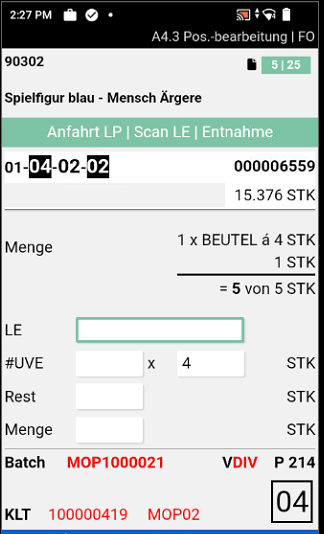
Position processing for MOP batches has been optimized and now shows all relevant information for multi-order picking at a glance.
New display elements:
- Batch display: Instead of series/order, the MOP number is displayed with color coding (green = without missing parts, red = with missing parts in warehouse shipment)
- Packing team: Shows the responsible team or "V DIV"/"P DIV" for mixed teams
- Priority: Shows the smallest order priority from the warehouse shipments
- Work Indicator (WI): Shows remaining dislocation lines and total quantity for the current order
- Large box number: The target box is prominently displayed at the bottom right (e.g., "01")
- FCV code: Last 7 characters of the floor conveyor vehicle instead of storage place
- PTU/SSCC: Shows the last filled load carrier of the order
Blanco scan for new PTU:
Scan a blanco barcode in A4.3MOP or A4.2, A4.MOP opens for assignment of a new PTU on an empty box.
Move Job Type Filter: Extension to Production Supply and Automatic Team Finding - Items 120580 and 120585
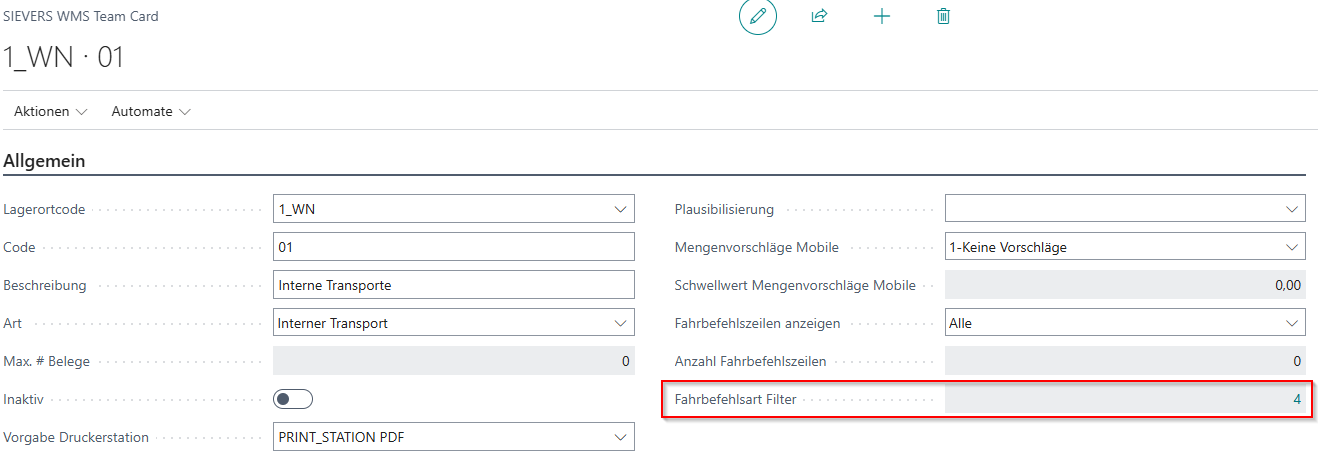
The move job type filter is now also available for production supply teams and is considered in the automatic assignment of move job lines to teams.
Previously, the move job type filter in the SIEVERS WMS team configuration was exclusively available for teams of type Internal Transports. The filter only affected the display of move job lines in the MDE views (e.g., A2 Internal Transports). In automatic team assignment, the filter was not checked, which could lead to incorrect assignments.
New behavior:
- The move job type filter can now also be configured for teams of type Production Supply.
- The filter is strictly applied as a criterion in automatic team assignment:
- Move job lines are only assigned to teams whose filter includes the corresponding move job type
- Move job lines that are excluded by the team filter are not automatically assigned
- If a team's filter is set to "Transport to Production", for example, automatic assignment only occurs for move job lines of this type
- With multiple matching teams, the first team in the order is assigned (analogous to picking)
The change affects all processes with automatic team finding based on move job lines, including:
- Internal Transports (A2)
- Production Supply (C1, C2)
- Automatic Replenishment
- Generation of follow-up move jobs (e.g., at warehouse receipt and transfer places)
- All other processes that use move jobs with automatic team assignment
Important:
- Manual team assignments remain unaffected by this change
- After the update, check the move job type filters in your team cards to ensure that automatic team assignment meets your requirements
Minor Changes
- Missing help pages inserted in SIEVERS WMS Mobile - Item 122319
- Corrected and inserted a few menu entries on the new C pages - Item 122321
- The note field in the series monitor can now be edited - Item 123410
Bugfixes
Fixed Error When Printing Series Load Carrier or PTU Labels with Direct Print Enabled - Item 123269
We have fixed an error that caused an error message "The specified key was not in the dictionary" when printing series load carrier or PTU labels with direct print enabled.
Fixed Error in Source Number Assignment in Series Distribution - Item 123364
The problem that the source number was not assigned in series distribution when using the load carrier button or scanning a blanco barcode has been fixed to ensure a valid SSCC delivery.
Fixed Incorrect Source Numbers in Various Picking Documents - Item 123564
An error has been fixed where not all source numbers were correctly entered into the load carrier inventory items when reporting back in various picking documents.
Stock Document Creation with Disabled Setup for Warehouse Shipment - Item 123577
An error has been fixed where, with disabled WMS setup Create Warehouse Shipment and Stock Document on Output Posting, an incorrect inventory item (PTU instead of SU) was created and a duplicate warehouse document was created.
Reporting Back of Picking Document Lines Faulty - Item 123599
An error has been fixed where, when reporting back picking documents with multiple lines, only one line was reported back and the picking document header was incorrectly set to "Completed", making further processing impossible.
Status of Picking Document in Warehouse Shipment Planning Incorrect Due to Multi Order Pick - Item 123912
An error has been fixed where the status of the MOP picking document in warehouse shipment planning was not displayed correctly after reporting back.
Display of Incorrect Storage Units on Forklift - Item 124102
We have fixed an error that caused incorrect storage units to be displayed on the forklift in certain constellations.
Load Carrier Running Numbers Incorrectly Incremented - Item 124251
A problem has been fixed where duplicate numbers were assigned when creating multiple load carriers with the same running number.
System Remains in A4.MOP Until All PTU/SSCC Are Placed - Item 124317
An error has been fixed where the system prematurely jumped to A4.1 and completed picking without all PTU/SSCC being placed.