Features
Important Topics
Conversion of Warehouse Number Series - Item 92003
Due to changes in the new Business Central version, we have adjusted the number series in SIEVERS WMS and converted them to the BC standard. The changes for this have been made exclusively under the hood. For you as an admin, the only change is that number series you want to use in SIEVERS WMS must have the option Allow Gaps in Numbers activated. This is for technical reasons. If this is fundamentally not possible and you need an exception, please contact SIEVERS-GROUP.
New Permission Sets SIEVERS WMS Admin and User - Item 116022
To ensure clear rights distribution and prevent unauthorized changes in the SIEVERS WMS setup, new permission sets named SIEVERS WMS ADMIN and SIEVERS WMS USER have been created.
- Admin: This permission set is exclusively intended for administrators who are allowed to make configuration and setup changes to SIEVERS WMS
- User: This permission set is intended for users. With this, no changes can be made to SIEVERS WMS setups.
Setup
General
Unused Fields Removed - Item 109465
In this release, we have removed a few fields that have become obsolete for SIEVERS WMS:
- Item Card
- Stock Gross Weight
- Stock Net Weight
- Location
- Stock Number of Pieces
- Stock Gross Weight
- Stock Net Weight
- Stock Inventory Item Count
Warehouse Receipt
Automatic Release of Newly Created Warehouse Receipts - Item 111212
Previously, a newly created warehouse receipt had to be manually released for the mobile device in order to continue warehouse receipt recording. This is the correct process, especially in larger teams where there is division of labor. However, if it is a very small team, this additional step can quickly become superfluous and cumbersome, as it is often the same person who unloads and wants to continue recording directly.
For this reason, there is now this new setup in the SIEVERS WMS setup:
- Warehouse Receipt Status Released MDE after Unloading: Causes the warehouse receipt to be set directly to 2-Released MDE on mobile pages A1.0 and B4.0 as soon as it is created. If the setup is not active, the warehouse receipt remains on status 1-recorded. This setup streamlines the workflow, especially in warehouse receipt teams without division of labor.
Mobile
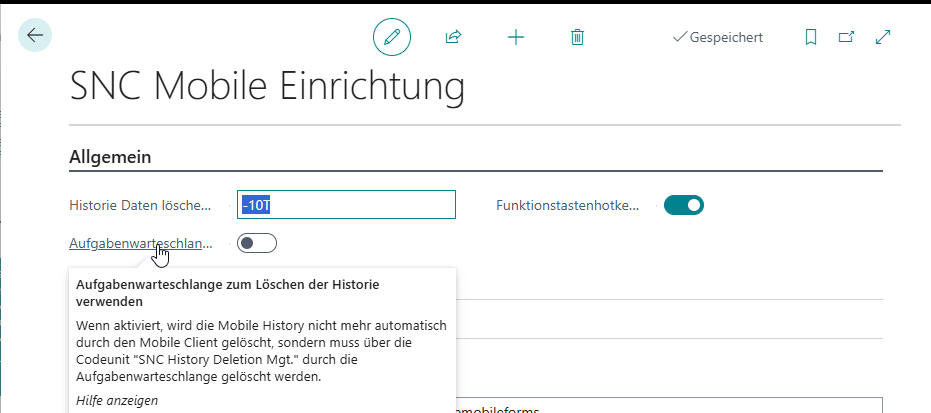
Automatic Deletion of Mobile History - Item 103604
There is now the option to have the mobile history deleted via a job queue. To do this, activate the new option Use Job Queue to Delete History. This option disables deletion by the client. Instead, create a job queue entry with the codeunit 70294093 "SNC History Deletion Mgt." and assign the desired time.
::: Note The change was not made in SIEVERS WMS, but in the SIEVERS WMS Mobile app. :::
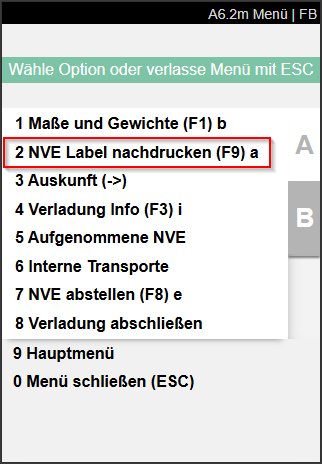
A6.2 Reprint SSCC Label - Item 114235
In the menu of A6.2 and A6.2o, there is now the option to reprint the SSCC label of the selected carrier.
Alphabetical Keyboard and Special Characters in SIEVERS WMS Mobile - Items 115795 and 119579
There is now an alphabetical keyboard and a keyboard for special characters in SIEVERS WMS Mobile for all mobile devices that do not have a physical keyboard. You can access the keyboard via any B menu or the keyboard icon in the toolbar.
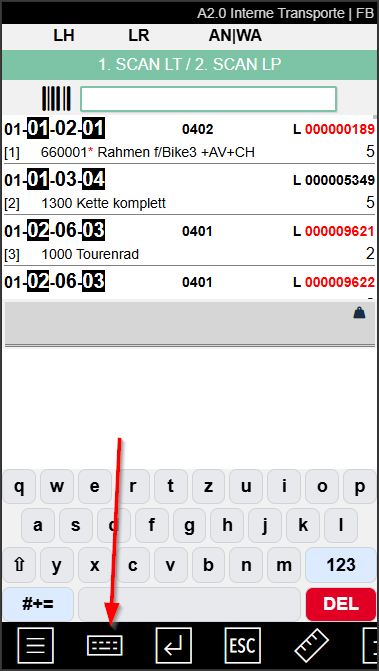
The keyboard remains open even when the user changes pages. When the keyboard is initially opened, the numeric keyboard always starts and the user must switch.
Please ensure that you have assigned a device without function keys in the SNC Mobile User setup.
Determination of Load Carrier Weight Now Also on Mobile Devices - Item 105396
In the SIEVERS WMS setup in the Load Carrier section, there is the setup field Determination Load Carrier Weight. Here you can specify whether and how the gross weight of a load carrier should be calculated automatically. The formula selected here is now also applied to all Dimensions and Weight pages on mobile devices.
Stock Inventory
Finding an Existing Inventory Item at the Wrong Location - Item 114337
If a warehouse employee finds an inventory item that already exists but is in the wrong location, they can correctly record the inventory via stock inventory on the MDE device. The system then automatically creates a transfer and the inventory is transferred to the cycle counting list and stock inventory.
We have adopted this process into the Business Central system. If the New Inventory function is used in a cycle counting list and an existing inventory item is entered at a different storage place, it is now automatically transferred to the new storage place along with all attributes and the entered quantity. This way, the correction is recorded and traceable in the system.
Production Supply
Automatic Order Assignment: Fields Are Filled as with Manual Picking - Item 118060
In Release 50, automatic complete picking with automatic order assignment was implemented. Initially, we focused on the correct process flow and the resulting consistent status displays in warehouse shipment planning. In this release, we addressed the final details. These consisted of certain fields not being filled during automatic picking as they would be during manual picking. We have now implemented the filling of these fields. The following fields were affected:
- Processed by
- Date of Handling
- Handling Start Time
- Handling End Time (Corresponds to Handling Start Time)
- Picked from Storage Place
- Picked from Carrier
Serial Distribution - Items 88791, 123035, 112459, 116046, 112461
Over the course of the last releases, we have gradually implemented Serial Distribution. This involves the distribution of serially picked inventory items. In serial picking, several similar orders are picked together into a common carrier. Once picking is complete, this full carrier is placed for packaging. The individual items must now be assigned to the respective orders again.
Serial distribution is performed via the Business Central pages of the same name.
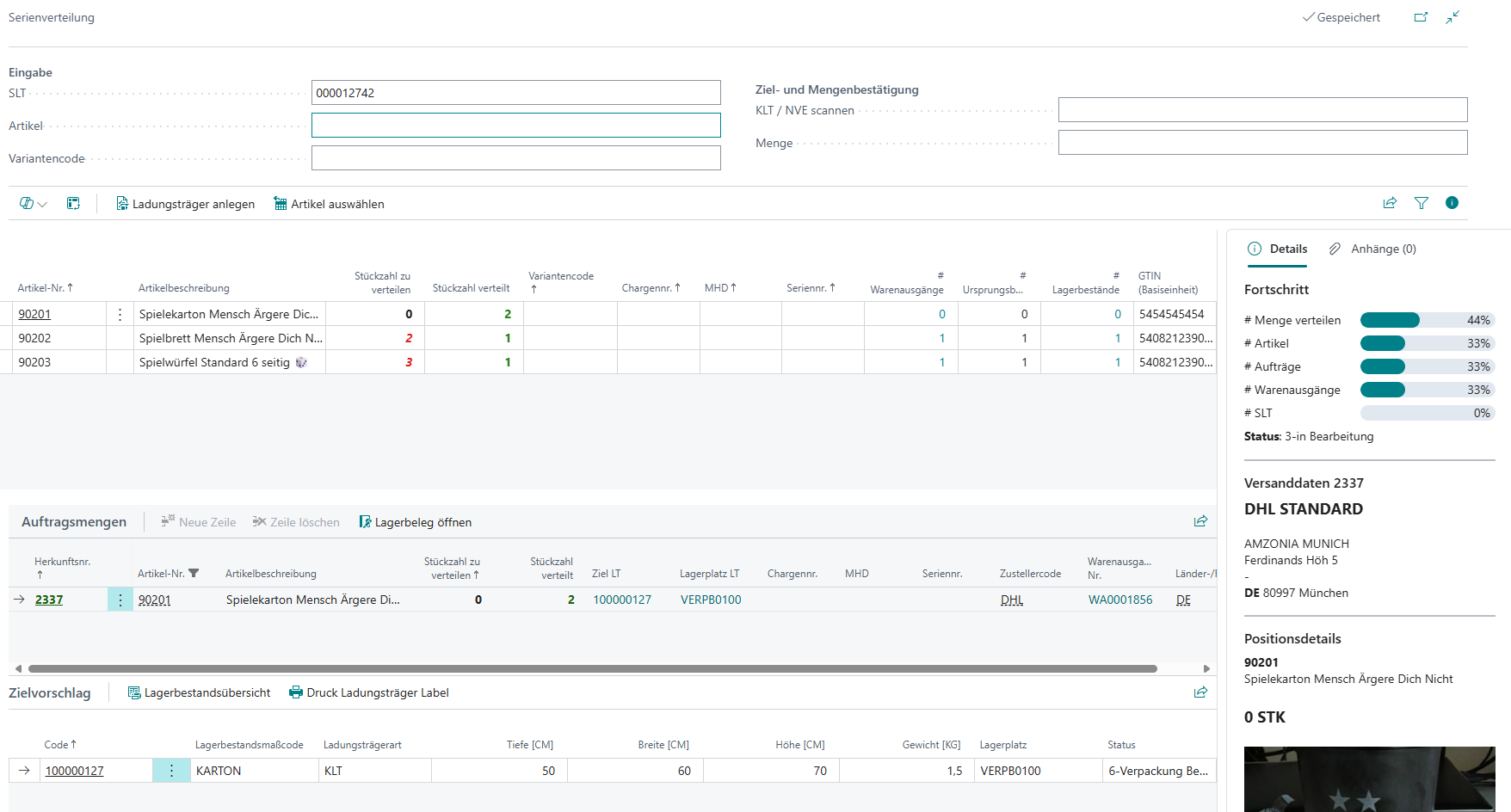
In the documentation, you will find detailed instructions on how to handle this process. In brief:
- You scan the appropriate STU and item in the upper left area. The system displays the contents of the STU in the middle table.
- You scan the target PTU or the SSCC or a blank barcode in the upper right area. This carrier is now displayed as a target suggestion in the lower table. In the order quantity table, you can now see the number of pieces that must be distributed to the individual orders. Place the quantity in the carrier and enter it in the field at the top right.
- Process all items of the STU step by step in this way.
The following describes the current tickets of the release on this topic.
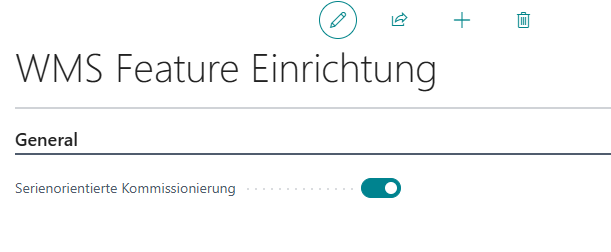
New Setup to Activate Serial-Oriented Picking - Item 112430
In the SIEVERS WMS setup under the menu item Actions, there is now the action WMS Feature Setup. This opens a new page where you can activate Serial-Oriented Picking. Please contact your SIEVERS WMS partner beforehand.
Display of Source No. and Consolidation No. in Warehouse Dislocation Lines and Serial Monitor - Item 121379
In the warehouse dislocation lines, there are now the new table columns
- Source No.
- Consolidation No.
This allows you to check whether the consolidation numbers have been assigned correctly.
Serial Distribution No. on the Serial Distribution Page - Item 122045
The serial distribution number is now displayed at the top of the serial distribution page.
When Placing an STU, a Serial Distribution Is Automatically Created - Item 122094
With this ticket, it was implemented that serial distributions are automatically created as soon as an STU is placed at a workstation. If further STUs from serial picking follow, they are added to the existing serial distribution.
Switch to Another Serial Distribution - Item 122108
The system automatically checks when scanning an STU whether it belongs to the current serial distribution. If this is not the case, a query appears with which you can switch to the appropriate serial distribution.
Progress Bar after STU Scan - Item 122284
The progress bars in the factbox are now displayed directly after scanning the STU and not only after entering an item.
GS1
Display Whether a Data Identifier Is Suitable for GS1 SSCC Label Printing - Item 121463
In the Customer/Vendor Identifier table, the GS1-SSCC field provides the option to print the respective data identifier on the label as a GS1 barcode. However, this is not yet possible with all data identifiers. The reason for this is high development effort, which is being worked through step by step. To make it easier to recognize which data identifiers can already be printed, we have introduced a new information field at the GS1 data identifier line level:
- GS1 Label Support: The data identifier is supported for GS1 label printing in SIEVERS WMS. Function can be entered in SNCL customer/vendor data identifier without error message and marked for GS1-SSCC or CODE128 printing.
If you try to print a data identifier on the label that is not supported, an error message appears. The following data identifiers are currently supported:
- 00 Serial Shipping Container Code
- 01 GTIN of Trade Unit
- 02 GTIN of Contained Unit
- 10 Batch/Lot Number
- 15 Best Before Date
- 21 Serial Number
- 3300 Gross Weight, Kilograms
- 37 Number of Contained Units
- 400 Purchase Order Number of Consignee
Small Changes
- Tooltips corrected and expanded - Items 121014, 121033, 121041, 122439
- The order of numbers on the numeric keypad in SIEVERS WMS Mobile has been adjusted to match the numeric keypad on a normal keyboard - Item 121395
Bugfixes
Partial Quantity Posting Corrected for Output Journal - Item 122429
A bug was fixed that in certain cases prevented a partial quantity from being posted correctly in the output journal.
Error When Accessing Packaging Screen After Cancellation of Picked Lines Fixed - Item 122362
A bug was fixed that prevented further work in the packaging screen after cancellation of picked lines, as the window was only opened with read-only access.
ESC Key in Toolbar Triggers Correct Logout Without Error Message - Item 122073
A problem was fixed where pressing the ESC key in the toolbar in SIEVERS WMS Mobile caused an error message.
Division by Zero - Item 122043
We fixed a bug that prevented certain packaging processes from being called when a quantity of 0 was entered for the sub-packaging unit in the packaging hierarchy.
Bug Fix for Pick Team Determination in Warehouse - Item 121153
A bug was fixed that occurred when executing the job queue entry for pick team determination when a warehouse zone was removed from a team and later added again.
Pick Team Subsequent Adjustment Leads to Incorrect Dislocation Line - Item 117903
It was fixed that when a picking team was subsequently adjusted, the associated pick list was incorrectly recorded in the dislocation line.
Correct Event Processing for Companies Without SIEVERS WMS - Item 123122
A problem was fixed where an event was triggered without checking SIEVERS WMS activation at the location, causing functions to be incorrectly executed in companies without SIEVERS WMS.
Correct Automatic Creation of Warehouse Shipments for Partial Completion in Production Order - Item 119183
A bug was fixed where no associated warehouse shipment was created for partial completion of a production order because not all relevant reservation entries were considered.