Features
Important Topics
- Logout from SIEVERS WMS Mobile possible despite automatic login
- Color indicators in Mobile menu swapped
- Keymapper setup
Setup
- A4.3 Create PTU
- [Cumulative display of Outbound Stock Post lines in C1.2 and C1.3](#cumulative-display-of-Outbound Stock Post-lines-in-c12-and-c13---item-111253)
- Create new SU in C1.2 and C1.3
- Threshold values 0 possible
- Keymapper setup
SIEVERS WMS Setup Restructuring Load Carrier and Internal Transports - Item 119626
For better overview, we have moved a few setup fields from the Load Carrier area to the Internal Transports area. The following fields are affected:
- Follow-up move order on warehouse receipt storage places
- Follow-up move order on transfer storage place
- Block original target storage place A2
- Blocking code internal transports
- Drop all load carrier - Feature
- Put down load carrier without user confirmation
Mobile
Color indicators in menu swapped - Item 119015
In the last release we introduced colored work indicators on the menus. Gray meant: There is something to do; Green meant: There is nothing to do. This color choice led to confusion for many users. For this reason, we decided to swap the colors. Now the colors mean:
- Gray: There is nothing to do
- Green: There is something to do.
Display Blocked on A7.2 and A7.3 - Item 86014
Previously, only A7.1 displayed whether an inventory item was blocked. We have now also implemented this functionality on A7.2 and A7.3.
Logout from SIEVERS WMS Mobile possible despite automatic login - Items 114941 and 119386
When a user presses the ESC key on their mobile device in the Mobile main menu, the login screen is opened. If automatic login via the Business Central user is activated, the user is immediately logged in again. This may not be desired by the user. For this reason, we have deactivated this function when calling the login screen via ESC.
The Mobile system now behaves as follows:
- An automatic login of the user takes place, if activated in the Mobile user settings, once when opening SIEVERS WMS Mobile
- If the user logs out with ESC from the main menu, the login screen appears and an automatic re-login does not take place.
- If the user presses ESC again, SIEVERS Mobile is closed and Business Central appears.
B5.3 Protection against incorrect entries in the quantity field - Item 116146
When scanning during stocktaking, incorrect entries can occasionally occur. Users reported to us that they sometimes have the quantity field focused and then accidentally scan the carrier code again. This causes the carrier code to be entered in the quantity field. To prevent this, there are now the following new checks on the quantity field:
- Check for 10-digit carrier code including check digit
- Check for 18-digit GS1-SSCC code including check digit
If one of the checks is positive, a corresponding error message is issued.
A4.3 Create PTU - Item 119191
It is now also possible to create a PTU on page A4.3 line processing. Use the menu entry A1 or the F5 key on the device for this purpose.
Cumulative display of Outbound Stock Post lines in C1.2 and C1.3 - Item 111253
We have taken further steps to make the processing of Outbound Stock Post lines in production supply in C1.2 and C1.3 more efficient and user-friendly. For this purpose, a cumulative display of Outbound Stock Post lines was introduced, which groups move job lines with identical parameters (storage place, item, lot no., variant, expiration date and serial number). This reduces the scanning effort, simplifies operation and minimizes operating errors. The switch to the new view is made via a new setup field in the SIEVERS WMS Setup in the Production area:
- Take Out Pos. cum. per LC & Item: If the indicator is activated, Outbound Stock Post lines in the production Outbound Stock Post masks C1.2 and C1.3 are displayed cumulated per carrier and item. The selection is made via SU scan or manual list selection. The scan of individual inventory items is omitted.
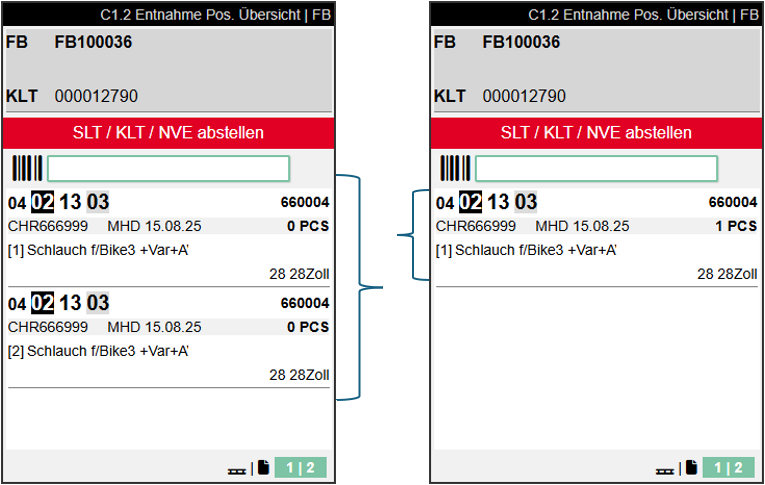
Accordingly, the quantities in C1.3 are also displayed cumulated.
Create new SU in C1.2 and C1.3 - Item 111274
It is now possible to create a new SU directly in C1.2 and C1.3. For this, it is necessary to activate the following setup in the SIEVERS WMS Setup in the Production area:
- Allow new SU without blanco barcode: If activated, in production Outbound Stock Post (C1.2 & C1.3) a new carrier (SU) can be created directly without using a blank barcode. For this purpose, the menu item B1 New L5 (F5) is activated. This speeds up the Outbound Stock Post process when additional carriers are spontaneously needed.
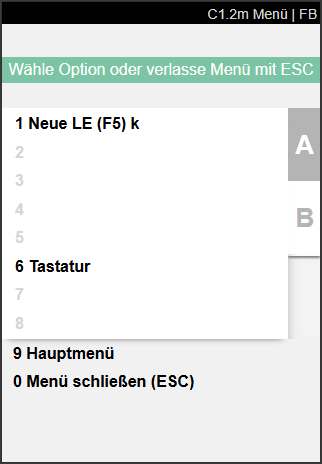
As a result, a new carrier with the type SU and the default inventory measure defined in the SIEVERS WMS Setup is created.
New PTU in A4 restricted by setup - Item 114644
In the menu of the A4 pages in SIEVERS WMS Mobile, there has been the possibility for some time to spontaneously create a new PTU during picking without having to use a blank barcode. With this release, we are now introducing the associated setup option in the SIEVERS WMS Team Card in the Picking & Packing area:
- Create PTU/SSCC via hotkey A4, A5: If the flag is activated, the user can create a new PTU/SSCC via hotkey in A4/A5.
Keymapper Setup - Item 118974
For technical reasons, in the past the hotkey functions of the SIEVERS WMS Mobile system were first created as CTRL + letter combinations and then linked to the F-keys of the scanners with a so-called keymapper. We and our customers have had problems with this keymapper more often recently, so we have now created an option field in the SNC Mobile Setup:
- Use function key hotkeys: If activated, hotkeys are triggered by F1–F12. If deactivated, they are triggered by Ctrl + letter.
For test and development purposes, this option can be switched off. In operation, however, we recommend switching this option on, as there are fewer problems with the function keys. The reason for this is that the keymapper on the mobile devices is no longer used and therefore cannot fail.
Stocktaking
Counted at field is cleared when cycle counting list is left - Item 116147
If a storage place is scanned during stocktaking in B5.3, the system automatically takes over the current time into the Counted at field in the cycle counting list. If the user now leaves the interface without having entered a quantity, the time still remains and is no longer updated even with later entry.
We have fixed this circumstance by automatically clearing the Counted at field as soon as the user leaves the position without counting.
Threshold values 0 possible - Item 114585
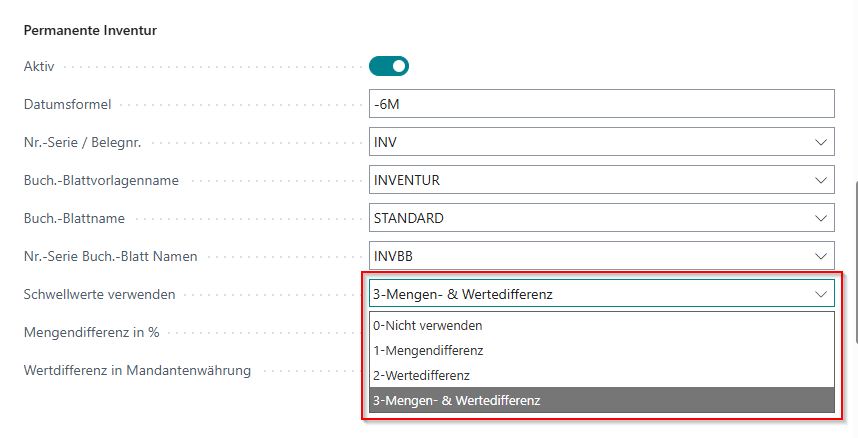
Previously, it was not possible to enter the threshold value 0 in the fields for Quantity difference % or Value difference (LCY), as this number was interpreted by the system as No value set. This meant that a 0% tolerance could not be set. We have now fixed this circumstance by implementing the following innovations:
- It is now possible to enter a 0 in the fields and this is also interpreted as a numeric value
- To still be able to switch off the threshold value fields, there is now the new option field Use threshold values. This has the following values:
- 0-Do not use (default setting)
- 1-Quantity difference
- 2-Value difference
- 3-Quantity & value difference
- A threshold value field is only considered if the Use threshold values field is set accordingly.
Move Jobs
Blocking and unblocking of Load Carriers and inventory items also affects move job lines - Item 115345
If Load Carriers or inventory items are blocked or unblocked, this action now also affects existing move job lines. The blocking code is therefore set or removed in these move job lines.
Picking
Picking documents now with two leading zeros - Item 88689
Picking documents are now displayed in all tables with two leading zeros, for example -001 instead of -1. This has the effect that the sorting is now correct everywhere. Previously, for example, the 10th document was sorted between the 1st and 2nd.
Production
New report for determining and generating replenishment based on production places - Item 118283
A new report has been implemented that enables the determination and generation of production replenishment. This completely separates the replenishment of the rest of the warehouse from production.
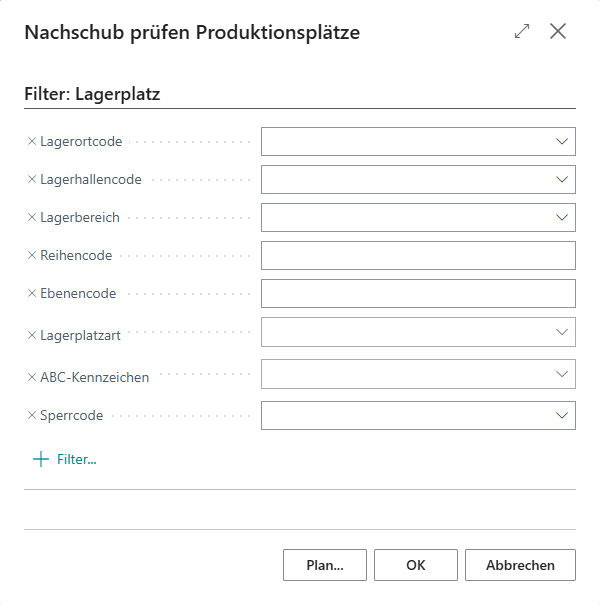
The following filter options for storage places are available:
- Location code
- Warehouse code
- Warehouse area
- Row code
- Level code
- Storage place type
- ABC code
- Blocking code
If no filter field is filled, the report checks and creates replenishment move jobs across all production storage places. The calculation and creation of replenishment corresponds to that of the regular Check replenishment report.
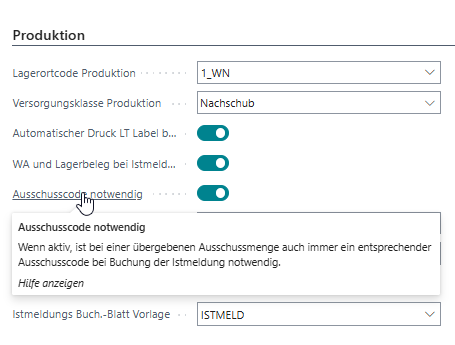
Scrap code for output journal and finish product - Items 118994 and 118993
For some time now, it has been possible to specify a scrap quantity for output journal and Finish product. If there is a need, there is now the possibility to specify a scrap code. This scrap code is transferred to the corresponding field in the item journal line when creating the output journal.
In the SIEVERS WMS Setup in the Production area, the associated setup field Scrap code necessary has been implemented. Activating this field means that when specifying a scrap quantity, the scrap code must be entered.
Small Changes
- The function SNCL New inventory stocktaking can no longer be called via the global Business Central search - Item 85377
- We have made singular/plural corrections to page names - Item 89119
Bugfixes
Error when changing shipping agent in warehouse shipment fixed - Item 121492
An error has been fixed that prevented entering or changing a shipping agent in the warehouse shipment for customers without a predefined shipping agent.
Inadmissible reservation of inventory items on PTU/SSCC prevented - Item 121145
An error has been fixed where inventory items were incorrectly reserved on PTU or SSCC, which led to inconsistent data.
Error in automatic update of warehouse shipment status - Item 121099
We have fixed an error that caused the job queue entry that updates the warehouse shipment status to not always start correctly.
Removal of lines in A1.2 - Item 120881
An error has been fixed that caused individual warehouse receipt lines to be incorrectly removed in A1.2.
Mobile function deactivation per user - Item 120856
We have fixed an error that caused the deactivation of Mobile functions per user to no longer work correctly.
Serial picked quantities are not displayed correctly in warehouse shipment planning - Item 119605
It has been fixed that picked quantities in an SLT for serial picking were displayed as empty in warehouse shipment planning.
Correction of icon in Mobile toolbar - Item 119120
We have replaced an incorrect icon in the toolbar on mobile devices.
Display of carrier data after blank barcode scan corrected - Item 119026
A display error has been fixed so that after scanning a blank barcode in A3.3, the entry of carrier data is now displayed correctly immediately.
Production order: Correct default values for storage place and storage strategy - Item 118245
We have fixed a problem that caused the fields "Storage place code finished products" and "Inbound Stock Post strategy code finished products" not to be pre-filled according to the stored hierarchy in the production order line.
No error message for empty warehouse Load Carrier - Item 99083
When calling the storage place occupancy of an empty Load Carrier, no error message is displayed anymore, instead a note appears that no inventory item is available.
After warehouse receipt posting A1.2o is displayed - Item 118057
We have fixed a process error that caused A1.2o to continue to be displayed instead of A1.2 after posting a warehouse receipt in A1.2o and then calling a new warehouse receipt.
Incorrect focus sequence on C2.2k - Item 119172
We have fixed an error that caused the field focus in C2.2k to get into a loop.