Features
Important Topics
- Status Colors on Mobile Menu Items
- C1.1 and C1.2 Workload
- [New Setup for Automatic Creation of Warehouse Shipment and Outbound Stock Post in Warehouse Receipt](#new-setup-for-automatic-creation-of-warehouse-shipment-and-Outbound Stock Post---item-115956)
- Cancel Picking Line Changes Line Status and Zeros Quantities
- Improvement of Consideration of Reservation Entries
- GS1 Warehouse Receipt No Longer Dependent on Customer / Vendor Identifiers
- [New Setup for Automatic Creation of Warehouse Shipment and Outbound Stock Post on Output Journal](#new-setup-for-automatic-creation-of-warehouse-shipment-and-Outbound Stock Post---item-115956)
- Picking Lines with Separate Status
- Error Handling for automatic order assignment
Setup
- [New Setup for Automatic Creation of Warehouse Shipment and Outbound Stock Post in Warehouse Receipt](#new-setup-for-automatic-creation-of-warehouse-shipment-and-Outbound Stock Post---item-115956)
- [New Setup for Automatic Creation of Warehouse Shipment and Outbound Stock Post on Output Journal](#new-setup-for-automatic-creation-of-Outbound Stock Post-lines-on-order-assignment---items-115761-101926-115762-and-115182)
Threshold Quantity Difference with Decimal Numbers - Item 114584
It is now possible to enter decimal numbers such as 3.5% in the field Threshold Quantity Difference in the SIEVERS WMS Setup, the Item Category, the Item and in the Stockkeeping Unit data. This allows for a more precise gradation of the quantity difference.
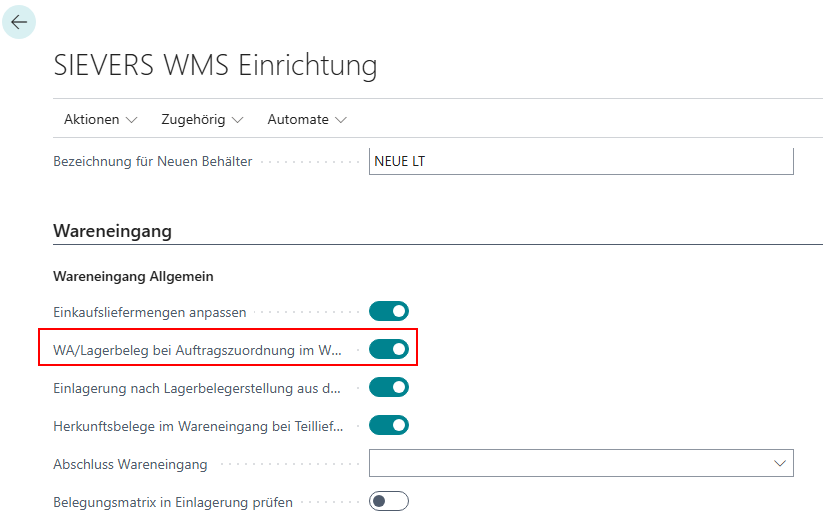
New Setup for Automatic Creation of Warehouse Shipment and Outbound Stock Post - Item 115956
We have inserted a new setup in the Warehouse Receipt area of the SIEVERS WMS Setup:
- Create WHS/Stock Doc. on Order Assignment in WHS Receipt: If this setup is active, a Warehouse Shipment and a Stock Document are created. If the setup is deactivated, no PTUs and SSCCs are produced in the Warehouse Receipt. The assignments in the WHS Receipt remain ineffective. SUs are created. No reservation entries are maintained. If Order Assignment in WHS Receipt is clicked, an error message appears.
Update Sort Index has been removed - Item 91685
Some time ago, we inserted the action Update Sort Index in the SIEVERS WMS Setup. This was used to correctly sort the Pick Lists and Packaging Documents by the 1st Loading Date and Priority after a specific WMS update. This manual step is no longer necessary. Therefore, we have removed the action.
Print Content List has been removed - Item 92616
We have removed the action Print Content List from the SIEVERS Shipping Shipment, as the Content List is obsolete and has been replaced by the Package Content List.
Warehouse Receipt
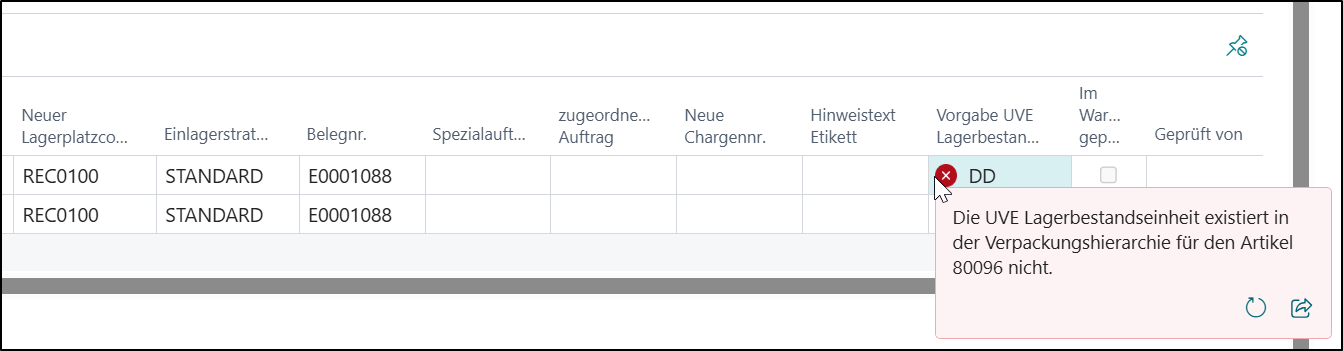
Default SPU Inventory Unit restricted to lines declared as SPU in the packaging hierarchy - Item 111905
In the field Default SPU Inventory Unit in the document and carrier lines of the warehouse receipt, only values can now be entered that are declared as type Sub-packaging unit in the item's packaging hierarchy. The field is therefore no longer a free text field.
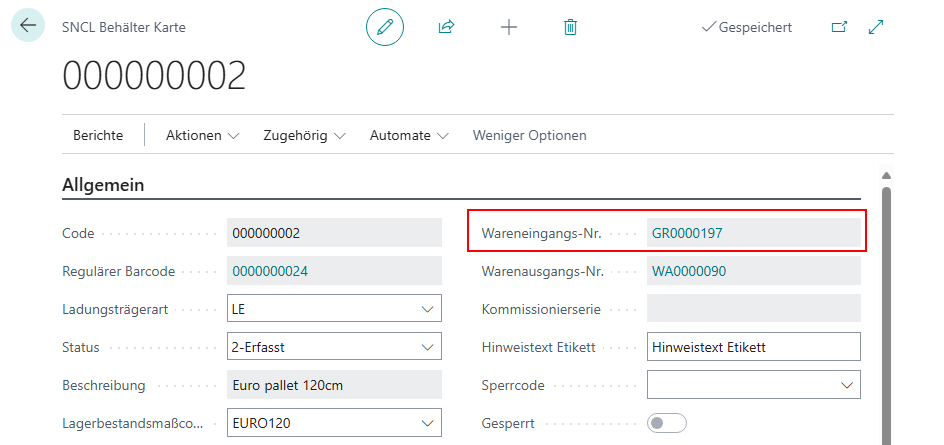
SNCL Load Carrier Card contains Warehouse Receipt No. - Item 115983
The SNCL Load Carrier Card now contains the Warehouse Receipt No.
Warehouse Receipt
Default SPU Inventory Unit of Measure restricted to lines declared as SPU in the Packaging Hierarchy - Item 111905
The field Default SPU Inventory Unit of Measure in the document and carrier lines of the warehouse receipt can now only contain values that are declared as type Sub-packaging Unit on the item in the packaging hierarchy. The field is therefore no longer a free text field.
Picking
Cancel Pre-Assignment of Picking Line - Item 115765
The fields Target SU and Target Storage Place are now automatically pre-filled with the original Load Carrier and storage place of the line. This simplifies the cancellation process when the item should simply be put back. This is only possible if the original Load Carrier had the type SU and the status 2-Recorded.
Cancel Picking Line Changes Line Status and Zeros Quantities - Item 116005
The Cancel Marked Picking Lines function in the picking document now automatically sets the cancelled lines to status 8-Cancelled after posting and zeros the entered quantities. This way the line remains visible but no longer has any influence on further processing of the warehouse shipment.
Picking Lines with Separate Status - Item 116003
We have separated the status of the pick lines from the pick document status. The pick document status is now dependent on the status of the lines.
| Status | Meaning |
|---|---|
| 0- Created | SNCL Outbound Stock Post is created, reservations made - but the picking has not yet been released or printed. |
| 2- Printed | The pick list has been printed. Reprinting should be avoided if possible, as this may result in double picking. |
| 2- Released | The pick list has been released on an MDE and can be processed. If the position is processed or the line is reported back, the line remains at this status. |
| 3- In Processing | A user has selected this position on the MDE. Remains set until the position is reported back. |
| 8- Cancelled | The position has been cancelled. |
| 9- Finished | The position has been completely picked and reported back. |
Mobile
GS1 Warehouse Receipt No Longer Dependent on Customer and Vendor Identifiers - Item 111674
In Release 48 we introduced innovations for processing GS1 barcodes in warehouse receipt. Since then it is possible in Business Central to scan GS1 barcodes without having to manually maintain identifiers for the vendor or customer beforehand.
We have now also implemented these improvements in the Mobile system. The input of a GS1 barcode is no longer dependent on maintained identifiers. The prerequisite for this is that the values
- quantity
- item no.
- carrier
- document no.
are present in the GS1 barcode. Depending on the settings in the item, the following must also be present:
- lot no.
- sell-by date
- serial number
In A1.GS1 you can now also scan a blank barcode to create a new carrier.
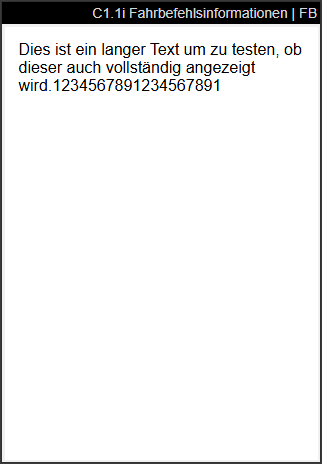
C1.1 Order Info - Item 111246
We have now added an order info callable with F3 for C1.1 Overview Take Out. The order info corresponds to the order info of the picking pages and contains the complete comment text up to 150 characters
C1.1 Move Job Number Filter - Item 113526
Users can now enter a number in the input field of the C1.1 Overview Take Out page, which filters the displayed list. So if, for example, it is known that the searched move job ends with 3050, the user can enter this number and gets all move jobs displayed that contain this number.
C1.1, C1.2 and C2.2 Workload - Items 116371, 116374 and 116378
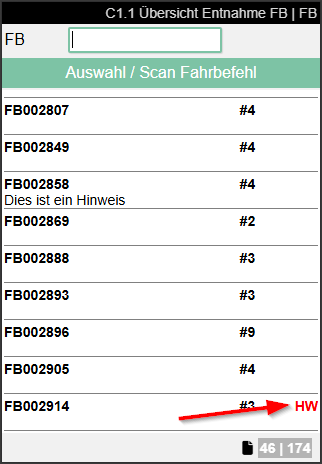
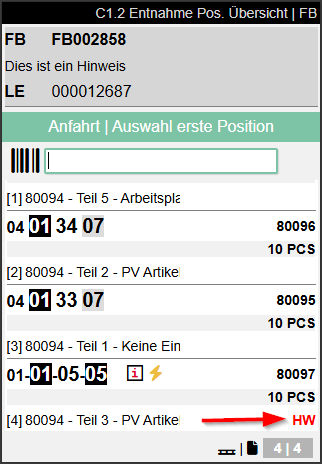
The current workload of the team is now displayed in the footer of the C1.1 and C1.2 pages.
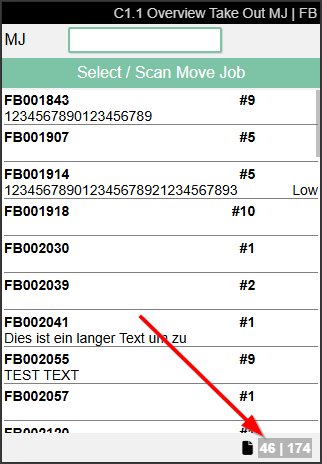
- C1.1:
- Left number: Move job headers that contain lines to be processed with the current team.
- Right number: Move job lines to be processed with the current team
- C1.2:
- Left number: Number of different carriers in the selected move job for the selected team.
- Right number: Number of move job lines in the selected move job for the selected team
- C2.2:
- Left number: Number of different targets in the move job that are approached by the team
- Right number: Number of move job lines that still need to be processed.
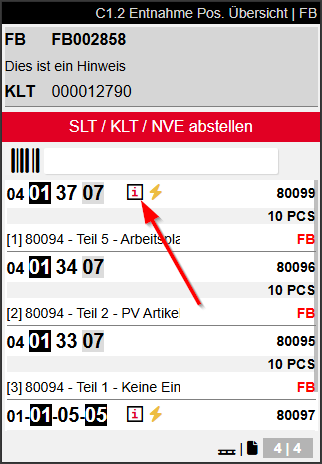
C1.2, C1.3 and C2.2 Info Symbol - Items 111249, 111265 and 114453
An info symbol is now displayed in the positions of C1.2 Take Out Pos. Overview, C1.3 Take Out Pos. Processing and C2.2 Supply Processing Production when comment text is present.
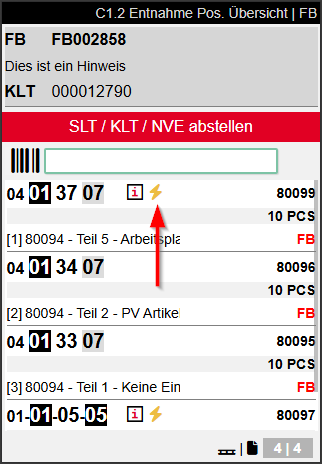
C1.2, C2.1, C2.2 High Priority Symbol - Items 111250, 111686 and 114452
A lightning symbol is now displayed in the positions of C1.2 Take Out Pos. Overview, C2.1 Supply Overview Prod. and C2.2 Supply Processing Production when the priority of the move job line is high.
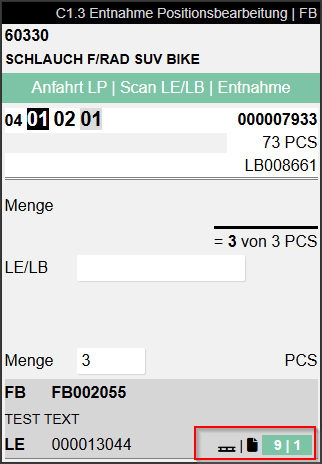
C1.3 Improvements to Overview and Information - Item 116375
In the lower right corner of the C1.3 Take Out Pos. Processing page, there are now two new icons and two numbers:
- Number (pallet icon): Number of load carriers in the move job that still need to be processed.
- Number (document icon): Number of move job lines that are served from the current load carrier
If the box is green, it means there is still work to do. Gray means everything has been processed.
C1.1 and C1.2 Employee Marking - Items 111252 and 111245
On C1.1 Overview Take Out and C1.2 Take Out Pos. Overview the respective marked employee is now displayed in the individual lines:
C2.1 Move Job / Carrier Info - Item 114411
On C2.1 you can now call up the carrier/move job info for selected carriers via menu item A4 or F3 on the mobile device.

- Left: Carrier number | Right: Carrier status
- Priority
- Number of different items
- Time of move job creation
- Carrier comment text
C2.1 Non-Put Down Carriers Always Part of C2.1 List - Item 115556
When a carrier has been picked up in C2.1, i.e. is located on the forklift storage place, the carrier must also be put down again. For this reason, the user cannot leave the C2.2 Carrier Pick Up/Put Down dialog until the carrier has been put down. Until then, the carrier has not been displayed on the list in C2.1. However, this has led to problems when the mobile device lost connection, as the carrier could no longer be called up.
For this reason, the carrier now remains on the C2.1 list until it has been correctly put down - even if it has already been picked up by another user.
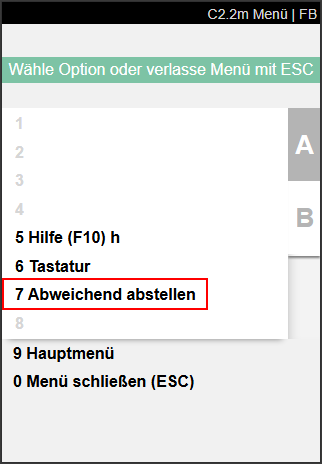
C2.2 Deviating Put Down - Item 111701
There is now the possibility to put down the move job at a deviating target place than intended in C2.2 Supply Processing Prod.. The prerequisite for this is that it is a quantity remaining.
Example scenario: The user drives with the intended quantity to the target place. Once there, he finds that for some reason the quantity cannot be completely put down at the target place. So he only puts down a part and confirms this with a smaller quantity input. For the remaining quantity he can now select menu item B7: Drop Alternatively. Here he can enter a deviating storage place. Then the quantity remaining is posted and put down there.
Icon Improvements
We introduced the Mobile icons in the last release. This resulted in some necessary changes and improvements. These include, for example, visual improvements of the icons themselves as well as additions of meaningful icons. The following pages are affected:
- A6.2 and B1.1: Item 115936
- B5.3, B5.4, B5.5: Items 115934 and 115928
- A5: 115933
- A1.1, A1.2, A1.6: Item 115931
- Team selection: Item 115932
Status Colors on Menu Items - Item 116366
It is now possible to see at a glance whether there is work for a specific area or a specific team or not. The new colored square on the right side of the menu items serves this purpose:
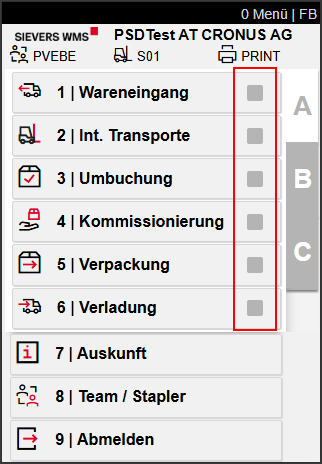
In this example, the squares are all gray. This means that there are still tasks in every area. The next screenshot shows the team/forklift selection. Here there are teams that have completely finished their work. Their squares are green:
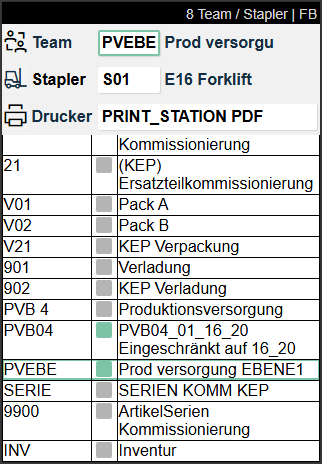
The squares are displayed in the team/forklift selection as well as on menu items A1-A6, C1-C2 and B4-B5.
Production Supply
New Setup for Automatic Creation of Outbound Stock Post Lines on Order Assignment - Items 115761, 101926, 115762 and 115182
It is now possible for production orders with source type "sales order" to automatically create a stock recording as PTU/SSCC as well as a warehouse shipment when posting the output journal. There are two new setup fields in the SIEVERS WMS setup for this:
- Create warehouse shipment and stock document on output journal: Defines whether a warehouse shipment as well as the associated stock document should be generated automatically when posting the output journal of a production order linked to a sales order.
- Auto. Creation of Outbound Stock Post lines during Order Assignment: This flag controls the automatic generation of stock documents on output journals. This field can only be activated if Create Warehouse and Stock Document on Output is activated.
- For all lines: When posting output journal for a production order, Outbound Stock Post lines are generated or updated for all positions of the associated warehouse shipment.
- Only for affected line: Only the line belonging to the output journal is processed in the warehouse shipment, all remaining stock documents remain untouched.
- No creation: Only the warehouse shipment is created. The Outbound Stock Post occurs manually or at a later time if necessary.
An automatic order assignment of the stock documents to the sales order occurs.
The Outbound Stock Post lines automatically generated by this setup go through the complete picking process system internally. This way they do not differ from manually created lines and no erroneous data is generated.
Production Supply Log Filter Removed - Item 115787
The production supply log was previously always filtered when called from a production order so that only the last run was displayed. We have removed this restriction. Now all log entries for the production order are displayed.
Improvement of Consideration of Reservation Entries - Item 115758
The existing setup Consider reservation entries in the inventory selection strategy serves to define that reservation entries should also be considered in inventory selection. In very special cases, however, this setup can lead to unfavorable inventory assignments. For this reason, we have adjusted the functionality of the setup somewhat:
From now on, inventories with activated setup are only found with the inventory selection strategy if they are explicitly assigned to the reservation entries contained in the source document line. It is not possible to assign unassigned inventories. If the setup is deactivated, the strategy considers neither the reservation entries in the source line nor the assignment on the inventory. This can cause lines with reservation entries to reserve inventories that are not assigned to any reservation entries and vice versa.
For this reason, the setup is automatically activated immediately when a new inventory selection strategy is created.
Error Handling for Automatic Order Assignment - Item 115759
In the production process of SIEVERS WMS, an automatic assignment of output journal entries to source or warehouse shipment lines takes place. In this release, we have implemented error handling that covers typical conflict scenarios, so that the user always knows why an automatic assignment could not be performed. The following scenarios were covered:
- Remaining quantity of the source or warehouse shipment line is less than the quantity from the output journal entry.
- Source line or warehouse shipment line already partially occupied by Outbound Stock Post lines. Remaining quantity is not sufficient for the new allocation.
- Item number, variant, lot number, or serial number of the output journal entry do not match the corresponding values of the source or Warehouse Shipment Line.
Minor changes
- Help pages for C1.1 and C2.1 added - Items 113524 and 114408
- Error message for missing number series improved - Item 115119
- C1.3 now shows an error message if the inventory or carrier scan was erroneous - Item 115529
- Tooltip adjustment of the order assignment action in the carrier lines - Item 115957
- Translation of the continuous number in the packaging hierarchy improved - Item 117983
Bug Fixes
Delete Stock Document Comp. Deletes Outbound Stock Post Numbers in All Assembly Orders - Item 117536
A bug was fixed where Outbound Stock Post numbers were incorrectly deleted in all associated assembly orders when executing the Delete Stock Document Comp. function, which prevented the subsequent posting.
Automatic Overwriting of Storage Place Field in Output Journal Lines Fixed - Item 116056
A bug was fixed where the value in the "Storage Place" field in output journal lines was automatically overwritten in specific situations, although it should have been preserved.
Output Order for Preview Multiple Labels Erroneous - Item 116813
In the print options for inventory labels you can set that multiple labels should be printed simultaneously. Here the labels are printed out in a specific order depending on the setup. We introduced this functionality in Release 34. This also worked flawlessly for printing, however there were still problems in the output order for the preview. We have now fixed these.
Consideration of Parent Categories in Item Strategies - Item 116917
It was fixed that when creating production items, the strategies of the parent item category were not considered if no values are stored in the direct category.
Barcode Line Break on SU Label - Item 117201
A problem was fixed where the barcode on the SU label was not readable due to a line break.
Multiple Confirmation of Fallen Below Remaining Shelf Life in GS1 Warehouse Receipt Fixed - Item 115677
The query for confirmation of fallen below minimum remaining shelf life in GS1 warehouse receipt now appears only once after scanning a lower sell-by date.
GTIN Removed When Creating Vendor References - Item 113378
A bug was fixed where the GTIN disappeared from the item card when a new vendor reference was created.
Error Message When Removing PTU from Packaging Process - Item 115757
A bug was fixed that caused an incorrect error message to appear when removing PTU from the packaging process via the "Cancel Marked Picking Lines" function.
Bug Fix in Stocktaking Evaluation Report - Item 117728
We fixed a bug that caused the stocktaking evaluation to abort.