Features
Important Topics
- Correct assignment of serial numbers to inventory lines
- “Force logout” deletes employee markings
- Cancel picking
- Default settings for printing when closing warehouse shipments
- Post Warehouse Shipment automatically after loading
- Mobile toolbar for devices without keyboard and/or function keys
Setup
- Default settings for printing when closing warehouse shipments
- Post Warehouse Shipment automatically after loading
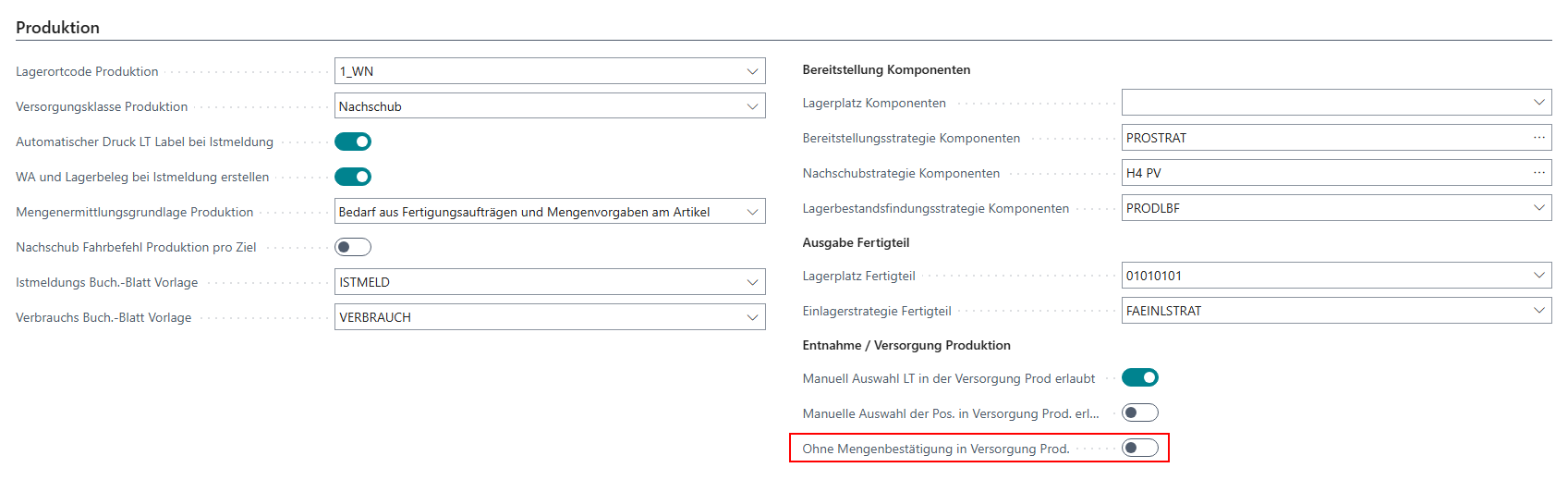
New quantity confirmation setup for C2.2 - Item 111695
There is a new setup in the SIEVERS WMS setup in the Production area:
- Without qty. confirm in prod. supply: If this option is enabled, the user does not have to confirm the quantity in C2.2 Supply Processing Production. This speeds up the move job processing. If you want the quantity to be confirmed during move job line processing, you should not enable this option.
Warehouse receipt
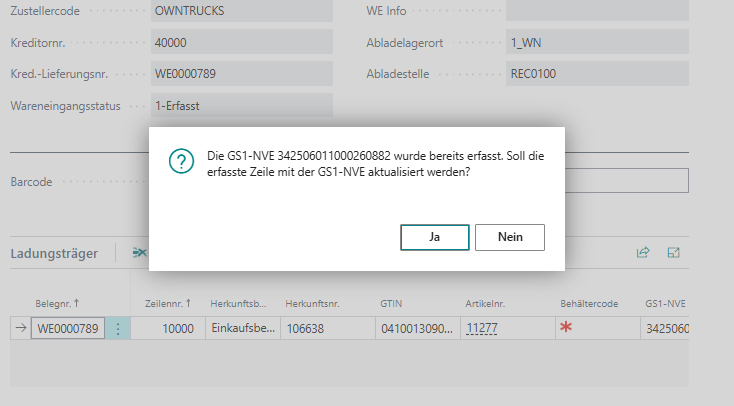
Rescanning GS1 barcode does not create a new load carrier line - Item 70754
We have changed the GS1 barcode scanning process in warehouse receipt. Previously, it was possible to capture a GS1 SSCC multiple times by scanning it several times. We have now adjusted the process so that scanning the same GS1 SSCC again opens a query and, upon confirmation, only updates the existing SSCC line that has already been captured.
Correct assignment of serial numbers to inventory lines - Item 113873
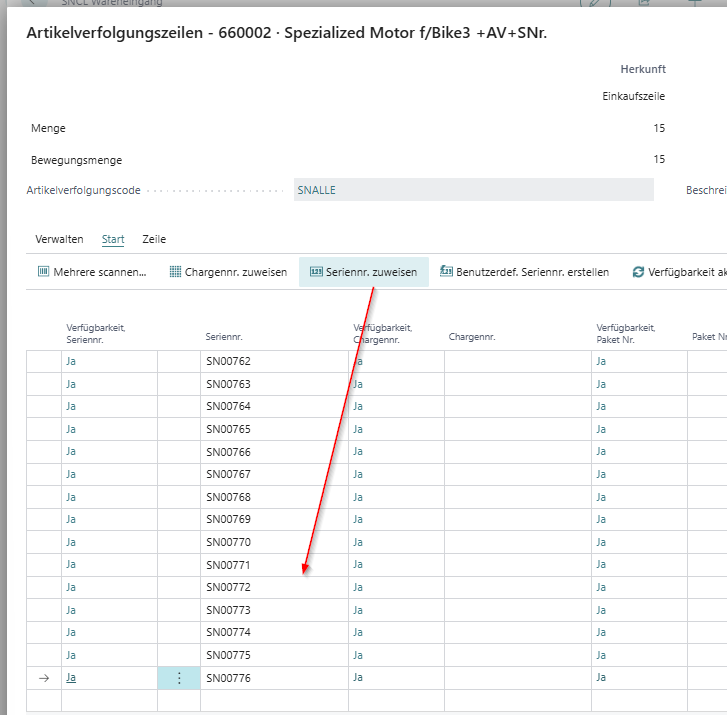
We have improved the assignment of serial numbers from item tracking lines to inventory lines. Previously, all inventory lines were assigned the same serial number when they were entered. We have revised this internal process. Now, all serial numbers entered in the item tracking lines are assigned exactly to each inventory line and unit of measure as soon as you click Check Quantity. This has the side effect that an error message is shown if the quantity of the current shipment does not match the quantity from the item tracking lines and item tracking is mandatory.
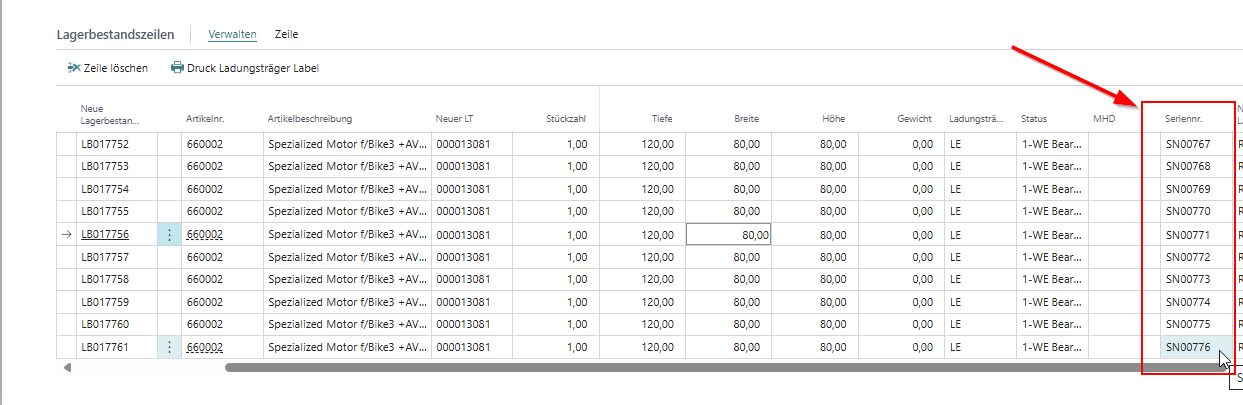
New fields in SNCL Inbound Stock Post lines
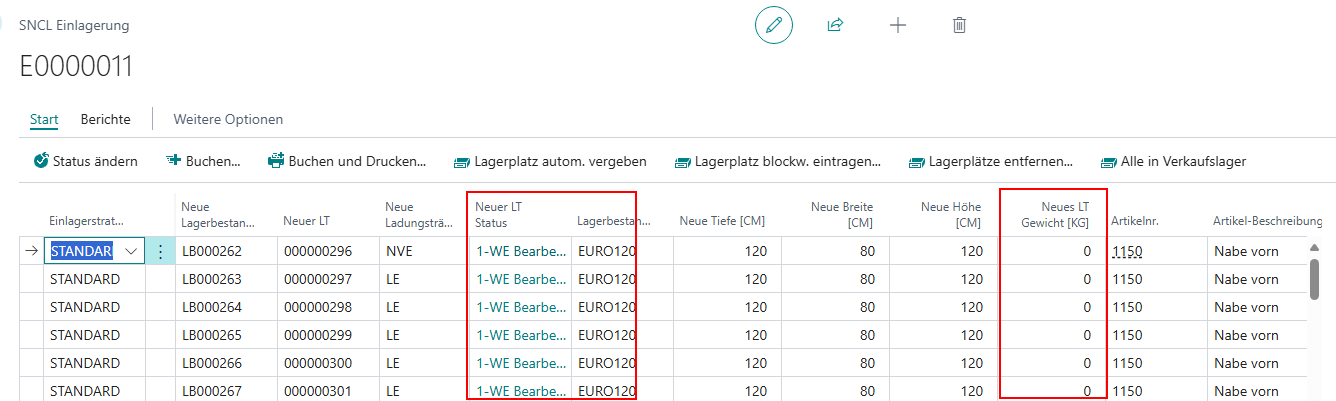
We have added two new fields to the SNCL Inbound Stock Post lines:
- New Load Carrier status: Shows the status of the new load carrier
- New Load Carrier weight: Shows the weight of the new load carrier. This field can be edited. It is calculated according to the Determination Load Carrier Weight specified in the SIEVERS WMS setup.
Picking
In the last release 48, we began introducing the picking cancellation function. This has now been further refined.
Cancel picking - items 112823 and 112836
With this release, we are publishing the Cancel picking function, which was already prepared in the last release. This function enables systematic, transparent, and quantity-based cancellation of picked items at line level directly in the picking document. It replaces the previous manual and error-prone interventions on the “packed” number of pieces and the ‘packed’ flag in the Outbound Stock Post lines and the “Resolve PTU” transition function in the SNCL Load Carriers.
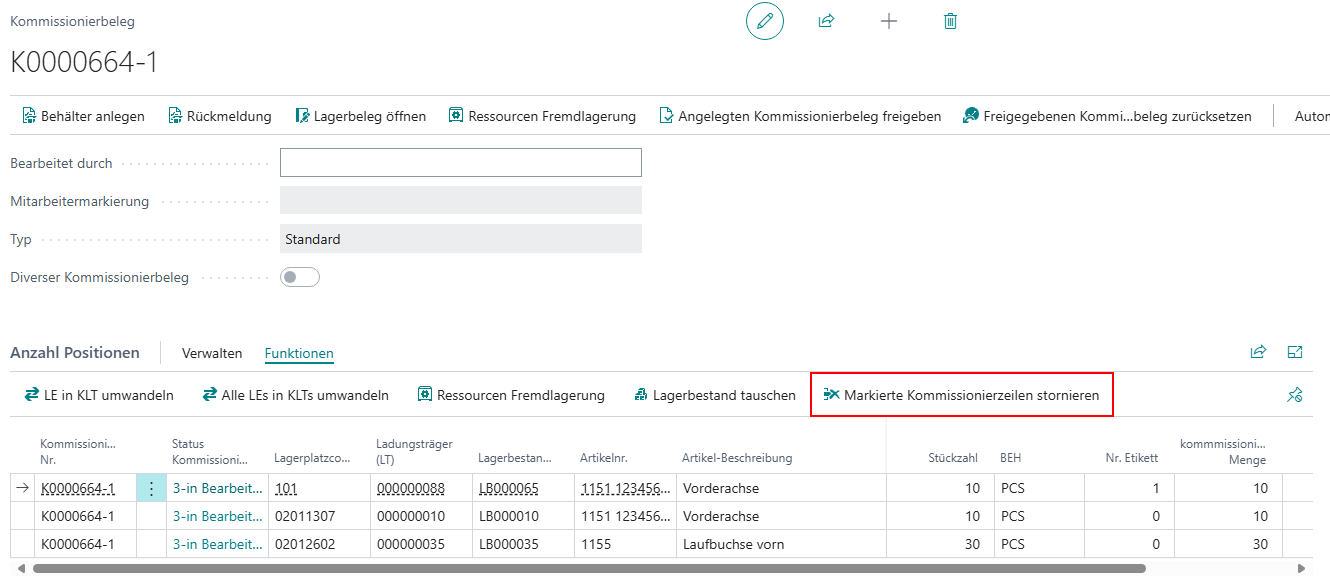
When you execute the function, the corresponding page Cancel picking lines opens. Here you can create either a new destination Load Carrier and/or a move order of type Picking cancellation for the selected lines and quantities. The cancellation quantity is automatically set to the line quantity for each line. The quantity specified in the Cancellation quantity field is always canceled. If this is set to 0, this line is not canceled.
Create New Target Load Carrier opens a form that allows you to create a destination Load Carrier with the desired properties. This is then entered in the Target SU field. Create move order creates a new move order. The destination storage place entered there is entered here in the corresponding field. Combined document lines cannot be canceled if they are already part of a packaging process. Instead, a dialog box opens that refers to the packaging process. There, the line can be removed using Remove PTU from packaging process.
Move orders
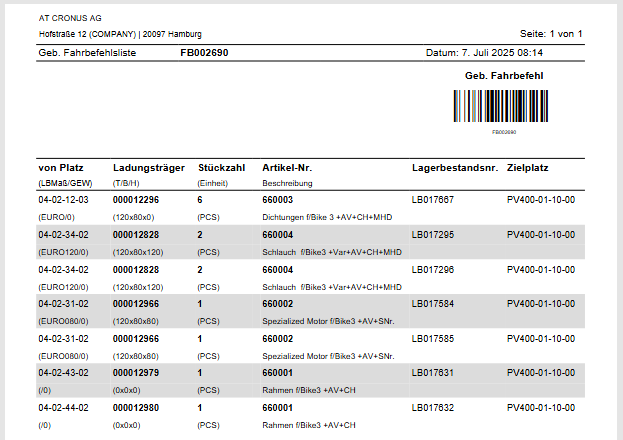
Posted move order list improved
We have redesigned the posted move order list and adapted it to the move order list. Now you can also view the stock number and the destination location. The Finished column has been removed.
Stocktaking
Automatic functions for initial stocktaking - Item 112833
We have implemented some new automatic functions for stocktaking with the stocktaking type Initial inventory:
User transfer during entry and transfer:
- When a new inventory is entered or a number of pieces is set, the respective user is entered in the corresponding cycle counting list line.
- When the cycle counting list is transferred to the stocktaking, the user is also transferred.
- The user is transferred from the inventory lines to the related items.
- The user is transferred from the inventory lines to the posted inventory lines.
- The user is transferred from the count list lines to the posted count list lines.
Time stamp (start and end time):
- When a storage place is scanned, the start time is set for all uncounted count list lines of this storage place.
- When a new count list line is created as part of an initial inventory, the start and end times are set directly.
- The end time is set as soon as the quantity in a count list line is confirmed.
- When a count list line is transferred to the inventory line, the start and end times are also transferred.
- The start and end times are transferred to the items.
- The start and end times are transferred to the posted inventory lines.
- The start and end times are transferred to the posted count list lines.
“Force Logout” deletes employee markings - Item 114436
The Force Logout action on the SNC Mobile Users page allows you to log users out of the system, for example after crashes or improper closing of the application. We have now extended this action to include the removal of employee markings. The person who was forced to log out is now removed from the Employee marking field in the header and the lines of open picking documents and move orders. This means that the documents are no longer blocked and do not need to be processed manually. Removal from a position in the move orders or picking documents is only possible if the quantity has not yet been processed.
Warehouse shipment
Default settings for printing when closing warehouse shipments - Item 88277
We have added new default settings options to the SIEVERS WMS setup:
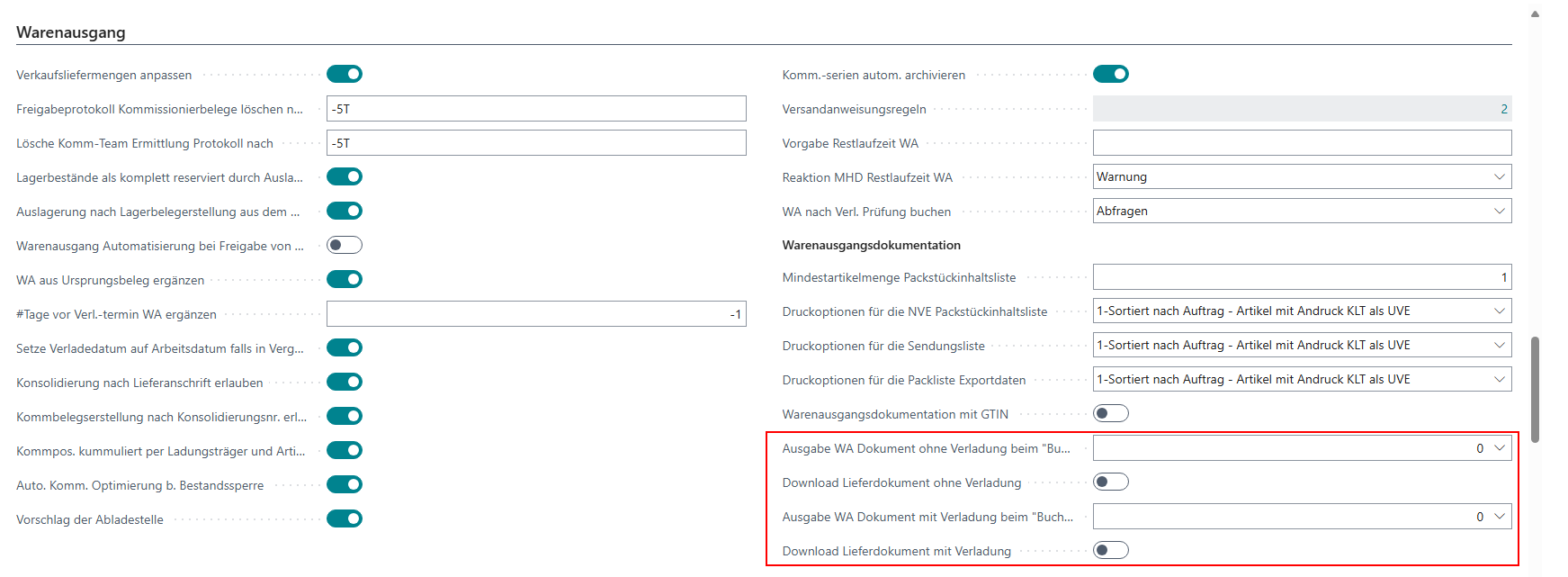
- Edition Whse. Ship. document without loading during "Post and Print:" Specify the delivery note form that should be issued when "Whse. Shipment Post and Print" on Whse. Shipment Planning is selected for a Warehouse Shipment without Loading. If no report is specified, the standard delivery note will be printed.
- Download Delivery Document Without Loading: Indicates whether the expression for Edition Whse. Ship. document without loading during "Post and Print" should be printed on a printer station or if only a file download should occur.
- Edition Whse. Ship. document with loading during "Post and Print:" Specify the delivery note form that should be issued when "Whse. Shipment Post and Print" on Whse. Shipment Planning is selected for a Warehouse Shipment with Loading. If no report is specified, the standard delivery note will be printed.
- Download Delivery Document With Loading: Indicates whether the expression for Edition Whse. Ship. document with loading during "Post and Print" should be printed on a printer station or if only a file download should occur.
Prevent non-shippable inventory measures from being converted to SSCC - Item 99473
When configuring inventory measures on the SNCL Inventory Measures page, you can specify for each inventory measure whether it can be used as a shipping unit.
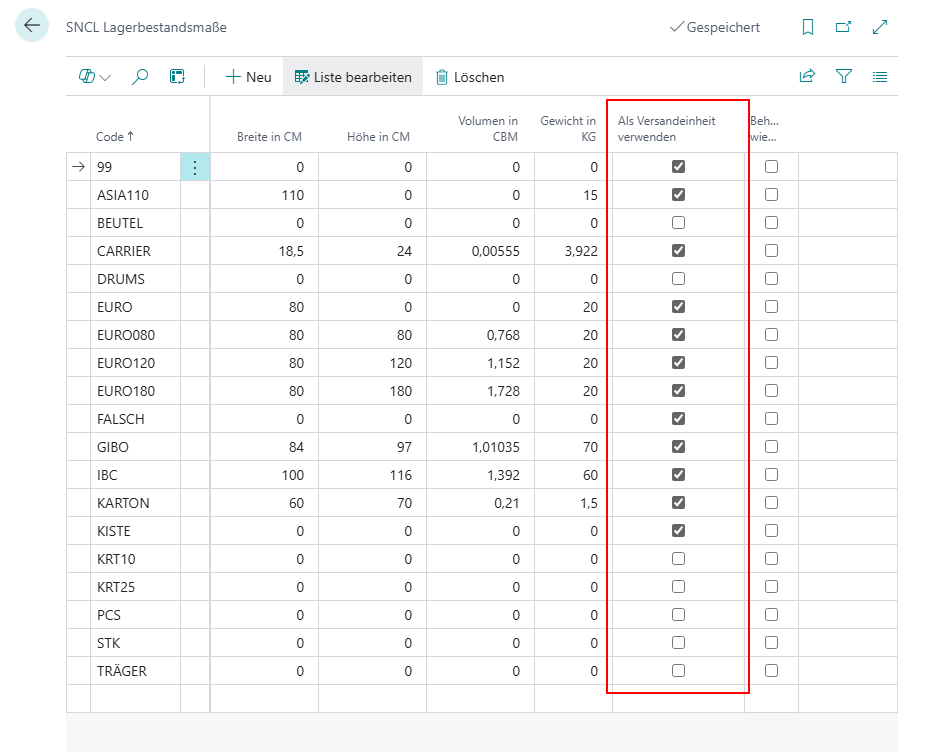
If this flag is disabled, Load Carriers with this inventory measure can no longer be converted to an SSCC.
Post warehouse shipment automatically after loading - Item 105155
In Release 47, we introduced the option to post warehouse shipments directly after activating Check loading in the shipment process. Previously, this function was linked to a query that had to be confirmed. We have now replaced this constant query with a setup in the SIEVERS WMS setup.
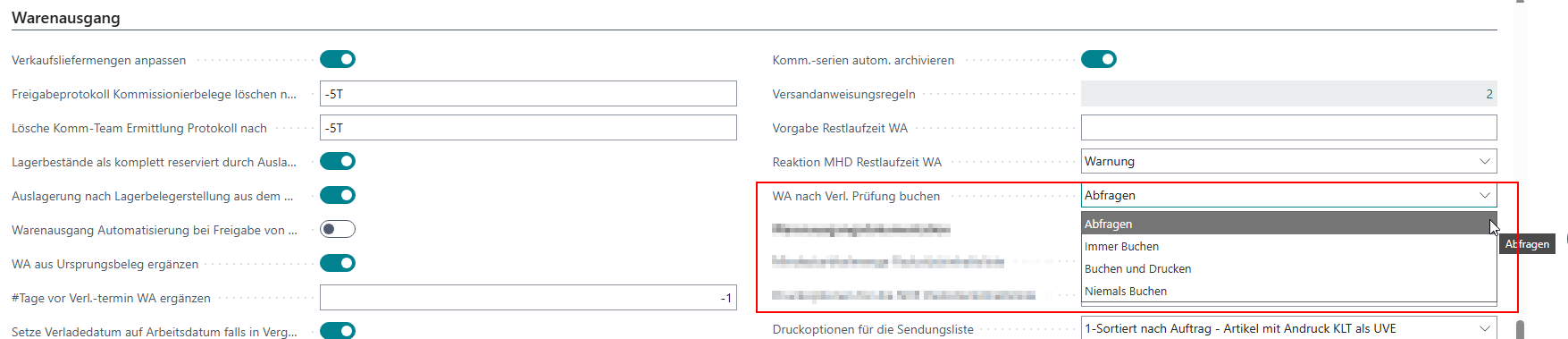
- Post Whse. Ship. after Loading checked: Determines the behavior after Loading Checked has been activated in the shipment process.
- Queries: Displays a query where you can decide individually whether the warehouse shipment should be posted after Loading Checked.
- Always post: Immediately posts the warehouse shipment after Loading Checked. No query.
- Post and print: Same as Always post, but also prints the stored warehouse shipment note
- Never post: Does not post the warehouse shipment after Loading checked. The warehouse shipment must be posted manually
Mobile
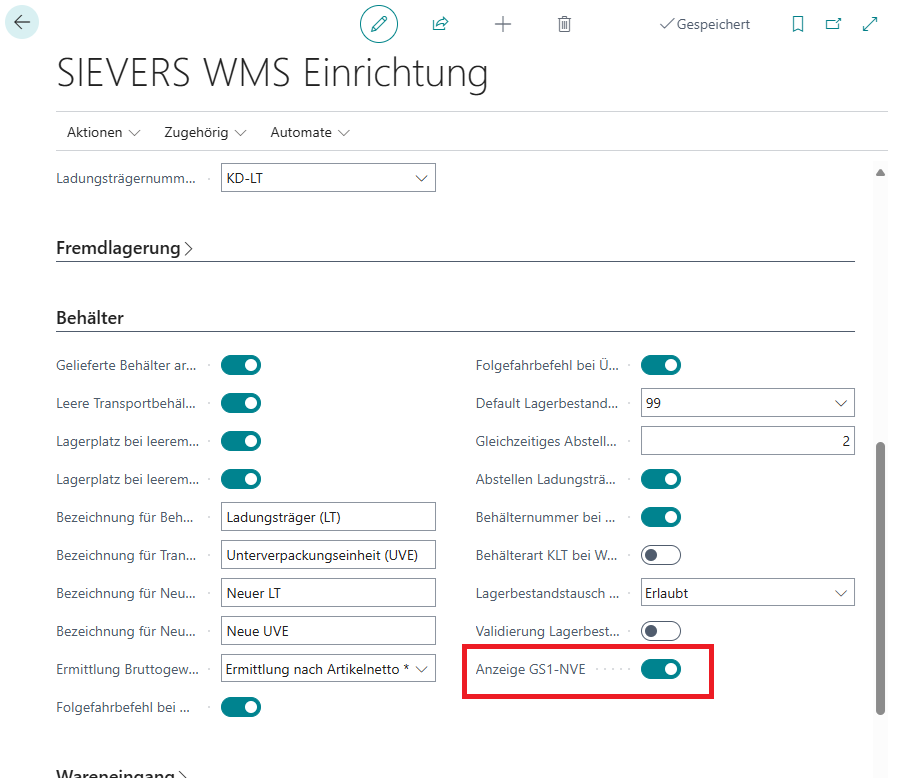
A4.3 Show GS1 SSCC for picking Load Carriers - Item 115260
If the Show GS1 SSCC field is activated in the SIEVERS WMS setup, the last nine digits of the GS1 SSCC code are now shown on the A4.3 Item processing page instead of the Load Carrier code. If a GS1 SSCC (Out) is stored in the Load Carrier references, it is displayed.
Toolbar for keyboard and menu - Item 105963
We have implemented a toolbar at the bottom of the mobile system. This allows Mobile to be used with touchscreen devices without physical keys.
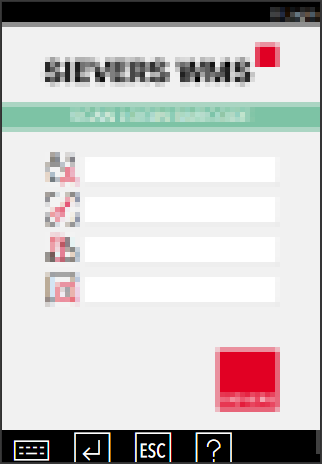
The toolbar is used to display standard functions and the menu for the page the user is currently on. The functions are displayed using icons. If there are too many icons for the screen width, the toolbar can be scrolled horizontally. The toolbar is always shown on the login screen, as the user has not yet logged in and it is therefore not clear which device is being used. The display of the toolbar depends on the device that was entered by the user or during login. If the device was specified in the Device model list as without keyboard or without function keys, the toolbar is displayed.
::: Note Please note that in some cases the buttons do not yet work correctly. We are working on this and will have most problems solved in the next release. :::
| Icon | Function |
|---|---|
 |
Cancel New Inventory |
 |
Update |
 |
Change View |
 |
Print Item Label |
 |
Item Transfer |
 |
Pack Items Individually |
 |
Recorded SSCC |
 |
Information |
 |
Unpack |
 |
Back |
 |
Document Entry |
 |
Inventory Difference |
 |
Post |
 |
Print Inventory Label |
 |
Enter |
 |
Driving Order Filter |
 |
Photo |
 |
Function |
 |
Open Function Menu / Switch Tab |
 |
Reset Checked |
 |
Change Counted Value |
 |
Main Menu |
 |
Info |
 |
Internal Transports |
 |
Create Load Carrier |
 |
Confirm Empty Storage Place |
 |
Reprint SU Label |
 |
Print Load Carrier Label |
 |
Dimensions and Weight |
 |
Close Menu Page |
 |
New Inventory |
 |
Record New Inventory |
 |
New Picking Place |
 |
New Process |
 |
New Destination |
 |
Deactivate SSCC |
 |
SSCC Inquiry |
 |
Keyboard |
 |
Unload TU |
 |
Apply |
 |
Complete Loading |
 |
Warehouse Receipt Filter |
 |
Remove Assignment |
B5.3 shows sell-by date, batch and serial number - Item 98218
We have added a line to the entries in B5.3 Inventory correction (see screenshot below: 5) to show the sell-by date, batch and serial number:

C2.2 Supply processing production: Filter by scan possible - Item 111710A
In C2.2, it is now possible to scan the target storage place directly and thus complete the move order very quickly. If there is only one suitable move job line, it can be confirmed and completed directly with a second scan. If there are several suitable move job lines, the appropriate line must still be selected via item or inventory scan or manually.
Production
Consolidation of the determination of the relevant storage area for production replenishment - Item 110854
From now on, the warehouses and storage areas for production replenishment are determined exclusively via the inclusion and exclusion lists of the provisioning strategy. Previously, redundant maintenance of warehouses and storage areas was required at various locations. This reduces maintenance effort and the likelihood of errors.
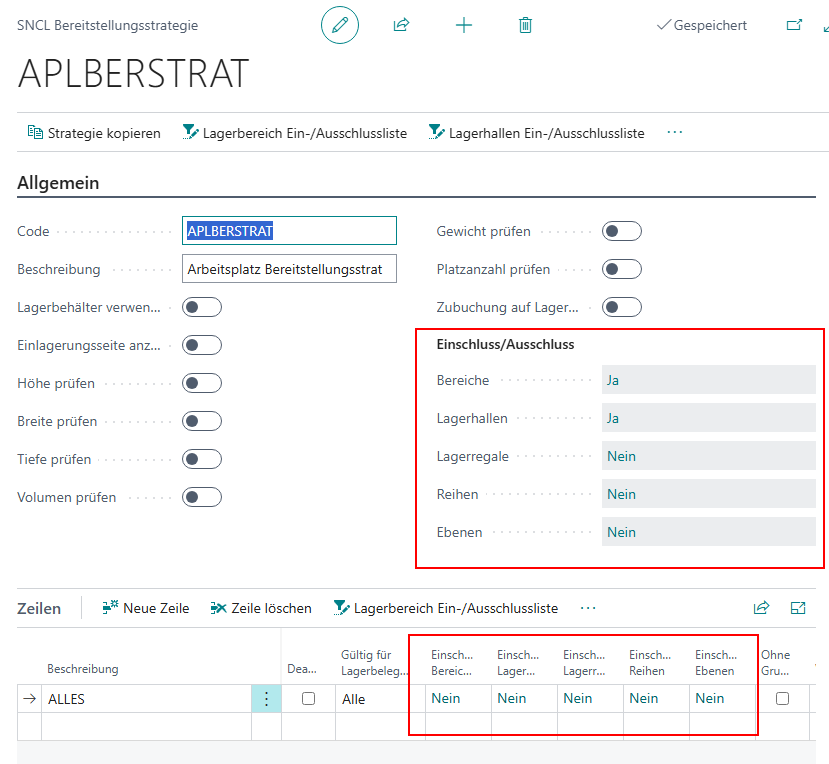
A common filter is formed from the lists in the strategy header and in the strategy lines, which completely replaces the previous fields Warehouse components and Storage area components. If a warehouse or storage area is included in one line and excluded in another, it is considered included.
Production supply task from released production order - Item 111067
It is now possible to open a related production supply order directly from the released production order.
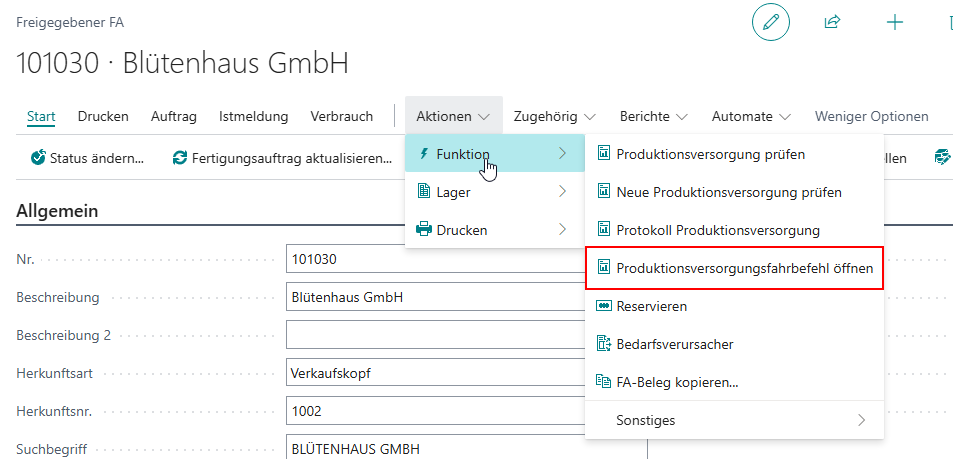
Adjustment of the output journal process and the creation of the Inbound Stock Post - Item 111632
We have adjusted a few things in the output journal and the subsequent Inbound Stock Post:
- When creating the output journal based on a production order line, the system now checks whether a Inbound Stock Post strategy for finished parts has been maintained. If so, this is transferred to the appropriate output journal posting sheet line.
- The field Storage location finished part is also transferred from the production order line to the sheet line.
- As soon as a related output journal sheet line exists, the two fields in the production order line can no longer be edited.
- We have also transferred the same automatic functions to the creation of the Inbound Stock Post based on the output journal sheet line. The fields Storage location finished part and Inbound Stock Post strategy finished part are transferred from the sheet line to the Inbound Stock Post. The fields in the sheet line can then no longer be edited.
Minor changes
- Corrected report translation for Insert in warehouse receipt action - Item 87630
- Tooltip of the setup field Action Reserv. Inventory in Stocktaking in the SIEVERS WMS setup improved - Item 102704
- If a posted Load Carrier is restored, an entry is now generated in the change log - Item 107612
- Lookup from the Warehouse Shipment No. in the picking document to Warehouse Shipment Planning has been added - Item 114456
- The load carrier number field on the A4.2 LT Pickup/Delivery page now shows the GS1 SSCC code, if available - Item 115166
- The option to print the warehouse slip has been removed from the move orders, as it is no longer used - Item 115601
- If a shipping order line is created successfully, a success message now appears - Item 99128
- The info message about missing requirements for Replenishment for production order now only shows items that are part of the current move order and no longer shows items from other production stages - Item 107388
Bug fixes
Deleted warehouse shipments when the job queue was canceled - Item 114350
We fixed a bug that caused warehouse shipments to be deleted when the Outbound Stock Post automation job queue was aborted.
Lookup in packaging process on warehouse shipment instead of warehouse shipment planning - Item 114454
We have corrected an incorrect lookup in the packaging process. The link was incorrectly pointing to the warehouse shipment instead of the warehouse shipment planning.
Lookup in shipment process to warehouse shipment instead of warehouse shipment planning - Item 114457
We have corrected an incorrect lookup in the shipment process. The link was incorrectly linked to the warehouse shipment instead of the warehouse shipment planning.
Incorrect note in C2.2 after item completion - Item 115048
After completing the first item in C2.2, the mobile device showed the wrong message. We have corrected this.
Reset employee marking for picking items correctly - Item 115000
An error has been fixed where not all employee markings were reset correctly when leaving a picking item on the MDE, which led to subsequent errors in downstream processes.
Item tracking emptied when deleting warehouse documents - Item 108337
We have fixed a bug that caused the item tracking line to be deleted from the source document when deleting a stock document or a stock document line in some situations.
Correct consideration of all items during inventory swap - Item 115035
Fixed a bug where scanning an alternative load carrier only considered the first position of an order for inventory swap instead of all relevant positions.
Correct barcode creation for multiple selections in Mobile User Overview - Item 115340
Fixed a bug where accessing the SNCM Login Barcode Report for multiple selected users resulted in the same barcode with identical login details being generated multiple times.