Features
- Specify scrap when products are completed
- Specify scrap in output journal
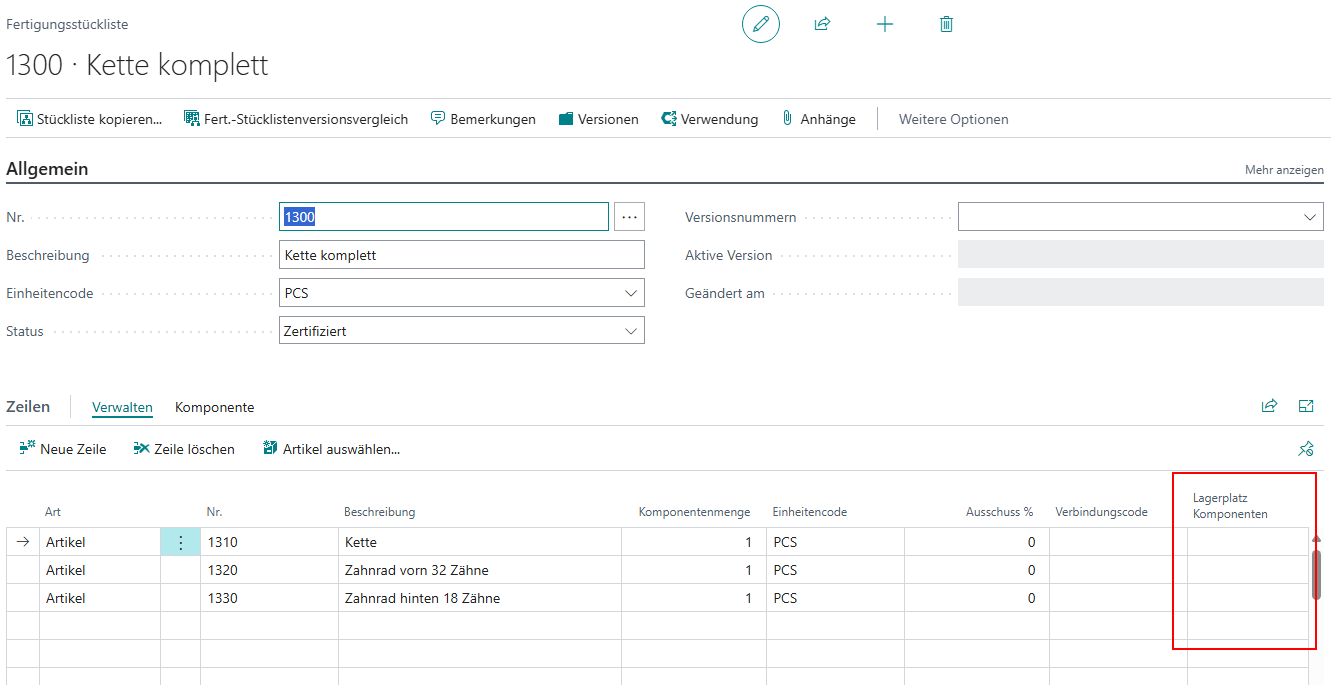
- Storage place for components on production BOM and BOM structure
- C2: Production supply
- New information fields on production order components and replenishment calculation improved
- GS1 warehouse receipt receipt entry: mandatory field check on article master
Setup
New column in warehouse employee setup table - Item 101540
We have added a new column to the warehouse employee table:
- Not Consider Location Code in Role Center: If this value is activated, the data from the selected location in the role center is not included in the calculation. If the value is deactivated, the key figures for the location are included when determining the quantities and numbers in the role center.
This field is disabled by default.
The purpose of this setup is to create a blacklist, i.e., a selection of locations that the employee should not see. This allows you to set up a situation where an employee can see multiple locations—namely, those for which the flag is not enabled.
New setup for manual selection in C2.1 and C2.2 - Item 111694
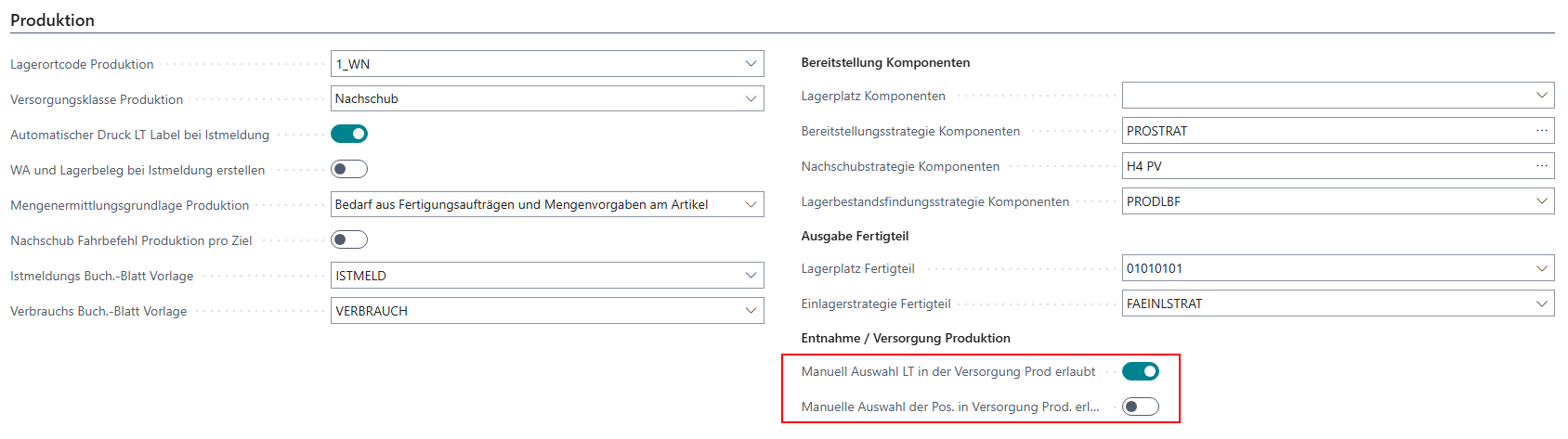
The new mobile pages C1.2 and C2.2 are used to edit production replenishment. By default, the individual items should be validated and recorded with scans. This significantly reduces the potential for errors. However, it may be necessary or useful to record the items manually by selecting the line. We have now created this option with two new setups in the SIEVERS WMS setup:
- Manual selection of LCs in prod. supply allowed: Allows manual selection of a load carrier in C2.1 via touchscreen or cursor and Enter. If the indicator is deactivated, the load carrier must be scanned
- Manual selection of Pos. in prod. supply allowed: Allows manual selection of a position in C2.2 via touchscreen or cursor and Enter. If the indicator is deactivated, the load carrier must be scanned
Warehouse receipt
Load Carrier creation via Blanco Barcode in GS1 warehouse receipt possible - Item 111968
Previously, an SSCC with GS1 reference was required in GS1 warehouse receipt to create a suitable receiving Load Carrier. We have now removed this restriction. It is now possible to scan a regular blanco barcode in GS1 warehouse receipt. The system then fills in the load carrier code as usual. The GS1 SSCC field remains empty.
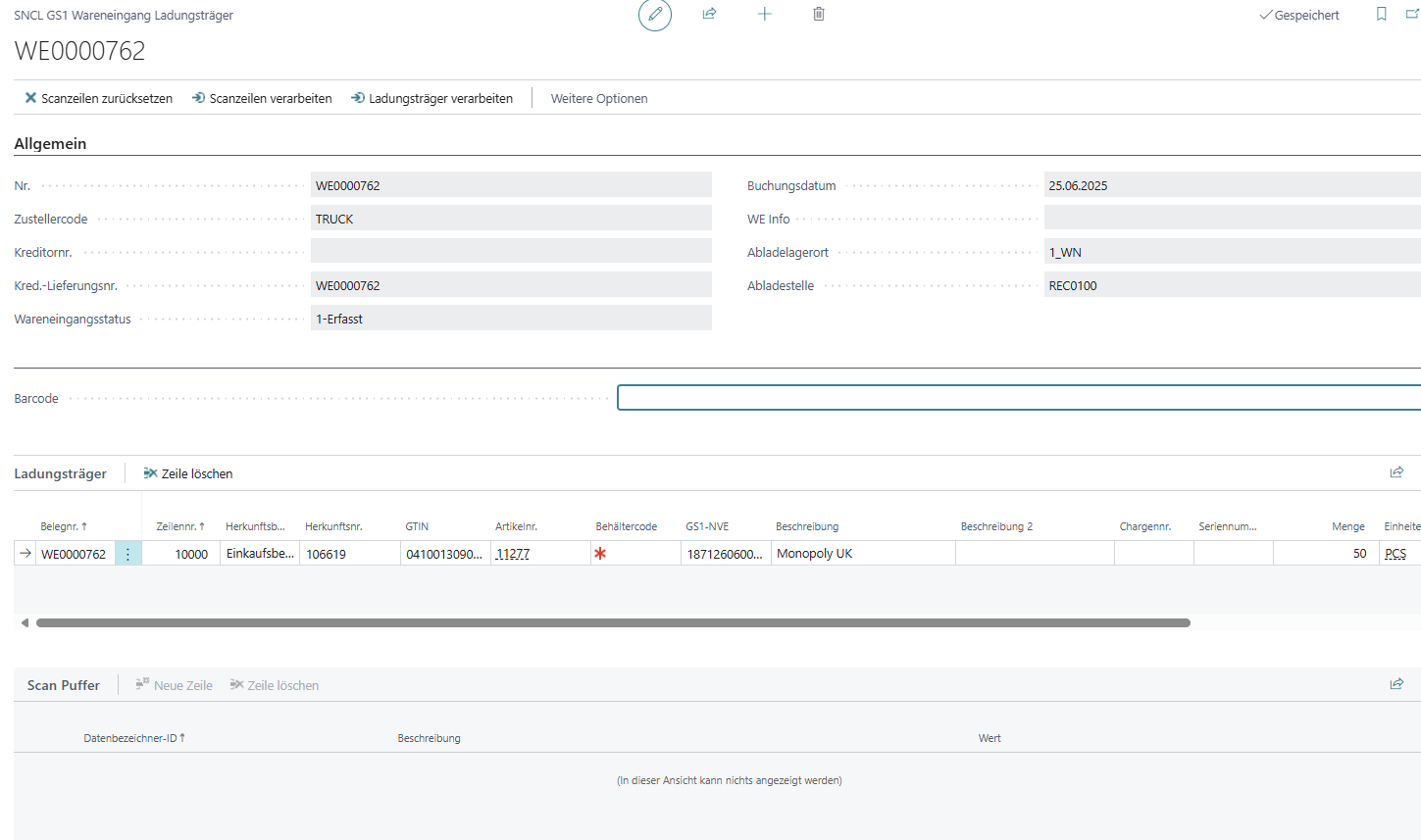
GS1 warehouse receipt entry: Mandatory field check on item master data - items 111699 and 115026
The receipt entry in GS1 warehouse receipt for load carriers is no longer dependent on values in the vendor and customer identifiers. This means that identification can now be based on GS1 standards using the item master data. The prerequisite for this is that the values
- Quantity
- Item no.
- Load carrier
- Document no.
are available in the GS1 barcode. Depending on the setup in the item, the following must also be available:
- Lot no.
- Sell-by date
- Serial number
This means that you can now start receipt entry without a vendor or customer being entered in warehouse receipt.
This functionality is not yet available for mobile warehouse receipt.
Picking
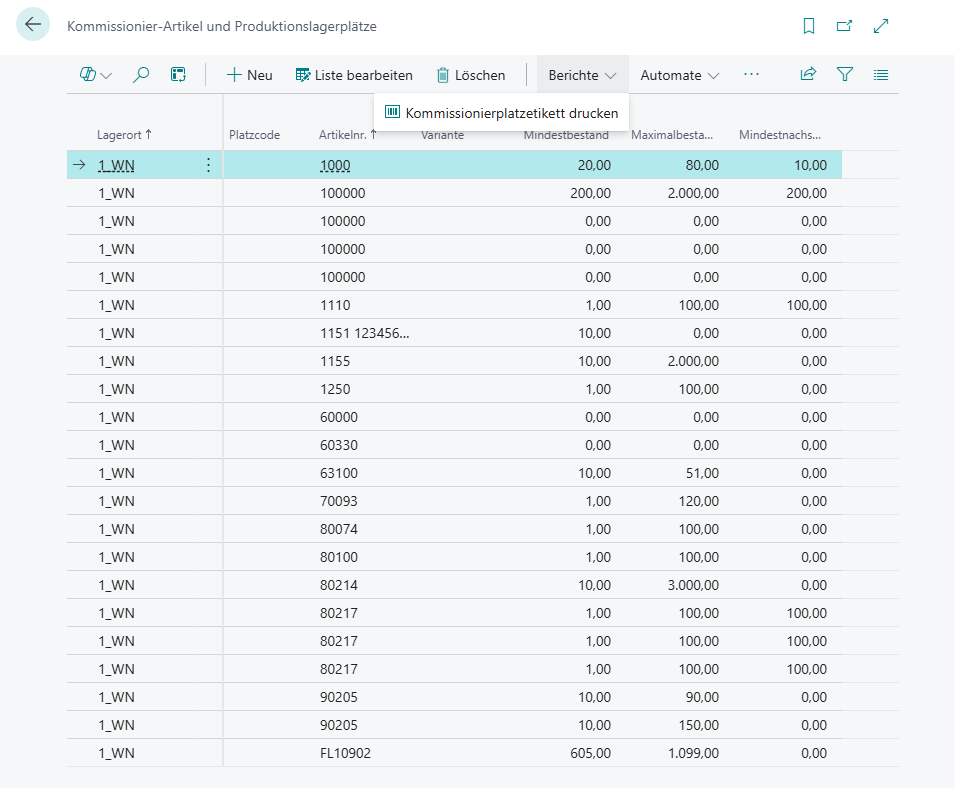
Picking items and production storage locations: Accessible without item cards and picking location labels can be printed - Items 105052 and 111574
We have improved the picking items and production storage locations page. It can now be accessed from the role center in the warehouse tab. In addition, you can now print the picking location label directly from the page.

Picking cancellation
In this and the next sprint, we are introducing a completely new feature: cancellation of picking orders. This enables systematic, transparent, and quantity-based cancellation of picked items at line level directly in the picking document. It was already possible to cancel picking lines, but this had to be done via the Number of pieces packed, the Packed indicator in the Outbound Stock Post lines and the Set PTU back function on the Load Carrier. This was a manual and therefore error-prone process, which we are now replacing.
The following sections describe the implementations for this topic.
New move order type - Item 112834
There is a new move order type:
- Picking Cancellation
This move order type enables the Outbound Stock Post of return quantities from the PTUs and Inbound Stock Post to new or existing SUs. The assignment is precise, documented, and includes the transfer of stock characteristics.
Set PTU Back Removed - Item 112837
With the introduction of the new function Cancel picking, the function Set PTU back, which was intended as a transition anyway, has been removed from the Load Carrier card.
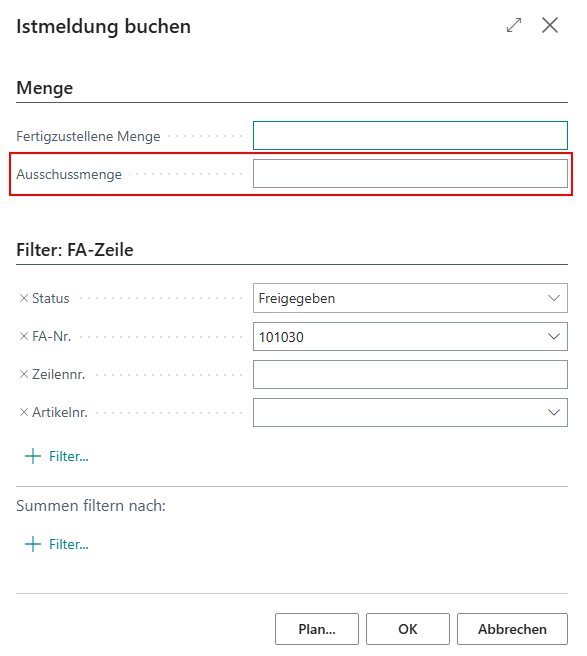
Specify scrap when products are completed - Item 113403
When you use the Complete products function for the released production order, you can now specify scrap quantities in addition to the quantity to be completed.
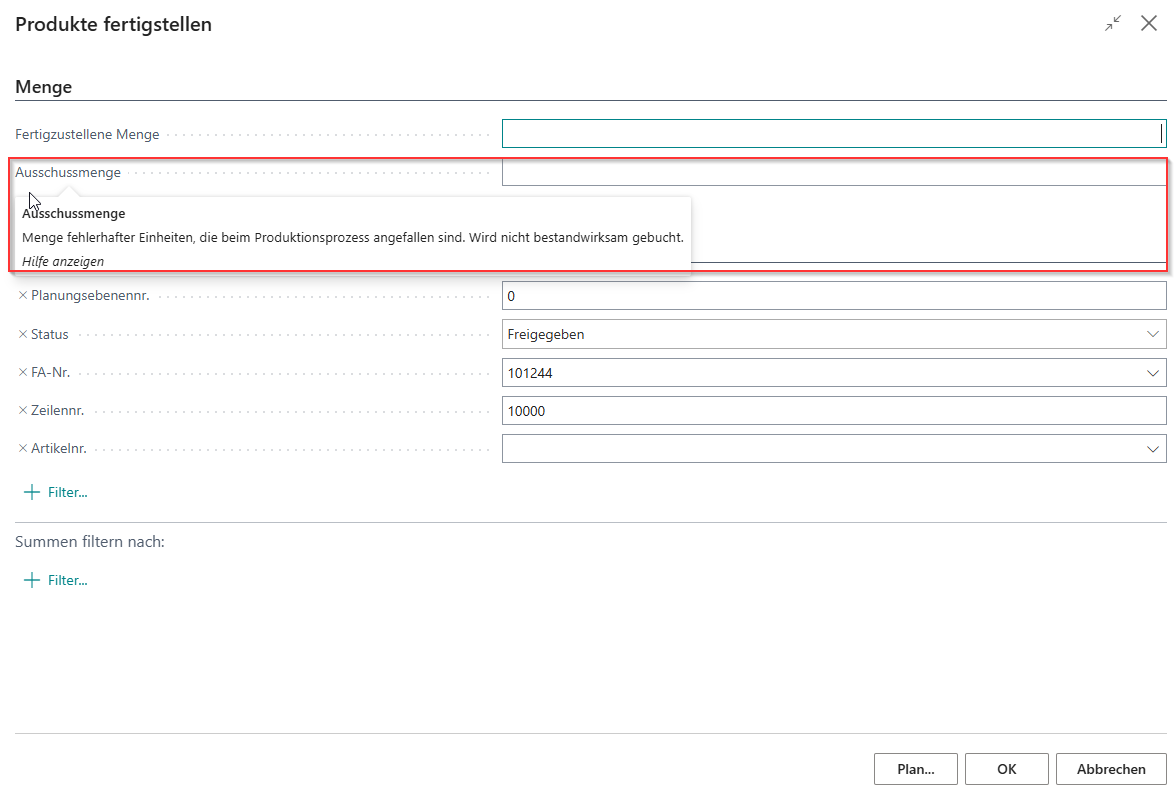
It is not possible to specify a scrap quantity and a quantity to be completed at the same time. Scrap quantities are not posted to inventory. Scrap quantities are defined as a finished part that cannot be used. Therefore, consumption is posted as normal. The expected quantities and quantities remaining in the component lines are increased accordingly. The production supply process recognizes the increased component quantity and triggers replenishment if necessary.
Specify scrap in output journal - Item 113447
As with Specify scrap when products are completed, you can also enter a scrap quantity via Post Output. The following rules apply here:
- It is not possible to specify scrap and the quantity to be completed at the same time.
- The scrap quantity is not posted to inventory
- The scrap quantity is entered as a capacity ledger entry

Stocktaking
Threshold values on item category / item card / stockkeeping unit - Items 92665 and 102997 {#schwellwerte}
Currently, there are two threshold values for stocktaking in the SIEVERS WMS setup under the Inventory tab:
- Quantity Difference %
- Value Difference LCY
If one of these two thresholds is exceeded in the stocktaking, a second or third count is automatically initiated. These values can now also be entered at the item category, item, and warehouse data levels. This allows you to specify different values for specific items.
The threshold value fields at the various levels override each other. The following list shows the order of priority. Priority 1 always applies if it is present and overrides priority 2. Priority 2 is overridden by priority 3, and so on.
- Stockkeeping unit
- Item
- Item category
- SIEVERS WMS setup
Mobile
A6.2: Load Carrier is posted to loading storage place during second scan - Item 98872
In A6.2 SSCC overview, loading is performed by double scanning. During the first scan, the loader picks up the SSCC on the forklift, and during the second scan, it is loaded and removed from the SSCC overview. Previously, however, the SSCC remained in the system on the forklift until the warehouse shipment was posted, even if it had actually already been placed in the truck. This could lead to confusion in the process, as the Load Carrier was still posted on the forklift and could not be reused for picking, for example.
We have now changed the process so that during the second scan, the SSCC is posted directly to the loading storage place stored in the shipment process. If none is stored, an error message is displayed. If the loader wants to retrieve the SSCC from the storage place, they scan a third time. This way, the system reflects reality and posts the Load Carriers away from the forklift.
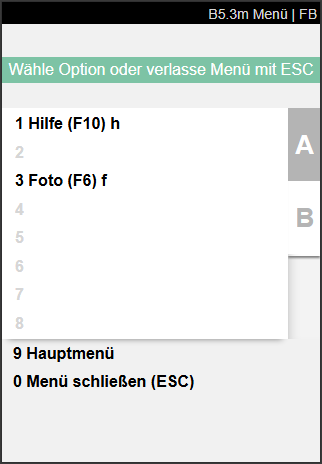
B3.2 and B5.3: Take and show item photo - Item 103416
On the B3.2 Perm. Inv. Positions and B5.3 Perm. Inv. Positions pages, it is now possible to take and show photos. We have added the menu item B3 Photo (F6) f for this purpose. Press F6 or click on the menu item. If at least one image is already stored for the item, it will be opened. Otherwise, the capture mode will start and you can take one or more photos.
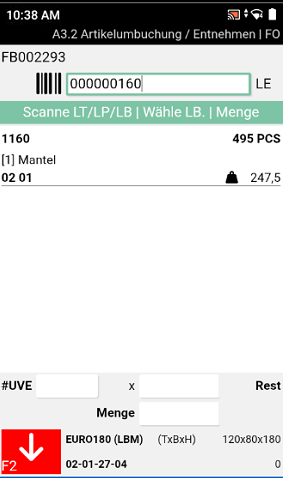
Direct stock scan in A3.2 and A3.3 Item transfer removal and replenishment - Item 111872
Previously, the desired inventory had to be manually selected from the list for item transfer to A3.2 and A3.3. Although this works, it is unnecessarily time-consuming, especially when you are standing directly in front of the inventory. We have now added the option to scan the inventory number directly and select an inventory item.
C1.3 Simple stock exchange possible - items 111273 and 113851
It is now possible to perform a simple inventory exchange in C1.3. This means that, according to the reservation, inventory should actually be taken from the lower part of the Load Carrier, but the employee can take a box from the upper part. The prerequisite is that the number of pieces, variant, lot no., and sell-by date of the inventory must match. If there is a reservation, it is exchanged 1:1.
C1.2 Follow-up move order not necessary if SU is directly at destination location - Item 113900
If the picked storage unit is placed directly at the correct destination location, no follow-up move order is generated.
C2: Production Supply
In the last release, we introduced the new mobile pages under C1: Production Take-Out. This release focuses on C2 Production Supply. This is used to organize replenishment in two-stage production supply. C1 has been implemented for picking and removing components, and C2 for the actual replenishment process. The following items have been implemented for this topic in Release 48:
- Item 111683
- Item 111682
- Item 111688
- Item 111689
- Item 111690
- Item 111692
- Item 111711
- Item 111715
- Item 114383
C2.1 Supply overview Prod. {#c21}
After selecting the team, forklift, and printer as usual, C2.1: Supply overview Production opens. Here, the production supplier can find out what load carriers are available for distribution to the destinations in production. All load carriers with the type SU that are listed in a move order with the type Supply Production and are to be taken to their destination are shown here. The setups at the teams and sorting by storage place and route optimization are taken into account.
Select a load carrier by scanning or manual selection and pick it up with the forklift.

- Left: Current storage place of the load carrier | Center: Load carrier no. without check digit | Right: Destination symbol with number of different destinations
- Left: Inventory measure
- Left: Number of inventories in stock | Right: Number of items
C2.1 Menu

- Filter Move job lines by destination (F5) k: Currently not functional
- Move job / Load carrier info (F3) i: Currently not functional
- Information (->): Opens information A7.3 for the currently selected load carrier
- Transfer (F2) l: Opens A3.1 Item transfer overview
- Internal transports: Opens A2.0 Internal transports
- Print SU label (F9) a
C2.2 Production Supply Proc. {#c22}
After a load carrier has been added to C2.1 via scan or manual selection, this page is displayed. The inventory of the load carrier is now displayed and where it should be taken. Scan an inventory and then the destination storage place.

- Left: Move job number | Center: Inventory measure | Right: Load carrier number
- Left: Destination location from the move job line | Right: Item number
- Left: Lot no. | Center: Sell-by date | Right: Quantity and base unit
- Item description
- Left: Inventory number | Right: Variant
- Quantity input field for confirmation
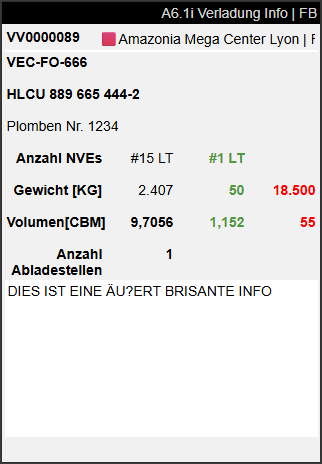
A6.1i + A6.2i Unloading places - Item 105228
The info pages of A6.1 and A6.2 now contain the number of unloading places.
Stocktaking overview B5.1 with display of stocktaking lines to be counted - Item 106857
We have improved the stocktaking overview B5.1. New data is now displayed:
- Red number: The inventories still to be counted
- Green number: The inventories already counted
- Black number: The number of empty storage places

Warehouse Shipment
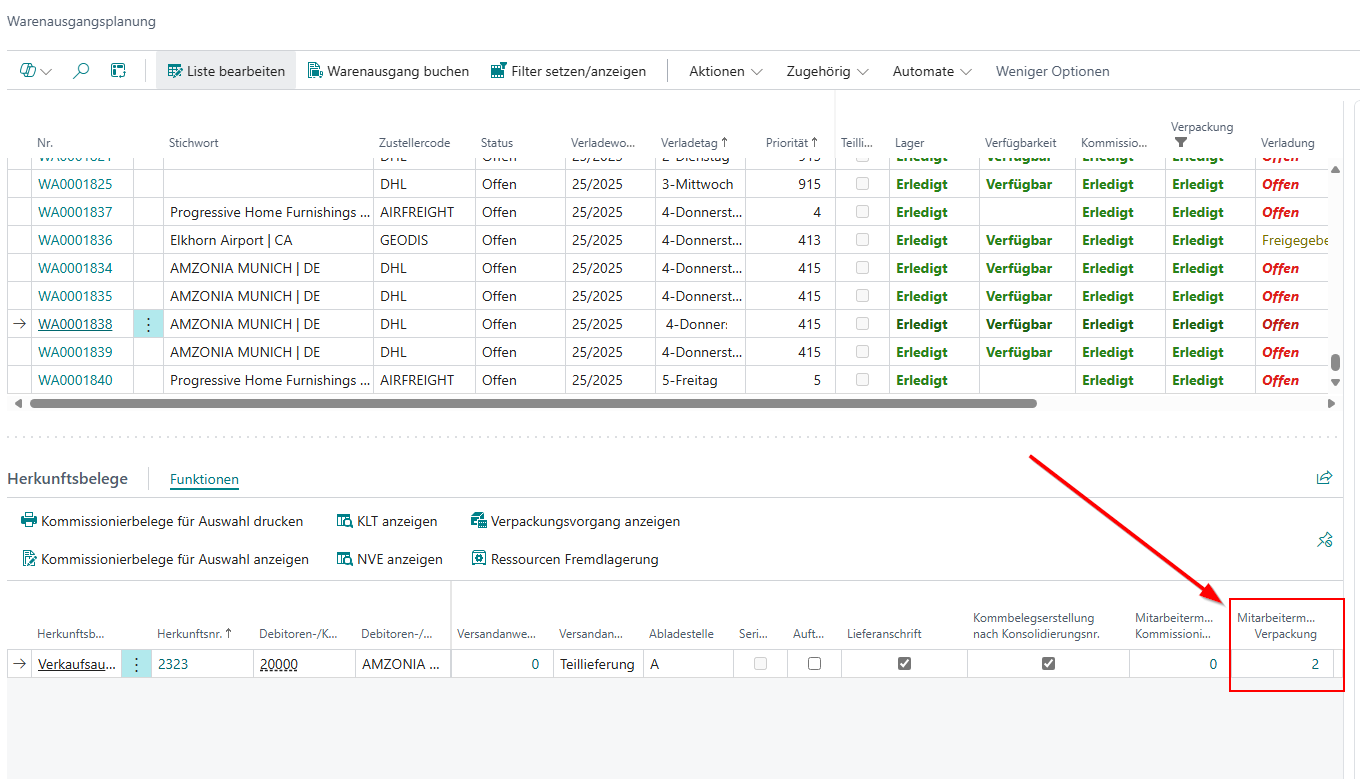
Employee Marking Packaging in Warehouse Shipment Planning - Items 108344 and 108347
We have added the column Employee marking packaging to the source document table in Warehouse Shipment Planning. Similar to Employee marking picking, the number of persons marked in the packaging documents is shown here. Click to open the warehouse employee overview with the list of marked employees.
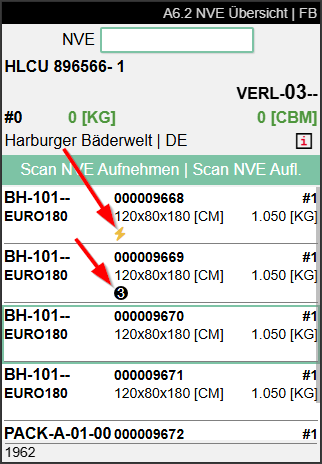
Display of loading priority in A6.2 and A6.2o - Item 108351
The manually assignable loading priority (high, normal, and low) introduced in the last release is now also shown on the mobile pages A6.2 and A6.2o. A lightning bolt is displayed for high priority. A 3 is displayed for low priority.
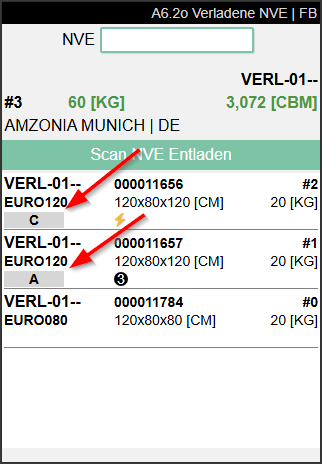
Display of the unloading place in A6.2 and A6.2o - Item 105225
The unloading place of the Load Carriers is now also shown on A6.2 and A6.2o.
Package tracking number is filled automatically - Item 111927
The Package tracking no. field in the sales delivery is now automatically filled with the same number from the shipping order.
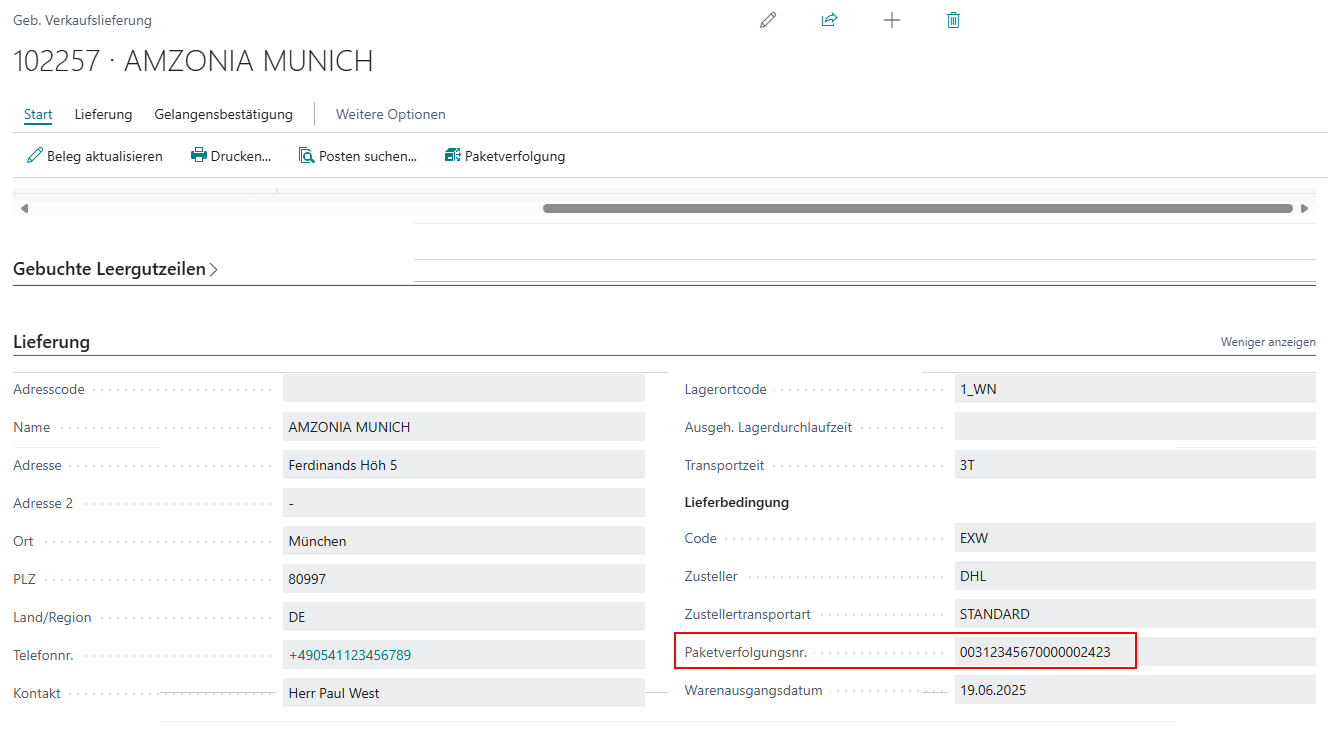
If there are several shipping order lines, the first tracking number is always transferred.
Production
Storage place of components on production BOM and BOM structure - Item 110171
We have added the Storage place components field to the production bill of materials and the bill of materials structure. This field specifies where the components are located in the warehouse.
New information fields for production order components and improved replenishment calculation - Items 101923 and 114187
We have added new info fields to the production order component table:
- Number of Pieces in Prod. Area: Specifies the number of pieces of all inventories of the item that are in the production area. Reservations are not taken into account.
- Overall Remaining Quantity: Specifies the total quantity remaining of all released production order component lines that refer to the same combination of item number and variant.
- Overall Remaining Quantity (SP): Specifies the total quantity remaining of all released production order component lines that refer to the same combination of item number, variant, and storage place components.
- Replenishment Status: Specifies the status of the linked move order. Empty if no move order exists.
- Finished Replenishment Quantity: Specifies the quantity already processed in the linked production supply move order.

In the course of this, we have greatly improved the calculation of these and other replenishment fields by now also including stock entries in addition to the move orders. This significantly increases accuracy.
Changing the machine center causes component lines to be updated - Item 113171
We have added another automation feature: Changing a machine center in a production order work plan now causes some fields of the component lines with the same routing link code to be recalculated. The following fields are affected:
- Storage location code
- Component storage place
- Component replenishment strategy
- Component inventory selection strategy
- Component provisioning strategy
- Production supply class
Minor changes
- Logs for automatic warehouse shipment and Outbound Stock Post and the picking document release log are now sorted in descending order by entry number so that the most recent entries are always at the top. - Item 97011
- For stock movements on the Mobile Page A6.2, the mobile user is now saved in the stock entry in the Processed by field - Item 111189
- Printing of picking documents in the consumption journal is now possible - Item 112498
- On mobile pages A4.2, A6.2, A6.2o and A2.0, the GS1 SSCC is shown instead of the Load Carrier code, if available - Items 98607, 98629, 98631
- B5.4 Finished counts can now also be accessed from the B5.5 New inventory page with F4 or menu item A5 - Item 99114
- When a picking series is created, a message now appears offering to open the series monitor. If the series could not be created, an error message appears - Item 107418
- Error message when entering an invalid barcode in C1.3 improved - Item 113896
- Tooltips for Whse. Ship. Automation improved - Item 103530
- The scan field in A3.2 and A3.3 is now cleared correctly after a successful scan - Item 114126
- The GS1 SSCC displayed in A4.3 now comes from the Load Carrier references and is therefore consistently displayed correctly - Item 105205
- Warning message if GS1 SSCC is entered multiple times in B5.5. Multiple entries may be necessary for mixed Load Carriers - Item 110700
Bug fixes
Automatic transfer of the production place to the Inbound Stock Post - Item 110182
We have fixed a bug that caused the production place to no longer be automatically transferred to the Inbound Stock Post when the output journal for a production order was generated.
Product completion with fixed quantity not possible - Item 112843
We have fixed an issue where components with a fixed quantity were incorrectly taken into account during the validation of the maximum consumption quantity, which prevented products from being posted.
Error opening picking document - Item 113062
We have fixed an error that prevented the picking document from being opened from a production order Outbound Stock Post document.
Packaging status is not updated - Item 113585
We have fixed an issue where the packaging status was not updated when an SSCC was created in picking and was not adjusted via the packaging page.
Incorrect storage place for fixed quantities - Item 113629
We have fixed a bug that caused items with a fixed quantity to use a storage place other than the one specified.
Load carrier swap not possible for existing blocked stocks - Item 110872
We have fixed a bug that prevented load carrier swap even though there was sufficient free inventory available for exchange because blocked inventory was located in the target load carrier.
Fix for component allocation in production orders - Item 113624
We have fixed an issue that prevented all components from being allocated from the warehouse during the production order process.
Improved component determination strategy - Item 114094
We have fixed an issue that caused component determination strategy to be based solely on the item's bill of resources instead of also taking into account the production work center lines.
Fixed an issue with printing shipping labels - Item 114276
We have fixed an issue that caused a message to sometimes appear when printing shipping labels, suggesting that the labels had already been printed.
C1.2 incorrectly filled - Item 113866
We have fixed a bug that caused the Mobile Page C1.2 to still be filled even though the screen should have been empty because all items had been processed.
Update display after transport completion - Item 114340
Fixed a bug that caused the display in C2.1 not to update after a transport to production was completed.
Fixed an issue with printing DHL labels - Item 114380
We fixed an error that prevented DHL labels from being printed on the first attempt.
Load Carrier type change not allowed for reusable Load Carriers - Item 101435
We have fixed a bug that allowed the Load Carrier type to be changed in certain places even though the “Chg. Load Carrier Type allowed” setting was disabled.
GTIN scan problem - Item 105079
We have fixed a bug that prevented items from being identified correctly when GTINs without leading zeros were scanned in the warehouse receipt.
Warehouse Shipment automation not working correctly - Item 114274
We have fixed an issue where the warehouse shipment keyword and shipping week were not filled in even if the customers variable for warehouse shipment automation was filled in.
Initial inventory cannot be continued after initial completion - Item 106848
We fixed a bug that prevented the inventory from being set back to Released and new storage locations from being added after an initial inventory was completed for the first time.
A4.3: Incorrect “Alternative found” message - Item 114596
We have fixed a bug that caused the system to report that an alternative had been found during picking with Mobile A4.3 after entering a 0, even though no alternative existed.
Purchase return order loses clearing items - Item 112901
We have fixed a bug that caused the clearing items not to be filled when posting a warehouse shipment from a purchase return order, which resulted in the warehouse shipment not being posted correctly.
Posting of disposal or addition via item posting.-sheet without stock document possible - Item 114680
We have fixed a bug that made it possible to post Inbound Stock Posts and Outbound Stock Posts directly in the item journal without a stock document existing.
Mobile users are not entered when PTU/SSCC is scanned again - Item 98871
We have fixed a bug that prevented the mobile user from being entered in the item when a PTU/SSCC that had already been parked was scanned again during picking.
Fixed duplicate warning messages - Item 105088
We have fixed a bug that caused the expiration warning to be shown multiple times when an item with a short shelf life was scanned.
Fixed transfer of sample removals to locations not managed by SIEVERS WMS - Item 105673
We have fixed an issue that prevented sample withdrawals or breakages from being transferred to a separate location not managed by SIEVERS WMS.
Adjustment of movement quantity for item tracking - Item 111944
We have fixed an error where the movement quantity was not adjusted correctly when item tracking was active.