Features
Major Topics
- Block multiple inventories simultaneously
- Further automation in production supply
- Incorrect source of machine center when refreshing the production order
- Production supply: Handling reservations
- Mobile: New pages for production supply
- Storage place components is always used
Setup
Setup fields in WMS setup rearranged, new field added and GTIN is printed on reports - Items 111438, 111072, 111073 and 111074
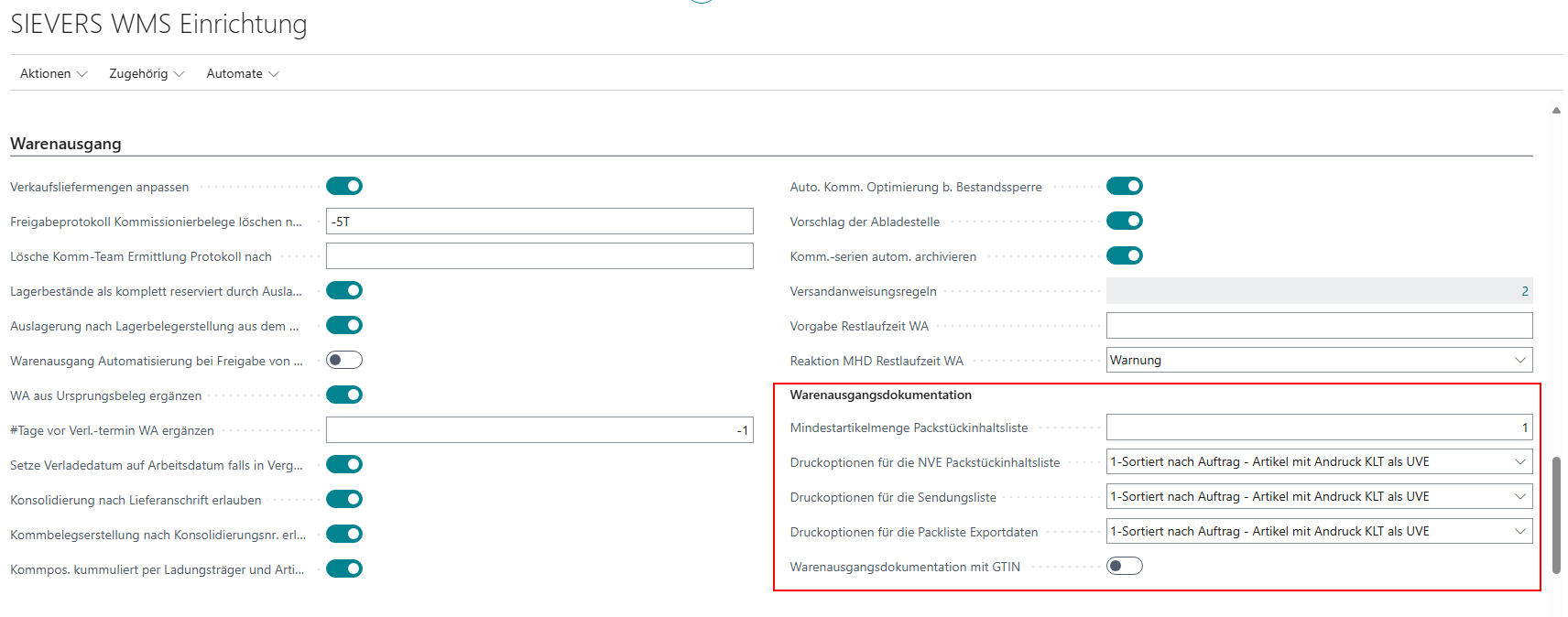
We have made a few changes to the layout of some fields in the WMS setup and added a new setup field both here and in the customer card. The following fields can now be found under Warehouse Shipment Documentation in the warehouse shipment area:
- Min. Item Qty. SSCC Pack. Cont.
- Printing Options for SSCC Packaging Content List
- Printing Options for Shipment List
- Printing Options for Packlist Exportdata
We have also added the following new field:
- Whse. Ship. Docum. with GTIN: If this flag is activated, the same field will be changed to this value for the customer after query.
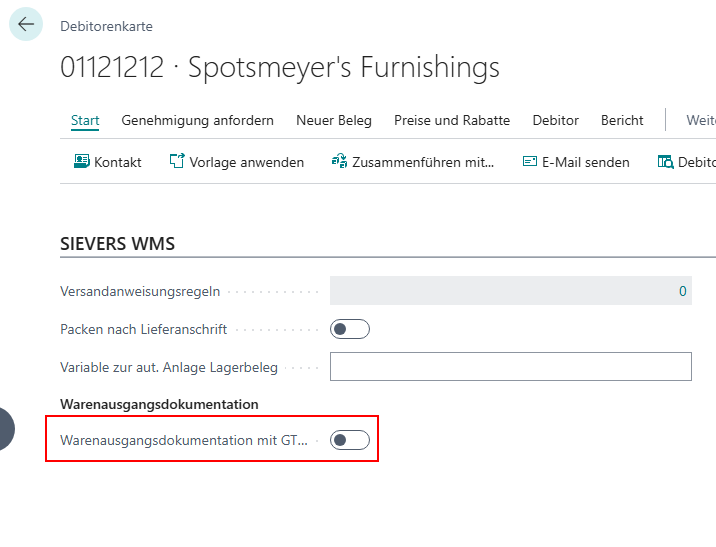
The field of the same name has been added to the Warehouse Shipment Documentation area in the SIEVERS WMS section of the customer card:
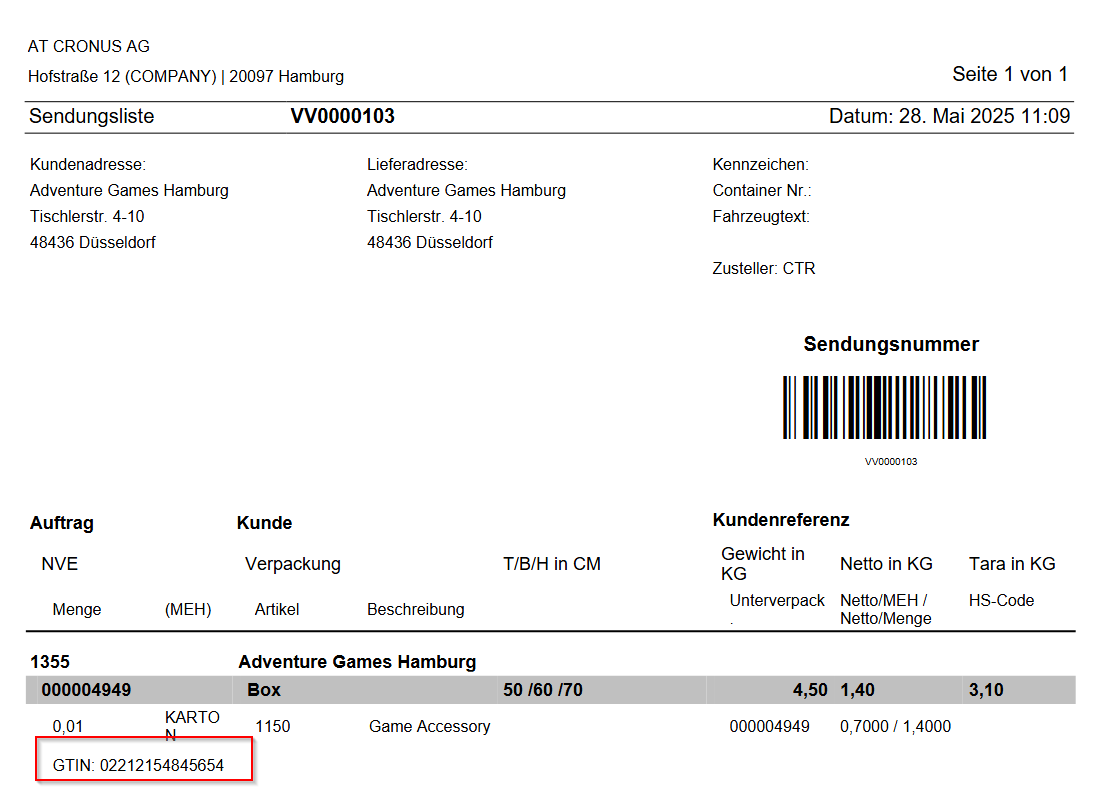
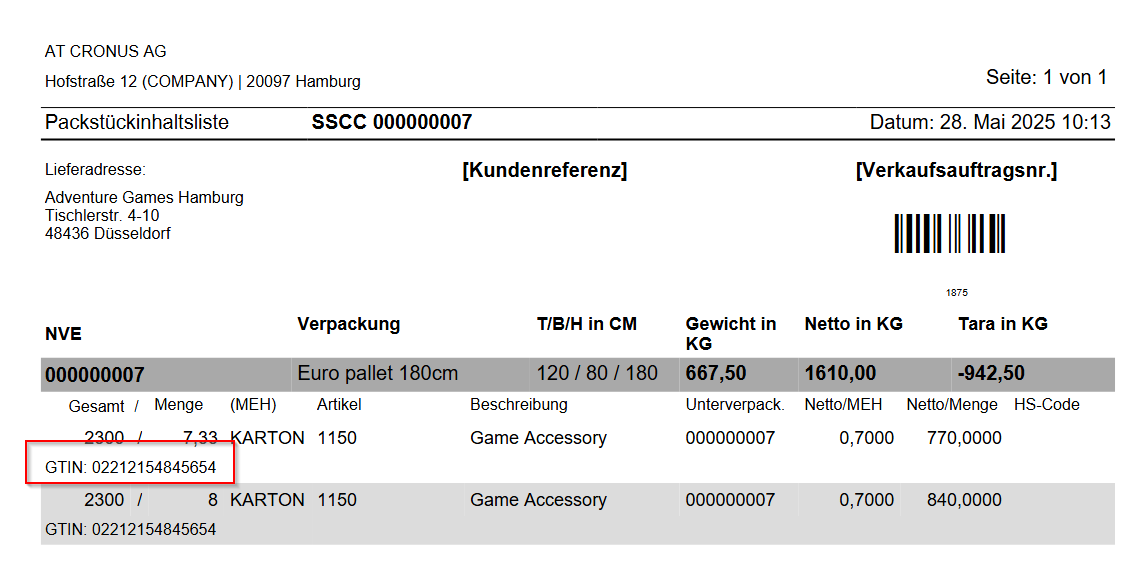
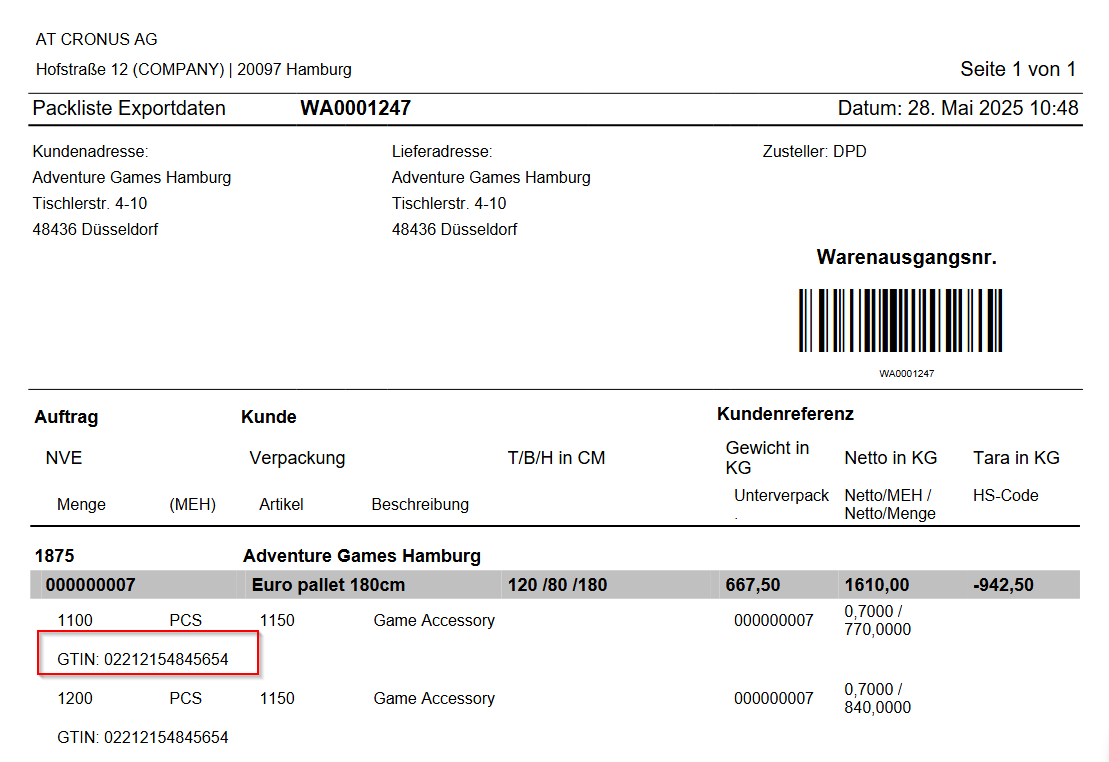
- Whse. Ship. Docum. with GTIN: If this indicator is activated, the GTIN is printed on the shipment list, the SSCC package content list, and the export packing list.
If available, the GTIN is then printed on the reports mentioned:
New setup field for automatic deletion of the incoming team determination log - Item 109728
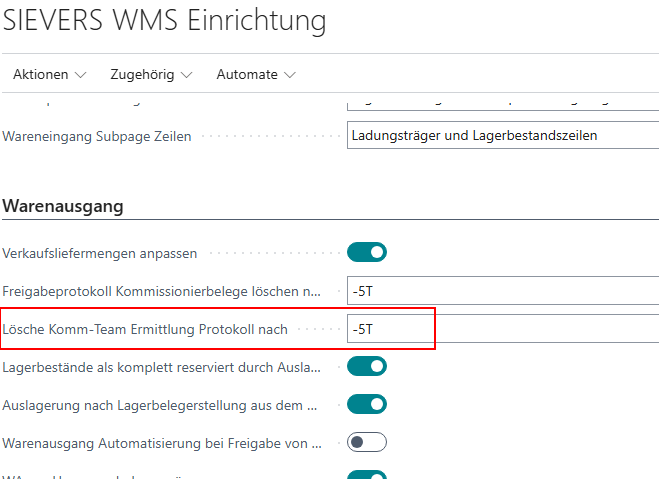
We have implemented a new field in the Warehouse Shipment area of the SIEVERS WMS setup:
- Delete Picking Team Determ. Protocol after: Enter a date formula here to determine after how long entries in the picking team determination log should be automatically deleted. The current date is used as the basis for calculation. For example, if you want to delete all entries that were created 10 days before today's date, enter “-10T”.
Replenishment renamed to Internal Movements and new setup field - Item 111275
The Replenishment area in the SIEVERS WMS setup has been renamed Internal Movements, as this is now the area for general replenishment and internal transports such as production supply.

In addition, a new setup field has been added:
- No confirmation of take out qty in PS: Ensures that an employee in C1.3 Pick item processing no longer has to validate the quantity after scanning the inventory or load carrier if the planned picking quantity is equal to the inventory quantity.
Purchase return orders possible in Whse. Ship. Automation - Item 106196
Previously, Whse. Ship. Automation could only be used with the Sales order and Stock transfer order documents. In this release, we have implemented the option of using Whse. Ship. Automation with purchase return orders as well. However, there is currently no specific setup for this document. This will follow in the next release. If you want to use Whse. Ship. Automation for purchase return orders, set up a neutral automation line without a source type filter.
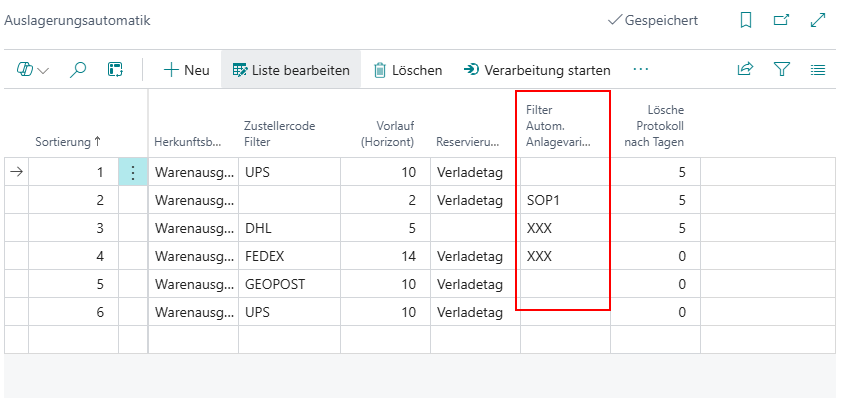
Variable as filter for automatic warehouse document creation - Item 104728
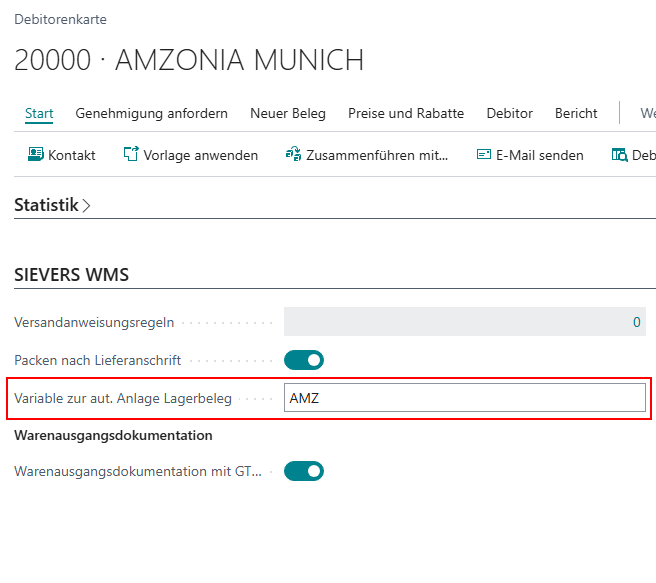
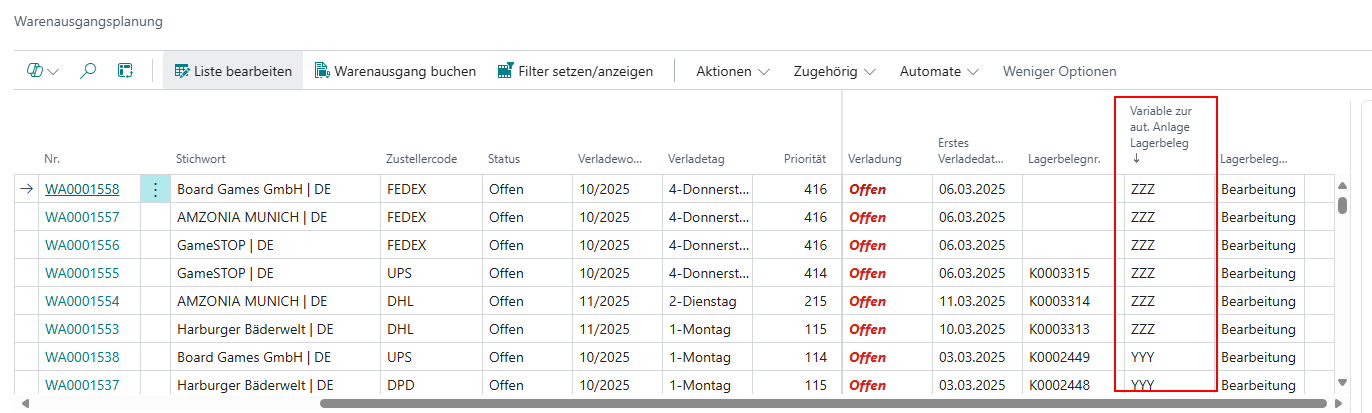
There is now a new field on the customer card, in Warehouse Shipment Planning, and in Automatic Outbound Stock Post:
- Variable for Aut. creation of stock doc.: Here you can enter a flexible value or a description that will be used as a filter in the automation of Outbound Stock Post. Only warehouse shipments for which a value has been entered that corresponds to the value in the Outbound Stock Post automation are taken into account in the automation. In short: With this field, you can manually decide which warehouse shipments are to be processed automatically.
If the field on the customer card is filled, this value is automatically inserted for warehouse shipments for this customer.
Inventory
Block multiple inventories at the same time - Item 110824
It is now possible to block any number of inventories at the same time. This is particularly useful in warehouses with serial numbers or >1 inventory per load carrier. The Block/Unblock Inventories action is now available in the inventory list.
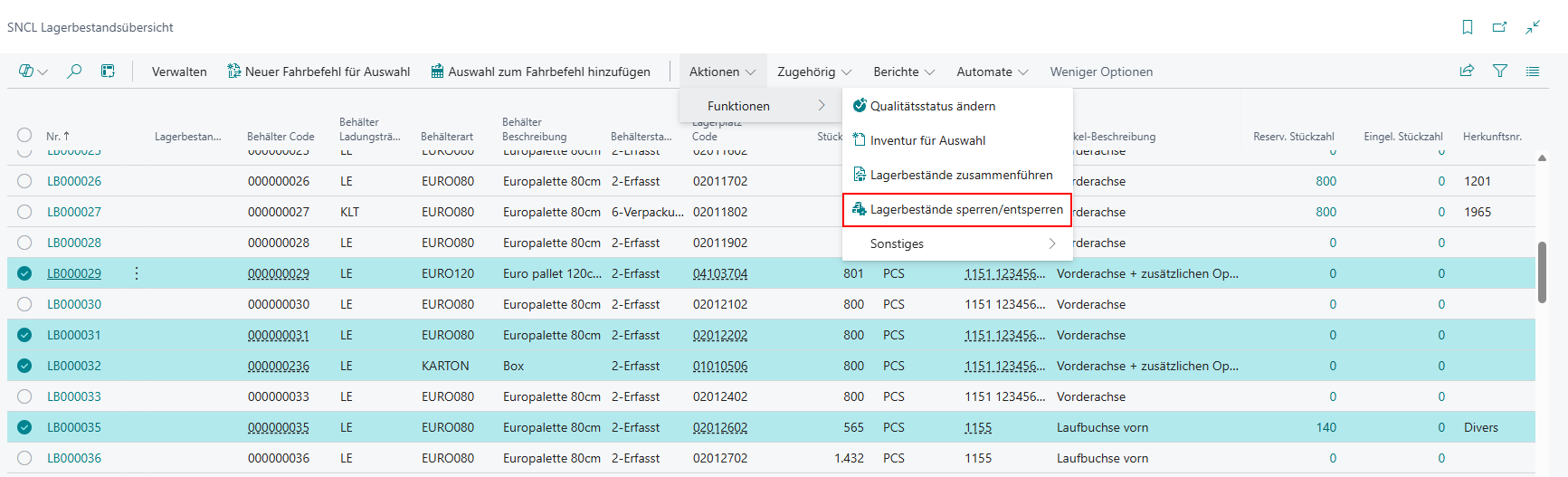
Clicking on it opens a window where you can enter the block code.
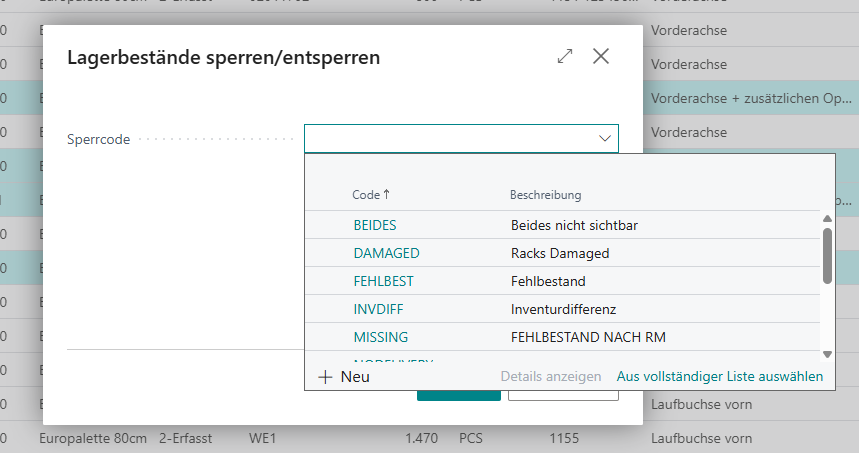
If you want to unblock inventories, select inventories with the same block code and then remove it via Block/Unblock Inventories.
New load carriers with inventory measure from packaging hierarchy - Item 99104
We have implemented a new automation that automatically assigns the inventory measure to new load carriers in stocktaking using the Load Carrier - Creation from the respective item packaging hierarchy.
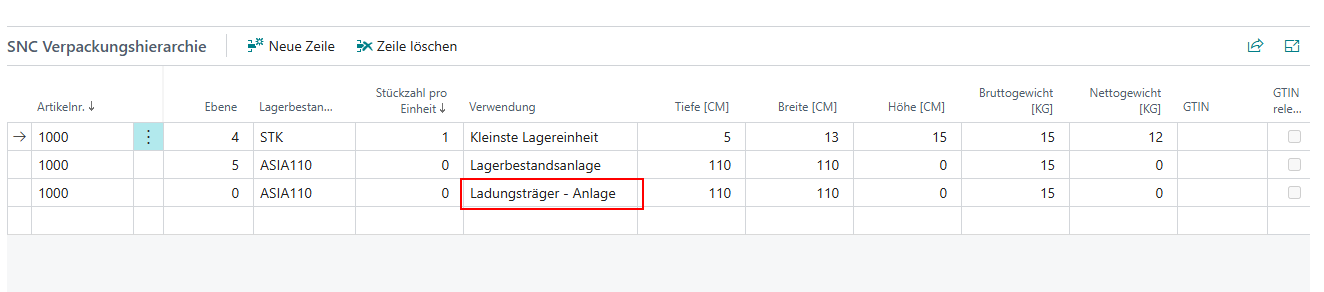
If there is no matching entry in the packaging hierarchy, the default inventory measure is taken from the WMS setup.
Move Orders
Priority displayed in move job line by default - Item 99039
The Priority column is now displayed by default in the move job lines so that users can see the priorities of the individual lines at a glance. The column already existed, but had to be displayed manually.
Outbound Stock Post
Fields Type of Creation and Outbound Stock Post Automation Entry No. added - Item 106072
We have added the following fields to the SNCL Outbound Stock Post page in the General area
- Type of Creation and
- Outbound Stock Post Automation Entry No.
These fields allow the user to immediately see when a stock document has been created.
Shipping order is automatically deleted when stock document is deleted - Item 91212
From now on, shipping orders are automatically deleted when the corresponding stock document SNCL Outbound Stock Post is deleted. Previously, this did not happen, which meant that after deleting stock documents, orphaned shipping orders remained and had to be deleted manually.
Picking Series
New actions in Warehouse Shipment Planning - Item 107416
We have added two actions from picking series to warehouse shipment planning so that they do not always have to be accessed via the search function:
- Create picking series is now located in the action menu of Warehouse Shipment Planning
- Show series monitor is now located in the Related menu
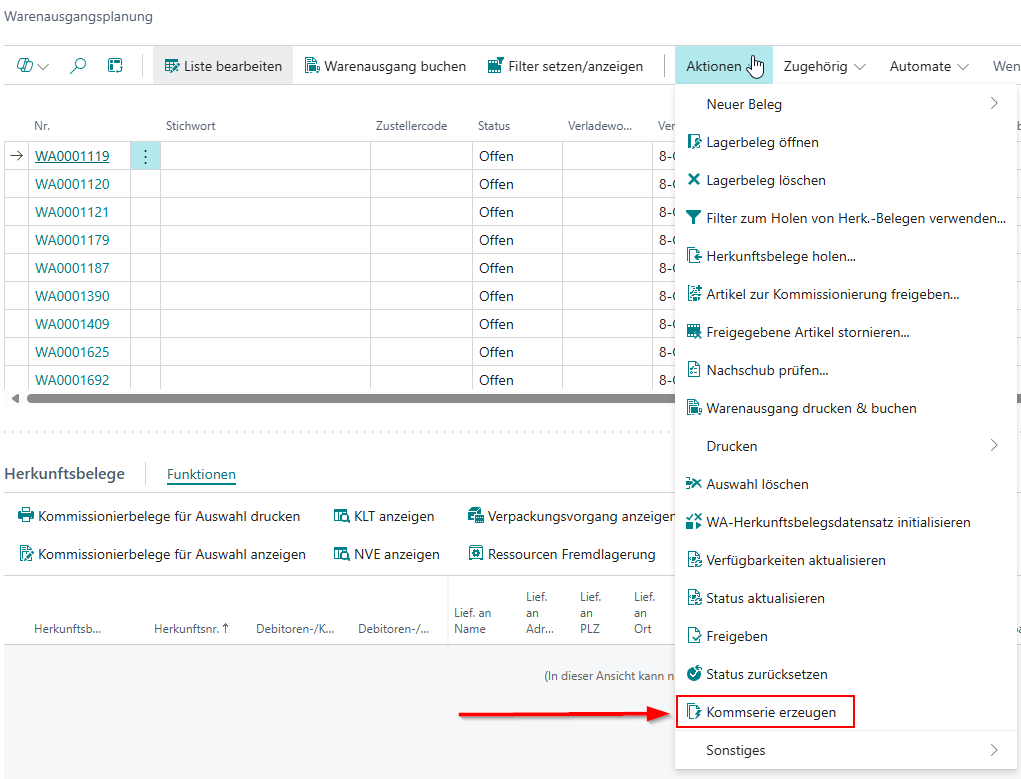
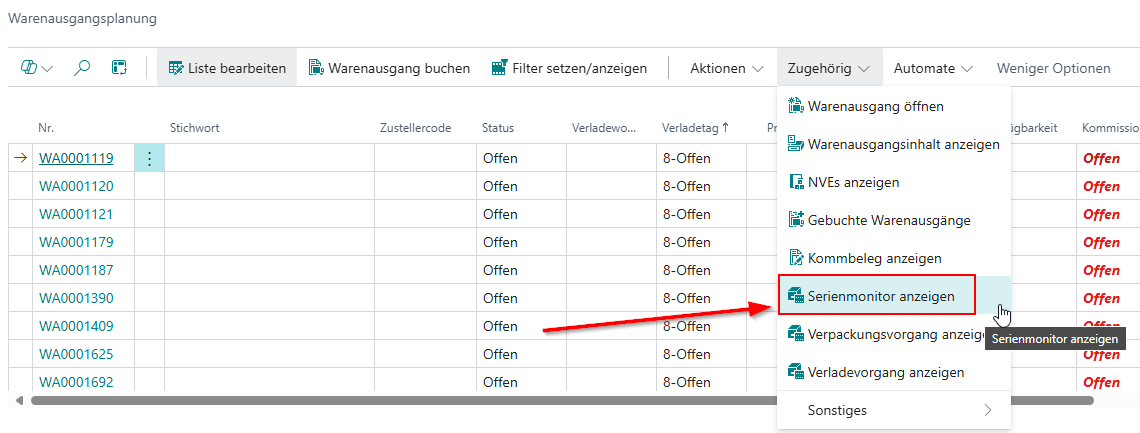
Link to picking series in the start page menu - Item 107421
We have added a new entry to the start page menu:
- Picking Series: Leads to the series monitor, where picking series can be displayed, created, and released The menu item is located in the Stock Documents menu after the Picking Documents menu item.

Picking Series monitor menu adjusted - Item 107422
We have slightly adjusted the menu of the SNCL series monitor by dividing the menu items into Favorites, Actions, and Related. We have also added the menu item Show comm. doc to Related.
- Favorites (These menu items are always shown)
- Create picking series
- Release picking series
- Reopen picking series
- Actions
- Update status
- Delete picking series
- Archive picking series
- Related
- Show Stock Documents
- Show STUs
- Show Picking Document
Shipment process
New field GS1 reference - Item 109687
A new field has been added to the loading process lines:
- GS1 reference: If the reference types GS1-SSCC OUT and GS1-SSCC (warehouse receipt) are filled for a load carrier, the GS1-SSCC OUT barcode is displayed here. If this does not exist, the GS1-SSCC reference is displayed.
This field is optional and must be displayed manually via Personalize.
Error message when shipment list is missing from shipment process - Item 107764
If a warehouse shipment has been delivered/posted with a shipment process, a shipment list must be printed from the posted or unposted shipment processes. If this has not been done, an error message appears. We have now added a button to this error message that takes you directly to the shipment process. This saves the user an additional manual page call.
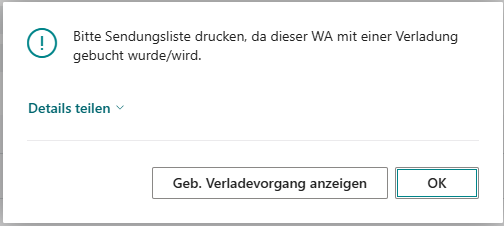
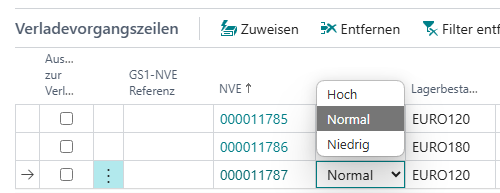
Loading priority for NVEs - Item 64202
It is now possible to assign a priority for each SSCC in the loading process. Assigning a high priority ensures that these SSCCs are viewed and loaded first by the loader. All SSCCs are assigned the priority Normal by default until this is changed manually.
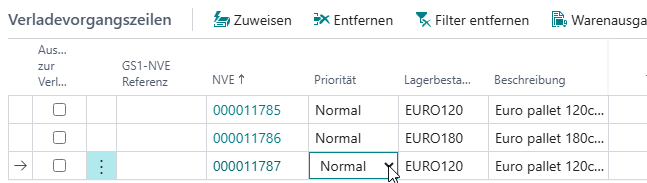
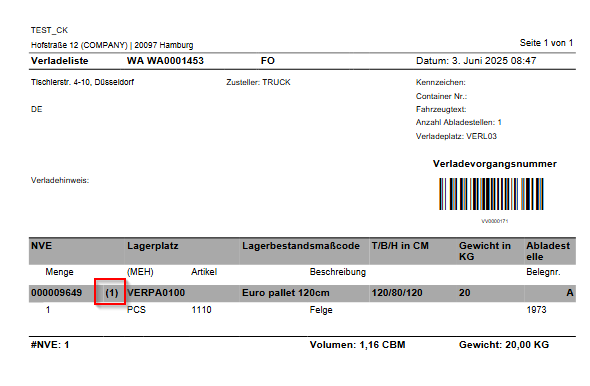
The selected priorities are shown on the printed loading list next to the SSCC number. A (1) stands for the highest priority and (3) for low. The medium priority is not shown.
In the future, we plan to show the priority on the mobile pages A6.2 and A6.2o as well.
Replenishment
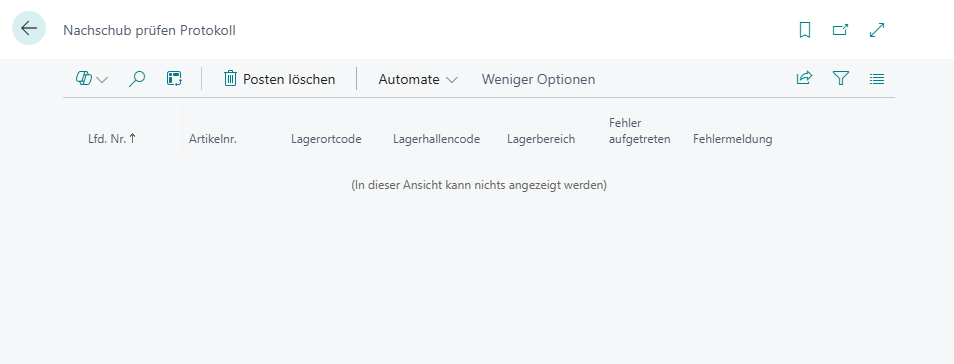
Replenishment Check Log - Item 110856
As part of fixing an error that caused the Check replenishment process to stop, we have implemented the new table and page Check Repl. Aut. Protocol. If an error occurs during the Check replenishment process, it is logged here. The entries can be removed via Delete Entries.
Production
Further automation in production supply - Item 110883
We have implemented further automation to simplify the creation of production supply:
- The contents of the Location and Inv. Sel. Strategy Code Components fields from the component lines are now automatically transferred to the consumption journal.
- The contents of these fields from the consumption journal are now automatically transferred to the Outbound Stock Post.
- Changing one of the fields in the production order component lines when the consumption journal has been created results in an error message
- Changing one of the fields in the consumption journal when the Outbound Stock Post has been created results in an error message
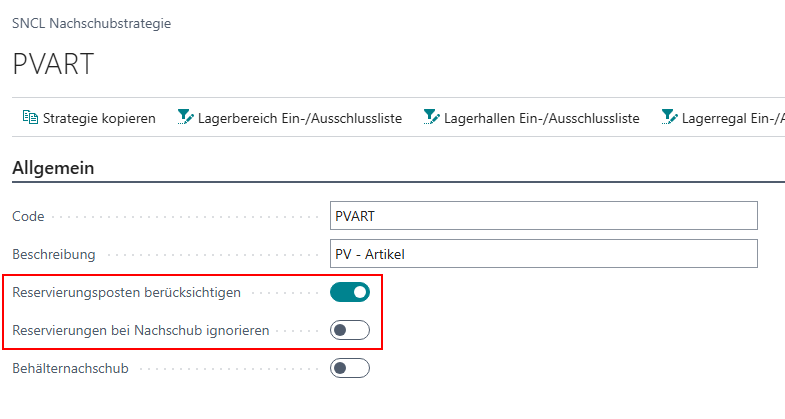
Production Supply: Handling Reservations - Item 112625
We have implemented new logic that takes into account both free inventory without reservations and inventory with reservations on the same source document when replenishing production. These options already existed in the replenishment strategies, but they had not yet been implemented for production supply.
Storage place components are always used - Item 111469
We have adjusted the replenishment process in production supply as follows:
If a storage place is defined as Storage place components for a work center, it is always used as the storage place for replenishment orders in production supply. This also applies if the place would actually be full according to the system or if it is a storage place of the block category. We have removed the check for these cases. The reason for this is that the system often tried to find another place automatically, which led to an error message. There is one exception: If the storage place is locked, an error message is still displayed.
Move order type "Supply Production" renamed to "Transport to Production" - Item 111668
We have renamed the move order type Supply Production to Transport to Production. The reason for this renaming is that this move order type is to be used for 2-stage production supply, and the new name makes this function clearer.
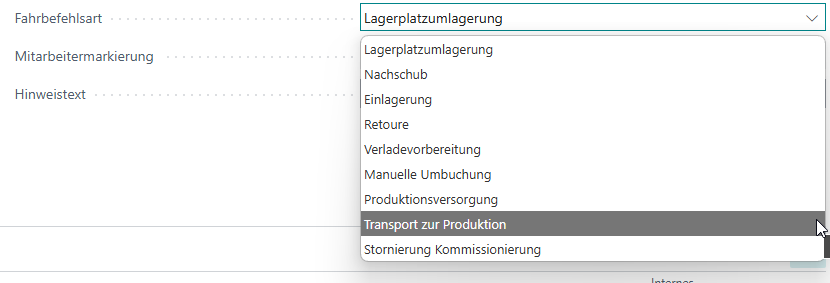
The move order type Production supply remains unchanged, as it is still possible to carry out one-step production supply.
Outside storage
Outside storage items with batch in Outbound Stock Post - Item 111139
Previously, it was not possible to write off external warehouse items with a lot no. during SNCL Outbound Stock Post. The lot no. was always lost. We have now added this functionality. The lot no. is filled correctly in the stock document and the item tracking also contains the correct lot no.
Mobile
New pages for production supply - Item 111235
With this release, we are introducing the new C category on the mobile system.
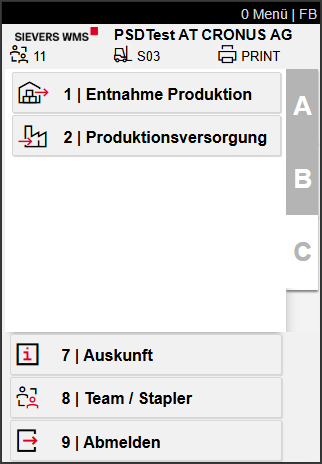
For the time being, this is where you will find the new processes Production Take Out and Production Supply. As usual, when you start one of the processes, the team selection opens first. The filter is set to teams with the type Production supply.
C1 Production take-out
This page is used to process quantities from the warehouse for production. Here, employees can see which move orders have been released for processing, select move orders, and edit them.
C1.1 Overview Take Out - Item 111236

This page shows the current move orders released for processing with the type Production Supply.
- Left: Move order number | Right: Number of move job lines | Far right: Priority. Only the priorities High and Low are shown.
- Left: Comment text
Selecting or entering a move order opens C1.2.
C1.2 Take Out Positions Overview 111261, 111262, 111263 and 111264

Here, the warehouse employee can find out how many and which move job lines the selected move order contains and process them one after the other. To do this, a load carrier (always a SU) is first scanned and then the positions are moved.
If a load carrier is already on the forklift when this page is accessed, the user receives a warning message indicating this fact. This prevents items from being accidentally packed into the wrong SU. If a PTU or SSCC is on the forklift, it must be removed.
- Left: Move order number | Right: Priority (High or Low only)
- Comment text from move order header
- SU number
- Left: Storage place of the first position | Right: Item number
- Left: Lot no., if required | Right: Quantity
- Item description and variant
If the user leaves the position overview while a load carrier is still being picked up, they are asked whether they want to put the load carrier down. If they confirm, they can scan a storage place directly and put the load carrier down. This put-down window can also be accessed manually via F8 or via menu A7.
::: Note Removing the quantity remaining on a pallet and transferring it as a load carrier is not currently supported. This function will be available in one of the next releases. :::
C1.3 Withdrawal Position Processing - Item 111267

Used to process individual move order items in production supply. This page is structured almost exactly like A4.3.
- Item no.
- Item description
- Left: Storage place | Right: SU no.
- Left: Lot no. and sell-by date | Right: Number of pieces from the move job line
- Reserved stock number from the move order
- The quantity to be removed
- Scan the storage unit or inventory here. If there are several inventories on the targeted load carrier, only one inventory can be scanned here
- Depending on the setting of the field No confirmation of take out qty in PS in the SIEVERS WMS setup on the team, this quantity field is pre-filled or remains empty
- Left: Move order number | Right: Priority, if this is low or high
- Comment text
- Load carrier number to which picking is being made
As in A4.3, the user scans the targeted load carrier or inventory and then confirms the quantity to be picked. The next position is then shown in C1.3.
If the process needs to be interrupted, the user can stop the load carrier to be picked at any time by pressing F8 or selecting menu A7.
Small Changes
- Delete requests after x hours renamed to Archive requests after x hours in ShipXpert setup - Item 95539
- The Load Carrier unit of measure field on the Item card and on the Item template has been marked as obsolete and removed because it is not used - Item 60780
- We have added a lookup to the loading process lines for the SSCC. The first click opens the SSCC content and the second click on the SSCC number opens the corresponding Load Carrier card - Item 109686
- The setup field Automatic Item Transfer Jnl. Template Name is no longer a text field but filters to a suitable selection - Item 111255
- You can now search and filter by source no. in the inventory list - Item 64149
- We have adjusted the order of the table columns in the Assembly orders list to make it clearer - Item 99032
- New tile Inbound Stock Post Move Job Lines on the start page - Item 110495
- Improved error message when changing the quantity per unit in the packaging hierarchy - Item 111578
- WMS validity checks when creating a production order have been removed for non-WMS-managed locations - Item 111535
Bug fixes
Status update for initial inventory - Item 105267
We fixed an issue where cycle counting lists of an initial inventory were incorrectly given the state “Counted” immediately after the first inventory was recorded, which prevented further processing in Mobile.
Loading creation in Warehouse Shipment Planning causes error - Item 109684
We have fixed bug that caused an error message when using loading creation from Warehouse Shipment Planning without being able to create a load.
Storage place correctly shown in SNCL warehouse receipt - Item 110806
We have fixed an error that caused the incorrect storage place to be shown in the posted SNCL warehouse receipt.
Production order lines are not reset - Item 111367
We have fixed a bug where the production order lines were not reset correctly after using the “Post output journal” function and remained filtered to the selected production order line.
A5.3 Cannot open order info - Item 111986
We have fixed a bug that prevented order info from being opened from A5.3.
Missing shipping contact information - Item 112412
We have fixed an issue that caused the “Ship-To E-Mail Address” and “Ship-To Phone No.” fields to remain blank when creating shipping orders.
Incorrect navigation from purchase receipt to purchase returns - Item 107488
We fixed an error on the Cancel Approved Items page that caused the Purchase Summary page to open instead of the Purchase Returns page when the source number of a purchase return was selected.
Fixed component quantity validation - Item 111761
We fixed an issue where the system validated component quantities during the production process based on the wrong unit of measure. This prevented the product from being marked as finished.
Error when changing production orders - Item 111980
We have fixed an issue that caused the status change of a production order to Finish with the error message “A finished production order cannot be changed.” even though the production order had not yet been completed.
Two warehouse shipments with different shipping agents not possible - Item 106905
We have fixed an issue that prevented two warehouse shipments with different shipping agents from being created for one order.
WMS fields filled in lines for planned production orders - Item 112564
We have fixed a bug where the WMS fields in the lines of a manually created and released production order were not automatically filled with information from the planned production order.
Automatic mobile login - Item 111702
We have fixed a bug that prevented automatic login to the mobile system.
Posting function for SNCL Outbound Stock Post corrected - Item 105208
We have fixed an error that caused the posting function in SNCL Outbound Stock Post to not work as expected when the lot no. was required for the posting.
Incorrect source of the machine center when refreshing the production order - Item 111910
The “Refresh production order” function with component requirements incorrectly referred to the machine center stored in the item when determining the machine center, rather than the machine center in the production order work plan. We have fixed this error.
Partial delivery indicator without stock document - Item 110726
We have fixed an error where the partial delivery flag was already set in Warehouse Shipment Planning even though the stock document had not yet been created.