Features
Picking
Improved Mobile Picking with GTIN Quantities - Item 75013
Mobile picking page A4.3 is now prepared for use with GTIN barcodes. Reminder: In the item references, you can assingn barcodes to units of measure and mark them as GTIN relevant. You can now scan these barcodes in A4.3 and the quantity of the unit of measure is automatically entered. The page has been changed as follows:
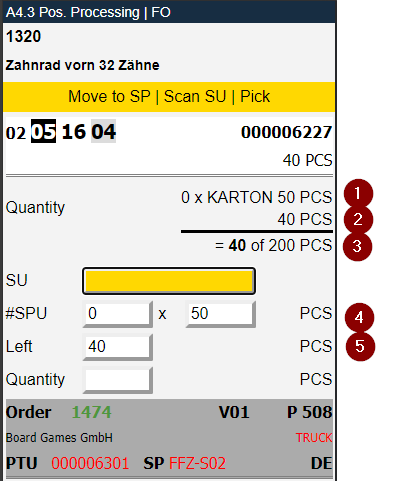
- Calculated number of sub packaging units (SPU) and Qty per SPU required by the order.
- Calculated number or loose quantity needed by the order.
- Left: outstanding quantity needs to be picked. Right: the total quantity which was originally needed in the picking position.
- Here the warehouse employee can influence the number of SPUs and the quantity per sub-packaging. The quantity of SPUs is already suggested. In the field on the left, the warehouse employee enters the number of Load Carriers that he wants to remove and - if the GTINs are not available - the picker must confirm manually (only appears, when there is at least one packaging hierarchy entry with the utilization SPU)
- Here, the warehouse employee can enter a loose quantity manually, regardless of GTIN Scans or suggested number of SPU removal.
The product of the calculation in 4 and the loose quantity entry in (5) is added to the regular quantity field and results in the total quantity which is reported back with an Enter.
The process can works like this:
- The warehouse employee scans a GTIN barcode.
- The assigned qty to the GTIN Barcode in the item references automatically gets reported back.
- If loose quantity missing, these can be reported back with a manual qty entry or with scans of the GTIN - per pcs.
- Once the total quantity has been reached, the quantity is confirmed and the next picking position will be shown.
We have made these corrections after the initial implementation:
- The second "Quantity" line, which shows loose quantities, will only appear if there are actually loose quantities to be picked. - Item 83229
- The calculation fields for the quantity and #SPU will only appear if there is at least one utilization SPU in the items packaging hierarchy. - Item 83233
- General improvement of the interface - Item 83235
A4.2 Checks whether storage units can be converted 1 to 1 to a PTU - Item 74510
To further improve the picking process, we have added a check that verifies whether storage units can to convert a full pallet from SU to a PTU, the employee scans the SU directly in A4.2 the picking pos. overview or in A4.3 in the position processing. It is not necessary to scan a blank barcode. Currently, a PTU or a blank label is still expected after scanning the SU to confirm the pick. The employee is now spared this step if a full pallet can be picked.
Subpackaging Unit Proposals in Warehouse Receipt, Inbound Stock Post and Outbound Stock Post - Items 80983, 80985, 80984 and 82625
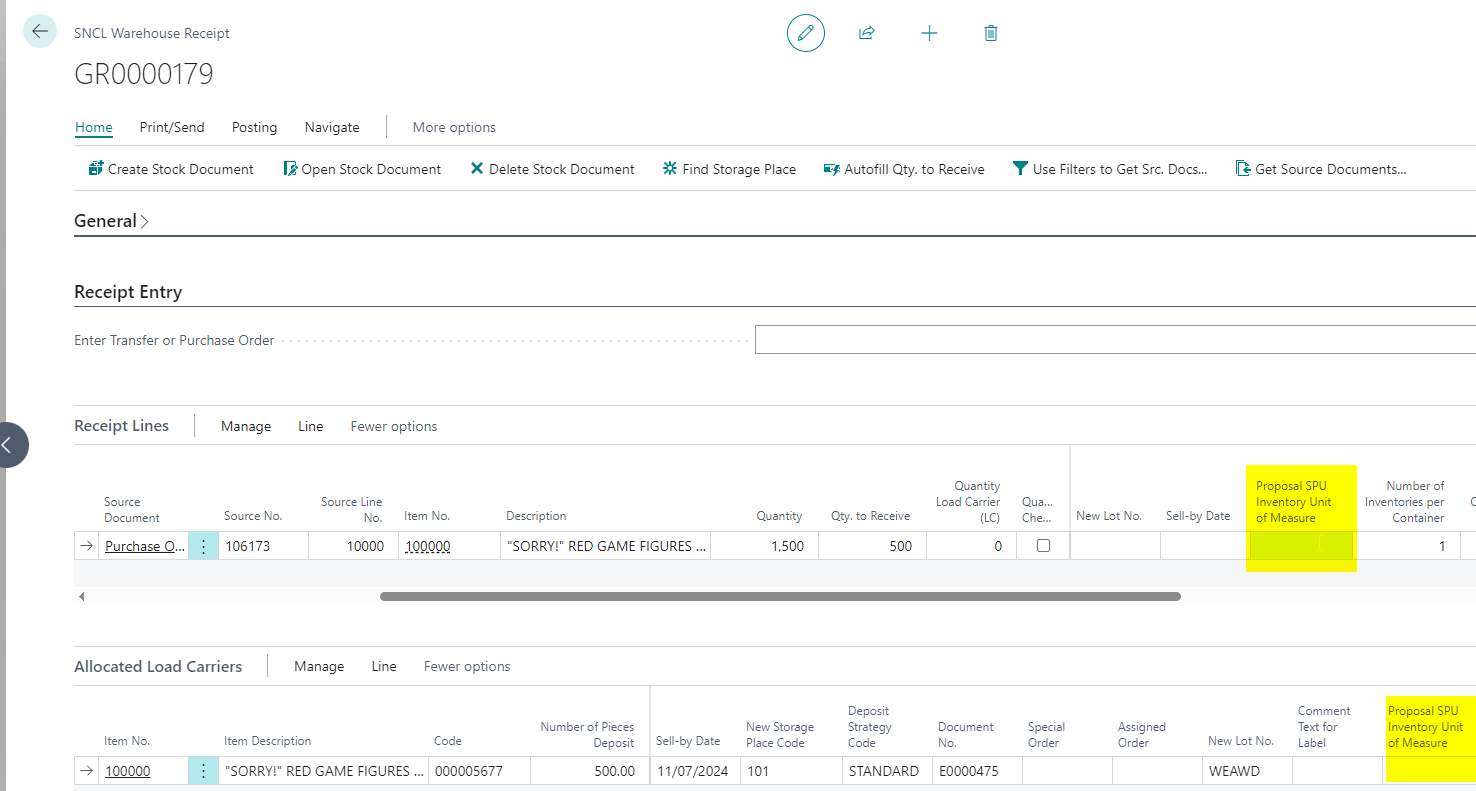
We have made a few changes and improvements to the handling of subpackaging units. We have added the fields Proposal SPU Inventory Unit of Measure, Subpackaging Unit and No. of Pieces per SPU to several pages.
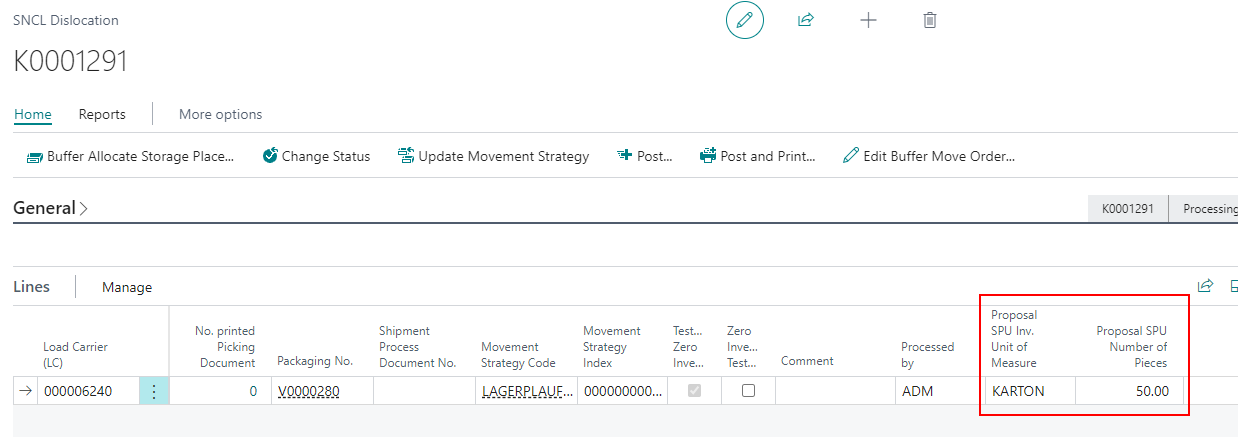
In short: If a subpackaging unit exists in the inventory (For Outbound Stock Posts) or in the item (For warehouse receipts or Inbound Stock Posts), it is transferred to the proposal field as a proposal in the respective warehouse receipt, Inbound Stock Post or Outbound Stock Post line.
Outbound Stock Post & Inventory
We have added these fields to the inventory card:
- Subpackaging Unit (SPU)
- No. of Pieces per SPU
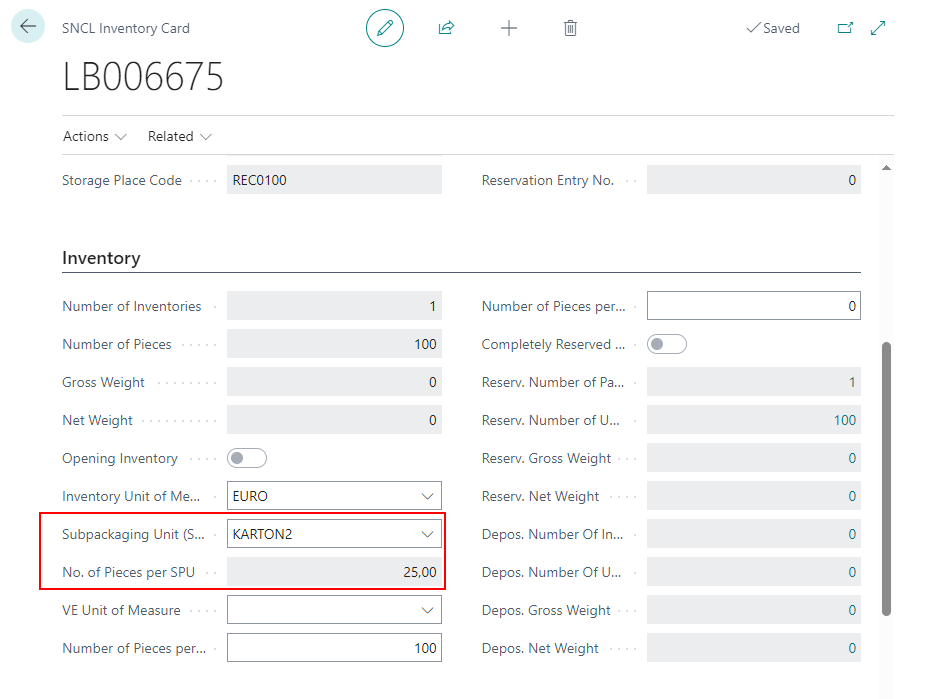
If the inventory has a SPU stored, this is transferred to the Outbound Stock Post line as a proposal. This can also be changed or deleted.
Warehouse Receipt and Inbound Stock Post
Page Items at section SNC Classification and Units -> Subpackaging Unit (SPU)
Page Warehouse Receipt at the sections Receipt Lines and Allocated Load Carriers -> Proposal SPU Inventory Unit of Measure
Page SNCL Inbound Stock Post in the lines -> Subpackaging Unit (SPU)
If you enter an SPU in the field on the Items page, this SPU will be proposed in the Warehouse Receipt in the field Proposal SPU Inventory Unit of Measure in the Receipt Lines. This is a proposal, so the user is able to change or even delete it. The SPU proposal from here will be transferred over to the Allocated Load Carrier lines after creating load carriers. If several Inbound Stock Posts have been created on a load carrier, you can use the SNCL Inbound Stock Post lines to enter different sub-packaging units per inventory.
In the course of implementing this we also limited the characters shown at the field Subpackaging Unit (SPU) on the item card to 10.
Weights and Measure pages on MDE: Volume will get recalculated everytime user presses save - Item 81788
Until now, the values on the weights and measures pages were always taken from the inventory. However, if there was an incorrect volume in the inventory, this was also transferred here. In order to avoid this error in the future, we have implemented a recalculation of the volume that is carried out with every save operation. This means that the volume is always based on the data entered on the MDE.
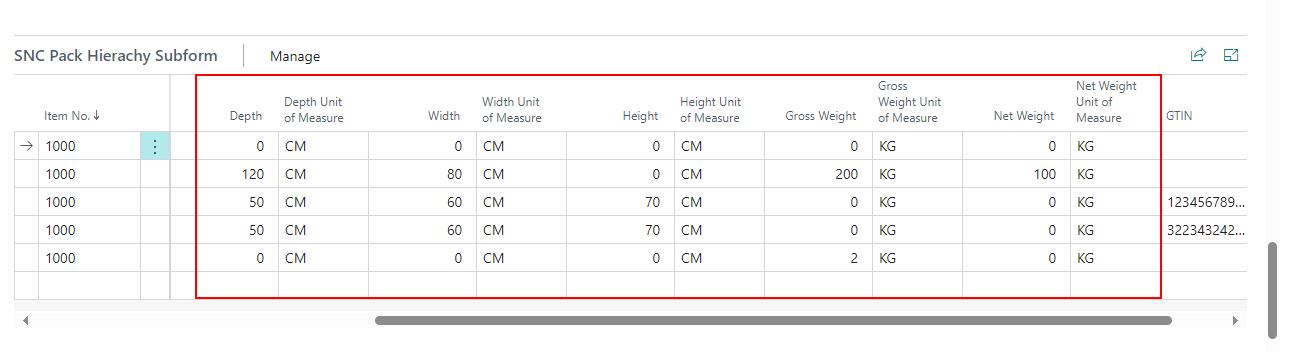
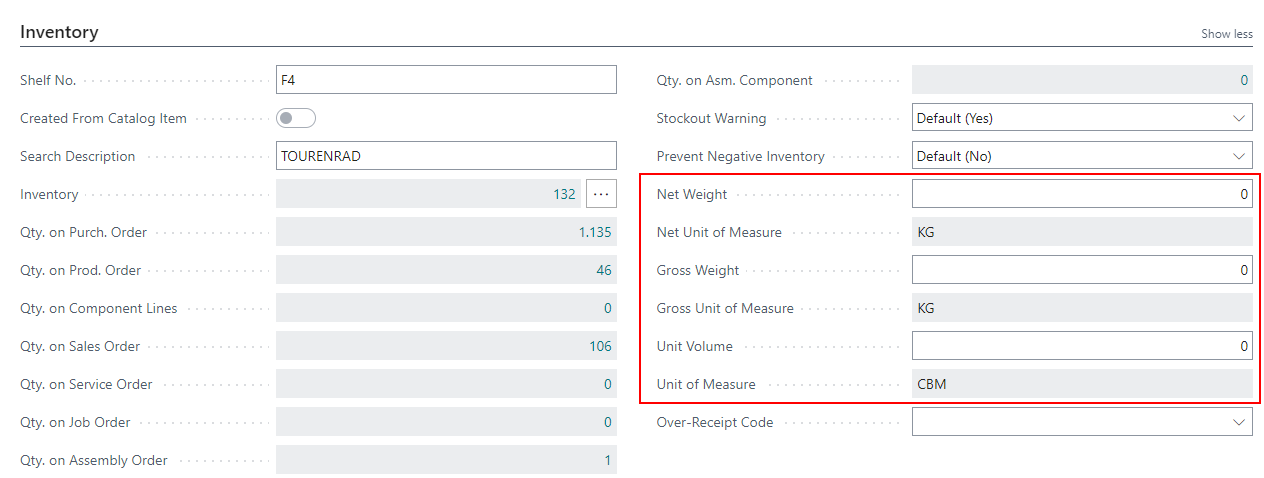
Added Dimension and Weight Units to Pack Hierarchy and Inventory Card - Item 75278
The units of measure for weights and dimensions are now shown on the item card in the "Inventory" and "Pack Hierarchy" sections. They are currently still in separate fields - but this will be improved in the next release.
Mobile Warehouse Receipt
A1.0: Shipping Agent now Drop-Down field - Item 64563
Previously, the shipping agent had to be entered in A1.0 New Unloading using the keyboard. This is inconvenient. Therefore, the text field has now been replaced by a drop-down field that shows all possible shipping agents.
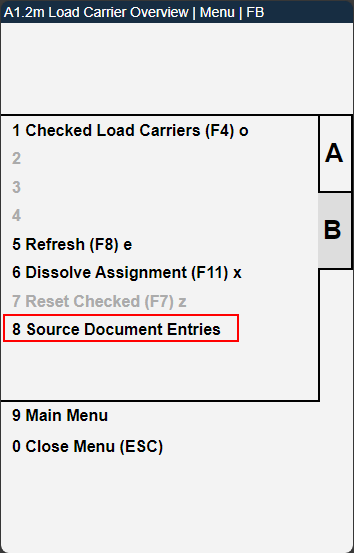
A1.2 New Function Source Document Entries - Item 81810
We have added a new function to the warehouse receipt process on the mobile device: The Source Document Entries. With this you can open a list of related source documents and select a single document. This will be automatically entered in A1.2.
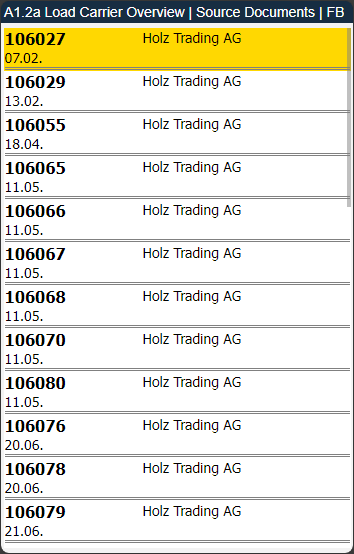
This function is primarily used to simplify the process if there are only a few orders, making delivery much easier.
::: Note This process is not suitable for processing a large number of documents. :::
Process:
- Open the Source Document Entries in A1.2 via menu B
- Scan a document barcode or press Enter to show a complete list of documents. This list will be filtered to a vendor, if you entered one in A1.0 earlier
- Select a document. This is transferred to A1.2
Small Changes to Mobile Warehouse Receipt
- A1.0: Improved error feedback - Item 65824
- Added a refresh button to the menus of A1.1, A1.2 and A1.2o. Refresh via menu B5 or by pressing F8 - Item 63804
- A1.1 now shows info symbol when a WR Info has been entered in the warehouse receipt - Item 74776
- A1.2 now only shows the last 14 characters of the item number - Item 69960
- A1.2: Improved interface by moving the document no. 2 characters to the right - Item 69800
- A1.1, A1.2 and A1.2o: Added help page in the menu B - 2. Open it via menu or by pressing F10. At the moment it's empty but it will be filled in the next release - Item 63803
- A1.1: Added Dissolve Assignment (F11) x to the menu. This will delete all assignments of unchecked load carriers - Item 63810
- A1.1: Added Reset Checked (F7) z to the menu. This will reset already checked load carriers to unchecked status - Item 63814
Added two new Columns to Stocktaking Report - Item 80975
We have added two new columns to the stocktaking report:
- Total Actual Item Inventory
- Total Actual Inventory Value
These show the actual inventory and its value at the time the report was created. These fields might be helpfull as an auditor requests an overview of the actual inventory according to processed counts over a certain period.
Item Transfer now possible without Quantity Restriction - Item 81112
Previously, there was a restriction in the item transfers that prevented inventory in replenishment from being processed with the number of pieces equal to the number of pieces in the move order. This restriction has now been lifted. Item transfers with inventory move jobs can now be carried out with any number of pieces.
Small Changes
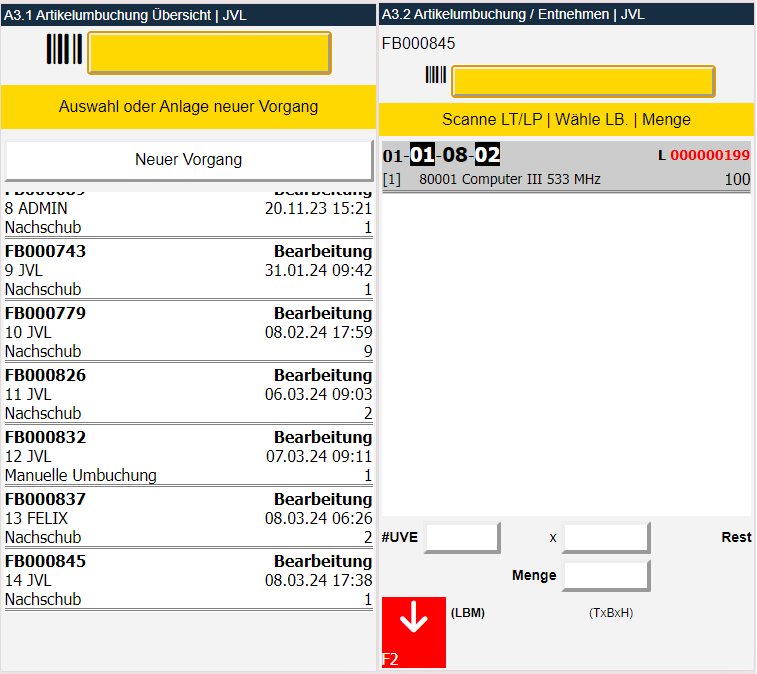
- A4.3: Added a red error message when the user is scanning a wrong load carrier - Item 59816
- A2.0 Internal Movements now shows the target storage place - Item 80306
Bugfixes
Shipment Process Lookup to Warehouse Shipment - Item 69945
Via the Shipment Process List you can click on the Warehouse Shipment No. to open the related Warehouse Shipment. Unfortunately, this link has so far led to the warehouse shipments of Business Central. We have corrected the link.
Item Tracking Lines not getting deleted - item 77088
We have fixed a bug where, in certain situations, item tracking lines were not deleted when deleting a stock document in warehouse shipment, which meant that inventory was still reserved and could no longer be allocated.
A7.3: Scanning a GS1 Barcode not working consistently - Item 82363
We have fixed a bug that caused GS1 barcodes scanned on the A7.3 to not be recognized consistently.
Lot No. not transferred to Stock Document - Item 80722
We have fixed a bug where the lot no. from the Outbound Stock Post order was not transferred correctly to the outside storage Outbound Stock Post document.
Small Bugs and Spelling Mistakes
- The Item Card field Subpackaging Unit (SPU) now only shows units from the Pack Hierarchy with the Utilization Subpackaging Unit - Item 82102
- A1.6 LC Creation: No. LC will be set to 1 after scanning an LC Barcode - Item 82072