Features
Stocktaking
Removed Shipment Date from SNCL Stocktaking Page - Item 69249
Due to a lack of application options we have removed the shipment date from the SNCL Stocktaking Page.
Removing a Stocktaking Journal Batch also removes corresponding Source Document Number from Stocktaking - Item 70987
Previously the user was not able to delete a Stocktaking if it contained a source document number from a stocktaking journal batch - even if the stocktaking itself had no items or Load Carriers entered. We have implemented a solution for this so that the stocktaking journal batch number will be automatically removed from a stocktaking when the user deletes it. This allows the user to cancel stocktaking / cycle counting lists - as long as nothing has been posted.
Automatic Takeover Cycle Counting Lists 1-2 - Items 70617 and 70618
The SIEVERS WMS Setup now contains a new option: Aut. Transfer Cycle Counting Lists 1-2. By activating this option, the Cycle Counting Lists 1 and 2 are automatically taken over into the stocktaking document as soon as they reach the status 4-counted. This reduces the manual effort involved in stocktaking.
::: Attention Please do not use this function yet because it causes a system error. :::
Picking
Changed Dimensions fields on Load Carrier Creation Form in Picking Document - Items 66887 and 66889
We have changed the fields order of the dimensions fields in in the Load Carrier creation form which opens when you click on the Create Load Carrier action on the picking document. The new order is:
- Depth
- Width
- Height
Also the default content of these fields has been changed to the dimensions entered in the inventory measure code. The volume will be calculated based on the entered dimensions.
This also applies to the Subpage Load Carriers Picking on the Picking Document.
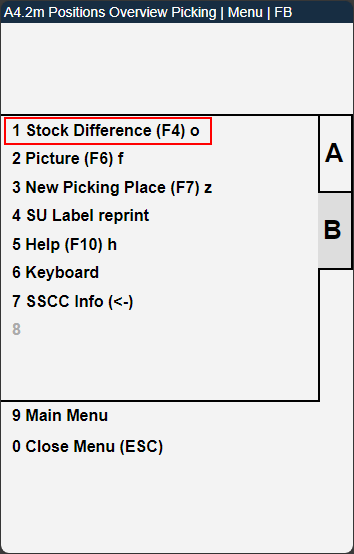
Adjust Inventory while picking - Item 70870
We have recently introduced B3 Inventory Adjustment to adjust inventory while processing a stocktaking. Now you can also do this while picking.
Just press F4 or Stock Difference in the B-menu.
A4.1 Picking List Overview changes - Items 70222 and 70223
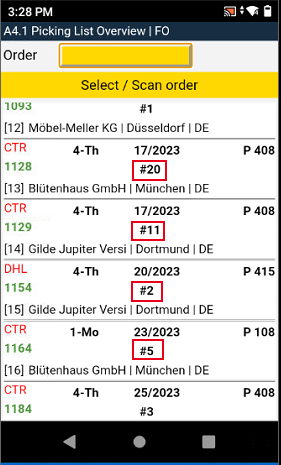
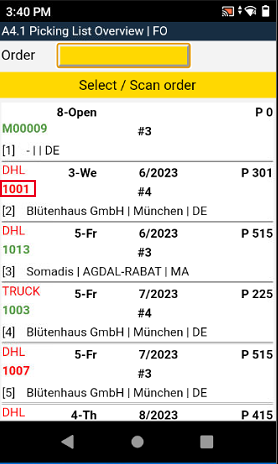
We have changed two things on the MDE page A4.1 Picking List Overview
- The MDE page now shows the number of positions, i.e. the number of inventories from which the order is being picked. This allows the picker to see the size of the order.
- The source document no. is now either green or red, depending on whether it is a partial delivery or not. Green = No partial delivery. Red = partial delivery
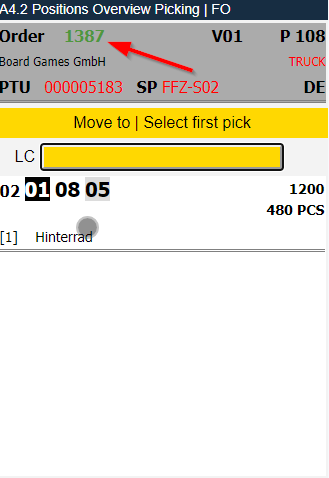
A4.2 Positions Overview Picking: Order color shows partial shipment - Item 70224
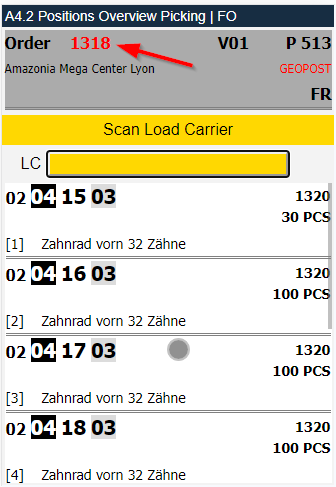
The Order number is now either green or red, depending on whether it is a partial delivery or not. Green = No partial delivery. Red = partial delivery
A4.2 and A4.3: New Menu Item - Item 71273
We have inserted a new menu item in the A4.2 and A4.3 menus: B7 SSCC Info. You can also use the shortcut Arrow key left.
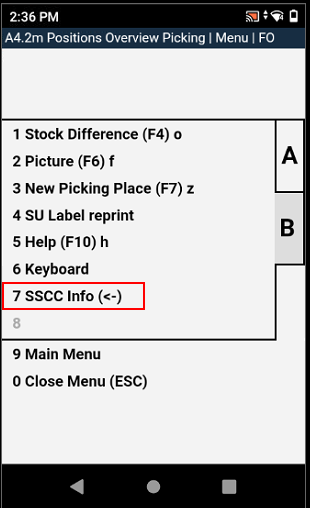
This opens the new page B1 SSCC Info.
A4.2: Added LC in front of scan field - Item 68519
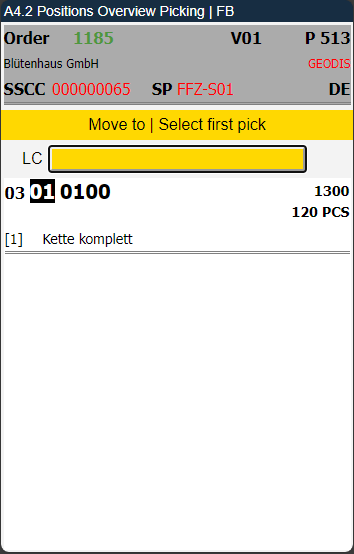
We have added LC in front of the scan field on the A4.2 Positions Overview Picking page to avoid confusion about its purpose. Some users were using this field to scan a storage place after scanning all items. This is not intended and does not work. This scan field is only used to scan load carriers or blanco barcodes to create new load carriers.
Packaging
New function: Remove PTU from Packaging Process - Item 70701
We have added a new function to remove PTUs from the Packaging Process. You can find this Action in the Manage tab in the PTU Picks Load Carrier Subform on the Packaging Card (1 PTU>SSCC) page.
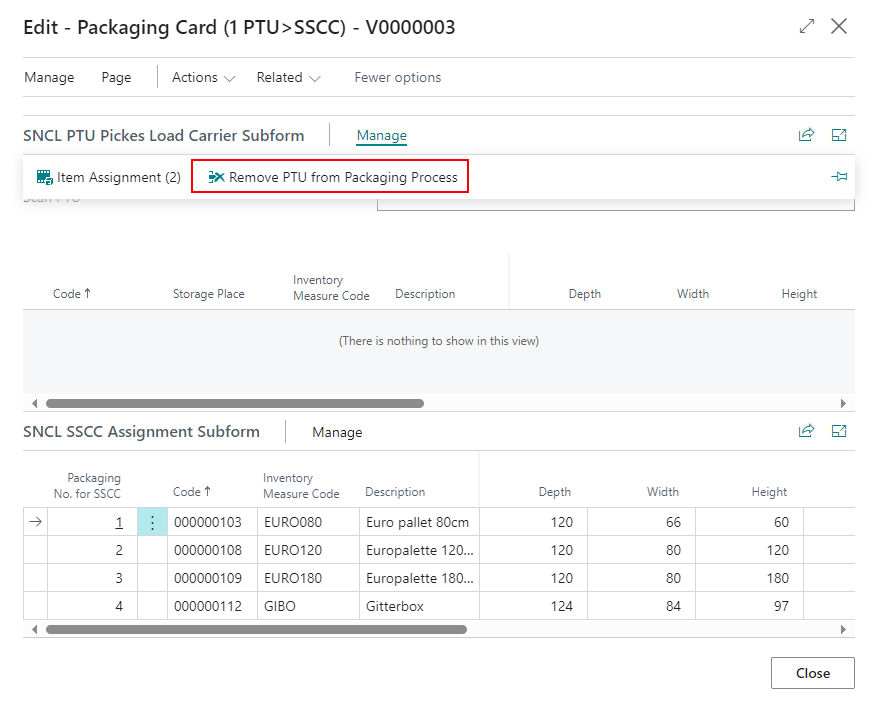
This function removes the PTU from a packaging process so that it can be picked again. This only works for fully unpacked PTUs in the 6-Packed Processing state.
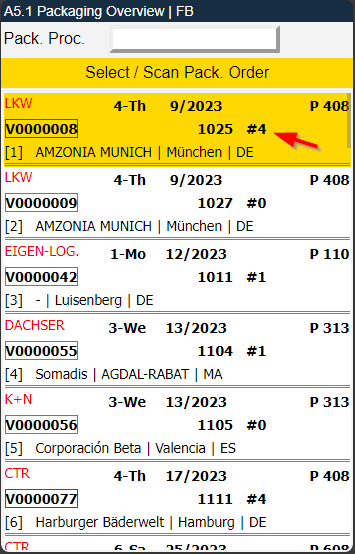
A5.1 shows number of PTUs - Item 70218
The MDE page A5.1 Packaging Overview now shows the number of PTUs per packaging process.
A5.1-A5.3: Order Information - Item 66851
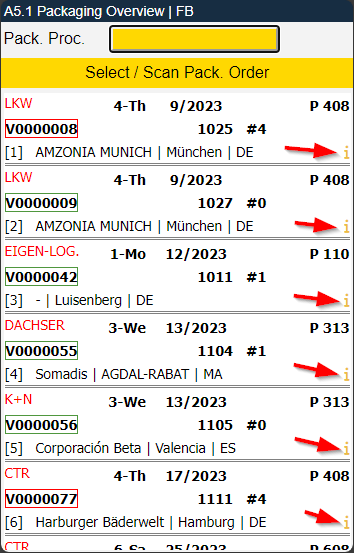
We have added more information to the packaging process pages on the MDE:
Now you can see with an info symbol whether further information is stored for the order. You can open the information page by pressing F3 or CTRL+i.
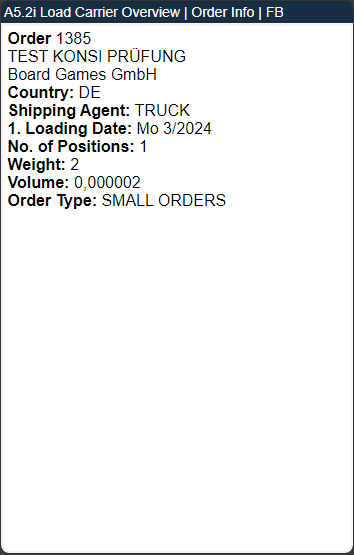
The info page now contains more and better information:
- Customer Reference
- External Document No.
- Weight and volume now calculated by multiplying the number of pieces with the number of PTUs
A5.1: Indicator to tell if order is ready for packaging - Item 70220
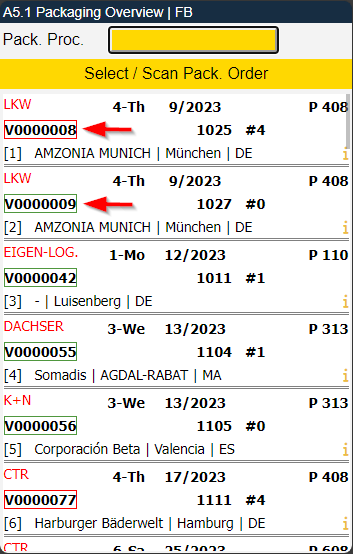
Previously, the packer was not able to decide at a glance whether a shipment was ready to be packed. We have now changed that.
There is now a colored frame around the packaging number on MDE page A5.1.
- Green: All items have been picked and can be fully packed.
- Red: There are items that have not yet been picked or there are missing items in the Outbound Stock Post. Partial packaging is possible.
Setup
Setup Field for Teams: Maximum Number of Documents - Item 70225
To regulate the work of logistics teams, there is now the new setup field Max. # of documents.
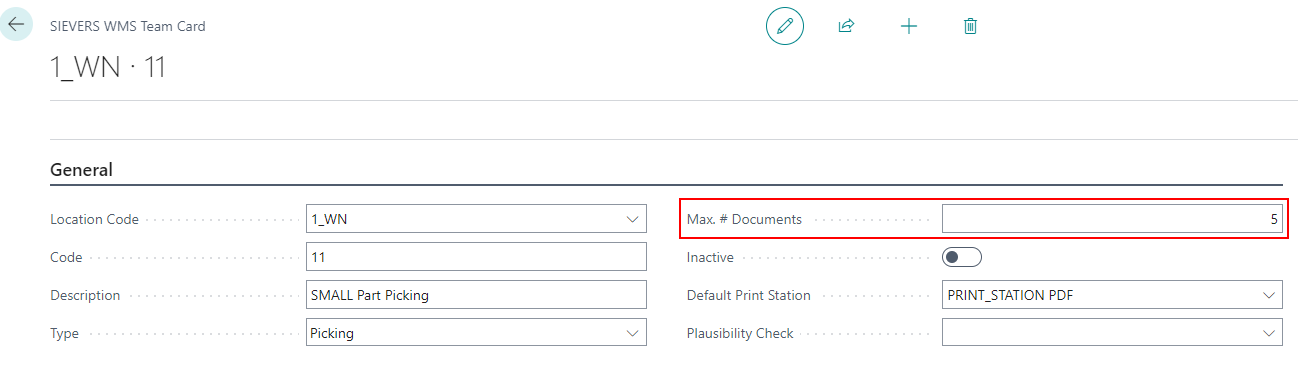
Please note that this is not functional yet! We will implement the function in the next release.
This is how it will work: If, for example, 5 is entered in the new field, the next 5 picking documents (after sorting) will be shown. Current sorting of the picking documents by week, then by priority. The warehouse employee cannot select another picking document via the input field either. Only the next 5 are shown and can be selected.
::: Note Initially, this field will only be editable for teams of the picking and packaging type. :::
SIEVER WMS Setup: New Action to archive Load Carriers - Item 63024
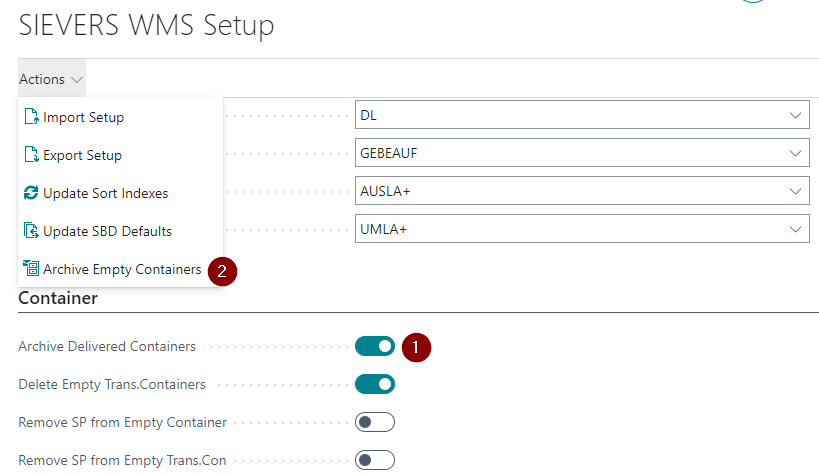
When you activate the option Archive Delivered Load Carriers (1) if there are existing Outbound Stock Post lines for Load Carriers in which the Dislocated field is set, an info message will appear informing you that you need to carry out a manual storage place update. To make this easier, we have added the new action Archive Empty Load Carriers(2) to the SIEVERS WMS Setup.
Rearrangement of SIEVERS WMS Setup - Item 69979
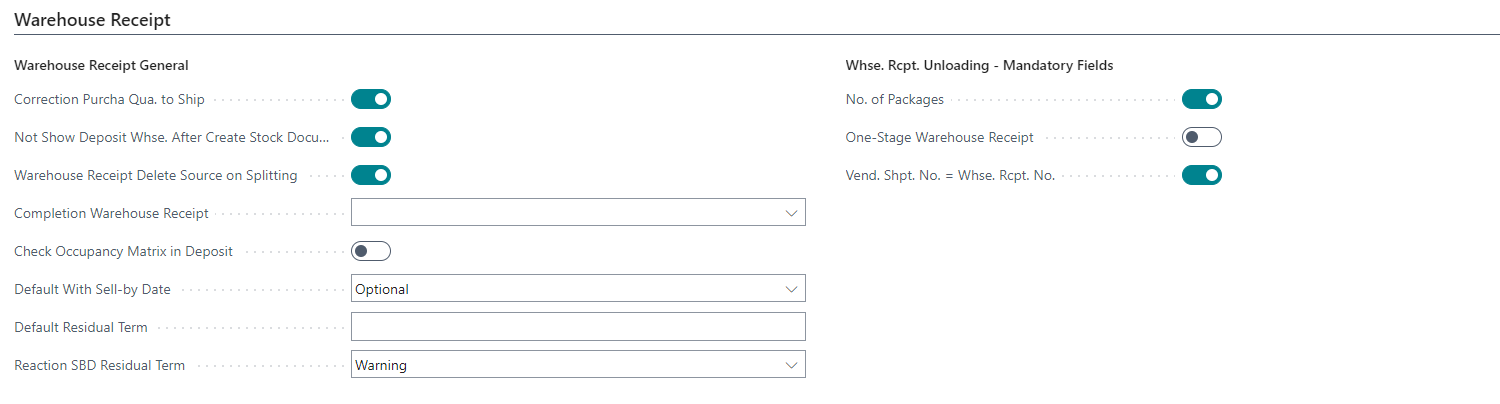
We have moved some of the old settings fields and created some now ones on the setup page to the new Warehouse Receipt tab. They fit better there thematically and this improves the overview. The following fields are now on the Warehouse Receipt tab:
- Correction Purcha. Qua. to Ship
- Not Show Inbound Stock Post Whse. After Create Stock Document
- Warehouse Receipt Delete Source on Splitting
- Completion Warehouse Receipt
- After Commercial Check
- After Physical Check
- Check Occupancy Matrix in Inbound Stock Post
Whse. Rcpt. Unloading - Mandatory Fields
- No. of Packages
- One-Stage Warehouse Receipt
- Vend. Shpt. No. = Whse. Rcpt. No.
Packaging Hierarchy: Multiple Subpackagings per Item possible - Item 69961
From now on, it is possible to set several sub-packaging units per item in the packaging hierarchy. A unique inventory unit of measure must be selected for each sub-packaging.
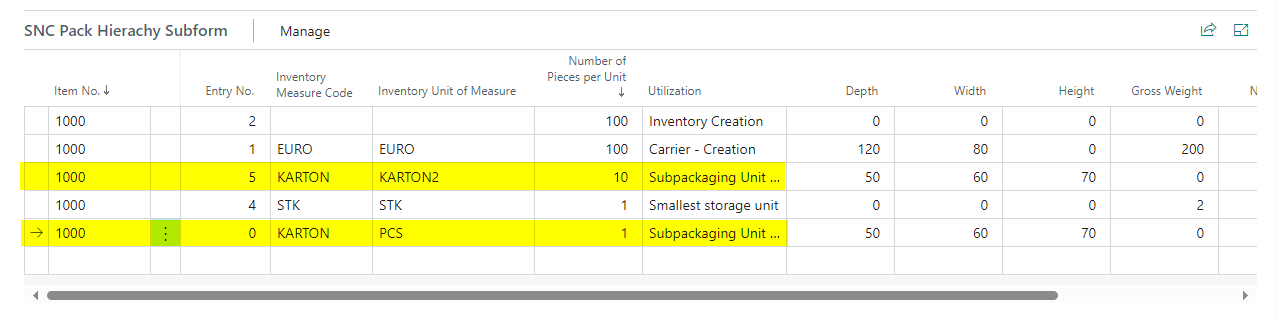
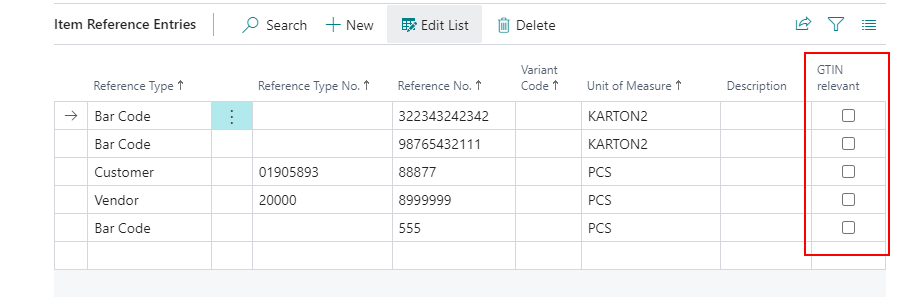
This means that barcodes can now be stored for the automatically created item units.
We have also added the option to mark Item Reference Entries as GTIN relevant.
Warehouse Shipment
Shipping Orders now use Shipping Address from Source Document - Item 63323
Previously, when creating shipping orders, the delivery address was always taken from the master data. However, this could lead to an error during posting if the delivery address in the source document had previously been changed and was therefore different from the one in the shipping order. We have now changed the logic so that the delivery address is taken directly from the source document. If a difference to the master data is detected, the user receives a notification about this.
Open Warehouse Shipment Planning from Outbound Stock Post Order page - Item 70939
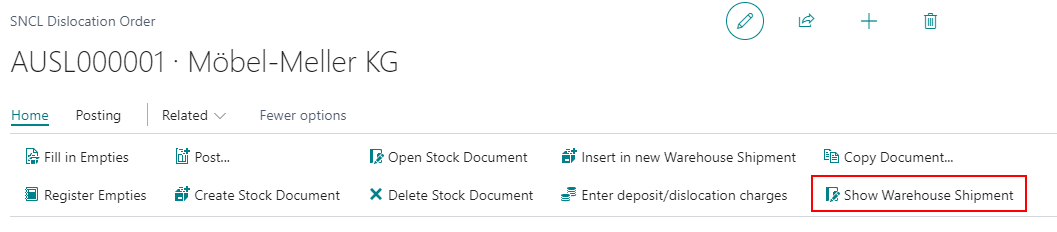
We have implemented the button Show Warehouse Shipment which opens the Warehouse Shipment Planning and displays the corresponding Warehouse Shipment.
New MDE Page B1.1: SSCC Info - Items 71263 and 71267 {#b11}
On this new page you can view all information about SSCCs. Either scan a SSCC barcode or type in a Source Document or a Warehouse Shipment No.
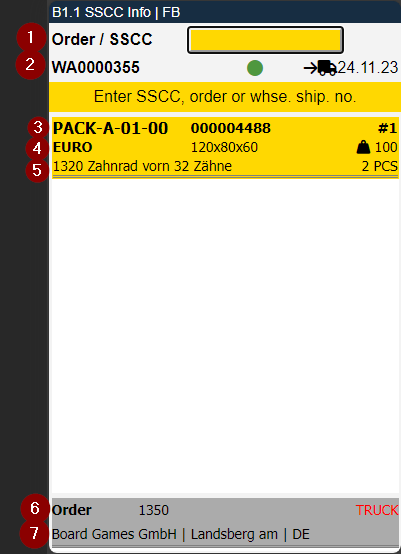
- Scan SSCC, Order or Warehouse Shipment
- Left: Warehouse Shipment No. | Middle: Stock Light from Warehouse Planning | Right: Loading Day
- Left: Storage Place | Middle: SSCC No. (red when not packaged) | Right: Number of items in SSCC
- Left: Inventory Measure Code | Middle: Dimensions | Right: Weight
- Left: First Item | Right: Number of pieces of this Item
- Left: Source Document Type and No. | Right: Shipping Agent Code
- Customer Name, Location and Country Code
Only SSCCs with the states 2,3,4,5,6 or 7 are listed. The SSCCs are sorted first by state and then by storage place in ascending order.
Menu:
A:
- Weights and Measures (F1)
- Print SSCC Label (F9)
- Order Info (F3)
- Information
- Internal Transport (F2)
- Refresh (F8)
B:
- Help
New Workspace Tile for Warehouse Shipment Partials - Item 70877
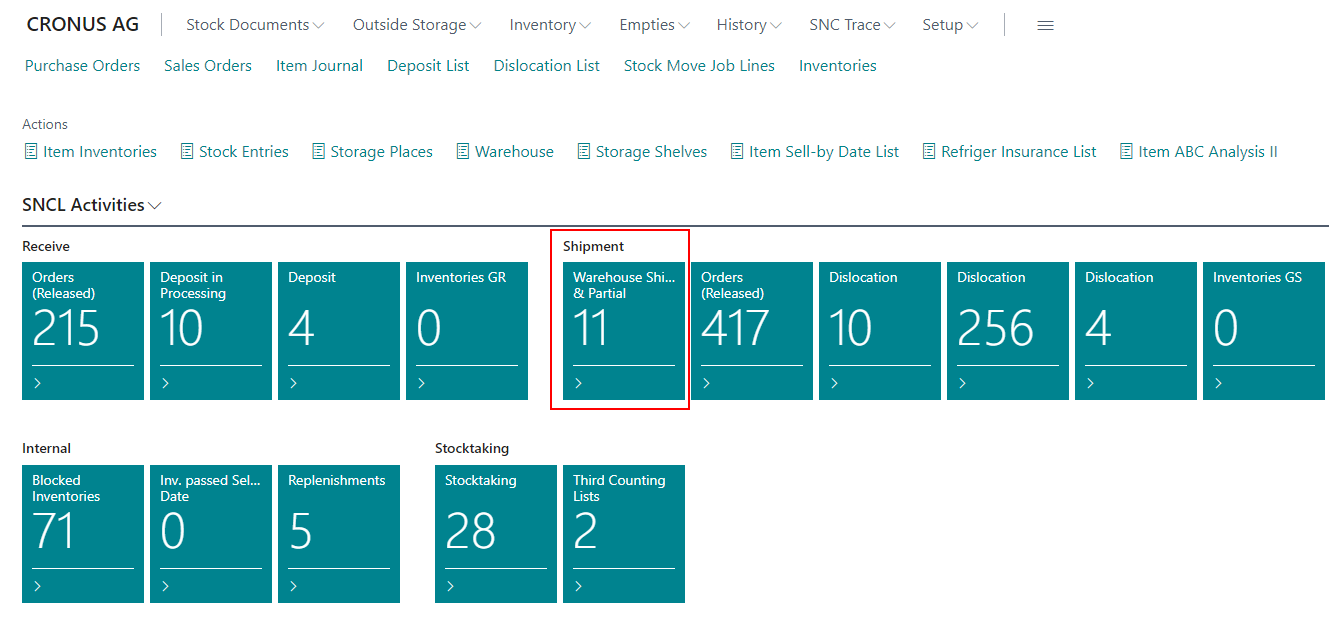
We have created a new tile that can be placed on the SNCL Activities workspace that displays the number of warehouse shipments with partial shipments. Clicking on the tile opens the Warehouse Shipment Planning filtered for partial shipments.
Warehouse Receipt
Input Check - Item 63712
We have implemented an Input check for identification of incoming items. This stipulates that before an item can be processed, it must first be clearly identified. This is to avoid subsequent assignment errors.
Process:
- Enter a value in the scan/input field in pages A1.1, A1.2 or A1.3
- The system now checks whether a unique load carrier/receipt line* could be identified with the input. a. If yes, depending on the existence of a load carrier, A1.4 Pos. Processing (for previously created load carriers) or A1.6 LC Creation (to create new load carriers) opens. b. If no, A1.2k WR Filter opens, where the user can search for the correct item with further filter options
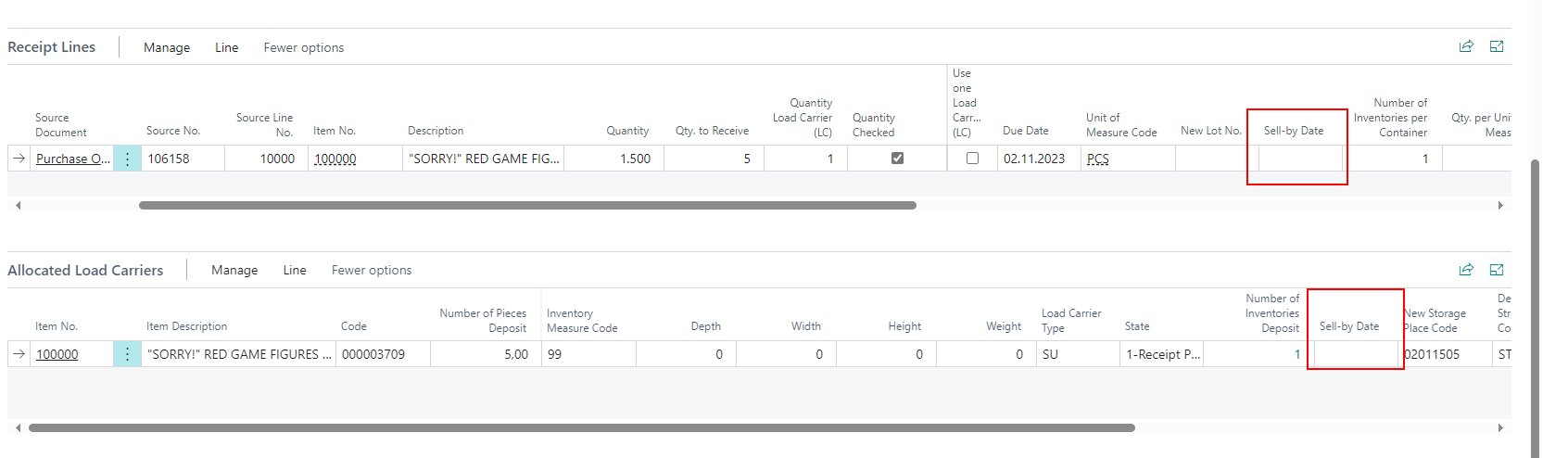
Improved Item Tracking with Sell-By Date in Warehouse Receipt - Item 64909
We have implemented two new columns in the Warehouse Receipt Lines and in the load carrier lines. If Item Tracking is enabled for the item, the Sell-By Date is entered in the Item Tracking rows. This results in the Sell-By Date from the Purchase Order or Inbound Stock Post Order being displayed here. If there is more than one Sell-By Date per entry, the entry is split per Sell-By Date to ensure that different dates are not mixed in the same load carrier.
New MDE page: A1.2i WHS Overview WHS Info - Item 63793
This new page shows information about the currently selected warehouse receipt. You can open it from the pages A1.1, A1.2, A1.2o and A1.1.GS1o via F3 or the menu.
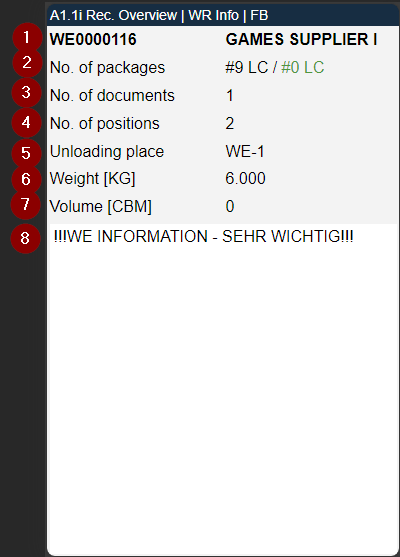
- Warehouse receipt no. and customer
- Number of load carriers in the WHS Receipt / how many load carriers have already been checked
- Number of source documents in the WHS Receipt
- Number of source documents in the WHS Receipt
- Unloading place from the WHS Receipt header
- Total weight according to load carriers. If no load carriers are available, then gross weight from the packaging hierarchy
- Total volume according to load carriers. If no load carriers are available, then volume from the packaging hierarchy
- WHS Receipt Info
New MDE page: A1.2o Check Load Carrier Overview - Item 63761
We have implemented a new page for the warehouse receipt on the MDE. With A1.2o Check Load Carrier Overview you can view an overview of already checked load carriers. You can enter the page via CTRL+O or via menu.
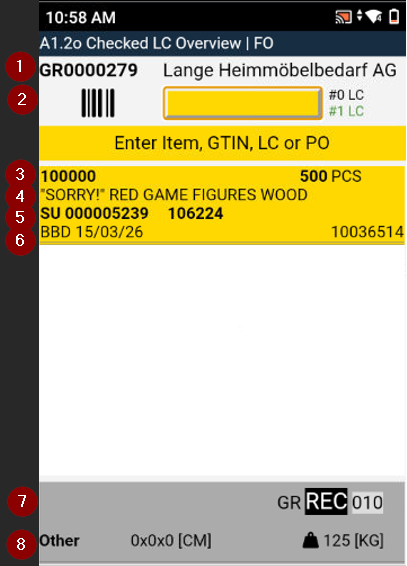
- Left: Warehouse Receipt No | Right: Vendor
- Middle: Scanfield for search for checked Load Carriers | Right: Number of Items in the Load Carrier
- Left: Item No. | Right: Number of Pieces
- Notice
- Left: Source Document | Middle: Target Storage Place
- Left: Best Before Date | Right: Lot No.
- Right: Storage Place
- Left: Load Carrier Type | Middle: Dimensions | Right: Weight
If you want to reset an already checked load carrier you can do that by pressing CTRL+z or F7.
This page will be further improved in the next releases.
New Shortcuts on pages A1.1, A1.2 and A1.2o - Items 63797, 63798 and 63846
We have implemented new shortcuts on A1.1, A1.2 and A1.2o:
- Right Arrow Key: Open A7.1 Item Info, if possible with already entered load carrier or item
- CTRL+i or F2: Open A3.1 Item Transfer Overview
- CTRL+z or F7: Reset checked load carrier (only A1.2o)
New MDE Page: A1.2k Load Carrier Overview WR Filter - Item 63726
We have implemented a new page for the warehouse receipt on the MDE. The WR filter is required to identify pre-filled load carriers or receipt lines in a warehouse receipt (or several warehouse receipts via A1.1) with regard to their identity and quantity so that they cannot be mistaken.
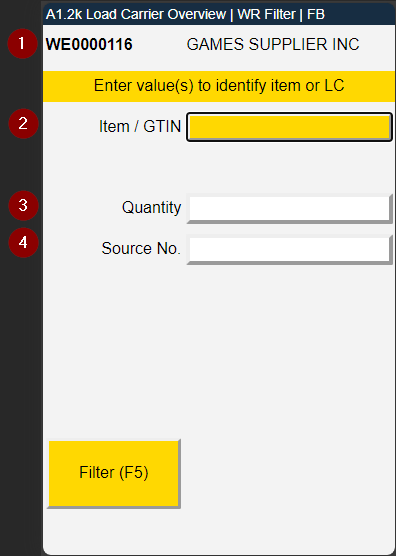
- Left: Warehouse Receipt No. | Right: Vendor / Shipping Agent
- Input field for Item No. / GTIN
- Input field for Quantity
- Input field for Source No.
Process:
- The warehouse receipt employee can open the filter at any time with F5 (ctrl+k)
- The employee enters one or more values until a load carrier line (or several identical ones) or a document line quantity has been identified
- The Filter (F5) button turns green, the employee presses F5. The employee is now shown the filtered page A1.2. As long as there is no uniqueness, the button is yellow.
This page will be further improved in the next releases.
New MDE Page: A1.4 Pos. Processing - Item 63713
When an incoming load carrier has been clearly identified, this page opens. Here, the Warehouse Receipt employee can check and release the load carriers content.
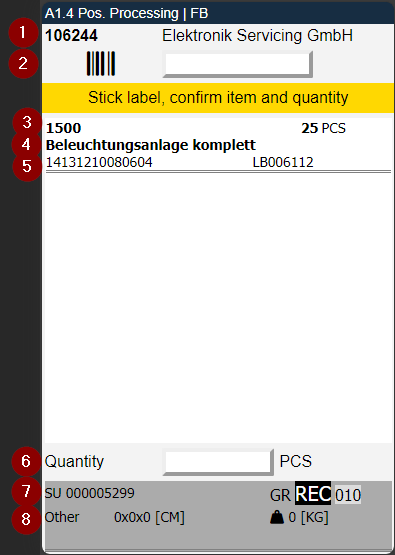
- Left: Order No. | Right: Vendor
- Scanfield to scan Items and GTIN
- Left: Item No. | Right: Number of Pieces to check
- Item Description
- Left: GTIN from Item References matching basic unit of measure | Right: Inventory Number
- Enter Quantity
- Left: Load Carrier Type and No. | Right: Storage Place
- Left: Inventory Measure Code | Middle: Dimensions | Right: Weight
Entering the correct quantity opens A1.5 LC Confirmation.
New MDE Page: A1.5 LC Confirmation - Item 63729
A1.5 Load carrier confirmation appears whenever a quantity of a load carrier is confirmed in A1.4. Here the user can scan a load carrier barcode to mark it as checked. The load carrier will be removed from A1.2. If the users want to reset the checked-state, they have to do this via A1.2o. Only checked load carriers can be posted later with the Warehouse Receipt.
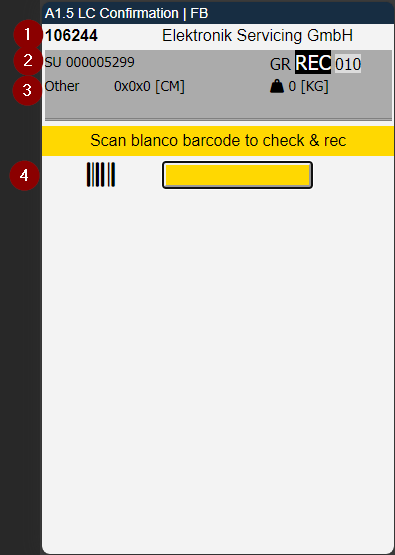
- Left: Order No. | Right: Vendor
- Left: Load Carrier Type and Code | Right: Storage Place
- Left: Inventory Measure Code | Middle: Dimensions | Right: Weight
- Here you can scan a PTU, SSCC or Blanco Barcode
New MDE Page: A1.6 LC Creation - Item 63730
We have implemented a new MDE page in the Warehouse Receipt process for the users to be able to create new load carriers during the process. The page has the following functions:
- Create several load carriers of the same type
- Assign a quantity (partial or complete quantity) to a single, new load carrier using a Blanco Barcode
- Add a certain quantity to an existing load carrier
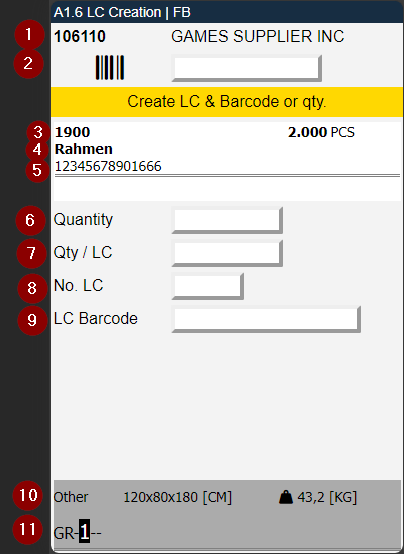
- Left: Purchase Order No. | Right: Vendor Name or Shipping Agent
- Scanfield to scan Item or GTIN
- Left: Item No. | Right: Number of Pieces
- Item Description
- GTIN
- Calculated Quantity from 7 and 8
- Quantity to be assigned to Load Carriers
- Number of necessary Load Carriers
- Field for a single Load Carrier Barcode. Only editable if No. LC = 1
- Left: Inventory Measure Code | Middle: Dimensions | Right: Weight
- Storage Place
Process:
- Scan a Barcode
- Quantities will be entered automatically
- Assign weights and measures with New MDE Page: A1.6b LC Creation | Weights and Measures
- Create Load Carriers via menu A8
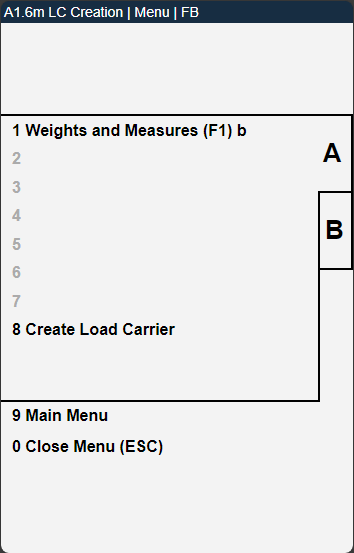
New MDE Page: A1.6b LC Creation | Weights and Measures - Item 71264
We have implemented a new MDE page in the Warehouse Receipt process for users to be able to enter an Inventory Measure Code, Weights and Measures for new load carriers when creating them in A1.6 LC Creation.
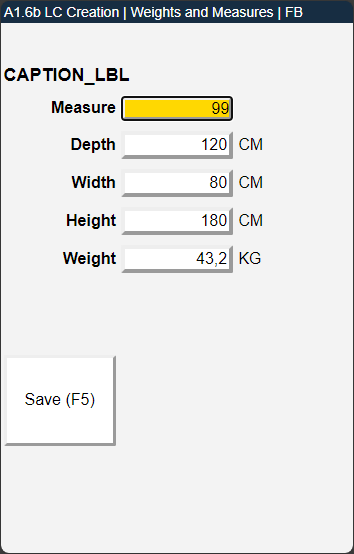
Here the users can assign an inventory measure code or enter the dimensions and weight by themselves.
Load Carrier
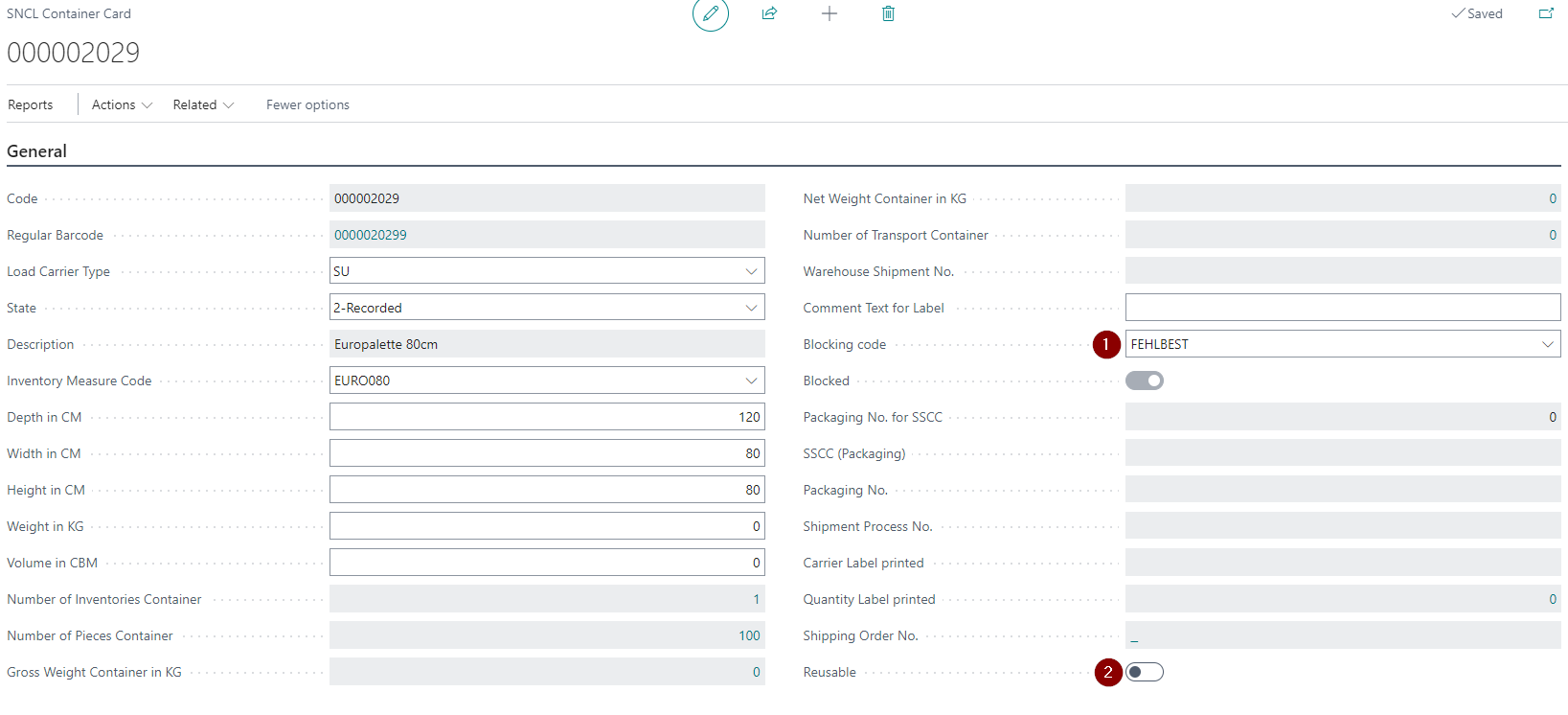
Load Carriers not reusable when blocked - Item 70745
If a Blocking Code is entered on the Load Carrier (1), the Reusable indicator (2) is set to No. This is to prevent reusing blocked Load Carriers. If the Blocking Code is deleted, the Reusable indicator is updated based on the inventory measure.
Outside Storage
New fields on Outbound Stock Post Order and Sales Order - Items 65667 and
We have added a a lot of new fields to the Outbound Stock Post Order and the Sales Order.
Outbound Stock Post Order {.unlisted -}
General:
- Due date
- Requested Delivery Date
- Promised Delivery Date
Lines:
- Requested Delivery Date
- Promised Delivery Date
- Created At
- Created By
- Modified At
- Modified By
Shipping:
- Outbound Whse. Handling Time
- Shipping Time
Foreign Trade:
- Transaction Specification
- Transaction Type
- Transport Method
SIEVERS WMS:
- Order Type
- Priority
- Packaging Team
- Unloading Point
- Partial
- Availability
- Status Stock
- Status Picking
- Status Packaging
- Status Loading
Sales Order {.unlisted -}
Lines:
- Created At
- Created By
- Modified At
- Modified By
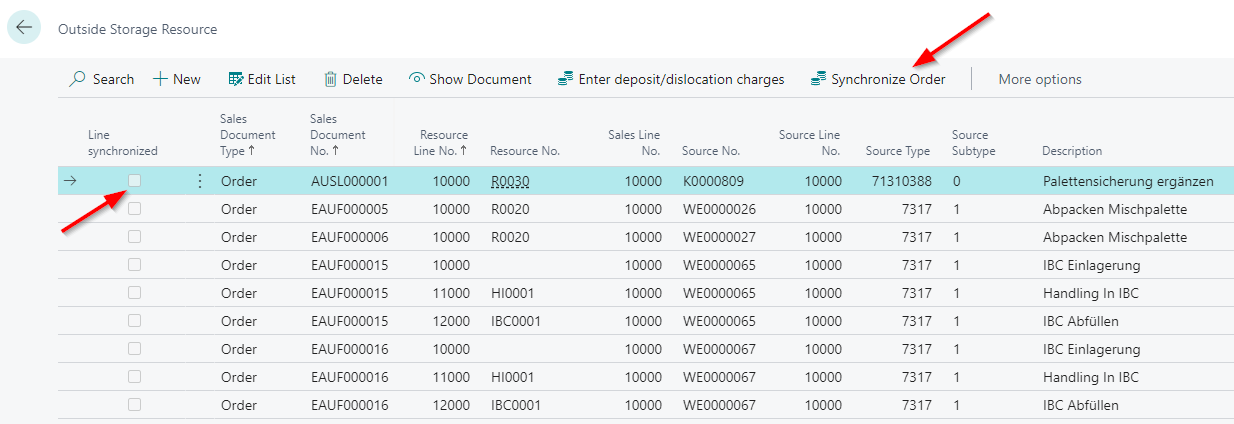
Outside Storage Resources: Checkbox to see if line has been synchronized - Item 66174
With the Synchronize Order button on the Outside Storage Resource page you are able to synchronize resources to the respective order. Previously, it was not possible to see at first glance if the synchronization was working. That's why we've added a Line synchronized checkbox to the page. This checkbox will be activated if the synchronization worked.
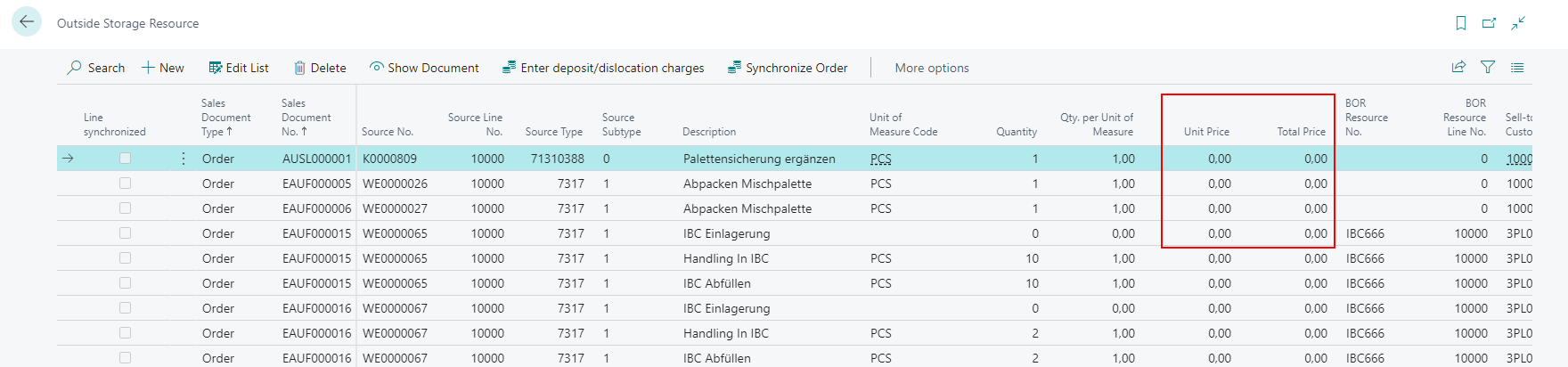
Prices on the Outside Storage Resources - Item 66171
We have added two new columns to the Outside Storage Resource page:
- Unit Price
- Total Price
Assembly
Using Inventory Measure Code for Assembly Stock Document - Item 70791
If a Inbound Stock Post for the receipt of the finished part is generated from an Assembly Header and the item has not filled the packing hierarchy, the default inventory measure from the SIEVERS WMS setup is suggested as the inventory measure.
Minor changes
- You can now enter very low weights by up to 5 decimal places on the SNC Order Type Category page - Item 65940
- Reduced error popups on mobile and instead use feedback box more - Item 70649
- A6.2: Unload SSCC now possible without selecting a row before by pressing F8 and scanning it - Item 71046
- The WMS Setup Option Vend. Shpt. No. = Whse. Rcpt. No. now works not only on the MDE but also in the warehouse receipt document - Item 74736
- Users are now able to enter outside storage items in the item journal - Item 66022
- Users are now able to open A7.1 Item Info by pressing the right arrow key on the MDE on pages A1.1, A1.2 and A1.2o. - Item 63797
Bugfixes
Warehouse Receipt throws error for Over-Shipments - Item 69816
We have fixed an error that occurred when you tried to enter more pieces of an item - in other words, an over-shipment - in the warehouse receipt.
No Packaging Process getting generated - Item 74494
We have fixed an issue where under certain circumstances it was possible to finish a picking process without creating a new packing process.
Removing Packaging does not result in removed Packaging Lines - Item 74772
We have fixed an issue that caused packaging lines to remain even after the packaging document itself was removed. This also caused the packaging document number to remain on the move lines, resulting in a broken process. The fix includes the following changes:
- Deleting the packaging always deletes the packaging lines as well
- The packaging numbers in the Outbound Stock Post lines are also deleted
- The packaging can only be deleted if there is no SSCC in the Outbound Stock Post
- PTUs must always be reset first
Removing Production Journal lines results in error - Item 71187
When you removed production journal lines which were part of an already finished Outbound Stock Post, an error would appear informing you of already picked parts. After that, the page closed and the user could not open it any more.
We have fixed this bug. Part of the fix was to implement an automatic removal of already picked Outbound Stock Posts when users close the production journal.
Deleting Packaging process resulted in list packaging lines - Item 75586
If a packaging process was deleted as soon as a PTU was converted into a SSCC and then the state was converted back (to 2-Recorded) then the lines of the packaging remained and the packaging number remained on the Outbound Stock Post line.
We have fixed this bug by
- automatically deleting the packaging lines when deleting the packaging process
- automatically deleting packaging nos. in the Outbound Stock Post lines
- making the packaging process only deletable when there are no SSCC in the Outbound Stock Post