Features
Stocktaking
New Stocktaking Report - Item 67125
We have created a new report to help with stocktaking analysis, the Stocktaking Report. You can use this report in Business Central or export an Excel file. These fields are part of the report:
- Document No.
- Journal Batch Name Global
- Storage Place Code
- Load Carrier Code
- Inventory No.
- Item No.
- Item Description
- Number of Pieces
- Number of Units Packed
- Lot No.
- Serial No.
- Base Unit of Measure
- Item Unit Cost
- First Count
- Second Count
- Third Count
- Difference Last Count
- Difference Last Count Percent
- Difference Last Count Unit Cost
- Threshold Qty Difference
- Threshold Value Diff. LCY
- Posting Date Global
- Processed By
Filtering before report generation is possible with these fields:
- Items
- Items with current Inventory
- All items
- Sorting
- Items
- Storage place (ascending)
- Inventory value (descending)
- Output Number of Report lines
- Item no.
- Location code
- Warehouse code
- Storage shelf code
- Level code
- Row code
- Storage place code
- Posting date

New Stocktaking: Location Code based on User - Item 66842
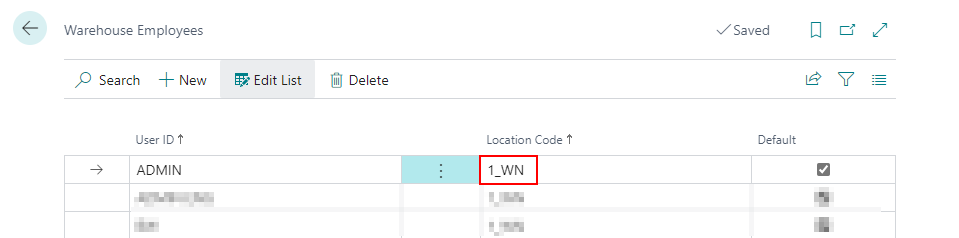
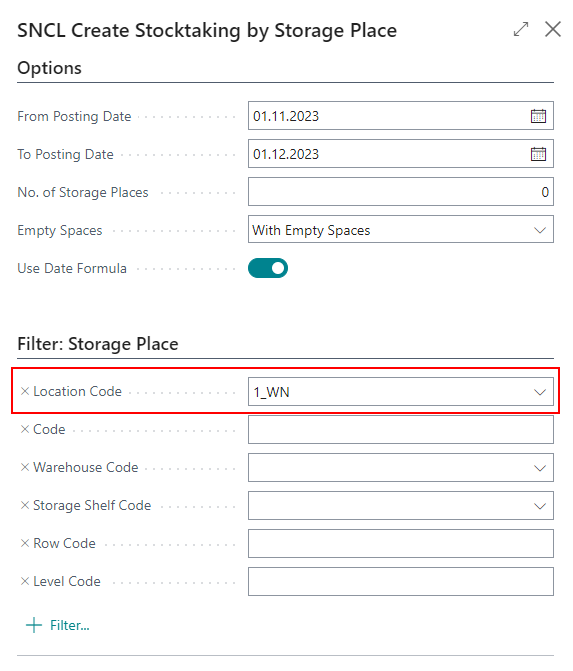
When you try to create a new stocktaking by storage place, the location code assigned to the user on the Page Warehouse Employees will be entered automatically in the respective field. You can still edit it, if you want.
Removed B4 Initial Stocktaking as MDE Program - Item 66544
We have removed the option B4: Initial Stocktaking from the MDE device. For now, the fourth button stays empty.
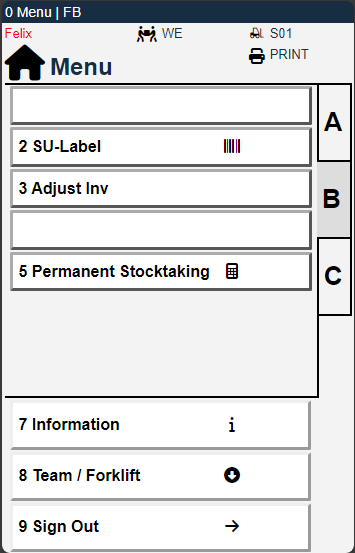
But don't worry: The process of an initial stocktaking has already been transferred to regular stocktakings. For more information on this, see Release Info 19 at section New Action for Stocktaking - Item 66506.
B5.2: Leaving stocktaking will not delete some stocktaking types anymore - Item 69706
Normally, stocktakings are deleted when users exit them in the middle of the process. We have changed this for the following stocktaking types:
- Annual Stocktaking
- Manual Stocktaking (Status Quo)
New Column in Post. Stocktaking: Last Count - Item 69345
There is a new column in the posted stocktaking: Last Count. This column shows which count was last carried out. In this way, the user can always know whether one count has been completed or whether a 2nd or 3rd count has been carried out.
Find new inventories on the MDE Page B5.5 - Items 66523, 66528, 66532, 66535, 66535
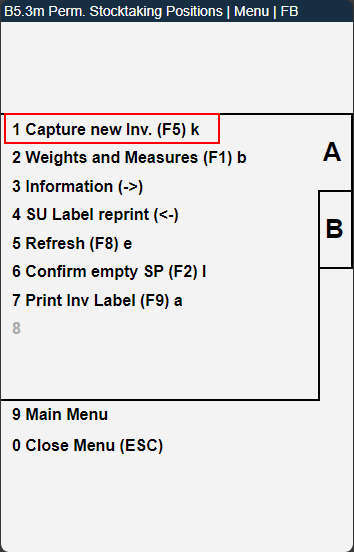
If you are in a stocktaking process and you find a new inventory, you can use the function ctrl+k or F5 on the mobile device to open B5.5 NEW INVENTORY.
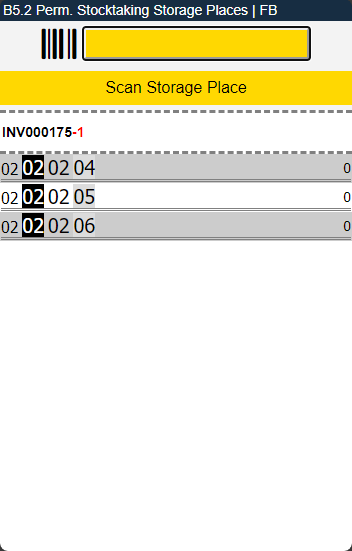
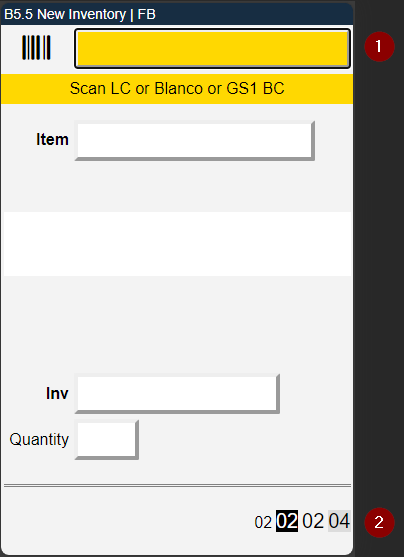
Here you can scan several types of codes:
- Item No.
- GTIN
- GS1 Barcodes
- Blanco Barcodes to create new Load Carriers
- Existing Load Carrier Barcodes
- Scan the item you just found
- Scan a Blanco Barcode for a new Load Carrier or scan an existing Load Carrier (can also be archived)
- Enter a quantity
- Scan another item or leave B5.5 by pressing Escape two times
::: Note We will improve the process in one of the next releases: After finding and entering a new inventory, the system displays B5.2. The user can proceed to the next storage place. If the user has not entered a new inventory, the system displays the selected storage place in B5.3. :::
If the item has been set up in the Classification and units of measure section to require a sell-by date, serial number or lot no., the corresponding fields are displayed.

Menu
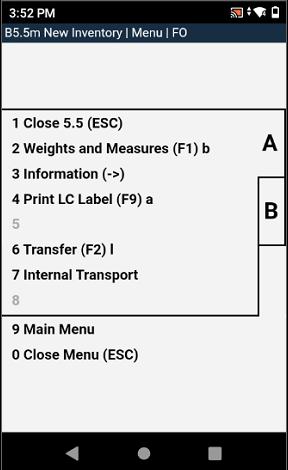
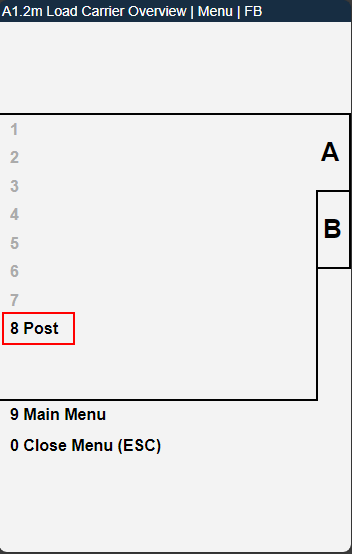
You can open the menu with STRG + M. It has the following entries:
A:
Close 5.5
Weights and Measures
Information
Print LC Label
Transfer
Internal Transport
Main Menu
Close Menu
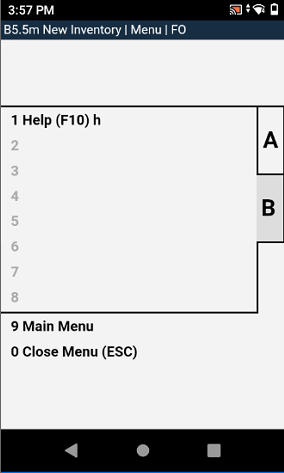
B:
Help
Main Menu
Close Menu
Warehouse Receipt
New columns in Warehouse Receipt - Item 64892
We have added the new column New Lot No. to the Receipt Lines and the Allocated Load Carrier Lines in the SNCL Warehouse Receipt.
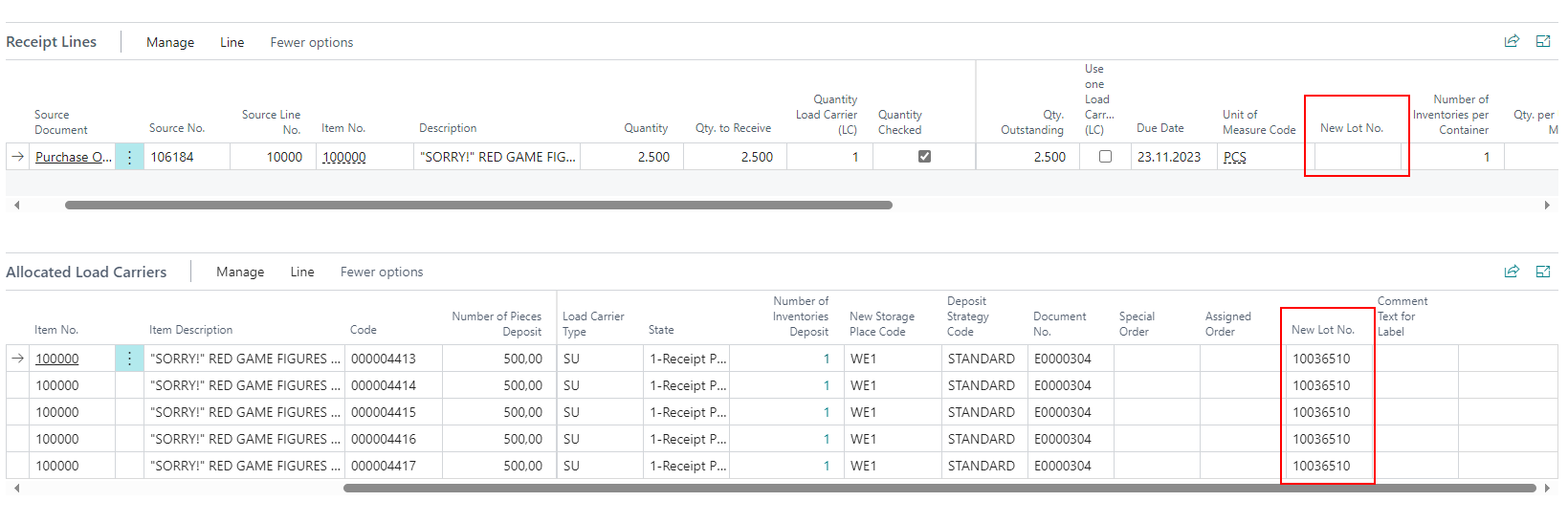
These fields are only available for edit if the item has Lot No. Necessary activated in the SNC Classifications and Units section. The fields work like this:
The lot no. in the receipt lines is only a suggestion value for the lot no. in the load carrier lines. If a lot no. has been entered in the receipt lines, it is transferred to the load carrier lines when they are created. If the lot no. in the receipt lines is now changed, the number in the load carrier lines remains the same. If you want the new lot no. to be transferred to the load carrier lines, these must be deleted and recreated.
After posting, the lot no. is entered in the inventory and stock entries.
Post Warehouse Receipt directly on Pages A1.1 and A1.2 - Item 63800
Once you have checked all load carriers, you can now also post the warehouse receipt directly from the MDE.
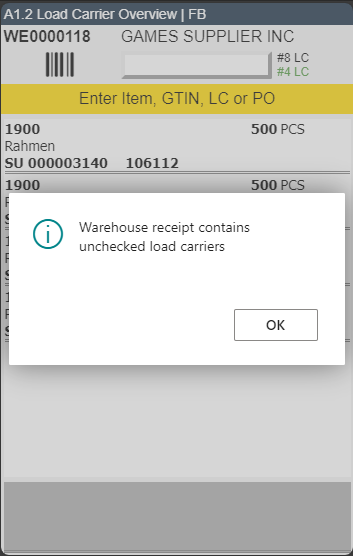
If the warehouse receipt still contains unchecked load carriers, you will receive an error message.
New Page A1.3 Position View - Items 63708 and 63725
We have implemented the new page Position View on the MDE device. You can enter it by using Enter on a load carrier in A1.2 Load Carrier Overview.
This page provides information and shows the item positions of the load carrier.
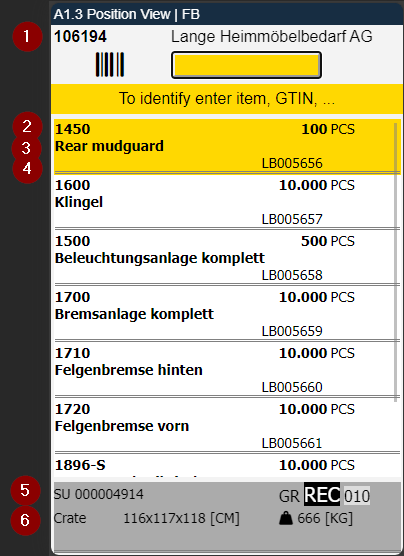
- Left: Warehouse Receipt No. | Right: Vendor
- Left: Item No. | Right: Quantity
- Left: Item Description
- Right: Inventory No.
- Right: Load Carrier Type and Load Carrier No. | Right: Storage Place of the Load Carrier
- Right: Inventory Measure Code | Middle: Dimensions | Right: Weight
::: Note With the scan field at the top, it will be possible to scan load carriers and then edit the position. This functionality is expected to be implemented in the next release. :::
A1.GS1 list of source documents - Items 67600 and 69762
We have added a small button next to the Doc No. input field that opens a list of all possible source documents so that users can simply select the correct document rather than having to scan a barcode or type in the number.
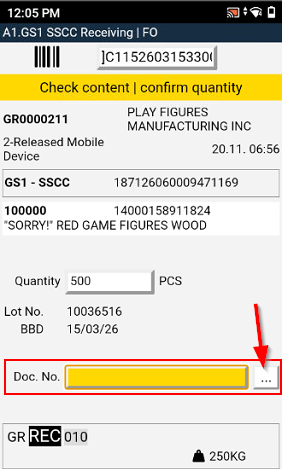
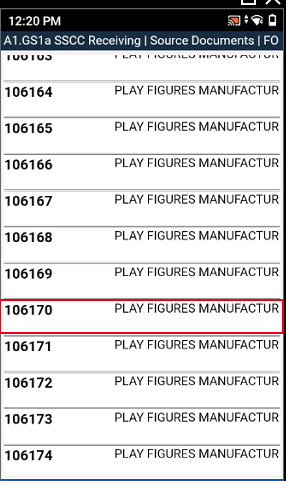
- The source documents are filtered by the vendor number.
- The list is sorted by the Planned Receipt Date.
- If an item is selected, the orders are filtered according to this item.
- If the system only finds one order that matches this item, this document no. is also entered directly.
Improved Warehouse Receipt Process on MDE - Items 69980 and 69981
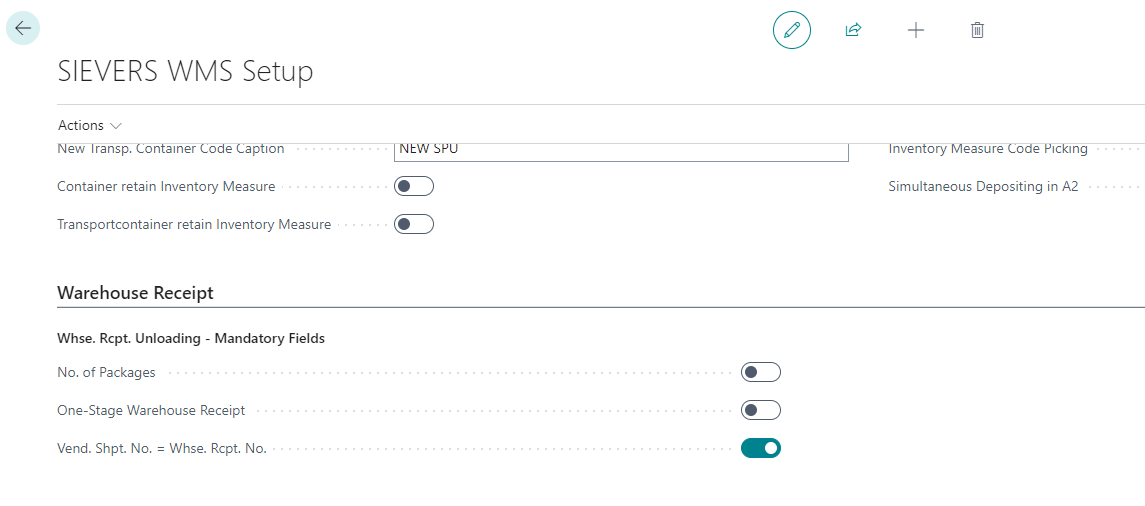
We have improved the Warehouse Receipt Process on A1 on the MDE by implementing new option fields on the SIEVERS WMS Setup.
- No. of Packages: Specifies if the number of packages has to be recorded in the mobile form A1.0 New Unloading.
- One-Stage Warehouse Receipt: Specifies if the storage place can be entered in the mobile form A1.0 New Unloading. If this is enabled the storage place field will be greyed out.
- Vend. Shpt. No. = Whse. Rctp. No.: If this is enabled the warehouse receipt number will be used as vendor shipment number. The user no longer has to enter this number in the mobile form A1.0 New Unloading.
Warehouse Shipment
Print Packlist Exportdata not possible for Warehouse Shipments without SSCC - Item 69219
From now on, it is no longer possible to print a Packlist Exportdata if the warehouse shipment does not contain at least one SSCC. This is to avoid empty packing lists.
New fields in the Warehouse Shipment Planning Factbox - Items 69563 and 69562
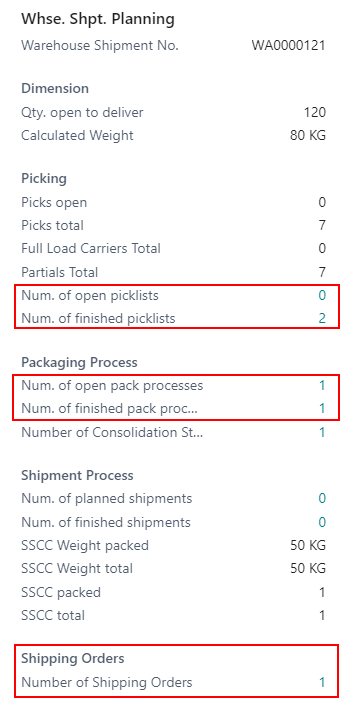
We have added a new field to the Warehouse Shipment Planning Factbox:
- Number of open picklists
- Number of finished picklists
- Number of open pack processes
- Number of finished pack processes
- Number of Shipping Orders (You can also decide to show the field in the table if required)
Items
Automatic change of GTIN when changing or entering article reference - Item 65077
If an item reference is changed or entered, the system checks whether it is the base unit of the selected item. If so, the reference number is automatically entered as the GTIN on the item.
Item Tracking in Item Card - Item 64890
If you set an Item Tracking Code in the Item Card, the option Lot No. necessary will be automatically set to true.
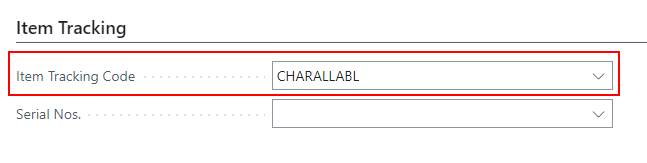
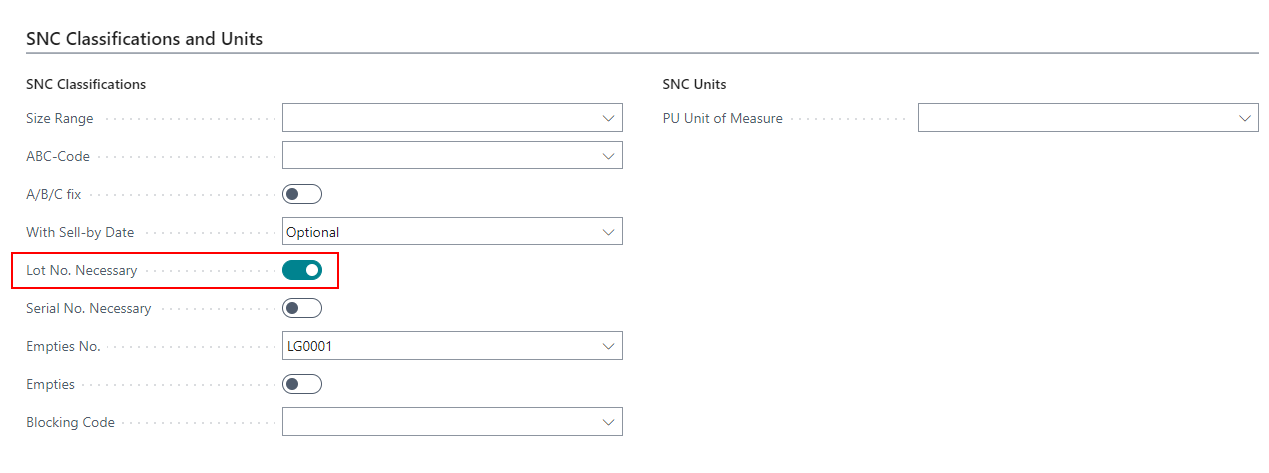
This option causes all WMS documents with this item to require a lot no.
Bugfixes
Added missing field to SIEVERS WMS Setup - Item 69852
We have realized, that we did not make a field in the SIEVERS WMS Setup visible yet.
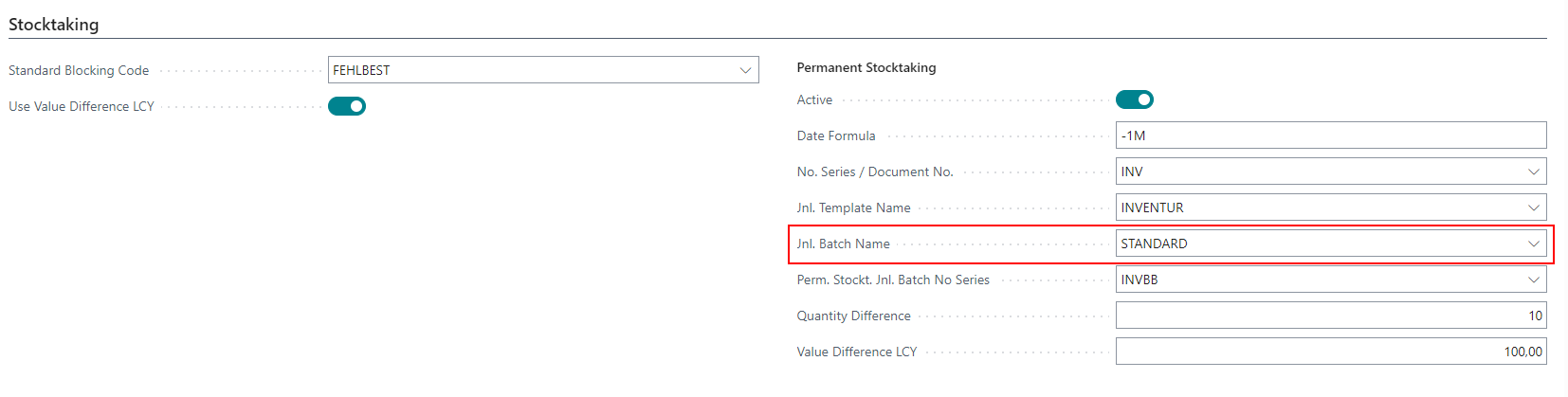
The Journal Batch Name is used internally for the posting process. You may change it if you have difficulties creating stocktakings. Do not change it if you don't know what you are doing!
Missing Data in International Bill of Lading - Item 69594
We have fixed an issue where some data from posted shipments was missing on the International Bill of Lading.
Posting of some Load Carriers not possible - Item 69667
We have fixed an issue where under certain circumstances stock in Load Carriers with order reference could not be posted out.
Mixed Load Carriers leading to error in A1.2 - Item 69799
We have fixed an issue where combining a load carrier from several different Load Carrier types resulted in an error when trying to open the warehouse receipt on MDE page A1.2.
Determination Load Carrier Weight not working correctly - Item 66880
We fixed an issue where the weights of load carriers in the warehouse receipt were not displayed correctly after using one of the Determination Load Carrier Weight settings from the SIEVERS WMS Setup.
B5.3: Pressing F8 repeats enter instead of refreshing - Item 66571
We have fixed an issue where pressing F8 reentered the previous value instead of refreshing the page.
WMS Teams with the same code cause issues - Item 67886
We have noticed that it is possible to have several different teams with the same code. This was not intended and can cause a lot of problems, especially if the the inclusion/exclusion lists are not perfectly maintained. For this reason, we have decided to prevent the teams from sharing the same code.
Counting List: New inventory overwrote existing lines - Item 69668
We have fixed an issue where it was possible to enter new inventory on full storage places which led to errors or the removal of load carriers. From now on it is only possible to enter new inventory on empty storage places.
Minor bugs and spelling mistakes
We fixed a few more minor bugs and spelling mistakes:
- Spelling mistakes in the International Bill of Lading - Item 69552
- Spelling mistakes in SNCL Stocktaking - Item 69705
- Missing Tooltip - Item 64710