Features
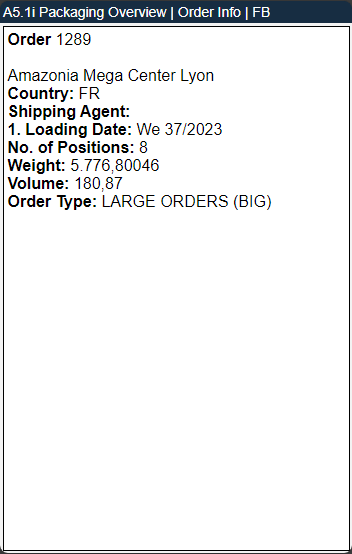
Added new order info page A5.1i - Item 56408
We have added a new info page in the A5.1 Packaging Overview section. Press F4 on your Zebra Device to open the order info of a selected order.
Added more fields in the Customer/Vendor Identifier List - Item 64656
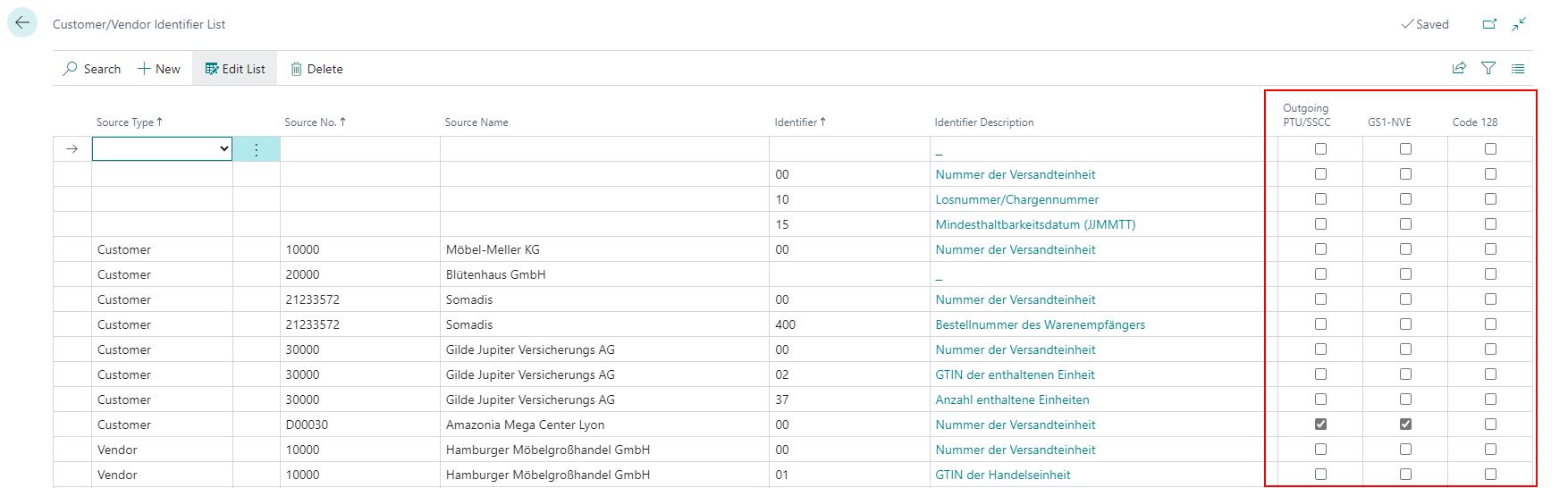
The Customer/Vendor Identifier List which can be opened from the GS1 Setup Page now includes three more option fields:
- Outgoing PTU/SSCC: Indicates whether the values for a dissenting SSCC label are to be taken into account. Also determines that an Amazon GS1 Label should be generated when creating a SSCC
- GS1-NVE / Code 128: With these buttons you can choose which type of barcode should be generated when creating a PTU/SSCC. You can only select one of them. If you don't select any option, a barcode will be created according to Code-128
Formation of the GS1 SSCC - Item 64653
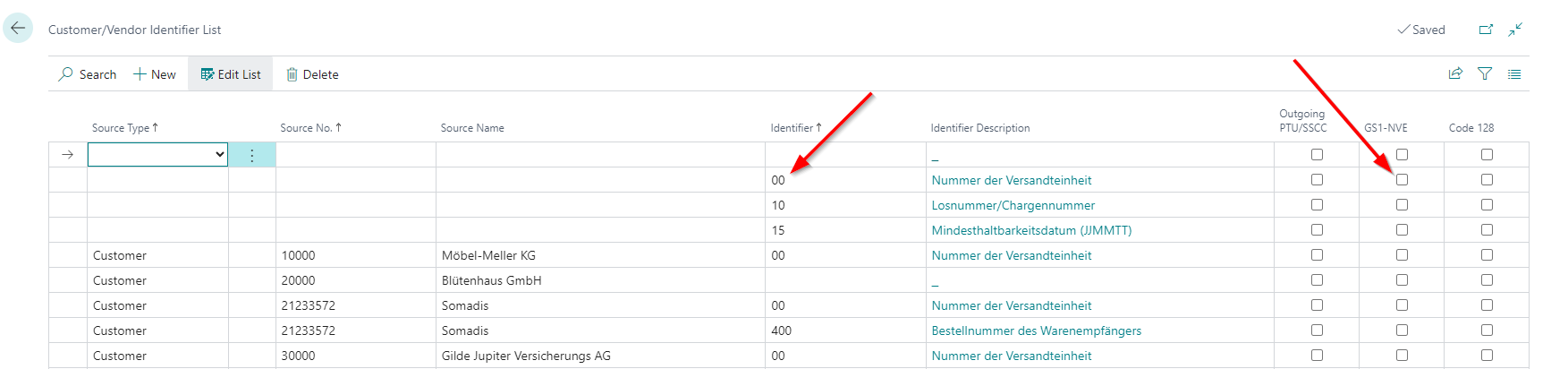
SIEVERS WMS now also supports the generation of GS1 SSCC barcodes for the new Amazon Label. The prerequisite for this is that the new GS1 NVE flag is set for the customer at the 00 identifier in the customer/vendor data identifier list. If a new SSCC is created after setting the flag, it will now automatically get a GS1 barcode.
The GS1 SSCC barcode will be generated with the following rules:
- extension digit (for our pilot customer, for example, set to "0")
- Base GLN (results from "Length" + "GLN")
- last characters from the Load Carrier code to fill up to 17 characters
- apply check digit modulo 10 weighting 3 to the entire 17 characters
New GS1-SSCC Label Layout - Item 64659
We have designed a new GS1-SSCC label, which is based on the Amazon label layout. This new label is at the moment only available for Sales Orders. You can use this label by checking the option Outgoing PTU/SSCC in the Customer/Vendor Identifier List. See Item 64656
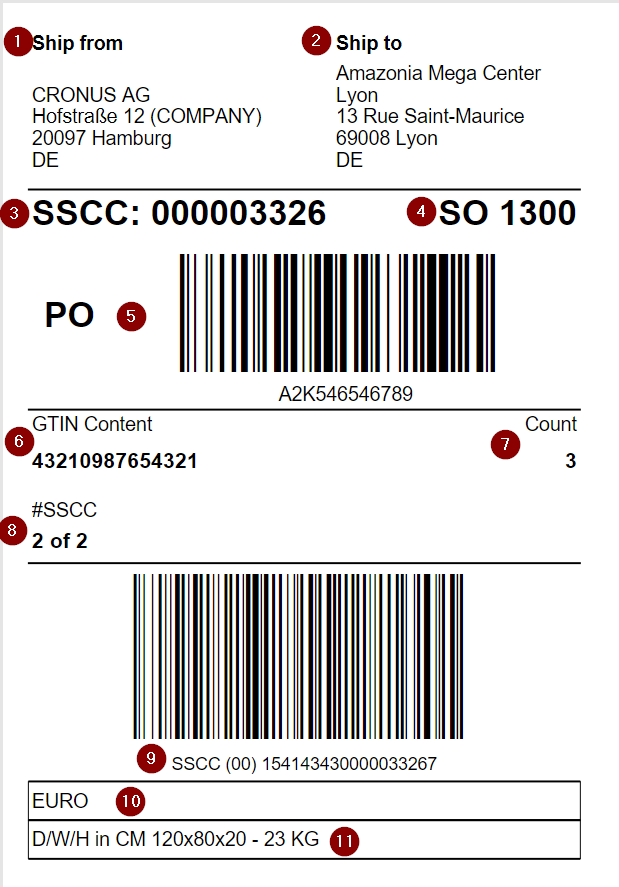
- Address to ship from
- Address to ship to
- SSCC number
- Source document number
- External purchase order number and barcode
- GTIN content
- GTIN count
- Number of SSCC in this order
- SSCC number and barcode
- Inventory measure code
- Dimensions and Weight
::: Note If several items are packed into one SSCC, "DIVERSE" is displayed at 6. and "*" at 7. :::
Saving the GS1-SSC Barcodes - Item 64655
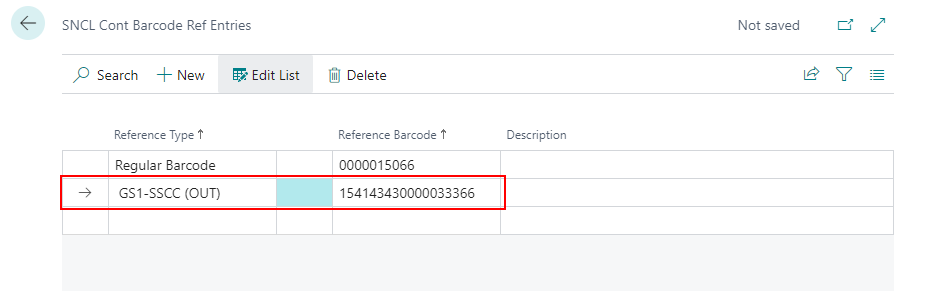
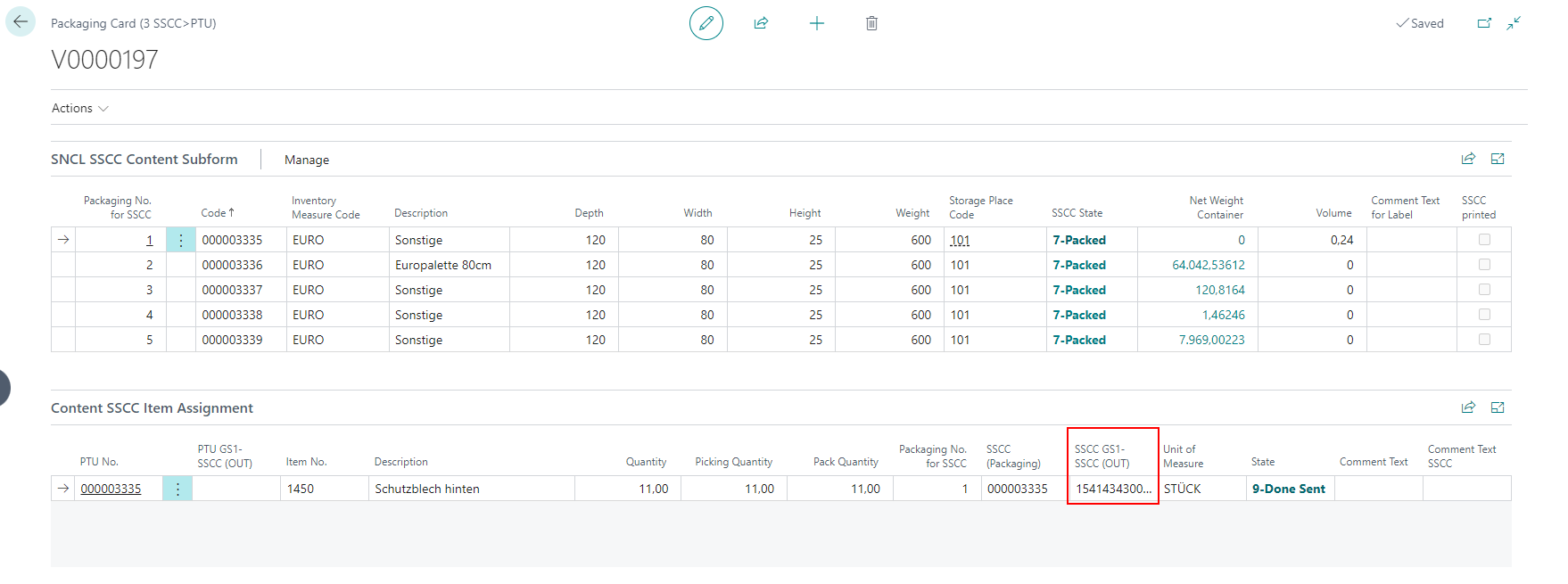
Outgoing GS1-SSC barcodes are being saved in
- Posted Load Carrier Barcode References
- Packaging Card (3 SSCC>PTU)
- Posted Packacking Processes
These values are not only meant to be tracked, but this also allows them to be transmitted via EDI (DESADV).

(B5) Creation of a permanent stocktaking on the MDE - Item 60531
Now you can create a permanent stocktaking directly on your mobile device.
- Open the Page B5. on your mobile device.
- Select New Process.
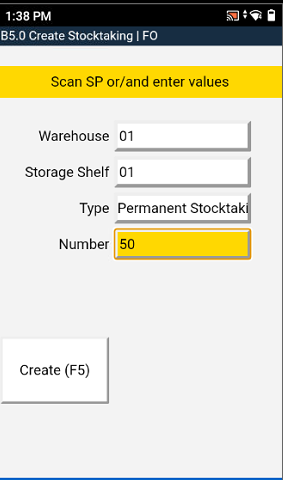
- Scan a storage place or type in a warehouse and a storage shelf.
- Enter the number of storage places to be counted now.
- Press Create or F5.
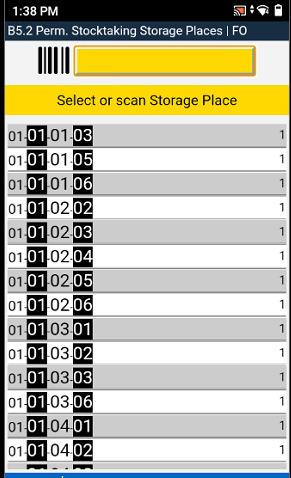
The inventory lines are added and the associated cycle counting list with the corresponding count list lines is released directly for processing on the MDE.
Now the employee scans each storage place one by one.
When you scan a storage place you see this screen:
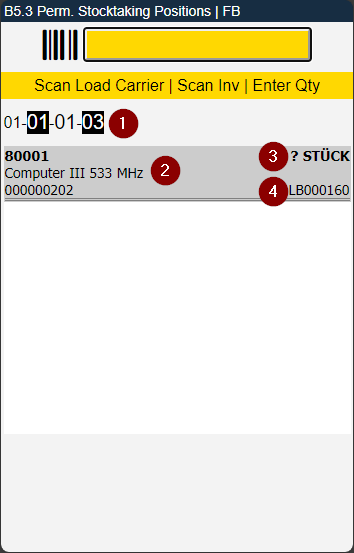
- Storage place
- Item with item number, description and storage unit no.
- Unit of measure. There is no quantity here, so that the stocktaking cannot simply be compared, but must actually be counted
::: Note Please note that uncounted storage places are deleted from the stocktaking and cycle counting list when the stocktaker leaves an open count. This does not apply to storage places that are to be counted a 2nd or 3rd time. :::
B5.2m menu
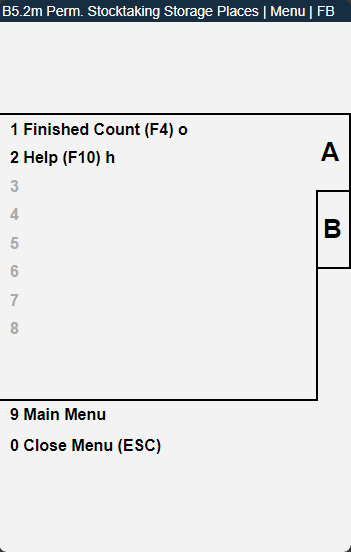
- Finished Count: Shows the already completed counts of this inventory process.
- Help
B5.3m Menu
A:
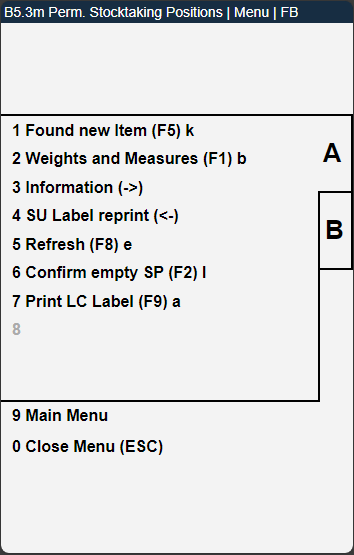
- Found new Item
- Weights and Measures
- Information
- SU Label reprint
- Refresh
- Confirm empty SP
- Print LC Label
B:
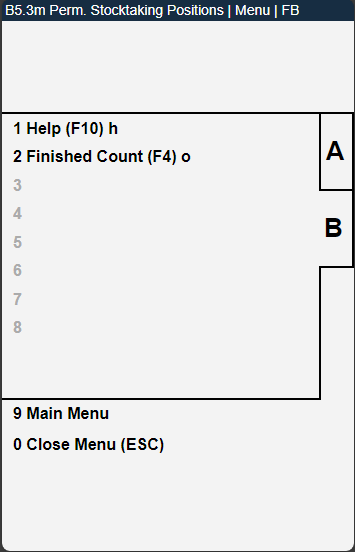
- Help
- Finished Count
A2.0i can now show source document number, loading day and priority - Item 63852
We have added several information fields on the A2.0i Internal Movements information page:
- Source Document Number
- Loading Day
- Priority
These are shown when the Load Carrier is a PTU or SSCC.
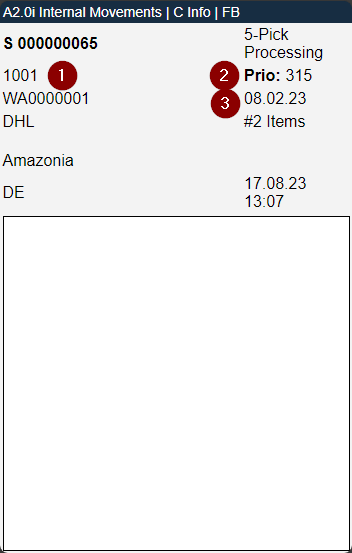
- Source Document Number
- Priority
- Loading Day
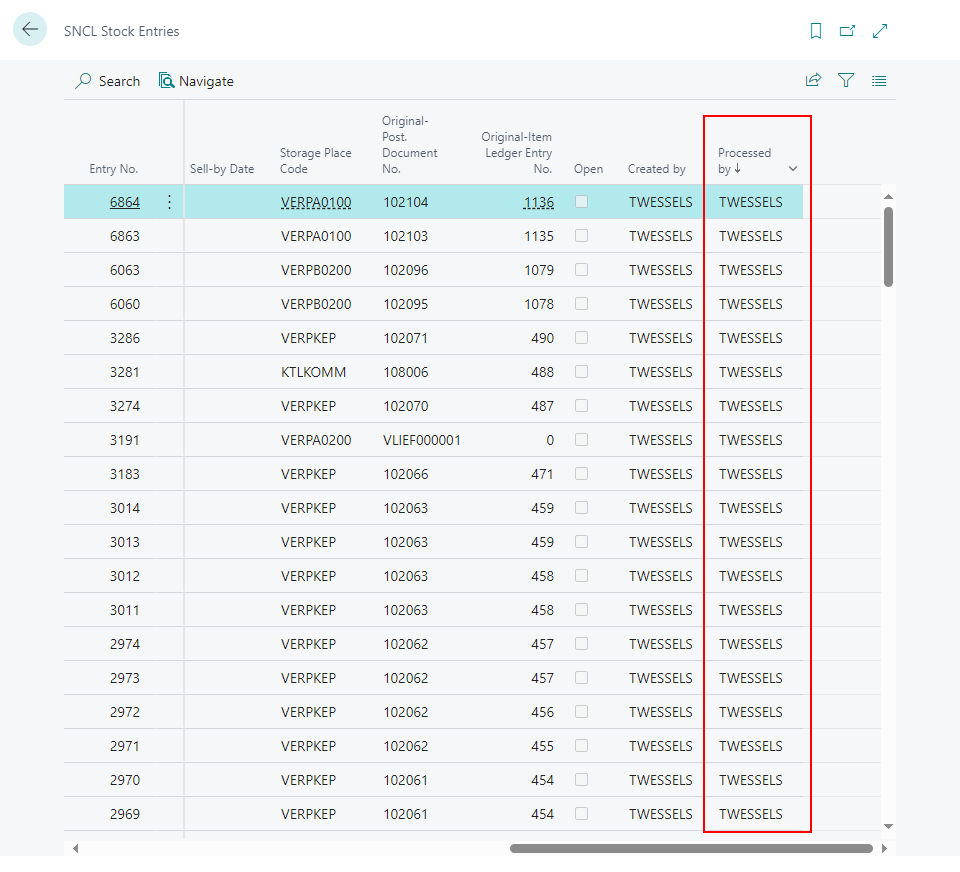
SNCL Stock Entries: Processed by - Item 63857
In the stock entries, the last processor of the item is now displayed. This function will be implemented gradually for all MDE programs. At the beginning it is implemented for A2.
Scrolling with arrow keys possible on several pages - Items 64151, 64152, 64153, 64154, 64158, 64159
Now you can scroll with the arrow keys on the following pages:
- A2
- A3.1
- A4.1
- A4.2
- A3.2
- A5.1
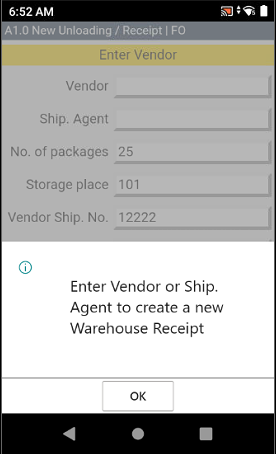
Changed Error Feedback in A1 - Item 64562
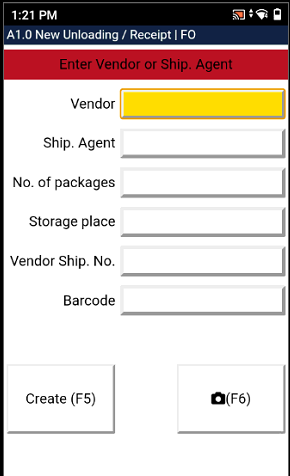
Until now, the error messages in A1 were always a popup. We have come to the conclusion that colored error messages in a designated area on the interface is much better. It looks better and it saves a click.
A1: Ability to take photos - Item 64634
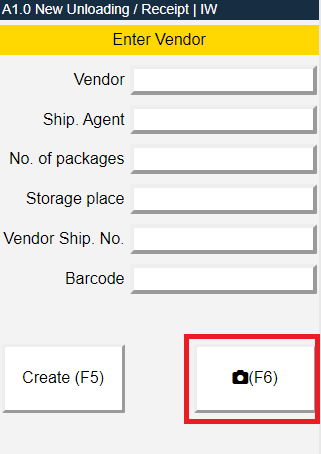
You are now able to take pictures in A1.0 New Unloading. The photos are taken before unloading from the loaded truck.
To take a photo press F6.
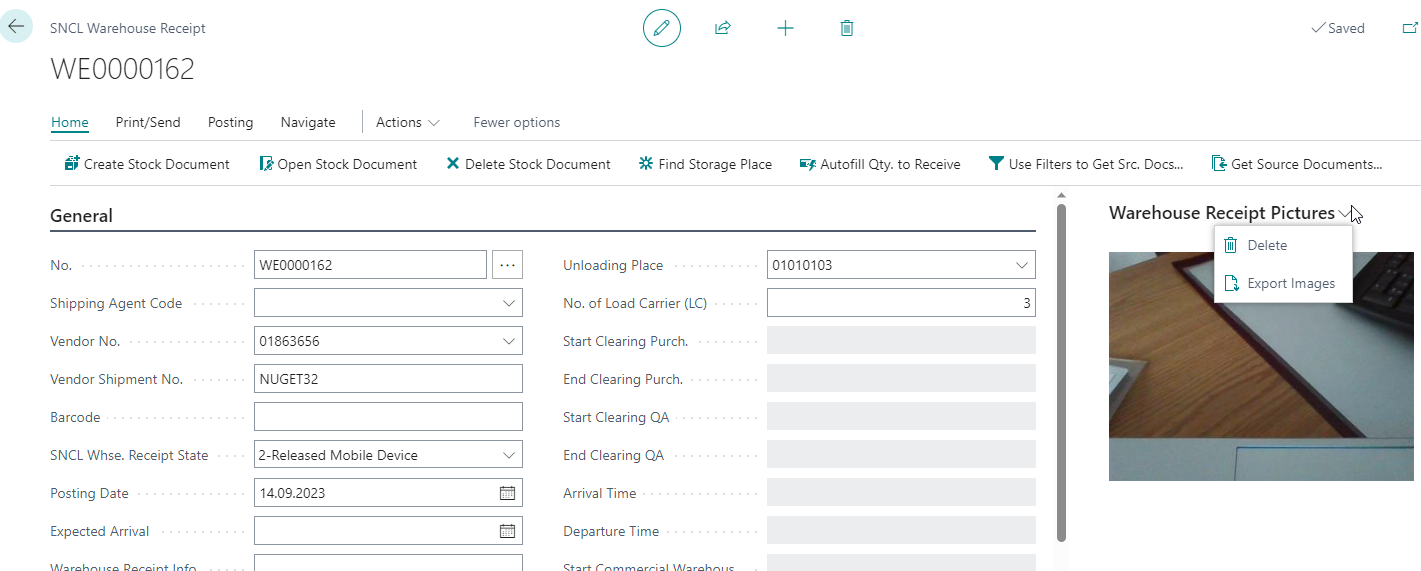
The first picture taken is displayed in the warehouse receipt factbox in Business Central. Here you are also able to delete and export all taken pictures. The photos taken are also stored in the posted warehouse receipt.
SNCL Move Job: New button - Item 62926
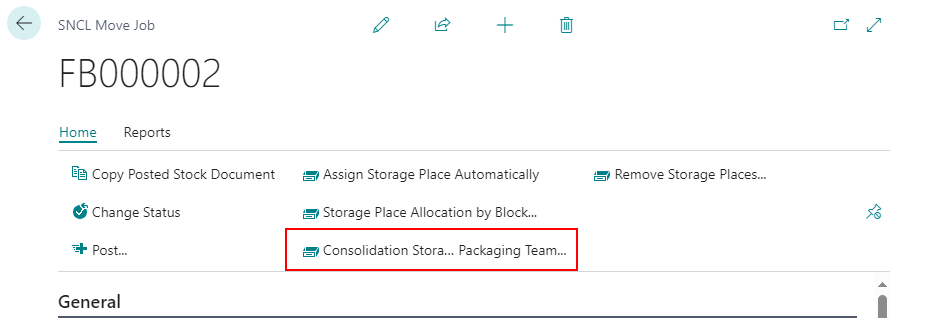
We have added a new button to the move order card: Consolidation Storage Place Allocation by Packaging Team. Clicking this button causes the consolidation storage place from the entered packaging team to be determined as the destination storage place. This function can only be used with PTU.
Bugs
A2 now displays correct measures and weights - Item 63907
We fixed an issue where the A2 program on the MDE displayed the wrong or no measures and weights. Now it displays the storage Load Carrier weight and the base unit of measure.
MDE Main Menu now displays correct team, forklift and printer - Item 64142
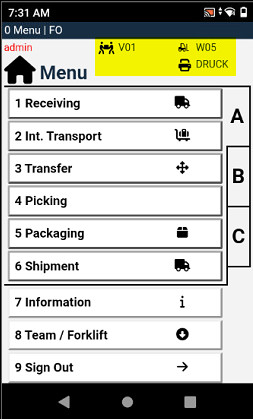
We fixed an issue where main menu displayed the wrong team, forklift and printer information after changing them in A8 Team / Forklift.
A1.1 Warehouse Receipt Status single line - Item 64490
We noticed that the warehouse receipt status in A1.1 was sometimes so long that it extended over several lines. This resulted in the individual entries in the overview becoming larger than intended. We have now limited the length of the warehouse receipt status to one line.
Move orders for deleted Load Carriers - Item 64633
We have fixed an issue where move orders to already deleted Load Carriers still existed. Now they are automatically deleted when the associated Load Carriers are deleted.
A4.2: Removed incorrect error message - Item 65159
We have removed an incorrect error message which popped up in A4.2 when selecting a position with no associated PTU or SSCC.