Features
Added Sorting Key to SNC Logistics Teams List - Item 47819
Now you can sort the SNC Logistics Teams list manually by using the new Sorting Key.
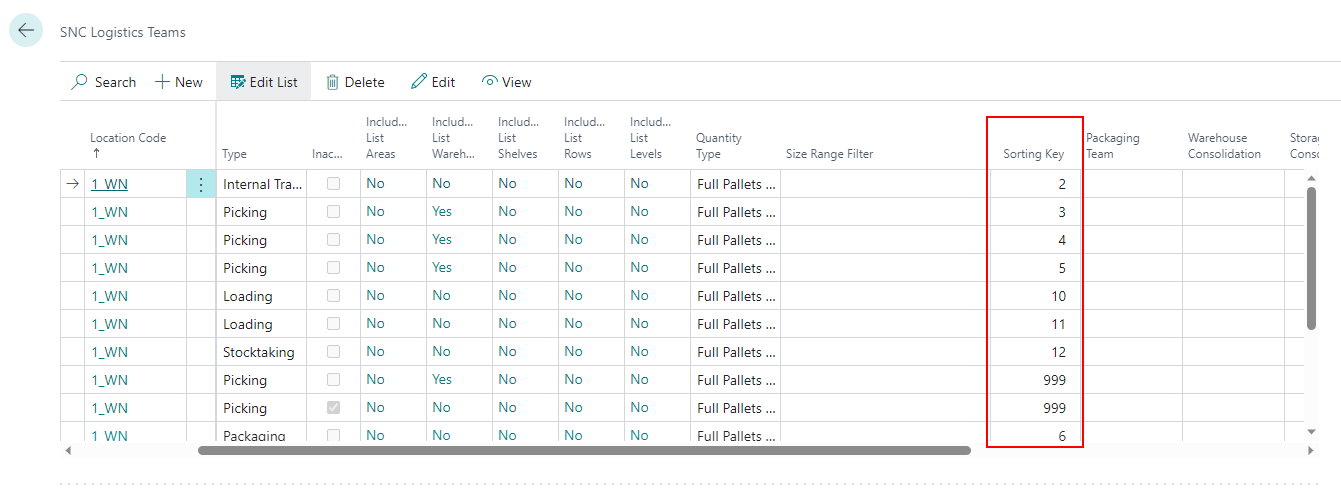
::: Note Please note that this sorting key also affects the sorting of the MDE A8 Team / Forklift program. :::
Follow-Up Move Orders now possible - Items 35675 and 49025
In some storage places items and Load Carriers are moved with multiple steps and several forklifts through the warehouse, for example when some forklifts can't operate in certain areas. For situations like this, the option to automatically create a follow-up move order has been implemented. If this option is activated, a follow-up move order is automatically generated for the corresponding storage place type after the load carrier has been unloaded.
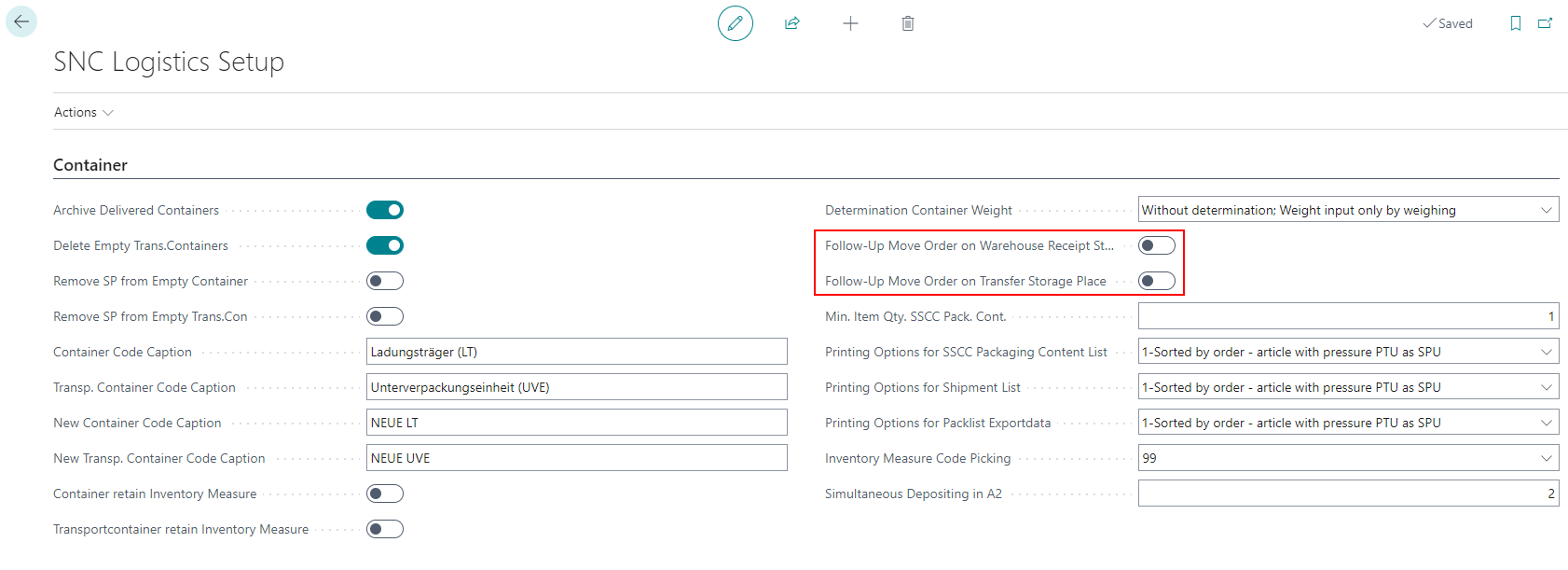
There are two new options:
- Follow-Up Move Order on Warehouse Receipt Storage Place: Creates Follow-Up Move Orders when Load Carriers are being parked on a Receipt Location
- Follow-Up Move Order on Transfer Storage Place: Creates Follow-Up Move Orders when Load Carriers are being parked on a Transfer Location
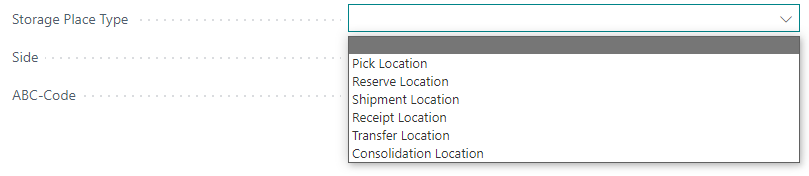
::: Attention Before activating the warehouse receipt option, make sure that there are no load carriers that have not yet been recorded and assigned. Otherwise, unnecessary move orders will be generated for these load carriers. This is a bug that will be fixed in the next release. :::
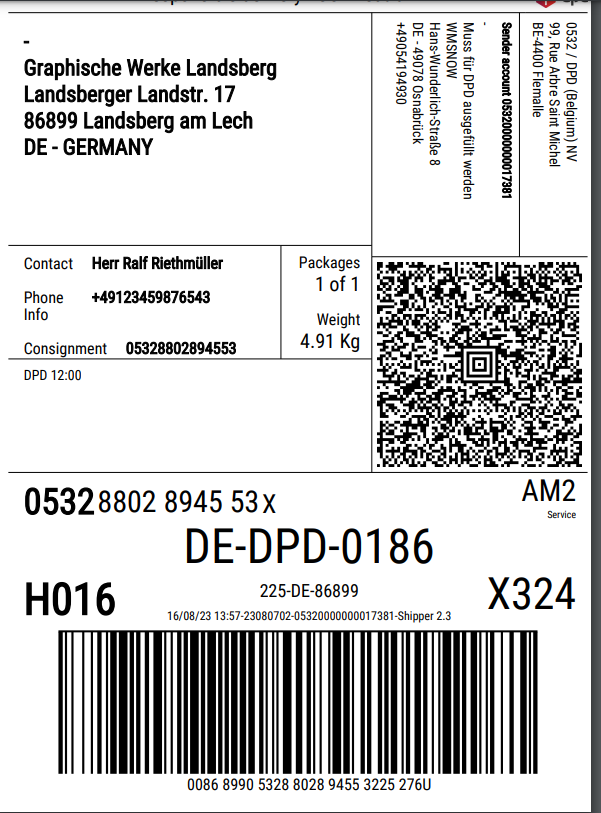
Improved quality of shipping label - Item 59598
We improved the print quality and scaling of the shipping label.
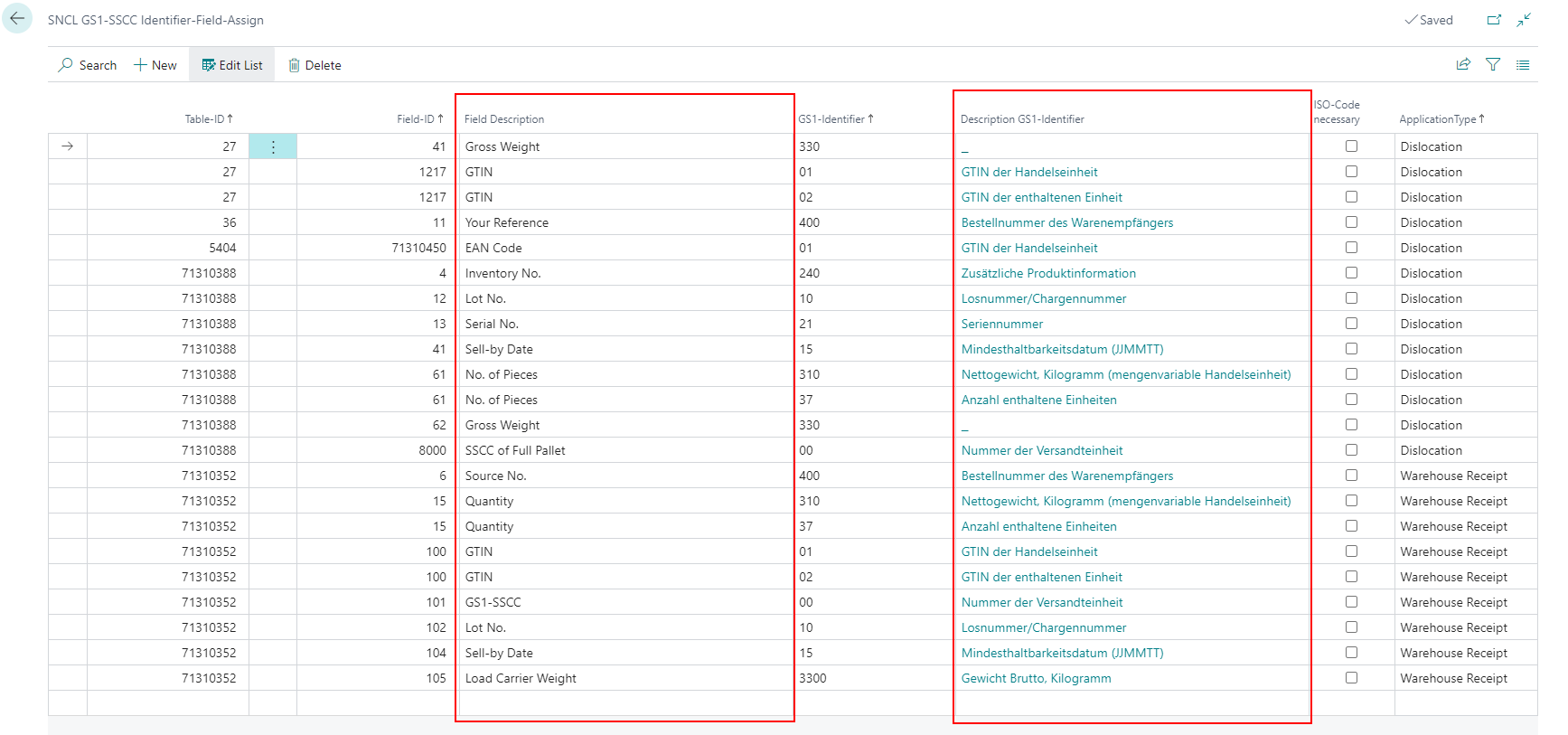
Added field descriptions on SNCL GS1-SSCC Identifier-Field-Assign - Item 62986
To make it easier to assign identifiers to fields, we have added the fields
- Field Description: related to the Field ID
- Description GS1-Identifier: related to the GS1-Identifier.
A2 Internal Transports - Item 35671
With this release we are introducing the MDE program A2 Internal Transports. Internal transports can be used to move entire load carriers from A to B. One or more load carriers can be picked up and, depending on the setup, set down at the same time. It is irrelevant whether move orders exist for the load carriers or not. If a move order exists when a load carrier is scanned, it is automatically displayed. If no move order exists for the scanned load carrier, one is created and a destination determination is automatically carried out (see Item 35673)
All movement data is stored in the SNCL Stock Entries and SNCL Load Carrier Entries.
Items
This section lists the items that are related to the A2 Internal Transports topic. If you are a customer you can ignore this section.
- Item 35673: (A2) Basics Fahrbefehlsanlage und automatische Zielplatzfindung für Ladungsträger
- Item 36732: (A2) Anzeige des Zielplatz bzw. des Abgangsplatz bei den Zusatzinformationen
- Item 38050: (A2) Basics - Bewegungen ganzer Ladungsträger aus Fahrbefehlen | Eingehende Lagerbuchungen
- Item 36754: (A2) Menü / Hotkey F5 (strg+k) Fahrbefehlsfilter
A2.0 Internal Movements
The view of page A2.0 shows both the open move orders and the currently picked up load carriers. This split view is useful when only a few load carriers need to be moved. As soon as the quantity becomes larger, the views A2.1 Open move orders and A2.2 Picked-up load carriers should be used.
Keys:
- P1: Open the program menu
- F4: Change view on Zebra MC33 to A2.1 Open move orders and A2.2 Picked-up load carriers.
- F5: Open the Internal Movements Filter
::: Note If not already done, the user must first select a team and a forklift. To do this, the page A8 Team / Forklift opens automatically. :::
Process:
- scan load carrier to pick it up
- scan destination storage place to drop it
or
- scan multiple load carriers to pick them up
- successive delivery of load carriers by scanning them and their destination storage places one after another
or
- scan multiple load carriers to pick them up
- deliver all load carriers at once
When carrying multiple load carriers at once you get this view on A2.0:
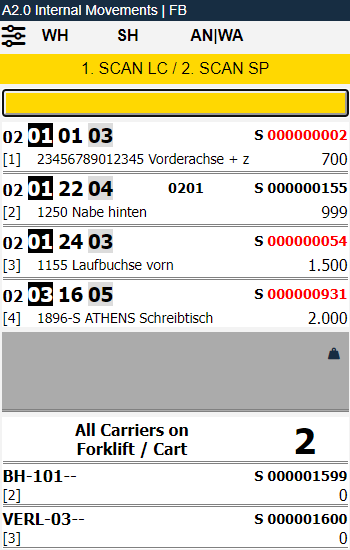
As you can see the bottom section now shows All Carriers on Forklift / Cart. If you want to deliver the load carriers successively, just scan them one after another. If you want to deliver them all at once, click on the All Carriers on Forklift / Cart. After that, this screen will appear:
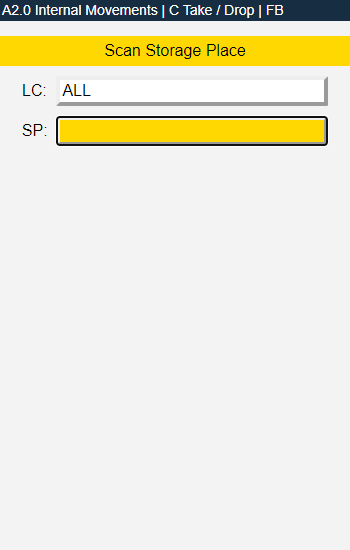
To drop the load carriers now you must scan the new storage place.
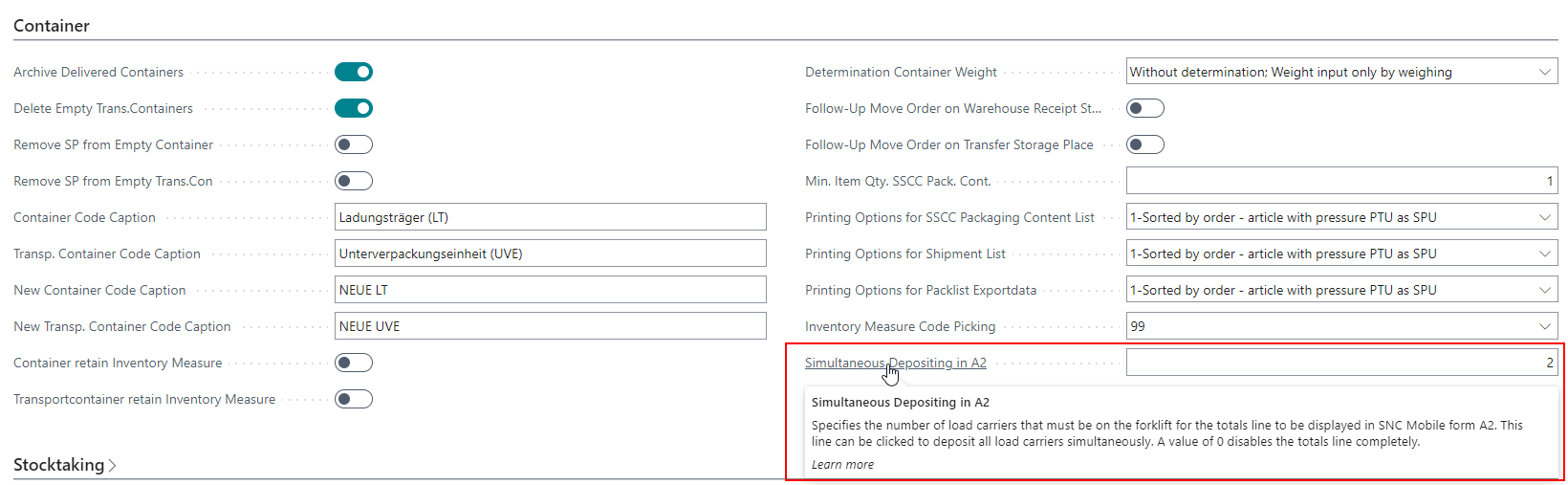
::: Note
If you want to scan and deliver multiple load carriers at once you have to define the number of necessary load carriers on the forklift for the All Carriers on Forklift to show up. See screenshot below. :::
The next screenshot shows split view with open transport jobs and load carriers currently picked up.
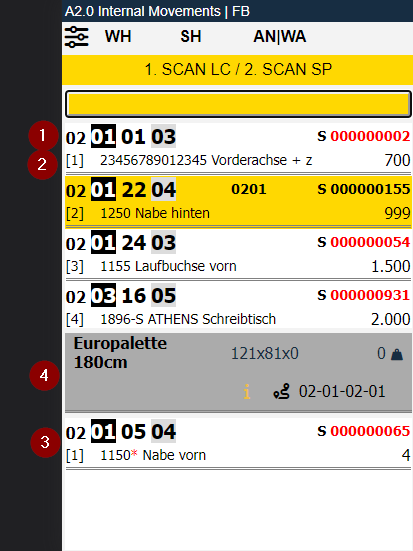
1: Left: Destination storage places | Center: Storage area and shelf level | Right: load carrier number (red, if inventory measure code or measures are missing)
2: Left: Item number and item name (If there is more than one item in the load carrier the item no. has a red * next to it) | Right: Quantity
3: Currently selected load carriers
4: If available, additional information about the current load carrier is displayed in this gray area.
Top Left: Inventory Measure Code | Top Middle: Measures | Top Right: Weight |
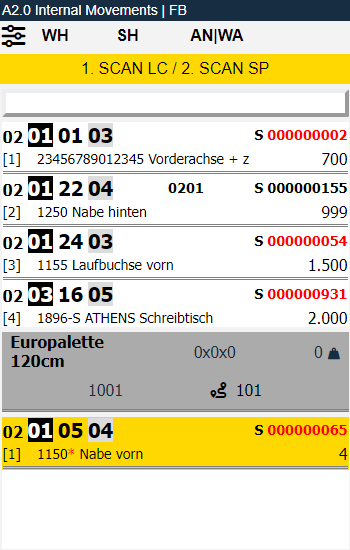
Bottom Left (if available): Source document number (see bottom screenshot) | Bottom Middle: The i indicates that more information is available. Open it with the Menu. | Bottom Right: Destination place or departure place. Which place gets shown is based on whether the employee has already picked up the load carrier:
- Not picked up yet: additional information section shows destination place
- Picked up: additional information section shows departure place (see bottom screenshot)
On the example screenshot above the additional information section shows the destination place. The screenshot below shows the departure place.
Menu
Via P1 you can call up the menu. This is the same on every A2 page.
It is divided into A and B.
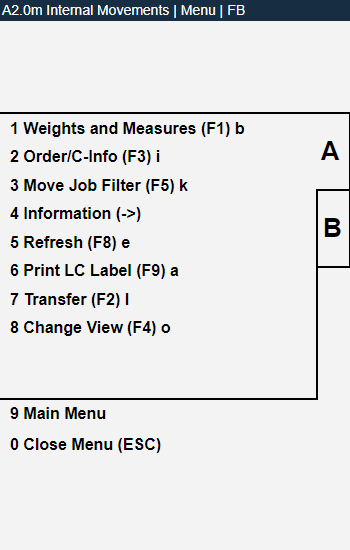
Here you have the following options:
- Weights and Measures
- Order/C-Info
- Move Order Filter: Opens A2.1k Internal Movements Filter
- Information: Opens A7.3 Load Carrier Info
- Refresh
- Print LC Label
- Transfer
- Change View
- Main Menu
- Close menu
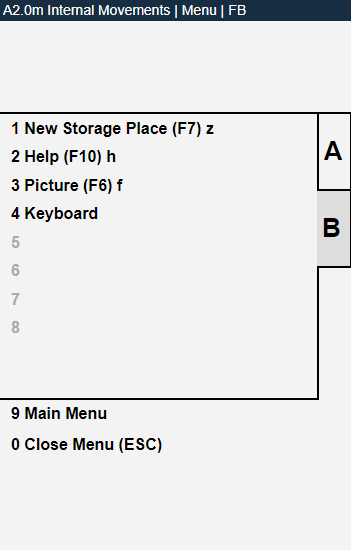
- New Storage Place: Searches for a new storage place which differs from the current storage place
- Help
- Picture
- Keyboard
- Main menu
- Close menu
A2.1 Open Move Orders
On A2.1 all currently open move orders are displayed. This view does not show the load carriers currently picked up. Press the F4 key for this view.
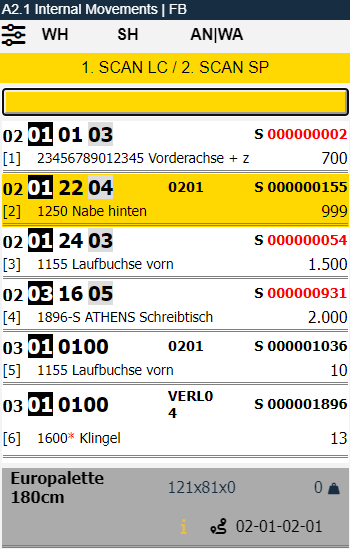
The structure and information per entry are the same as in A2.0.
A2.1k Internal Movements Filter
The move order filter is an important tool for the forklift operator to display specific movements according to his choice.
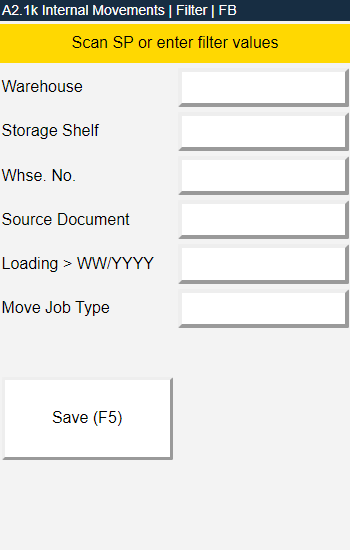
Here you can filter the existing movements by the following properties:
- Warehouse
- Storage Shelf
- Whse. No.
- Source Document
- Loading > WW/YYYY: Enter a week number - the year will be added automatically
- Move Job Type:
- Storage Place Transfer
- Replenishment
- Inbound Stock Post
- Return Order
- Loading Preparation
- Manual Transfer
A2.2 Picked Up Load Carriers
On A2.2 the currently picked up load carriers are displayed. With F4 you can switch back to the split view A2 Internal Transports.
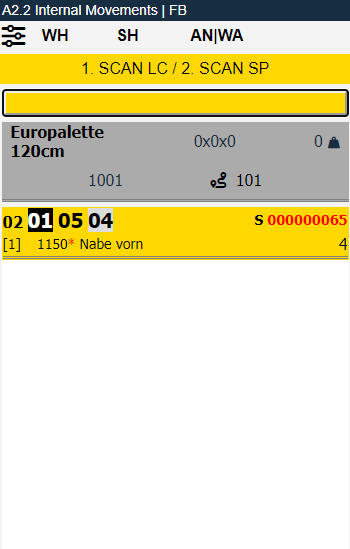
The structure and information per entry are the same as in A2.0.
Consolidation
With this release we are introducing the first changes regarding the usage of consolidation places. For example, you may want to consolidate order pick items on an order-by-order basis.
This will have the following effects:
- If several single-order PTUs were formed in picking, they are to be routed to one or a few consolidation locations.
- Employees in the packaging area should always know where to find the items for the order to be packed. For this reason, items are consolidated at as few consolidation locations as possible.
- Easy destination determination for PTUs, either directly from picking to packing stations, or to the picking team's respective picking stations and in a separate process to "internal transports" to the packing teams.
- Consolidation places can be:
- warehouse
- area
- storage place
The following sections describe the consolidation changes.
Logistic Teams: New fields and renamed fields - Item 56371
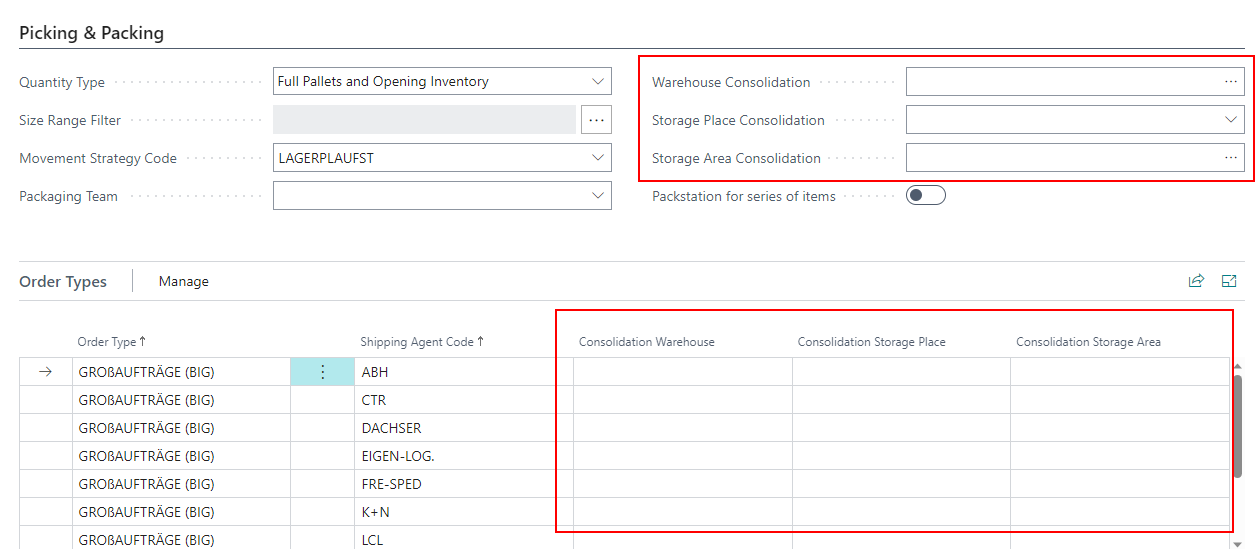
We renamed the following fields on the SNC Logistics Team Card in the section Picking & Packing:
- Handing Over Warehouse Packing -> Warehouse Consolidation
- Handing Over Storage Place Packing -> Storage Place Consolidation
We created the new field
- Storage Area Consolidation
We renamed the following columns on the SNC Logistics Team card in the section Order Types:
- Handing Over Warehouse -> Consolidation Warehouse
- Handing Over Storage Place -> Consolidation Storage Place
We also added the column:
- Consolidation Storage Area
Added field and Storage Place Type on SNCL Storage Place Card - Item 58743
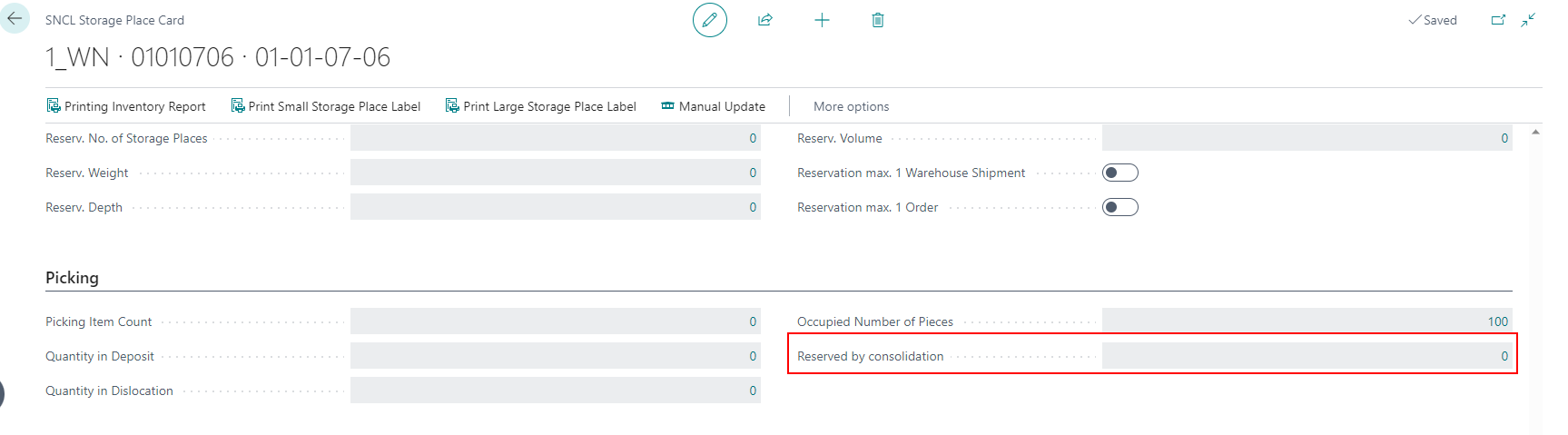
The Storage Place Card now includes the show-only field Reserved by consolidation in the Picking section. By clicking on the number you can open the respective Warehouse Shipment Planning.
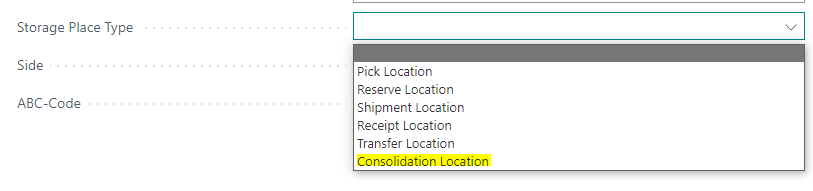
We also added the option Consolidation Location on the Storage Place Type.
Packing Teams, Inventory Teams and Transport Teams: Entering a movement strategy now possible - Item 56409
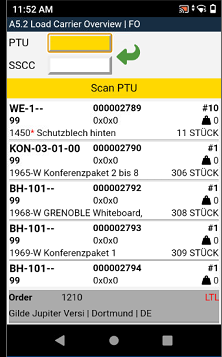
Previously, it was only possible to enter and utilize a movement strategy with picking teams. Now you can do the same for packing, inventory and transportation teams. Among other things, a movement strategy affects the sorting of the A5.2 Load Carrier Overview page.
Added option fields in the warehouse card - Item 62915
These two new fields have been added to the SNCL Warehouse Card:
- Reservation max. 1 Warehouse Shipment
- Reservation max. 1 Order
Normally, the ratio of consolidation place to warehouse shipment or order is 1:n. These options allow you to specify whether the ratio should be 1:1. If you set only Reservation max. 1 Order to true, Reservation max. 1 Warehouse Shipment is automatically set to true as well.
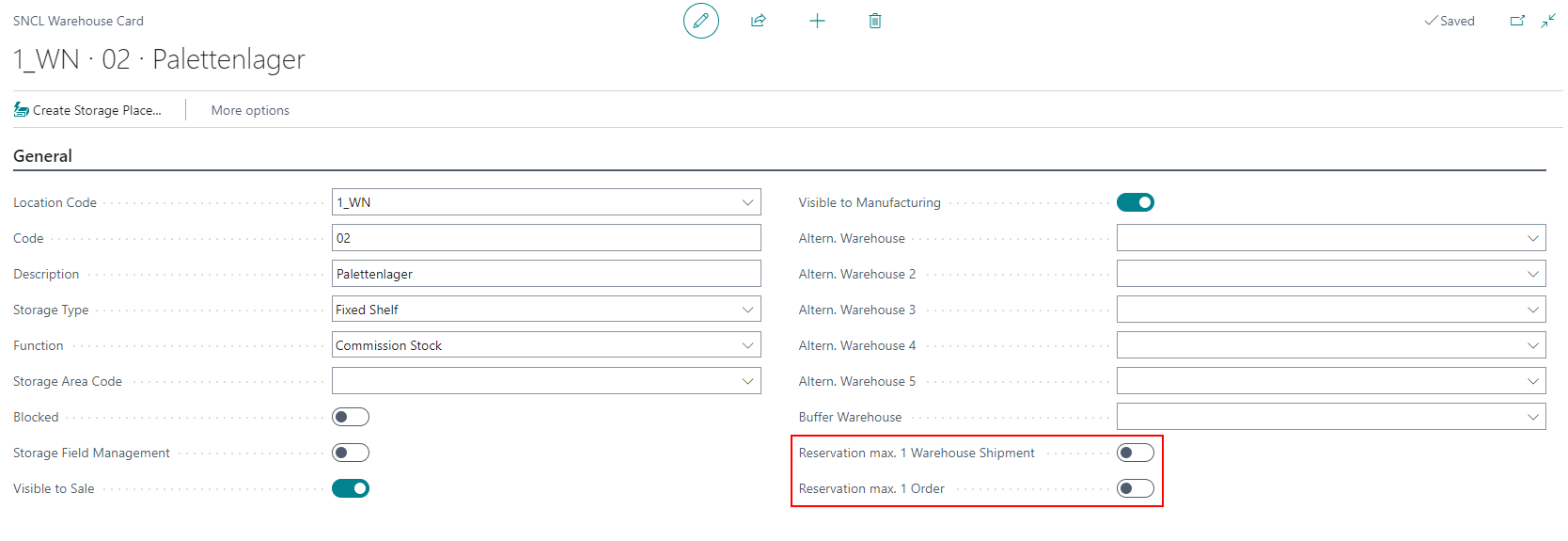
Enabling one of these options will affect all storage places.
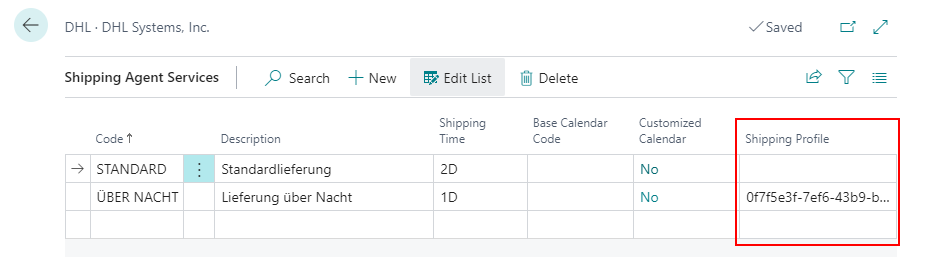
Added Shipping Profile to Shipping Agent Services
On the Shipping Agents page you can specify an individual shipping profile when using the ECOMSUITE label printing extension. Since you can further specify the shipping agent in the Shipping Agent Services in terms of details such as shipping time and calendar codes, we have also added the option to add shipping profiles in the Shipping Agent Services.
Reordered fields in Setup - Item 58427
We have rearranged two fields in the SNC Logistics setup. The following fields are now listed in the section Outside Stock:
- Inbound Stock Post Order Update Shipment Quantity
- Outbound Stock Post Order Update Shipment Quantity
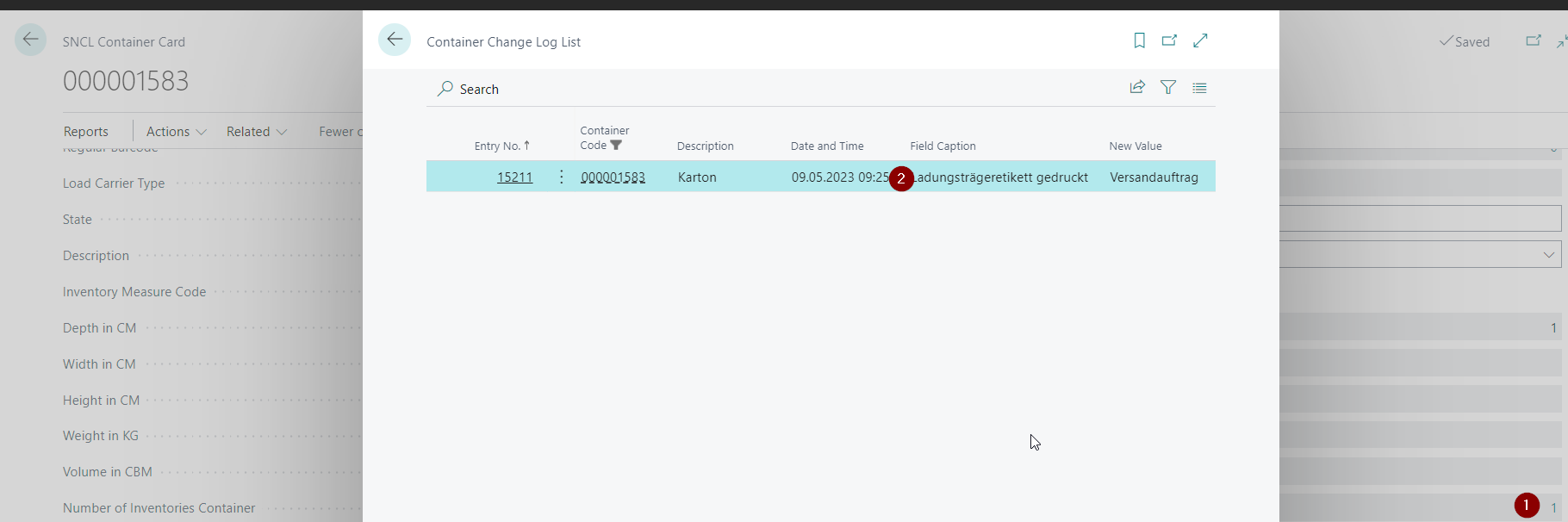
Added several translations - Item 58562
Some english translations have been added, for example on the SNC Load Carrier Change Log.
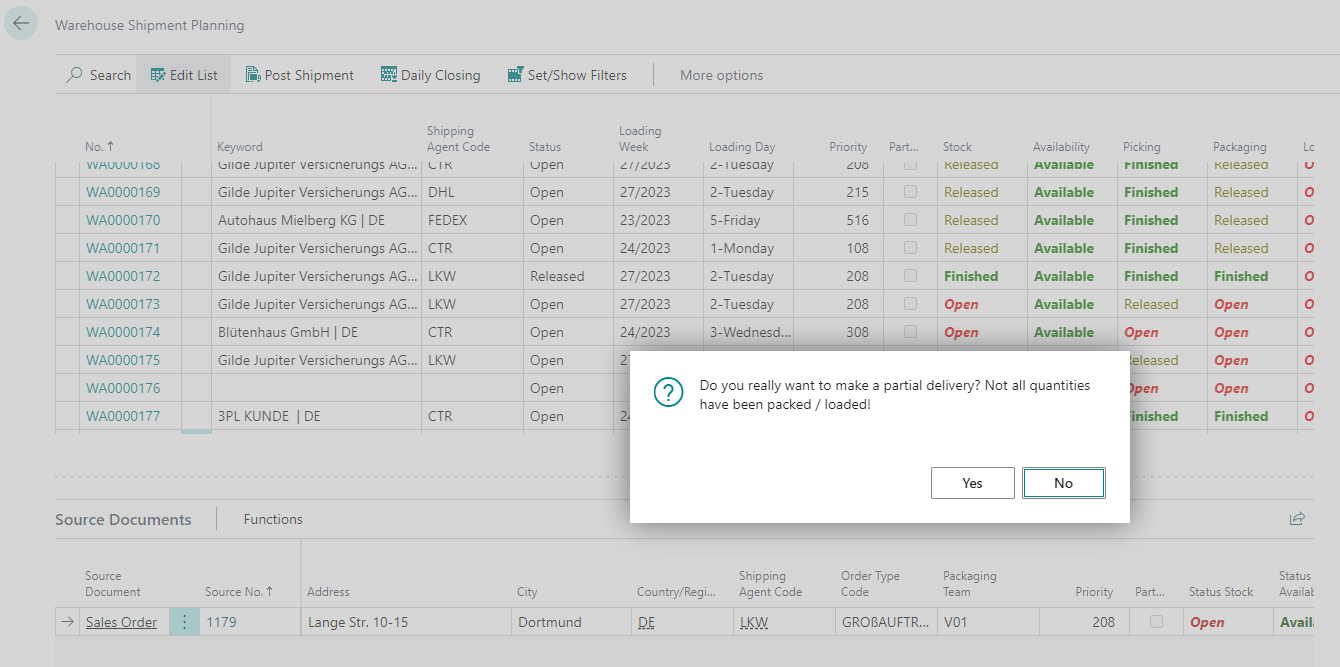
Message for Partial Delivery - Item 62621
From now on, if you try to post a partial delivery in the Warehouse Shipment Planning, a message will appear.
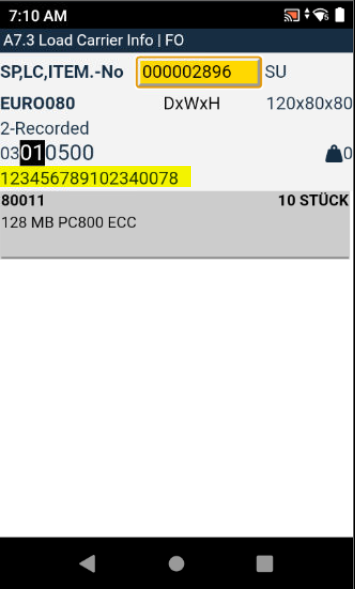
A7.3 shows GS1-NVE - Item 62866
The A7.3 Load Carrier Info now shows the GS1-NVE reference.
A5: Completion of the packaging processes, if SSCC status = 7 packed - Item 63205
When an employee exits a packaging operation from A5.2 and all quantities are packed and all SSCCs of the order have the status 7-packed, the system automatically completes the packaging process from now on.
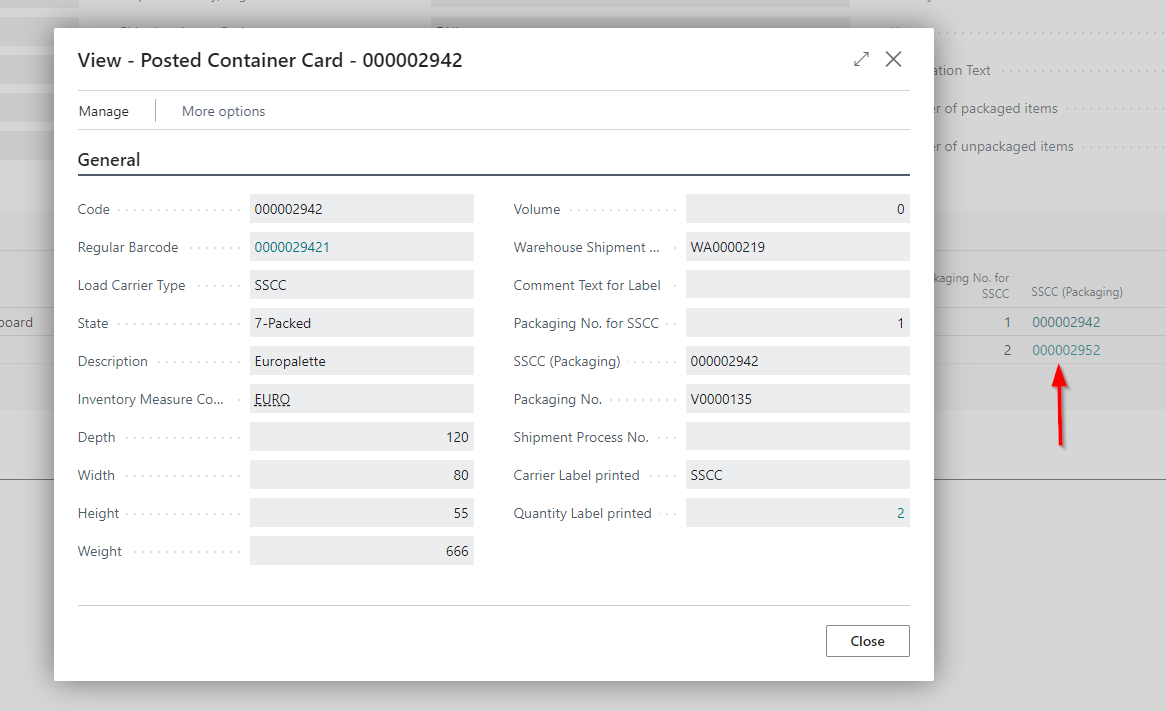
SSCC (Packaging) in SNCL Post. Packaging now with lookup - Item 63207
The SSCC (Packaging) numbers in the Post Packaging Line* on the SNCL Post. Packaging page are now clickable. They open a small page containing information about the SSCC.
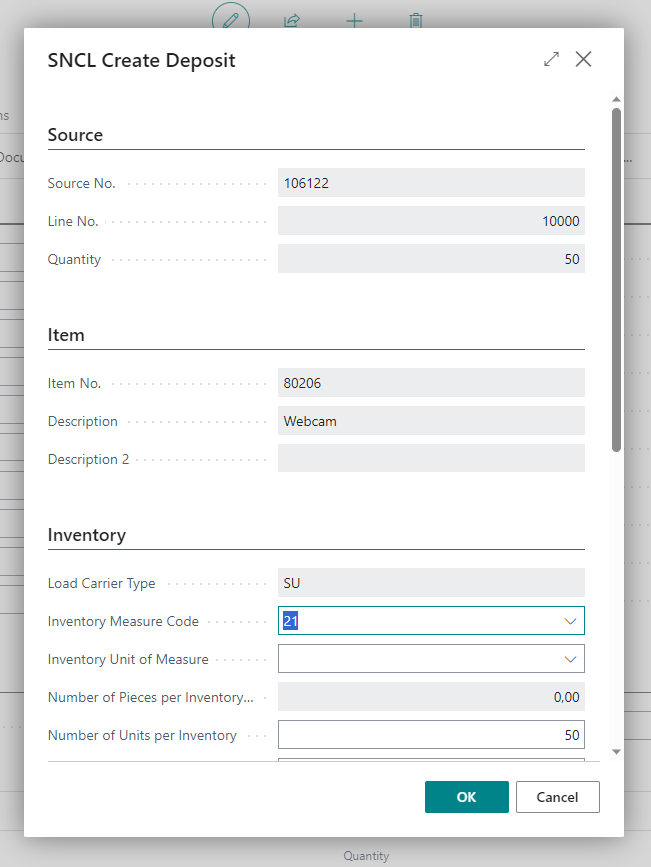
Restructed SNCL Create Inbound Stock Post - Item 63276
The SNCL Create Inbound Stock Post page has been restructured and divided into the Source, Item, and Inventory sections.
New columns on the SNCL Inventory List - Item 63290
The columns
- Inventory Unit of Measure
- Load Carrier Load Carrier Type
- Load Carrier Inventory Measure Code
- Load Carrier Description
- Load Carrier State
have been added to the SNCL Inventory List.
Beginning of mobile warehouse reception implementation
With the latest release we have implemented the first pages and features for the mobile warehouse reception on A1. The following sections describe the implementations in detail.
A1.1: General structure of the page - Item 63412
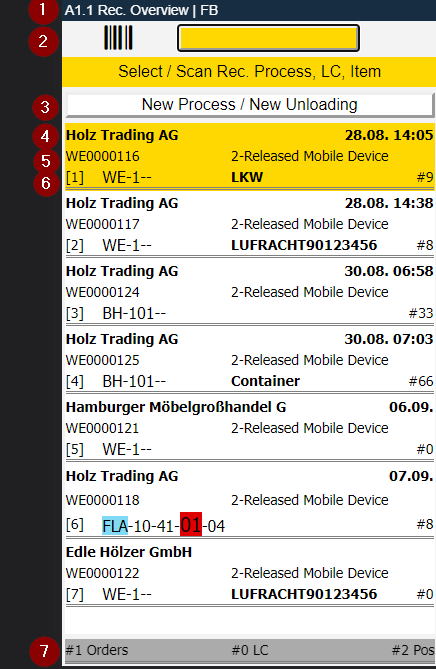
1: Title
2: Scan field for GTIN, Items, Item References or Load Carrier Barcode References
3: Opens [A1.0]
4: Left: Vendor name | Right: Date and time of arrival
5: Left: Warehouse Receipt Number | Right: Status of the Warehouse Receipt
6: Left: Unloading Point | Middle: Shipping Agent Code | Right: Number of Load Carriers
7: Information about the currently selected warehouse receipt
Left: Number of different source numbers from the document lines | Middle: Different load carriers from the load carrier lines | Right: Number of source lines from the Warehouse Receipt
When you click on a warehouse receipt, enter a respective number or scan a warehouse receipt barcode, page A1.2 will be opened.
A1: Selection of Warehouse Team necessary - Item 63407
It is necessary to select a warehouse receipt team before you can open A1: Warehouse Receipt. If the warehouse employee does not have a team selected, they will be taken to the selection screen and will not be able to proceed until they select a team.
A1.1: Sorting of Warehouse Receipts - Item 63408
The Warehouse Receipts on the MDE page A1.1 are getting sorted by this priority list:
- Status a. First all released Warehouse Receipts b. All notified c. All those on status Clearing
- Date ascending (arrival date / time)
- Warehouse Receipt No. ascending
A1.0 New Unloading / Receipt - Item 63420
This page opens after a warehouse employee used the button New Process / New Unloading in A1.1
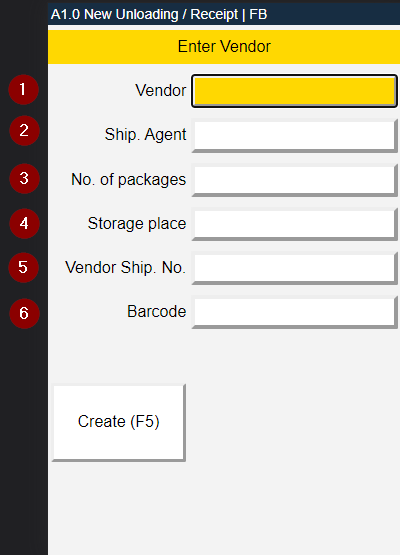
1: Vendor of the items (Either 1 or 2 are mandatory)
2: Shipping Agent (Either 1 or 2 are mandatory)
3: No of packages (mandatory)
4: Storage place (mandatory)
5: Vendor Shipment Number (mandatory)
6: Barcode: Blanko Barcode (not mandatory)
'Show Inbound Stock Post Page' now also works in the warehouse receipt outside of outside stock - Item 64079
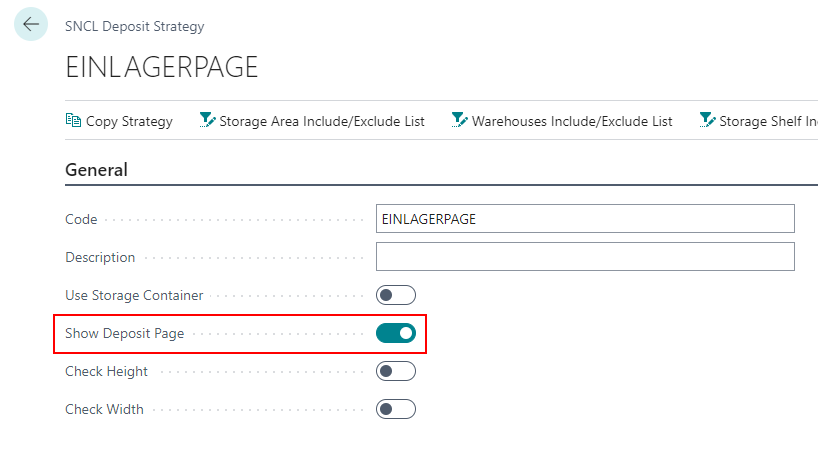
If warehouse receipt data, items, item groups, or the SNCL setup are provided with a Inbound Stock Post strategy that has the Show Inbound Stock Post Page flag set, the Inbound Stock Post page will be displayed in the warehouse receipt - regardless of outside storage - as soon as the warehouse receipt employee sets the "Quantity checked" checkbox.
The reason for this is so that the warehouse receipt employee who works in a warehouse does not have to constantly switch between working with the document lines and the Create stock document function. He can just use the Create Inbound Stock Post page instead.
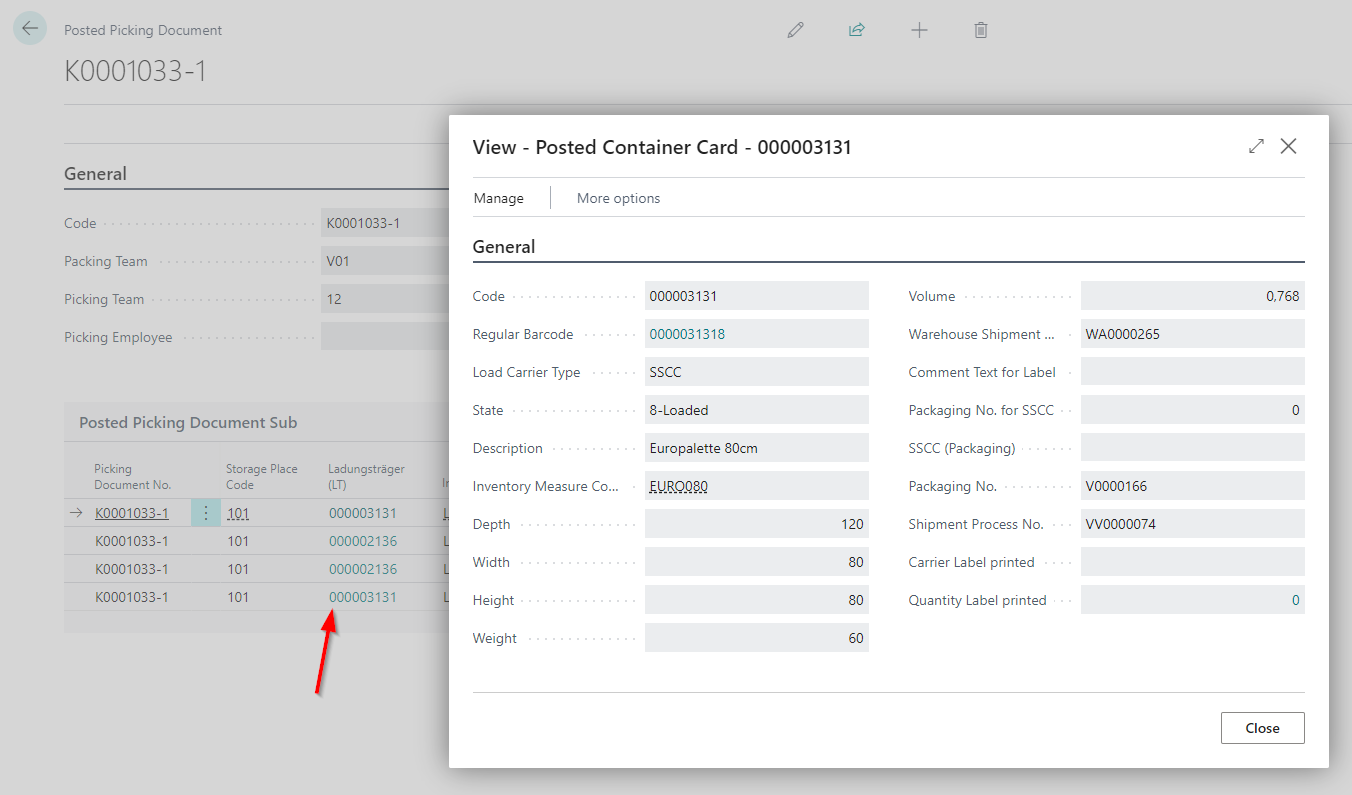
Posted Picking Document: Lookup to Load Carrier - Item 63206
In the Posted Picking Document Sub on the Posted Picking Document you can look up the Posted Load Carrier Cards from now on.
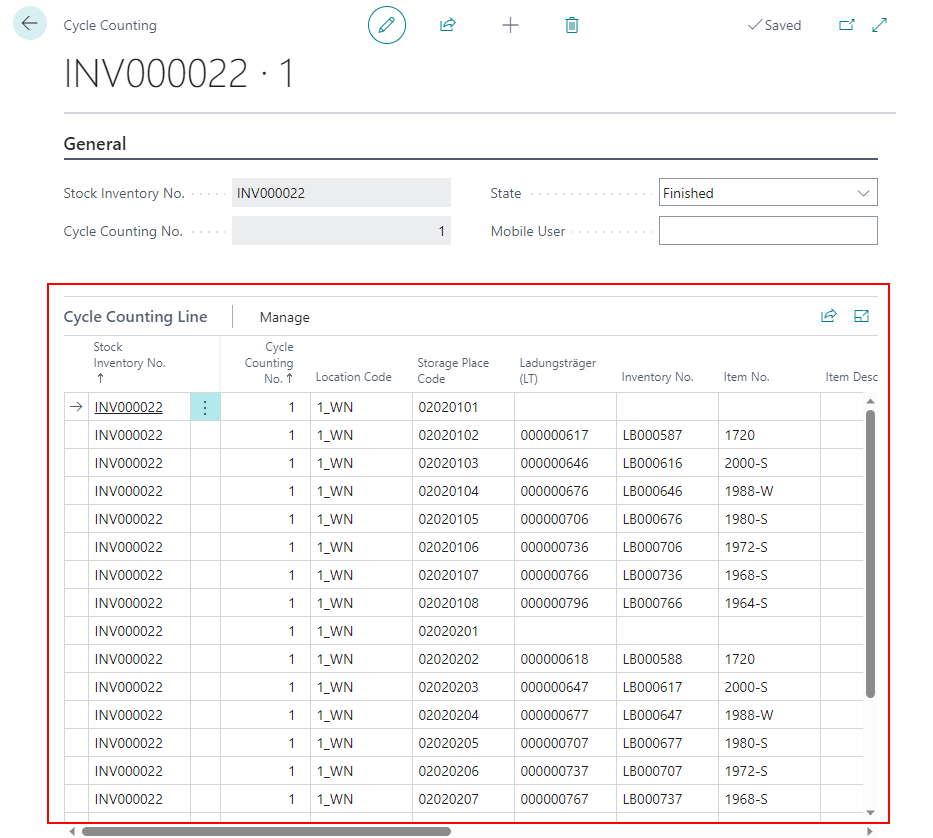
Changed the Cycle Counting Line table Item 64147
The following changes have been made to the Cycle Counting Lines:
- Inventory no. shown by default
- Item description added
- Description changed from quantity to target quantity
- Base unit added
- Arrangement of columns changed
Open Cycle Counting List automatically after creation - Item 61207
Until now, there was no feedback when creating a cycle counting list after starting the corresponding action on the inventory card. The user could not know whether the creation was successful or not. For this reason, the cycle counting list is now opened automatically as soon as it is created. If the creation failed, there will be an error message.
SNCL Posted Warehouse Receipts - Item 38355
A new list and a new page have been added. The new list is SNCL Posted Warehouse Receipts and the new page is SNCL Posted Warehouse Receipt. Here you can view the Posted Warehouse Receipts. In the future, we plan to unify the Warehouse Receipt and Posted Warehouse Receipt pages and lists. For now, the Posted Warehouse Receipt list and page look like this:
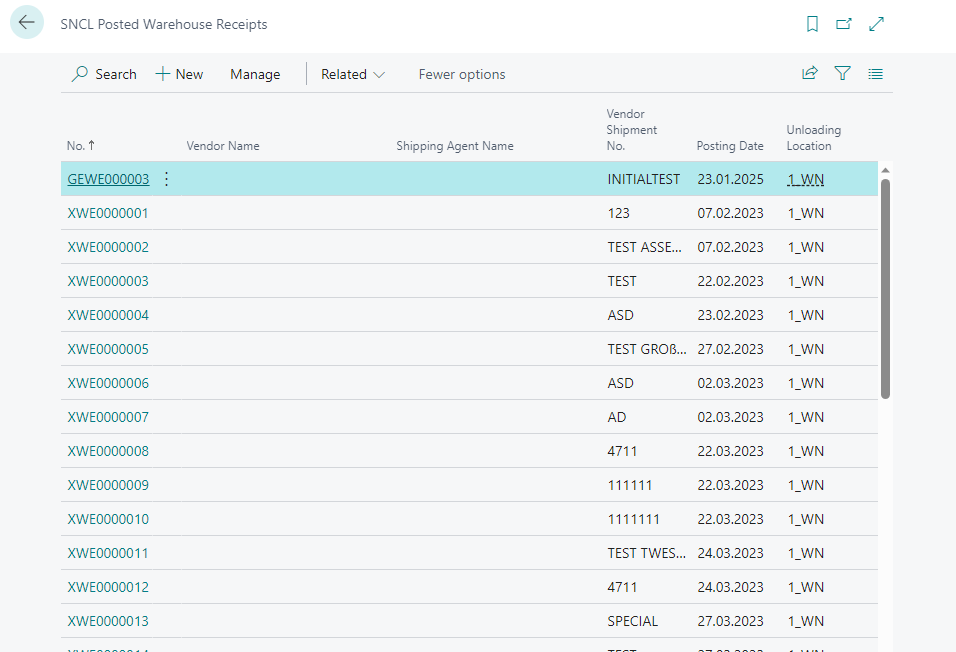
- No.
- Vendor Name
- Shipping Agent Name
- Vendor Shipment No.
- Posting Date
- Unloading Location
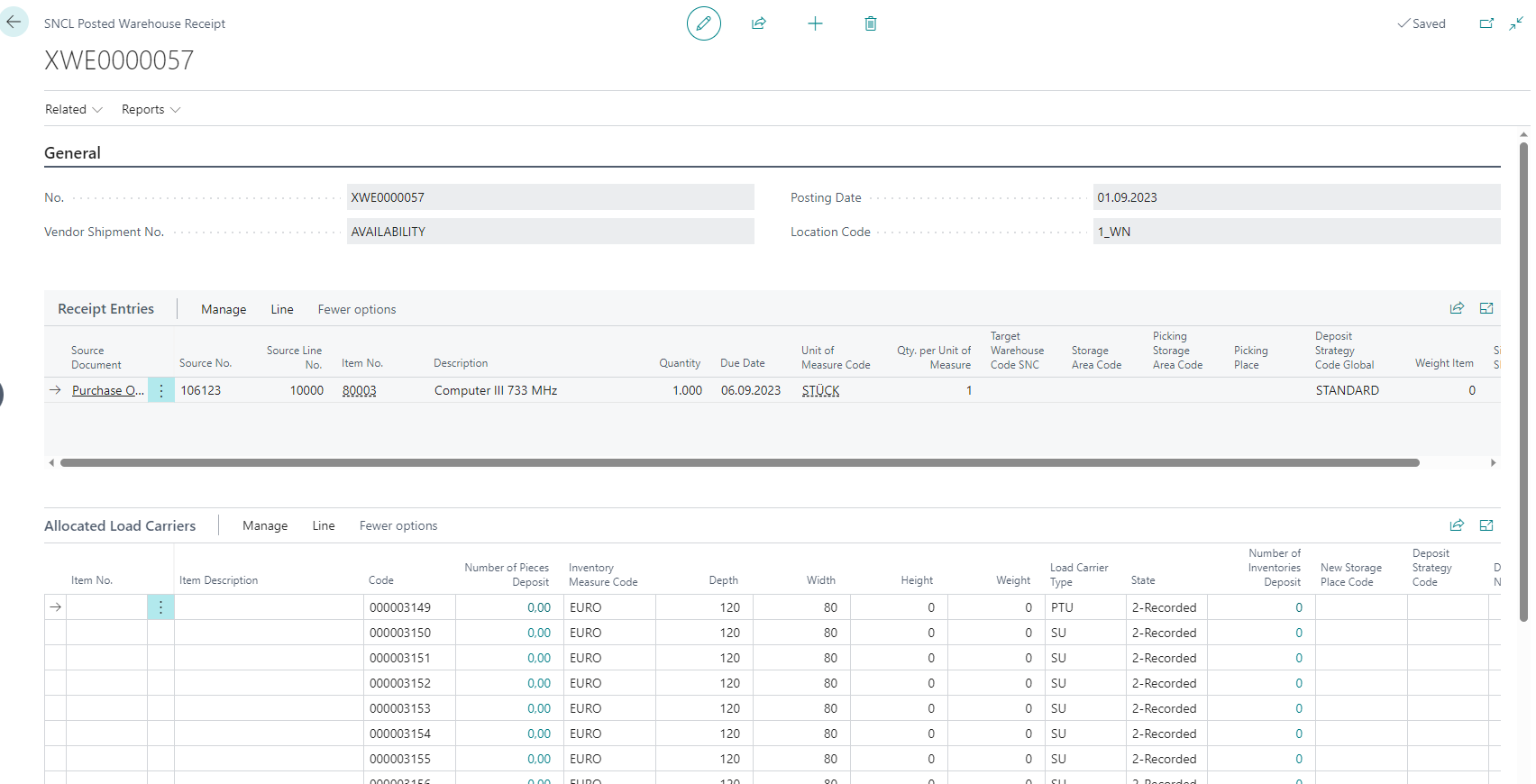
General
- No.
- Vendor Shipment No.
- Posting Date
- Location Code
Receipt Entries
- This is exactly the same Receipt Entries table as in the SNCL Warehouse Receipt
Allocated Load Carriers
- This is exactly the same Allocated Load Carriers table as in the SNCL Warehouse Receipt
SNC Logistics
- Stock Document Status
Bugfixes
SNC Order Type not findable via search - Item 59795
We have fixed an issue where the SNC Order Type page was not found when searching via the search bar.
Number of shipment processes = 0 not possible anymore - Item 56204
We have fixed an issue where it was possible to create '0' processes on the Create Shipment Process page, resulting in an endless loop.
Item tracking lines contained negative amounts - Item 53069
We have fixed an issue where the amount in the item tracking lines in a Inbound Stock Post or Outbound Stock Post were shown as negative.
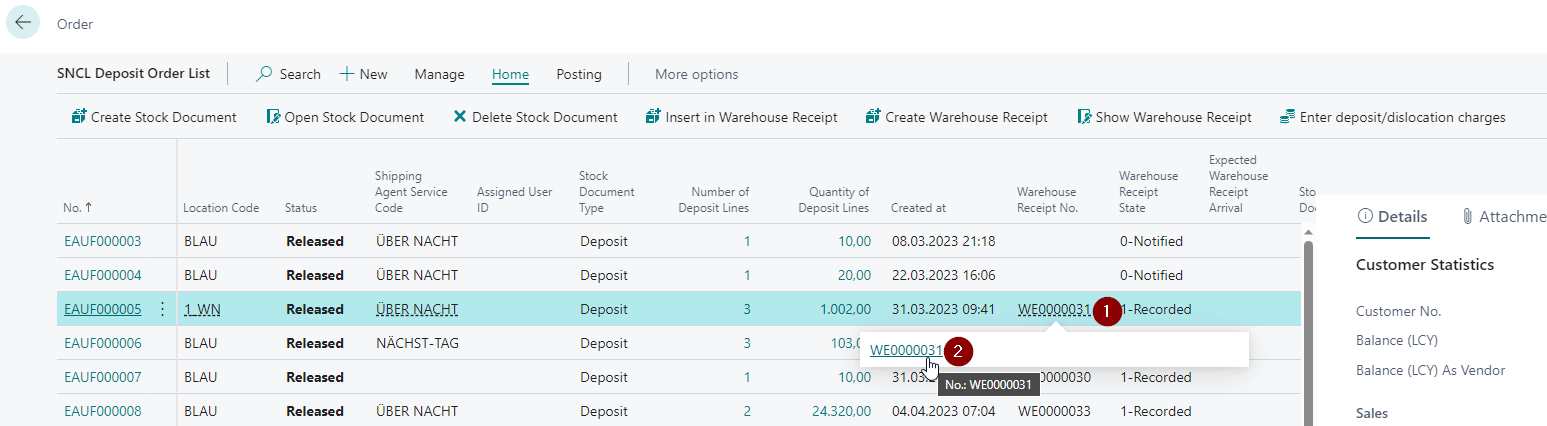
Warehouse Receipt Lookup in Inbound Stock Post Order List
We have noticed that the Warehouse Receipt Lookup in the Inbound Stock Post Order List did not open the SNCL Warehouse Receipt. We fixed this issue.
Storage place of new SSCC comes from currently processed PTU Item 64188
Previously, the location of a newly created SSCC came from the packaging team's storage place. We recently changed this. Now the location comes from the PTU currently being processed.