Hinweis: Diese Release Info ist nur in Englisch verfügbar.
Features
We have these major topics for you:
- New Picking state in Warehouse Shipment Planning and Order Document
- New Availability state in Warehouse Shipment Planning
- Find Picking Team via Picking List Print/Release
- [Automatic Printing of Inventory Labels for Inbound Stock Posts Base on Output Journals and New Field in Setup](#automatic-printing-of-inventory-labels-for-Inbound Stock Posts-based-on-output-journals-and-new-field---item-106421)
- Automatic Consumption Posting
- Picking Optimization with blocked inventory
- New Subpage on SNCL Warehouse Receipt
New Setup Field: Update Posting Date - Item 97296
We have implemented a new setup field in the Warehouse Receipt section of the SIEVERS WMS Setup:
- Update Posting Date: If the flag is active, the posting date is automatically set to the current working date for warehouse receipt postings. This can be important when dealing with notified warehouse receipts.
Warehouse Shipments
New Picking State 'Created' - Item 105204
There is a new state at the warehouse shipment header and at the sales order:
- Created: Shown if the quantities that are available are reserved by a Outbound Stock Post and the picking document has been created.
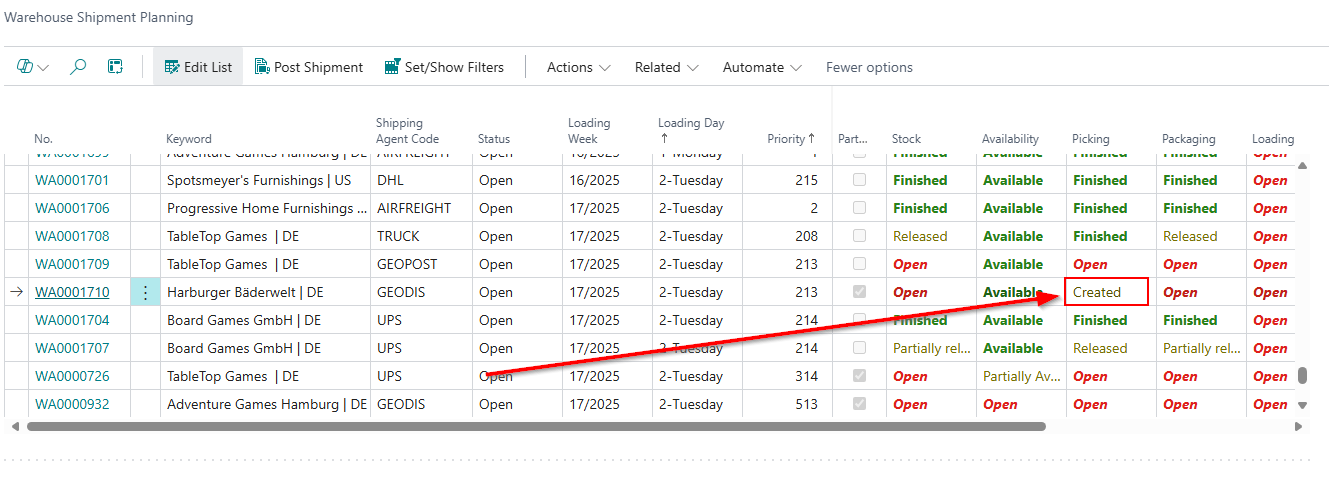
With the Partial flag you can see whether all necessary items have been reserved or only some of them.
As soon as at least one item is in picking, the status is set to Partially released.
This shows the dispatcher in the warehouse that inventories have been partially or completely reserved, but that no item has yet been released to the warehouse for processing.
The warehouse shipment status changes to Created if this is the lowest state of all orders contained.
New Availability State 'Partially Available' - Items 96034 and 102970
There is a new availability state at the warehouse shipment planning:
- Partially Available: If the shipping advice is partial and there are both available and unavailable items in the source documents of the warehouse shipment.
In contrast, “open” is shown if no item is available or if the shipping advice from the order is “Complete” and there are available and unavailable items.
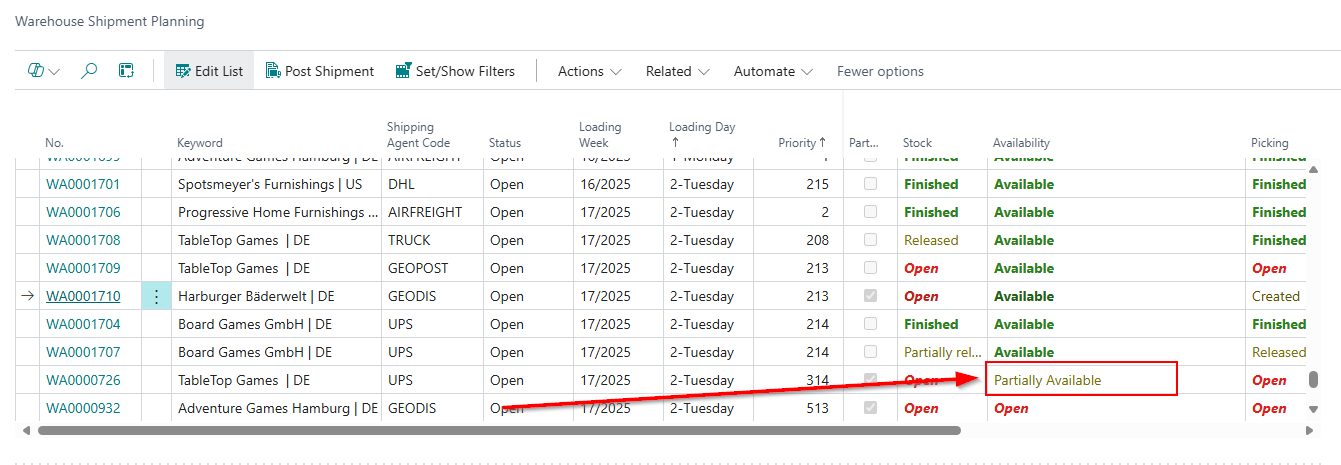
::: Note Please keep in mind that the availability state shown in the warehouse shipment planning is always the lowest of all orders which are part of the warehouse shipment. For example the warehouse shipment planning will show a Partially Available, even if just one order is partially available. If one order has the state Open, the warehouse shipment planning will also show the state Open. :::
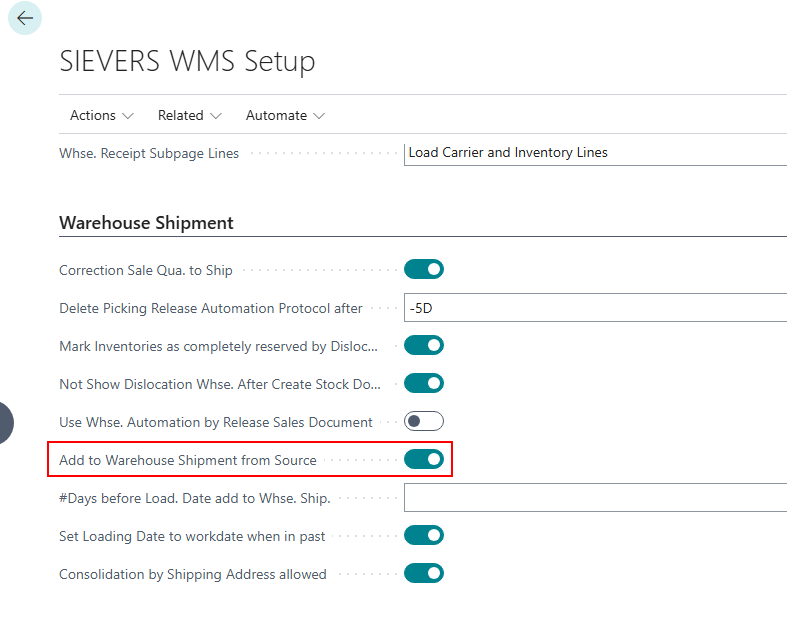
Option 'Add to Warehouse Shipment from Source' Now Applies to Automation - Item 105260
In the WMS setup, there is a setting called Add to Warehouse Shipment from Source in the Warehouse Shipment section. This causes new lines in a source document to be automatically transferred to an existing warehouse shipment. The Whse. Ship. Automation already has exactly the same function. If you disabled the setting, the function was not disabled in Whse. Ship. Automation. We have now changed this. The setting now applies to both manual warehouse shipment processing and Whse. Ship. Automation.
Warehouse Receipts
New Subpage on SNCL Warehouse Receipt: Allocated Inventories - Item 99757
With this release we are introducing a new optional subpage on the SNCL Warehouse Receipt: The Allocated Inventories table. This is to simplify and improve clarity when allocating carrier lines.
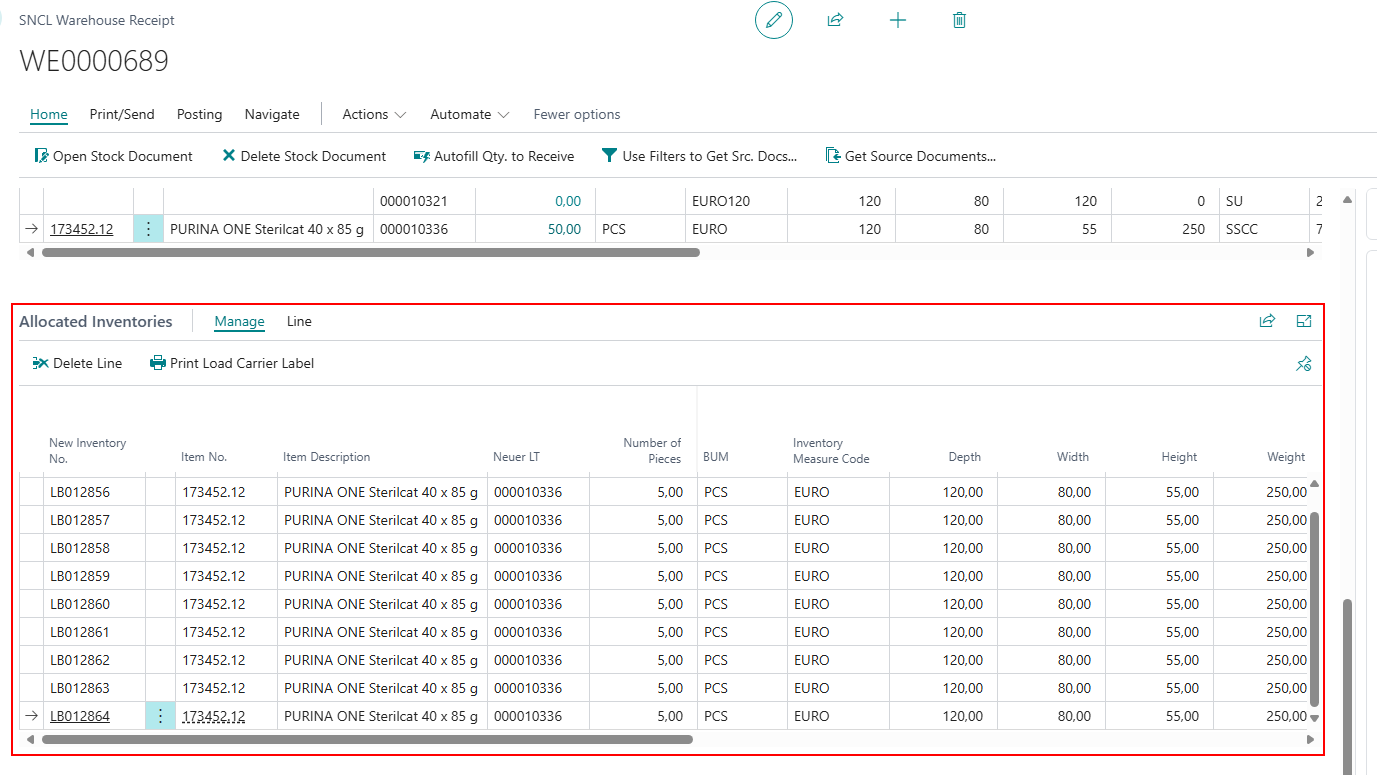
You can decide if you want to use it by setting the new option Whse. Receipt Subpage Lines in the WMS Setup to Inventory Lines or Load Carrier and Inventory Lines.
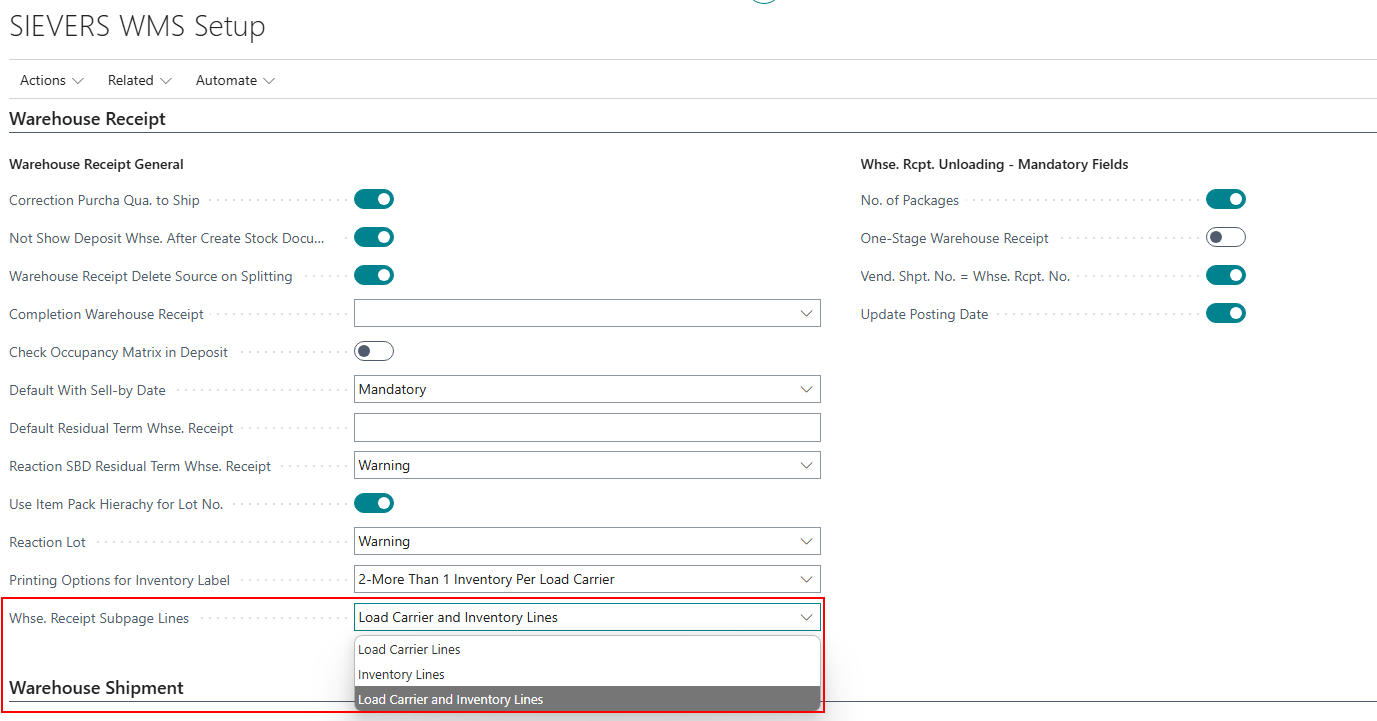
Previously, mixed load carriers (e.g., with several different items) were displayed inaccurately, as only one item was shown as a representative. With the new subpage, each item or inventory is clearly displayed individually with its item number, description, and exact number of pieces. This makes it clear exactly which items are on which load carrier.
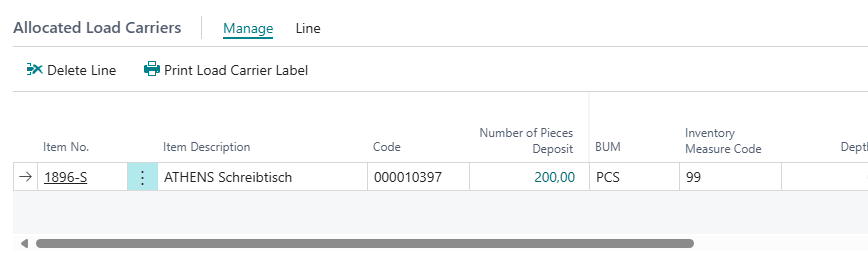
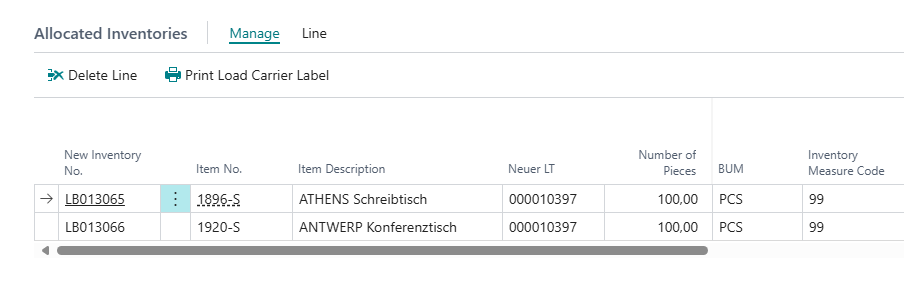
The table itself is similar to the Allocated Load Carriers table:
- New Inventory No.
- Item No.
- Item Description
- New Load Carrier
- Number of Pieces
- BUM
- Inventory Measure Code
- Depth, Width, Height, Weight
- Load Carrier Type
- State
- Sell-by Date
- New Storage Place Code
- Inbound Stock Post Strategy Code
- Document No.
- Special Order
- Assigned Order
- New Lot No.
- Comment Text for Label
- Proposal SPU Inventory Unit of Measure
- Checked in Mobile Whse. Rcpt.
- Checked By
::: Note In the course of these developments we have removed the popups if empty load carriers should be deleted since they were not necessary when the load carrier was just created anyway. :::
Stocktaking
Stocktaking No. and Reserved No. of Storage Places on SNCL Storage Place List - Item 102452
We have added the new column Stocktaking No. to the SNCL Storage Place List. This allows you to see immediately whether the storage place is currently part of a stocktaking. You can also access the stocktaking directly by clicking on the number.
We have also moved the columnn Reserved No. of Storage Places right next to the other relevant fields such as Available Number of Spaces.
Stocktaking No. on SNCL Inventory List - Item 102453
We have added the new column Stocktaking No. to the SNCL Inventory List. This allows you to see immediately whether the inventory is currently part of a stocktaking. You can also access the stocktaking directly by clicking on the number.
Automations
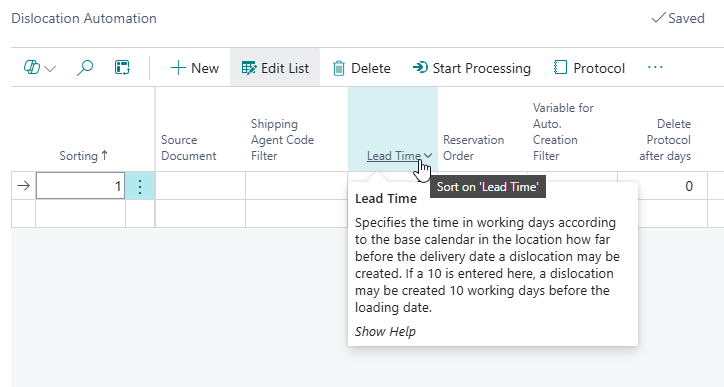
Outbound Stock Post Automation Lead Time Now Based on Location Calendar - Item 104737
To avoid counting weekends and holidays as workdays, the calendar entered in the location is now used as the basis for the lead time of the Outbound Stock Post automation.
Storage Places
Changes to Storage Place List Columns - Item 102462
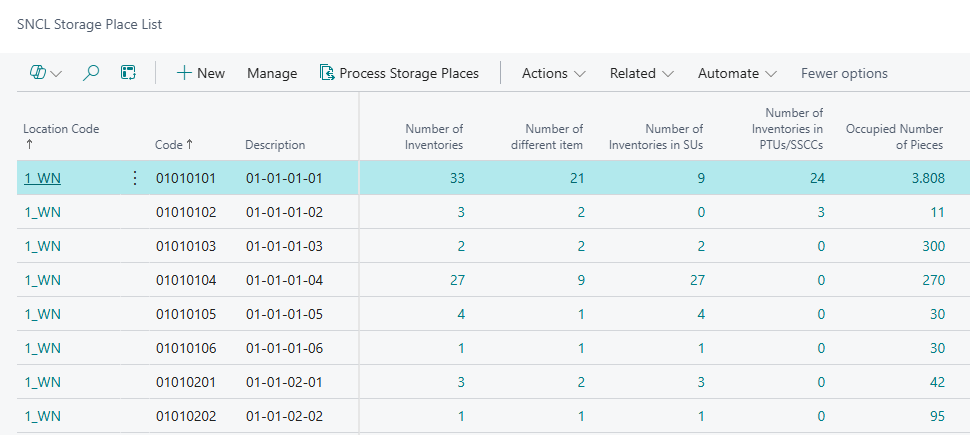
We have added these new fields to the SNCL Storage Place List:
- Number of Inventories
- Number of different items
- Number of Inventories in SUs
- Number of Inventories in PTUs/SSCCs
These fields are always calculated to reflect the current status. Clicking on the number shows the respective inventory or items.
New Column 'Reserved No. of Units' on Storage Place List - Item 102493
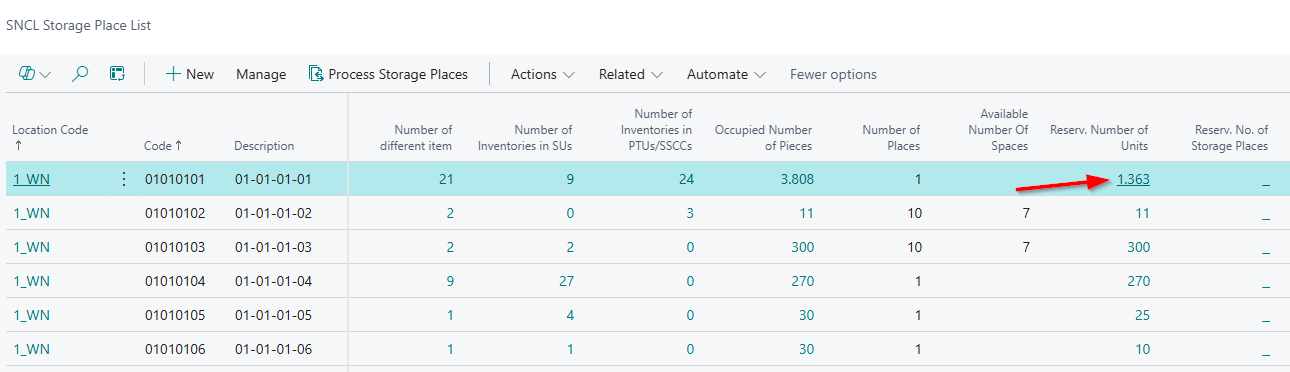
We have added the new column
- Reserved No. of Units
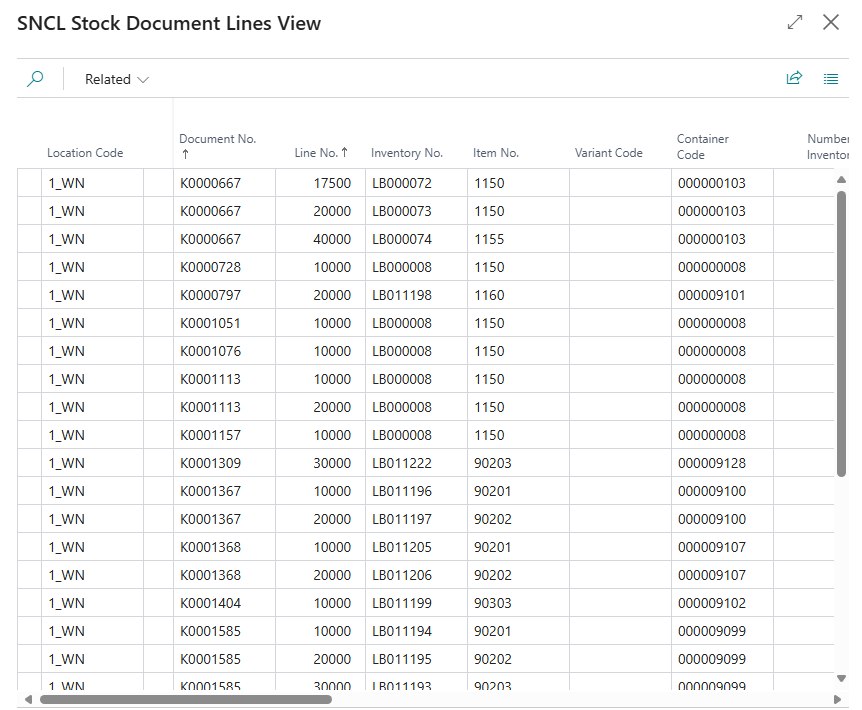
to the SNCL Storage Place List. This column shows the reserved quantities on this storage place. If you click on the number, you get a list of the Stock Document Lines filtered on this storage place.
Picking
Find Picking Team via Picking List Print/Release - Item 102711
For various reasons, it may happen that no picking team can be found for a document. Previously, it was necessary to cancel the warehouse document and create a new one. To simplify this process, there is now an easier way:
On the Picking List Print/Release page, there is now a Find Picking Teams button. Clicking on it runs a search algorithm that attempts to find a team for all picking documents without a team.

This process uses a codeunit which you can also use as a job queue. This is useful for example when you only process warehouse shipments automatically.
- SaaS/OnPrem Codeunit: 70294248
- PTE Codeunit: 77248
New Setting: Picking Optimization with Blocked Inventory - Item 108833
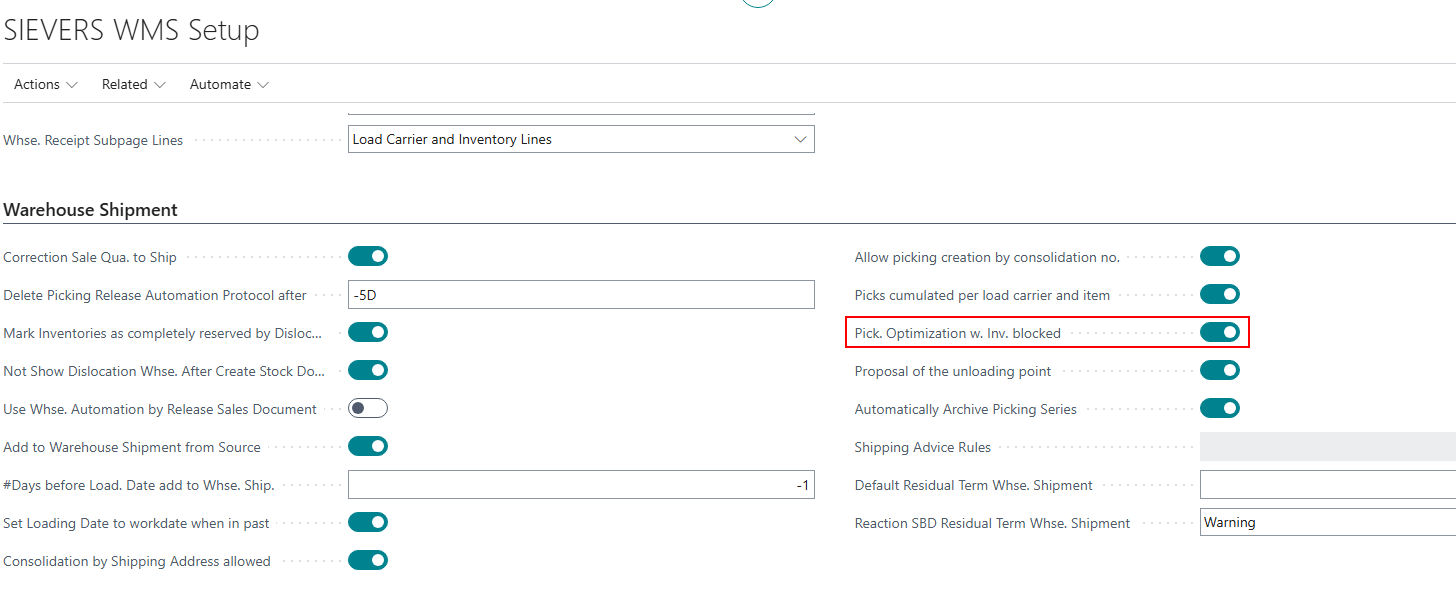
We have added a new setting to the SIEVERS WMS Setup:
- Pick. Optimization w. Inv. blocked: If this indicator is activated and an inventory is blocked in mobile picking by entering 0, the stock Outbound Stock Posts lines containing the current item in the current Load Carrier are cancelled and relaesed again to find an alternative inventory. If this indicator is not activated, the alternative will be searched with the standard Inv. swap.
The benefit of this feature is that inventory determination can release items optimally. For example, delivery dates are also taken into account, which means that if inventory is missing, earlier orders can be fulfilled first. If this feature is not activated, only new freely available inventory is searched for and reserved in the event of stock shortages.
Assuming that an employee now enters a quantity of 0 in A4.3 and the feature is activated, the system asks whether the inventory should be blocked. If the employee clicks Yes, the inventory is blocked and all lines containing the current item in the current Load Carrier are canceled and then released again so that inventory determination strategy works which finds new inventories.
Role Center
We have made several updates to the role center:
Removed
- Warehouses
- Stock Entries
- Storage Shelves
- Storage Places
from the front page actions.
Added
- Warehouse Shipment Automation
- Outbound Stock Post Automation
- Blanco Barcodes
- Check Production Supply
- Release Items for Picking
- Cancel Released Items
to the front page actions - Items 99034 and 103423
Added
- Lines without Picking Team
as a tile. It counts the Outbound Stock Post lines without a picking team and the lines that have the status “Created.” - Item 102713
Added
- Posted Assembly Orders
- Finished Production Orders
to the History -> Posted Origin Documents menu. - Item 106166
Inventory
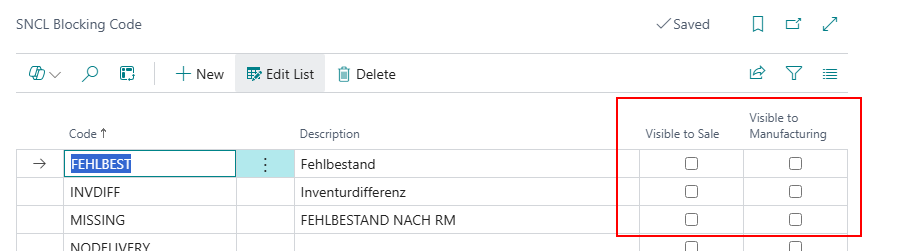
New Fields on SNCL Blocking Code List - Item 101885
We have implemented the fields
- Visible to Sale
- Visible to Manufacturing
to the SNCL Blocking Code list.
If an inventory or a storage place is blocked with a blocking code, the corresponding fields in the storage place (if the storage place has been blocked) or in the inventory (if the inventory has been blocked) change in accordance with the setup in the blocking code list.
Reports
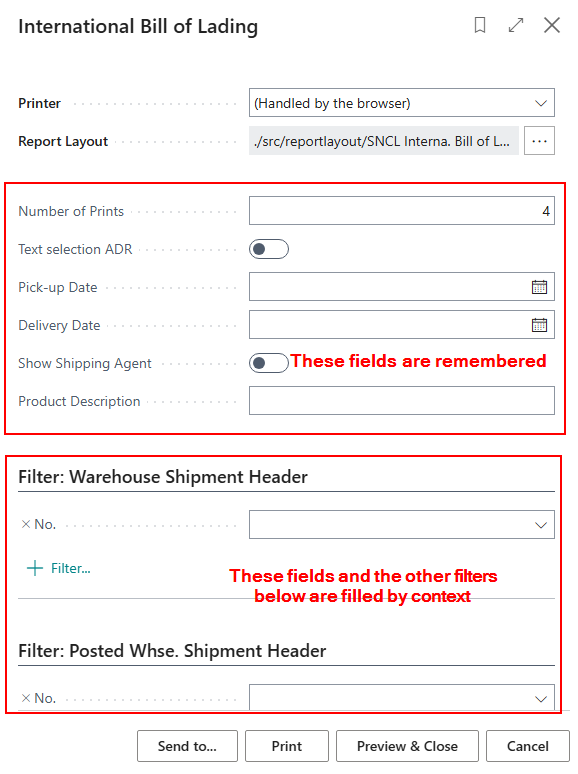
Prefill of International Bill of Lading Request Page - Item 106170
If you print the International Bill of Lading, you probably always do so using the same procedure. The same number of printouts and the other options are often the same. To save you work, the system now remembers your parameter entries.
In addition, the filter fields are now automatically filled in according to the context, depending on where you access the report.
Mobile
Define Device Models - Item 104144
SIEVERS WMS Mobile is currently optimized for use with the Zebra MC33. This means that the layout and functionalities (such as the presence of a keyboard) are tailored to this device. However, it should also be possible to purchase your own devices in the future.
We have now created the basis for this. It is now possible to define new devices in a table called Device Model List.
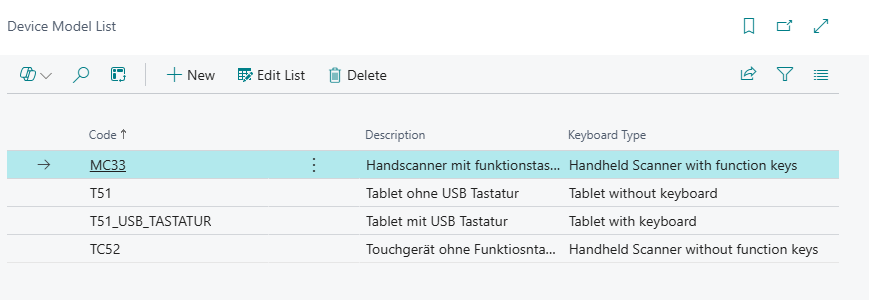
Here you can specify your devices and their keyboard types. You have the choice between these types:
- Handheld Scanner with function keys
- Handheld Scanner without function keys
- Tablet without keyboard
- Tablet with keyboard
You can enter the defined devices per user in the SNC Mobile User table.
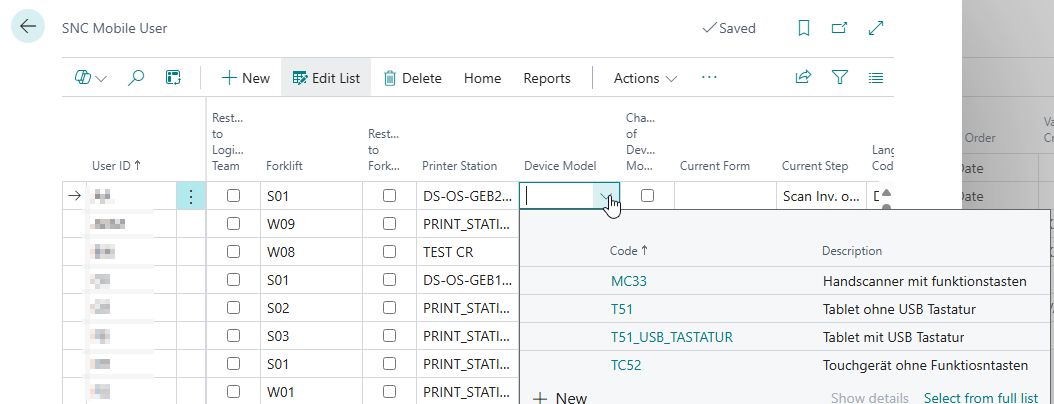
::: Note Please note that the defined devices currently have no effect at all. :::
New Field on the Login Screen to Show Mobile Device - Item 106487
We have added a new field on the mobile login screen where users will be able to change their mobile device to apply needed layout and functionality changes.
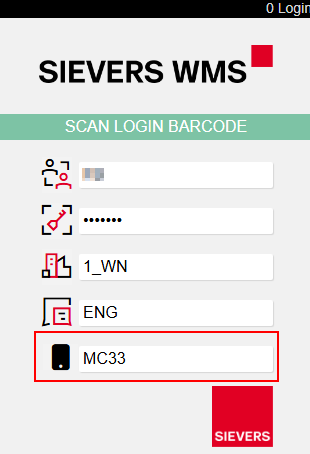
This field will only be visible, if
- Change of Location allowed in the SNC Mobile User table is activated for the user and
- Device Model Selection in the SNC Mobile Setup is activated
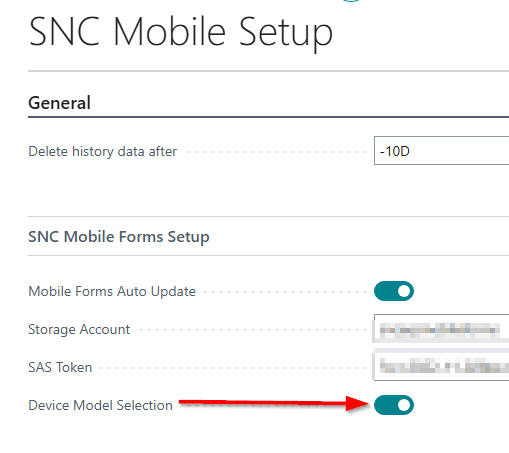
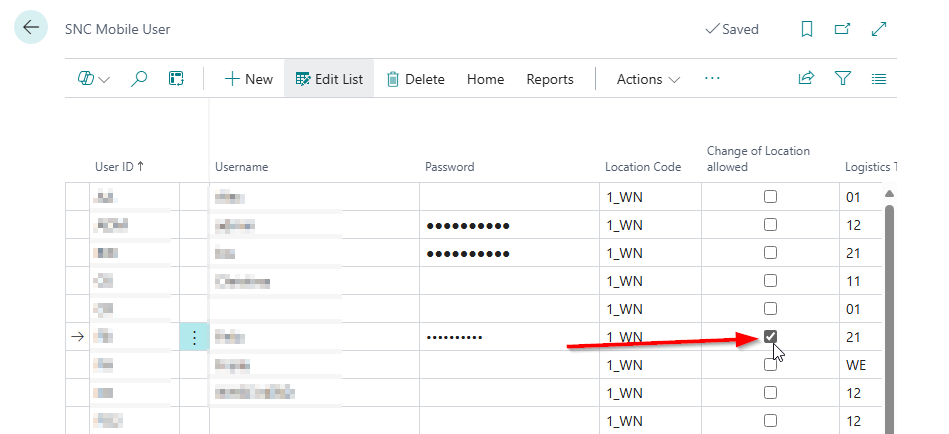
::: Note Please note that the field is not yet functional! :::
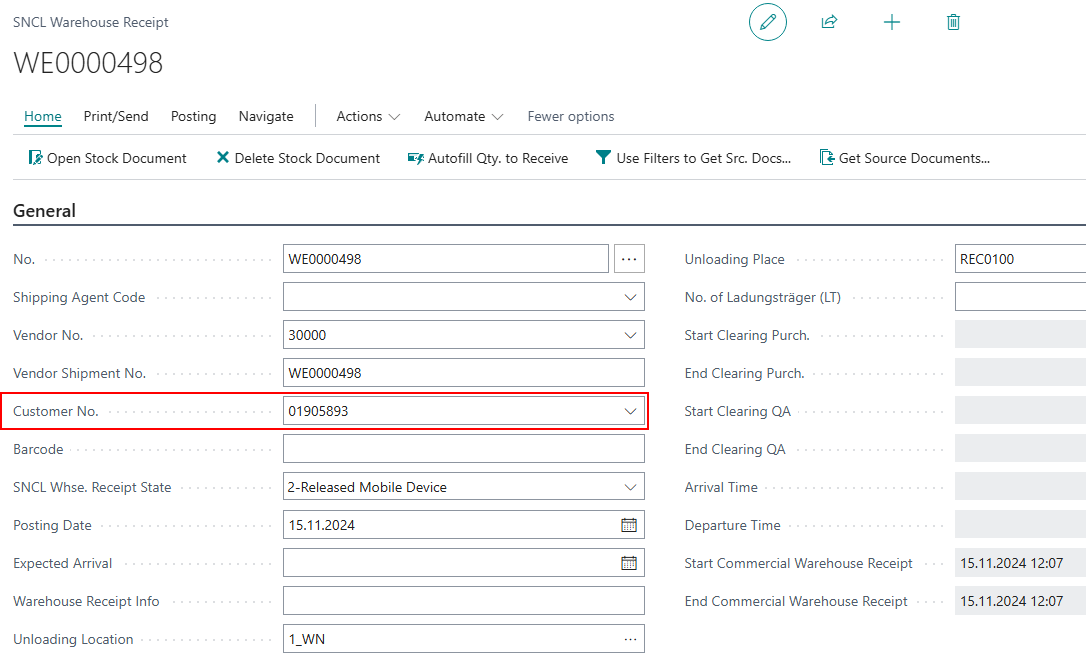
A1.0: Processing of Documents with Customers now Possible - Items 101948 and 105118
We have removed the Vendor field from the A1.0 New Unloading / Receipt page and instead added a Supplier field.
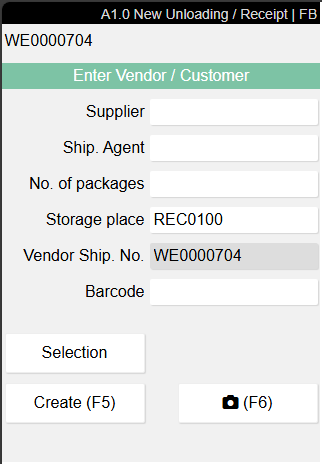
This has been changed because Inbound Stock Post customers are now also taken into account during entry. When you click on Selection, all customers and vendors for whom there are open Inbound Stock Post orders, purchase orders or other relevant documents are shown.
We have also added the field Customer to the SNCL Warehouse Receipt where the Inbound Stock Post customer number will be entered.
Production
Automatic Printing of Inventory Labels for Inbound Stock Posts Based on Output Journals and New Field - Item 106421
The Printing Options for Inventory Label now also apply to Inbound Stock Posts based on output journals.

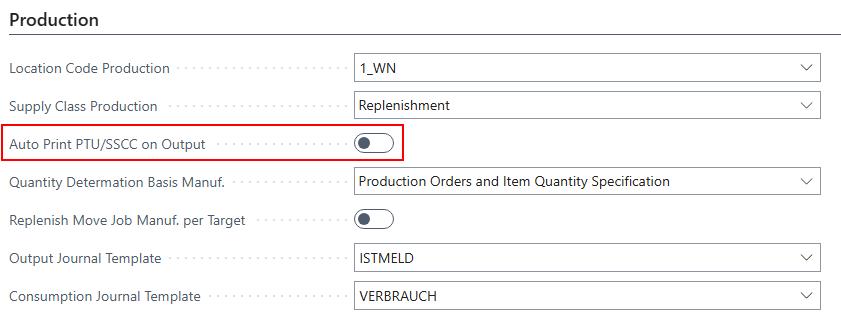
In addition, we have added a new field in the Production section:
- Auto Print PTU/SSCC on Output: If the option is activated, the printing of load carrier labels is automatically triggered when stock placements are posted on the basis of an actual report.
Automatic Consumption Posting - Items 107108 and 107073
Currently, consumption posting is carried out in three steps:
- Creation of a consumption journal
- Creation of a stock document for the consumption journal
- Completion notification and posting of the Outbound Stock Post document to the consumption journal
This entire process must be carried out manually. Not only is this slow, but errors can also occur at every step. For this reason, we have now automated the entire process.
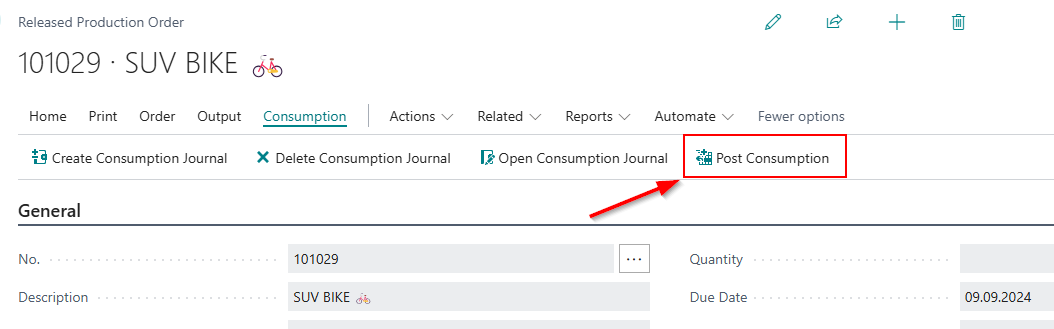
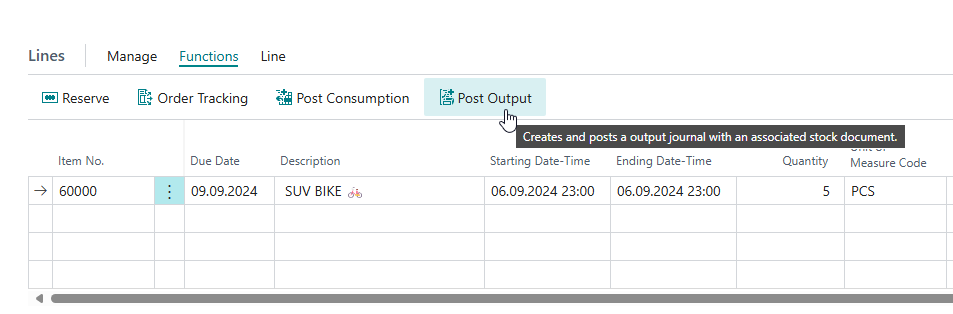
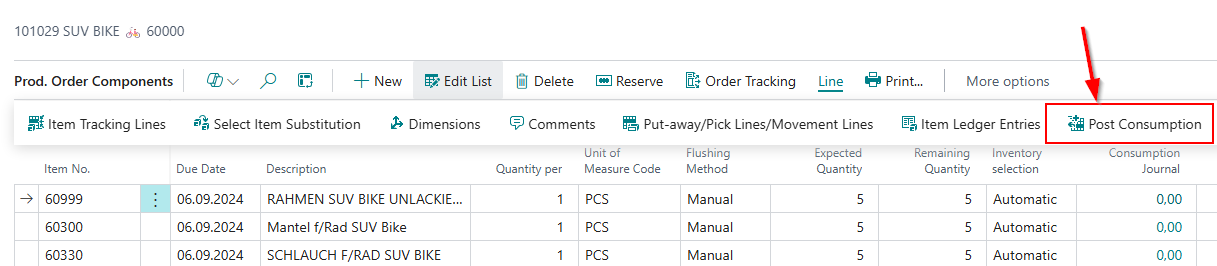
In the Released Production Order you can now find the action Post Consumption in
- the Consumption section or
- in the lines in the Functions section or
- in the line actions of the Prod. Order Components. In the latter case, you can also select individual production lines that are to be posted.
When you click on it you can enter the Output Quantity or the Consumption Quantity. It is only possible to enter on of the values, not both.
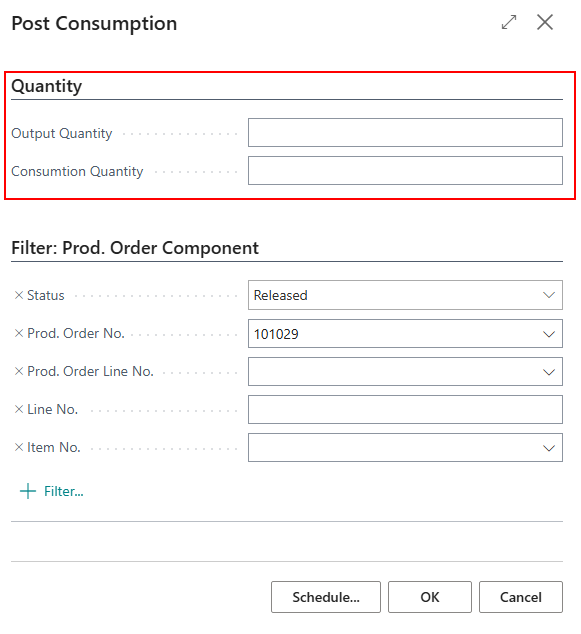
If you enter the Output Quantity, the Consumption Quantity will be automatically calculated with this formula: Consumption Quantity = Output Quantity * Component Quantity
If you enter the Consumption Quantity, it will be posted directly. However, it cannot be greater than the sum of the remaining component lines.
Released Production Order Field Updates - Item 105924
In the last release, we updated the fields on the Released Production Order page.
We have now implemented a feature that ensures these fields are filled correctly when a production order is created or refreshed.
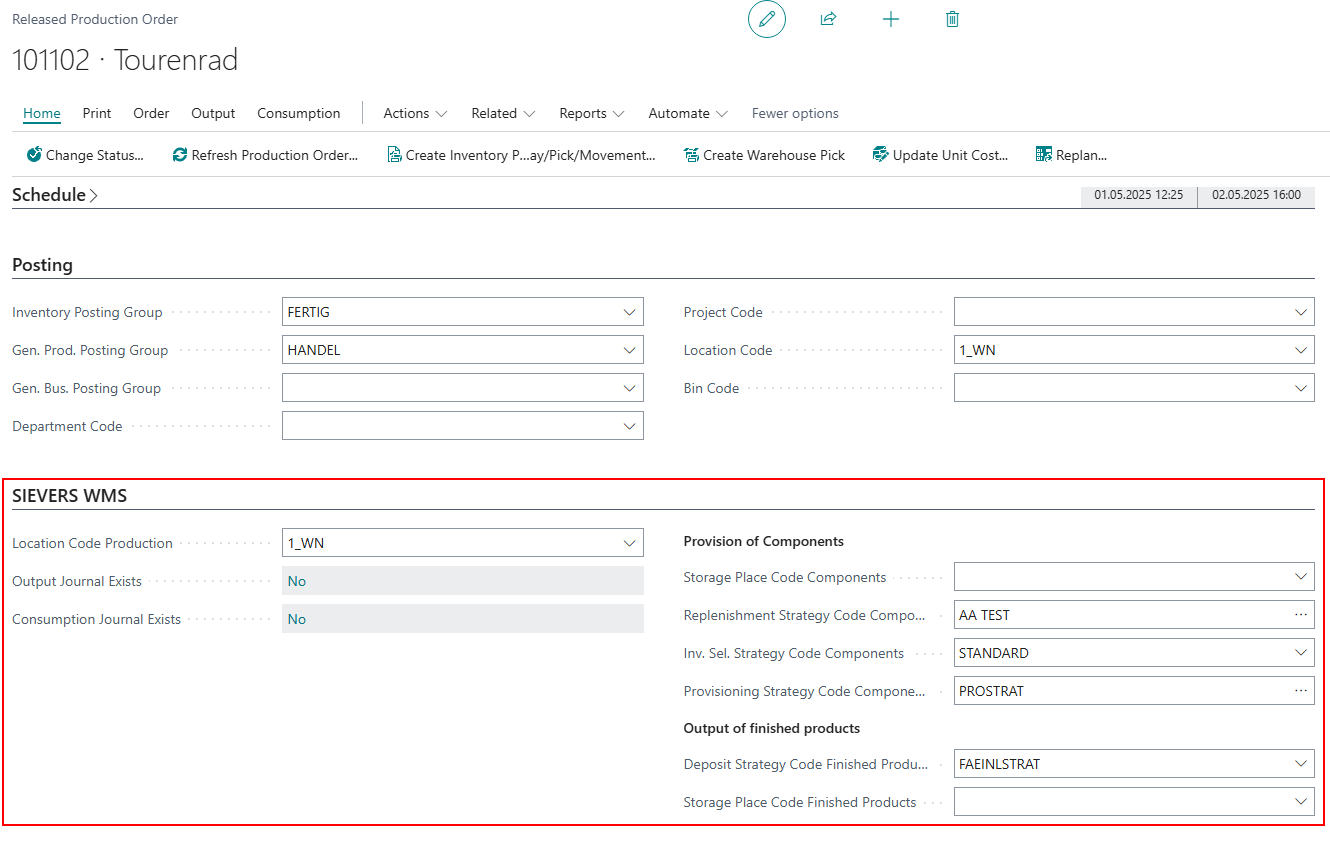
The fields are filled with information from various sources. The following hierarchy applies:
- Work center/work center group (Only if a routing link code is stored in the production order component line)
- Stockkeeping unit
- Item
- Item category
- Production Order Header
- Sievers WMS Setup (Only applies when creating a production order)
If the required information is not set up in the data record of the first hierarchy level, the information is searched for in the data record of the next hierarchy level. If the minimum setup of the necessary data is not available in the last hierarchy level either, an error message is displayed.
The minimum data required is the following fields:
- Location Code Production
- Storage Place Code Components or Provisioning Strategy Code Components
- Replenishment Strategy Code Components
- Inventory Selection Strategy Code Components
- Storage Place Code Finished Products or Inbound Stock Post Strategy Code Finished Product
When the production order is created, only the corresponding fields in the production order header are filled according to the information from the SIEVERS WMS setup. If a value in the production order header is subsequently adjusted with reference to the components, the user is asked with each change whether the information in the component lines should be updated.
Small Changes
- You can now display the field Name 2 on the location card via Personalize - Item 108769
- Improved error message on A4.3 which pops up when trying to enter a custom quantity which is too large - Item 107821
- Improved A4.3 layout by moving the sell-by date closer to the lot no. - Item 107804
- Added new error message in Outbound Stock Post automation protocol when no picking team could be found - Item 102712
Bugfixes
Fix for Duplicate Shipping Log Record Error - Item 109917
We have resolved an issue that caused an error message indicating that a record in the Shipping Log Archive already exists during the completion of the picking process.
Setup File Import not Possible - Item 101935
We fixed a bug that prevented setup files from being imported if the units in the file already existed in the target system.
A4.2 Display Issues - Item 107496
We have fixed a bug that caused the mobile page A4.2 to be displayed incorrectly.
A4 Variants and Other Information Not Correctly Calculated - Items 107782 and 107773
We have corrected the quantity information in some places on the A4 Mobile Pages. Some of these had different variants and other inventory information that had not been taken into account correctly.
GS1 Barcode Scanning Focus Issue Resolved - Item 106887
We have fixed a bug that caused the system to not set the focus on the quantity field after scanning a GS1 barcode in the A4.2 process.
Display of Lot and Best Before Date for Multiple Stock Items on A4.3 - Item 107805
We have fixed a bug that prevented the display of *DIV LOT and *DIV BBD when multiple stock items with different characteristics were present on a load carrier.
Restriction on Picking Blocked Inventory - Item 107833
We have fixed a bug that allowed users to select and pick blocked inventory, which should not be permitted.
Translation of Div Lot No. and Div BBD Fixed - Item 110564
We have resolved an issue where the labels "*Div Lot No." and "*Div BBD" were not translated correctly when the language was set to German.