Hinweis: Diese Release Info ist nur in Englisch verfügbar.
Features
Warehouse Receipt
New Feedback when trying to reset a Load Carrier in A1.2o without having one selected - Item 75598
When you try to reset a Load Carrier in A1.2o you should have selected one first. Otherwise you would try to reset nothing. The system will now show an error message when this mistake happens.
Added field to A1.6 LC Creation which shows the open Quantity - Items 75752 and 75756
A1.6 LC creation showed only the full quantity of the item, regardless of whether the user had already assigned some of it to a carrier. For this reason, there is now a new field that also shows the quantity still open.
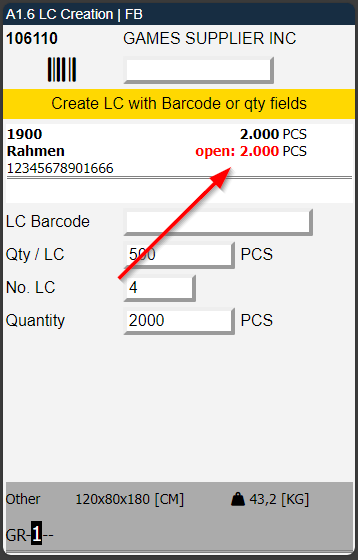
In the course of this, we have also adjusted how the warehouse receipt filter A1.2k behaves. If a quantity is now entered in the filter, the system now filters on the open quantity and no longer on the total quantity.
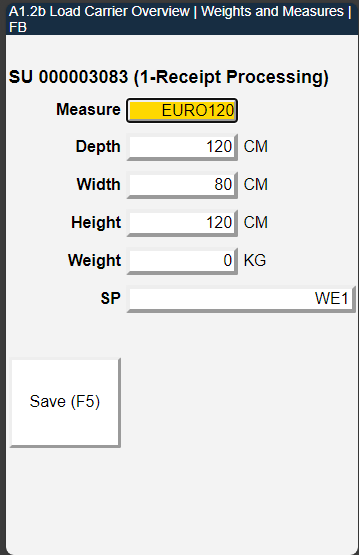
Weights and Measures für A1.2 and A1.2o - Item 63823
We have added the menu option to view the weights and measures for selected load carriers in A1.2 and A1.2o. Open it with F1 or via menu.
Added Print LC Label Option to A1.2 and A1.2o - Item 63828
Now you can print the LC Label on A1.2 and A1.2o by pressing F9 after selecting a load carrier or via menu point 5.
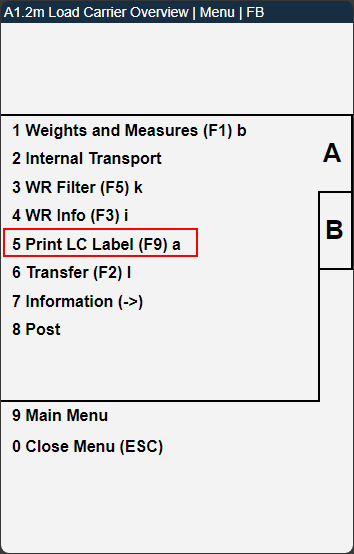
Note that the user will receive a warning when trying to reprint a label.
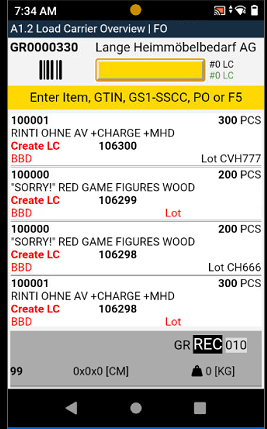
A1.2, A1.2o and A4.3 show GS1-SSCC instead of Load Carrier No. - Items 76895 and 76897
If available, the GS1 SSCC number is now shown in the warehouse receipt load carrier overviews (A1.2 and A1.2o) and the picking position processing (A4.3) on the MDE instead of the normal load carrier number.
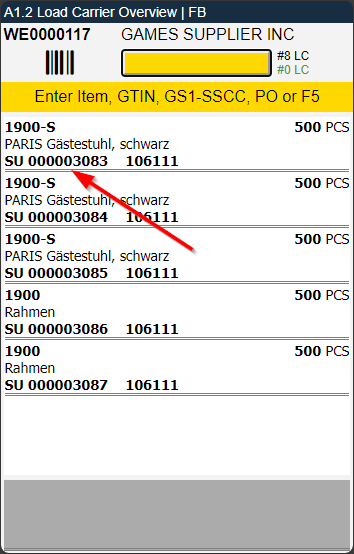
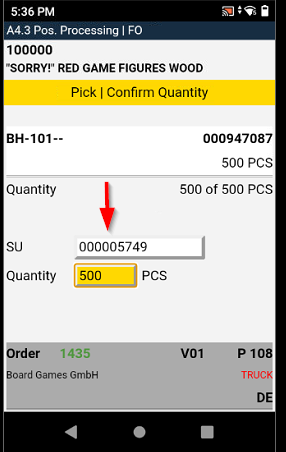
::: Note The system will only display the last 9 characters of the SSCC No. :::
A1.2 and A1.2o: New Menu Action: Dissolve Assignment - Item 63842
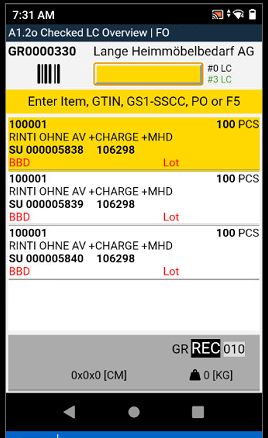
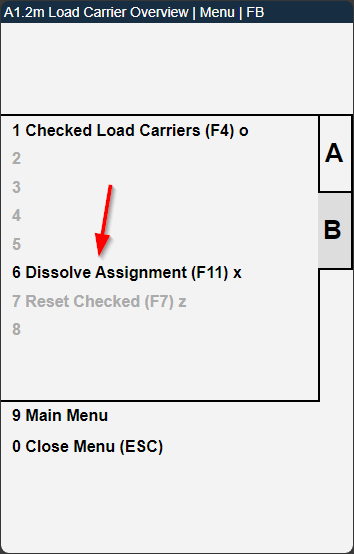
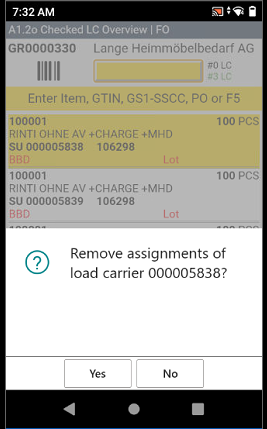
We have implemented a new action: Dissolve Assignment. Press F11 after you have selected a load carrier and confirm the dissolution. Now the document line is separated from the load carrier and can be assigned to one or multiple other load carriers.
Changes to MDE Page A1.4 Pos. Processing
- Fixed content alignment in A1.4 - Item 75608
- Now using inventory measure code instead of description in load carrier details - Item 75610
A1.4 shows Load Carrier Storage Place - Item 75609
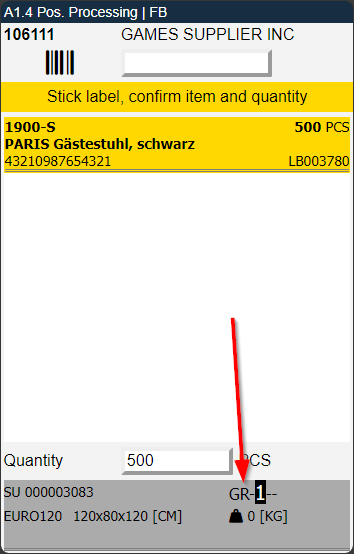
It can happen that a different storage place is provided for individual load carriers in the warehouse receipt than for the rest of the warehouse receipt. In such a case, the storage place of the Warehouse Receipt Header was still shown in A1.4. We have now changed this. If a load carrier has a separate storage place, this will be shown. Otherwise, the storage place of the Warehouse Receipt Header is displayed.
A1.4 shows BBD and Lot No. - Item 75614
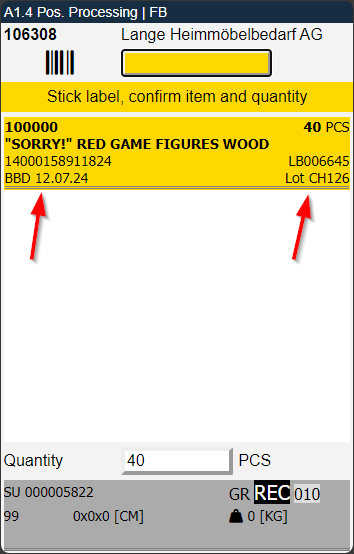
A1.4 will display a fourth line with the BBD and Lot No. of the item, if the item setup specifies that BBD and Lot No. are mandatory.
Changed Quantity Entering in A1.4 - Item 75606
In one of the recent releases we changed the way you entered the quantity on page A1.4. If an item barcode is scanned in A1.1, A1.2 or A1.3, A1.4 is opened and the load carrier(s) with this item is/are shown. The user must now select the correct item. The correct quantity is then automatically entered in the quantity field. This procedure remains as it is as the user is prompted again to confirm the correct line and thus verify the selection. However, this only makes sense as long as there are several lines to choose from. If there is only one line, the user would still have to click on this one line and confirm it.
As this makes no sense, the quantity is now automatically entered in the field if there is only one line to choose from anyway.
Automatic Print of Load Carrier Labels after Load Carrier Creation in Warehouse Receipt - Item 81698
If one or more load carriers are created in A1.6 and the menu function A8 Create Load Carrier is executed, the corresponding load carrier labels are now printed out automatically at the assigned printer station. Please note that the printout may not be in the same order as the. Please note that the order of the printed labels is not ascending by number.
Load Carriers created in A1.6 automatically checked - Item 75748
In the Warehouse Receipt Process, it is possible to create new load carriers. This is done on page A1.6 LC Creation. After creation, the system returns to A1.2 so that you can continue with the warehouse receipt. Once all load carriers of the warehouse receipt have been checked, it can be posted and thus completed. We have now improved the process to the extent that load carriers created in A1.6 no longer need to be checked. They are automatically marked as checked load carriers and are also shown in A1.2o Checked LC Overview.
Changed Field Order and improved handling in A1.6 - Items 75751 and 75947
The field order in A1.6 has been changed so that the look and feel is uniform across the mobile system. The new field order is:
- LC Barcode
- Qty / LC
- No. LC
- Quantity
We have also made some small improvements to the handling. For example, the available quantity is now automatically entered in the Qty / LC field if this is less than the quantity of the packaging hierarchy entry.
Unique Identification: Handling with identical Load Carriers and identical Quantity - Item 80418
In a warehouse receipt, it can happen that there are several identical load carriers with the same quantity. Clear identification is therefore not possible. In such cases, the load carrier with the lowest load carrier number is automatically selected.
::: Note Please note that open receipt lines always have priority. :::
Warehouse Shipment
New WMS Setup Tab: Warehouse Shipment - Item 74797
As we did with the Warehouse Receipt in Release 22, we continue with the Warehouse Shipment: In the SIEVERS WMS Setup there is now the Warehouse Shipment tab. We have moved the following option fields there:
- Active Automatic Outbound Stock Posts
- Delete Empty Automatic Outbound Stock Posts
- Correction Sale Qua. to Ship
- Mark Inventories as completely reserved by Outbound Stock Post
- Not Show Outbound Stock Post Whse. After Create Stock Document
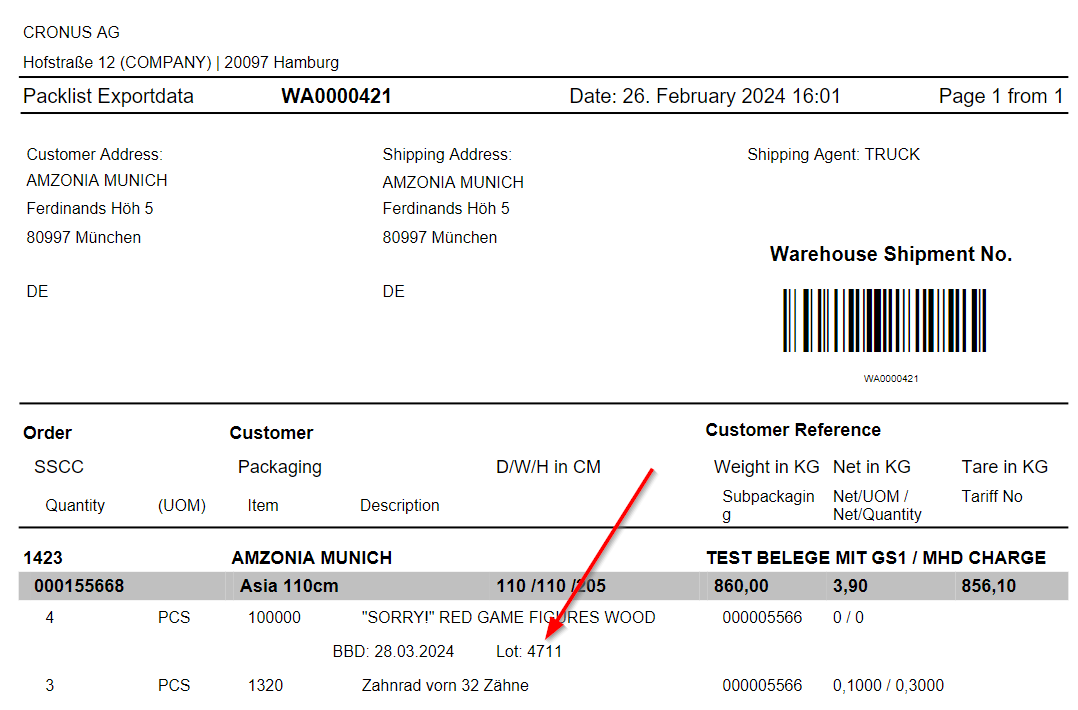
Lot No. now on Shipment List and Packlist Exportdata - Items 75220 and 75226
We have added the Lot No. to the Items on the Packlist Exportdata and the Shipment List.
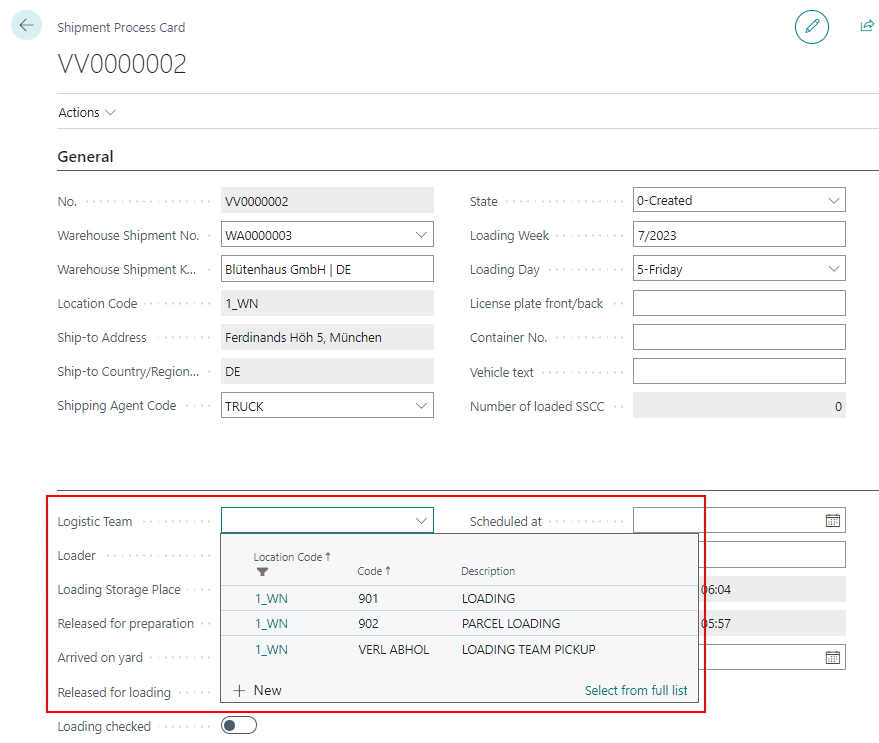
Shipment Process: Selection of Logistic Team - Item 77109
The Selection of SIEVERS WMS Team/Logistic Team in the Shipping Process Card is now possible via Drop Down Menu.
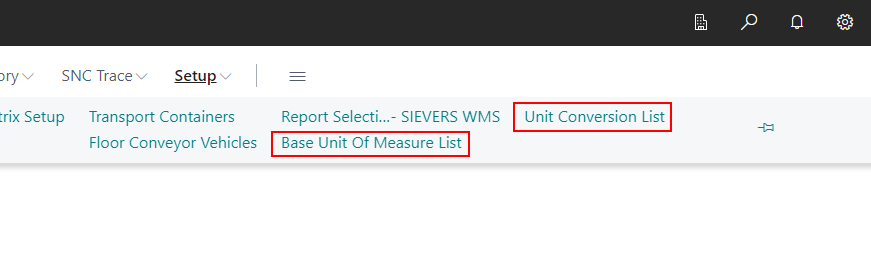
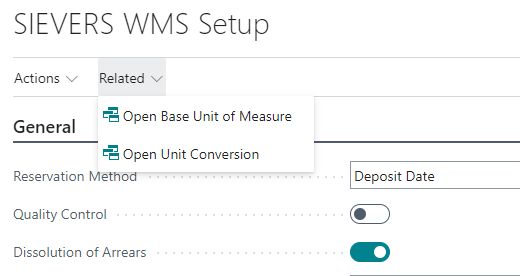
New Setup Links on Front Page and WMS Setup - Item 74756
We have added the new setup pages Base Unit Of Measure List and Unit Conversion List, however, our customers had trouble finding those pages. We agreed that this could be solved better and have set up a link to the pages on the front page under Setup as well as in the WMS Setup page under "Related".
Picking
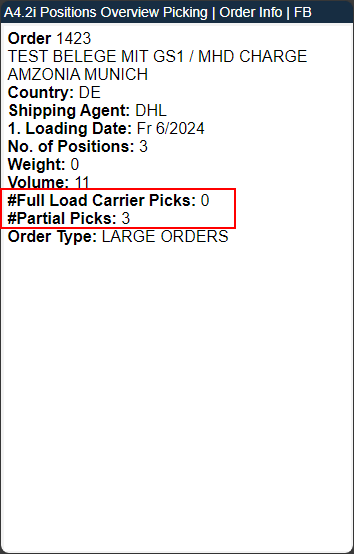
New Fields in Picking Document and on MDE - Item 77060 and 77068
We have added two fields to the Picking Document:
- Number of Full Load Carrier
- Number of Openings Load Carrier
The purpose of these fields is to enable a picker or dispatcher to estimate how many full pallets and openings are in a picking document
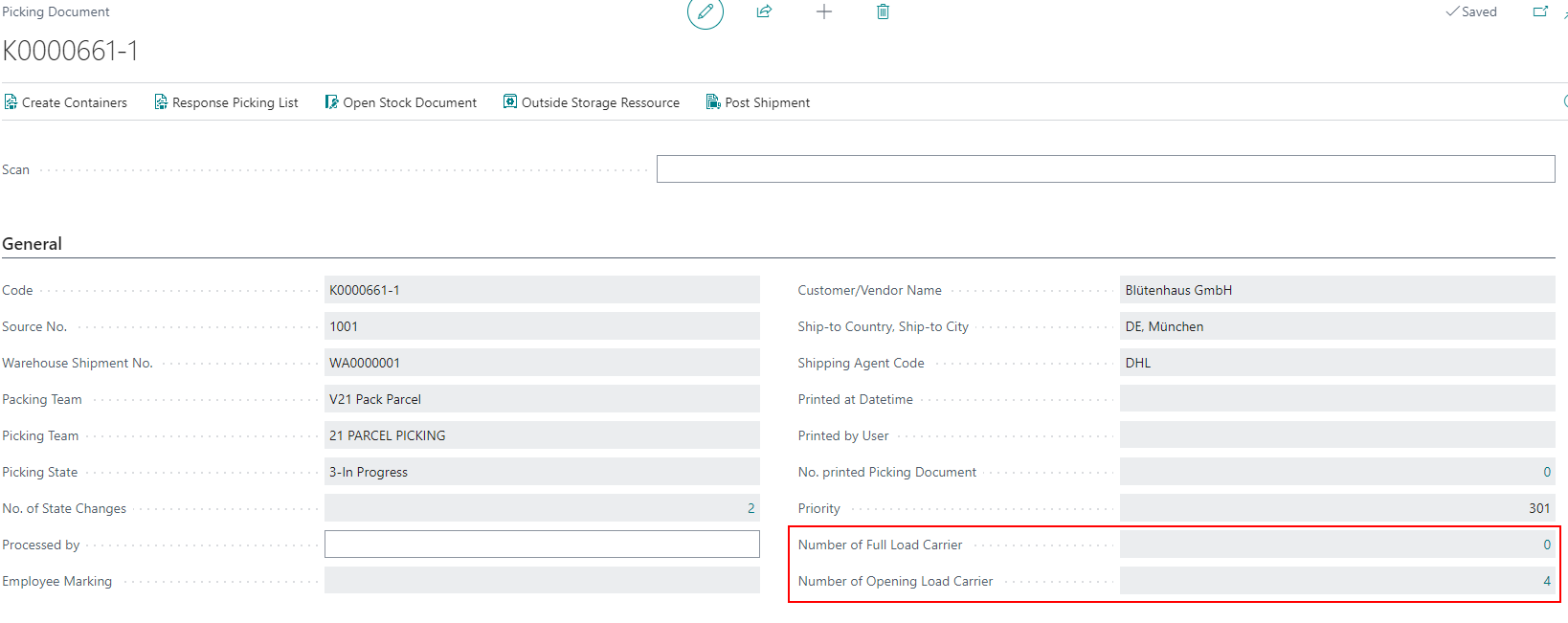
The fields are also available in the A4.1 - A4.3 Order Info:
New Quality of Life Feature for Picking Process: Switch All SU to PTU - Item 75232
In picking, you can currently use the Switch SU to PTU function to convert a selected SU into a PTU if the entire inventory is reserved for it. The function is basically very practical, but it is tedious to do this manually for all lines one after the other. For this reason, there is now a button that performs the function automatically for all picking lines for which the entire inventory is reserved and which are not already PTUs/NVEs.
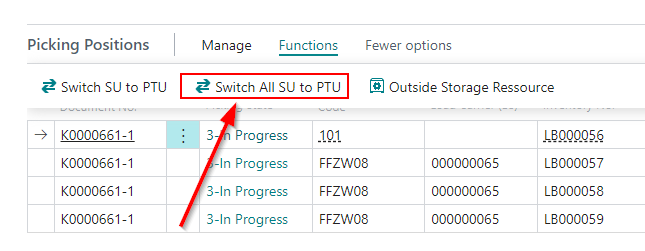
Please note that SU quantities must be equal to picking quantities for it to work.
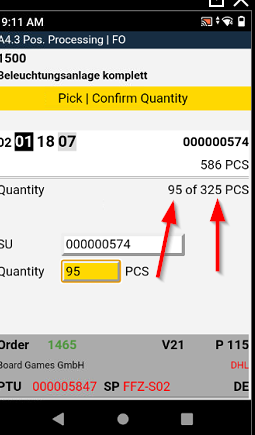
A4.3 displays the quantity remaining to be picked and the full quantity to be picked - Item 80262
We have implemented a new quality of life feature in A4.3. Now the picker can see the remaining quantity he has to pick and the full quantity of the position.
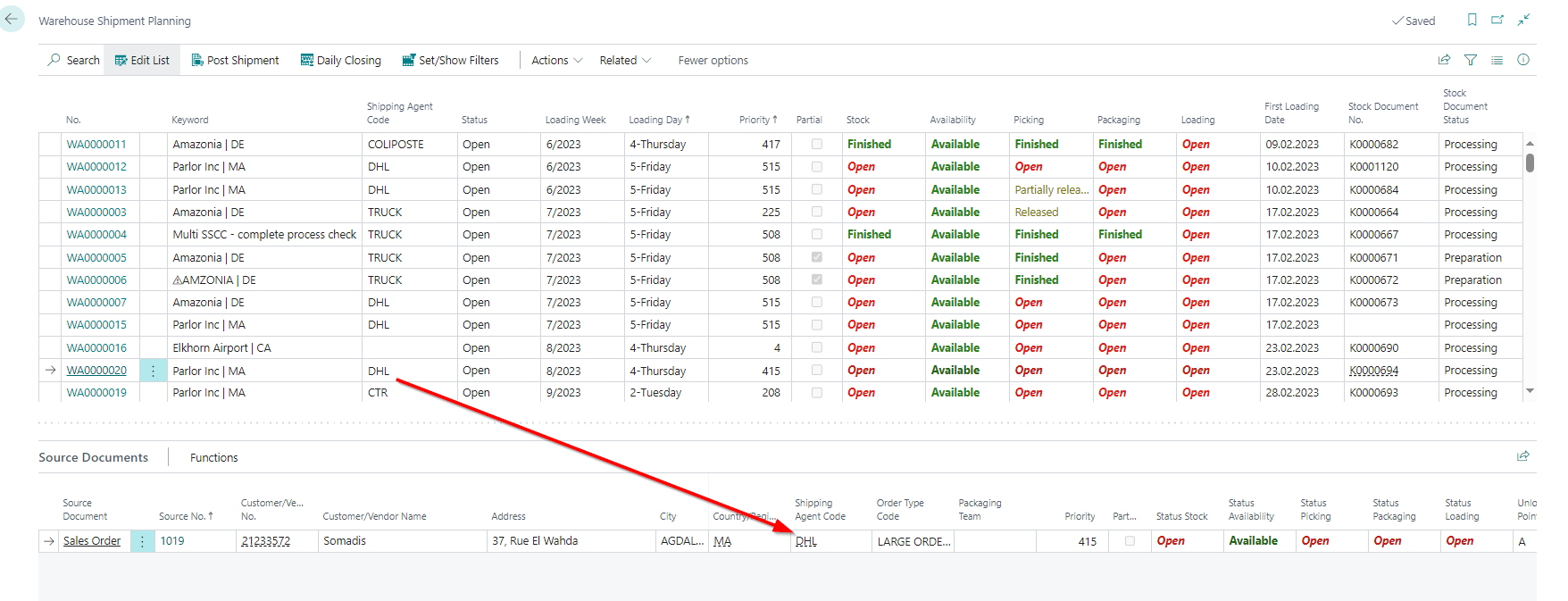
Changing the Shipping Agent in Warehouse Shipment and Warehouse Receipt - Items 70558 and 70560
From now on, the shipping agent's change in Warehouse Shipment Planning and Warehouse Receipt will also affect the source documents.
Info Symbol on Page B1.1 SSCC Info - Item 75120
We have added the info symbol to the B1.1 SSCC Info page entries.
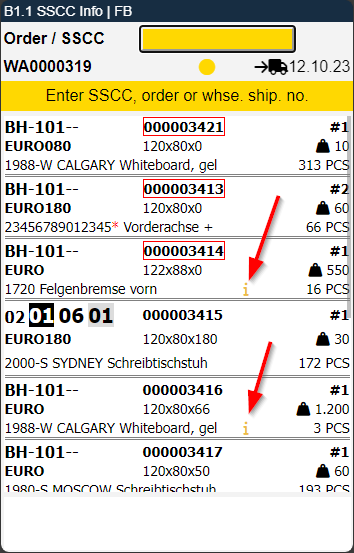
This i symbol shows up when a comment text is stored on the load carrier.
Added Base Unit of Measure to multiple Documents and Lists - Item 70746
It has come to our attention that a clarification of the base unit in the documents and lists is necessary. For this reason, the Base Unit of Measure or BUM field has been added to the following lists and cards:
- SNCL Inventory
- SNCL Load Carrier
- SNCL Posted Load Carrier
- SNCL Inbound Stock Post
- SNCL Posted Inbound Stock Post
- SNCL Outbound Stock Post
- SNCL Posted Outbound Stock Post
- SNCL Warehouse Receipt
- SNCL Posted Warehouse Receipt
- SNCL Picking Documents
- SNCL Posted Picking Documents
- SNCL Shipment Process List
- SNCL Post Shipment Process List
B5: Initial Stocktaking - Add new Storage Places - Item 76400
From now on, it is possible to add new storage places to an initial stocktaking via MDE. To do this, open the empty cycle counting list of the initial stocktaking with the mobile device and simply scan the storage place.
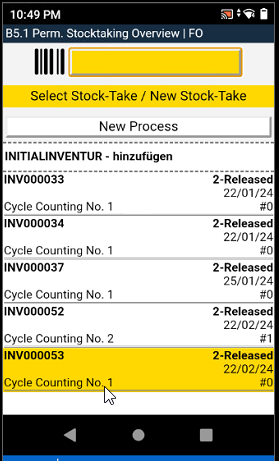
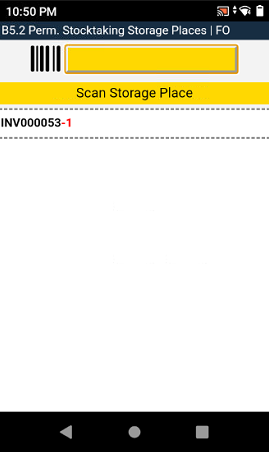
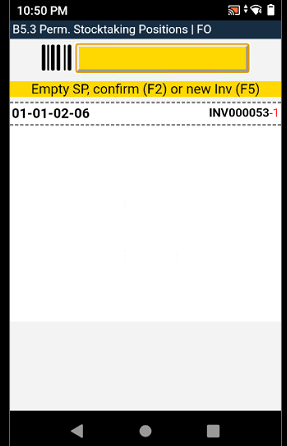
A2: Internal transports for load carriers without a destination location now with automatic destination location determination - Item 68515
In certain situations, it is possible that load carriers are intended for internal transport but have not yet been assigned a destination. This circumstance leads to an error on the MDE device. We have now implemented a function that automatically determines the destination location when the load carrier is picked up.
Outside Storage: Inventory Adjustment now possible with automatic input of Outside Storage info - Item 80444
Outside Storage often has special rules for handling items. In particular, items must always be assigned to a customer. For this reason, we have now introduced the automatic entry of the corresponding customer, source type and source number in the stocktaking when entering a new inventory in B3.1 and entering an external warehouse item.
::: Note Please note that once an outside storage item of a customer has been entered, no other inventory of another customer can be entered in the same stocktaking and in the same storage place. :::
Small Changes
- We have added some instructions to pages A1.2 and A1.6 to improve user guidance with clear identification of load carriers - Item 75746
- Brought the Confirm button on the shipment process to the front menu - Item 76035
- Print Check Digit on Storage Place Label Small and Large off by default - Item 77044
- B5.5: User now gets positive feedback when a new inventory has been recorded - Item 80447
- Added the fields Sell-to Country/Region Code and Ship-to Country/Region Code to the *SNCL Outbound Stock Post Order - Item 74810
- Improved feedback text in A4.2 and A4.3 after scanning SU - Item 76020
Bugfixes
Warehouse Receipt: Volume not correctly entered in new Load Carriers - Item 77041
We have fixed a bug which caused the volume of the Load Carriers not to get entered correctly after creating them in the Warehouse Receipt. The volume of the load carrier is now correctly transferred on the basis of the packaging hierarchy.
Move Order deletes BBD - Item 77102
We have fixed a bug that caused the BBD on the inventory to be deleted after posting a move order with it.
Warehouse Shipment creates one Shipping Order per Item Line - Item 80690
We have fixed a bug that sometimes caused the system to create a shipping order for every single item line in the sales order.
Character Limit Error with International Bill of Lading - Item 80941
We have fixed a bug which made it impossible to print out an International Bill of Lading impossible in certain circumstances because the system exceeded a field character limit.
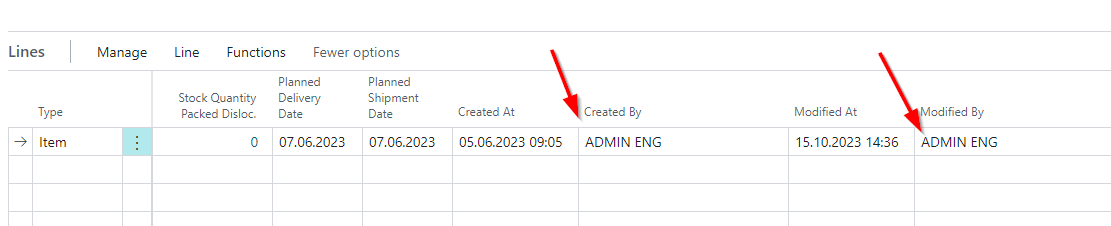
SNCL Outbound Stock Post Order: Created By and Modified By now with actual Names - Item 75262
We have fixed a bug which cause the content of the Created By and Modified By fields in the Outbound Stock Post Order lines to only show up as cryptic machine writing and not as names.
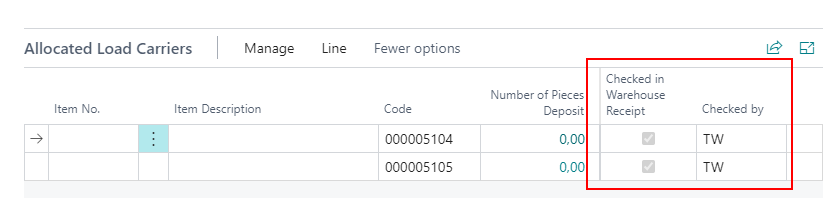
Added new Fields Checked in Warehouse Receipt and Checked By on several Pages - Item 75601
We have added the fields Checked in Warehouse Receipt and Checked By in the Allocated Load Carrier lines of these pages:
- SNCL Warehouse Receipt
- SNCL Posted Warehouse Receipt
These fields will be filled when the load carrier has been checked by someone with the mobile device on page A1.2o.
Stocktaking blocking Picking - Items 81755 and 76033
We have fixed a bug which cause two errors on the MDE:
- No Zero Stocktaking process being created when picking a whole pallet
- Positions not getting responsed correctly
Newly found Inventory not showing up on second Count Cycle - Item 80198
We have fixed a bug which caused inventory found and added via B5.5 New Inventory in the first count cycle not showing up in the second count cycle.
First Page of Packlist Export empty - Item 80699
We have fixed a bug which caused the first page of the packlist export to be empty when the first source document consisted of a large number of lines.
Thousands Separators causing error - Item 81901
Fixed a bug that caused an error when entering thousands separators in A1.4, depending on the regional settings.
Scan throws Error after 14 Characters - Item 80851
In one of the latest releases, we have improved the internal scan function to make it future-proof by making it more flexible. However, it was not taken into account that the maximum possible barcode length can be up to 63 characters. This triggered an error if you tried to scan a barcode that was too long. We have corrected this error. Now barcodes with up to 63 characters can be scanned.
Small Bugs and Spelling Mistakes
- When A1.4 was closed, A1.2 was shown, but still with the scan field filled. This has been resolved. Now the field is empty after exiting A1.4. - Item 75678
- Corrected german Lot No. caption on B5.5 - Item 75932
- Fixed Lot No. and BBD not showing up on A1.2 - Items 80402 and 80403
- Small display error in B1.1 SSCC Info fixed - Item 75122
- Spelling mistake on A1.5 - Item 75164