Hinweis: Diese Release Info ist nur in Englisch verfügbar.
Features
Stocktaking
New 'empty space' options on B5.0 - Item 66843
We have added a drop-down menu to select whether or not to include empty spaces in the stocktaking. The selection is equal to the one on Create Stocktaking by Storage Place in Business Central.
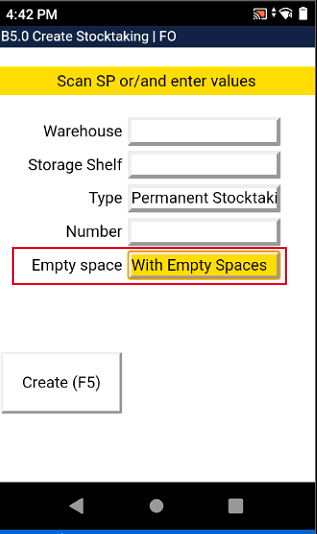
- With Empty Spaces
- Without Empty Spaces
- Only Empty Spaces
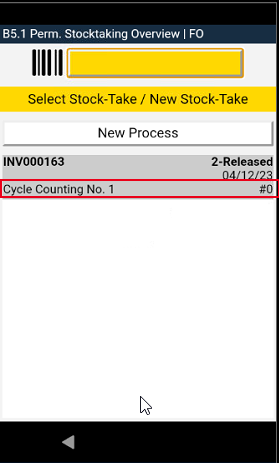
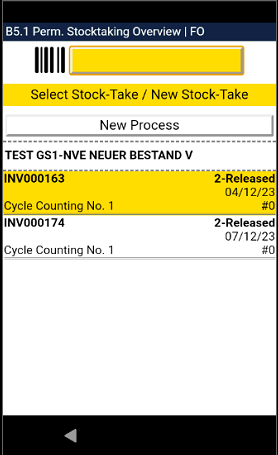
New fields on B5.1 Perm. Stocktaking Overview - Item 70154
We have added two new fields to the stocktaking overview page:
- Cycle Counting Number
- Number of positions
Enter Inbound Stock Post Customer No. in Inventory by Item and Inventory by Storage Place - Items 70129 and 70752
When you enter inventories in a stocktaking by item or storage place you can now filter those by Inbound Stock Post Customer No. in order to carry out a stocktaking for outside storage items. If items are loaded with a Inbound Stock Post Customer No. and are therefore external items, the customer no. is stored in the existing "Source No." field. This can no longer be edited.
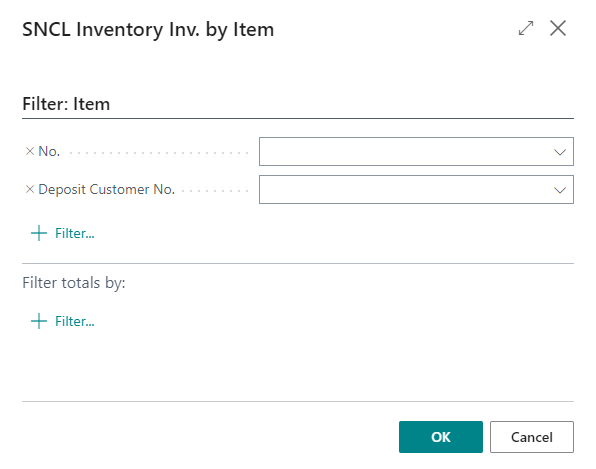
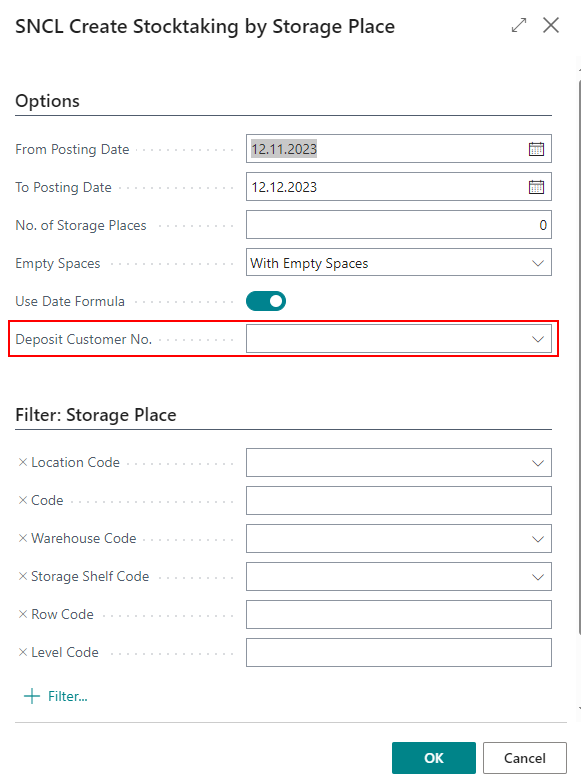
::: Note Note that once you have entered a single item from this specific Inbound Stock Post Customer, you will not be able to enter any other items from other Inbound Stock Post Customers. You will not be able to enter other items or other Inbound Stock Post customers in this stocktaking. :::
Replaced two fields on setup page - Item 70132
We have removed the fields Stocktaking Order Number and Posted Stocktaking Order Number and replaced them with the Service Order Warehouse Nos. and Posted Service Order Warehouse Nos..
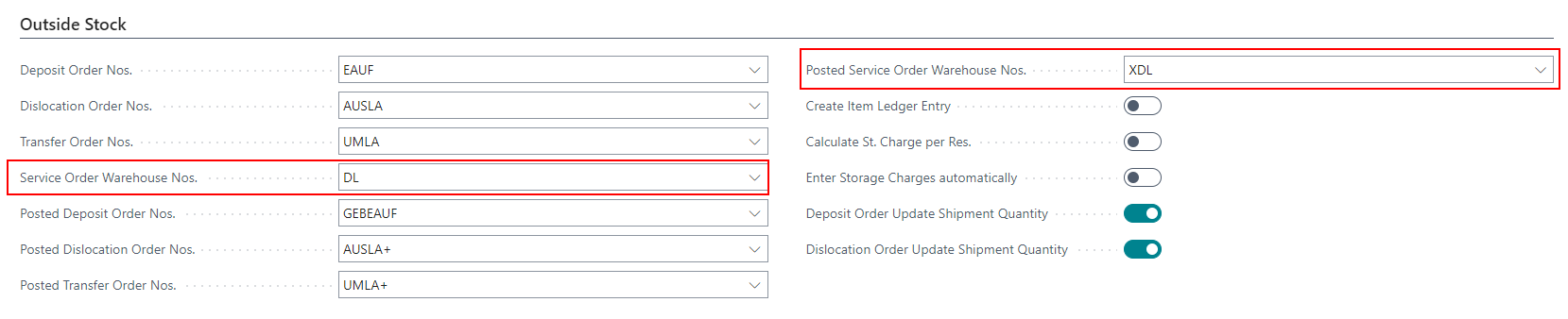
The reason for this is that the stocktaking order number is no longer needed but with this release we have introduced the new order Service Order Warehouse, which requires new number series.
New field on Item page and Customer page - Item 70134
We have added the field Stocktaking Charges Code to the Customer Card and to the Item Card.
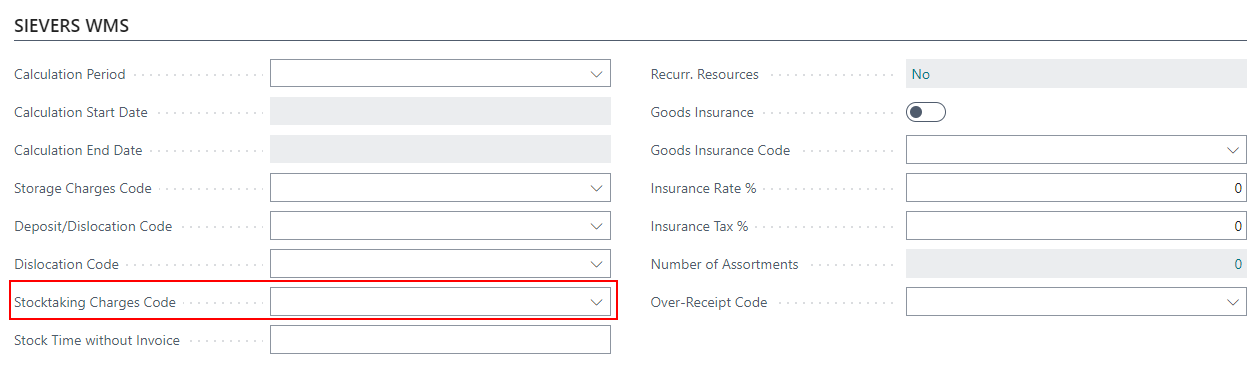
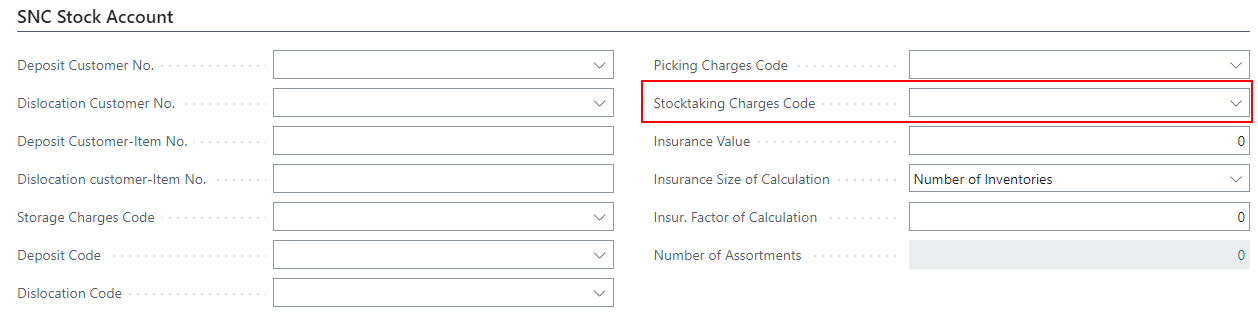
These fields are intended to facilitate the resource tracking of stocktaking. If a stocktaking charges code has been entered for the customer, all stocktakings for items from this customer are generally charged using this code. If the code was entered for the item, these resources are only billed for this specific item.
B5.1 Perm. Stocktaking Overview shows Keyword - Item 70168
To keep a good overview over the current stocktakings we implemented the Keyword in one of the recent releases.
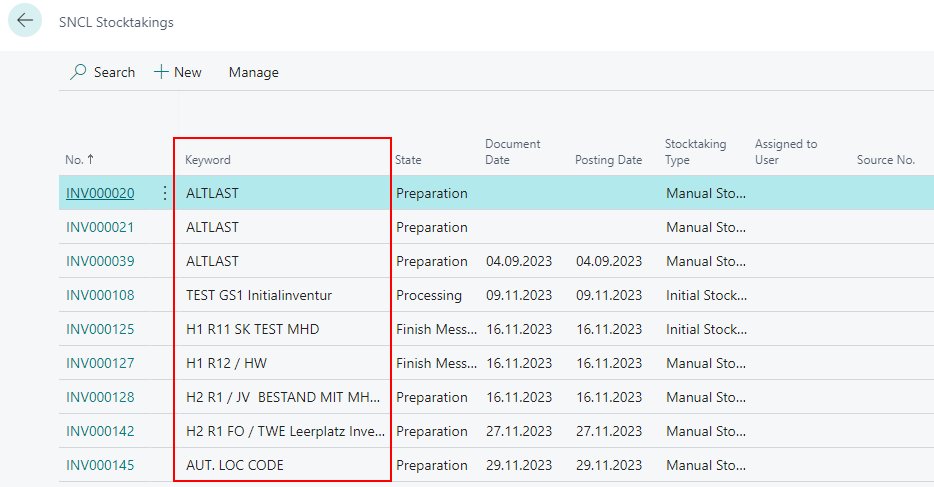
This keyword is very essential for stocktakings. That is why we implemented it also in B5.1 Perm. Stocktaking Overview. The keyword is cut off after 28 characters.
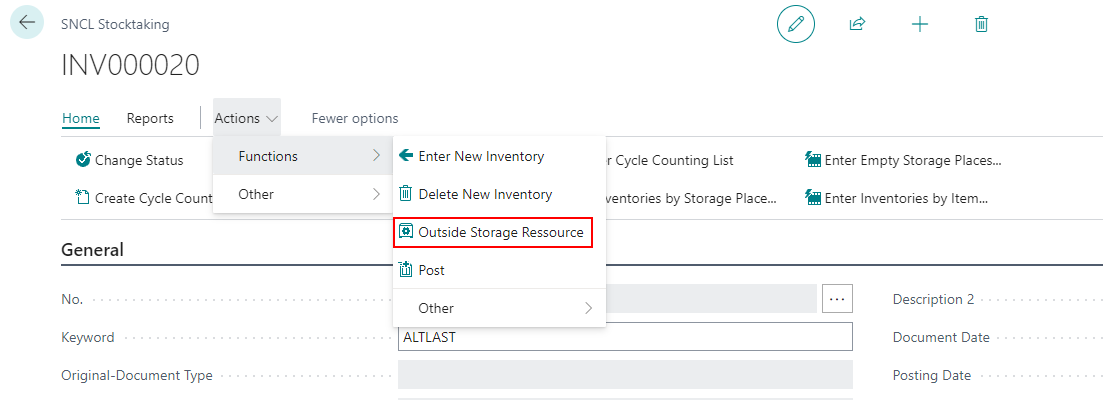
New action Outside Storage Ressource on Stocktaking page - Item 70130
We have added the new action Outside Storage Ressource to the stocktaking page. This action opens or creates a new Service Order Warehouse based on the stocktaking and transfers the resources that were manually entered in the stocktaking.
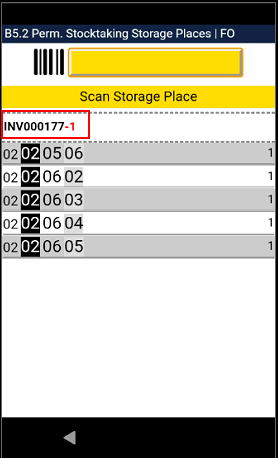
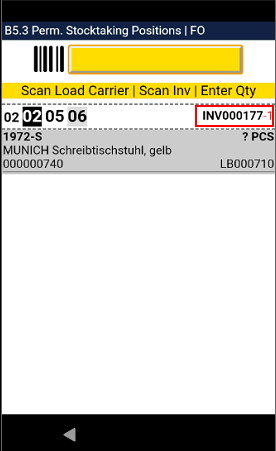
B5.2 and B5.3 now show Stocktaking No. and Cycle Counting List No. - Items 70202 and 70204
For improved communication in the warehouse we have added the Stocktaking No. and the Cycle Counting List No. to the pages B5.2 and B5.3.
New Inventory Stocktaking: Check on existing inventory - Item 70592
If a GS1 SSCC is scanned in the function New Inventory Stocktaking, the system checks whether this GS1 SSCC already exists. If a GS1 SSCC does not yet exist, the system automatically creates a new load carrier.
Added menu entries on B5.1 - Item 70611
We have added the first menu entries on the B5.1 menu:
- New Stocktaking
- Refresh
- Help
- Main Menu
- Close Menu
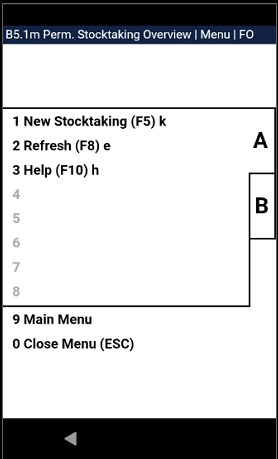
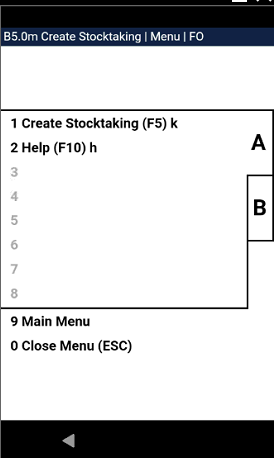
Added menu entries on B5.0 - Item 70612
We have added menu entries on the B5.0 menu:
- Create Stocktaking
- Help
- Main Menu
- Close Menu
Improved behaviour after leaving B5.3 Perm. Stocktaking Positions - Item 70501
- If you exit the new inventory function by pressing ESC after entering an inventory, the system shows the previous screen B5.3.
- If ESC is pressed after the user has entered an inventory, it is finished and the system displays B5.2.
- If the user has accidentally accessed "New inventory" in B5.3 with F5 and presses ESC without having entered an inventory - the storage place has not yet been counted and the system still shows B5.3.
- B5.3 is also shown if there are other uncounted inventories in the place
New Stocktaking Process: Adjust Inventory - Items 70857 and 70856
With this release we are introducing a new stocktaking process: Adjust Inventory. The users can use this when they find a wrong inventory and want to adjust it.
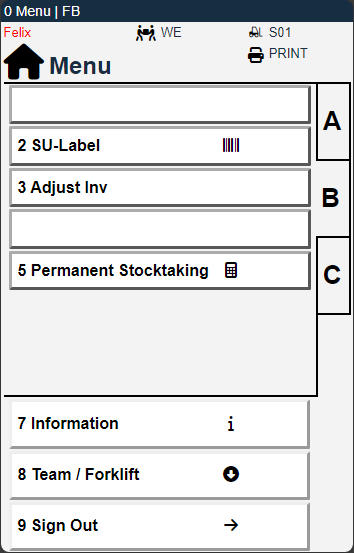
For this new stocktaking process we also implemented a new stocktaking type: Inventory Correction MDE. The type will be used automatically on the MDE when the user clicks on B3 Adjust Inv. You are not able to use this type when you manually create a stocktaking process.
When you press on 3 Adjust Inv., B3.1 Inventory Adjustment opens.
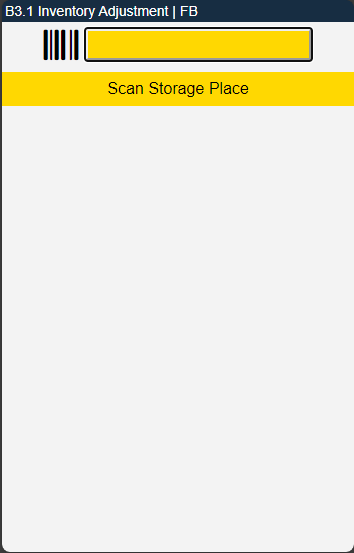
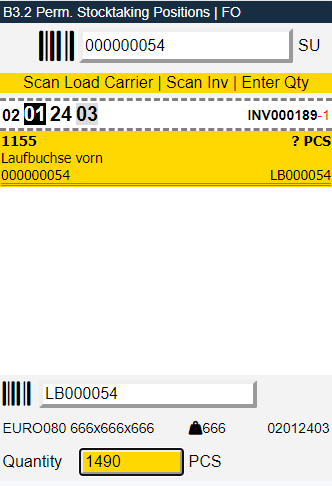
Here you can scan a Storage Place. After this, the MDE will then open B3.2 Perm. Stocktaking Positions, where you can tap on and correct the inventory you want to adjust. This whole process will take place in a SNCL stocktaking with the type Inventory Correction MDE.
Menu - Item 70858
B5.3 Adjust Inv. also has a menu which you can open with STRG+M / P1.
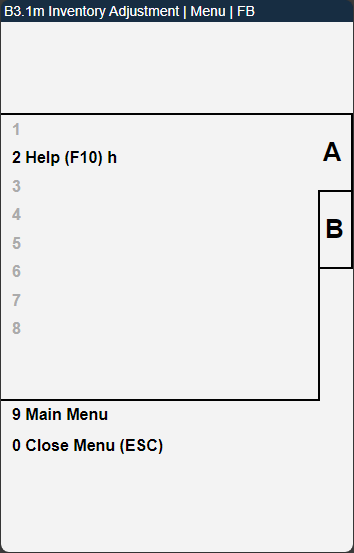
This menu is the same as in B5.
B3.1:
- Help
B3.2:
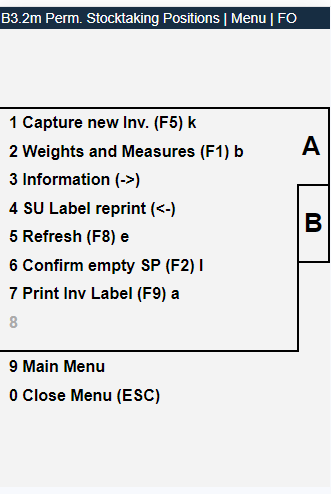
A:
- Capture New Inv
- Weights and Measures
- Information
- SU Label Reprint
- Refresh
- Confirm empty SP
- Print Inv Label
B:
- Help
- Finished Count
B3.3:
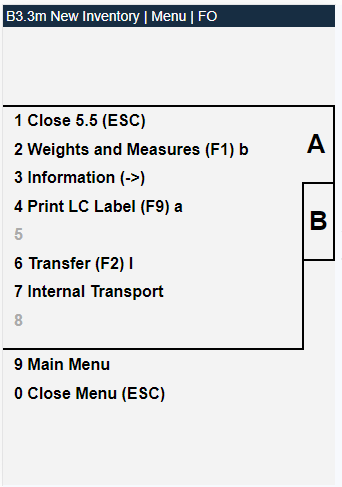
A:
Close 5.5
Weights and Measures
Information
Print LC Label
Transfer
Internal Transport
B:
- Help
New rules for new inventory on stocktaking - Item 70986
We have noticed that it is possible to enter new non-outside storage inventory for outside storage customers and the other way around. This was not intended and will be prevented with these new rules:
- If an SNCL stocktaking was created for an outside storage customer, the "new inventory" function checks the customer number entered.
- If an SNCL stocktaking was created for a stocktaking that does not belong to an outside storage customer, the "new inventory" function only adds items that do not belong to an outside storage customer
Service Order Warehouse
Service Order Warehouse - Item 70128
With this release we are introducing the new Service Order Warehouse. This order is intended for the billing of other orders. In the service orders, resources can initially be loaded manually and then automatically in one of the next releases.
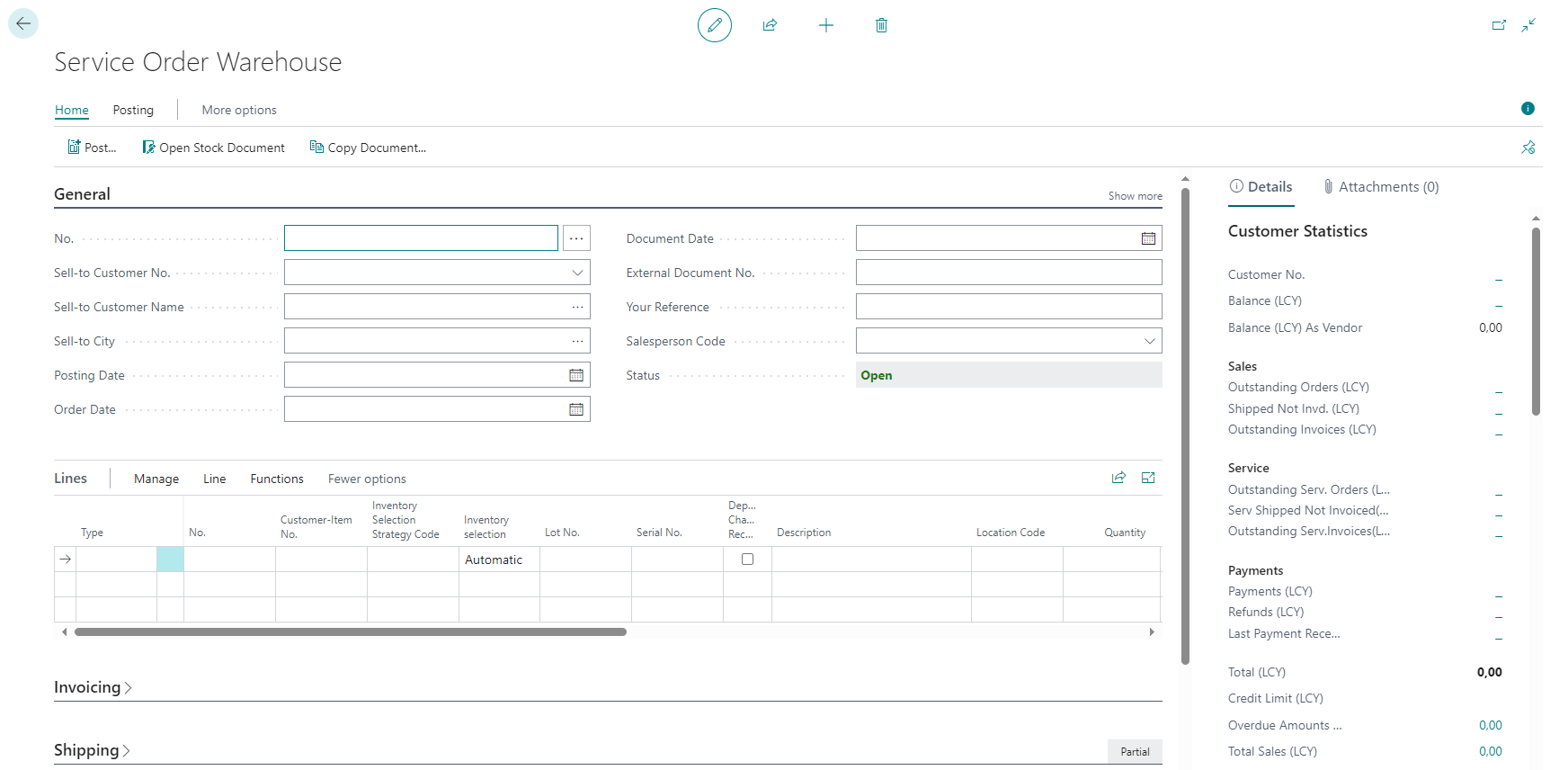
This page has the following features:
- You can use this document in the same way you can use every other document (Release, Post, copy document, etc.)
- You can enter every type of resource in the lines except for items
- No warehouse document assignment takes place for manual service orders
Posting a Service Order Warehouse for a Stocktaking process - Item 70167
We have implemented a few rules for service orders warehouse in stocktaking processes:
If a stocktaking is posted and
- has a related service order warehouse with lines, this will also be sent and not only invoiced.
- has a related service order warehouse without lines, this will be deleted and the stocktaking will be posted. The user is notified that stocktaking has been posted but without a service order warehouse.
- if there is no related service order warehouse, the stocktaking is posted and the employee is notified that the stocktaking has been posted but no service order warehouse exists.
Removed option to invoice Service Orders Warehouse - Item 70845
When you posted a Service Order Warehouse in SIEVERS WMS you would have encountered the problem that you could not bill the resources properly anymore. In addition, the monitoring of open invoice items was not possible. To prevent this, we have removed the option to post/invoice the Service Order. From now on you are only able to sent it.
::: Note To bill a Service Order Warehouse properly, use the Outside Stock Unit Billing. :::
Entering Storage charges in service orders automatically and manually - Items 70151 and 70492
Once you have enabled the option Enter Storage Charges automatically, the resources which are stored in the item or customer for stocktaking will be automatically loaded into the Service Order Warehouse as soon as the SNCL stocktaking is completed.
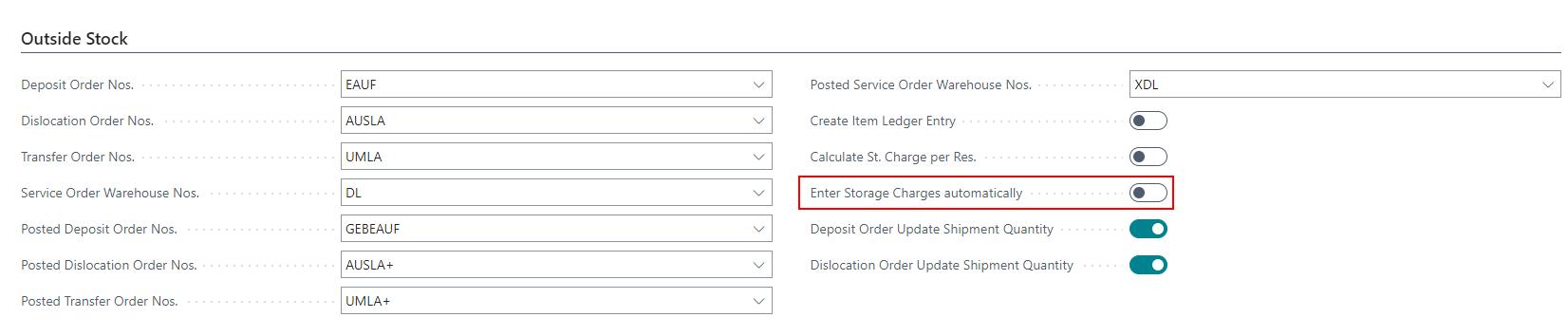
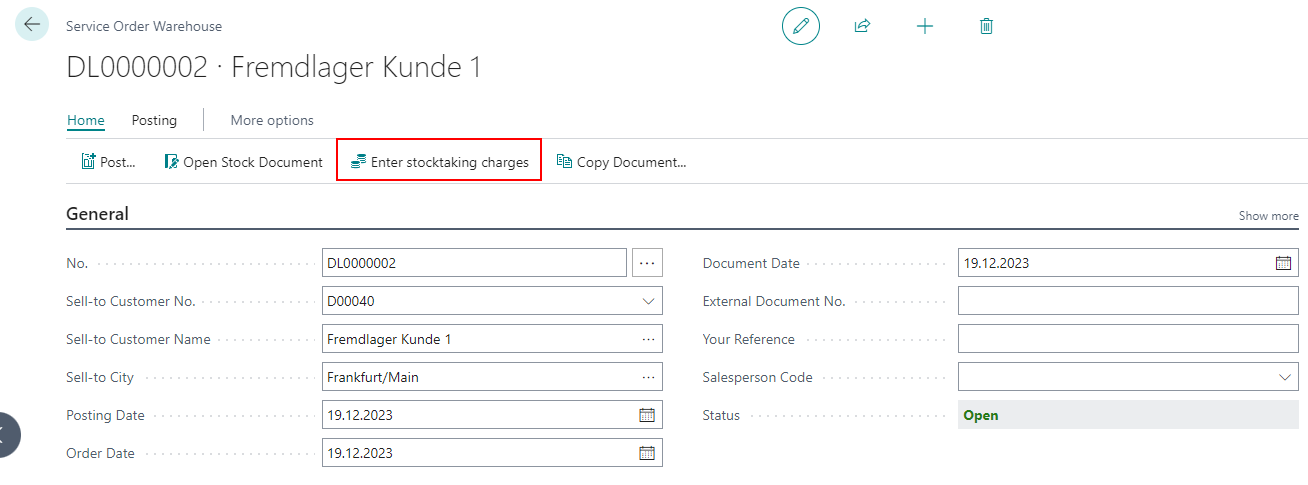
If this option is not enabled you can still load the resources manually into the Service Order Warehouse via the Enter Stocktaking Charges button in the Service Order Warehouse.
A6.1 and A6.2
Help Page for A6.1 and A6.2 - Item 64546
With this release we are beginning with implementing help pages on the MDE. The first pages we implemented are the ones for A6.1 Loading Overview and A6.2 SSCC Overview. You can open these help pages from the menu or by pressing F10.
::: Note The help pages are empty for now but they will be filled with help content in the next release. :::
A6.1 and A6.2: Show information and comment text by pressing F3 - Items 69374 and 69373
If an SSCC has a comment text attached, it is marked with i.
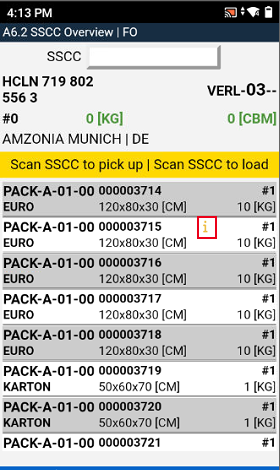
From now on you can press F3 or use the menu to open the Load Carrier information and comment texts.
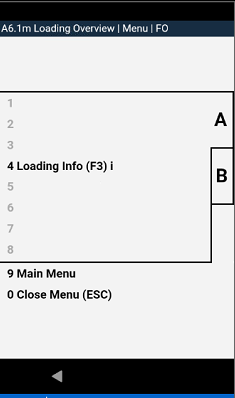
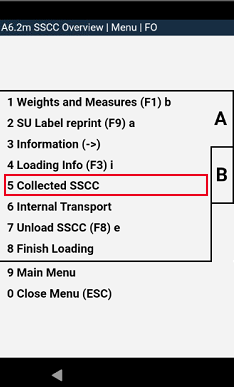
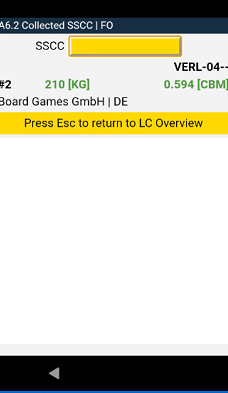
A6.2: New menu entry to show collected SSCC - Item 64539
To give the loaders a quick overview of the SSCCs that have been picked up or prepared for loading, they can now open the "Collected SSCCs" via function menu A5. This is only possible after the loader has collected at least one SSCC via scanning.
Take a picture in A6.2 - Item 64545
You are now able to take a picture via MDE in A6.2 by pressing F6 or via the menu. You can implement this function in your process however you want. For example you can take photos of the SSCC or the trucks license plate. These photos will be saved in the Shipment Process and the Posted Shipment Process. You can access them via the factbox.
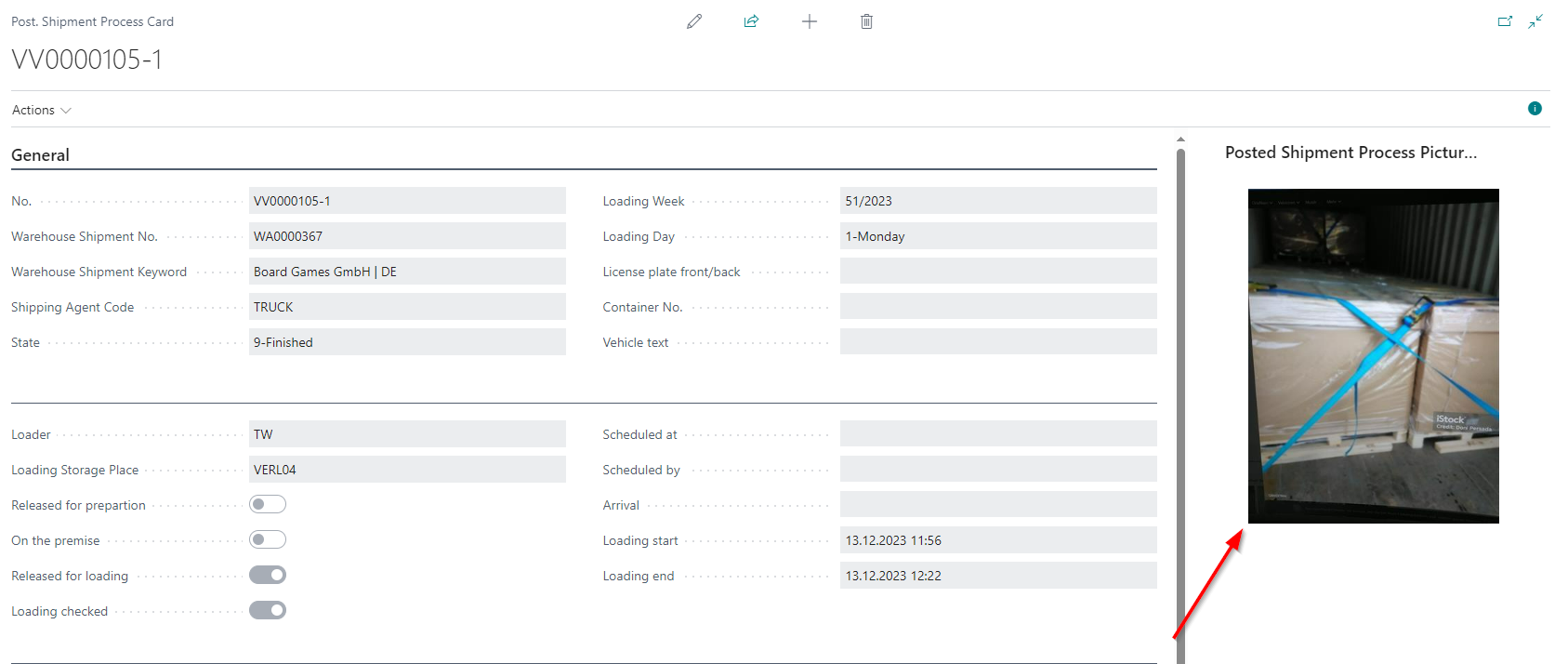
Taking the photos works similar to this function on page A1.X Warehouse Receipt.
Various MDE topics
Changes to A1.X behaviour with GS1 vendors - Item 70426
We have made the following changes to A1.X pages when the warehouse receipt features a GS1 vendor:
- A1.GS1-SSCC page only opens if the vendor has a correct GS1 setup (well maintained identifiers and assignments)
- If there are already load carriers for a warehouse receipt for a vendor with identifiers maintained, A1.2 is opened directly.
A1.2 Load Carrier Overview: Marked Load Carriers show Storage Place - Item 69804
When you mark a load carrier on A1.2 Load Carrier Overview the footer now shows the current storage place of the load carrier.
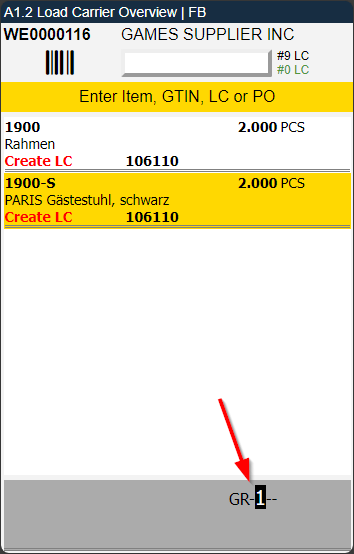
We will add more information, including the Inbound Stock Post strategy code, to the footer in the next release.
A8: Press F5 to accept all suggested values - Item 70376
When the user selects a new team, a forklift and a printer, he always had to press Enter three times. Now the user can simply press F5 to accept all the suggested values.
Warehouse Receipt
New Sell-by Date fields in Warehouse Receipt - Item 64905
We have added the field Sell-by Date to the Receipt Lines and the Allocated Load Carriers in the SNCL Warehouse Receipt. These fields are only editable, if the Sell-by Date is mandatory for the item. The sell-by date entered in the Receipt Line is transferred to the Allocated Load Carriers when creating them.
You can also change the Sell-by Date in the Detailed Assignment Load Carrier and the Detailed Assignment Load Carrier PTU/SSCC.
This Sell-by Date will be automatically entered into the stock entry after posting the Warehouse Receipt.
GS1 Warehouse Receipt - Default Inventory Measure Code - Item 70529
From now on the system will use the default Inventory Measure Code from the WMS Setup if there is no Carrier - Creation entry in the items packaging hierarchy.
New Field in Assembly Order - Item 69478
We have added the field Inbound Stock Post Customer to the assembly order page. This will be populated with the Inbound Stock Post Customer No. from the item entered.
Assembly Bill of Materials: Special check for outside storage - Item 69555
With this release, the following rules apply to the entry of assembly items in the Bill of Materials:
- If the Inbound Stock Post Customer No. of the first assembly item is empty, no items with a Inbound Stock Post Customer No. may be entered in the list
- If the Inbound Stock Post Customer No. of the first item is filled, only items with the same Inbound Stock Post Customer No. may be entered
These rules only apply to items, not resources.
Automatic Packaging Process after PTU set down - Item 67189
If a picking process has been completed, a PTU has been set down and the state is therefore set to 2-Recorded, a packaging process is now automatically created. If a packaging process already exists, the PTU is added to it.
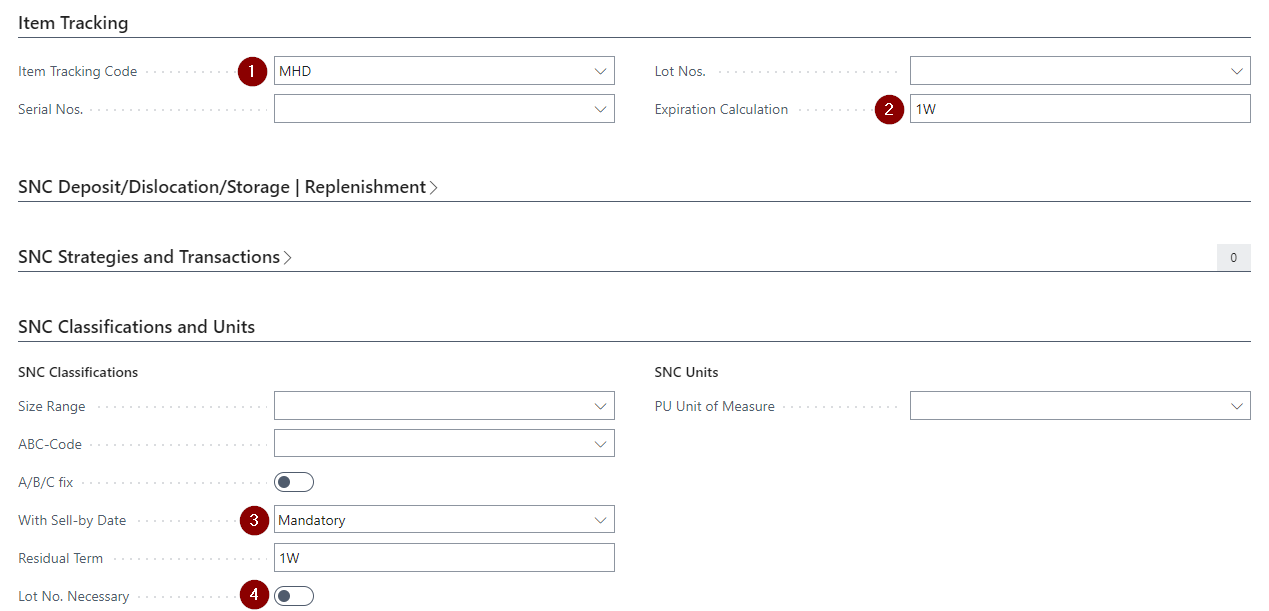
New rule for Item Tracking in Item Card - Item 64900
We have implemented a new rule for the item tracking:
If you entered an Item Tracking Code (1) and an Expiration Calculation (2), the With Sell-by Date (3) Option in SNC Classifications and Units will be automatically set to Mandatory. Also the Residual Term (4) will be filled with the Expiration Calculation (2) value.
Removed option to invoice Inbound Stock Post Orders and Outbound Stock Post Orders- Item 67364
In the SIEVERS WMS it makes no sense for Inbound Stock Post Orders and Outbound Stock Post Orders to be invoiceable, as these are only delivery orders. We have therefore removed the option when posting. When you post these orders from now on you will only be able to send them.
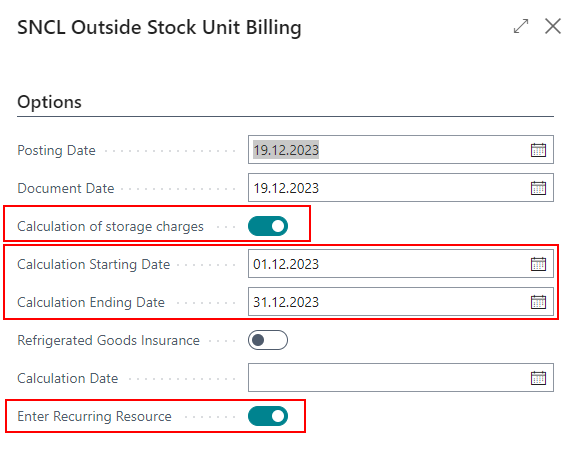
Default values in Outside Stock Unit Billing - Item 67375
These values have been implemented as default values in the SNCL Outside Stock Unit Billing:
- Calculation of storage charges: true
- Calculation Date: Always from first to last day of the current month
- Enter Recurring Resource: true
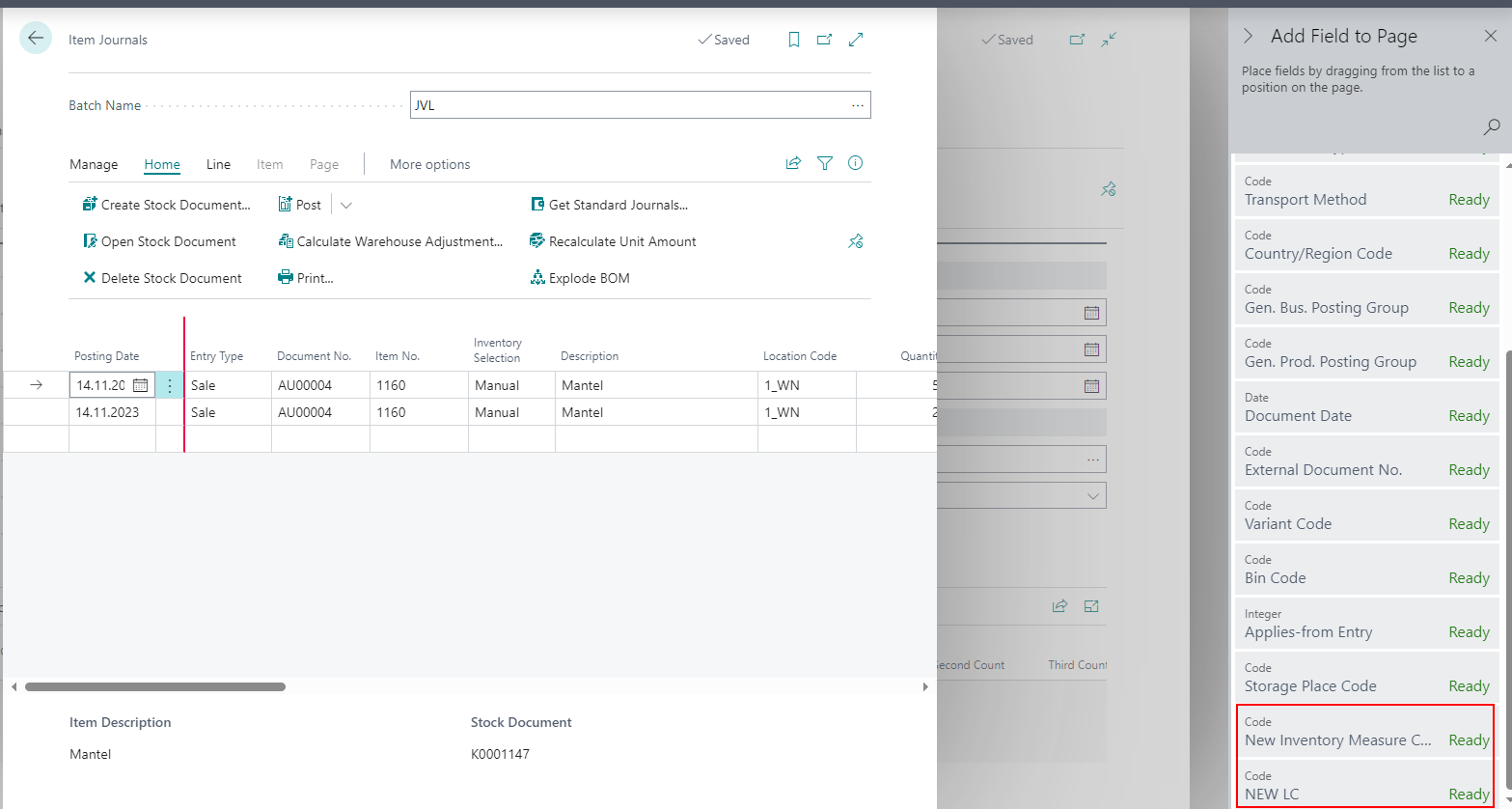
New fields in Item Journals and Production Journals - Items 70773, 70778 and 70779
We have added the fields
- New Inventory Measure Code and
- New LC
to the Item Journals and the Production Journals. You can add them to the respective table via Personalizing.
The new fields are used to supply an SNCL Inbound Stock Post directly with the load carrier data / quantity assignments. When you have entered at least a New Inventory Measure Code, a new load carrier will be created for the Inbound Stock Post. When you entered an existing Load Carrier number, the item will be transferred to this Load Carrier.
Order Assignment in Inbound Stock Post possible - Item 70733
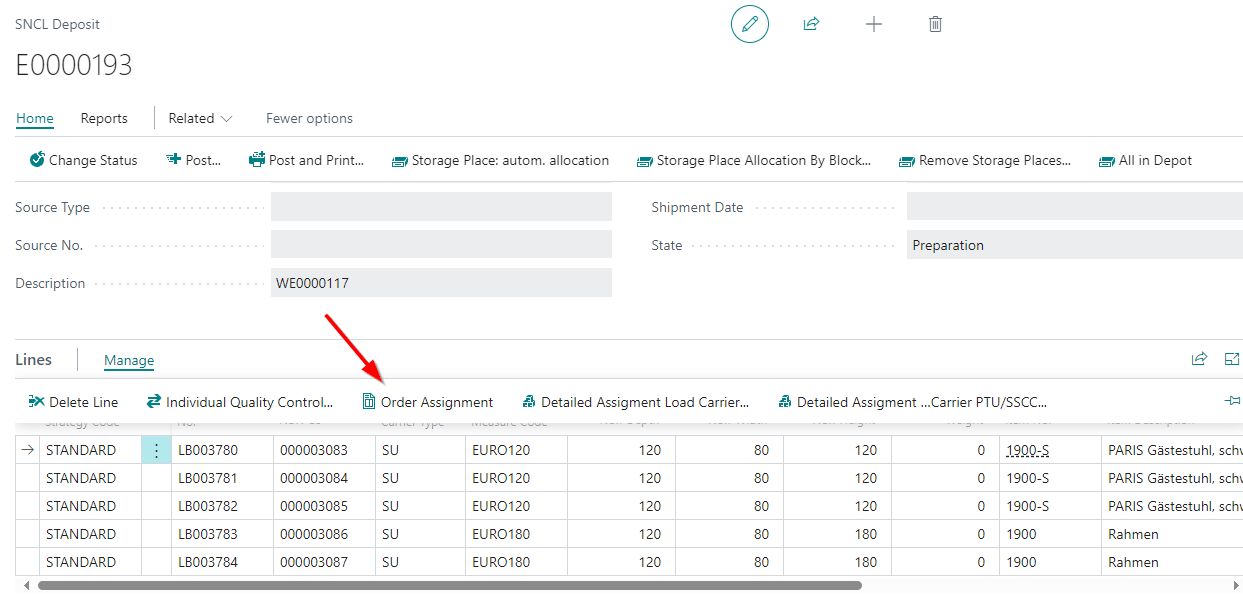
From now on you are able to assign orders to Inbound Stock Posts for assembly and production processes.
Check of mandatory fields when entering a Shipping Agent Code in Sales Order - Item 69591
Until now the mandatory fields in the shipping order were only checked when you actually retrieved a shipping label. We changed this so they will get checked when you entered the shipping agent in the sales order. When the shipping agent is missing some mandatory information, the user will get a detailed error message with all missing fields.
The checked fields are:
"Shipping Agent Service Code"
"Ship-to Type"
"Ship-to No."
"Ship-to Name"
"Ship-to Contact"
"Ship-to Address"
"Ship-to Post Code"
"Ship-to City"
"Ship-to Country/Region Code"
"Ship-to E-Mail Address"
"Ship-to Phone No."
"Pickup-from Name"
"Pickup-from Contact"
"Pickup-from Address"
"Pickup-from Post Code"
"Pickup-from City"
"Pickup-from Country/Reg. Code"
"Pickup-from E-Mail Address"
"Pickup-from Phone No."
Temporarily filling some fields in Shipping Order with a character - Item 69588
For technical reasons, our shipping service provider needs a lot of transferred information to generate a correct shipping label. This is why the system has to check for mandatory fields, as explained in the section above. Actually the provider needs even more fields, but in the context of SIEVERS WMS, it is not intended to fill them with content. That's why we fill them with a - character just to be able to transfer content. This will be only be a temporary solution so watch out for changes on this in the upcoming releases!
Minor changes
- Improved message on B5.3 when having to confirm empty storage place in stocktaking - Item 66564
- Posting a Warehouse Receipt in A1.2 now results in closing the page and showing positive feedback on A1.1 - Item 70380
- Improved messages on B5.5 which get displayed before and after the user entered a Load Carrier - Item 70497
- A6.2: Now you can refresh the SSCC Overview via menu - Item 64549
- A1.GS1 - SSCC: Now you can refresh the screen via F8 or via menu - Item 69736
- Stocktaking Report: New column Last Count - Item 70391
- Improved instructions on MDE page A5.2 Load Carrier Overview - Item 64168
- Improved error message when SSCC status changes in A6.2 - Item 69509
Bugfixes
Stocktaking post error - Items 69669 and 69670
We have fixed a bug that occurred under certain circumstances when posting a stocktaking when sell-by dates were recorded.
Wrong dimensions for storage unit labels - Item 67155
We have found that the storage units printed by different Pages labels have different dimensions and therefore look slightly different. We have adjusted and harmonized them.
Document line in multiple different warehouse receipts - Items 70377 and 70508
We have fixed an issue which made it possible to enter document lines in multiple warehouse receipts. We have also implemented an error message if the user tries to enter a document line which has already been entered in another warehouse receipt.
Scanning Blanco Barcode displays error message - Item 70496
We have fixed an issue where scanning a new blanco barcode resulted in an error message despite the fact that a new Load Carrier has been created nonetheless. Additionally sometimes an existing Load Carrier would be emptied after scanning its barcode. We have fixed this as well.
Subsequent change of Location Code error - Item 70769
We have fixed an issue which caused an error when you tried to change the location code in a purchase order line after resetting the state to open.
Minor bugs and spelling mistakes
- Renamed Print LC Label to Print Inv Label in B5.3 menu - Item 70208
- Created missing tooltip for Load Carrier No. field on SIEVERS WMS Setup page - Item 70347
- A6.2o now show loaded SSCCs that are part of the loading process instead of all loaded SSCCs - Item 69527
- Changing Item in B5.5 New Inventory did not reset entire form - Item 70485