Hinweis: Diese Release Info ist nur in Englisch verfügbar.
Features
Picking
Deleting Picking Lines now possible - Item 40505
In picking, no line can currently be deleted manually before it has been started. It must first be confirmed with at least 0-Created. Alternatively, only the Outbound Stock Post line could currently be deleted. From now on it is possible to delete a picking line directly. The prerequisite for this is that it has not yet been reported back.
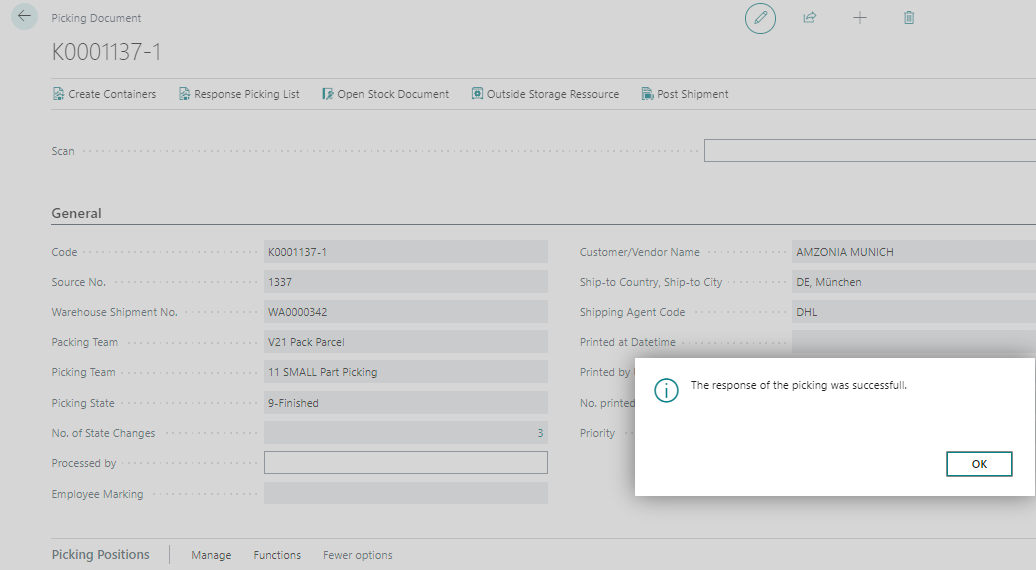
Feedback after reporting back picking document - Item 46572
We have implemented feedback when the user successfully reports a picking document.
Shipment
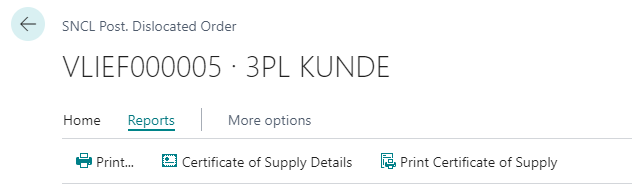
Print shipment note and certificate of supply in Post. Dislocated Order - Item 65923
You are now able to print the shipment note, the certificate of supply details and the certificate of supply directly from the Posted Dislocated Order.
Shipment process state automatically set to 7-Loading Processing - Item 66999
We have implemented that a loading process is automatically set to 7-Loading Processing as soon as a SSCC has been assigned / loaded.
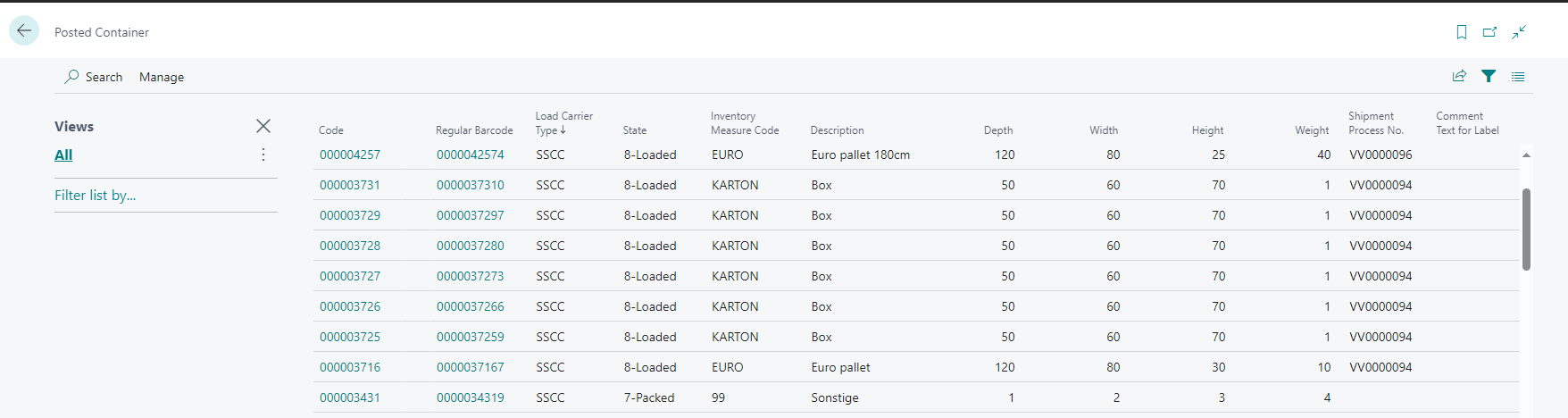
Archiving loaded SSCCs - Item 67003
If a warehouse shipment has been posted, the SSCCs from the posted loading process are also archived. You can see these archived SSCCs in the Posted Load Carrier list.
Stocktaking
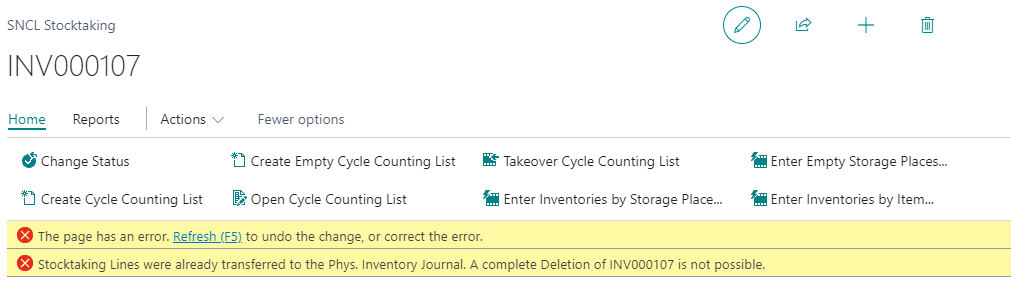
Improved error message when trying to delete already counted lines - Item 62027
If lines have already been counted in a stocktaking, it is forbidden to delete this stocktaking again. Previously, this circumstance was reported to the user with a generic error message. It was not entirely clear what the exact problem was. For this reason, we have improved the error message:
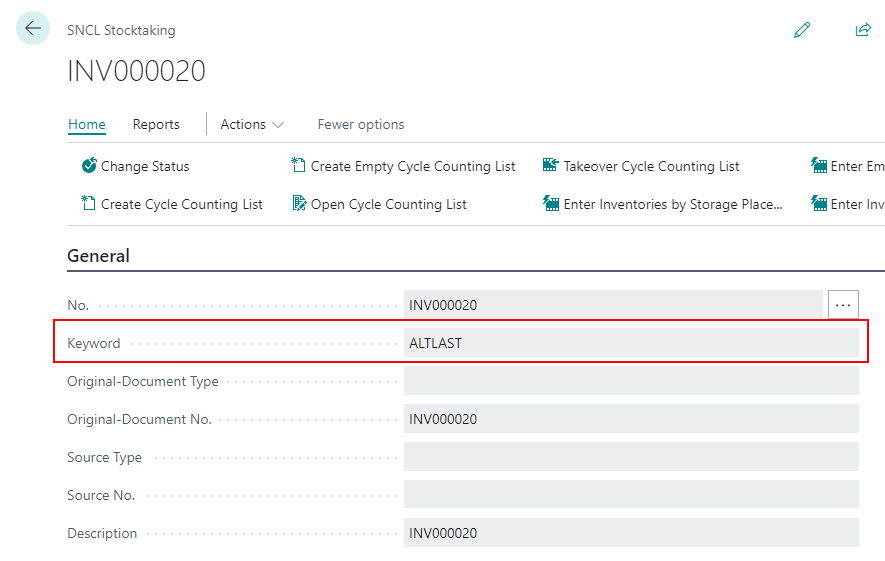
New fields on Stocktaking Page - Items 62907 and 62910
We added the new fields the stocktaking header
- Keyword
- Document Date
- Posting Date
- Assigned to User
- Stocktaking type
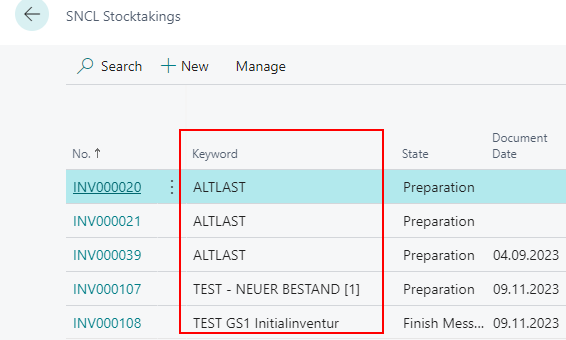
Keyword is a freely editable field so that you can maintain characterizations and other descriptions for stocktaking. You can also see this keyword in the stocktaking list.
New Action for Stocktaking - Item 66506
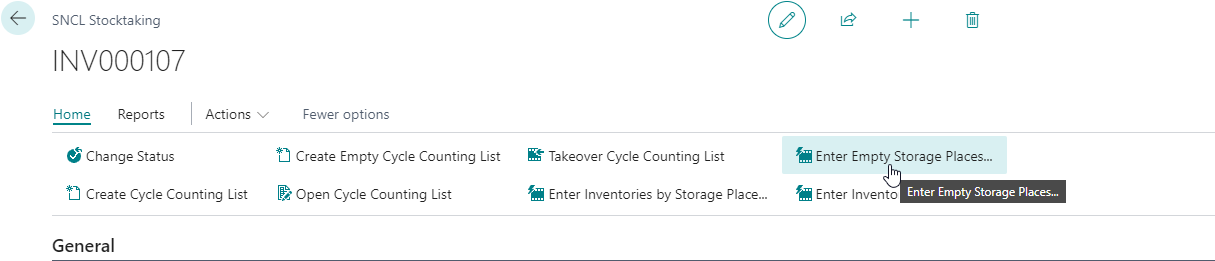
We have expanded stocktaking to include the option of counting empty storage places in stocktakings of the type Initial Stocktaking. There is a new action for this.
- New action Enter Empty Storage Places: When you press this action, the regular Create Stocktaking by Storage Place window opens, but the field Empty Spaces is now filled with Only Empty Spaces and non-changeable. Fill in the form as usual.
B5: Deleting manual stocktakings - Item 64867
If a warehouse employee leaves a stocktaking at the MDE, it is automatically discarded. This function is important so that warehouse employees can create operations flexibly, but can also discard open entries if they are assigned other tasks.
However, this does not apply to inventory management. If they create a stocktaking, it is a manual stocktaking, as it may be an additional stocktaking. These stocktakings are no longer automatically deleted when they are exited at the MDE.
B5: Improved B5 - Item 66558
We have improved several things in B5 Create Stocktaking.
New feedback in case: Trying to count empty storage places
- Old: "Nothing to inventory"
- New: "Nothing to count"
New feature in case: Trying to enter a whole warehouse by not entering storage shelf numbers
- All storage places of a warehouse will be entered in the stocktaking
New feedback in case: Leaving the storage place number field empty
- Old: "The value "" can't be evaluated into type Integer"
- New: "Enter the no. of storage places"
Added columns in SNCL Stocktaking - Item 66845
We have added the columns
- Item Unit Cost
- LCY Code
to the SNCL Stocktaking Lines.

Stocktaking evaluation: New option in SIEVERS WMS Setup - Items 67092, 67089, 67093 and 67095
Currently, the evaluation of an SNCL stocktaking is based exclusively on the quantity variance. The decision as to whether an additional count is worthwhile or not currently only depends on a quantity variance. In the future, a monetary approach should help to carry out stocktaking more economically.
In order to make these evaluations possible, a new features has been added to stocktaking in this release:
In the SIEVERS WMS setup, you can now activate the option Use Value Difference LCY and enter a threshold value in the corresponding field. If the option is activated, the creation of the 2nd or 3rd count is also dependent on this value limit. For example, you can set that no further count is started below a value difference of €20.
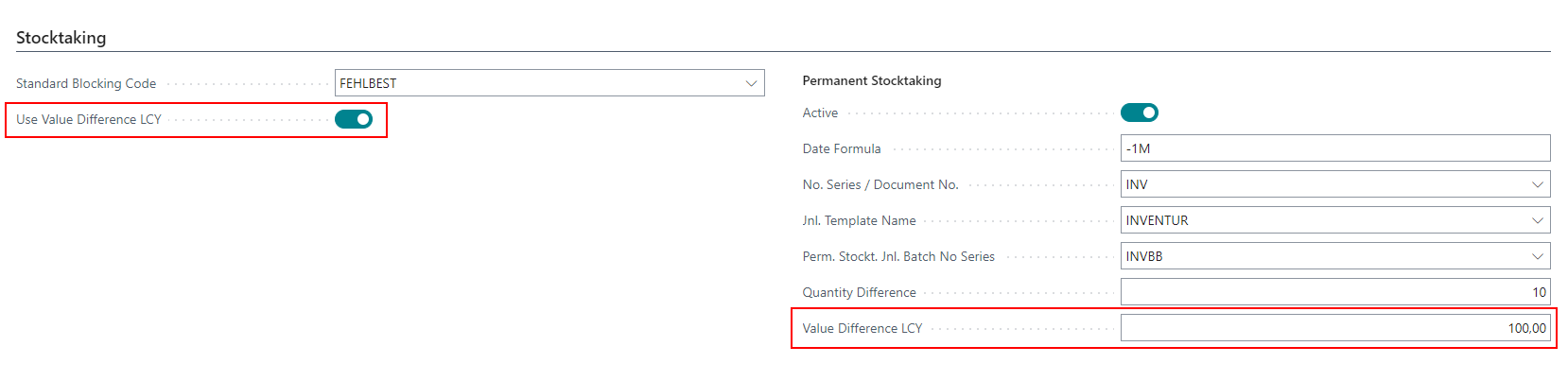
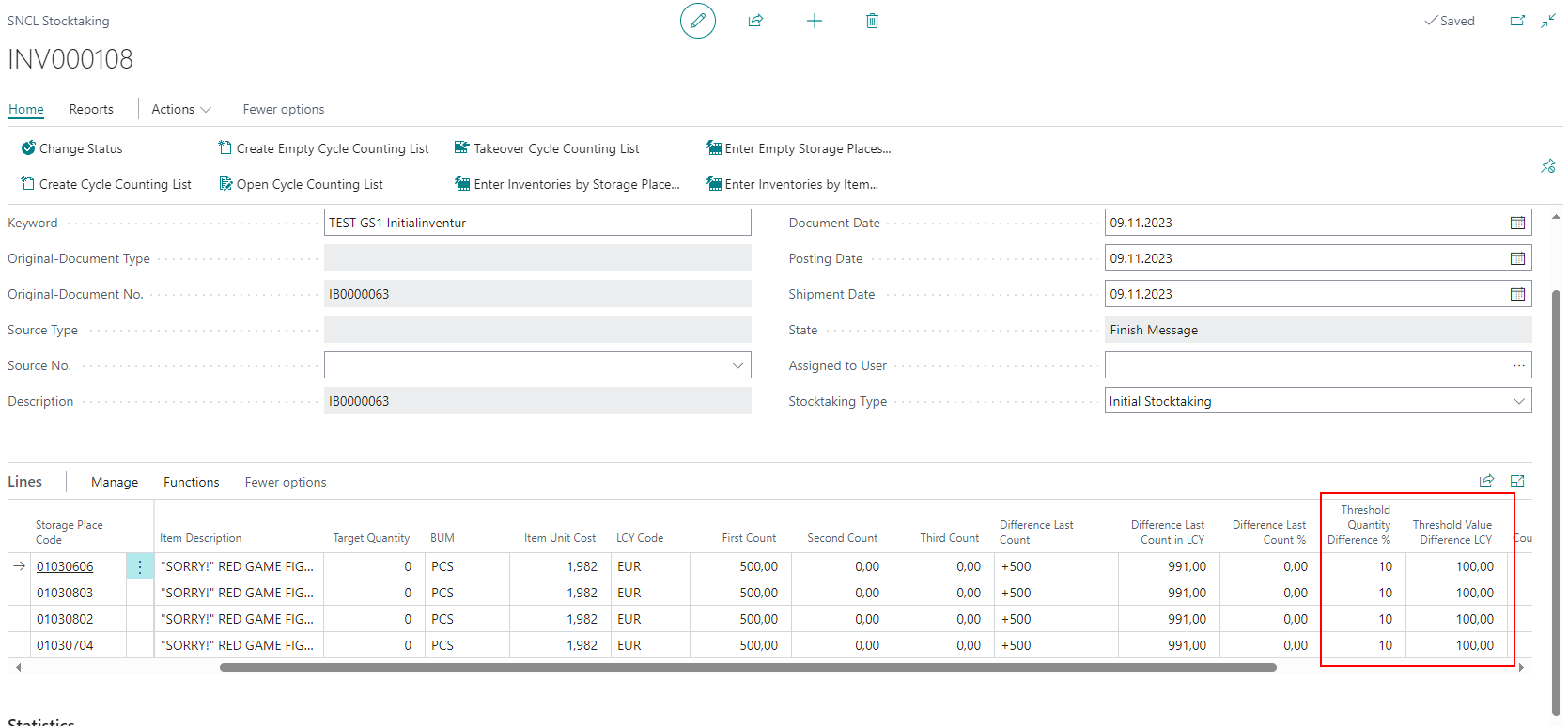
Those lines that exceed the threshold limit will be automatically entered in the 2nd or 3rd count.
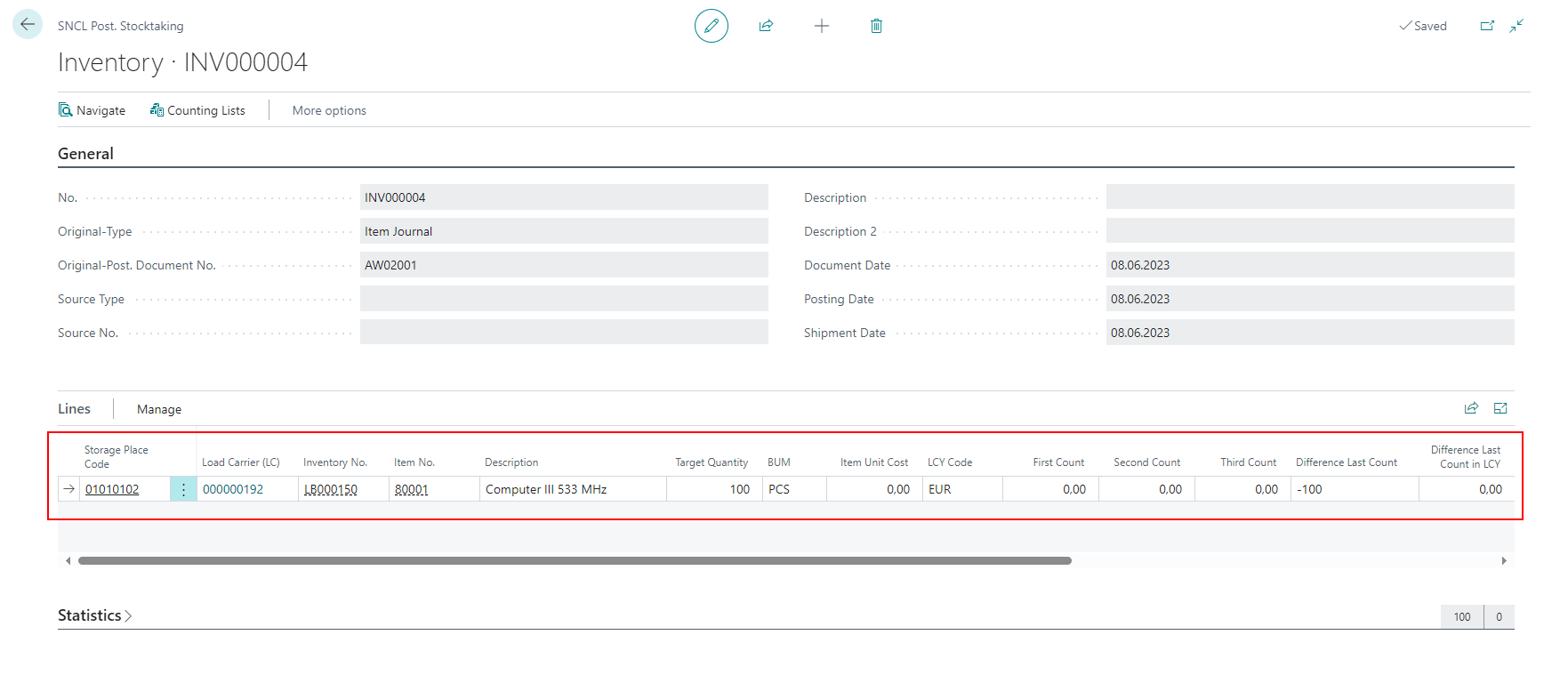
Added columns to Posted Stocktaking - Item 67096
We have added more columns to the Posted Stocktaking lines in order to match those on the Stocktaking page.
- Load Carrier
- Storage Place
- First Count
- Second Count
- Third Count
- Difference Last Count
- Difference Last Count in LCY
- Difference Last Count %
- Threshold Qty. Difference %
- Threshold Value Difference LCY
Changed column order on stocktaking lines - Item 60536
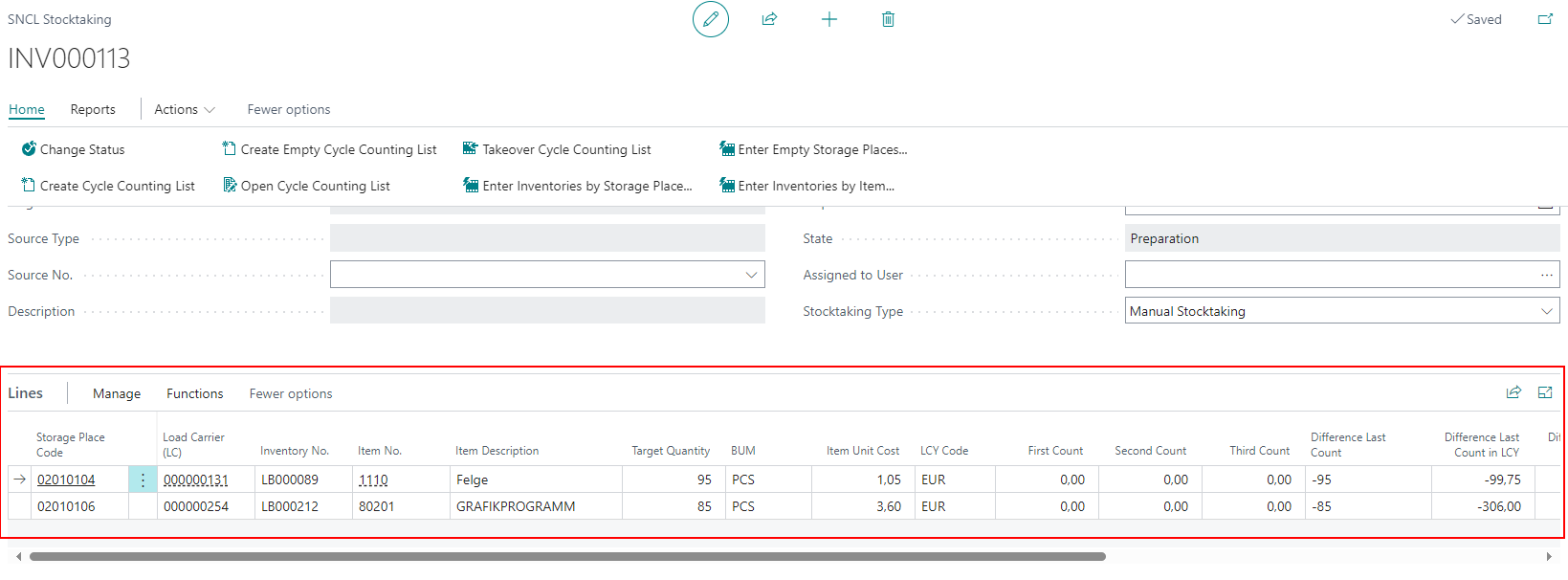
We have changed the column order on the stocktaking lines.
New order:
- Storage Place Code
- Load Carrier
- Inventory No.
- Item No.
- Item Description
- Target Quantity
- BUM
- Item Unit Cost
- LCY Code
- First Count
- Second Count
- Third Cound
- Difference Last Count
- Difference Last Cound in LCY
- Difference Last Cound %
- Threshold Quantity Difference %
- Threshold Value Difference LCY
- Counted
- Lot No.
- Sell-by Date
- Serial No.
Date Formula set to true by default - Item 67181
We have decided that it makes sense to have the "Use date formula" option set to true by default in the SNCL Create Stocktaking by Storage Place page. This date formula determines the period after which a permanent stocktaking count is required for a storage place. This date formula is used to determine a time interval for the current date.
B5.3o Changed title - Item 66582
The page B5.3o was called Stocktaking Overview. We renamed it to Finished Counts.
Cycle Counting: Add new Inventory
We have added a new action to the Cycle Countings. Now you can add new inventory. The next sections describe the corresponding work items in detail.
Scan barcodes to add new Load Carrier - Items 66515, 66514, 66517 and 66518
To add new inventory you scan a blanco barcode, a GS1 barcode or a Load Carrier in the New Inventory window in the Cycle Counting. This will create a new Load Carrier or enter an existing Load Carrier.
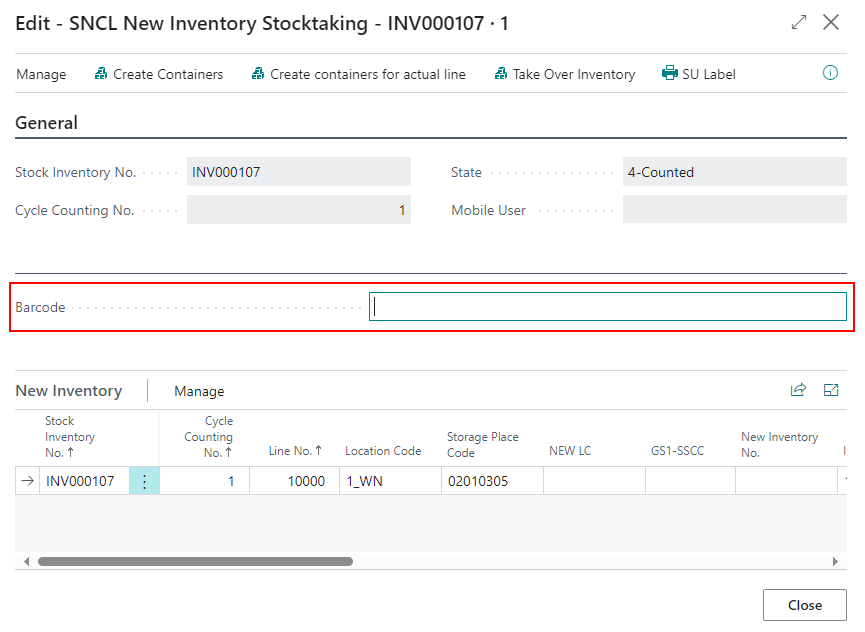
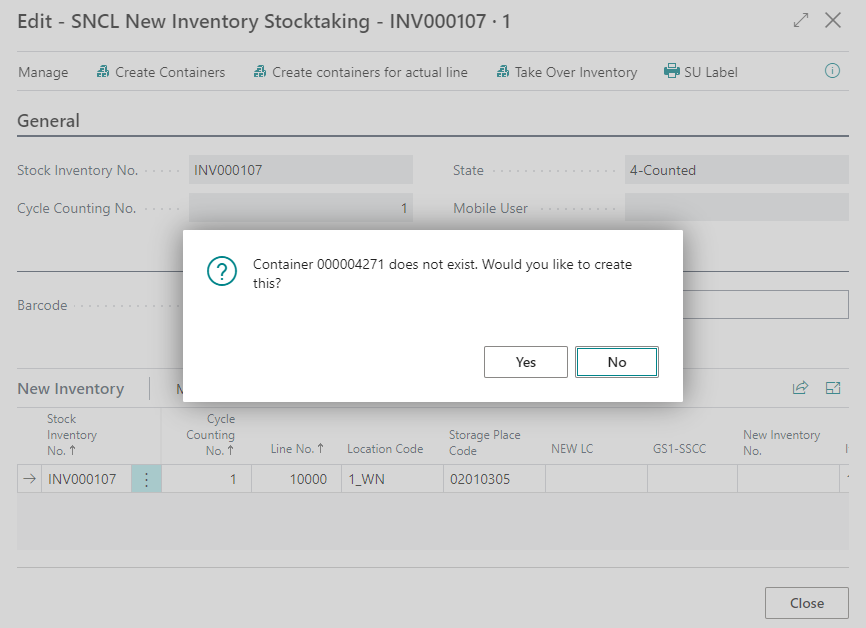
::: Note You are also able to scan posted load carriers. These are then restored. :::
Counted = True after entering new inventory - Item 66519
When you entered new inventory, the 'Counted' checkbox will be set to true for this line.
Function available in Cycle Counting lines - Item 66507
The new function New Inventory is also available on the Cycle Counting Lines. When you selected a specific line, the storage place will be entered as suggestion in the New Inventory form.
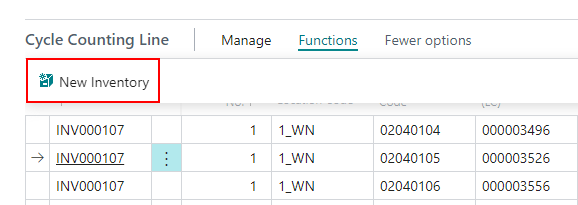
- If the storage place is empty, the line is filled after the "new inventory" function has been processed.
- If a line containing a target inventory is selected, the new inventory is displayed as an additional line exactly below the corresponding storage place after the "new inventory" function has been processed.
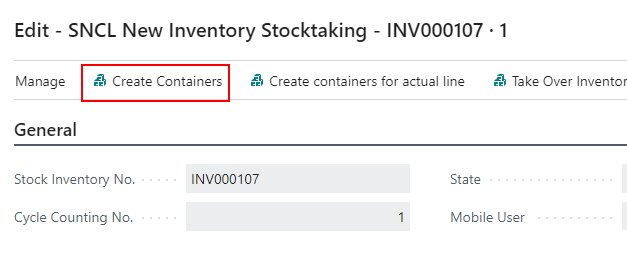
Create Load Carriers - Item 66520
We have added the action Create Load Carriers to the New Inventory window. This is so that you don't have to scan a blanco barcode to create a new Load Carrier, but can do it by using a form.
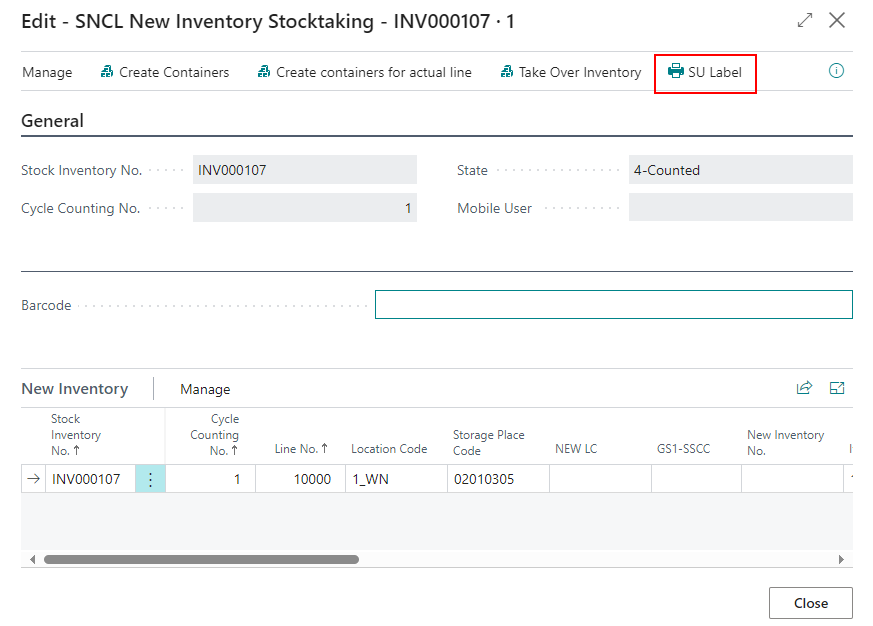
Action on New Inventory Stocktaking in Cycle Counting: Print SU Label - Item 66516
If the user has entered new inventory, SU labels can be printed directly for one or more inventory items.
Outside Storage
Outside storage: Input of item properties in empties lines now possible - Item 67862
Until now, it was not possible to enter additional properties such as quantity for items entered as empties in a Inbound Stock Post order or Outbound Stock Post order. We have resolved this situation and created an option for this.
Handling of receiving too many items in outside storage - Item 61551
We have noticed that the system does not provide for the entry of an overdelivery for Inbound Stock Post orders from outside storage. For this reason, we have now added this feature. The following has been implemented:
- New field Over-Receipt Code in Customer Card
- Function in the warehouse receipt that checks against the threshold value
- Feedback when the threshold value is exceeded
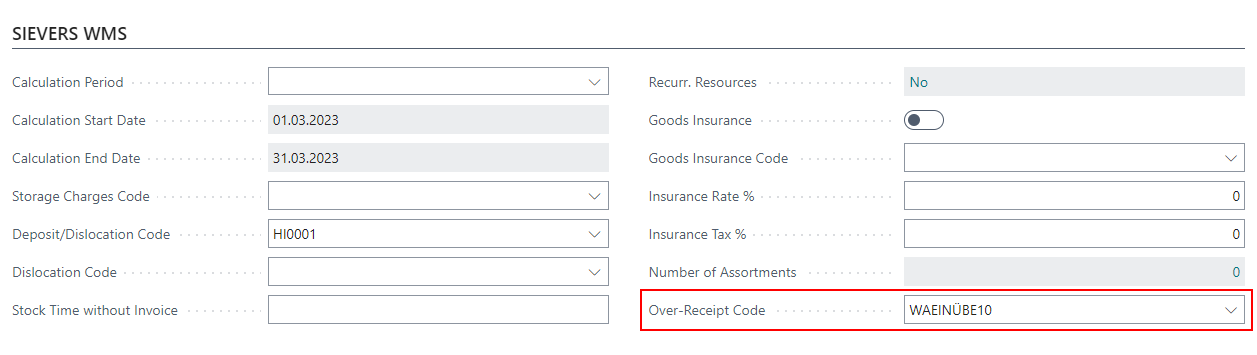
Before you can use this, you have to define at least one Over-Receipt Code. Enter these values:
- Code
- Description
- Default: Define this Code as default
- Over-Receipt Tolerance %: Specifies the maximum tolerance value for over-receipts in percent
- Approval Required
If the over-receipt tolerance % is met, you will only receive a feedback message. If the quantity exceeds the threshold, you receive an error and the warehouse receipt cannot be posted.
MDE: A1
Improved photo feature in A1 - Item 65485
We improved the recently implemented photo feature in A1 on the MDE. Now you can do the following new things:
- Take and upload several pictures in a row
- Scroll through and deleted taken pictures
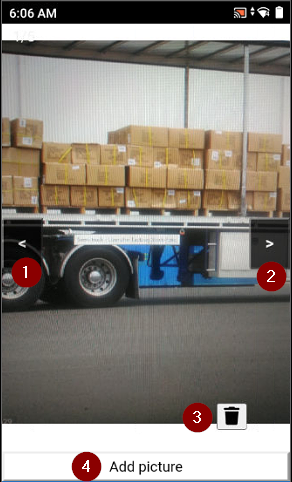
- and 2. Scroll through pictures
- Delete picture
- Add picture
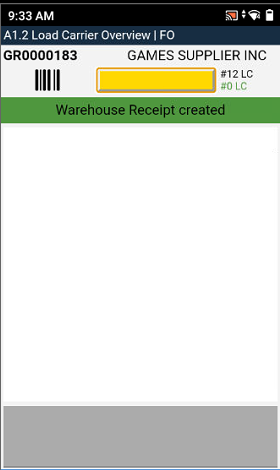
A1: Colored Feedback - Items 67581 and 67598
We have colored the feedback in red and green depending on the success of the action.
For example, the new green feedback that pops up when a warehouse receipt is successfully created.
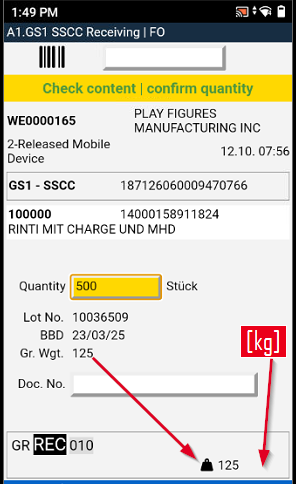
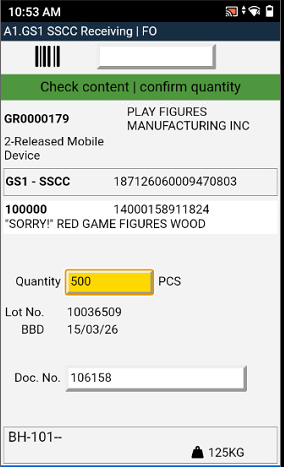
A1.GS1 SSCC: Removed Gr. Wgt field and added weight unit - Item 67599
We have removed the Gr. Wgt. field and added the weight unit in the bottom right corner.
A1.2 Load Carrier Overview - Item 63682
This release introduces the load carrier overview in the Receiving menu of the MDE.
The load carrier overview shows both the load carrier lines created in advance in the warehouse receipt and the document lines for which load carrier lines still need to be created.
The load carrier overview can be opened from A1.1 Rec. Overview by selecting a warehouse receipt process or by creating a new warehouse receipt process in "A1.0 New Unloading".
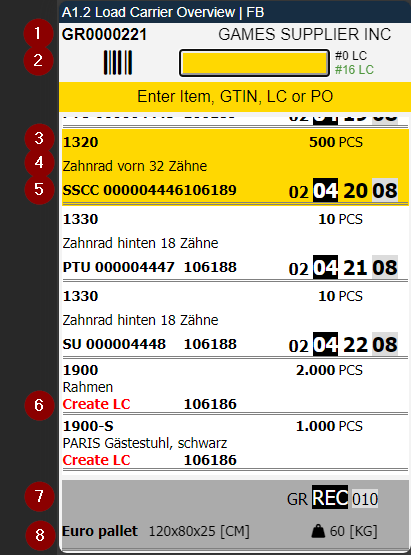
- Left: Warehouse Receipt Number | Right: Vendor
- Scanfield for Load Carrier
- Left: Item Number | Right: Number of pieces
- Item description
- Left: Load carrier type and number | Middle: Source No. | Right: New Storage place
- Left: Create LC means that no load carrier exists yet
- Current Storage Place
- Left: Inventory Measure Code | Middle: Dimensions | Right: Weight
GS1
Changes to GS1-SSCC Label - Item 67432
We have changed a few things for the GS1-SSCC Label:
- Type changed from CODE128 to GS1-128
- Removed Sales Order abbreviation
Scanning a GS1 Barcode in A1.GS1 now leads to creation of loading carrier - Item 68334
We have found that up to now it was possible to scan and process barcodes, but the load carriers were not created, which led to a delay in the process. From now on, the entry of GS1 labels in the MDE A1.GS1 mask will automatically lead to the creation of the required load carriers.
The prerequisite for this is that after scanning the GS1 barcodes, the document number must be entered on the A1.GS1 page so that the load carriers can be created and a load carrier assignment can be made. In addition, the warehouse document (Inbound Stock Post) is created automatically.
International Bill of Lading
New Report: International Bill of Lading
With this release we are introducing the International Bill of Lading.
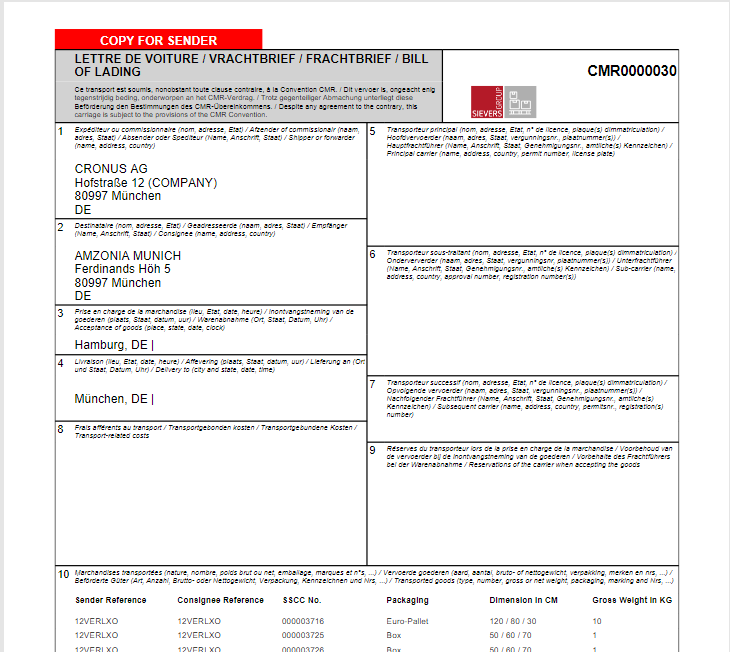
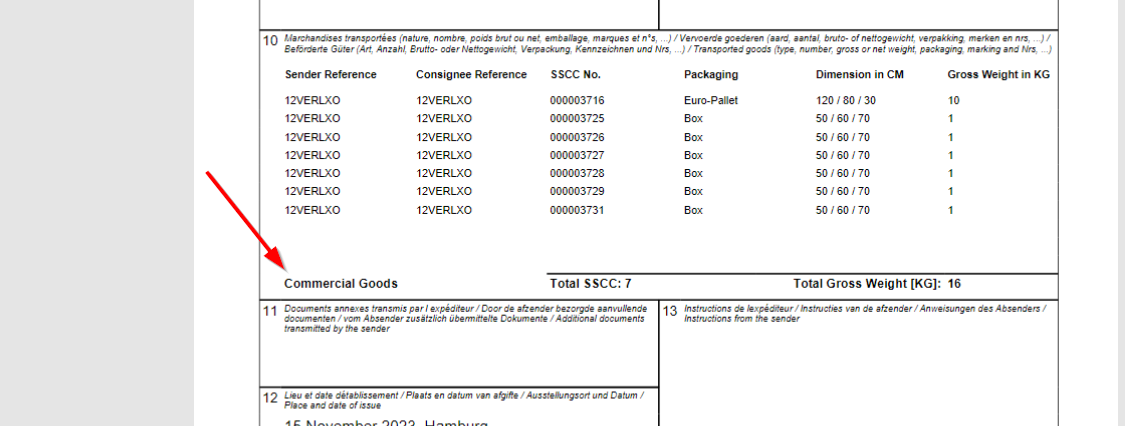
The bill has the following content:
- Ship from address
- Ship to address
- Ship from place
- Ship to place
- Shipping Agent and Carrier License Plate
- Sub Carrier
- Subsequent Carrier
- Transport-related costs
- Reservations of the carrier
- Transported goods
- Additional Documents
- Place and date of issue
- Sender instructions
- Signature sender
- Signature actual carrier
- Signature Receiver
The company logo is printed on the top right of the bill.
You can print this bill from several pages. See Bill of Lading print on new pages. When you print the bill you can select the following options:
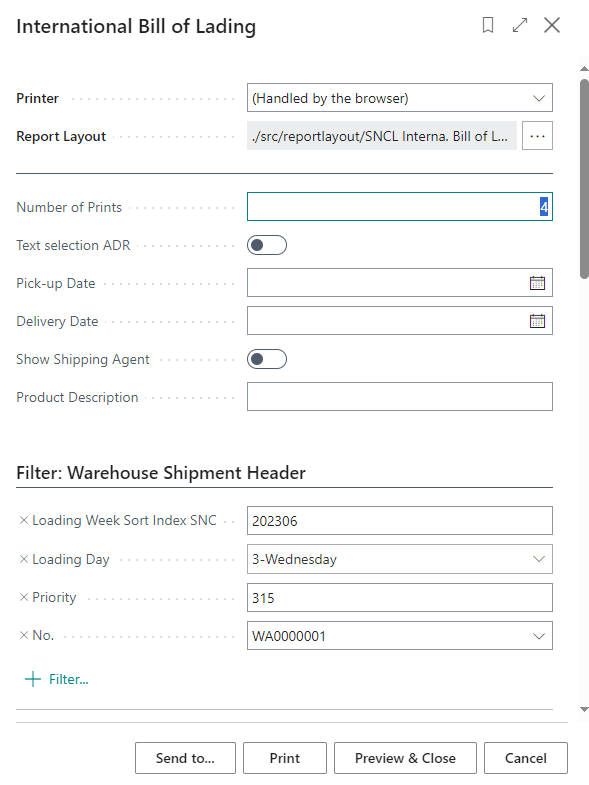
- Number of Prints
- Text selection ADR: Specifies that the ADR text is printed instead of the CMR text. Please note that the text is currently only available in German
- Pick-up Date: Will be printed on the bill
- Delivery Date: Will be printed on the bill
- Show Shipping Agent: Will be printed on the bill. You need to enter a Shipment process number at Filter: Shipment Process down below.
- Product Description: Here you can enter a description of the shipments contents. This will be printed next to the totals line on the left in box 10.
Items:
Number of prints - Item 67408 {numberofprints}
By default, 4 copies are printed:
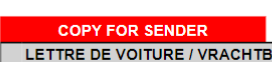
- Copy for sender
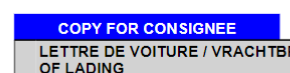
- Copy for consignee
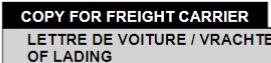
- Copy for freight carrier
- Copy for freight carrier
These descriptions are highlighted in color at the top left of the bill.
If 3 printouts are generated, the additional copy for the freight carrier is omitted. If only 1 or 2 pages are printed, the marking is removed. If 5 or more pages are printed, the "Copy" label is utilized. For example, if 6 are printed, then the markings appear on copies 1-4 and only "Copy" on 5-6

Setup: New Number Series for Bill of Lading - Item 67425
A number series field for Bill of Lading Nos. has been added in the Setup.
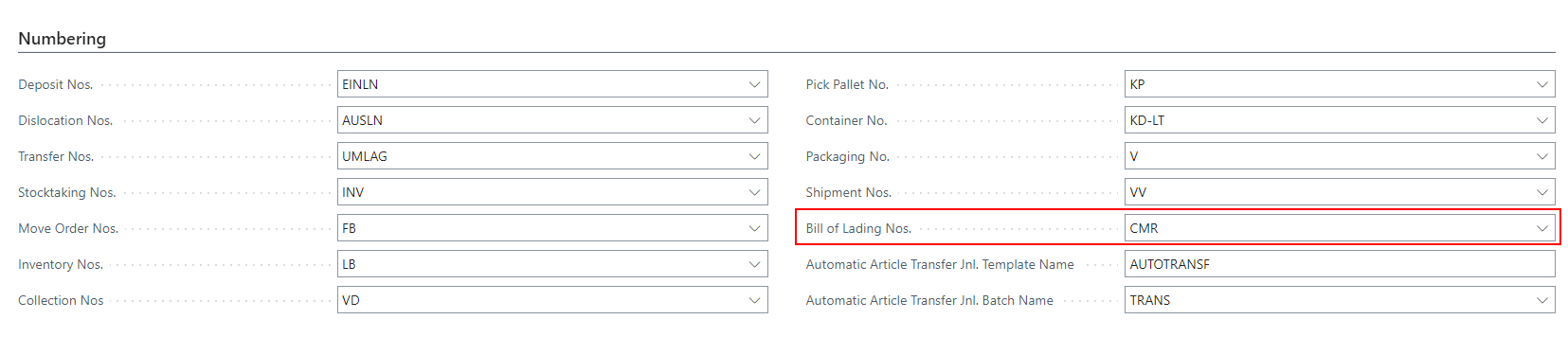
Bill of Lading print on new pages - Item 67453 {#billprint}
Now you can print the international Bill of Lading on the following pages:
- Posted Shipment Process Card
- Shipment Process Card
- Warehouse Shipment Planning
- Posted Warehouse Shipment Card
A6.2 and A6.1 SSCC
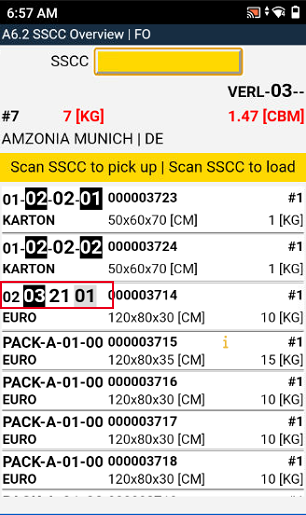
With this release we introduce the new MDE page A6.2 SSCC Overview. It shows the contents of an SSCC that is part of a loading process. When the loader has selected a load process and pressed Enter or clicked it again, the system displays the SSCC Overview. This is the loader's primary processing screen.
A6.2 SSCC Overview - Items 64209 and 64212 {#overview}
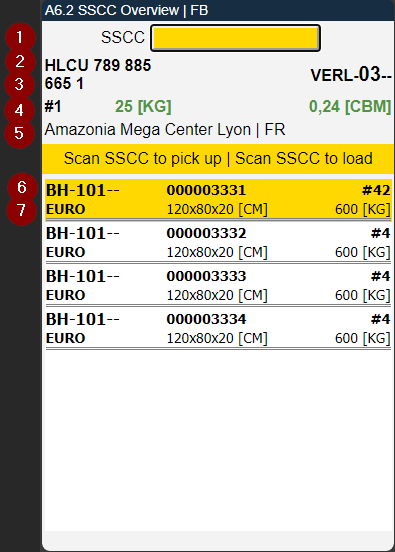
- Scanfield for SSCC no.
- Left: If filled: Load Carrier no. If no Load Carrier no is present, this field contains the trucks license plate | Right: Storage Place
- Rest of 2. left
- Left: No. of loaded SSCCs in the Load Carrier | Middle: Weight of loaded SSCCs in the Load Carrier | Right: Volume of loaded SSCCs in the Load Carrier
- Warehouse Shipment Keyword
- Left: Storage Place of SSCC | Middle: SSCC no. | Right: No. of items in SSCC
- Inventory measure code | Middle: Dimensions | Right: Weight
::: Note In the most recent release 18 we added the new fields Max./Standard Value Weight and Max./Standard Value Volume to the shipment process page. These fields, if filled, are relevant for the weight and volume fields in A6.1 SSCC Overview. If these values are exceeded, the display on the MDE reacts by coloring the weight or volume red. :::
A6.2 Functions - Item 64210
A6.2 works very much like other similar pages like A5.2. This is the list of the basic functions:
- The loader can open the menu with Ctrl+m or P1
- To pick up an SSCC, any SSCC from the loading process can be scanned
- If an SSCC or a barcode that does not belong to the loader is scanned, a red feedback message "SSCC does not belong to the loader" appears.
- The loader can load the SSCC with a 2nd scan.
- The SSCC receives the loading process number and the state 8-loaded.
- The SSCC then disappears from A6.2 from the list of SSCCs to be loader.
A6.2m Menu
The page has the following menus:
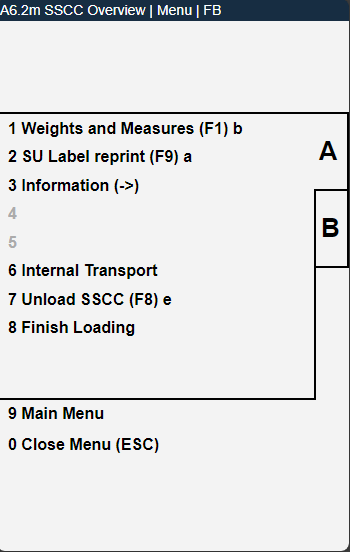
A:
- Weights and Measures
- SU Label reprint
- Information: Use this menu or arrow button right. Opens MDE page A7 load carrier info - Item 64537
- Internal Transport: Opens A2.0 Internal Movements - Item 64540
- Unload SSCC
- Finish Loading: Finishes Loading Process, sets state to 8-Loaded and removes loading process from A6.1. - Item 64542
- Main Menu
- Close Menu
B:
- Change View
- Main Menu
- Close Menu
Weights and Measures - Item 64535 {#weights}
When you have selected a LC, you can look into and change its weights and measures.
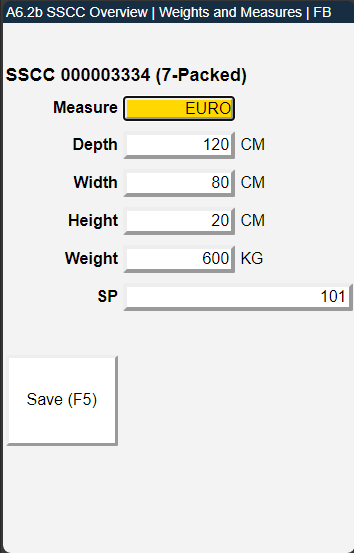
- Measure: Inventory Measure Code
- Depth
- Width
- Height
- Weight
- SP: Storage Place
SU Label reprint - Item 64536 {#reprint}
When you have selected a LC, you can reprint its label with this option.
A6.1i Loading Overview - Items 64538 and 64554
This page shows all relevant information about the current loading process. You can open it with F3.
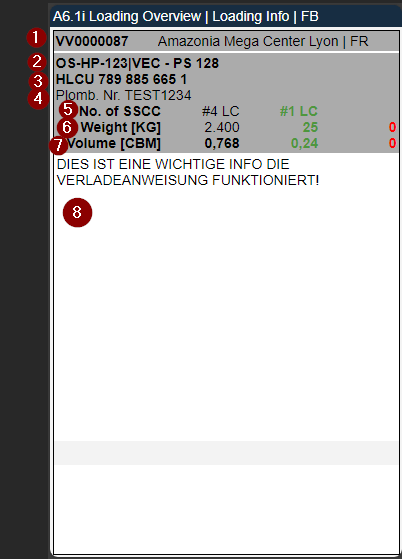
- Left: Shipment No. | Right: Warehouse Shipment Keyword
- License plate front/back
- Load Carrier No.
- Vehicle Text
- Left: Number of open SSCC in this loading process | Right: Already loaded SSCC in this loading process
- Left: Weight of open SSCC | Middle: Weight of already loaded SSCC | Right: Maximum weight
- Left: Volume of open SSCC | Middle: Volume of already loaded SSCC | Right: Maximum volume
- loading instructions
Unload SSCC - Item 64541 {#unload}
There are possible scenarios in which SSCCs that are part of a loading process must be placed back in a storage place. This action is available for this case.
- Click on action or press F8 to start unloading process.
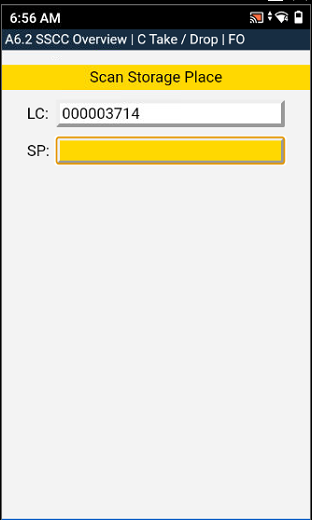
- Scan storage place.
- New storage place on SSCC.
A6.2o Loaded SSCC - Items 64544 and 64557
This page is opened by the action Change View in menu B of A6.1 and A6.2. This page shows the currently loaded SSCC of the selected loading process. These SSCC have been scanned two times in the loading process. A third scan of an SSCC will unload it and change its state from 8-Loaded to 7-Packed.
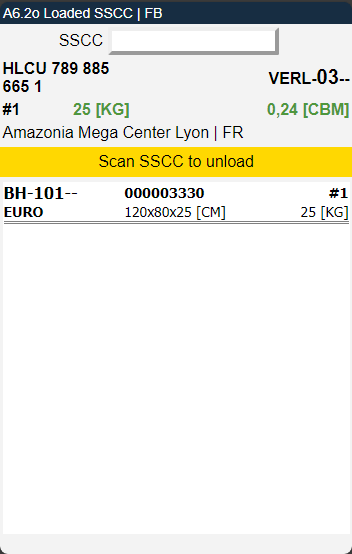
The information on this page is similar to A6.1 Overview.
A6.1 only shows states 2, 3 and 7 - Item 67007
The Loading Process Overview A6.1 now only shows processes with the states 2-Released for Preparation, 3-Released for Loading or 7-Loading Processing.
A6.2: Shipment Status: 2-Released for Preparation is not "Released for Loading" - Item 64211
From now on, shipment processes with the status 2-Released for Preparation will not be able to be loaded - as they should be. They can only be prepared, not loaded.
Other
Warehouse Receipt now uses Inventory Measure Code from Setup - Item 66901
The Warehouse Receipt automatically used 21 as the default inventory measure code in the warehouse receipt for situations where the item does not have a packaging hierarchy. We have changed this. From now on the Inventory Measure Code Default from the SIEVERS WMS Setup is used.
New columns on Item Availability by Location - Items 67064, 67065, 67069, 67070 and 67075
We have added some new custom columns to the standard Item Availability by Location page that is accessible from the warehouse receipt page receipt lines.
We have also renamed the Blocked Inventory Stock column to Blocked Inventory [WMS].
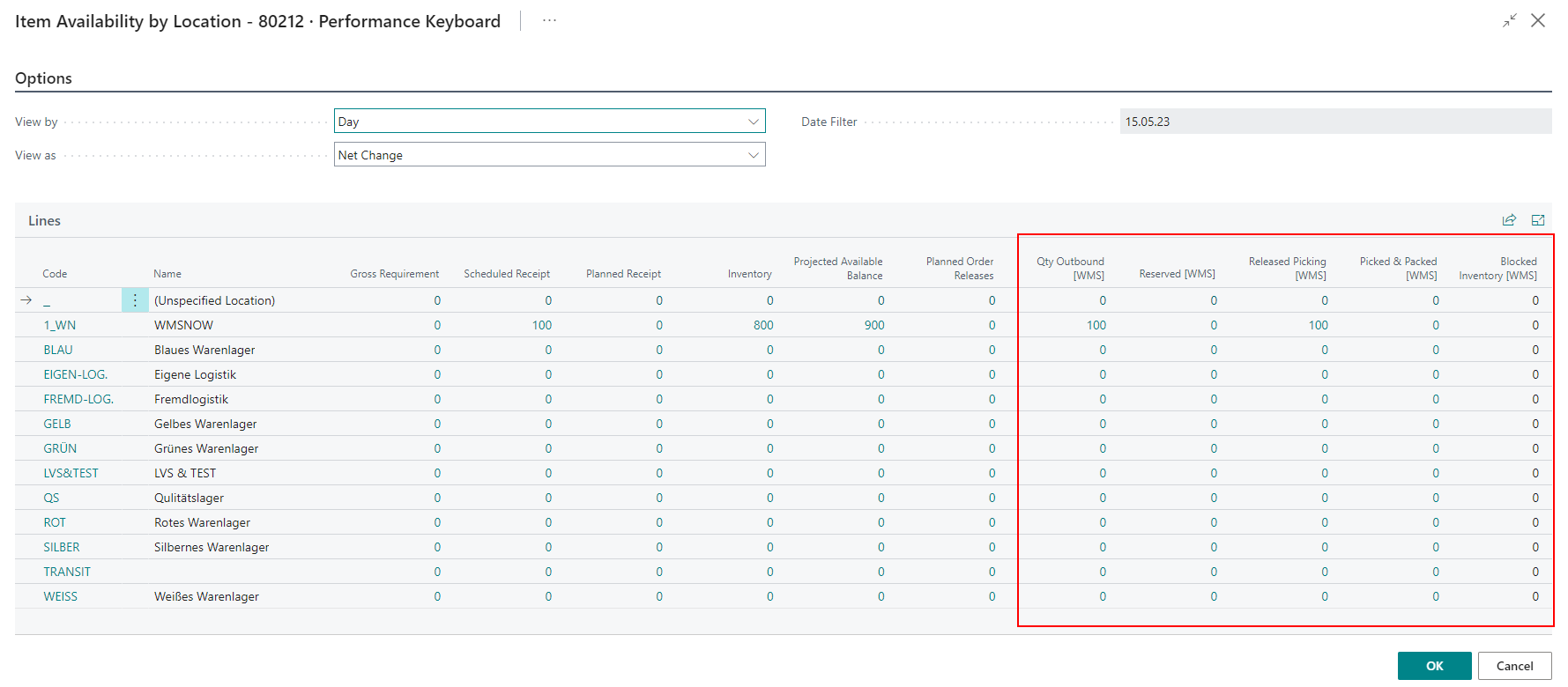
- Qty. Outbound: Quantities that are in a Outbound Stock Post for which no warehouse shipment has yet been posted
- Reserved: Item quantity, which was reserved for picking. The quantity is systemically available for picking, is in open "Outbound Stock Posts" and has the "Picking status" = created
- Released Picking: Item quantity, which was released for picking. The quantity is systemically available for picking, is in open "Outbound Stock Posts" and has the "Picking status" = released or in processing
- Picked & Packed: This adds the quantity of the item that was at least picked. The quantity has been validated / picked in the warehouse, is in an open "Outbound Stock Post" and has the "Load carrier status" = 2-created; 5-pick-processing; 6-packing processing; 7-packed or 8-loaded
::: Note Please note that these new fields are only informational. These states are not getting considered in the Business Central availability. :::
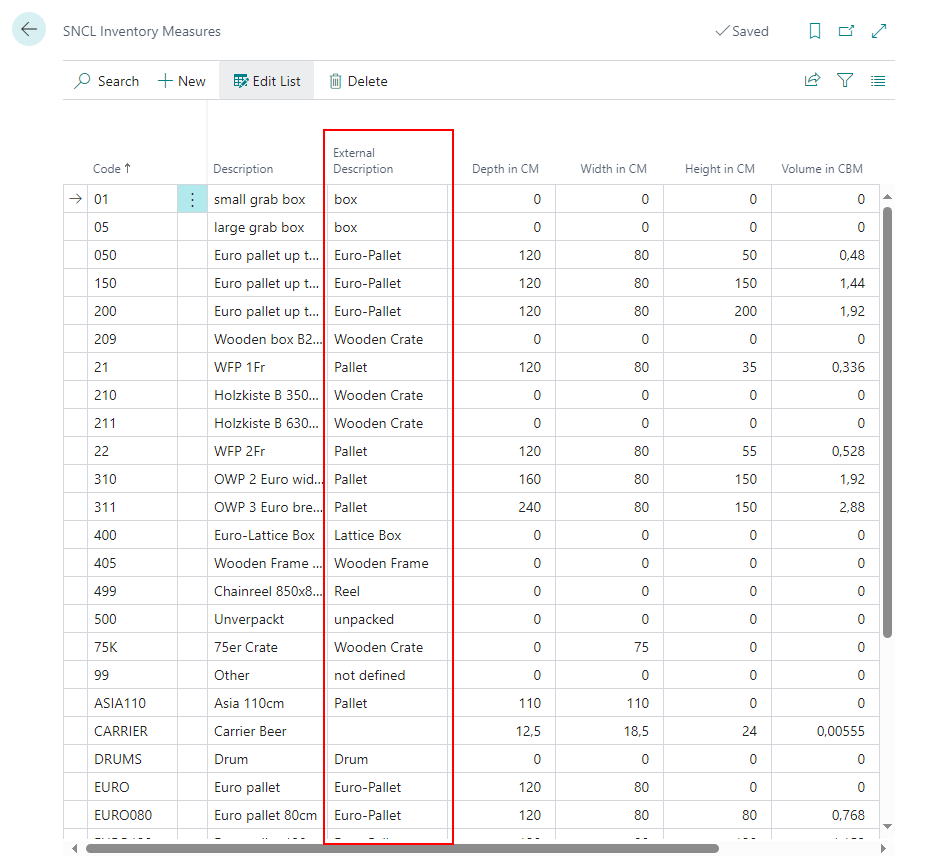
New column on SNCL Inventory Measures - Item 67367
We added the new column External Description. This column is used for general summary descriptions of what the Load Carrier is. This information will be printed on the International Bill of Lading.
Defined default values for column widths in lists - Item 63233
Previously, the column widths in many lists were arbitrarily specified by Business Central and therefore often did not match the content they contained. We have defined suitable default values for the column widths of all lists. However, you can of course still change these.
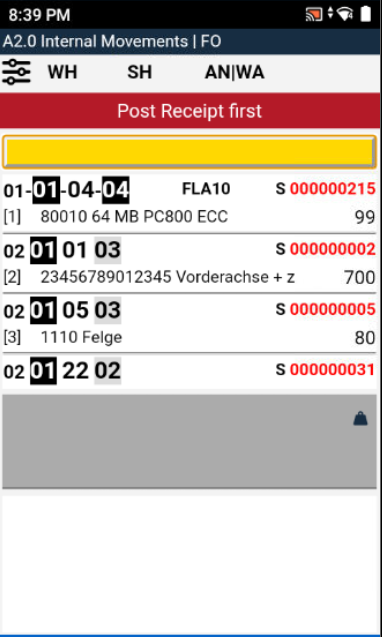
Better feedback in A2 Internal Movements - Item 65811
We have improved the feedback you receive when you try to scan a load carrier in A2 Internal Movements which belongs to an unposted warehouse receipt.
Old Feedback: Popup: "Your action would assign the storage place placeholder as a new destination for the Load Carrier. However, the Load Carrier is already in a placeholder with destination placeholder."
New Feedback: "Post Receipt first."
New fields for Stock Entries report in excel format - Item 65603
We added a few more fields to the Excel report Stock Entries:
- ItemGlobal_Base_Unit_Of_Measure
- CustomerGlobal_No
- CustomerGlobal_Name
- VendorGlobal_No
- VendorGlobal_Name
- ItemGlobal_Outbound Stock Post_Customer_No
::: Note Please note that these fields are only available in the Excel report. :::
Bugfixes
Inventory not deletable anymore - Item 67708
We have fixed an issue where it was possible to delete inventory from the Load Carrier card.
Scrolling through packaging processes 1 PTU > SSCC led to incorrect packaging headers - Item 64334
When scrolling through the packing processes 1 PTU > SSCC, you might have encountered a wrong packing process header. We have fixed this issue. Unfortunately fixing this was only possible in 1 PTU > SSCC. On page 2 Item > SSCC and page 3 SSCC > PTU we had to disable scrolling through the documents.
'Counted' checkbox set to false after deleting Cycle Counting List - Item 64882
We have fixed an issue where the 'Counted' checkbox in a stocktaking line would remain on 'true' even after deleting the corresponding Cycle Counting List.
Warehouse Receipt: Selection of new storage place not possible - Item 62585
We have fixed an issue where selecting a new storage place was not possible in the warehouse receipt. When you deleted a storage place and left the warehouse receipt afterwards you were not able to enter a new storage place any more.
Change of Inventory Measure Code not possible in Warehouse Receipt - Item 65291
We have fixed an issue where the system displays an error that the occupancy matrix is not set up when you try to change an inventory measure code in a warehouse receipt.
Wrong volume on the loading list - Item 66942
We have solved a small rounding error that led to an incorrect volume on the loading list.
Incrementing Quantity Label printed on Amazon Label - Item 66782
We have fixed an issue where the number in the Quantity Label Printed field would not be incremented when printing the Amazon label. Fixing this also implies that there is a query from now on when you try to reprint a label.
Wrong weight entered when creating new inventory in warehouse receipt - Item 67186
We have fixed an issue where the system did not calculate the weight based on the smallest unit of measure from the packaging hierarchy, but just took the first weight from the list. This caused the new inventory to have wrong weight and quantity.
A6.1 showing wrong SSCC numbers - Item 67006
We have fixed an issue where the A6.1 page on the MDE showed the wrong values for SSCCs in loading.
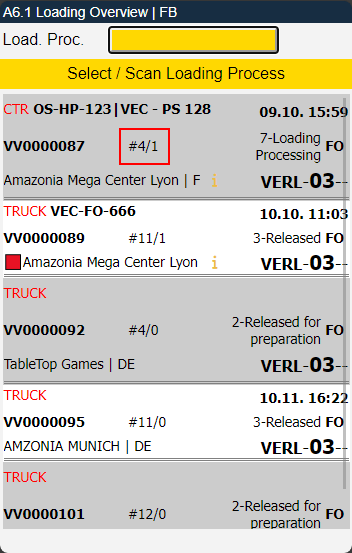
These values are now Number of open SSCC and Number of loaded SSCC.
Minor bugs and spelling mistakes
We fixed a few more minor bugs and spelling mistakes:
- Spelling mistakes: Item 67601
- Correction of Error message in Cycle Counting list: Item 67185
- Improved Error message when the user did not enter a storage place at PTU or SSCC document: Item 65814
- Fixed missing Base Unit in printed Loading List - Item 66941
- Changed feedback text color from black to white - Item 68440