Hinweis: Diese Release Info ist nur in Englisch verfügbar.
Features
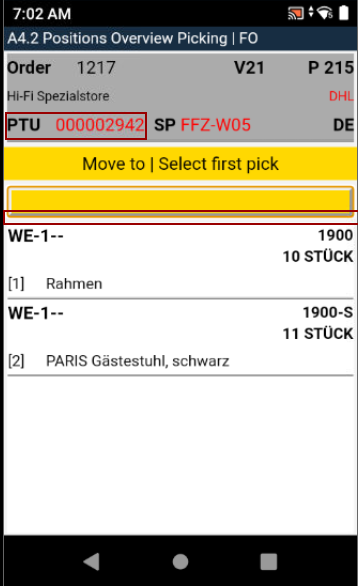
Using SU as PTU/N SSCC in order picking
Currently, an SU cannot continue to be used as a "Picked load carrier". A new load carrier must always be created with a blank barcode.
In order to retrieve full pallets more quickly in the future, picking in the mobile dialog (A4.2 and A4.3) has been expanded. Full pallets can now be retrieved with fewer steps, and residual pallets are also easier to retrieve.
Key changes are:
- The picker can now open A4.3 from A4.2 by selecting a pick line without creating a PTU.
- If the quantity on the SU corresponds to the pick quantity of the pick position, the SU can be converted into a PTU / SSCC with a second scan.
- The Load Carrier will be assigned to a warehouse shipment
- A packaging process will be created
Process:
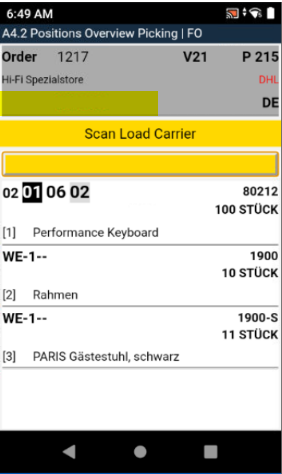
- The order picker selects an order via the A4.1 order picking overview.
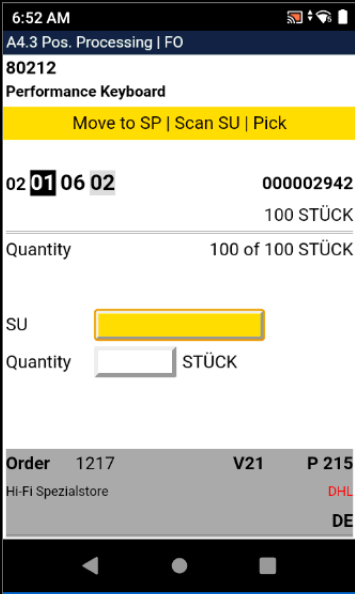
- The picker selects an item in A4.2 Item overview and goes directly to A4.3 Item processing.
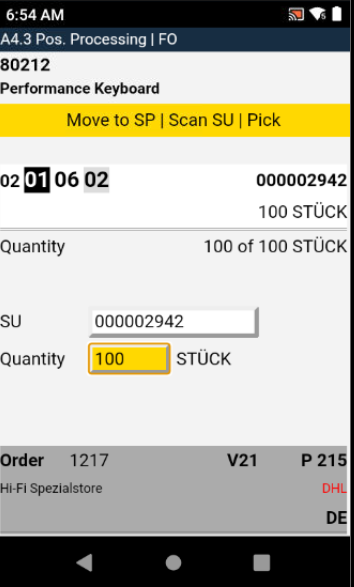
- Now the picker scans the SU and thus validates that he picks the correct pallet. Since the pick quantity matches the current SU quantity 1:1, the correct quantity is suggested directly.
- The picker confirms the quantity after a check.
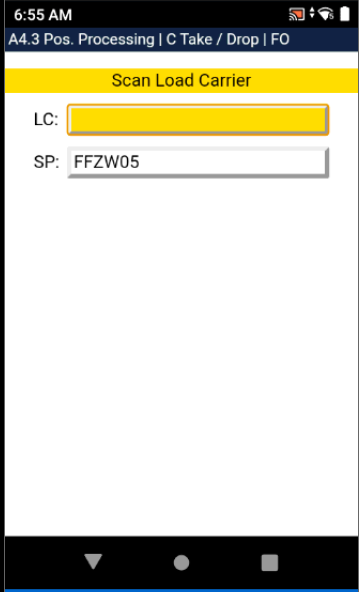
- Since the quantity on the SU corresponds to the pick quantity of the pick item, it can now be converted to a PTU with a second scan.
- The picker then enters the dimensions, weights and inventory measure via the menu. Once this is done, an SSCC is created.
- Steps 2-5 are repeated until picking is complete.
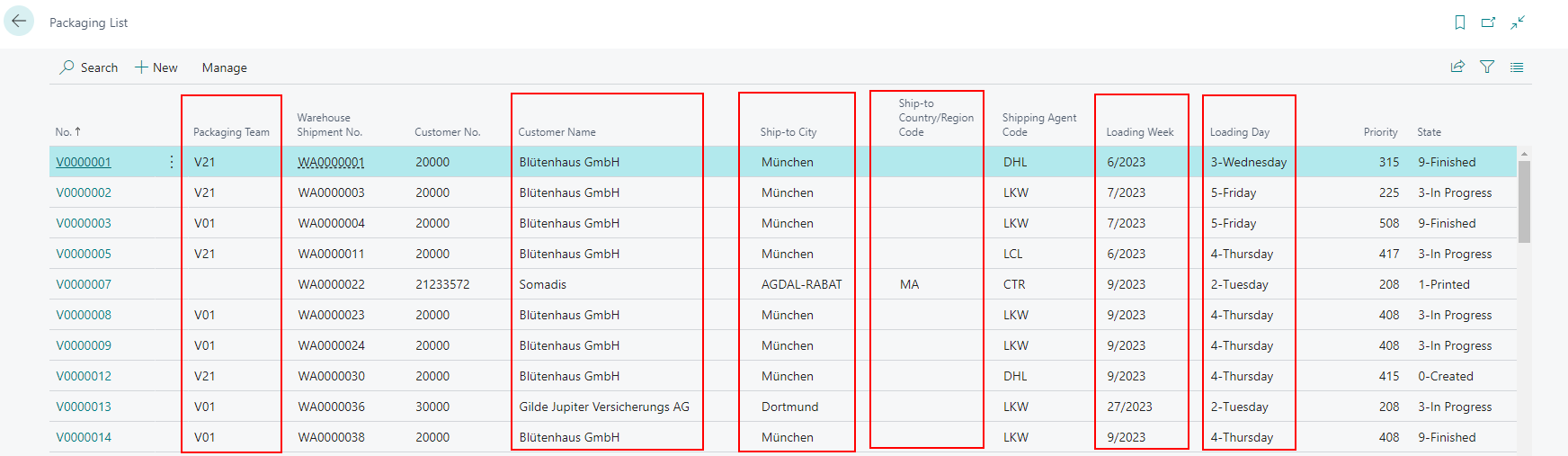
Added some more columns to the Packaging list
We added the following columns to the page Packaging List:
- Packaging Team
- Customer Name
- Ship-to City
- Ship-to Country/Region Code
- Loading Week
- Loading Day
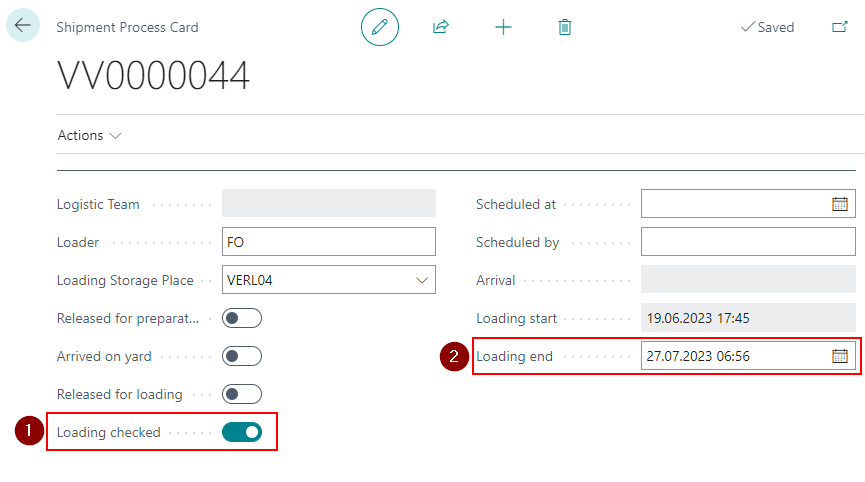
Shipment Process: Automatic setting of loading end after check
If the Loading checked flag is set, the loading end will be filled automatically if it has not yet been filled via mobile loading. If the field is already filled, nothing will be changed or entered.
Shipment Process: Show Shipping Agent Code from Warehouse Shipment Planning
If the Shipping Agent Code is changed in Warehouse Shipment Planning, it is also changed in the associated packaging processes and displayed on the mobile device.
SNCL Inventory List: Default Table sorting changed
We changed the column arrangement of the SNCL Inventory List table. This is the new default arrangement:
- No.
- Load Carrier Code
- Storage Place Code
- Number of Pieces
- Item No.
- Item Description
- Reserv. Number of Units
- Depos. Number Of Units
- Source No.
- Special Order Sales No.
- Assignment Source No.
- Blocking Code
- Blocked
- Visible to Sale
- Visible to Manufacturing
- Quality Status
- Storage Place Type
- Lot No.
- Serial No.
- Inbound Stock Post Date
- Opening Inventory
- Gross Weight
- Net Weight
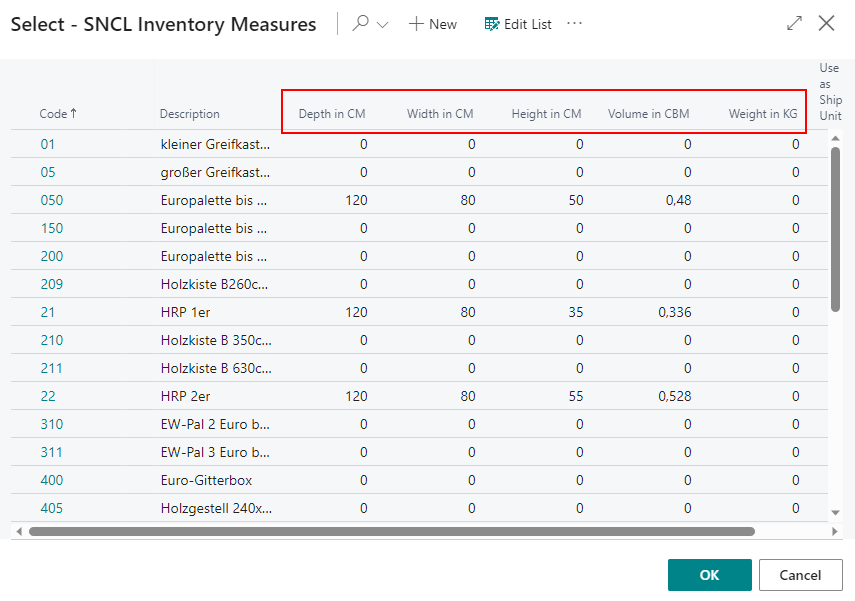
SNCL Inventory Measures: Column headings supplemented by units of measure
We added units of measure to the column headings on the SNCL Inventory Measures-Page.
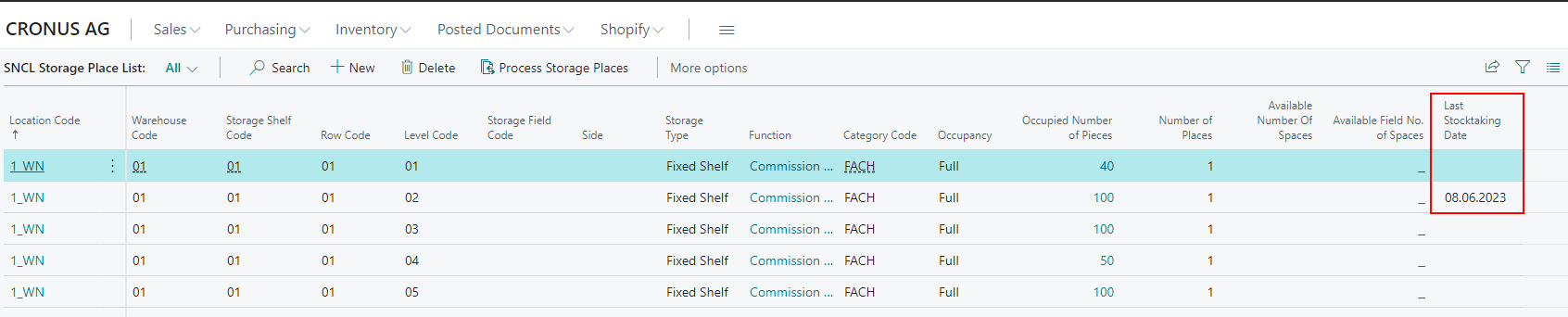
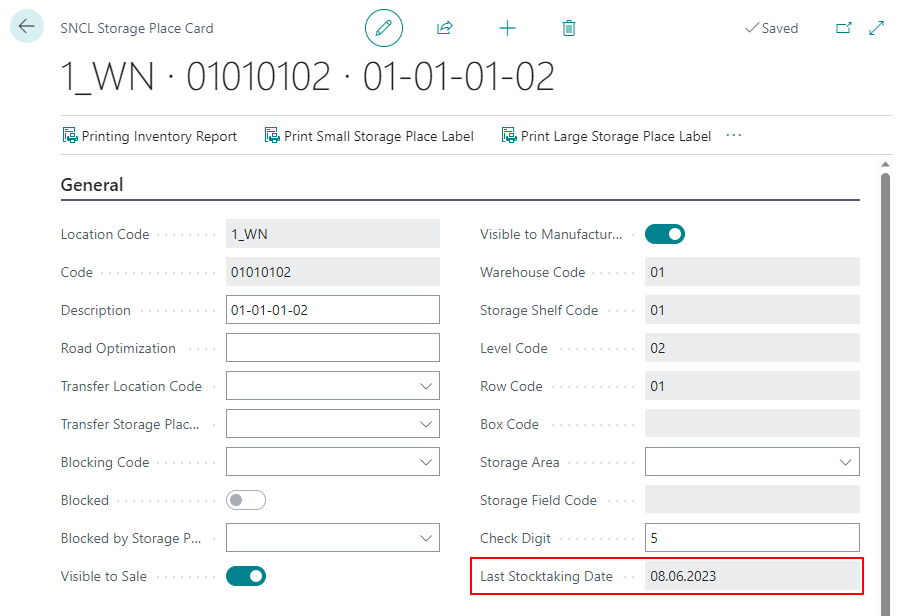
SNCL Storage Place List: Added Last Stocktaking Date
We added a Last Stocktaking Date-field to the Storage Places which gets shown on the Storage Place List as well as the Storage Place Card.
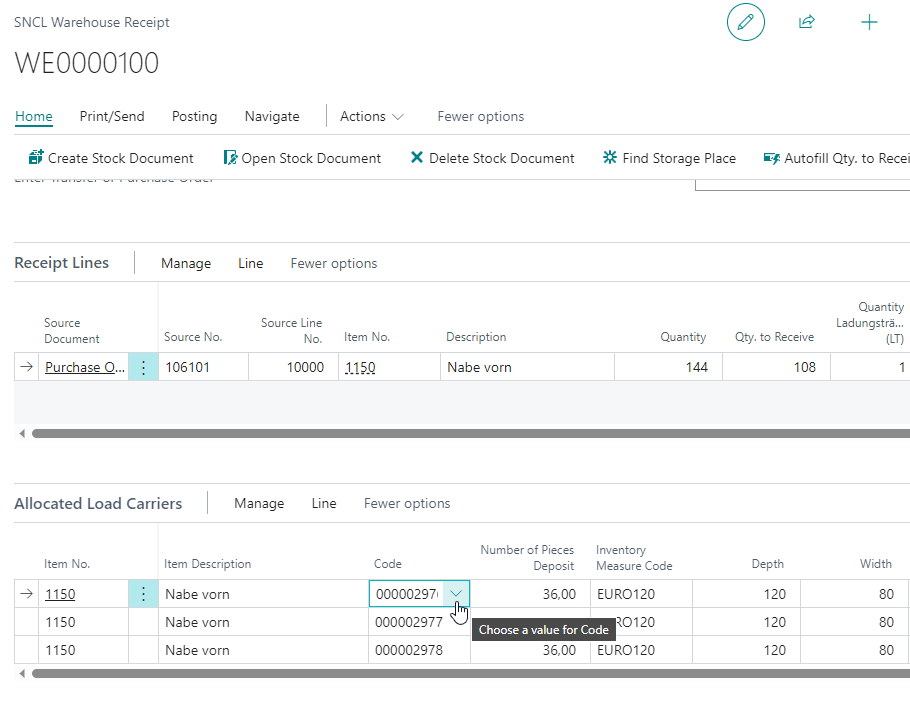
Warehouse Receipt: Adding to existing load carriers now possible
Now you can directly choose specific existing load carriers in the Allocated Load Carriers-list. This allows, for example, opened load carriers to be filled directly.
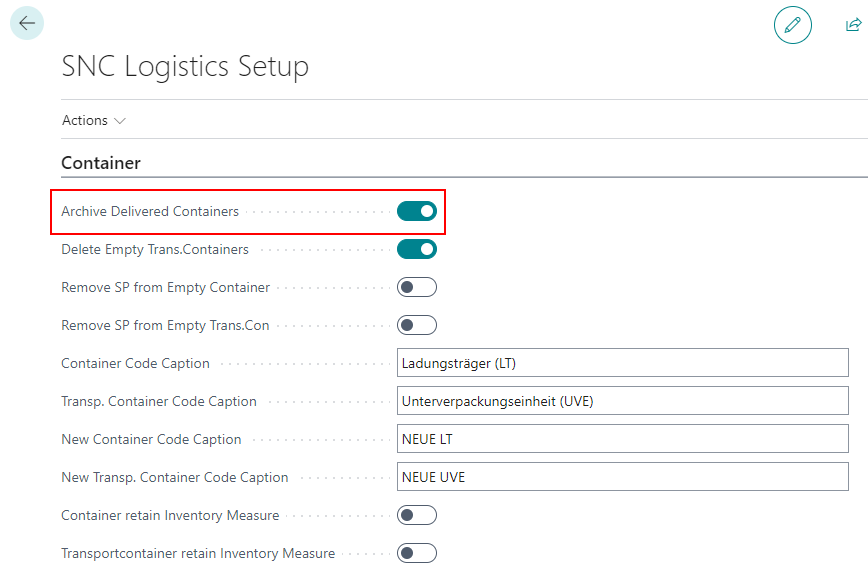
SNC Logistic Setup: Archive Delivered Load Carriers
Previously, there was a function to automatically delete Load Carriers after warehouse shipment. We have found that for reasons of traceability of Load Carrier movements, it makes more sense if empty Load Carriers should only be archived. For this reason, we have replaced the delete function in SNC Logistics Setup with an archive function.
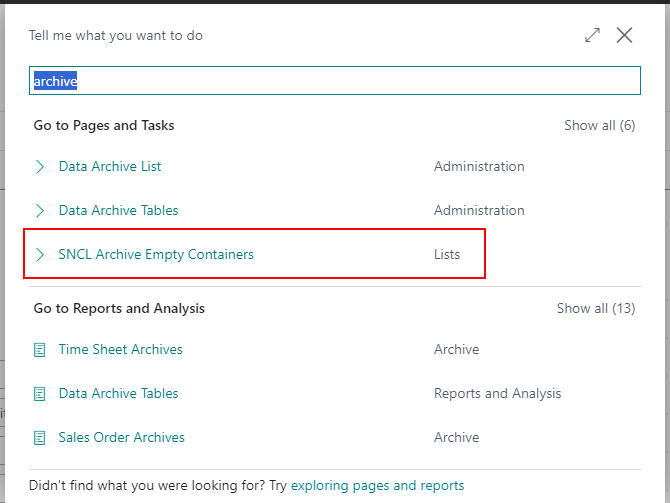
::: Note Please note that you should run SNC Archive Empty Load Carriers manually after activating the Archive Delivered Load Carriers function, especially if there are existing Outbound Stock Post lines for Load Carriers in which the field dislocated is set. Otherwise incorrect storage place occupancies can occure.
 :::
:::
You can find the archived Load Carriers on the page Posted Load Carriers.
Beginning of GS1 Label Integration in Warehouse Receipts
With the last sprint we started to integrate GS1 labels into SNC Logistics 2.0. The first process we integrated it in was the warehouse receipt. The following sections describe the functionality we have already implemented.
::: Note The setup of this functionality requires a lot of Business Central knowledge. Do not hesitate to contact SIEVERS-GROUP if you need support. :::
New fields in the Company Information
We added a few fields to the Company Information Page in the tab section SNC Trace that are needed for the GS1 Label integration setup.
- GLN
- Base GLN
- Base GLN Length
- Extension Digit: This digit is the first digit of the SSCC on GS1 barcodes. If this field is empty, the system always takes 3 as the default extension digit.
New Setup "SNCL GS1-SSCC Setup"
We created the new setup page SNCL GS1-SSCC. From here you can start setting up the GS1 barcode identification.
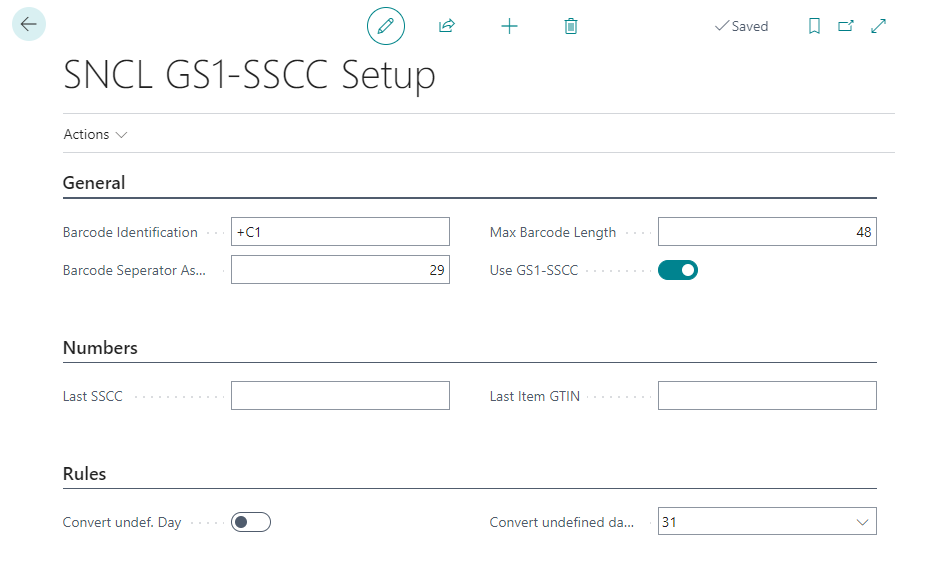
Actions
Setup
- EAN128 Identifiers: Opens the SNCL GS1-SSCC Identifiers page(yes, we will change that button label soon)
- Customer/Vendor Identifier: Opens the list Customer/Vendor Identifier
- EAN Identifier Field Assigning: Opens the list SNCL GS1-SSCC Identifier-Field-Assign(we will also change this button label soon)
- ISO Codes: Opens a page where you can define ISO Codes for countries
Functions
- XMLport EAN Identifier Import: Import or export an XML file that contains a list of all identifiers defined on the page SNCL GS1-SSCC Identifiers
- XMLport ISO Codes Import Export: Import or export an XML file that contains ISO Codes for countries
- Import/Export Field Assignments: Import or export an XML file that contains the field assignments defined on the page SNCL GS1-SSCC Identifier-Field-Assign
General
- Barcode Identification:
- Barcode Seperator Ascii-Value: Defines the Ascii-value which separates the barcode parts from each other
- Max Barcode Length: Defines the maximum barcode length SNC Logistics should accept
- Use GS1-SSCC: Clicking this button activates the GS1 barcode identification
Numbers
- Last SSCC
- Last Item GTIN
Rules
- Convert undef. Day
- Convert undefined day to
Custom/Vendor Identifier
In this list you can define the specific identifiers your customers and vendors use in the GS1 barcodes. The combinations defined here will be mandatory fields in the warehouse receipt or warehouse shipment. If no specific customer or vendor is inserted in the line, this setup line will be used for all vendors and customers except the ones defined here.
- Source Type: Either both (empty field), customer or vendor
- Source No.: Insert a customer or vendor number here
- Source Name: Name of the customer or vendor
- Identifier: Insert an identifier number here
- Identifier Description: Description of the identifier
The identifiers are defined on the SNCL GS1-SSCC Identifiers-list
SNCL GS1-SSCC Identifiers
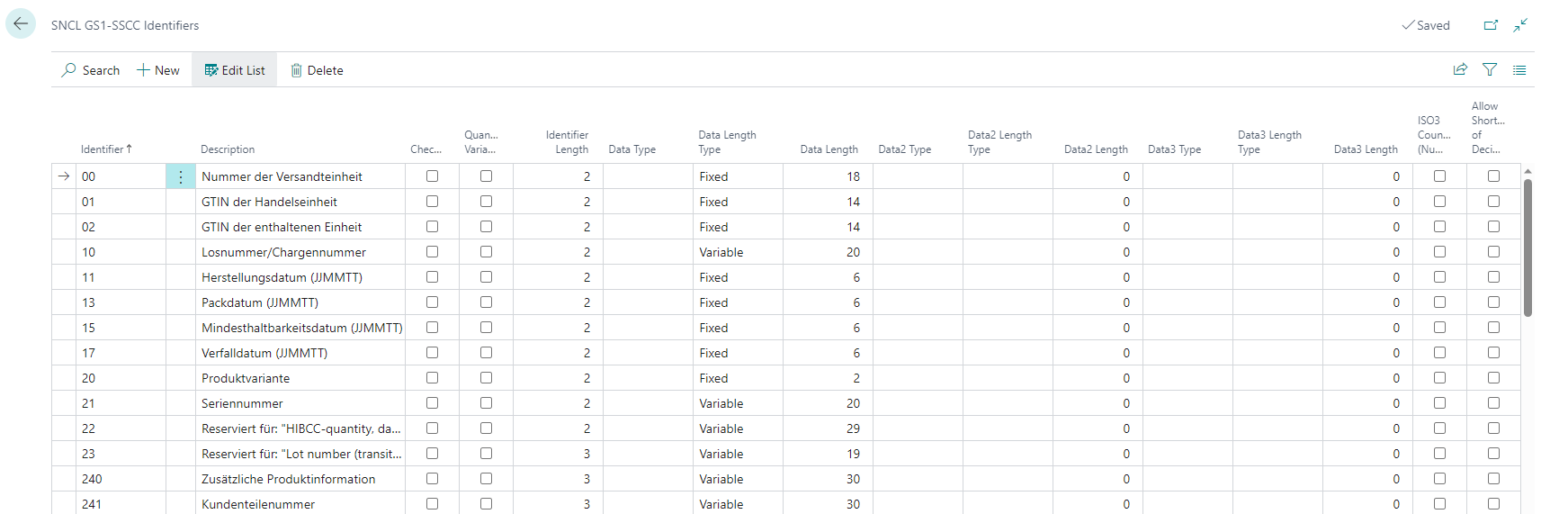
Use this list to define GS1 SSCC identifiers.
- Identifier: Defines the identifier number
- Description: Describes the identifier
- Checkdigit:
- Quanitity-Variable:
- Identifier Length:
- Data/2/3 Type:
- Data/2/3 Length Type: Fixed or Variable
- Data/2/3 Length:
- ISO3 Country Code (Number): Insert a ISO3 Country Code if this identifier is country-specific
- Allow Shortening of Decimal:
SNCL GS1-SSCC Identifier-Field-Assign
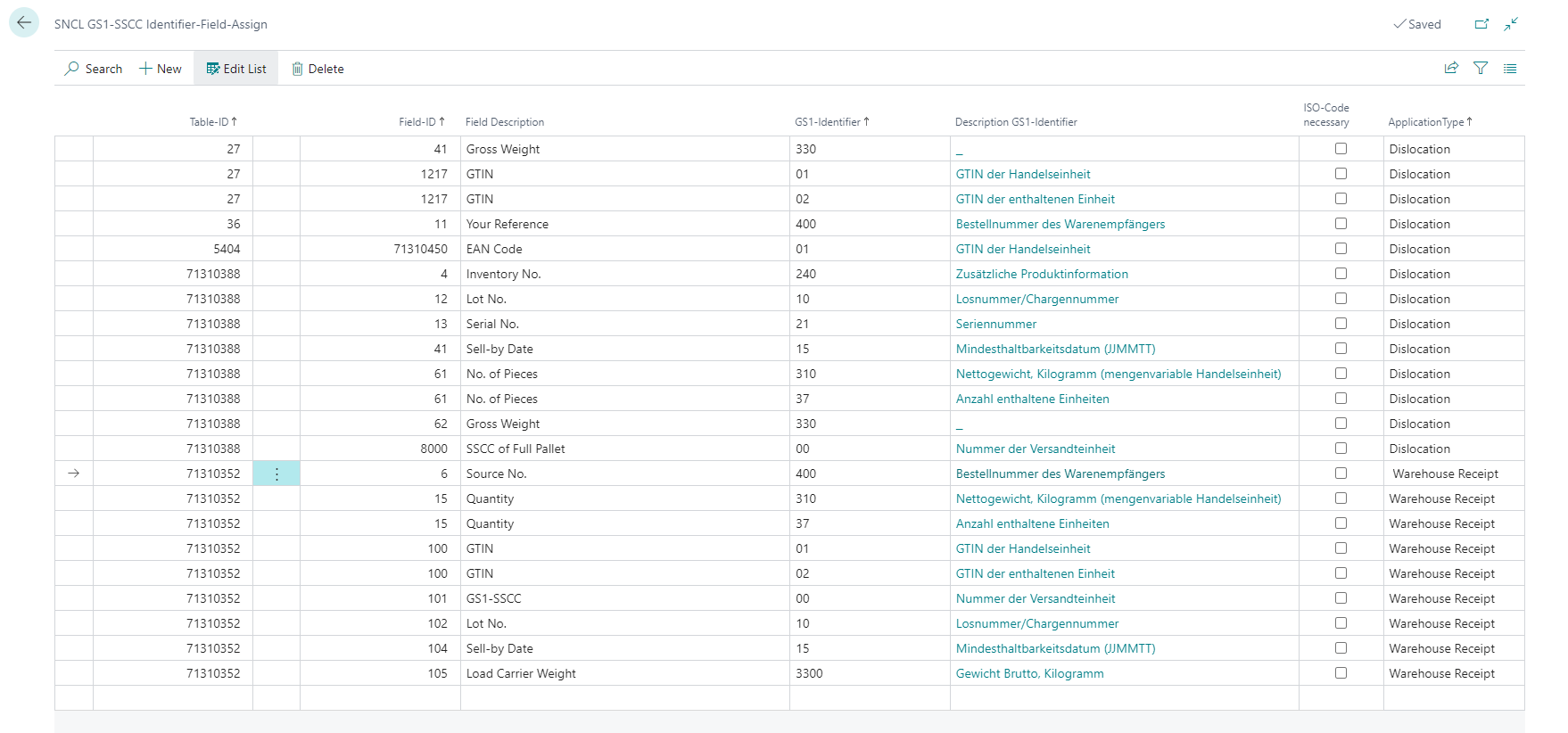
This page is used to map GS1 Identifier and SNC Logistics fields to each other. This means that you can define which identifier from the page SNCL GS1-SSCC Identifiers should be used for which field in the warehouse receipt or warehouse shipment process.
- Table-ID: Insert the table-ID you want the field-ID from
- Field-ID: Insert the field-ID
- Field Description: Describes the field
- GS1-Identifier: Insert one of the identifiers defined in SNCL GS1-SSCC Identifiers
- Description GS1-Identifier: Describes the identifier
- ISO-Code necessary: Activate this option if this field-identifier combination is country-specific
- ApplicationType: Choose between Inbound Stock Post, Outbound Stock Post and Warehouse Receipt
Process changes in the warehouse receipt
The first use case we implemented the GS1 identification in is the warehouse receipt. This section describes the changes in the process if you use the GS1 identification.
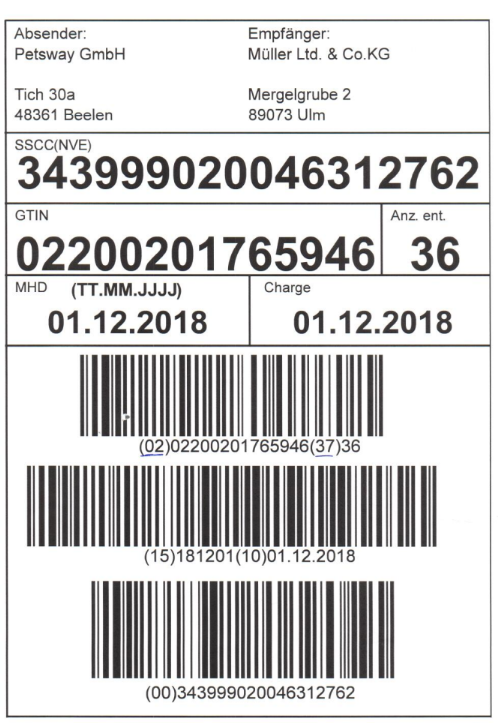
Instead of using Get Source Documents or the Receipt Entry normally in the Warehouse Receipt, you just scan the barcode in the Receipt Entry-field. The system recognizes the specific GS1 barcode and changes its layout.
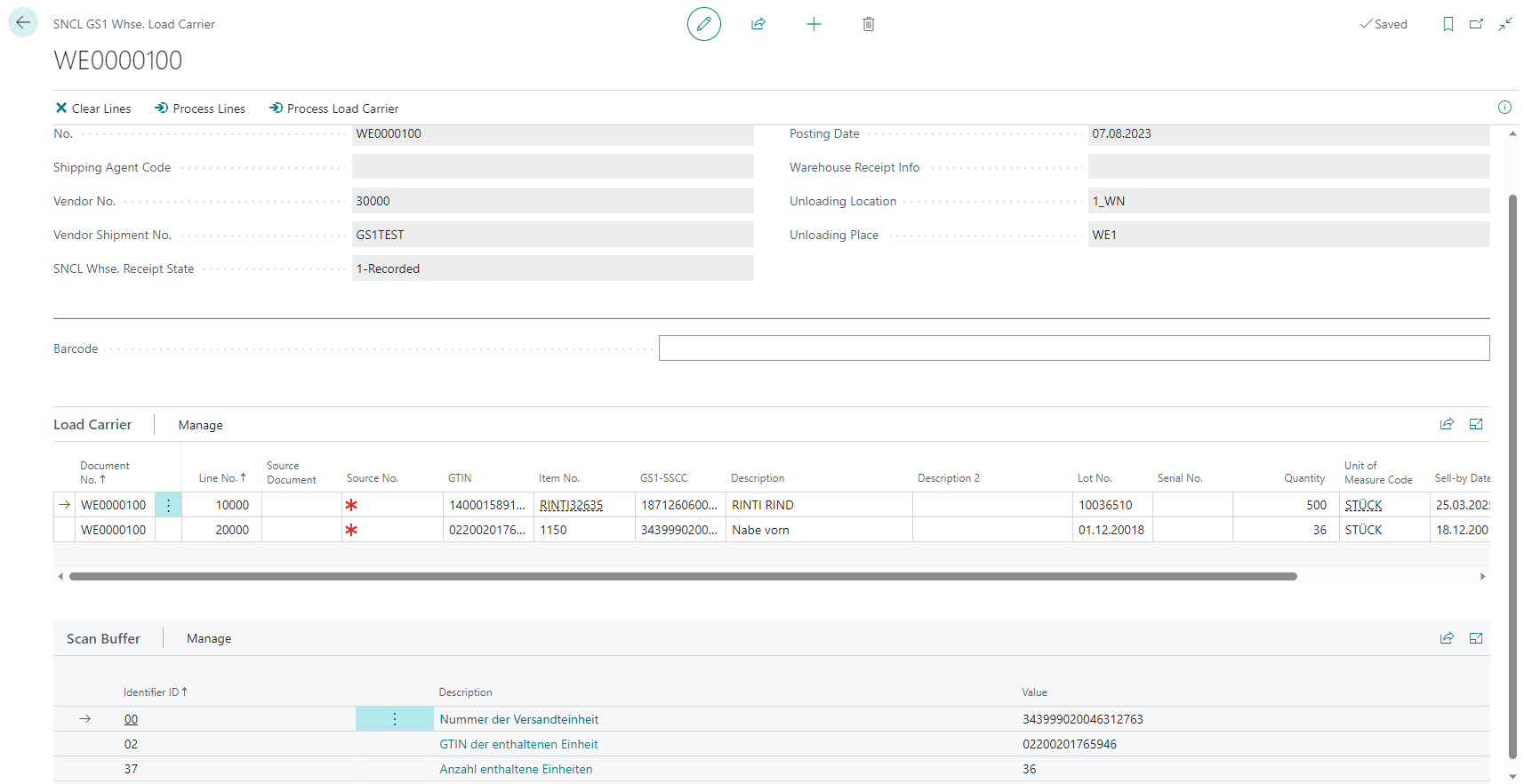
You can see in the screenshot that the system already entered much information from the barcode alone. A lot of the General section has been filled as well as two load carriers in the respective section.
In the Scan Buffer section you can see three identifiers:
- 00 for the SSCC (Nummer der Versandeinheit)
- 02 for the GTIN
- 37 for the amount of received units
This scan buffer shows all identifiers scanned in this process until all mandatory identifier for this warehouse receipt got filled. As soon as the last mandatory field got filled the function Process lines will be started. This means that the lines shown on this page will be transferred to the warehouse receipt.
'Print SSCC Label' on Load Carrier list prints carrier label if a shipping order exists
In release 12, we have already implemented that when printing an SSCC label in the Load Carrier card, the carrier label is printed if a corresponding shipping order exists. We have now also implemented this function in the Load Carrier list.
As several lines/Load Carriers can be selected here, you must ensure that you only select SSCC Load Carriers for which the shipping order no. is filled. Otherwise there will be an error message.
SNCL Stocktaking and Cycle Counting
Every time, a stocktaking process has been initiated a count cycle also get created automatically. After the 1st count, a 2nd count is created for all position stocks that were counted with Deviation > Inventory item. The 2nd count is automatically released to the mobile device for processing. If there are differences > threshold value after the 2nd count => a 3rd count is created but not released for processing. If Inventory Management checks an inventory as counted, it cannot be counted again and will also be removed from the Open Counting List.
As soon as the management marked every line as counted the stocktaking process will be set to Release automatically. Afterwards, the related counting lists and journal will be posted.
Added more states to the state field in the cycle counting
To keep track of more states we added these states to the list:
- Printed
- Released
Automatically set 'Permanent Inventory MDE' when creating a new inventory process on the mobile device
If an stocktaking is created via the warehouse employee in B5.0, the new field Stocktaking type: in the SNCL stocktaking is filled with "permanent stocktaking MDE" and the function "Add inventory items by storage place" is automatically executed with the criteria entered here.
New columns in Cycle Counting list
We added the columns Sell-by Date and Lot No. to the Cycle Counting list.
Change of lot number or serial number in Inbound Stock Post or Outbound Stock Post order forbidden if status is released
If the lot number or serial number is changed directly in the Outbound Stock Post or Inbound Stock Post order line and the order has already been released, the change will be prevented with immediate effect. Before making the change, the status must first be reset. If the Inbound Stock Post or Outbound Stock Post order is released again, the values are also automatically transferred to the item tracking lines.
Archive and restore Load Carriers
In the SNC Logistics Setup you can enable the archiving of delivered Load Carriers. As a result, Load Carriers with status 9 + warehouse shipment number as well as the associated picking documents, packing, loading transactions with status 9 + warehouse shipment number are archived.
If you want to restore an archived Load Carrier you can do so by using the restore Load Carrier function in the posted Load Carrier card.
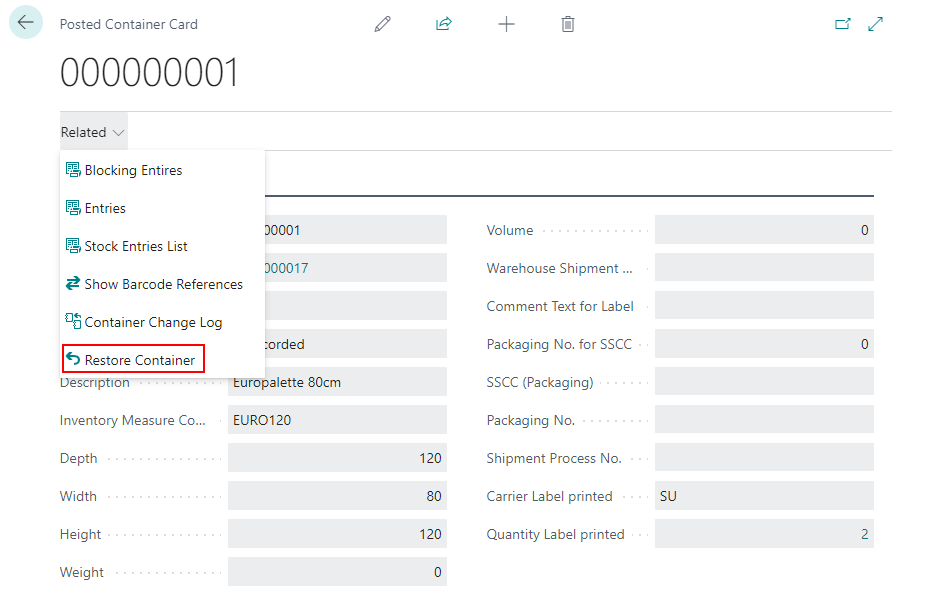
Archived Load Carriers are now being included in the 'Packlist Exportdata'
In the SNC Logistics Setup you can enable the archiving of delivered Load Carriers. These are now included in the Packlist Exportdata that can be printed from posted warehouse shipments.
Weights of the smallest storage unit in item card and packaging hierarchy can now be synchronized
To reduce errors and confusion, we added weight synchronization of the smallest storage unit in the item card and packaging hierarchy. You can start the initial sync from the item card to packaging hierarchy by using the function Update Pack. Hierarchy/Dimension Weight in the item list. This will create the smallest storage unit in the packaging hierarchy by using the Qty. per Units of Measure.
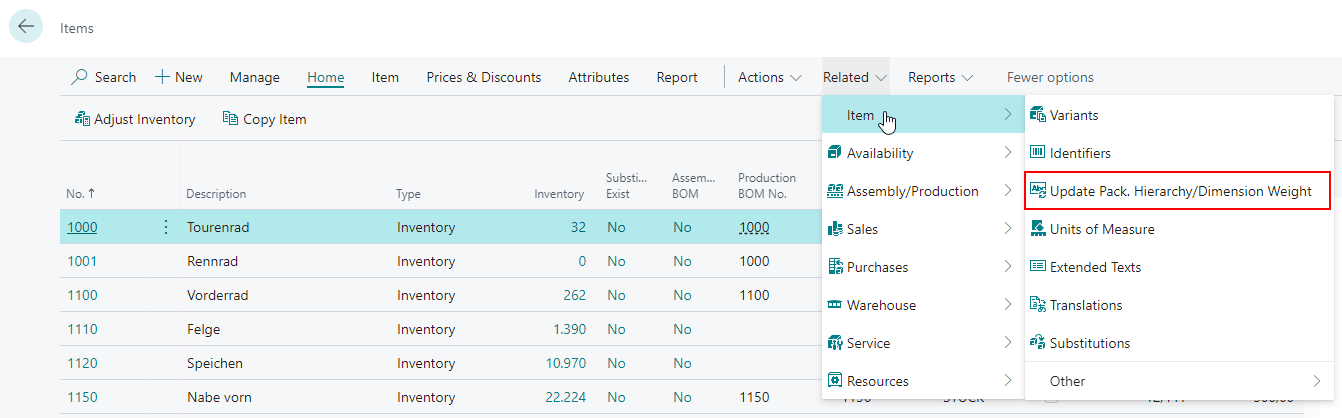
From now on the weights will always be synchronized.
::: Note The weights will not be synchronized if there is already a smallest storage unit in the packaging hierarchy and if it is different from the weights in the item card. :::
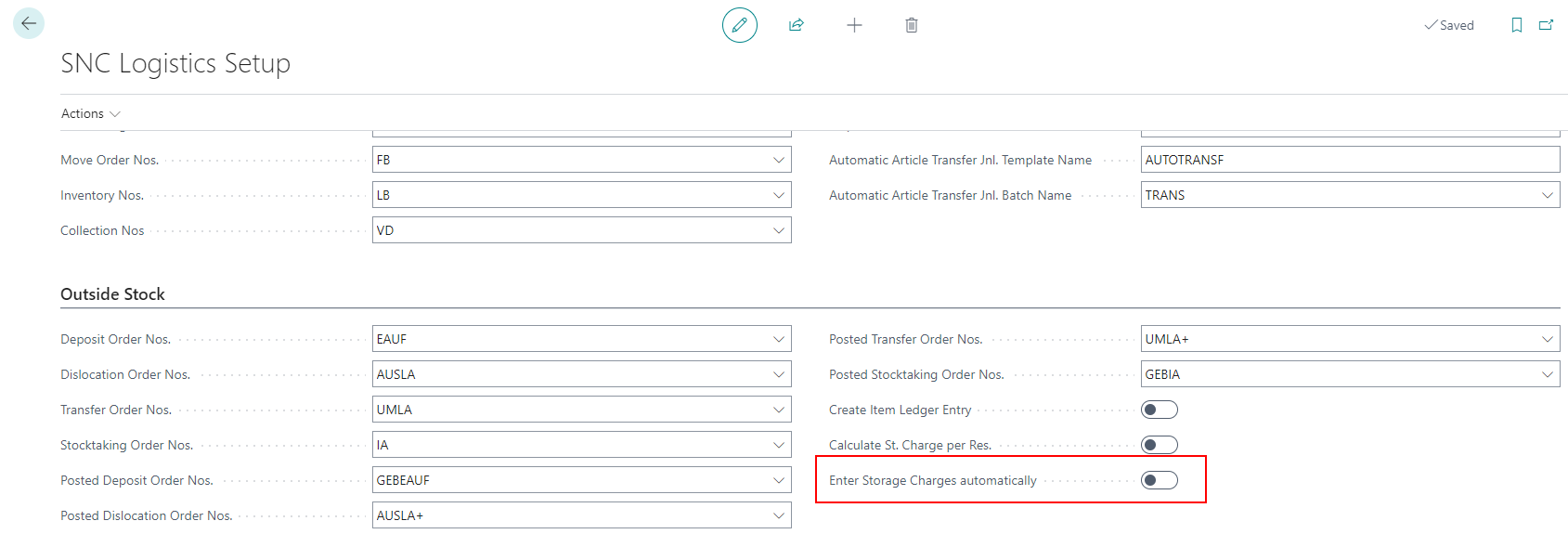
New option to enter storage charges automatically
We have found that warehouse receipt employees can be relieved of the burden of external storage orders by automating resource entry after warehouse receipt entry. All that is required is the Enter storage charges automatically option in the SNC Logistics setup. Afterwards, the resource entry during the warehouse receipt posting is based on the resources stored for the items. This applies to both Inbound Stock Post and Outbound Stock Post orders as well as full and partial postings.
Behavior of loading process in relation to transport orders
Previously, a loading process could not be released if it had associated open transport orders. We have changed this because there are certain situations where this behavior could disrupt the shipping process. These are the changes:
- if the check mark Release for loading or for preparation is pressed or a line is assigned to loading, the existing move order lines will be deleted. This happens according to the following criteria:
- all lines where the "Processed by" field is filled are not deleted
- the move order that has the status Release will not be deleted
- the move order that is a loading move order and where the stored loading operation no. still exists, will not be deleted
- An existing move order cannot stop the shipment from being released.
- A move order is no longer created if the Release for loading and Preparation checkboxes are ticked and if a new SSCC is added to an existing load
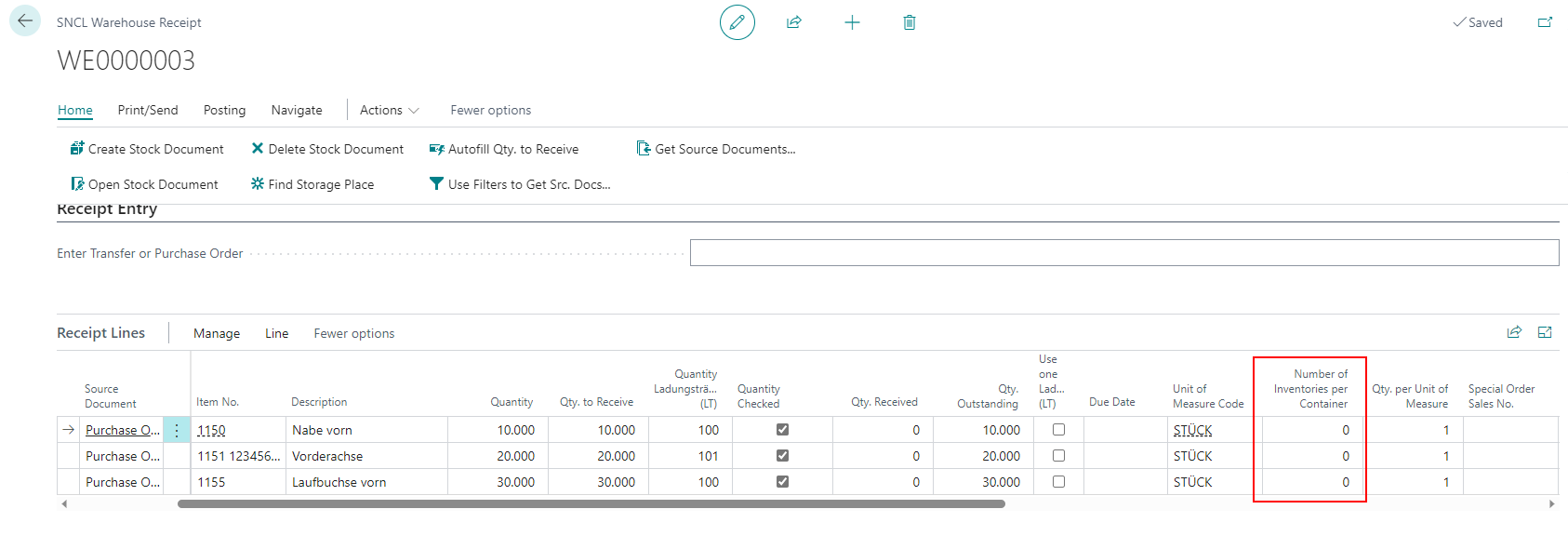
New column 'Number of Inventories per Load Carrier' in SNCL Warehouse Receipt
We have added the new column Number of Inventories per Load Carrier to the Receipt Lines in the Warehouse Receipt. This field is utilized to allow the warehouse receipt employee to influence the inventory items per load carrier.
New columns 'Qty. to Ship' and 'Quantity Shipped'
We have added the columns Qty. to Ship and Quantity Shipped to the Inbound Stock Post order and Outbound Stock Post order lines.
Added functions to B5.2 Stocktaking Storage Places
- Storage places that have not been counted are deleted when the inventory employee leaves an open count.
- This does not apply to storage places that are to be counted a 2nd or 3rd time - these are not deleted.
- If the Mobile User is entered in the count list, no other user may open this list.
- The started counting must be repeated per storage place if the device crashes during this process.
- When all storage places are counted, the status of the count list is set to counted so that it is no longer displayed in B5.1 Inventory overview.
Bugfixes
Load Carrier not able to be moved via move order when related to a posted warehouse shipment
Fixed an issue where you could not move Load Carriers that are related to a posted warehouse shipment.
Removed ability to post a warehouse receipt without shipping agent or customer
It should not be possible to post a warehouse receipt without having a specified shipping agent or customer. However, a logic error in a recent release made this possible. We have fixed this problem.
Select from full list in SNCL Report Selection lead to crash
We fixed a bug that occured when trying to select a report in the SNCL Report Selection by using Select from full list in the Report ID column. This action lead to a client crash.
Error after changing 'number of pieces in Inbound Stock Post' in a warehouse receipt
We fixed an error that occurred if a Load Carrier is deleted after changing the number of pieces in Inbound Stock Post in a warehouse receipt in the load carrier lines.
Notification about empty load carriers in warehouse receipt
Under certain conditions it was possible to have load carriers mistakenly being registered as empty. As a result the user was asked if they wanted to delete them. The problem has been identified and fixed.
Wrong Error Message when printing load carrier label
When trying to print a load carrier label, SNC Logistics incorrectly issued an error message:
Attention! At least one label (labelnumber) already printed. Should labels be printed out again?
This happened due to an incorrect order of internal checks.
Sorting on the loading list accurate again
The sorting of the SSCC on the loading list was wrong. We investigated this and corrected it. Now the loading list is again correctly sorted by storage place, then by SSCC in ascending order, so that the loader approaches a place only once and does not have to search the printed loading list for further positions to specific places.
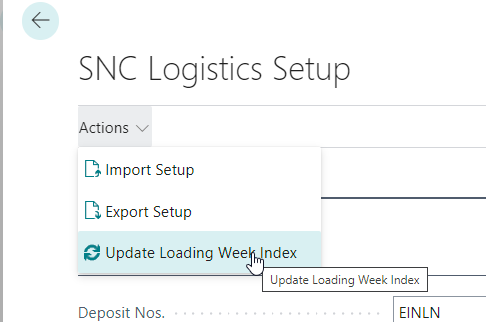
Update Loading Week Index working correctly again
The function Update Loading Week Index in the SNC Logistics Setup should have assigned a sort index to existing picking and packing documents so that they are sorted correctly on mobile devices. Unfortunately, there was a bug that caused the A4.1 Picking List Overview to not include recently released picking documents in the sorting process.
We have fixed this and it should now work correctly.
Warehouse Receipt: Change of inventory measure in the load carrier lines possible again
It was not possible to change the inventory measure code in the load carrier lines of the warehouse receipts. We have fixed this. You can now change the inventory measure code independently of the packaging hierarchy.
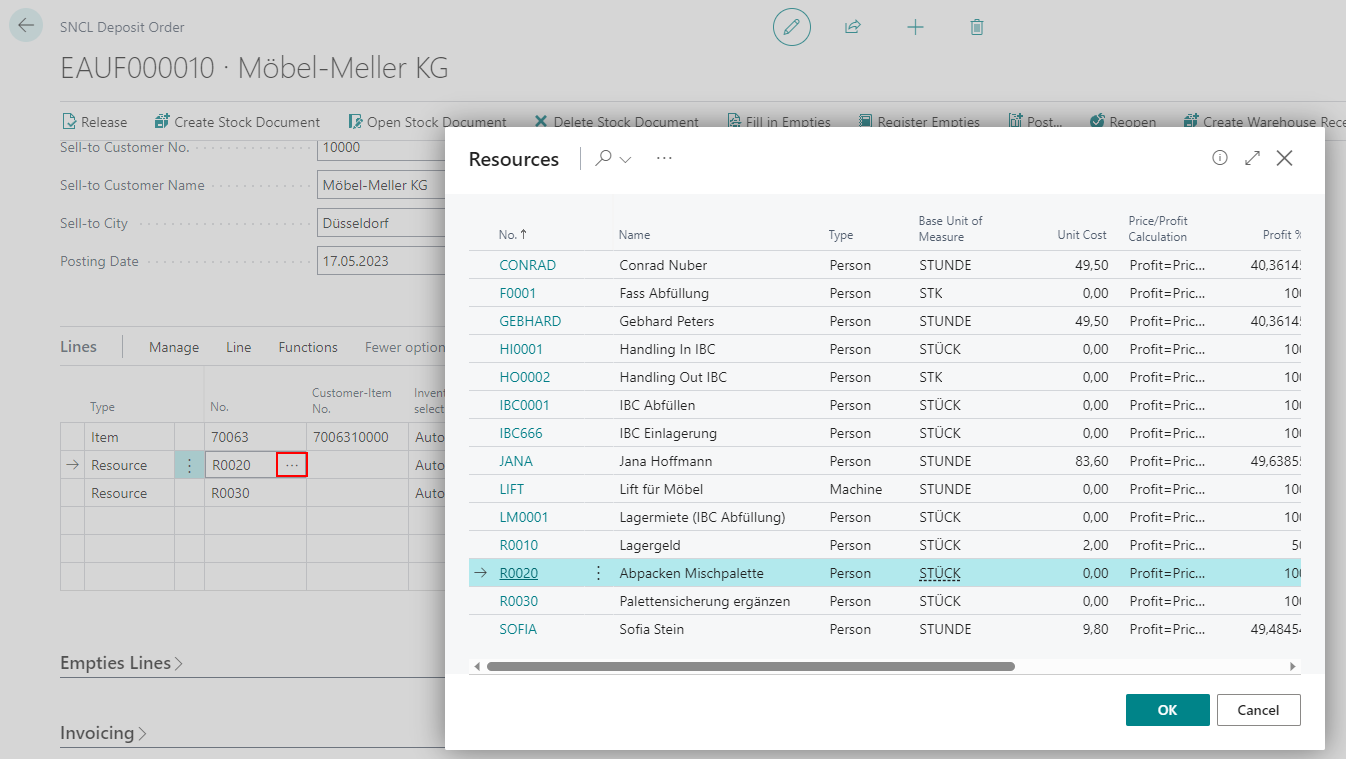
Inbound Stock Post Orders and Outbound Stock Post Orders: Opening the Resources Window is possible again
Our team realized that if you tried to open the resources window from the order lines, you would always get an error. We have fixed this.
Outside Stock: Fixed Post-Recording of Resource expenses
During the subsequent entry of resource expenses after the warehouse receipt of an outside stock, these did not appear on the invoices. Now the subsequent entry of resource expenses works correctly again.
Fixed incorrect table relationships in posted Outbound Stock Post lines
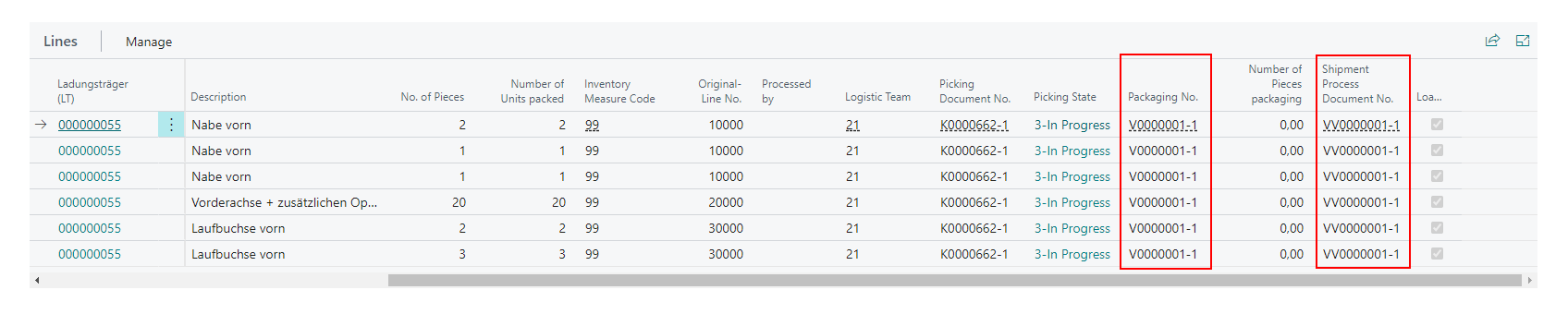
We have noticed that in the lines of the posted Outbound Stock Post, the numbers and links in the columns Packaging No. and Shipment Process Document No. were incorrect. We have corrected those.
Fixed incorrect sorting of the loading list
The sorting of the loading list was wrong. Now it sorts first by storage place and then by SSCC. As a result, the loader only has to approach a place once and does not have to search in the printed loading list.
Incorrect SSCC Weight in Printed Shipment Process List
We have fixed an issue where the weight was not calculated correctly in the printed shipment process list.