Particularities in NAV2009
Installation and Setup Web Service on NAV 2009
If you want to use RTC functions in NAV 2009 that the Classic Client does not have - such as executing reports with RDLC layouts from Classic in order to save them without PDF24 - you must install and set up the web service.
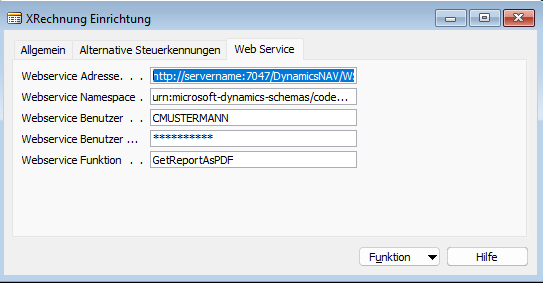
Quick Configuration (Classic Client)
If you are using the Classic Client exclusively:
- Web Service Address: Enter any value (e.g., "classic")
- All other fields can remain empty
Full Configuration (RTC / RDLC Layouts)
For the Role Tailored Client or RDLC layouts without PDF24, the following settings are required:
- Web Service Address: The customer-specific link to the Web Service (see below)
- Web Service Namespace: Fixed value:
urn:microsoft-dynamics-schemas/codeunit/PDF - Web Service User: The user who starts the service for the web service
- Web Service User Password: The password for this user
- Web Service Function: Fixed value:
GetReportAsPDF
You can determine the Web Service Address via the Windows Event Viewer after startup. For example, the Event Viewer shows:
"Microsoft Dynamics NAV Business Web Services are available at http://servername:7047/DynamicsNAVXRechnung/WS/Services."
This address must be supplemented with the company name and /Codeunit/PDF. The complete address in this example could look like this:
http://servername:7047/DynamicsNAVXRechnung/WS/CRONUS%20AG/Codeunit/PDF
Once these fields are filled in, you must then make an entry in table 2000000076 "Web Service".
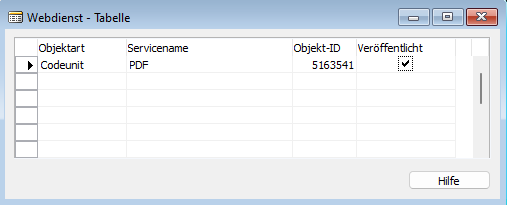
Hinweis
This table entry is only required when using the RTC. In the Classic Client, this step can be skipped.
Terminal Server/Multi-User Configuration
On a terminal server where multiple users work in parallel, using the global PDF configuration for Classic Reports creates the problem that invoices can be mutually overwritten. Different users generating ZUGFeRD files simultaneously may then partially work with the same PDF files, which can lead to data loss and erroneous e-invoices.
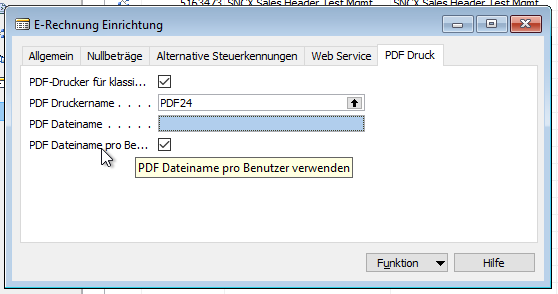
To avoid competing access, the option Use PDF filename per user can be activated in the E-Rechnung setup. This function dynamizes the storage path for printed reports according to the PDF24 multi-user solution.
- Configure E-Rechnung Setup:
- Activate Use PDF filename per user
- The global "PDF filename" field is automatically cleared and disabled
- The PDF filename is now retrieved from the User Setup
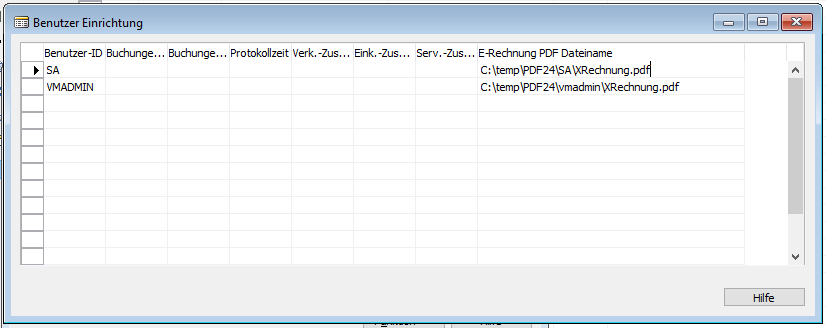
- Configure User Setup:
- Open the User Setup for each user
- Enter a user-specific path in the E-Rechnung PDF Filename field
- Configure PDF24 per user:
- Each user must configure PDF24 individually
- Important: PDF24 configuration must be done per user, not globally by the administrator
- Ensure that each user uses their own directory
- PDF24 settings apply only to the respective user (shown in the configuration dialog)
Mixed operation between global and user-specific configuration is not intended, as this could lead to problems.