Create e-invoices for various documents
E-invoices can be created for various documents:
- Sales order
- Sales invoice
- Sales credit memo
- Sales return order
- Service invoice
- Service credit memo
- Purchase credit memo
The procedure for creating these documents is the same.
Enter a Sales Order as usual, specify the Payment Method Code in the invoice details and release the Sales Order.
Hinweis
If required, you can add Additional Supporting Documents to exports. Please read section Additional Supporting Documents.
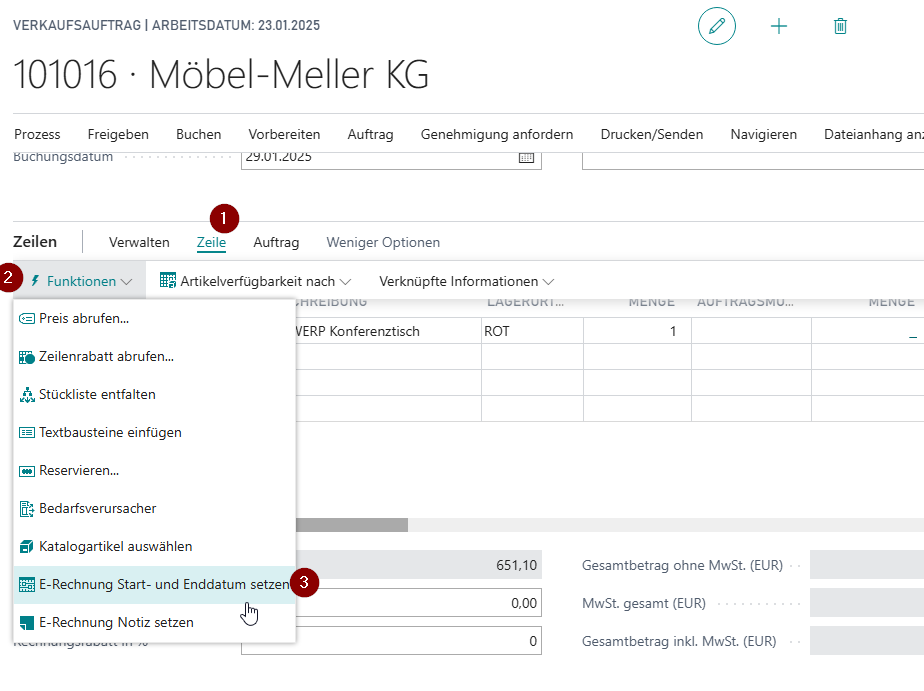
You can enter the start and end date using the line function Set E-Rechnung Start and End Date.
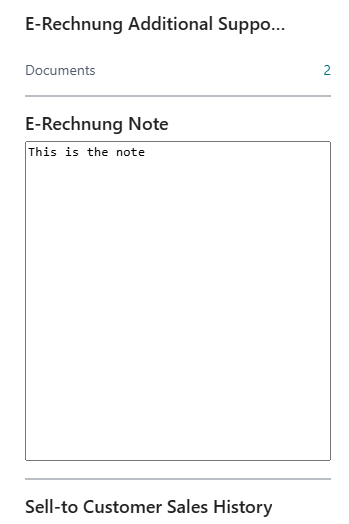
On the right side in the Details area you will find the E-Rechnung Note. Here you can store further information to be written into the XML file. Note that the characters "<", ">" and "&" are not allowed.
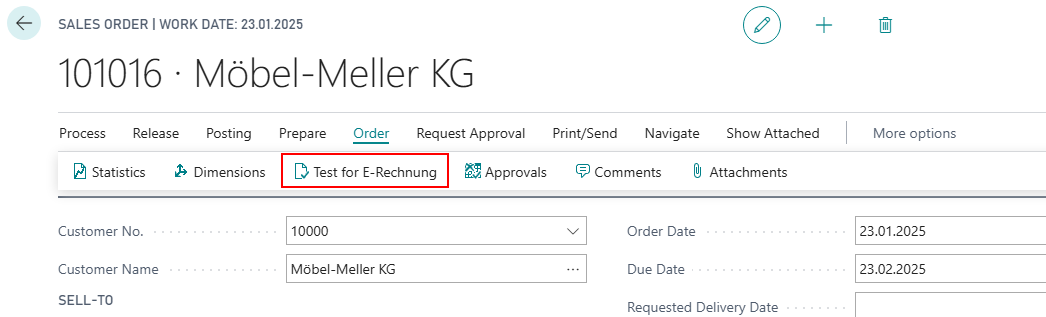
You can execute a Test for E-Rechnung via Order. If mandatory fields are missing a log entry will be generated and displayed after the test. This test is also carried out automatically before each invoice posting.
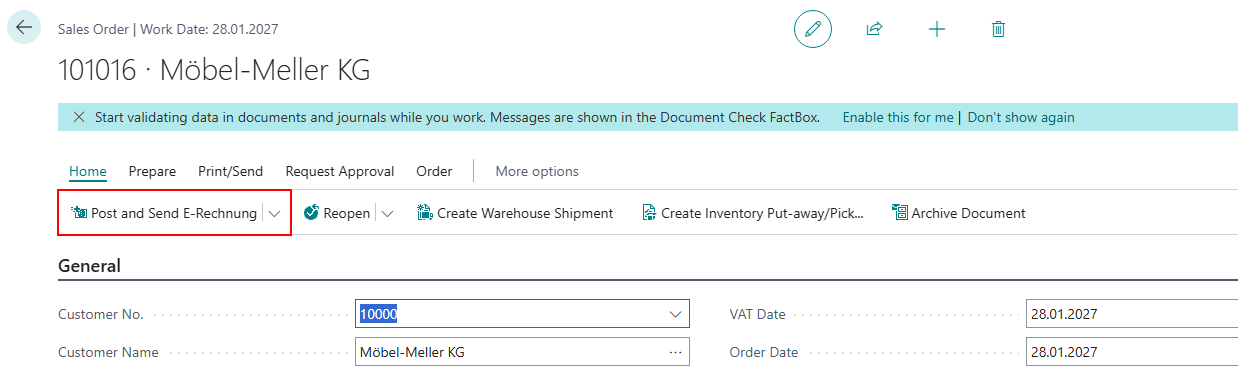
If the test didn't detect any errors you are able to finalize the order. For this purpose SIEVERS E-Rechnung has the feature to Post and send E-Rechnung with which the booking of the document and the sending of an e-mail with the file compliant to the standard E-Rechnung is done in one action.
Hinweis
The Post and send E-Rechnung-Button is only visible, if an e-mail address is deposited in the customer card. If you have not deposited an e-mail address, you can also generate the E-Rechnung via Post.
You can also use this procedure for a sales invoice, credit memo or service invoice or credit memo and generate and send an XML file that conforms to the standard E-Rechnung.
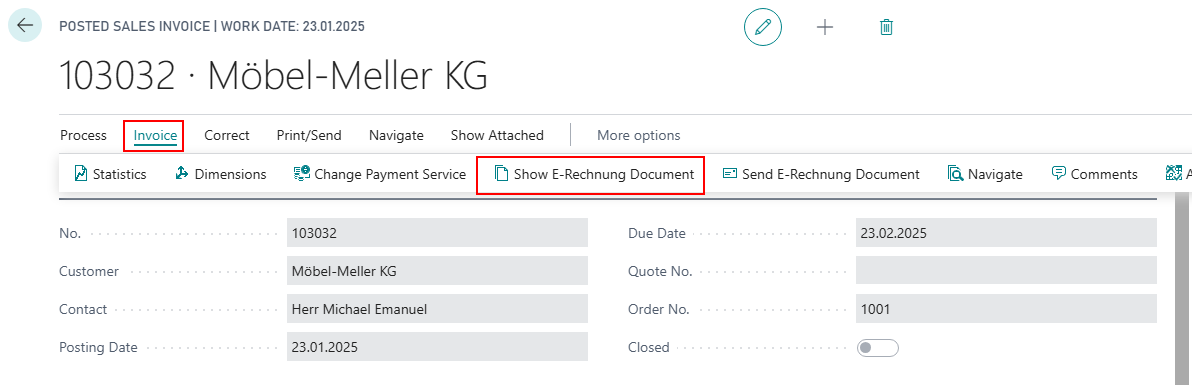
The document for your e-invoice can be displayed in the Invoice or Sales Credit Memo.
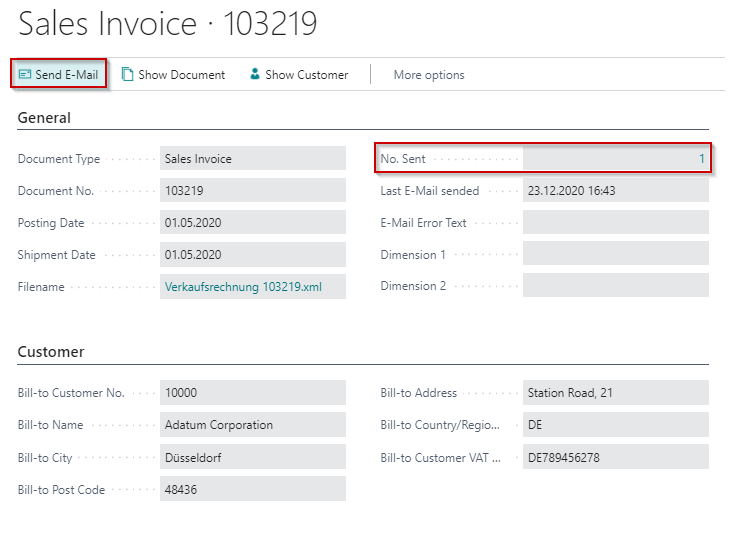
This document contains the necessary information for a digital invoice compliant to the standard e-invoice.
In the field Filename you can find and retrieve the created XML file.
With the action Send E-Mail you can also send the e-mail to the recipient here.
Hinweis
If a document contains a contact email, the e-invoice will be sent to that contact. Otherwise, the regular customer email will be used.
You can access the E-Rechnung sending history via the field E-Rechnung No. sent.